

Cancellation Flows intercepts subscription cancellation requests with a multi-step retention modal. Instead
of immediately processing a cancellation, the system guides the customer through value reminders, collects
their reason for leaving, offers alternatives like pausing or skipping, and presents retention incentives — all
before the cancellation is finalized.
How The Cancellation Flows Works
When a customer clicks Cancel on their subscription in My Account, the cancellation flow modal appears
with up to five steps:
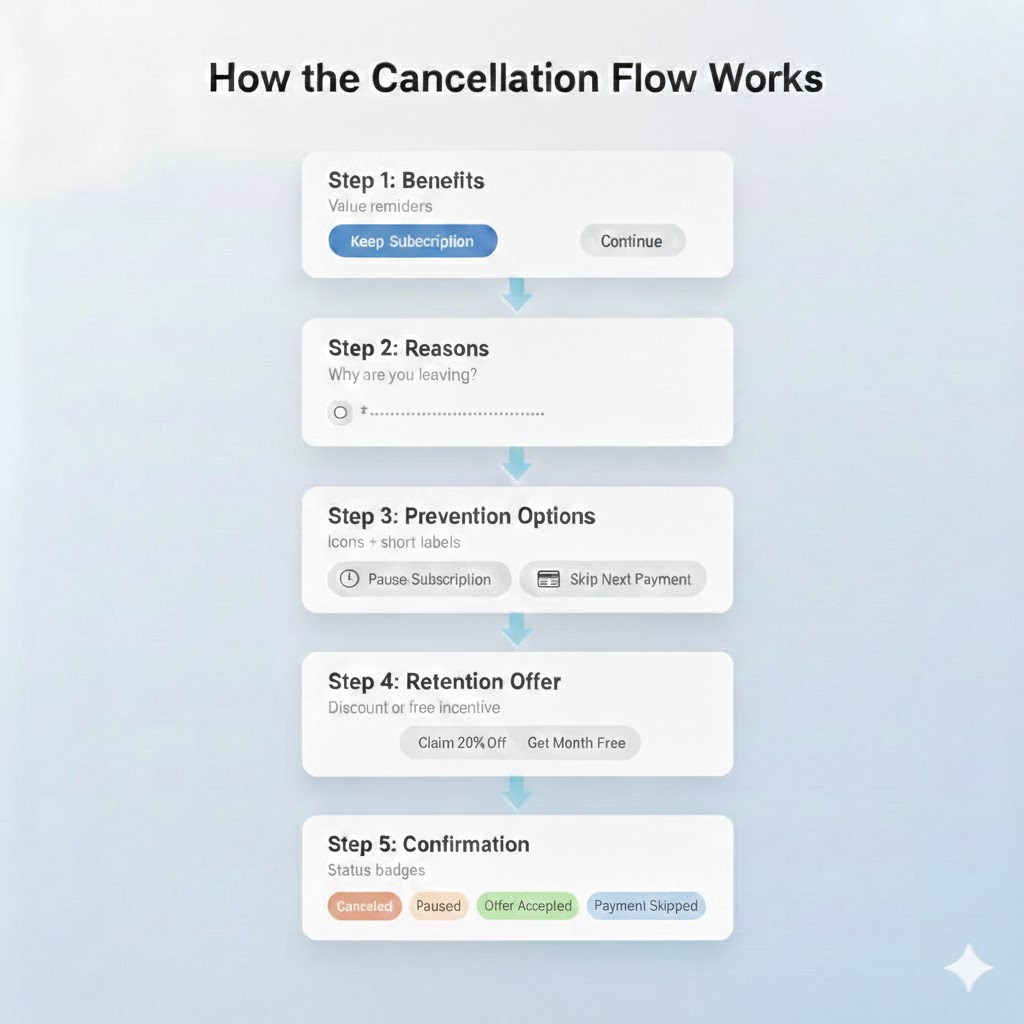
Step 1: Benefits
The first screen reminds the customer of the value they receive from their subscription. You control the
heading, description, and icon displayed. The customer can choose Keep My Subscription to exit the flow,
or Continue Cancelling to proceed.
Step 2: Reasons
The customer selects why they want to cancel from a list of reasons you configure. Each reason can trigger
different prevention options in the next step.
Step 3: Prevention Options
Based on the selected reason, the customer sees alternatives to cancellation:
| Option | What It Does |
| Pause Subscription | Temporarily suspends billing and access |
| Skip Next Payment | Skips one billing cycle while keeping the subscription active |
Prevention option availability depends on the subscription type. Pause is available for all subscriptions. Skip Next Payment is available for simple subscriptions only.
Step 4: Retention Offers
If the customer continues past prevention options, they see a retention offer, a discount, or a free product
incentive to stay. You configure offer types, values, and cool-off periods to prevent repeated offers.
Step 5: Confirmation
A confirmation message appears based on the outcome. There are four confirmation types, each fully
customizable:
| Confirmation Type | Shown When |
| Subscription Cancelled | Customer completes the cancellation |
| Pause Confirmation | Customer chooses to pause the subscription |
| Offer Accepted | Customer accepts a retention offer |
| Skip Next Payment | Customer chooses to skip the next payment |
Customer Outcomes
Every cancellation flow session ends with one of these outcomes:
| Outcome | Description |
| Cancelled | Subscription cancelled (immediately or at end of period) |
| Paused | Subscription paused using a prevention option |
| Skip Payment | Next payment skipped using a prevention option |
| Offer Accepted | Customer accepted a retention offer (discount or free product) |
| Kept | Customer chose to keep their subscription at the benefits step |
Admin Interface
Manage cancellation flows from Sublium Subscriptions > Retain > Cancellation Flows. The admin interface has five tabs:
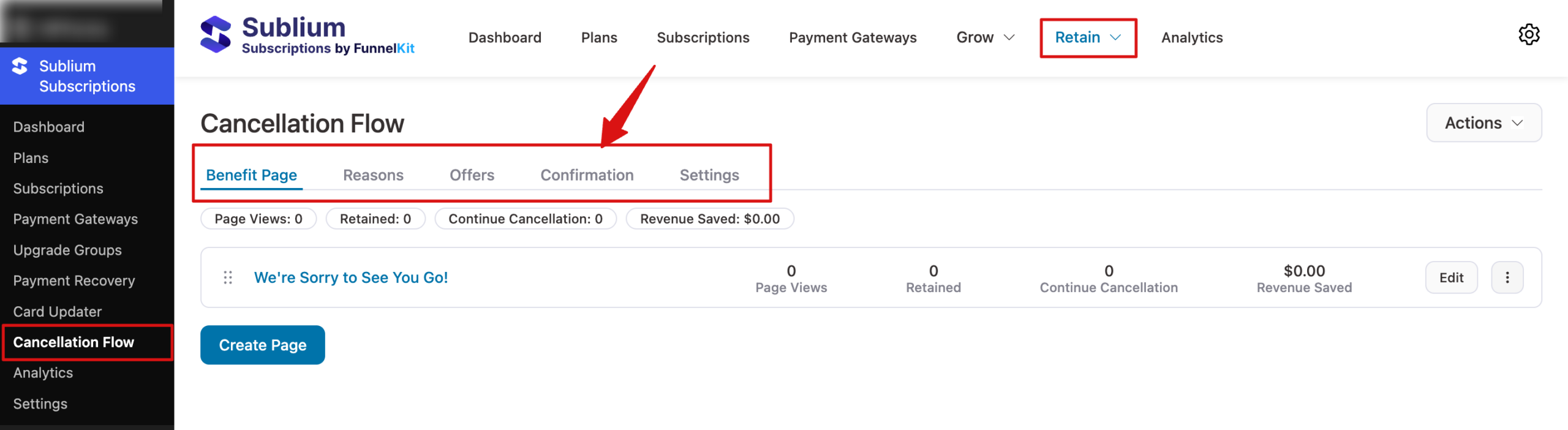
| Tab | Purpose |
| Benefits | Create and manage benefit pages (step 1) |
| Reasons | Configure cancellation reasons and prevention options (steps 2–3) |
| Offers | Create retention offers with cooldown periods (step 4) |
| Confirmations | Customize the four confirmation messages (step 5) |
| Settings | Enable or disable the feature, and customize text labels and visual style |
Each page type supports:
- Create new pages
- Edit content and configuration
- Duplicate for creating variations
- Reorder display sequence (benefits, reasons, offers)
- Archive to remove from flow while preserving data
- Import/Export pages as JSON for migration
Page Status
| Status | Behavior |
| Active | Displayed in the cancellation flow |
| Draft | Saved but not shown to customers |
| Archived | Hidden from the flow but preserved for analytics history |
Analytics
The cancellation flow tracks every customer interaction. Six KPI cards provide an overview of the flow performance:
- Page Views: total impressions across all steps
- Retained: subscriptions saved (kept + paused + skipped + offer accepted)
- Continue Cancellation: customers who proceeded to cancel
- Revenue Saved: dollar value of retained subscriptions
- Prevention Selections: times customers chose pause or skip
- Offer Acceptances: times customers accepted a retention offer
Analytics break down by cancellation reason, device type (desktop, mobile, tablet), and flow step. See Cancellation Flow Analytics for details.
Example: SaaS Subscription ($29/month)
A customer clicks Cancel on their monthly subscription:
1. Benefits step: “Your plan includes unlimited projects, priority support, and team collaboration. You’ll lose access to these features.”
2. Reason step: Customer selects “Too expensive.”
3. Prevention step: Option to pause for 1-3 months
4. Offer step: “Stay with us at 25% off for the next 3 months — $21.75/month instead of $29.”
5. Confirmation: Customer accepts the offer → “Thank you for staying! Your 25% discount has been
Applied.”


