

Sublium provides powerful search, sorting, and filtering tools to help you efficiently manage subscriptions in your WooCommerce store.
These features allow you to quickly locate specific subscriptions, analyze data, and perform bulk actions, saving time and effort.
To get started, navigate to Sublium Subscriptions ⇨ Subscriptions to access all subscription data and apply search, sorting, or filtering options.
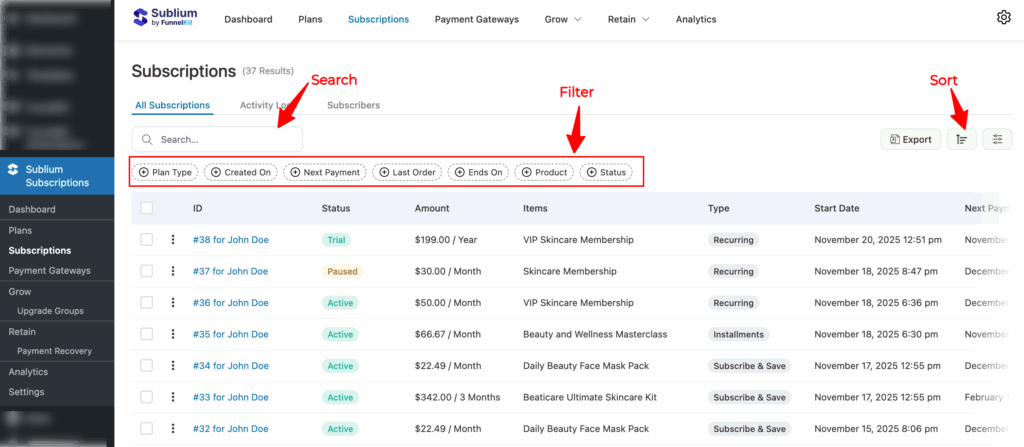
Search Subscriptions
Use the search bar to find subscriptions by entering keywords such as the customer name and email address.
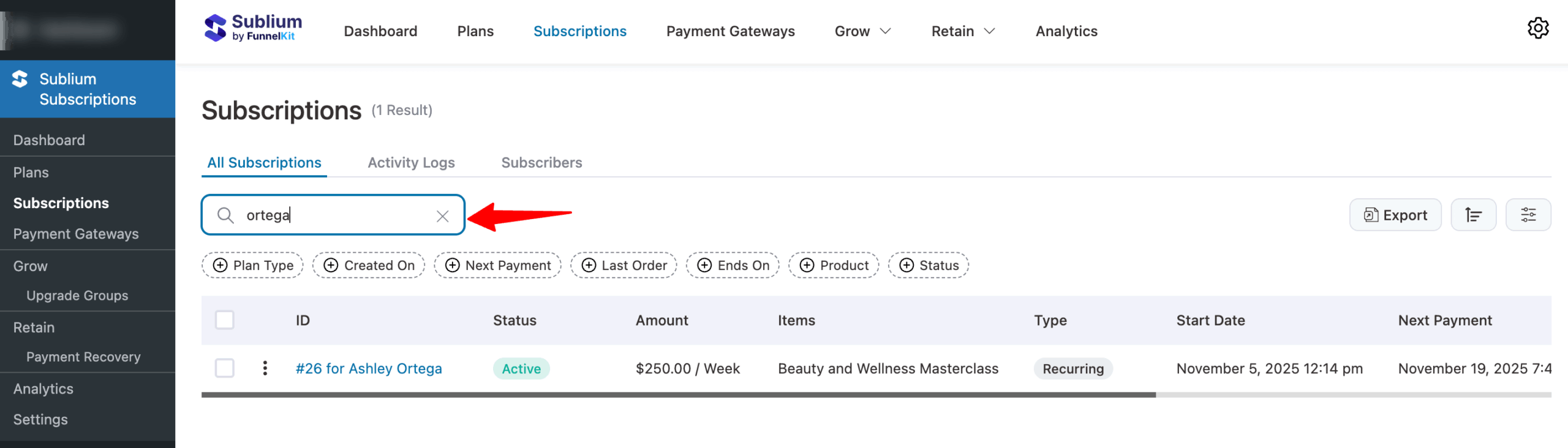
Sort Subscriptions
The Sort function organizes subscription data in ascending or descending order based on selected fields, helping you prioritize subscriptions for specific actions.
Sorting Options:
- Ascending: Orders subscriptions from lowest to highest value in the selected field.
- Descending: Orders subscriptions from highest to lowest value in the selected field.
Fields You Can Sort By:
- Status: Organize subscriptions by their current lifecycle stage. Each status group appears consecutively for easier management.
- Amount: Sort by total revenue generated by each subscription. This helps identify high-value customers for special offers or loyalty programs.
- Start Date: Organize subscriptions by start date to track subscription cohorts and analyze retention trends. Detailed retention metrics are available in Sublium’s analytics section.
- Next Payment: Sort by upcoming payment dates to plan revenue inflows and ensure inventory readiness for renewing subscriptions.
- Last Order: Organize by the date of the last order to identify inactive subscriptions for potential reactivation campaigns.
- End On: Sort by the subscription’s end date to plan renewal campaigns for subscriptions nearing expiration.
- Orders: Organize by the total number of orders generated to recognize loyal customers who frequently order through their subscriptions.
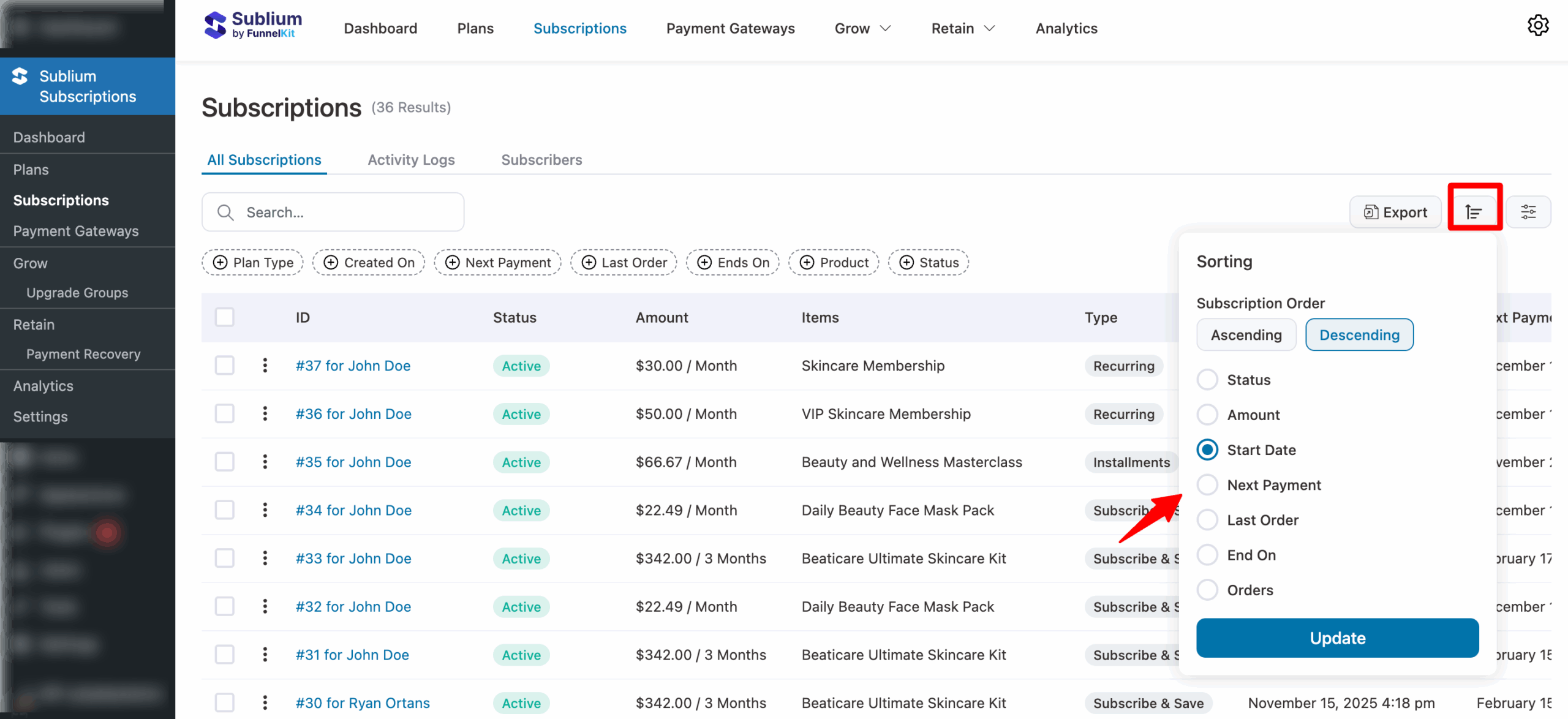
Filter Subscriptions
The Filter feature helps you quickly narrow down your subscription list based on specific criteria. It’s especially useful when you’re managing many subscriptions.
Below are the filtering options available:.
- Plan Type: Filter subscriptions by their type, such as Recurring subscriptions, Subscribe & save, and Installment plans. This way, you can view specific subscription types to analyze performance and identify trends.
- Created On: You can select dates based on prefilled rules, such as today, yesterday, this week, last week, this month, last month, quarter to date, last quarter, year to date, or last year. Additionally, you will get options such as a specific date or a custom date range to apply filters to your subscriptions.
- Next Payment: Identify subscriptions due for renewal or payment within a specific timeframe.
- Last Order: Filter subscriptions based on the date of the last order generated.
- Ends on: Locate subscriptions nearing their expiration or end date.
- Product: Filter subscriptions associated with a specific product or service.
- Status: Filter subscriptions by their current status, such as Pending, Trial, Active, Onhold, Overdue, Unpaid, Paused, Cancelled, Pending Cancellation, and Disputed.
To filter subscriptions, select a value for any field and click Apply. You can apply multiple filters simultaneously.
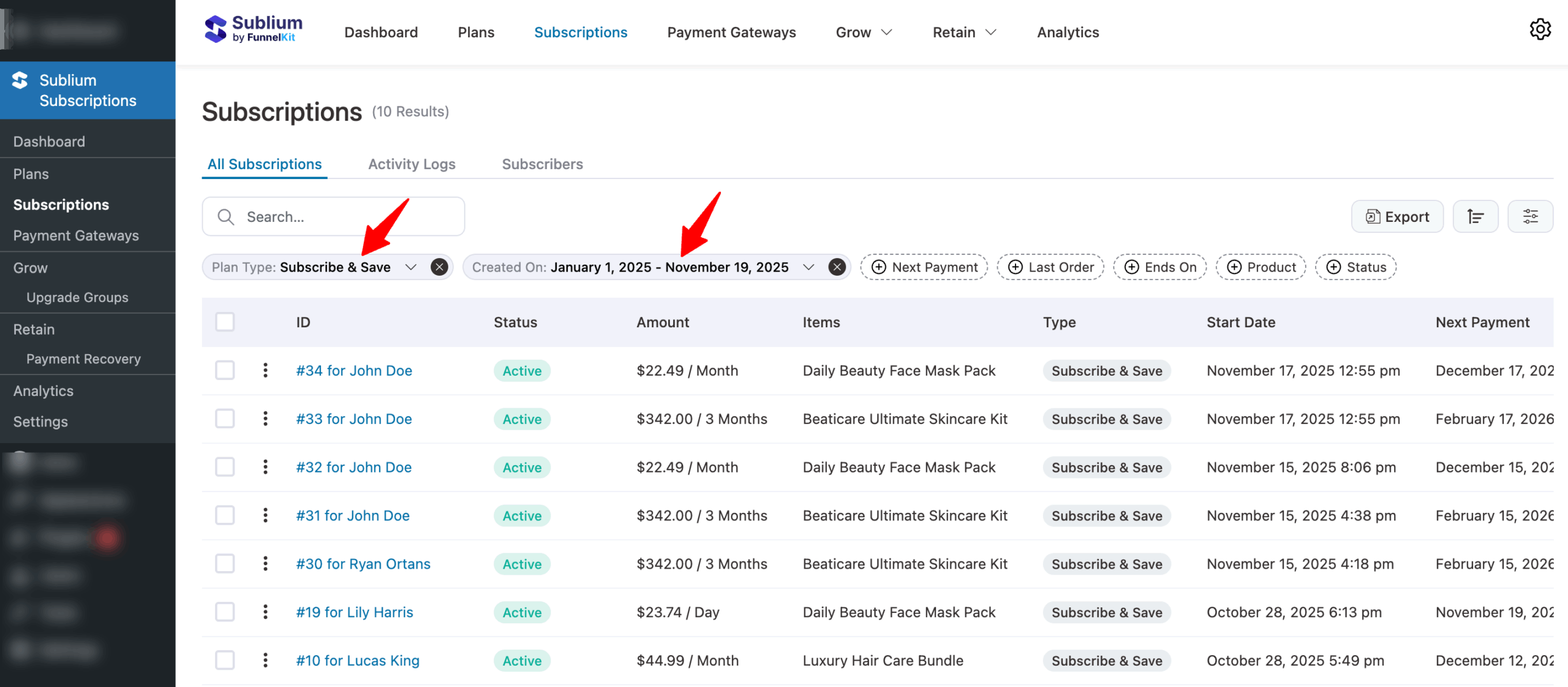
You can combine filtering and sorting to fine-tune your subscription management efficiently.


