

Cancellation reasons collect why the customer wants to cancel. Each reason can trigger a specific prevention option, alternatives like pausing or skipping a payment, before the customer reaches the offers step.
What Are Cancellation Reasons?
The reasons step is the second screen in the cancellation flow. After viewing the benefit page, the customer selects a reason for cancelling from a list you configure. This serves two purposes:
1. Data collection: Understand why customers cancel to improve your product and offers
2. Prevention routing: Each reason can offer different prevention alternatives
Viewing Reasons
Navigate to Sublium Subscription > Retain > Cancellation Flows and click the Reasons tab.
The listing shows:
| Column | Description |
| Name | Reason text (displayed to customers) |
| Status | Active, Draft, or Archived |
| Prevention Options | Which prevention options are enabled |
| Selections | Number of times customers selected this reason |
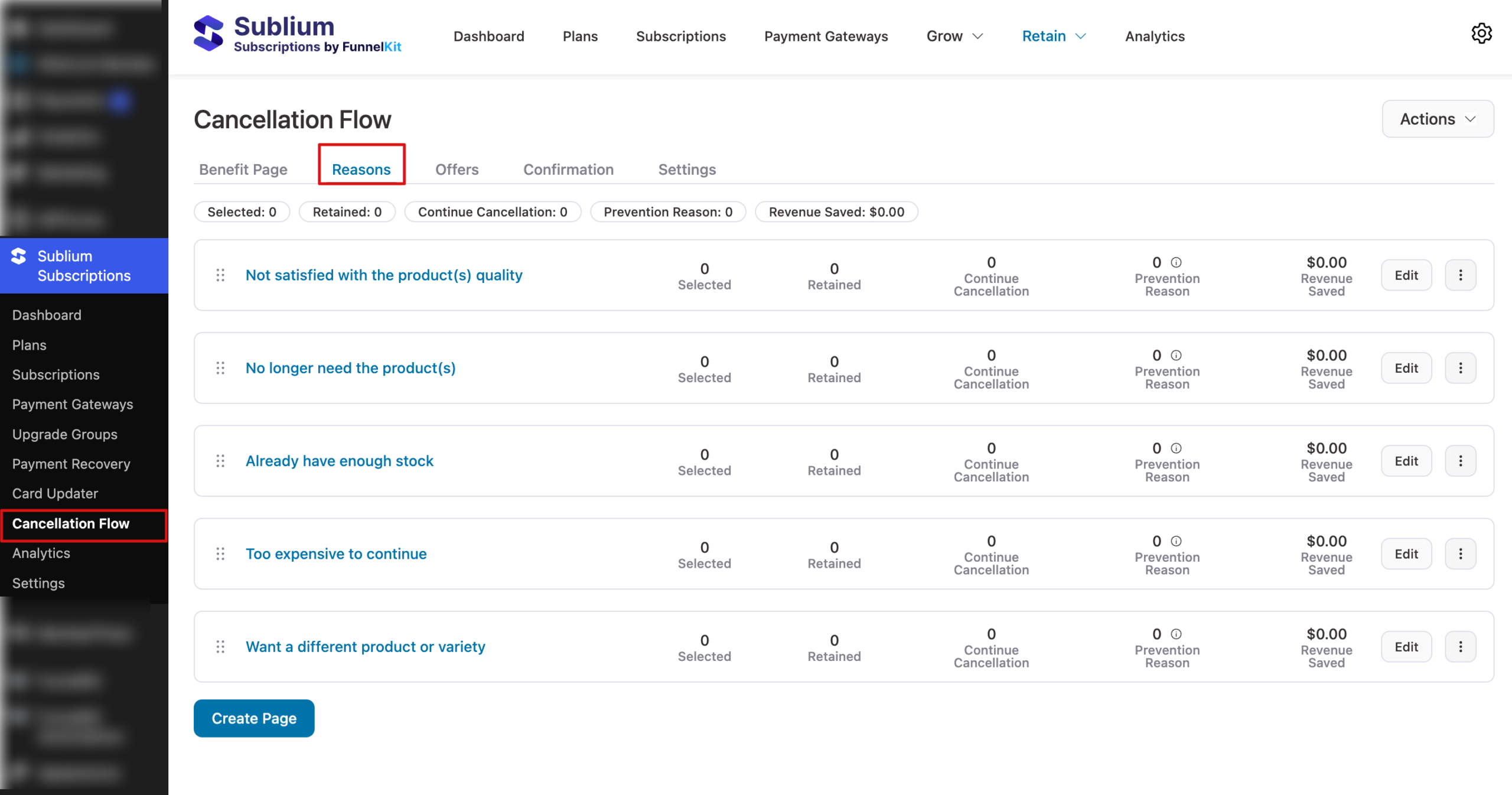
How to Create a Reasons Page For Cancellation Flow
Follow these steps described below to create a reason page for the cancellation flow in Sublium Subscriptions:
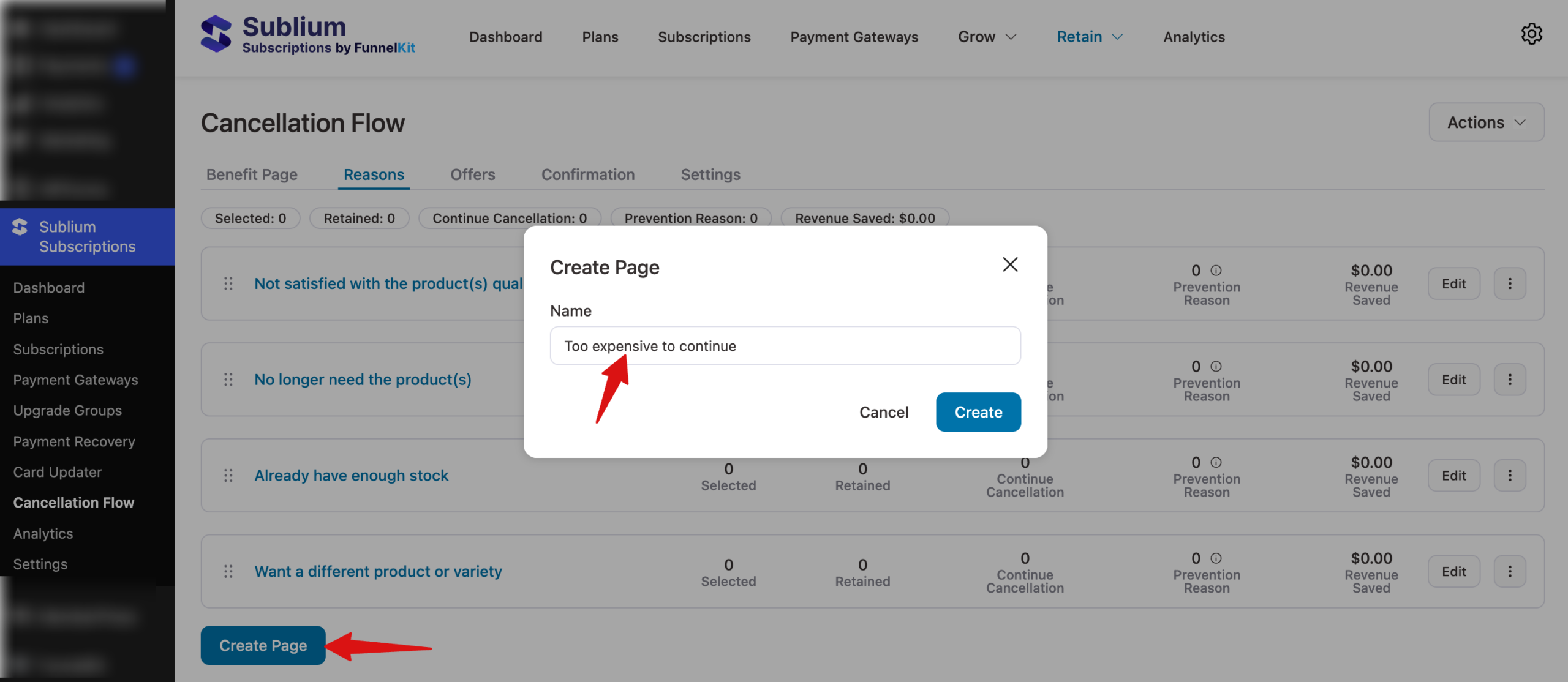
Step 1: Create a page
Click Create Page New, enter a name, and click Create.
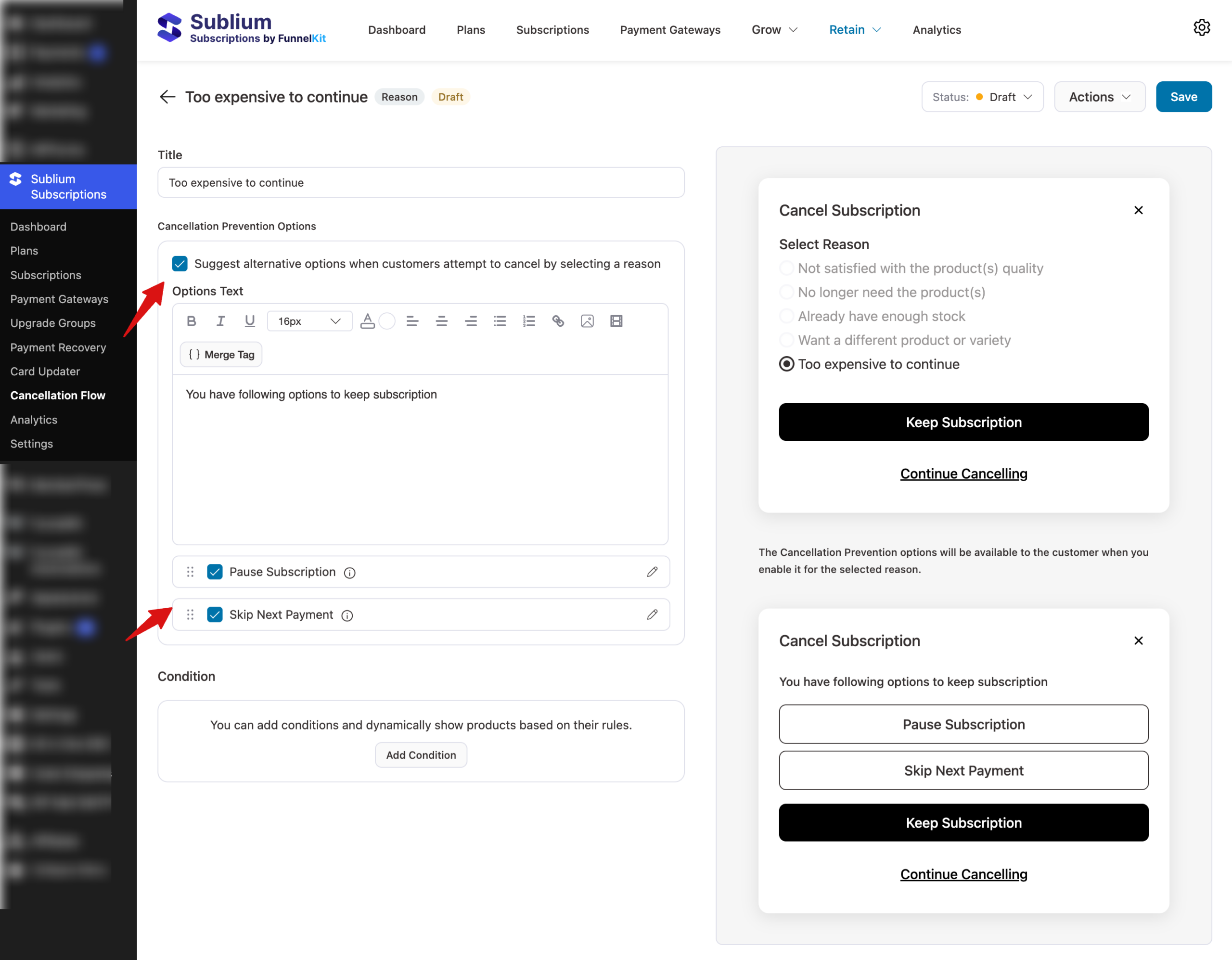
Step 2: Edit the reason page content
Next, add the title, check the option “Suggest alternative options when customers attempt to cancel by selecting a reason“ to start adding the reasons.
Next, check the Pause Subscription and Skip Next Payment options to provide a link to the respective page for customers.
Step 3: Add conditions to show reasons (optional)
Next, to add conditions, scroll down and hit the button “Add Condition“.
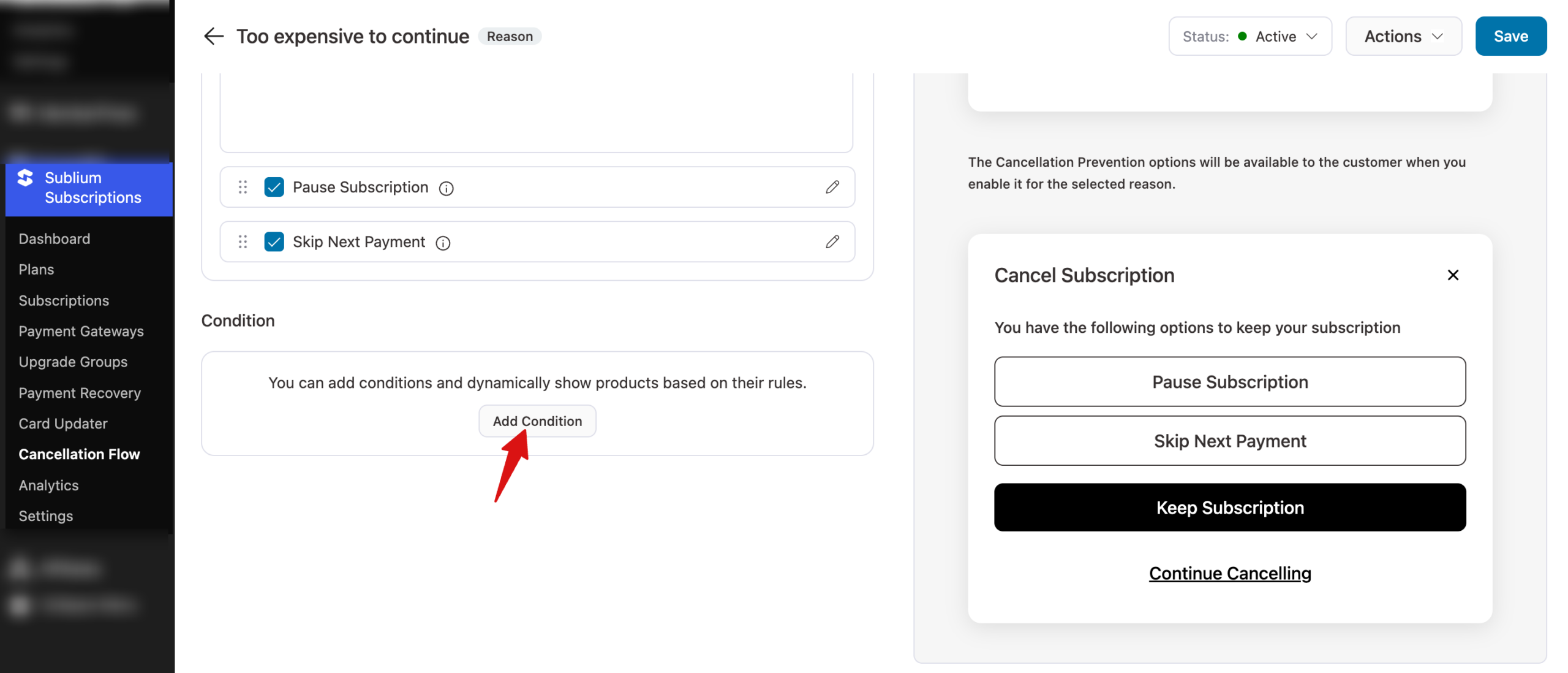
You can choose between the two categories: Subscriber and Current Subscription to set the condition.
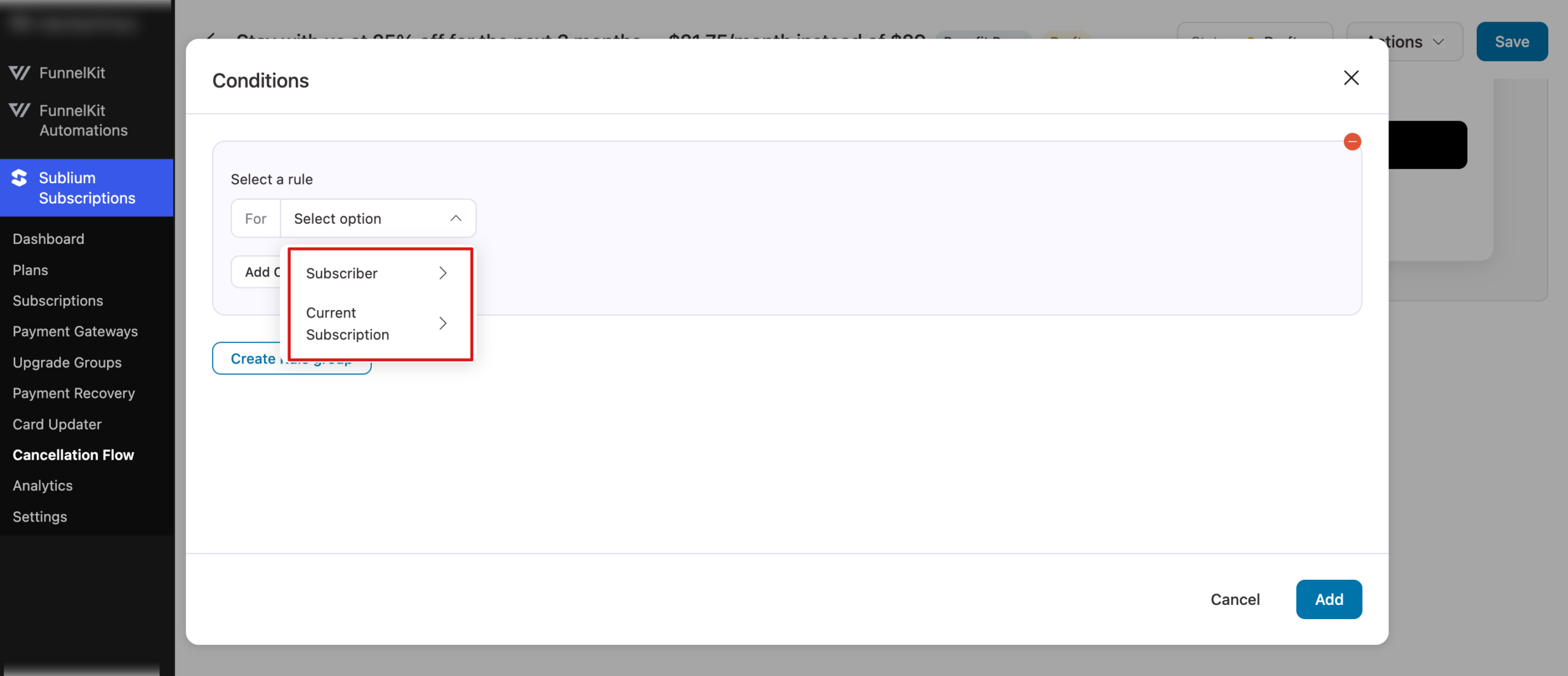
Here are the values you get for each category:
Subscriber :
| Field | Description |
| Back | Indicates if the customer has returned to a previous plan or navigated back. |
| Subscriber’s email address. | |
| First Name | Subscriber’s first name. |
| Last Name | Subscriber’s last name. |
| Joined Date | Date when the subscriber first joined. |
| Joined Days | Number of days since the subscriber joined. |
| Has Active Subscription | Whether the subscriber has any active subscription. |
| Renewal Count | Total number of times the subscriber’s subscriptions have been renewed. |
| Active Count | Number of currently active subscriptions the subscriber has. |
| Purchased Products | List of products purchased by the subscriber. |
| Active Subscription Product | Product(s) associated with the subscriber’s active subscription(s). |
| Revenue | Total revenue generated from this subscriber. |
| Inactive Count | Number of subscriptions the subscriber had that are now inactive. |
| MRR | Monthly Recurring Revenue from this subscriber. |
| ARR | Annual Recurring Revenue from this subscriber. |
| Last Order Date | Date of the subscriber’s most recent order. |
| Next Renewal Date | Upcoming renewal date for the subscriber’s active subscription(s). |
| Next Renewal Days | Number of days remaining until the next renewal. |
Current Subscription Category:
| Field | Description |
| Is Active | Shows whether this specific subscription is currently active. |
| Renewal Count | Number of times this subscription has been renewed. |
| Purchased Products | List of products included in this subscription. |
| Revenue | Revenue generated from this specific subscription. |
| MRR | Monthly Recurring Revenue from this subscription. |
| ARR | Annual Recurring Revenue from this subscription. |
| Last Order Date | Date of the most recent order for this subscription. |
| Next Renewal Date | Upcoming renewal date for this subscription. |
| Next Renewal Days | Days remaining until this subscription’s next renewal. |
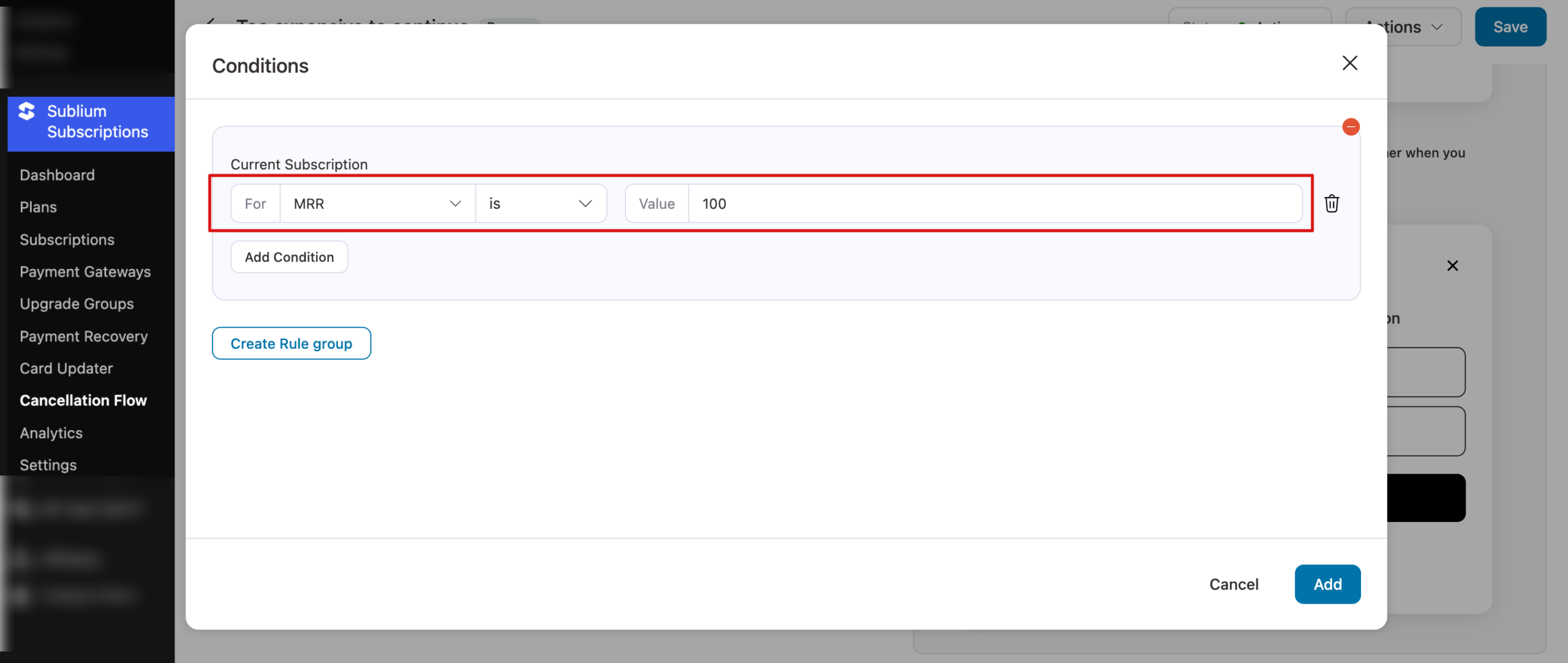
After selecting a value, set the Rule. For instance, show only if the MRR of the subscription product is over a certain price.

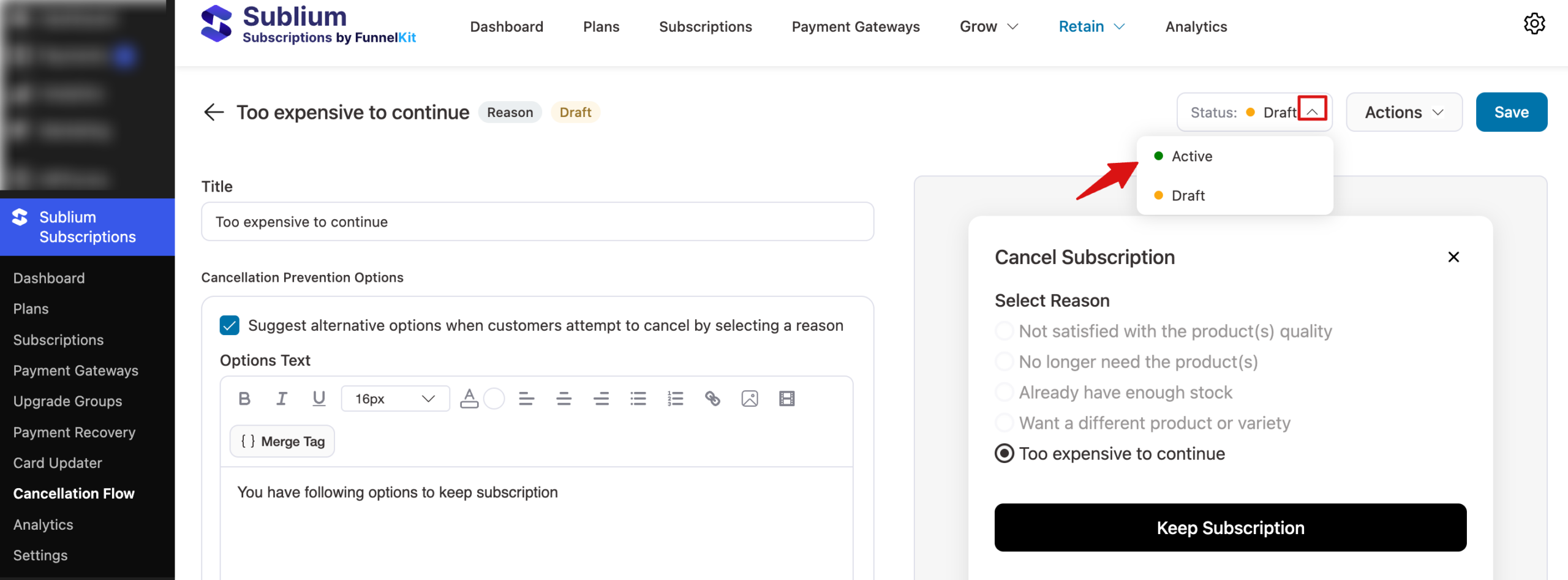
Step 4: Set the status to active
Next, set the status to Active.
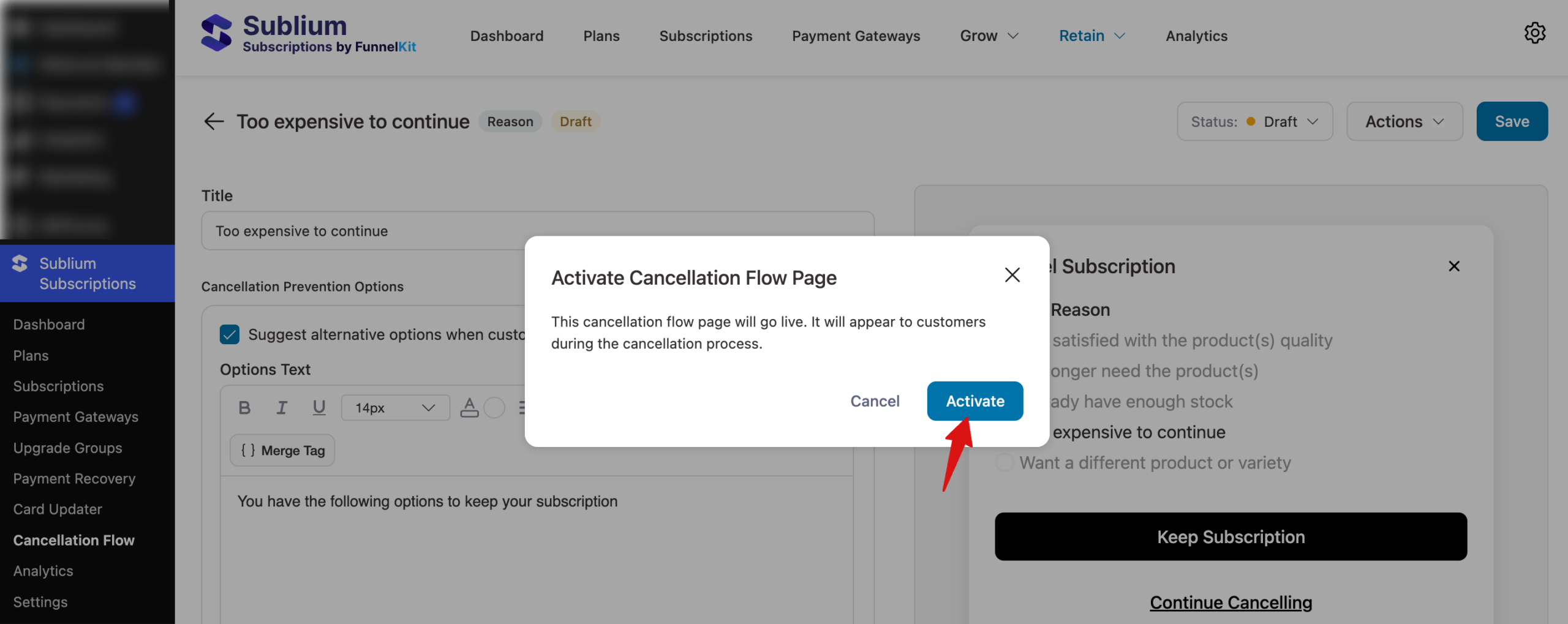
Next, make sure hit Activate to Confirm.
This is how you can create a reasons page for the cancellation flow in Sublium Subscriptions.
Customer View
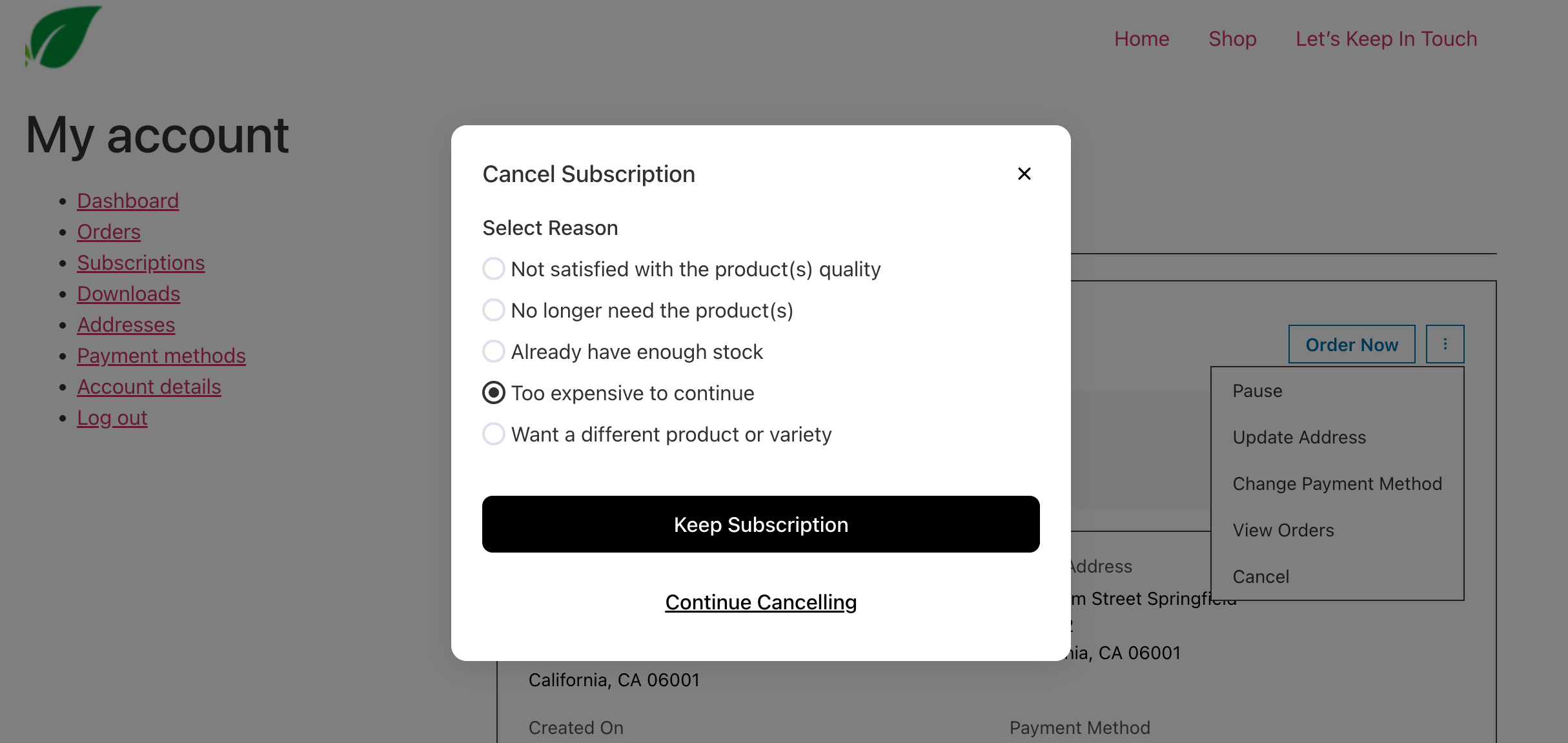
Reason Selection
The customer sees a list of all active reasons. They must select one to proceed. The reasons appear in the configured sort order.
If the customer doesn’t select a reason and clicks continue, they see the validation message configured in. Settings (default: “Please select a reason”).
Prevention Options
After selecting a reason, the prevention options configured for that reason appear. The customer can:
- Choose a prevention option: The action is applied immediately (pause or skip), and the matching confirmation page displays.
- Continue Cancelling: Skips prevention, proceeds to the retention offer step
If no prevention options are configured for the selected reason, the flow skips directly to the offers step.
Managing Reasons
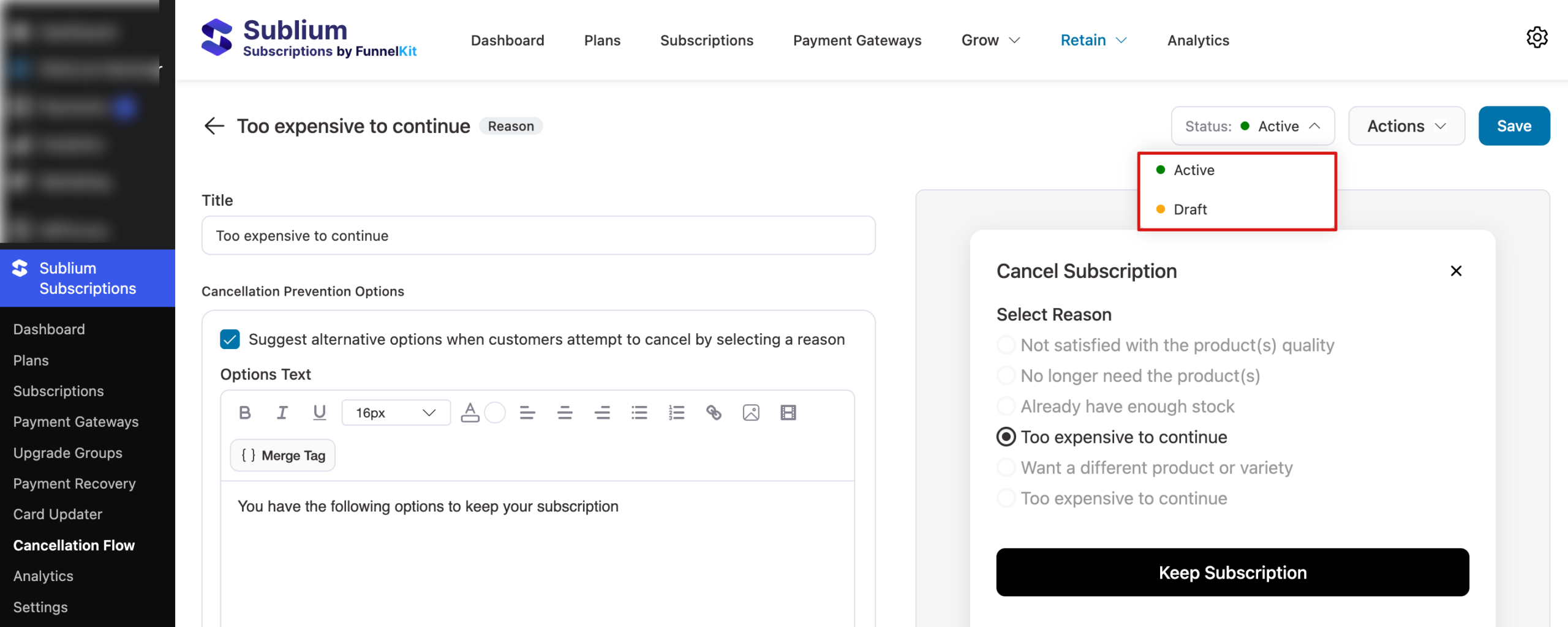
Change Status
To change status: open the page editor and update the Status field, or use the quick status toggle in the
Available statues:
| Status | Behavior |
| Active | Shows in the reasons list. |
| Draft | Not shown to customers as reasons. |
Reordering
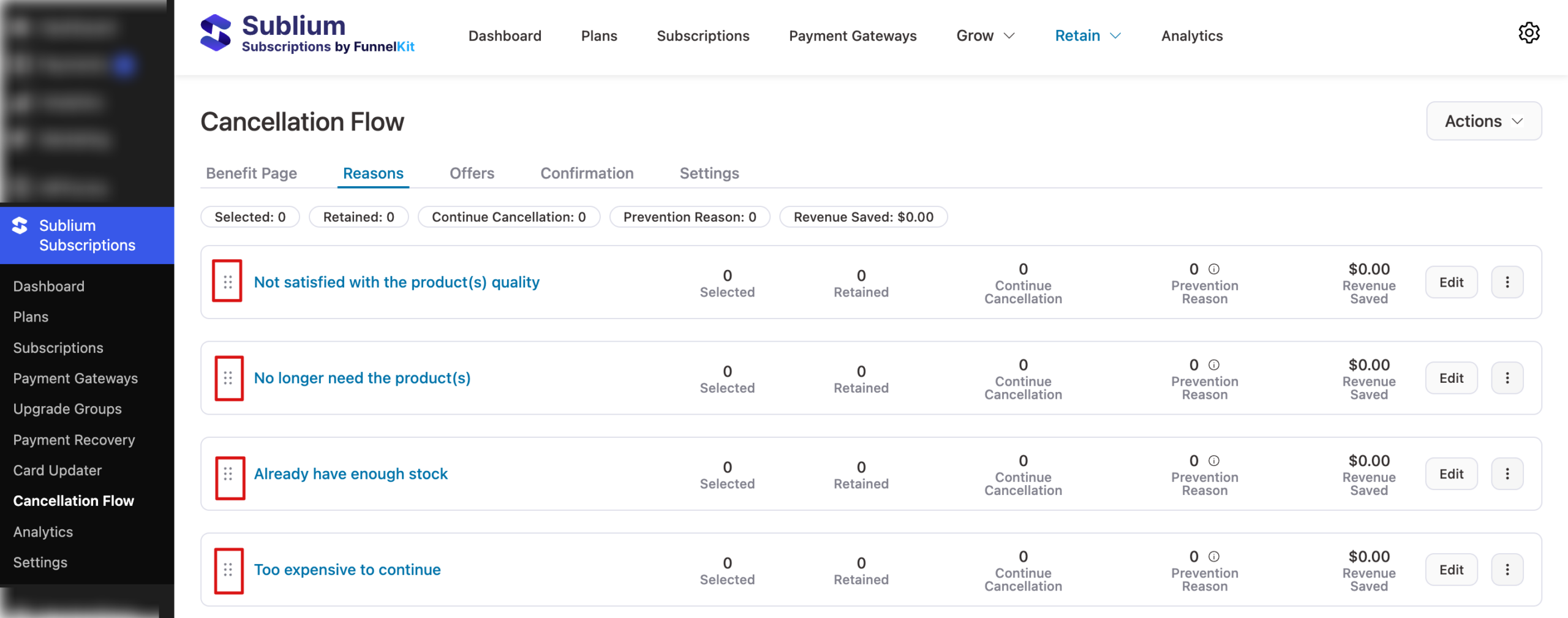
If you have multiple benefit pages, drag and drop to reorder. Reasons are displayed to customers in the configured sort order. Click on this ⋮⋮ icon to drag and drop.
Note: When multiple reasons are configured, the system will display the page with the highest priority to customers.
Rename
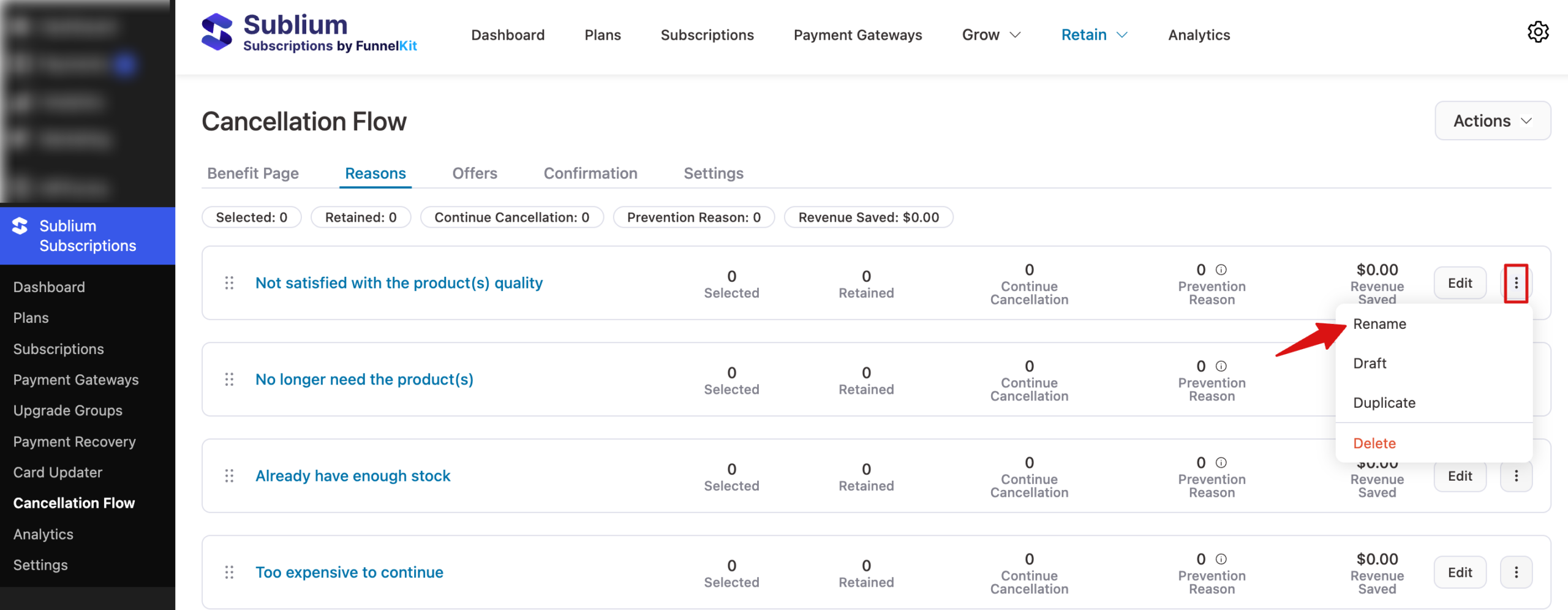
Hit the ⋮ icon next to a benefit page, choose Rename, add the name, and Confirm.
Draft
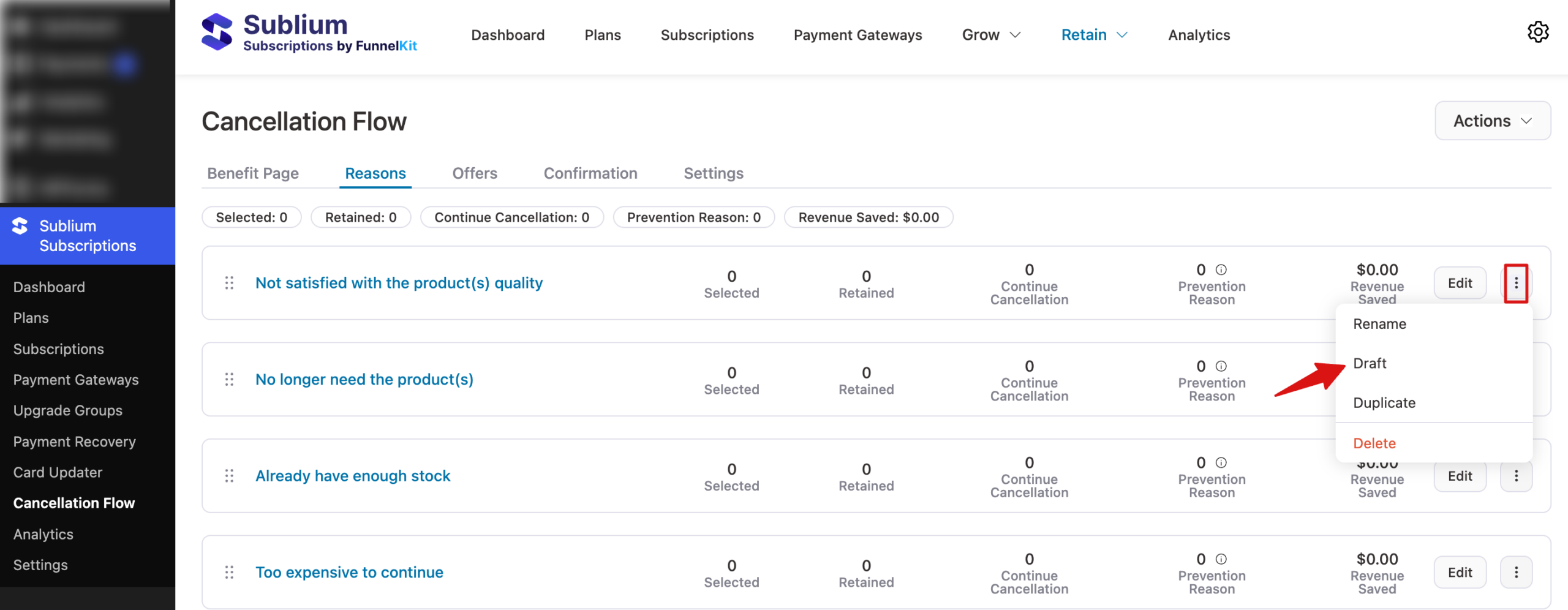
Hit the ⋮ icon next to a benefit page, choose Draft, and confirm.
Duplicate
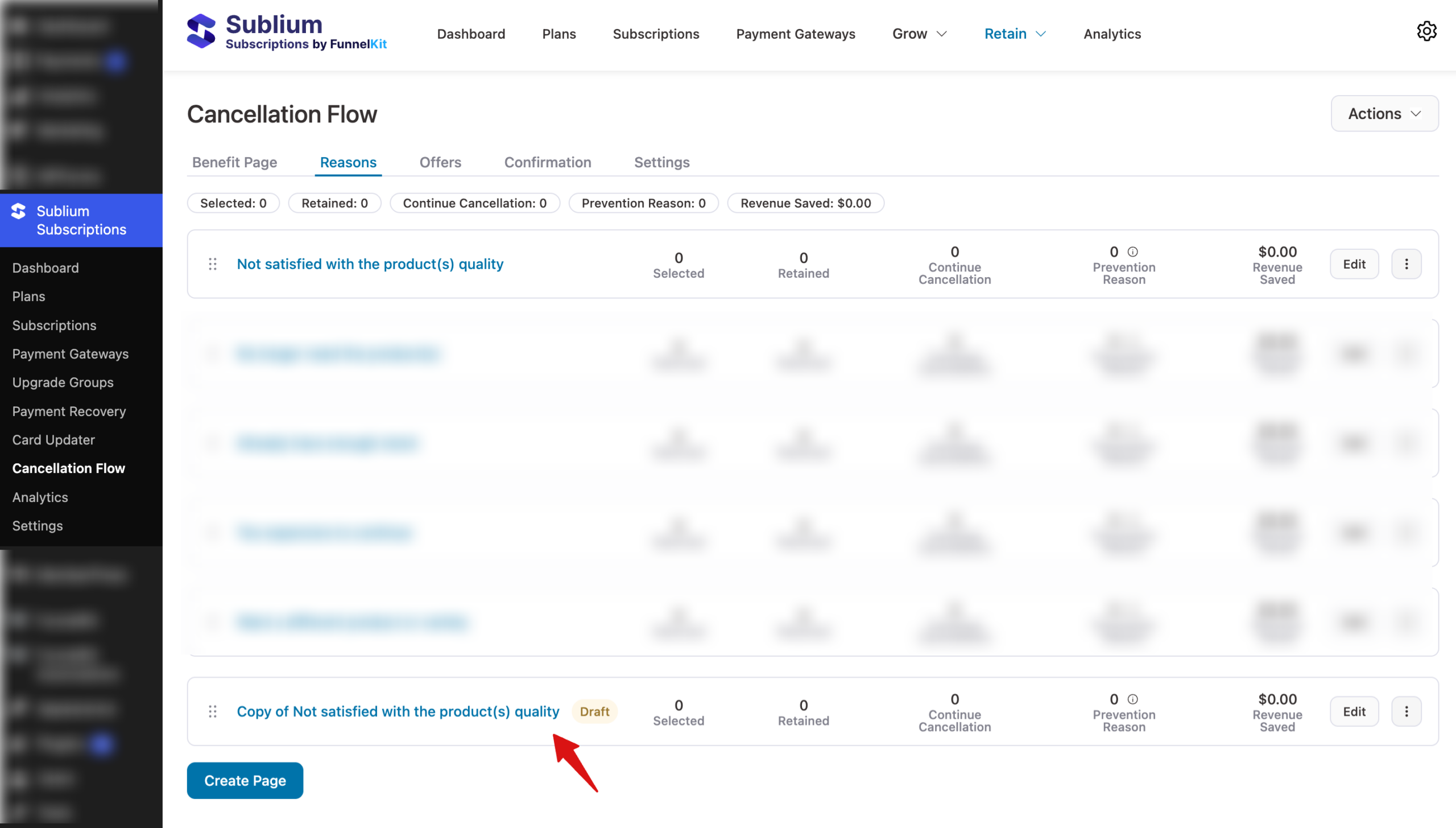
Hit the ⋮ icon next to a benefit page, choose Duplicate, and confirm. This will create a copy in draft status.
Delete
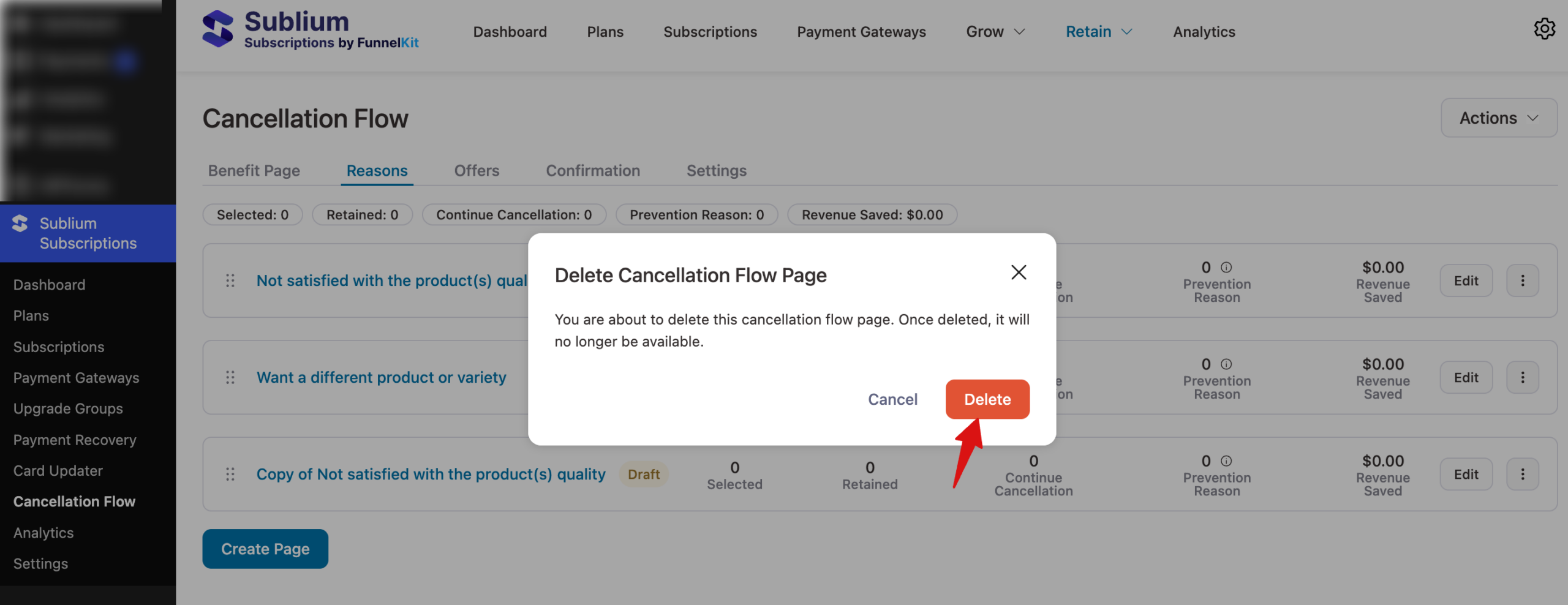
Hit the ⋮ icon next to a benefit page, choose Delete, and confirm.
Best Practices
| Practice | Rationale |
| Cover 4-6 common reasons | Enough to capture patterns without overwhelming the customer |
| Use clear, non-judgmental language | Customers should feel comfortable selecting honestly |
| Match prevention options to the reason | A “too expensive” reason benefits from a pause option; a “not using enough” reason benefits from a skip |
| Include an “Other” reason | Captures edge cases you haven’t anticipated |
| Review reason analytics monthly | Identify shifts in why customers leave |


