

Confirmation pages are the final step in the cancellation flow. They display an outcome message based on the action the customer took, whether they cancelled, paused, accepted an offer, or skipped their next payment.
What Are Confirmation Pages?
After the customer completes an action in the cancellation flow, a confirmation page appears with a message, an optional icon, and a call-to-action button.
Four confirmation types exist, one for each possible outcome.
Confirmation pages are a fixed set. You can customize the content of each type, but you cannot create new types or delete existing ones.

The 4 Confirmation Types
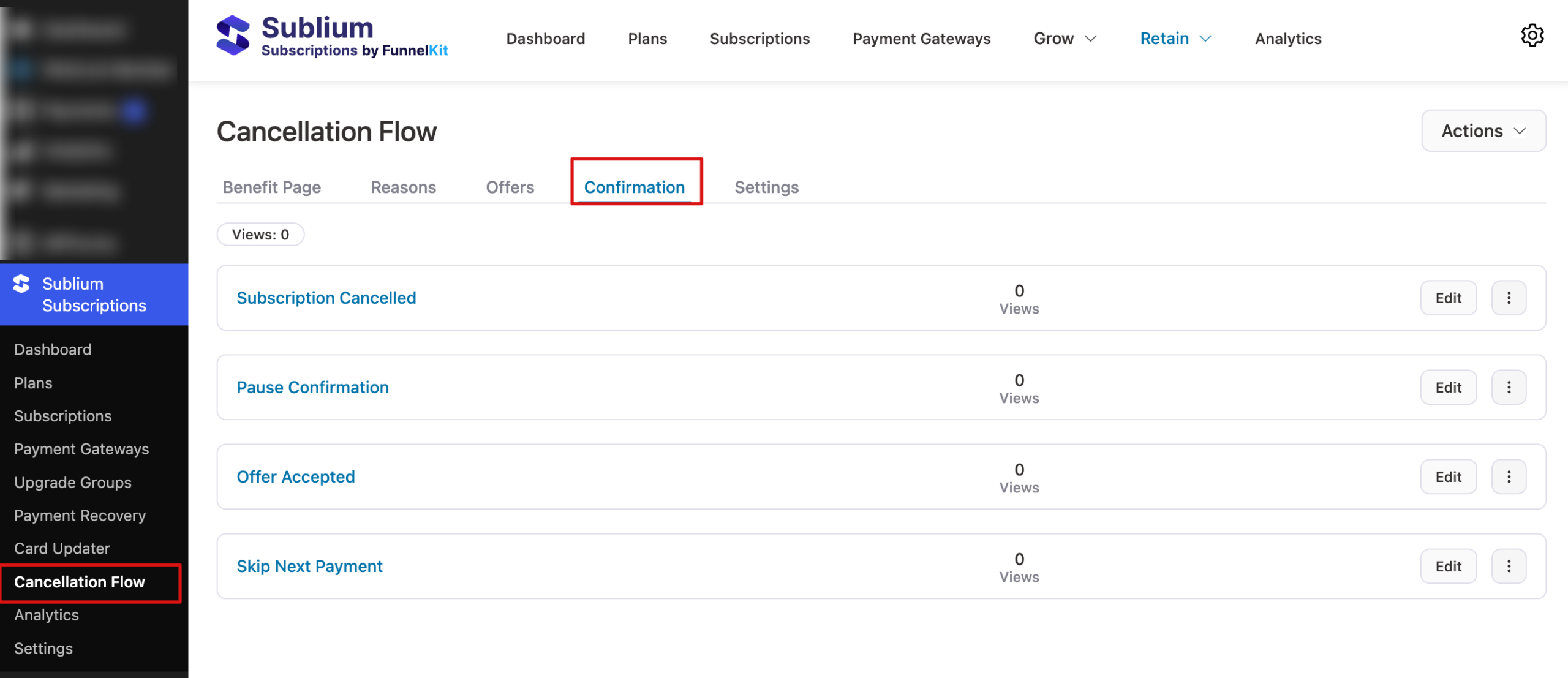
Navigate to Sublium Subscriptions ⇒ Cancellation Flows and click the Confirmations tab to see all four types.
The listing shows:
| Type | Shown When | Purpose |
| Subscription Cancelled | Customer completed the cancellation | Acknowledge cancellation and confirm what happens next |
| Pause Confirmation | Customer chose to pause via prevention option | Confirm the pause is active and explain how to resume |
| Offer Accepted | Customer accepted a retention offer | Thank the customer and confirm what was applied |
| Skip Next Payment | Customer chose to skip via prevention option | Confirm the skip and show the new next payment date |
You can see the view count for each confirmation page and edit it to customize it.
How to Edit a Confirmation Page
Follow these steps described below to edit a confirmation page for the cancellation flow in Sublium Subscriptions:
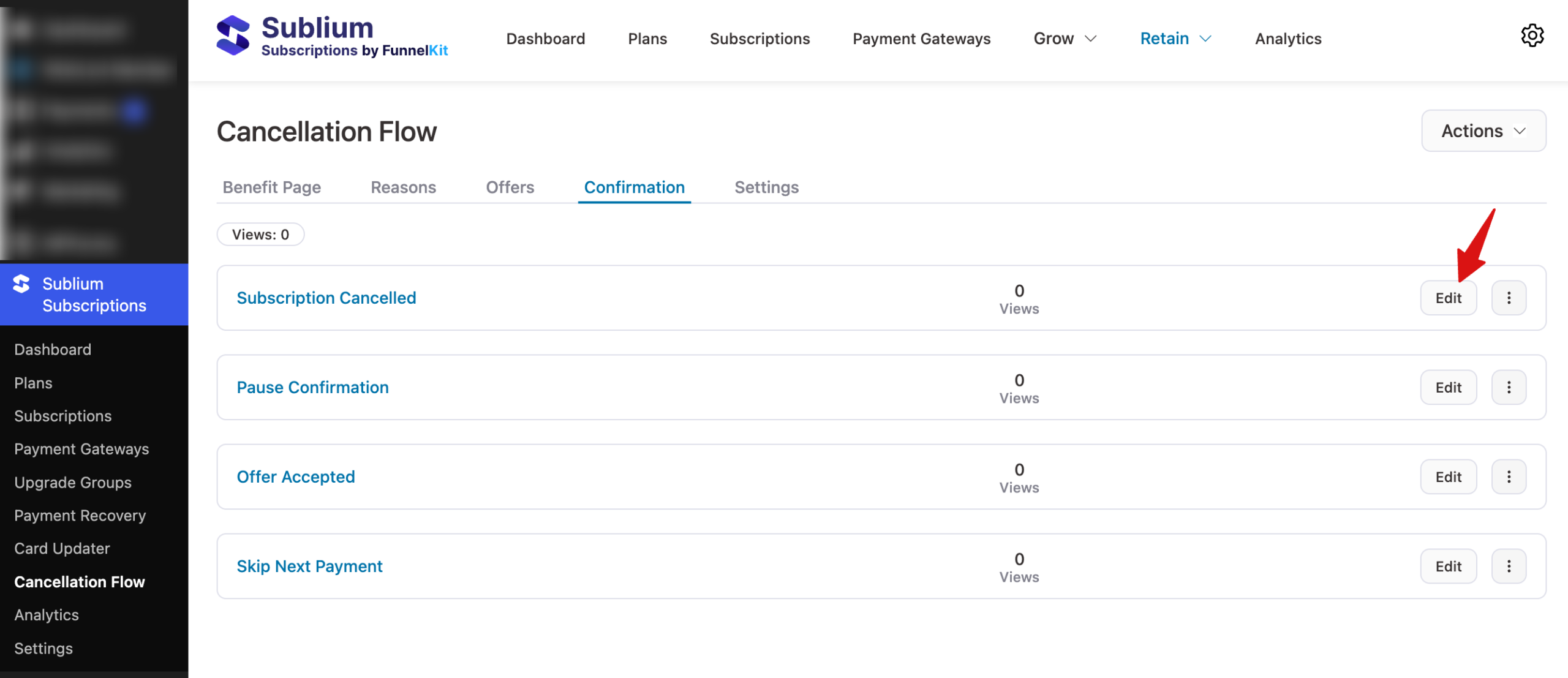
Step 1: Select a confirmation type
Click on the Edit button next to confirmation type to open the editor.
Step 2: Configure the confirmation fields
Configure the following fields to define the heading and message shown to the customer after the outcome. You can see the preview on the right page.
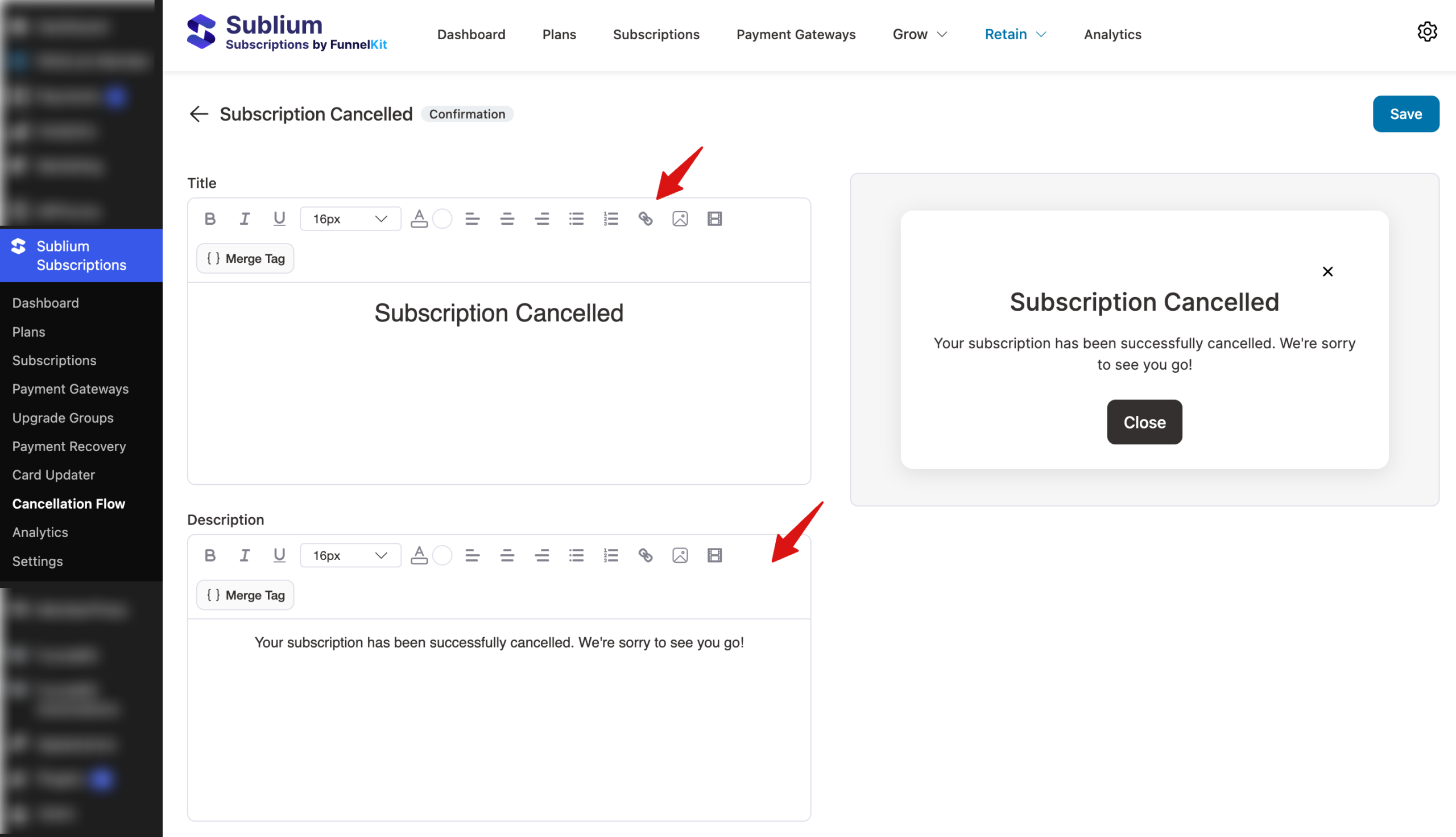
Make sure to hit Save.
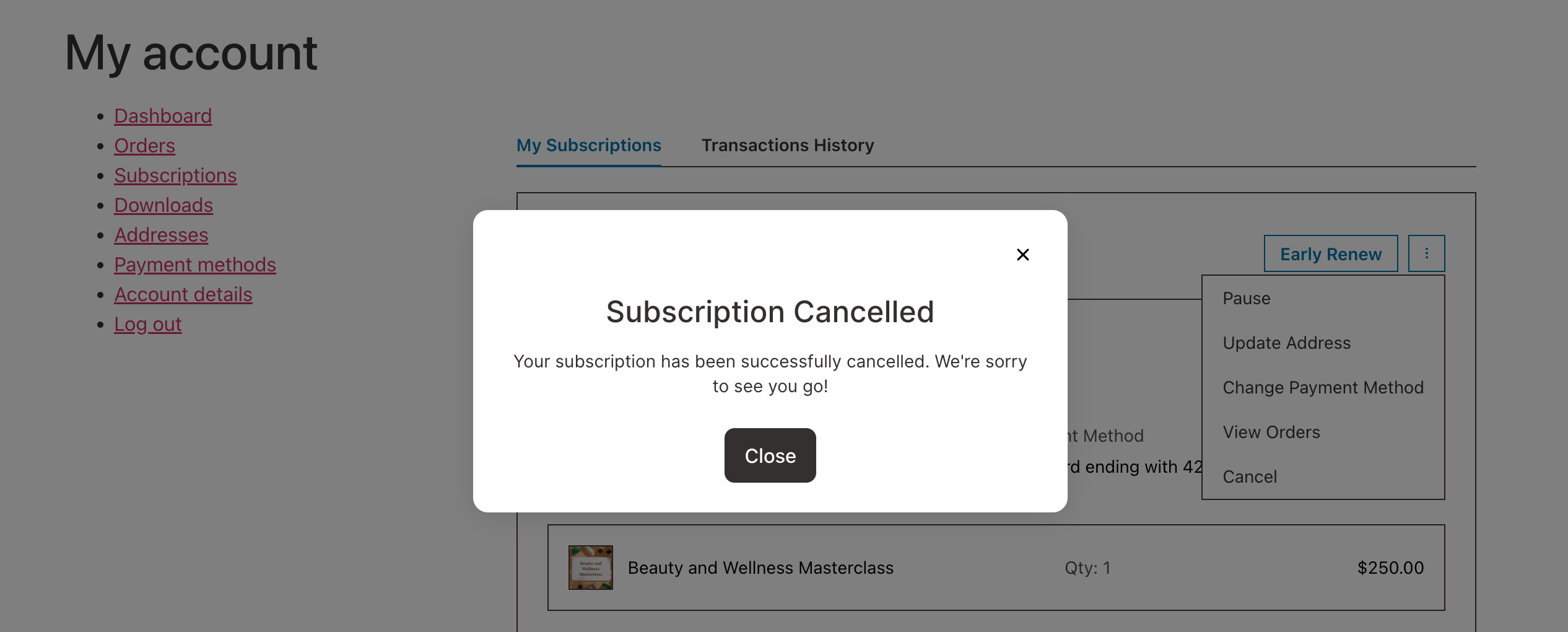
Customer View
The confirmation is displayed inside the cancellation flow modal after the customer chooses to cancel and confirms by selecting a reason.
Content Guidelines by Type
Subscription Cancelled
The customer has completed the cancellation. This message should:
- Acknowledge the cancellation without being defensive
- Confirm what happens next (when access ends, final order details)
- Offer a path back (resubscribe link)
Example:
Your subscription has been cancelled
Your access will continue until the end of your current billing period. You can resubscribe at any time from your account page.
Pause Confirmation
The customer chose to pause instead of cancelling. This message should:
- Confirm the pause is active
- Explain when and how to resume
- Reassure the customer that their preferences are saved
Example:
Your subscription is now paused
Your billing is on hold and no further charges will be made until you resume. You can resume your subscription at any time from your account.
Offer Accepted
The customer accepted a retention offer. This message should:
- Thank the customer for staying
- Confirm exactly what was applied (discount amount, free product)
- Show the next payment details if applicable
Example:
Thank you for staying with us!
We’ve applied a 20% discount to your next renewal. Your next payment of $39.99 will be charged on February 15, 2026.
Skip Next Payment
The customer chose to skip the next payment. This message should:
- Confirm the skip
- State the new next payment date
- Clarify that the subscription remains active
Example:
Your next payment has been skipped
Your subscription is still active. Your next charge of $49.99 will be on March 1, 2026, instead of February 1, 2026.


