

The Subscription Profile in Sublium allows you to view and manage all subscription-related details.
This page provides an organized way to track subscriber information, subscription plans, and orders, and allows necessary changes to be made.

Navigate to Sublium Subscriptions ⇨ Subscriptions and to access the subscription profile details, click on the Subscription IDs.
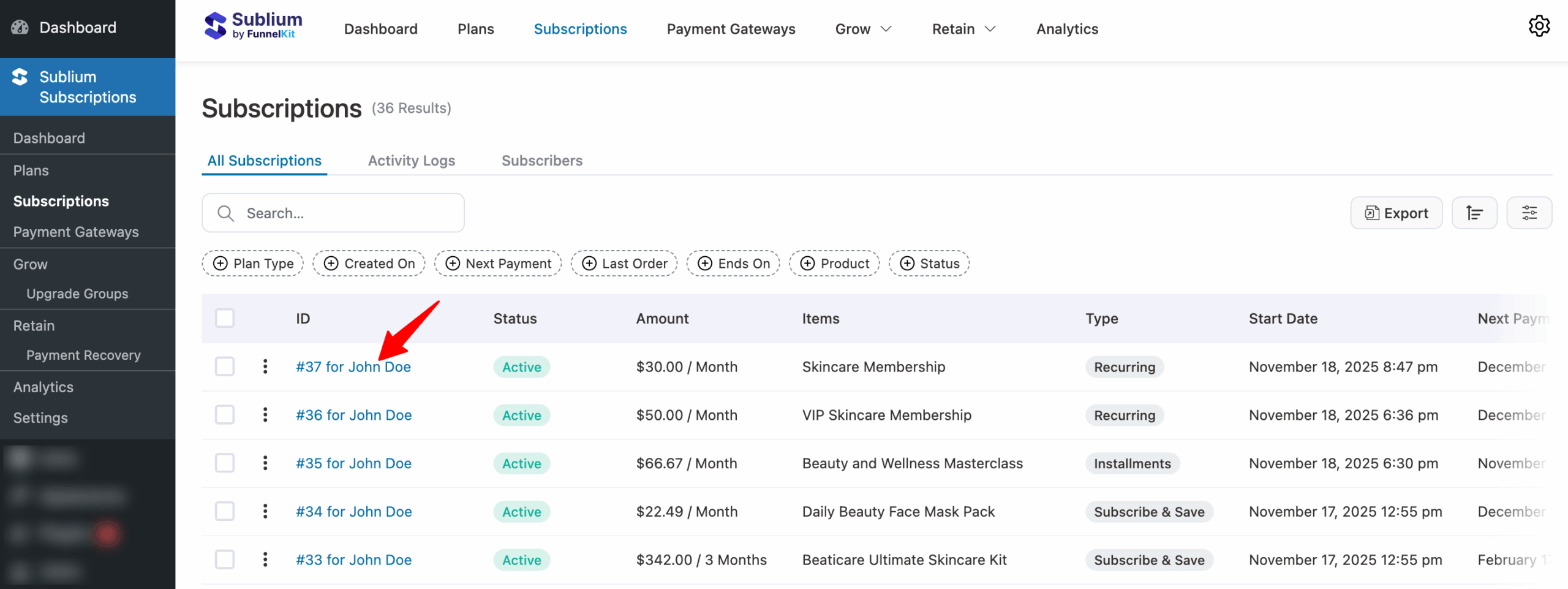
Now you will land on the profile detail page with the following information:
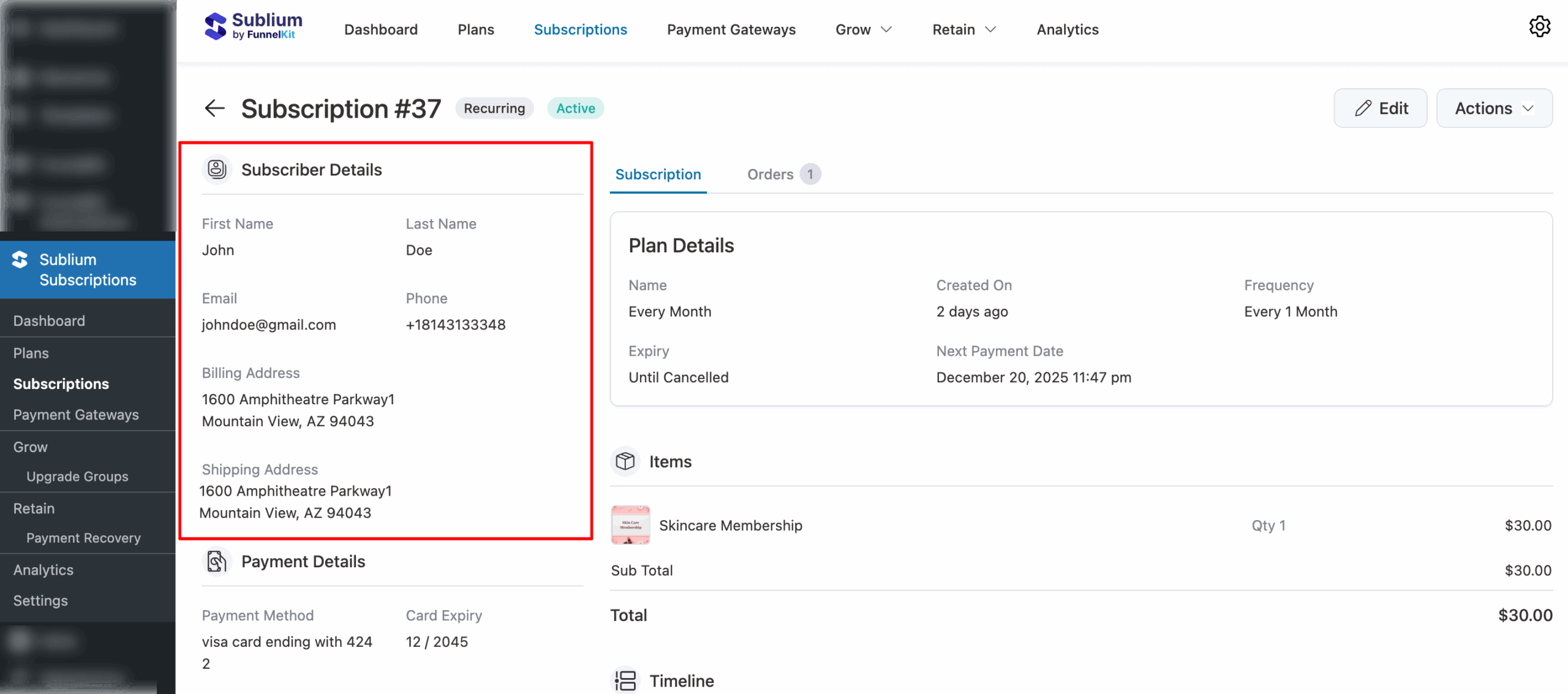
Subscriber Details
In this section, you will find the subscriber’s first name, last name, email, billing address, and shipping address.
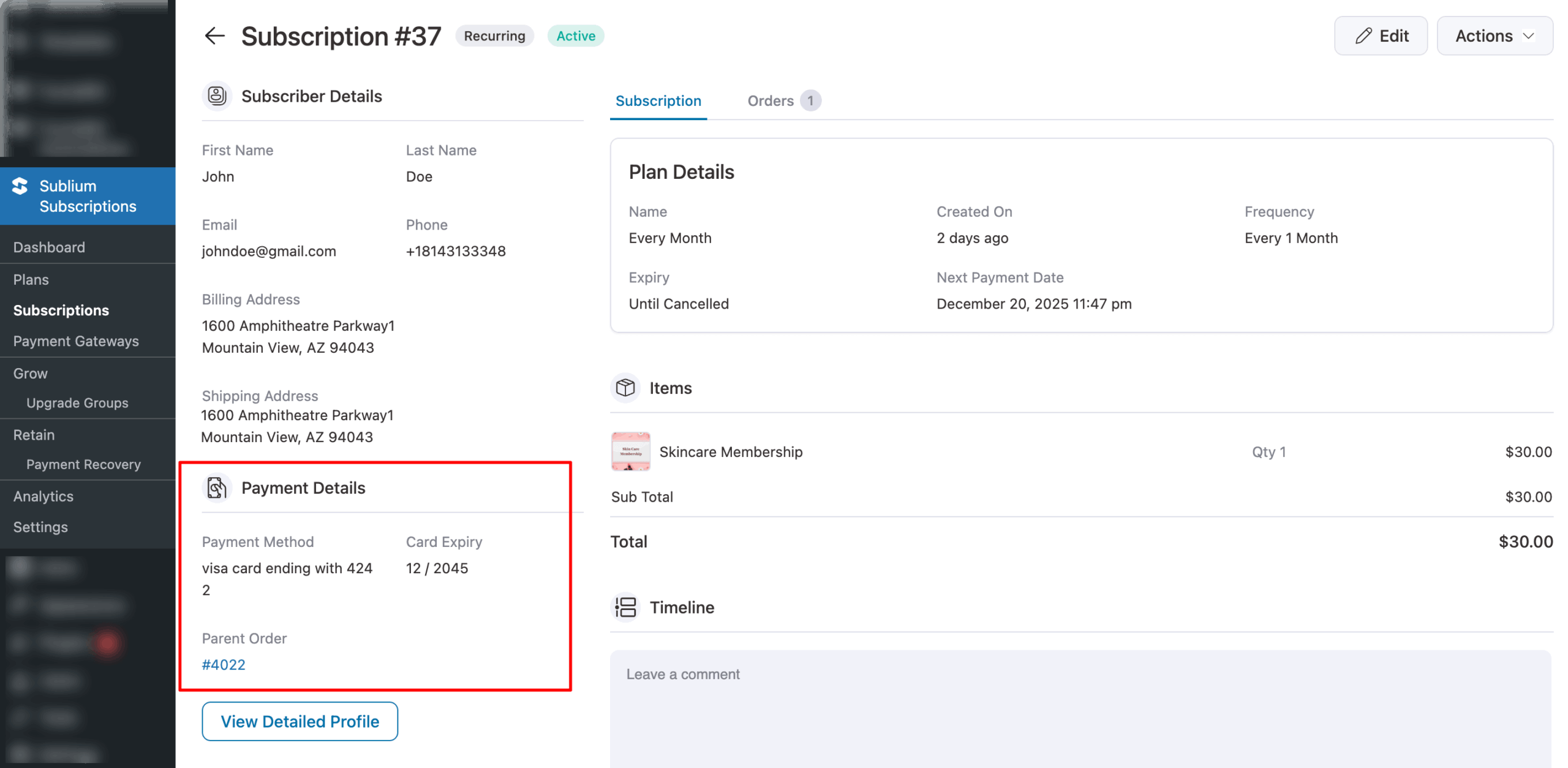
Payment Details
In this section, you’ll find the payment details, including the payment method, card expiry date, and the parent order, which shows the original order linked to the subscription.
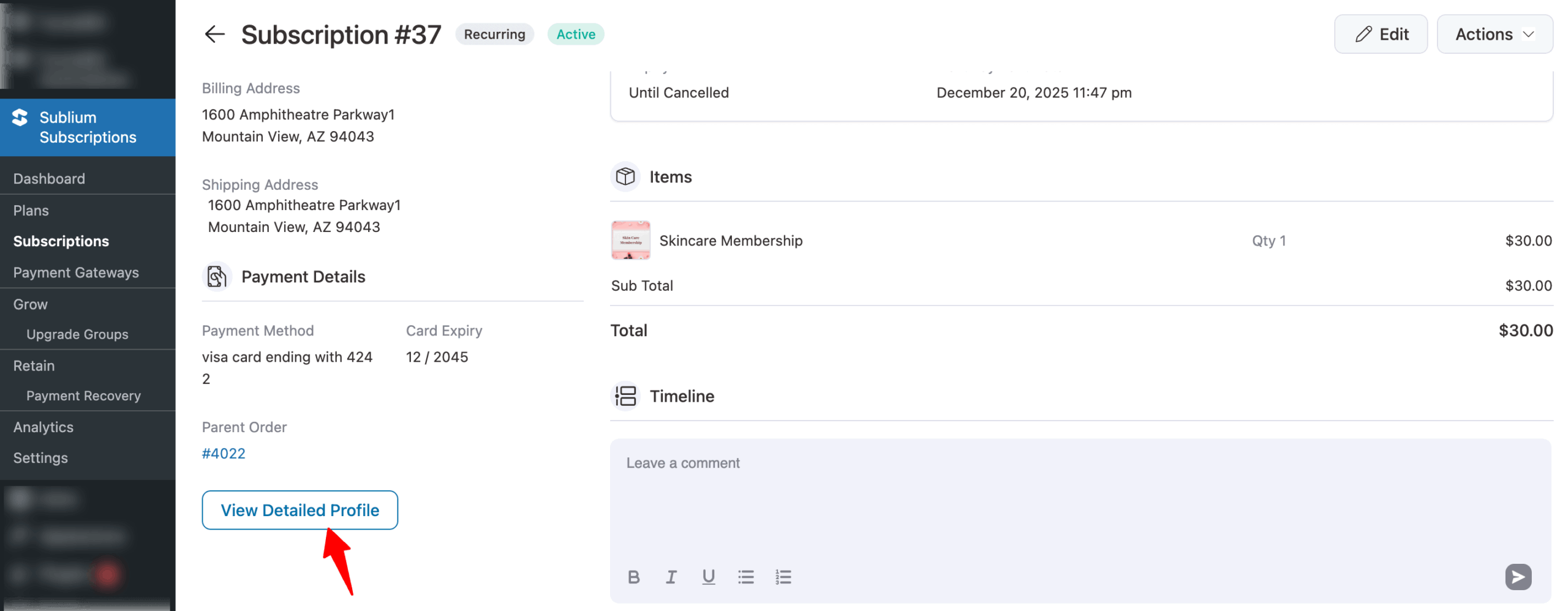
Subscription
Here you will find the plan details, items, and timeline.
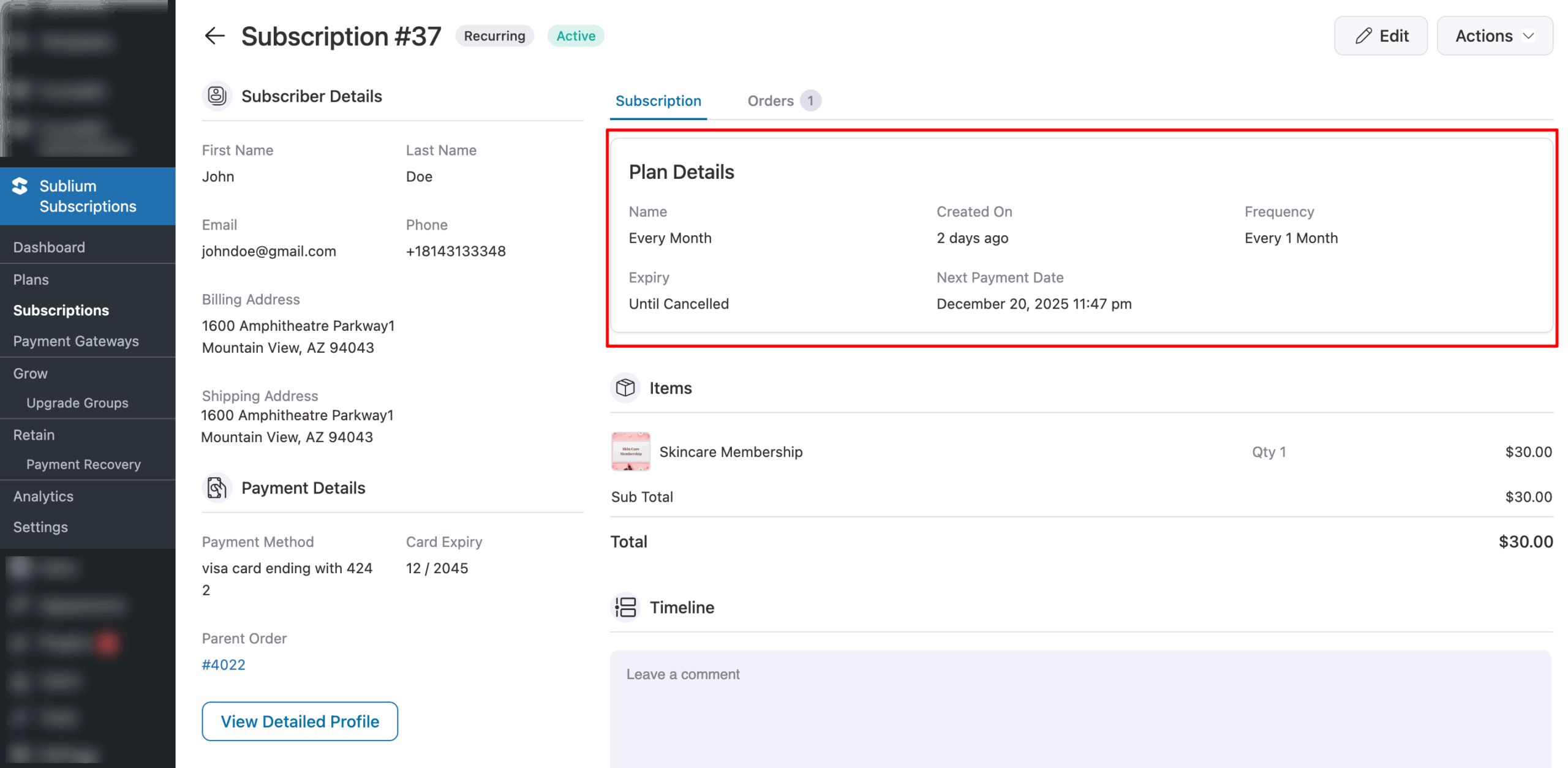
Plan Details
In this section, you can find the subscriber’s name, creation date, billing frequency, expiry date, and next payment date.
- Billing Frequency – How often the subscription renews (e.g., every month, every 3 months, annually)
- Next Payment Date – The date when the next renewal payment will be charged
- Expiry Date – The date when the subscription will end (if the subscription has a fixed length). Subscriptions without an expiry date continue until cancelled.
- Creation Date – When the subscription was first created
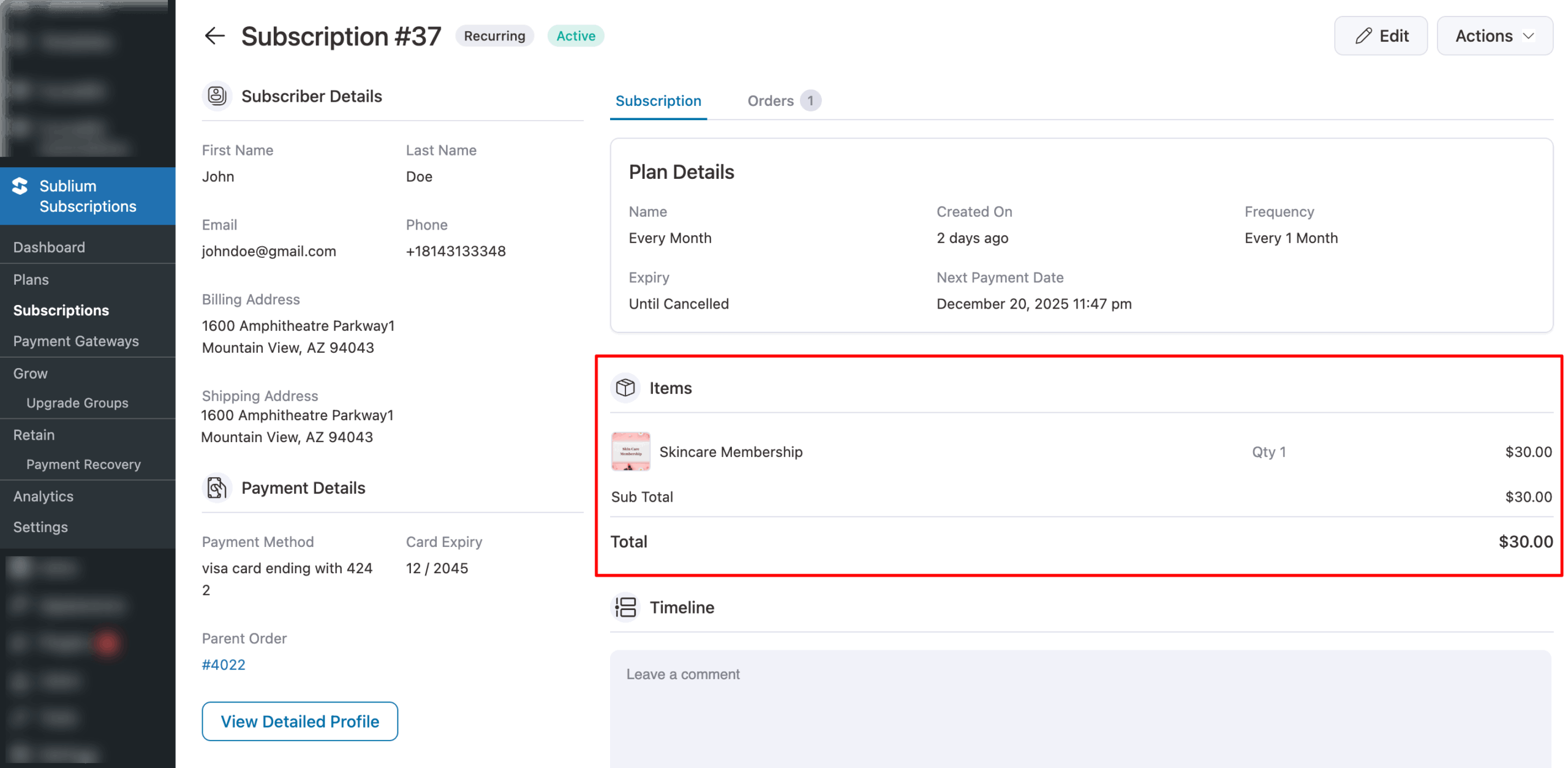
Items
Under items, you can find the subscribed items with price, subtotal, and total.
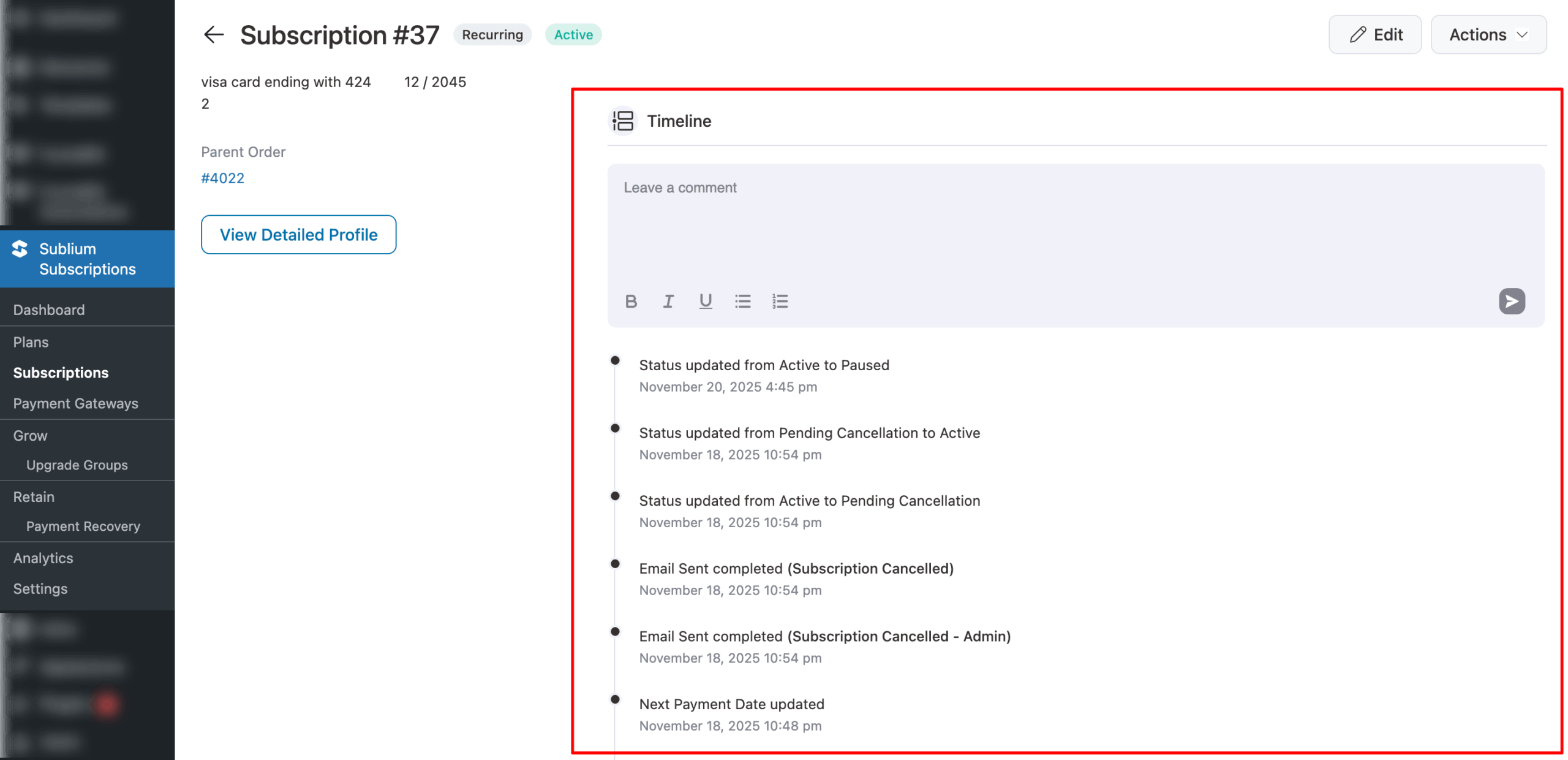
Timeline
The timeline provides a complete history of the subscription. Logged activities include:
- Subscription created
- Status changes (activated, paused, cancelled, etc.)
- Renewal payments processed
- Failed payment attempts
- Payment method updates
- Emails sent to the subscriber
- Upgrades or plan changes
- Admin notes and manual actions
Use the timeline to troubleshoot issues or review what happened with a specific subscription.
Order Details
The Orders tab shows all orders linked to the subscription, including the Order ID, Transaction ID, delivery date, total amount, and payment status.
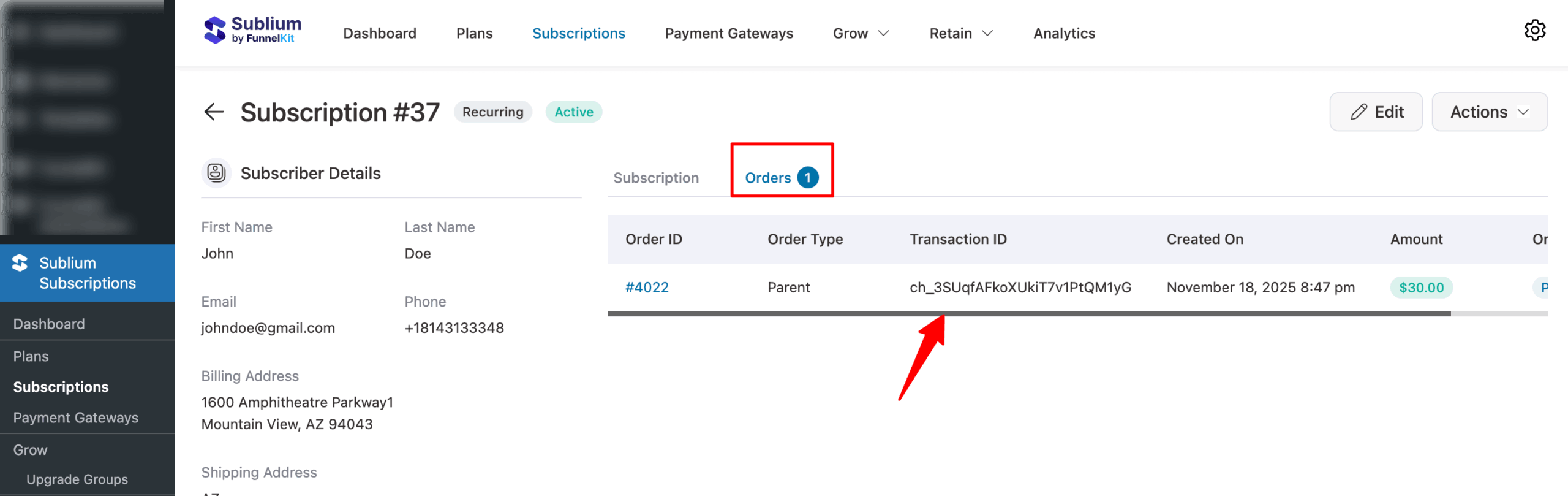
The parent order is the initial order that created the subscription. This is useful for:
- Tracking back to the original purchase
- Reviewing what the customer originally ordered
- Checking the initial payment transaction
Subsequent renewal orders appear in the Orders tab
Troubleshooting
- Payment details show “No payment method on file.” This occurs when the subscription was created manually or the original payment method has been removed. The subscriber will need to update their payment method before the next renewal.
- The Orders tab is empty. For new subscriptions, renewal orders won’t appear until after the first renewal date. The parent order is shown separately in the Payment Details section.
- Timeline shows unexpected status changes Check for failed payments, which can automatically pause subscriptions. Review your Payment Recovery settings to understand automated retry behavior.
- The subscriber address is incorrect or outdated. Subscribers can update their own addresses from their account page. Admins can edit addresses through the Edit Subscription page.


