

The Activity Logs page in Sublium provides a detailed record of all activities related to subscriptions.
It’s organized in a table format for easy tracking and management of subscription activities.
Navigate to Sublium Subscriptions ⇨ Subscriptions and move to the Activity Logs section.
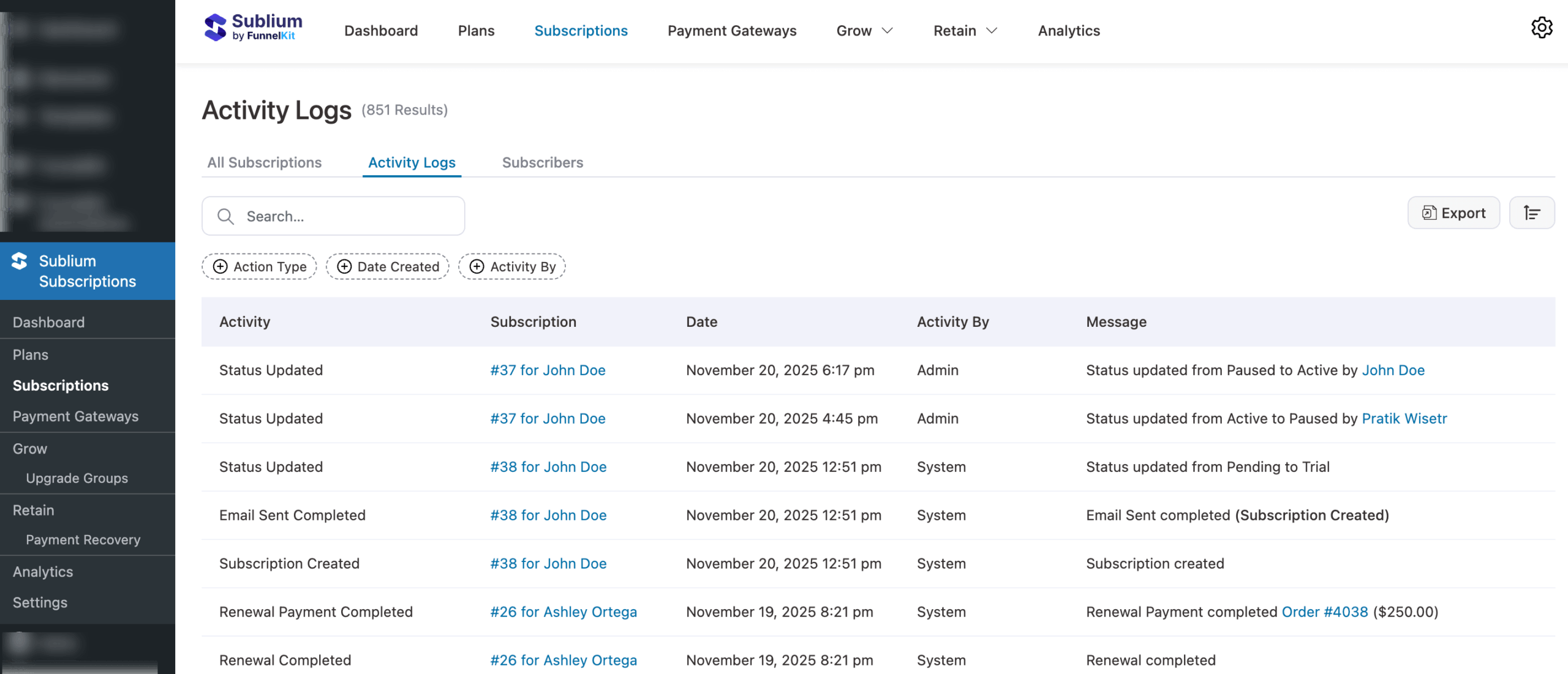
The Activity Log table consists of the following columns:
- Activity: Displays the action performed on a subscription (e.g., “status updated,” “renewal”).
- Subscription: Displays subscription ID. You can click on the ID to view the details.
- Date: Indicates the date and time when the activity occurred.
- Activity By: Displays who performed the activity.
- Message: Contains any additional details associated with the activity.
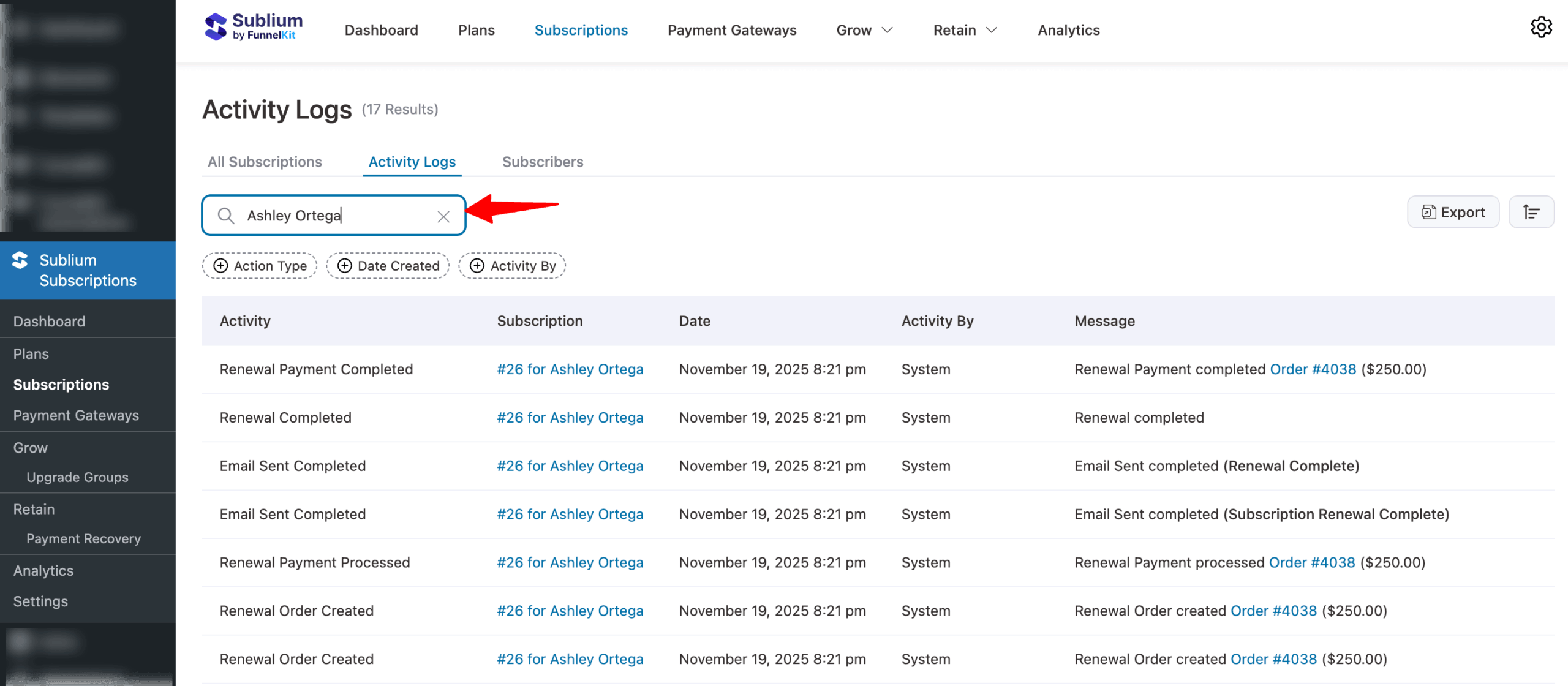
Search
In the search bar, you can search for any activity that matches the specified search criterion, including the subscriber’s name.
Filter
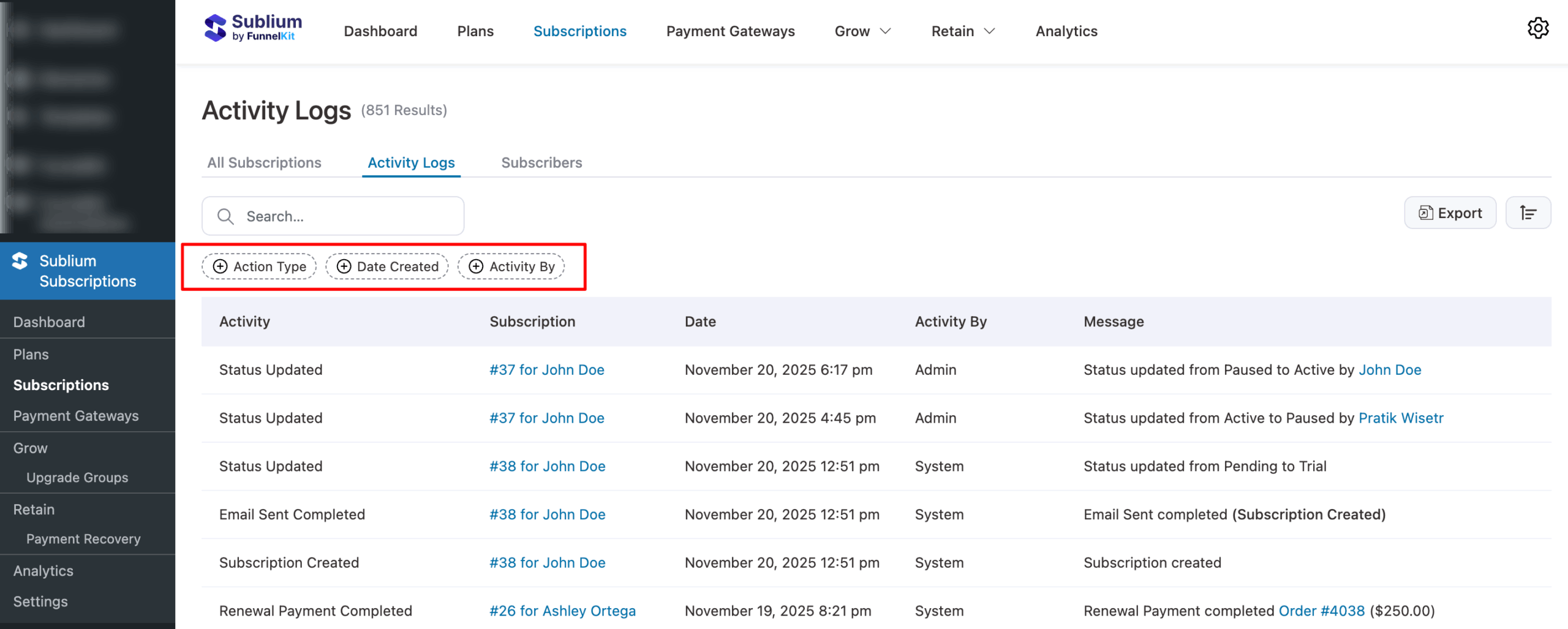
You can filter the activity log by the following options:
- Action Type: Choose the type of action (e.g., renewal, status update) from the dropdown menu.
- Date Created: Filter activities by the date they were created.
- Activity By: Filter based on who performed the activity.
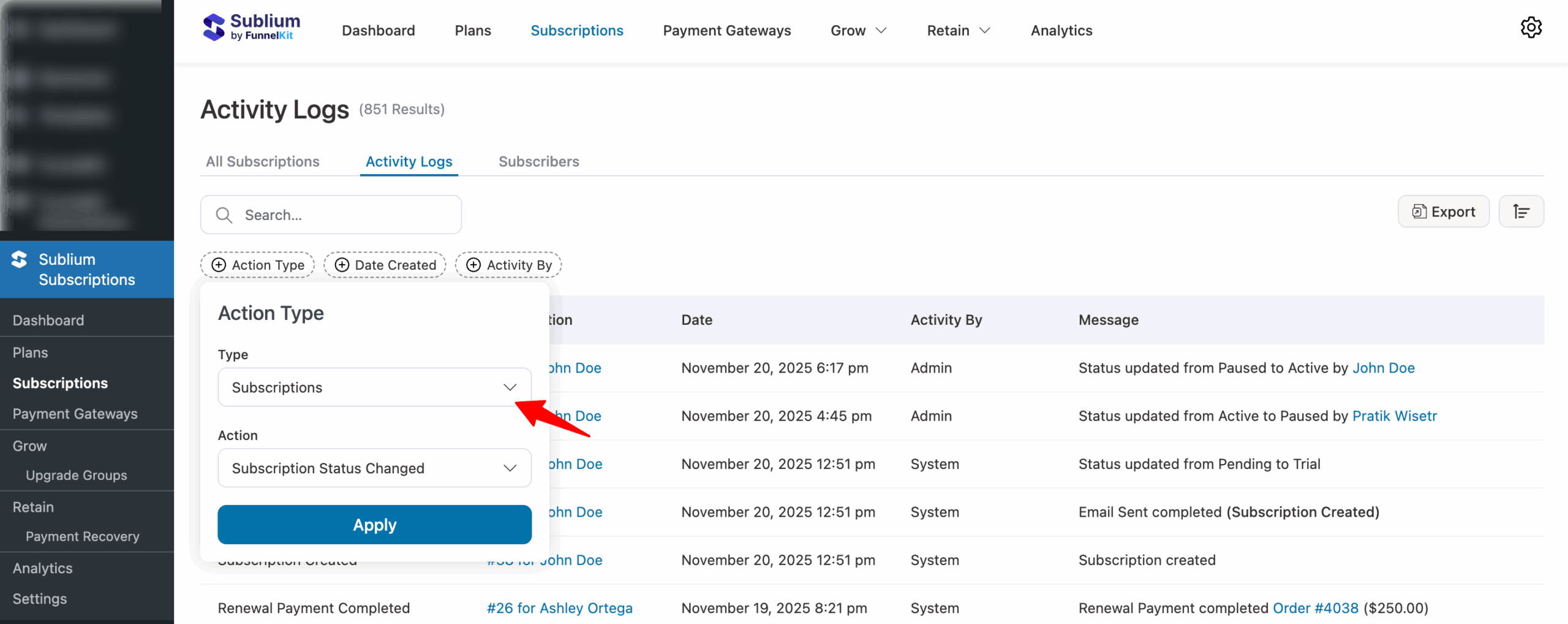
Steps to Apply Filters:
- Select the filter criteria from the dropdown menu.
- Click the Apply button.
- The log will be updated based on the selected filters.
Export
You can export all the activity logs or filtered ones into a CSV file for further analysis or record-keeping.
Steps to Export the Log:
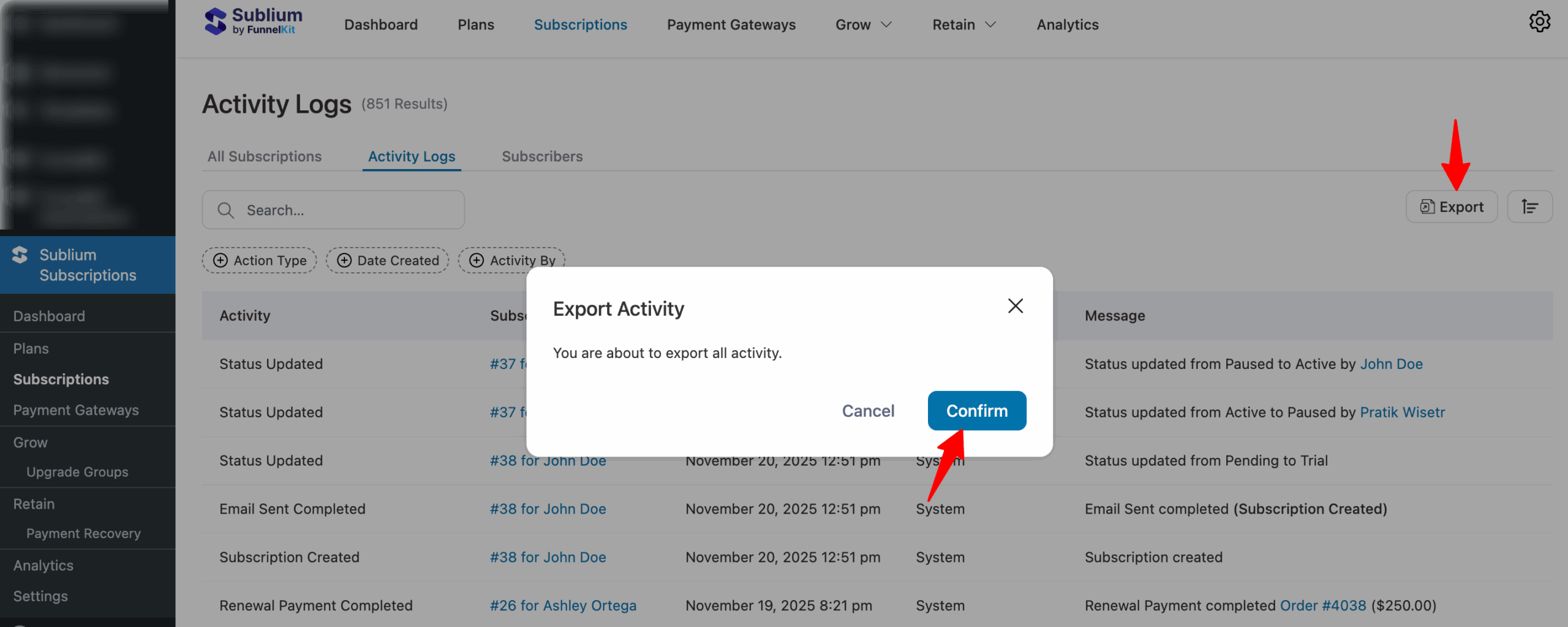
- Click the Export button on the page.
- A confirmation prompt will appear. Click Confirm to proceed.
- The log will be downloaded as a CSV file.
- You can cancel the process by clicking the Cancel button. Then, confirm the cancellation to stop the export.
Sort
You can sort the activity log by the following options:
- Ascending or Descending Activity Order
- Date
- Subscription ID
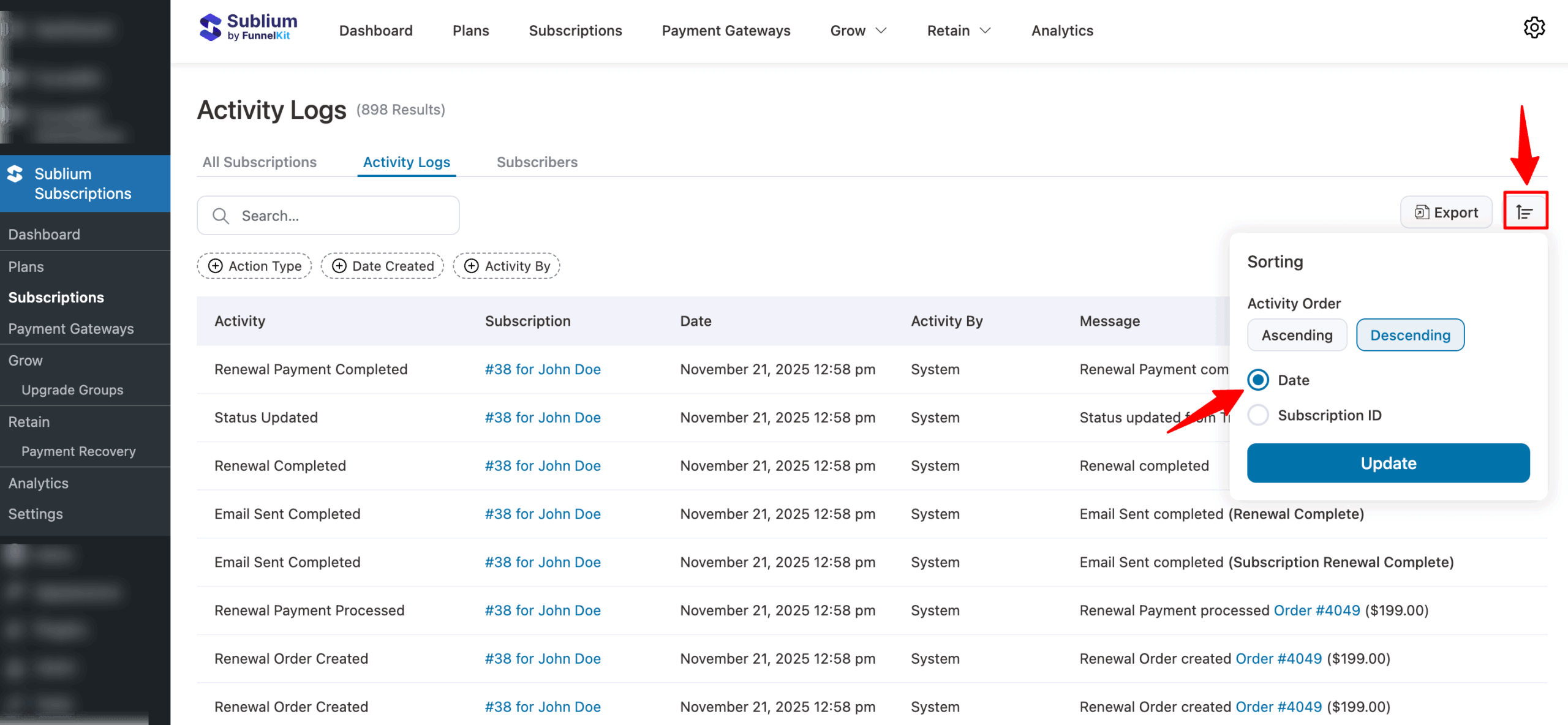
Sorting helps you quickly organize and review activities in your preferred order.
By utilizing these features, you can easily track and manage subscription activities, filter logs based on specific criteria, export data for further use, and sort the information as needed.
That’s it! This was all about the activity logs for subscriptions in Sublium.


