

This document contains all the information related to credit card expiry alert notifications, email customization, and activation.
Overview
“Before Card Expiry” is the email notification sent automatically to customers when their saved payment card is approaching its expiration date.
This notification encourages customers to update their card details to avoid interruptions in their subscription or service.
Usually, the email includes:
- Customer first name
- Notification about the expiring card, including the last four digits and the expiration month/year
- Subscription start date
- Subscription ID
- Payment method
- Product details (title, variation, quantity, and price)
- Subtotal, shipping, taxes, discounts, and total amount
- Instructions or links to update payment information
Access “Before Card Expiry” Email Notification
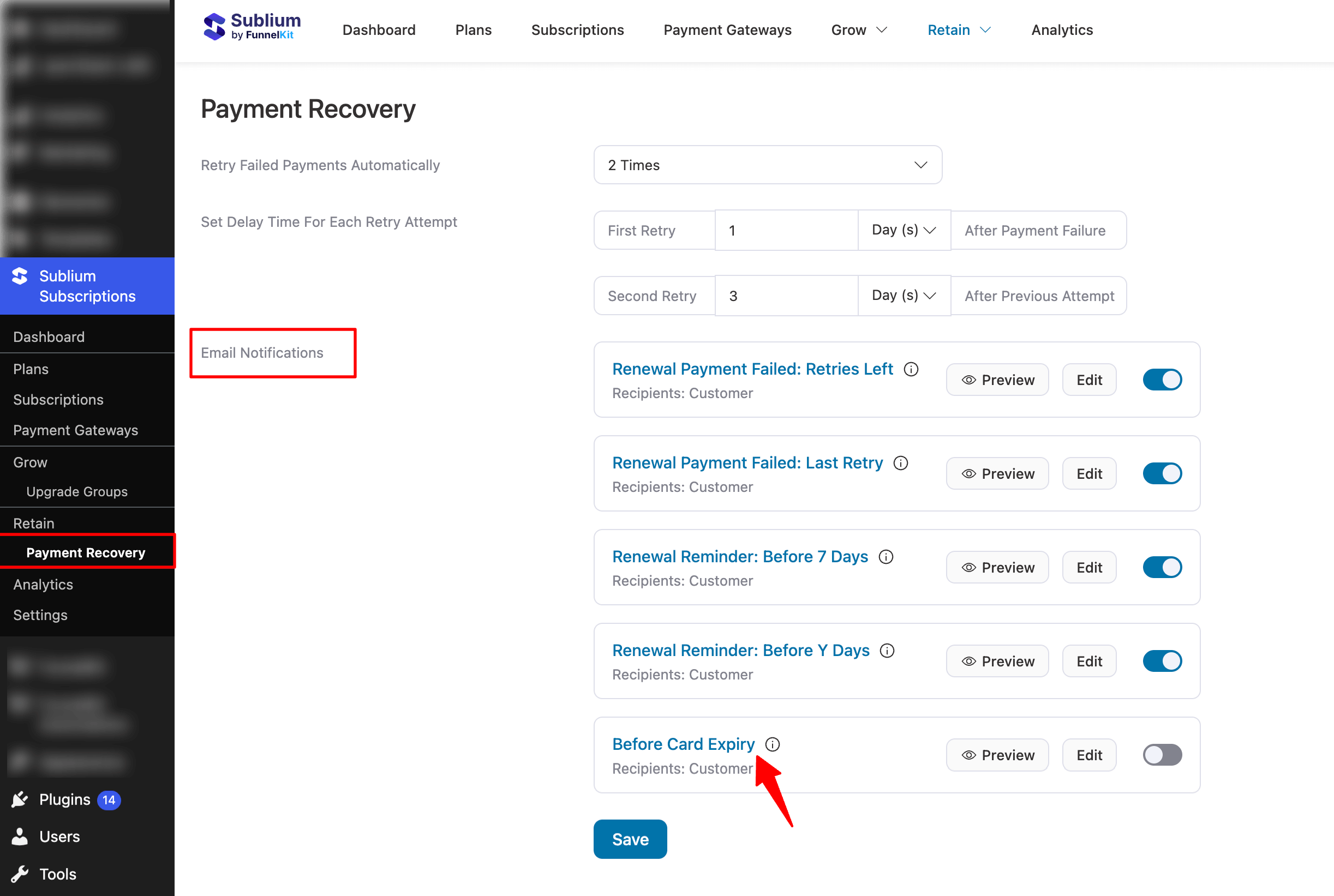
Navigate to Sublium Subscriptions ⇒ Retain ⇒ Payment Recovery.
Under the Email Notifications, you can find the Before Card Expiry email notification.
When It Is Sent
This email is sent when:
- A saved payment card associated with a subscription is nearing its expiry date
Audience / Recipient
By default, this email is sent to the customer.

Email Customization
You can customize this notification using:
- Rich Text editor
- Visual Builder (drag & drop builder supporting WooCommerce blocks)
A prebuilt “Before Card Expiry” template is available and can be modified or rebuilt as needed.

Personalization
Sublium Subscriptions offers merge tags to personalize the subject line, preview text, and email body.
Simply copy and paste the tags into your desired section.
Here are the merge tags used in the prebuilt template:
- {{subscriber_first_name}} – Subscriber’s first name
- {{expire_card_last4_digit}} – Last four digits of the expiring card
- {{expire_card_month}} – Card expiration month
- {{expire_card_year}} – Card expiration year
- {{subscription_id}} – Unique subscription ID
- {{subscription_item}} – Product linked to the subscription
- {{sublium_my_account_url}} – Link to subscription management
- {{admin_email}} – Admin email for support
How To Activate
To activate the “Before Card Expiry” email, turn ON the toggle next to the notification inside Sublium Subscriptions.
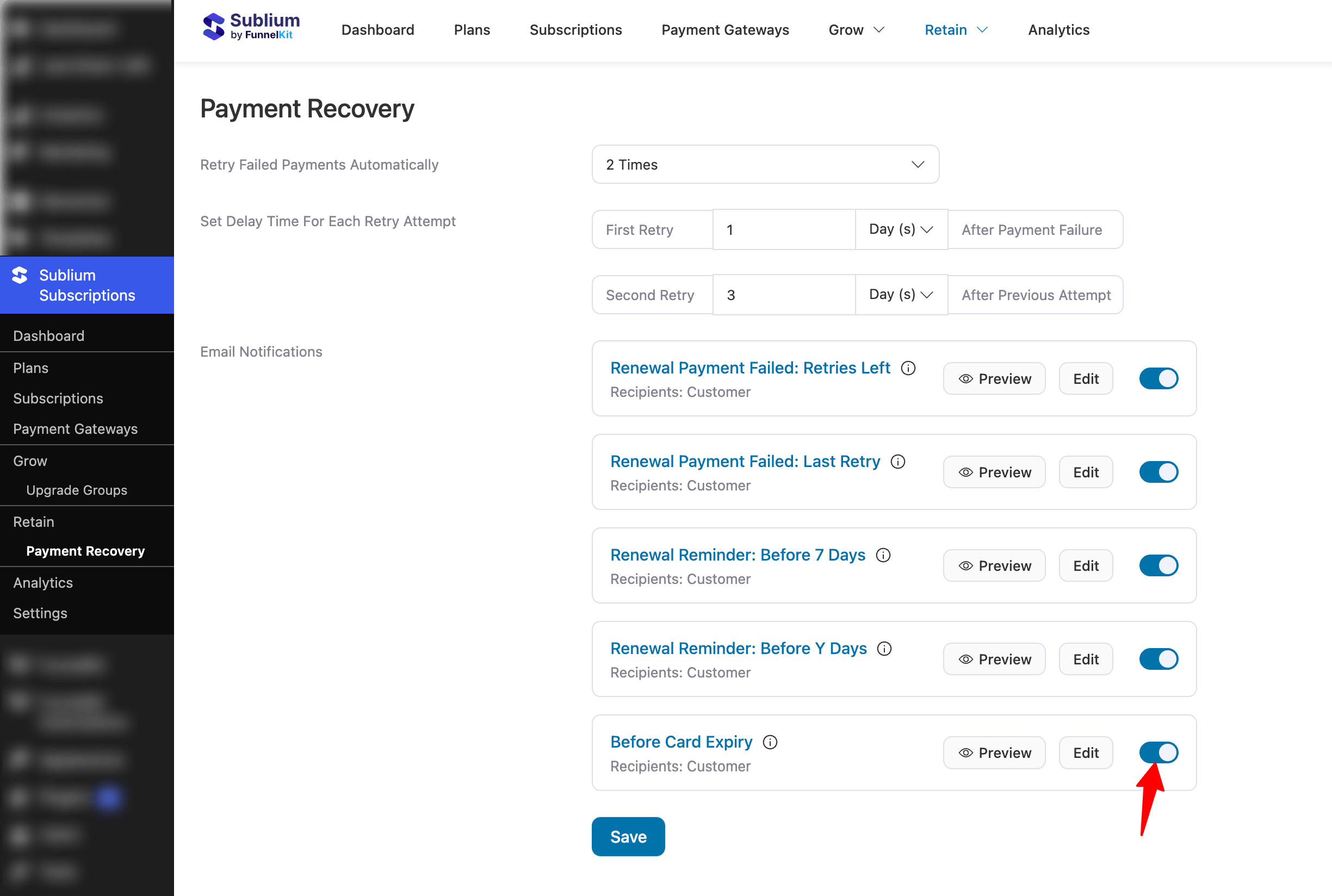
This setup ensures customers are notified before their card expires, allowing them to update payment details and maintain uninterrupted access to their subscription.
Troubleshooting
Emails not sending
- Confirm your SMTP plugin is configured and sending test emails successfully
- Check your SMTP plugin’s email logs for failed delivery attempts
- Verify the notification toggle is enabled
- Ensure the customer has a valid email address on their order
Merge tags showing as plain text
- Confirm you copied the full merge tag, including the curly braces, e.g., {{subscriber_first_name}}
- Check for extra spaces inside the merge tag
- Use only merge tags from the official list; custom tags won’t work
Email is going to spam
- Configure SPF, DKIM, and DMARC records for your sending domain
- Avoid spam trigger words in your subject line
- Use a reputable transactional email service
Email looks broken or unstyled
- Test across multiple email clients (Gmail, Outlook, Apple Mail)
- Avoid complex CSS, as email clients have limited style support
- Use the Visual Editor’s built-in templates for better compatibility


