

This document explains how to connect PayPal as a payment gateway for Sublium Subscriptions using WooCommerce. It covers plugin installation, activation, gateway enablement, PayPal credential setup, webhook creation, and test order validation.

How to Connect PayPal Payment With Sublium Subscriptions
Follow the steps below to connect PayPal payment with Sublium Subscriptions:
Step 1: Install and Activate the PayPal Gateway
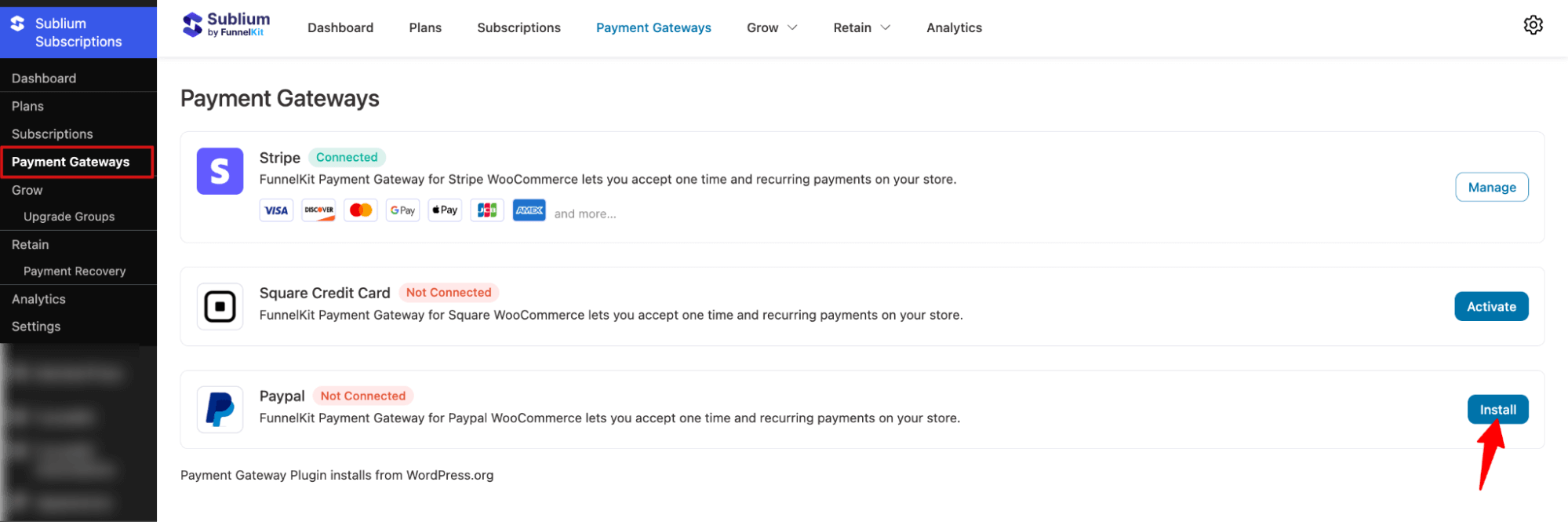
Navigate to Sublium Subscriptions ⇒ Payment Gateways, then click Install next to PayPal.
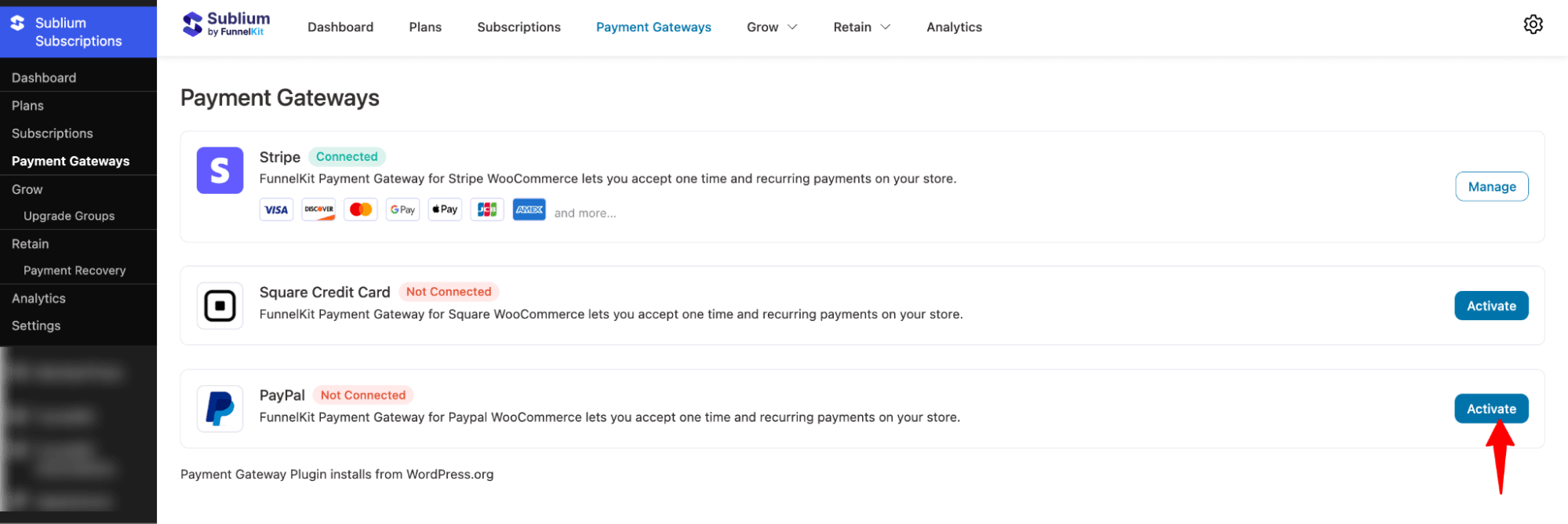
Next, hit Activate.
Step 2: Enable PayPal payment in WooCommerce
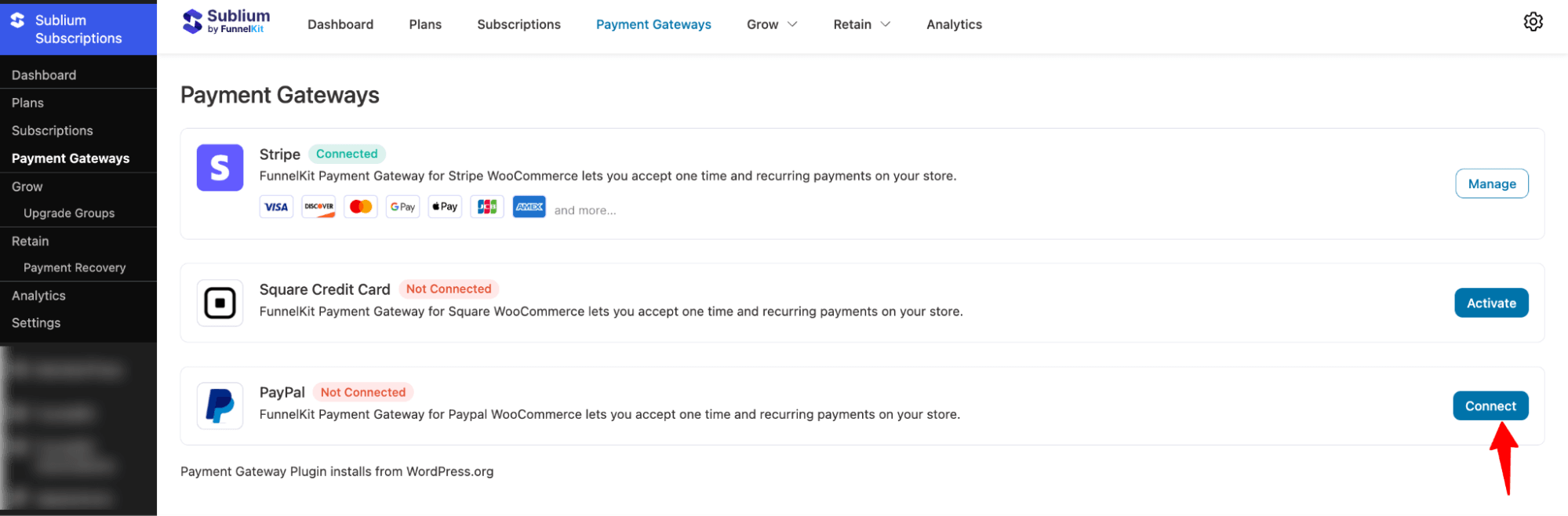
To connect, hit the “Connect” button.
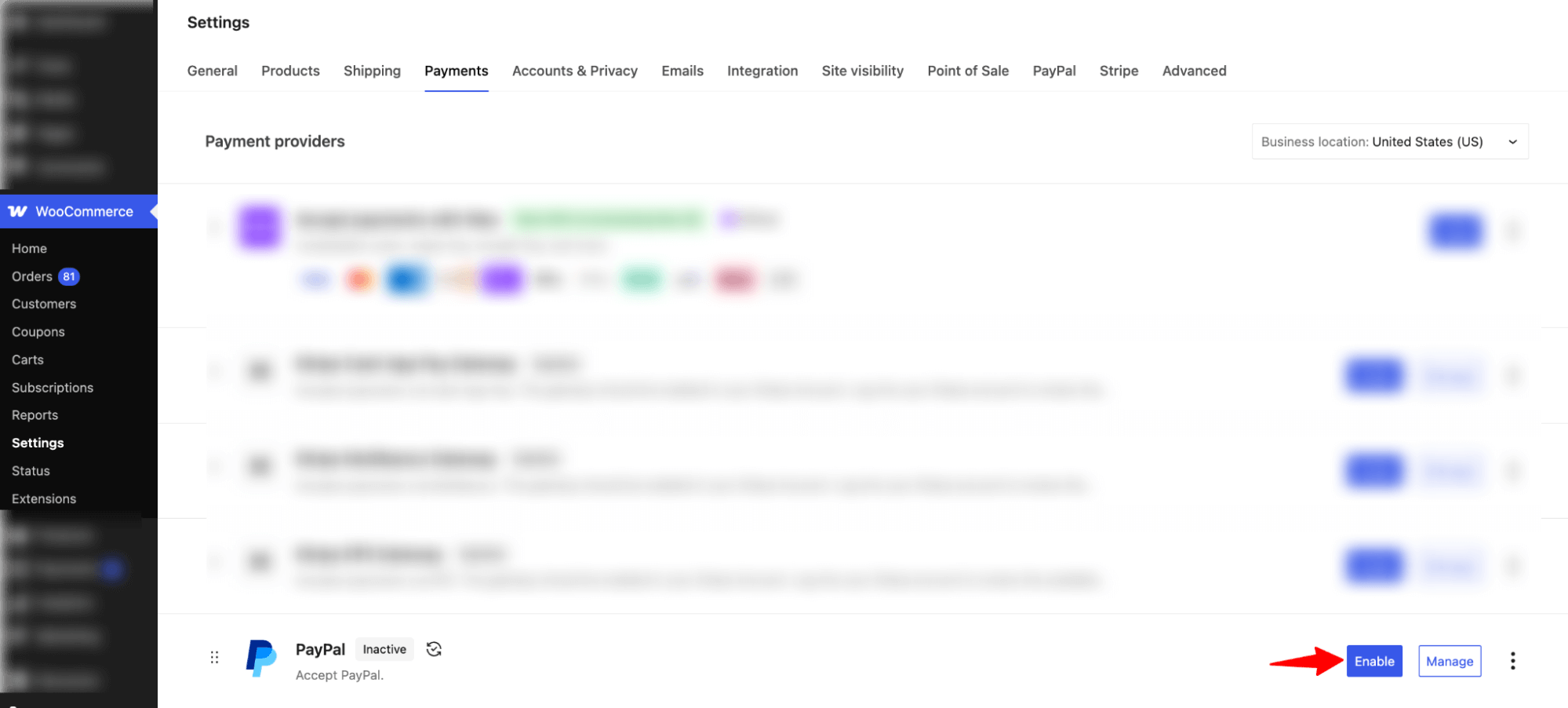
It will take you to WooCommerce ⇒ Settings ⇒ PayPal. Switch to the Payments and hit Enable next PayPal.
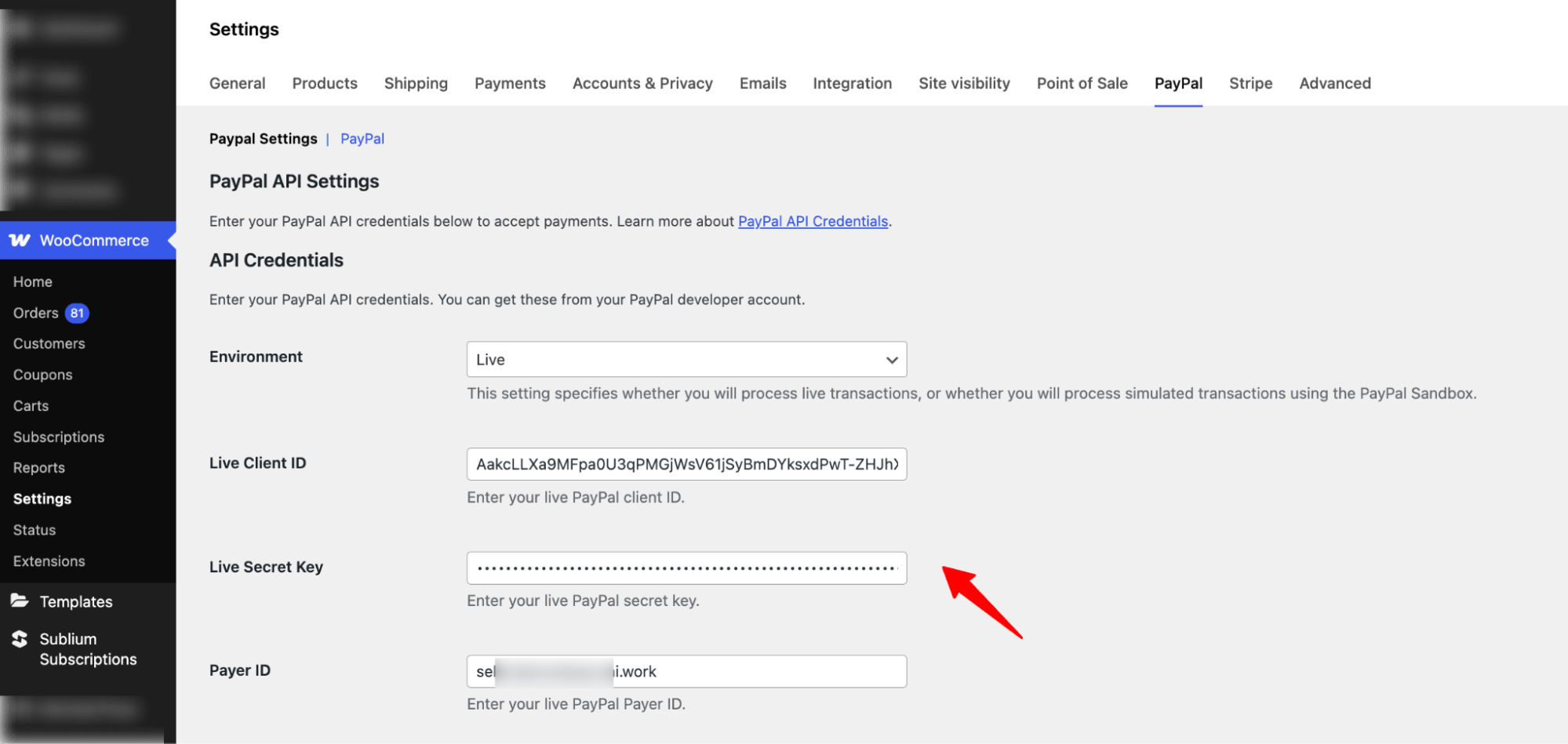
Next, switch to the PayPal tab and add Live Client ID, Live Secret Key, and Payer ID.
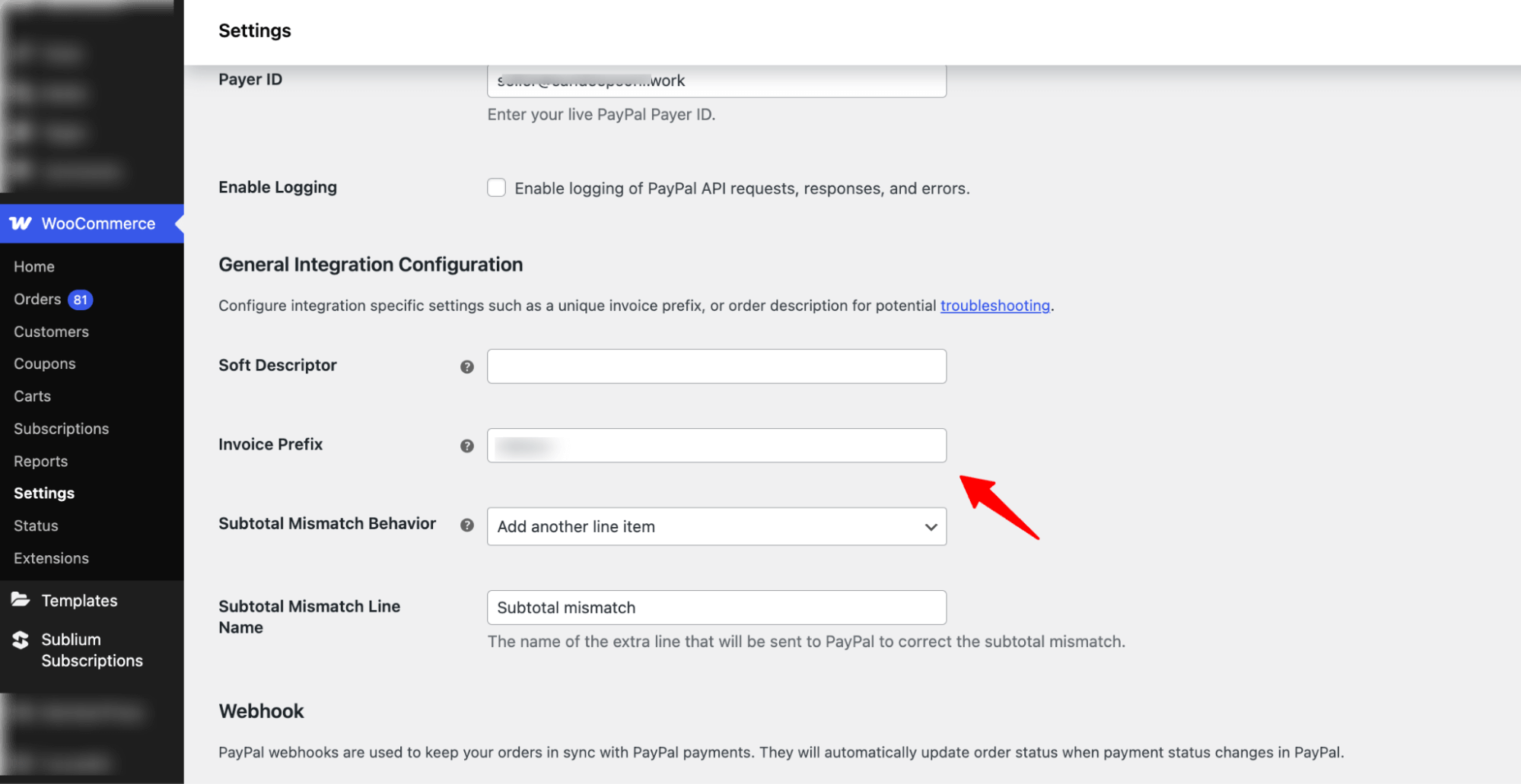
Next, under the General Integration Configuration, set Soft Descriptor, Invoice Prefix, Subtotal Mismatch Behavior, and Subtotal Mismatch Line Name.
Step 3: Create Webhook
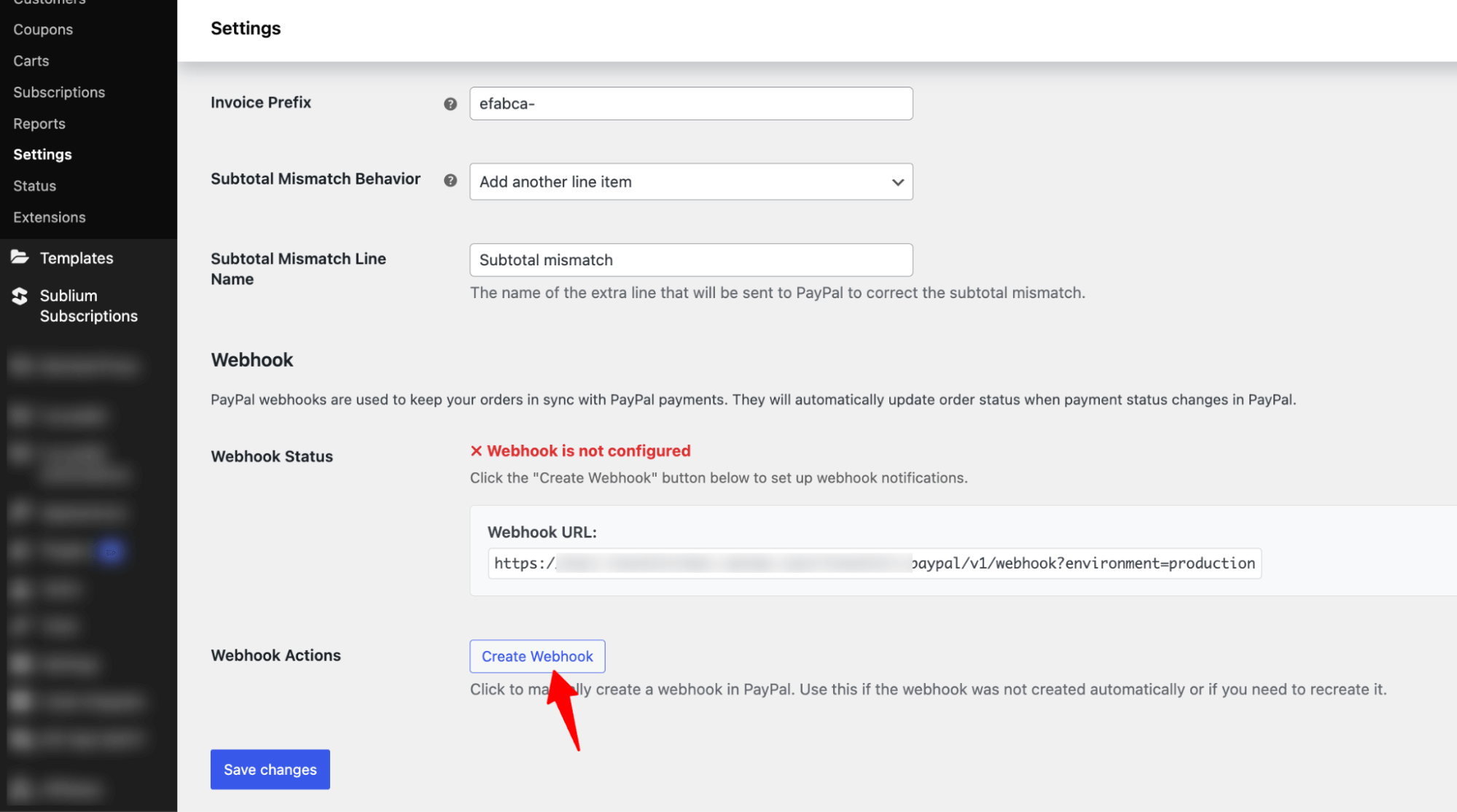
Hit the button “Create Webhook” to start creating the webhook.
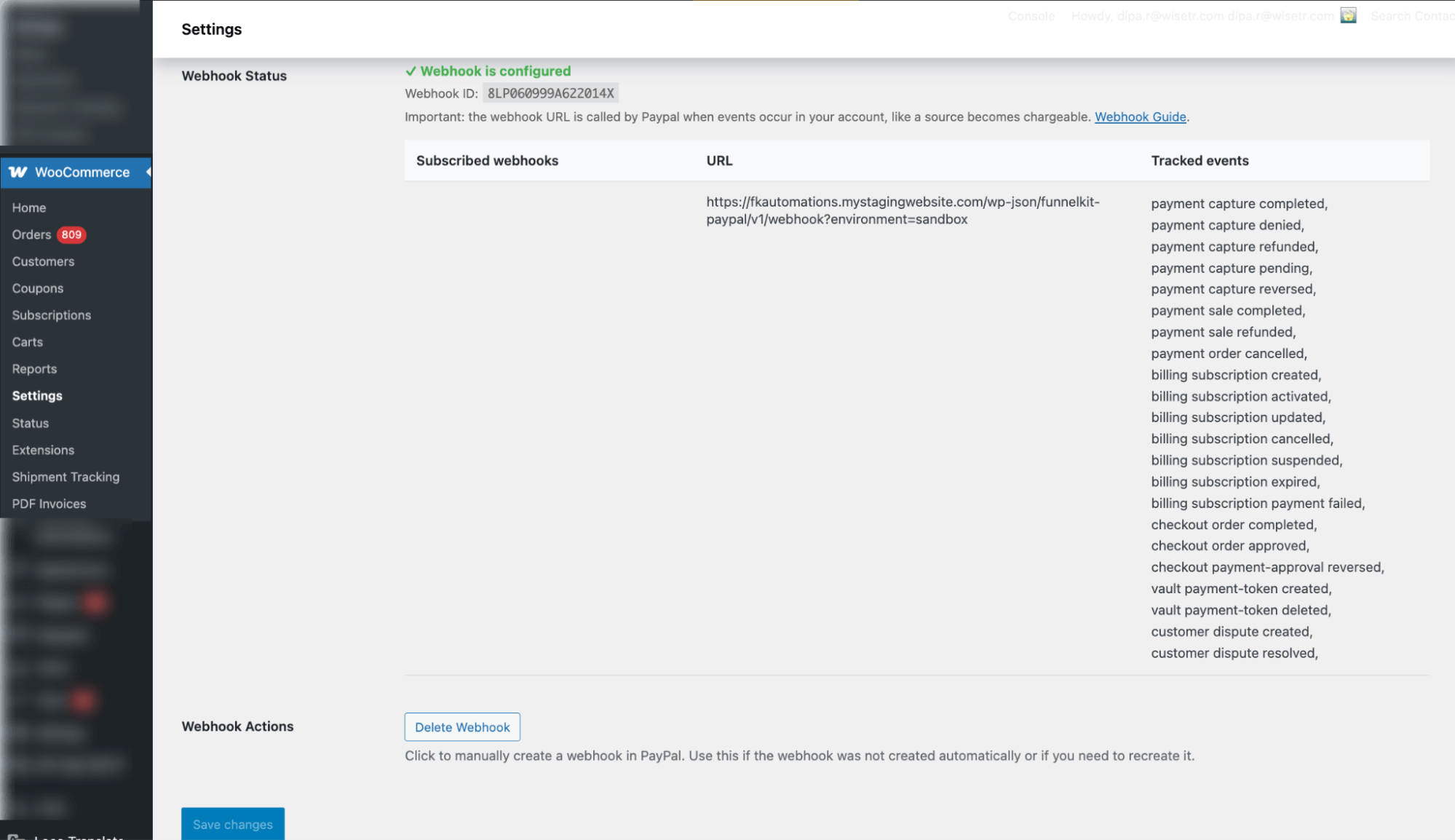
After creating the webhook, make sure to hit Save Changes.
Step 4: Set the design settings
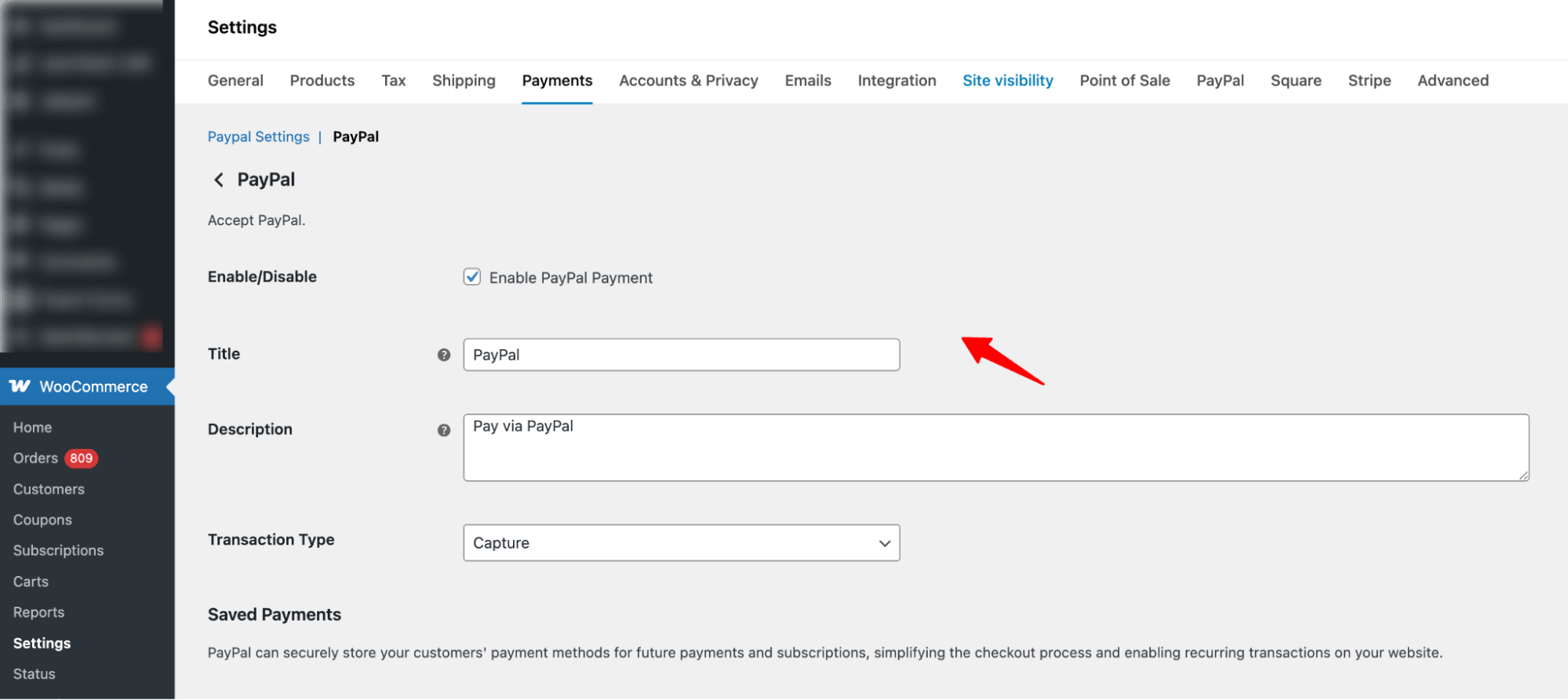
Now move to the PayPal tab and enable PayPal to accept payments, customize how it appears on checkout using a title and description, and choose the Transaction Type, either Capture or Authorize, to control when funds are collected after payment authorization.
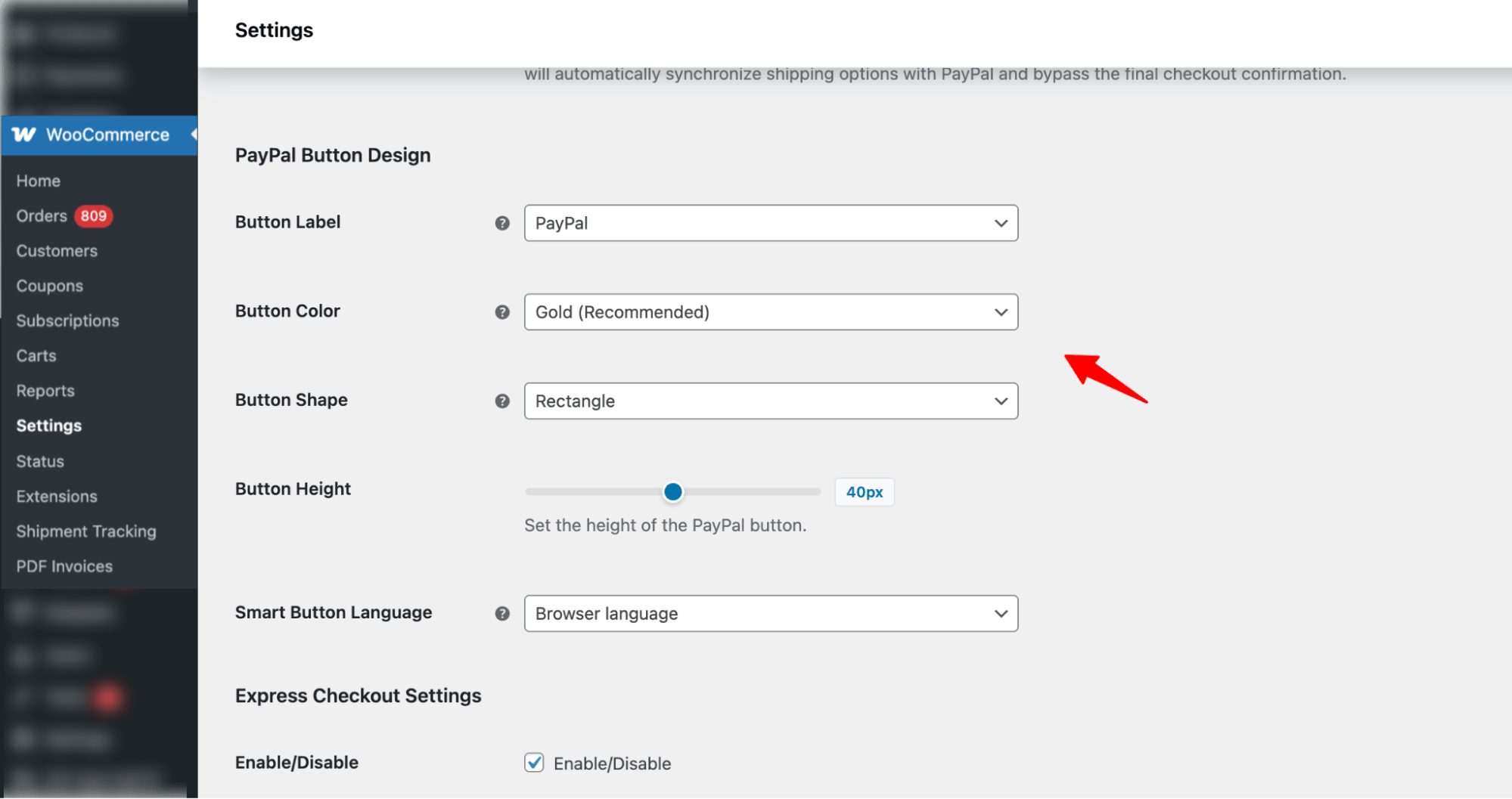
Use PayPal Button Design settings to customize the PayPal button’s label, color (Gold recommended), shape, height (default 40px), and language to match your store’s design and customer preferences.
Use Express Checkout Settings to enable or disable PayPal Express Checkout and choose where the PayPal button appears, such as the Checkout page, Cart page, Product page, or FunnelKit Slide Cart, and configure the subscription mode as needed.
Additionally, you can use Product Sync Cron to automatically sync subscription products with PayPal on a scheduled basis, set the sync frequency (daily by default), or manually sync products whenever needed.
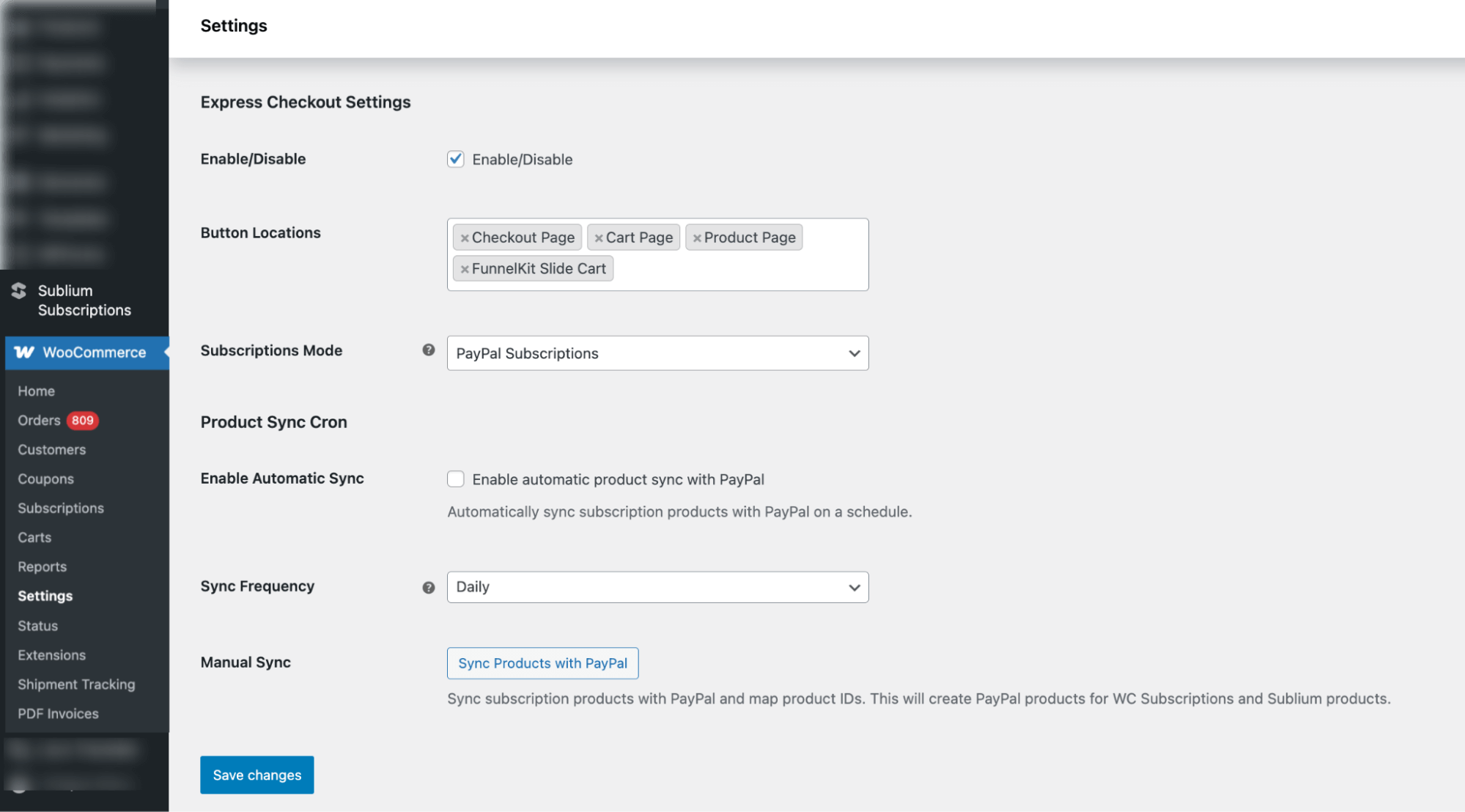
Make sure to hit Save Changes.
This is how you can connect Sublium Subscriptions to the PayPal Payment Gateway.


