In this guide, we will walk you through creating a recurring subscription plan using Sublium for your WooCommerce store.
Also, how the Sublium recurring subscription plan works on the storefront.
For instance, we will define multiple sales plans for the product ‘VIP Skincare Membership.’
Below are the details of the plans we will create.
| Plan Type | Price / Details |
| One-time Purchase | $30 |
| Monthly Plan | $20 / month |
| Yearly Plan with 1-Day Free Trial | $240 (Discounted Price: $199) – Includes Free Consultation |
You can follow this process to create any type of recurring subscription plan.
How to Create a Recurring Subscription Plan

Once all the products are set for which you want to create the recurring selling plans, follow these steps:
Step 1: Create a Recurring Subscription Plan
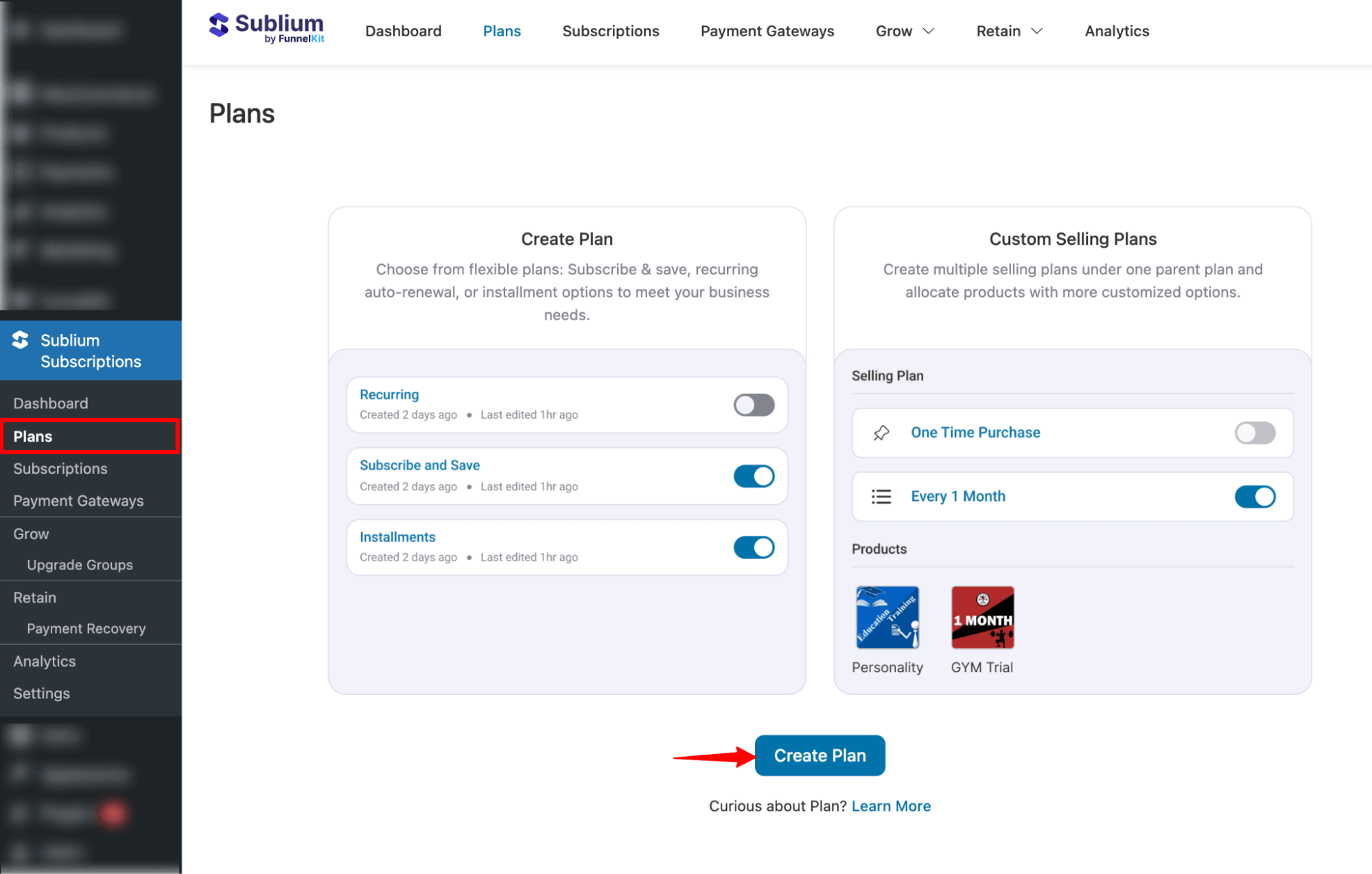
Go to your WordPress Dashboard and navigate to Sublium Subscriptions ⇒ Plans.
You’ll get an onboarding screen. Scroll down and click on the “Create Plan” button.
You will be presented with three plan types to choose from:
- Recurring
- Subscribe and Save
- Installments
Since we’re creating a recurring subscription plan, select Recurring and enter a descriptive name for your plan (e.g., “VIP Skincare Membership”).
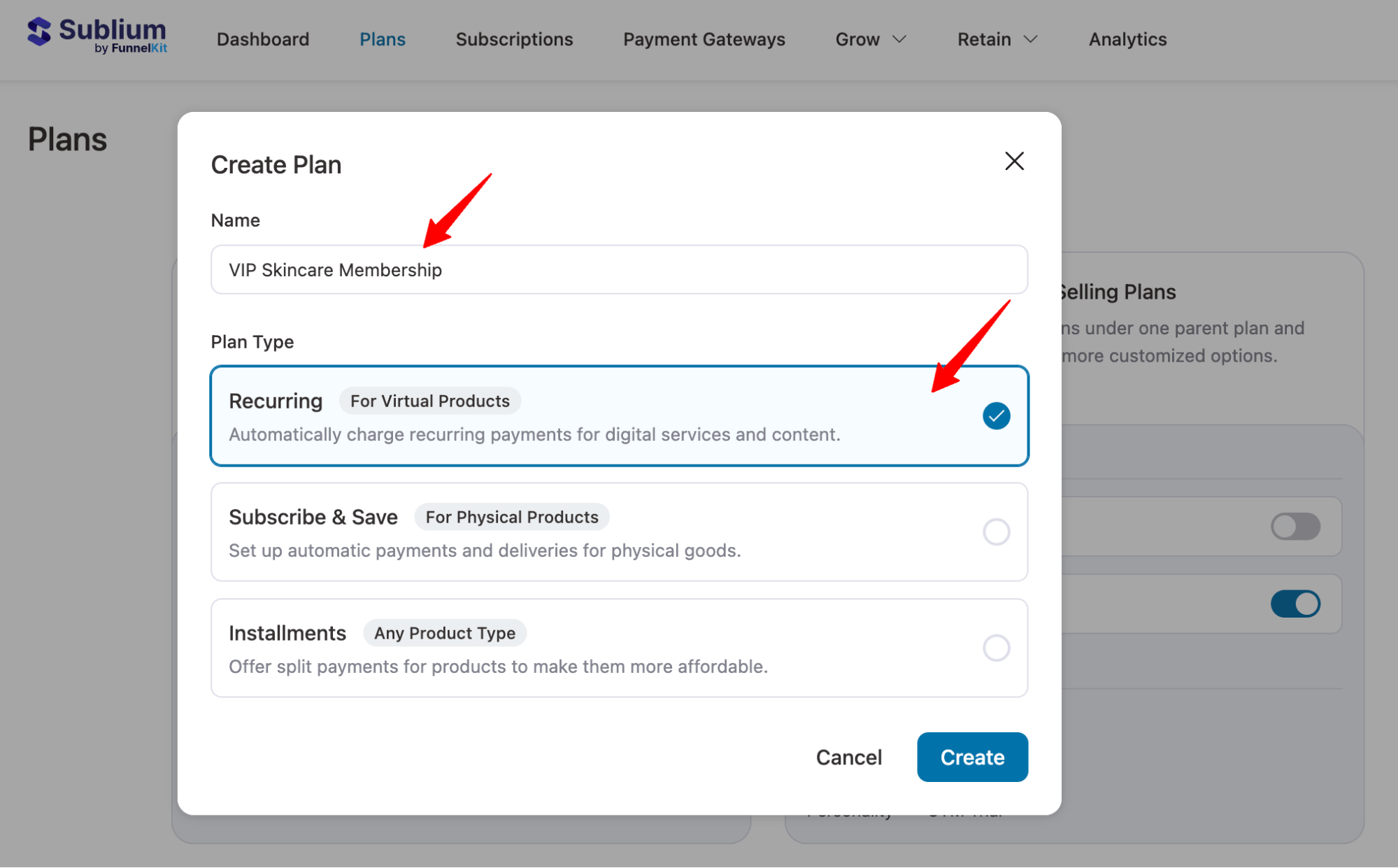
Once done, click on “Create” to create your subscription plan.
Step 2: Configure the recurring selling plan
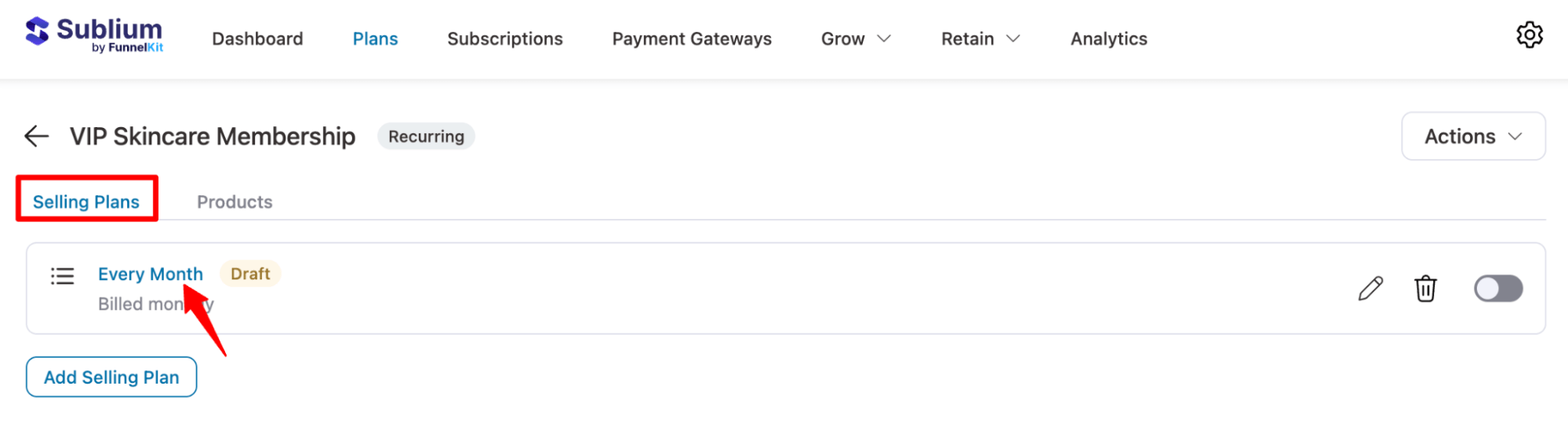
You will land on the “Selling Plans” tab and find a default monthly plan.
To start configuring the selling plan, click on the plan name.
Let’s start configuring the recurring subscription plan with the following options:
- Frequency: This option determines the frequency at which payments will be charged. Select the appropriate frequency based on your business model.
- Interval: Specify the billing interval in days, weeks, months, or years. It determines the frequency of the payments. For monthly billing, set the interval to 1 month.
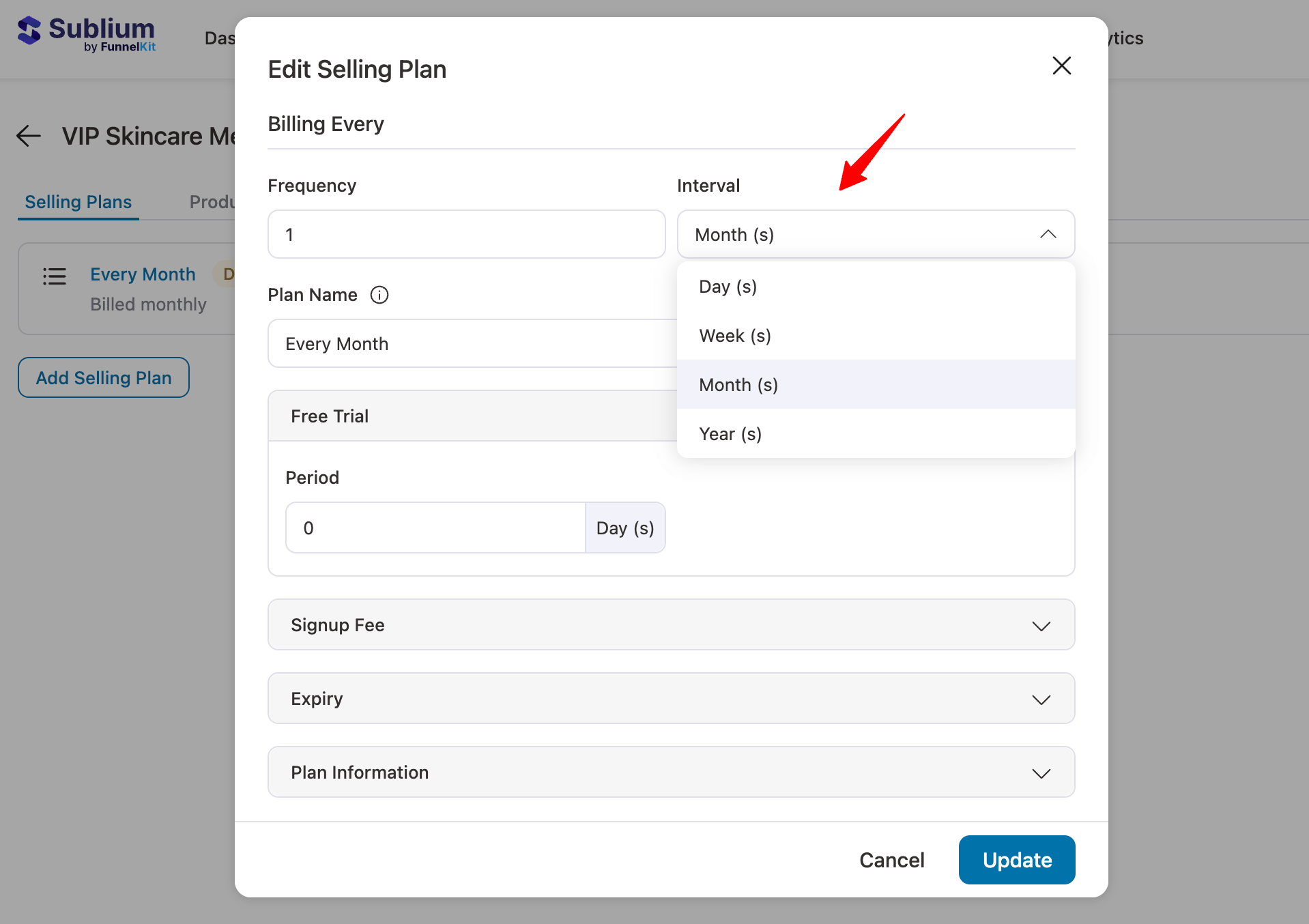
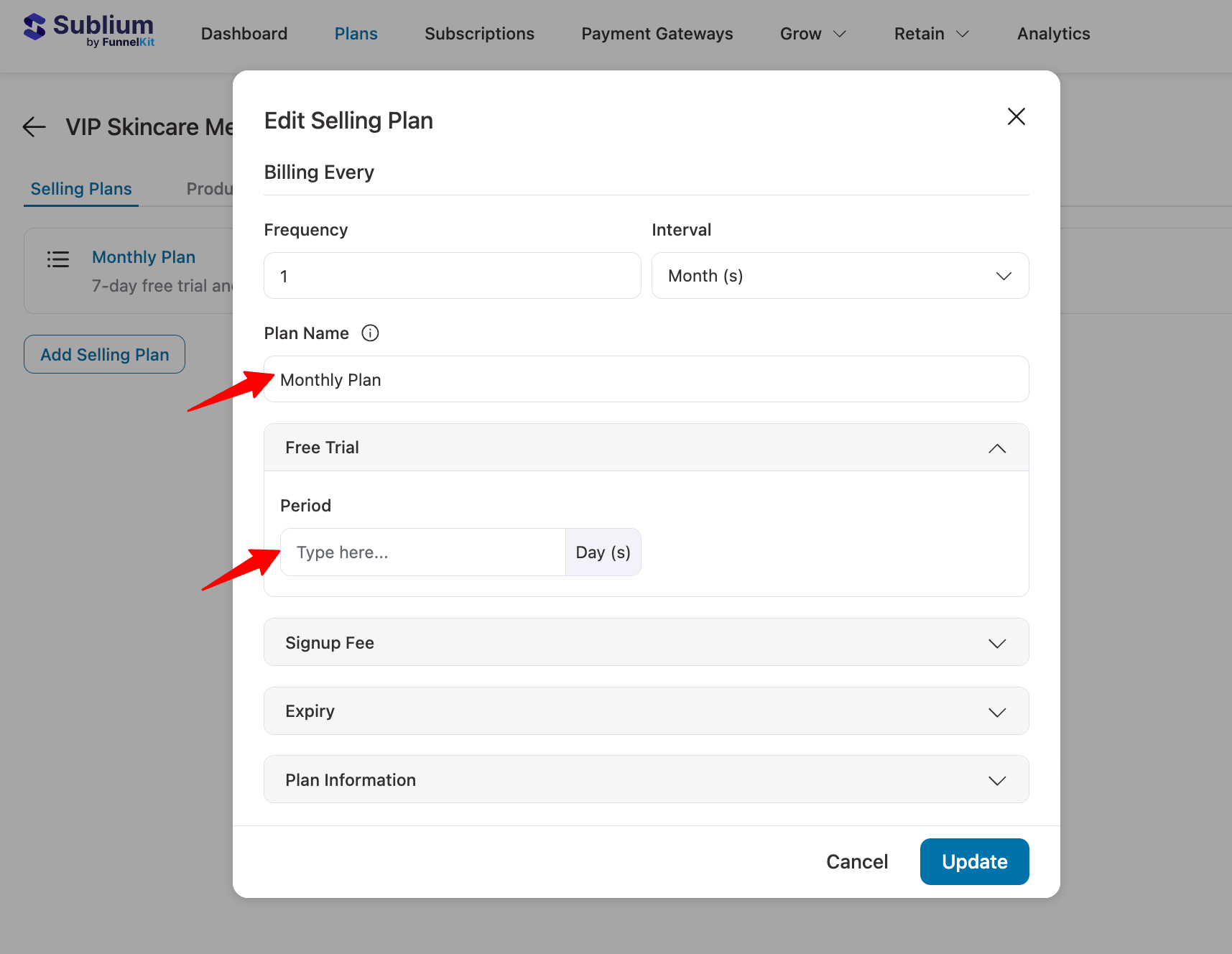
- Plan Name: Give your subscription plan a clear and descriptive name for easy identification. Example: “ Monthly Plan”.
- Free Trial: Next, expand the free trial tab and add the number of days for which you want to offer a free trial. For monthly plans, we won’t be offering any free trial.
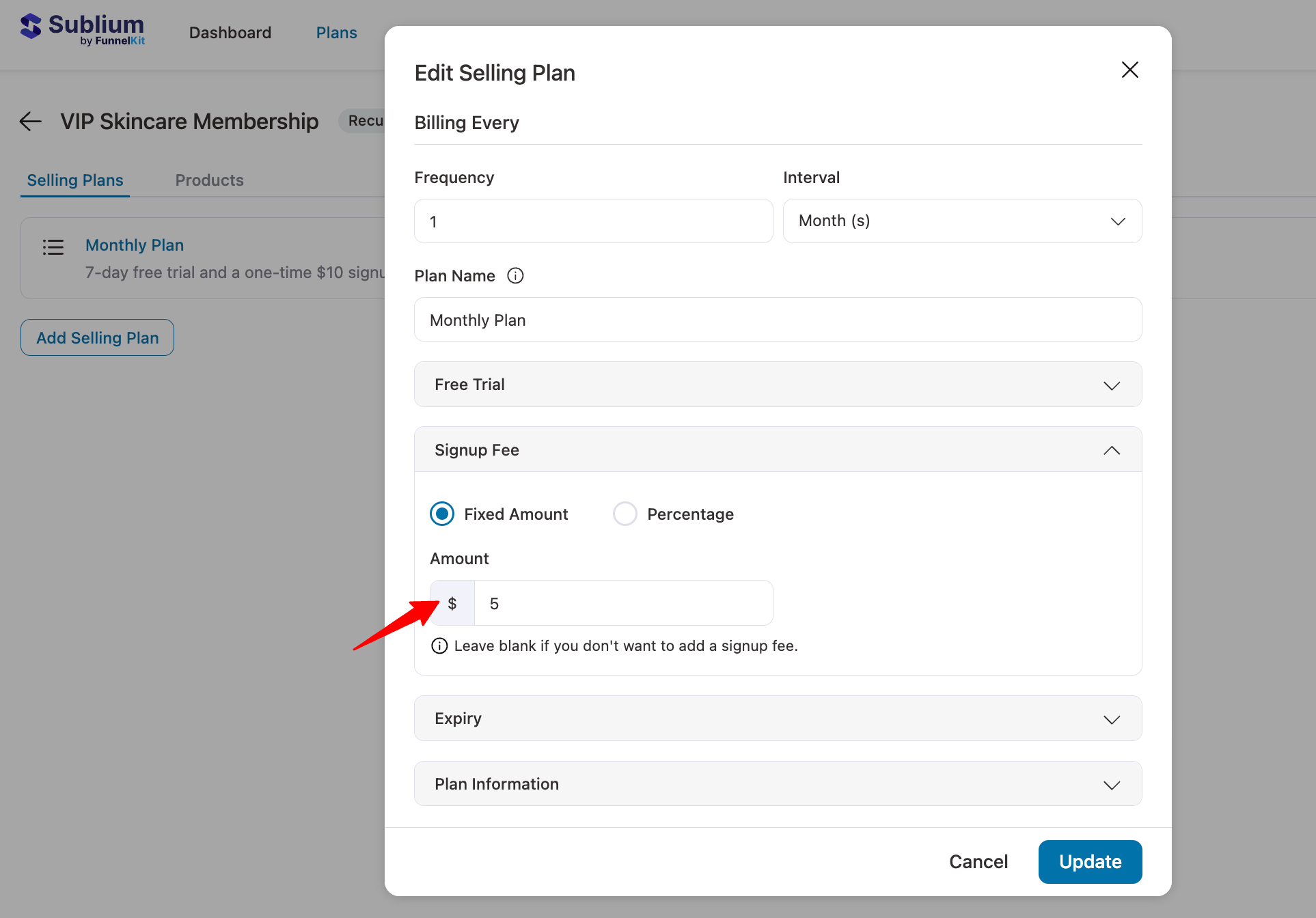
- Sign-up fee: You can charge a sign-up fee either as a fixed amount or a percentage of the plan price.
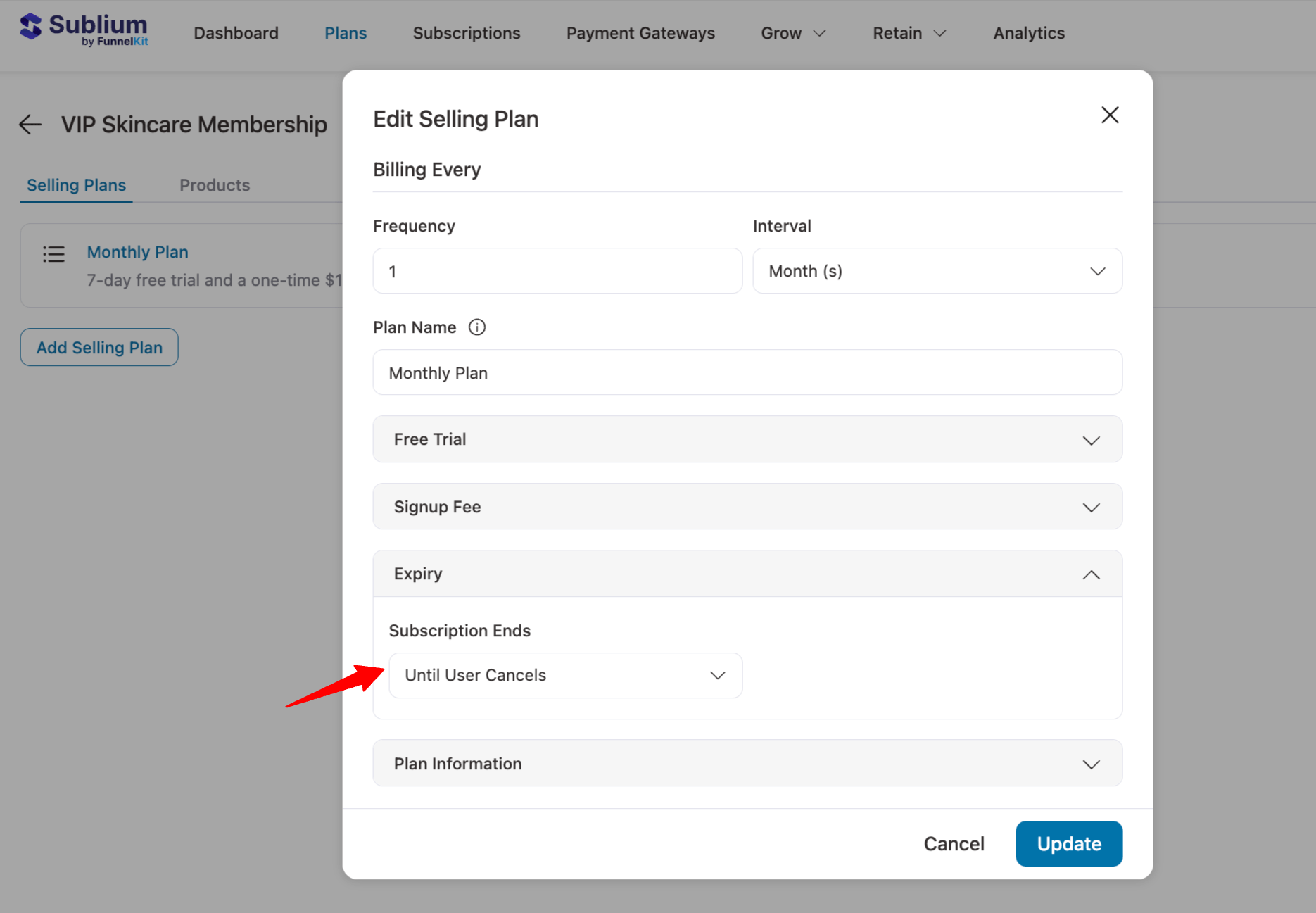
- Expiry: Define if and when the subscription will expire:
- Until User Cancels: The subscription continues until the customer cancels it.
- After X Successful Payments: Set a specific number of billing cycles after which the subscription expires (e.g., 6 or 12 payments).
- Plan Information: This section show the selling plan breakdown below after the user selects it. Here are two parts:
- Pricing Breakdown: After selecting a selling plan, customers can view details like frequency, pricing, free trial, signup fee, and expiry on the product page.
- Additional Description: You can add additional information in this section.
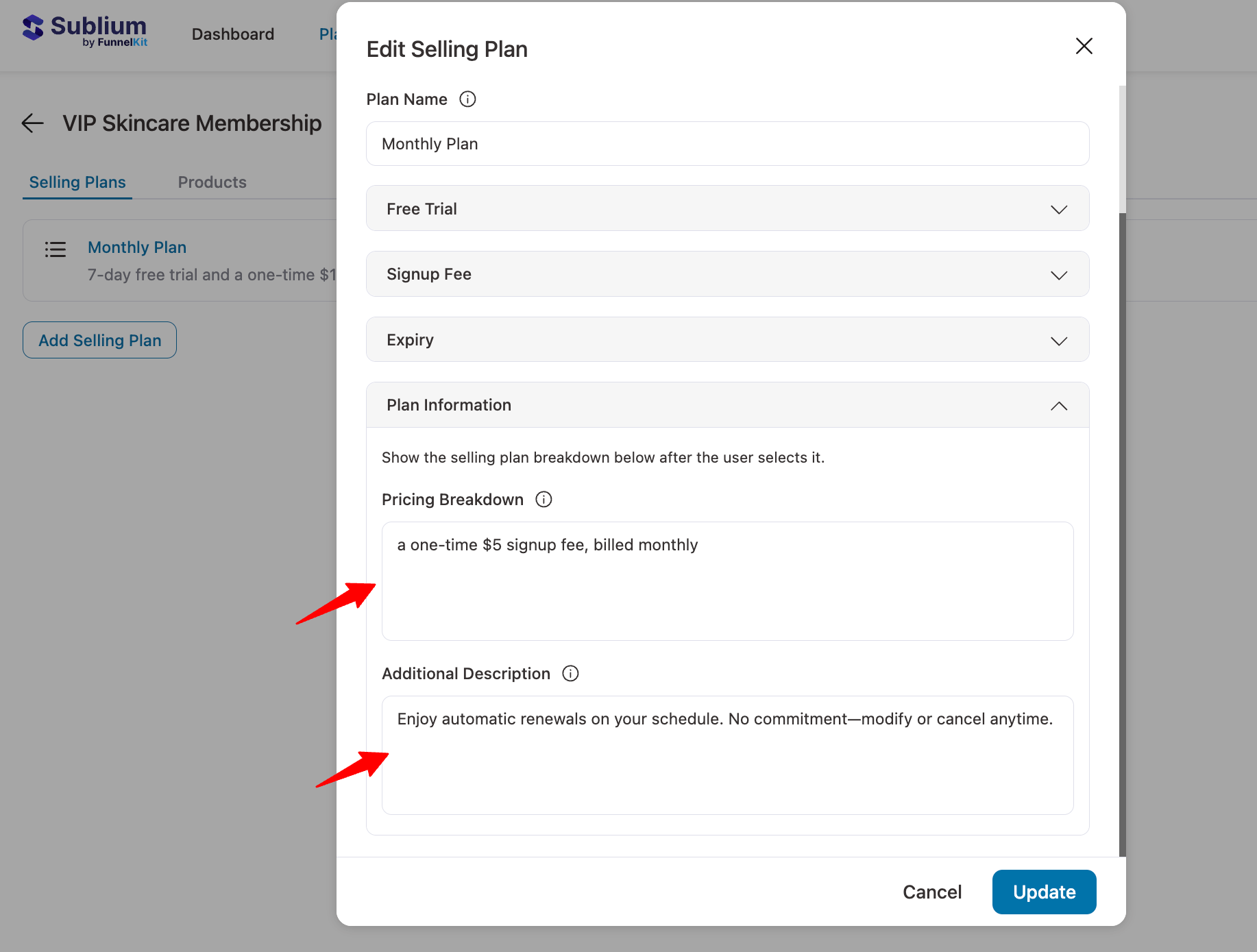
Once done, click on Update to save your configuration.
Then you must enable the plan by toggling the button and confirming it.
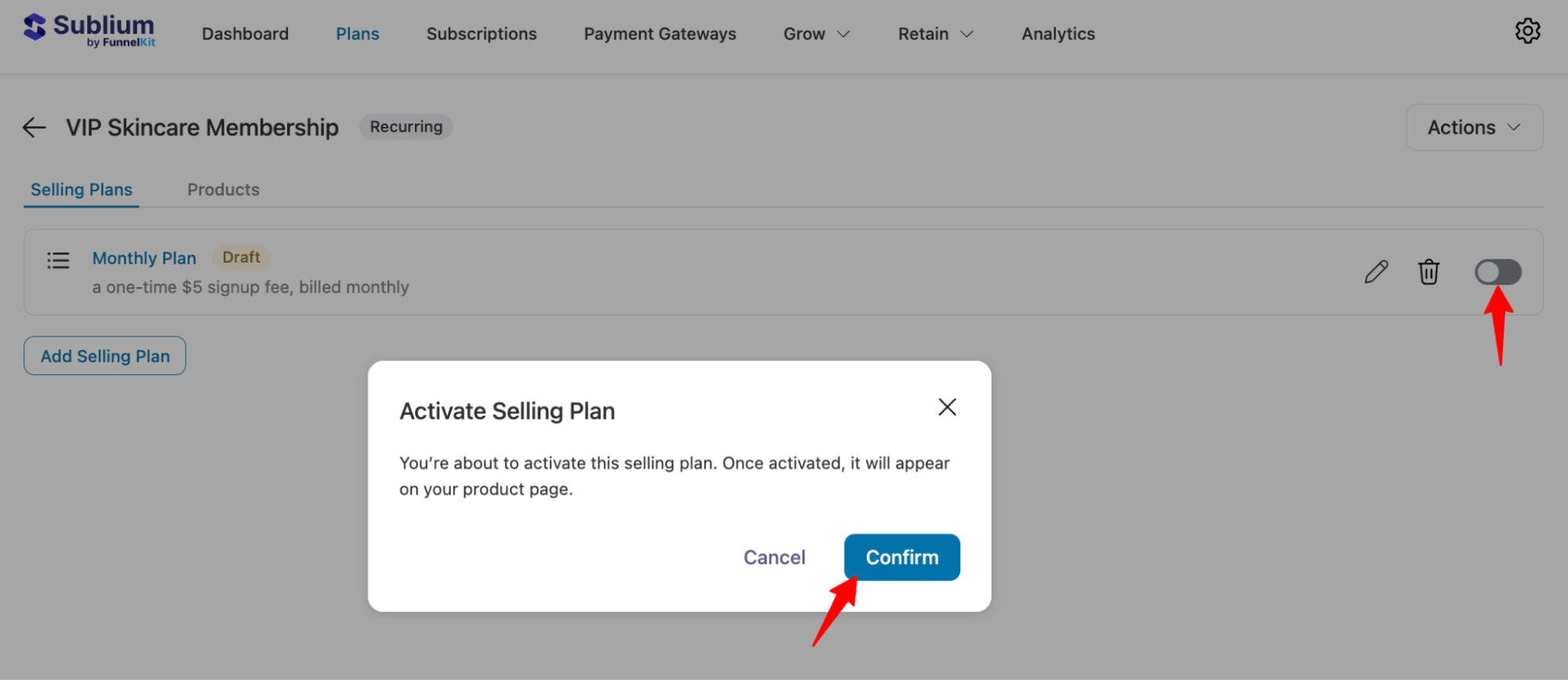
Now one of your recurring selling plans is ready.
Step 3: Create multiple recurring plans
To add more recurring selling plans, click the “Add Selling Plan” button, then configure it as you did in the previous section.
Here, we have added a yearly plan.
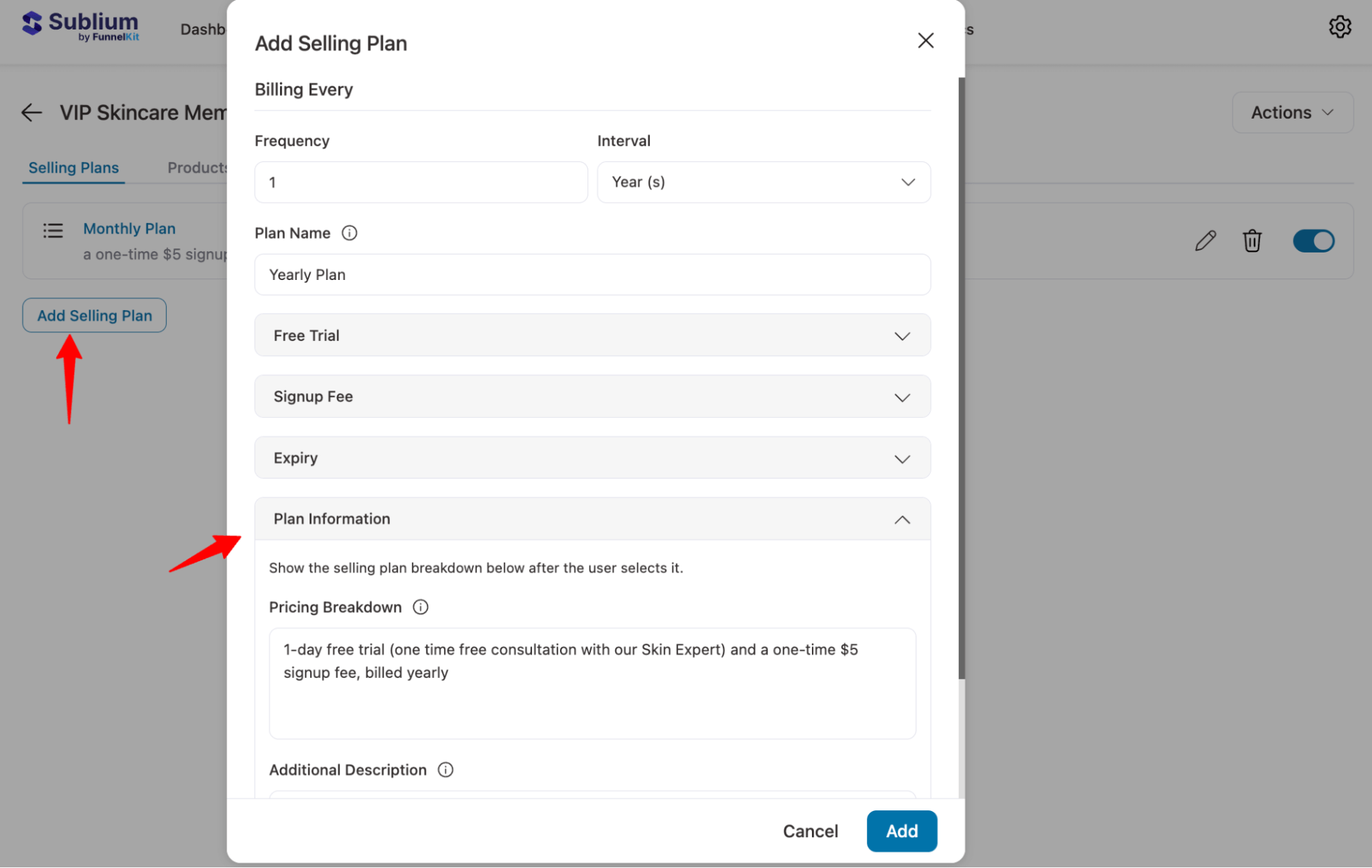
Make sure to enable the plan as well.
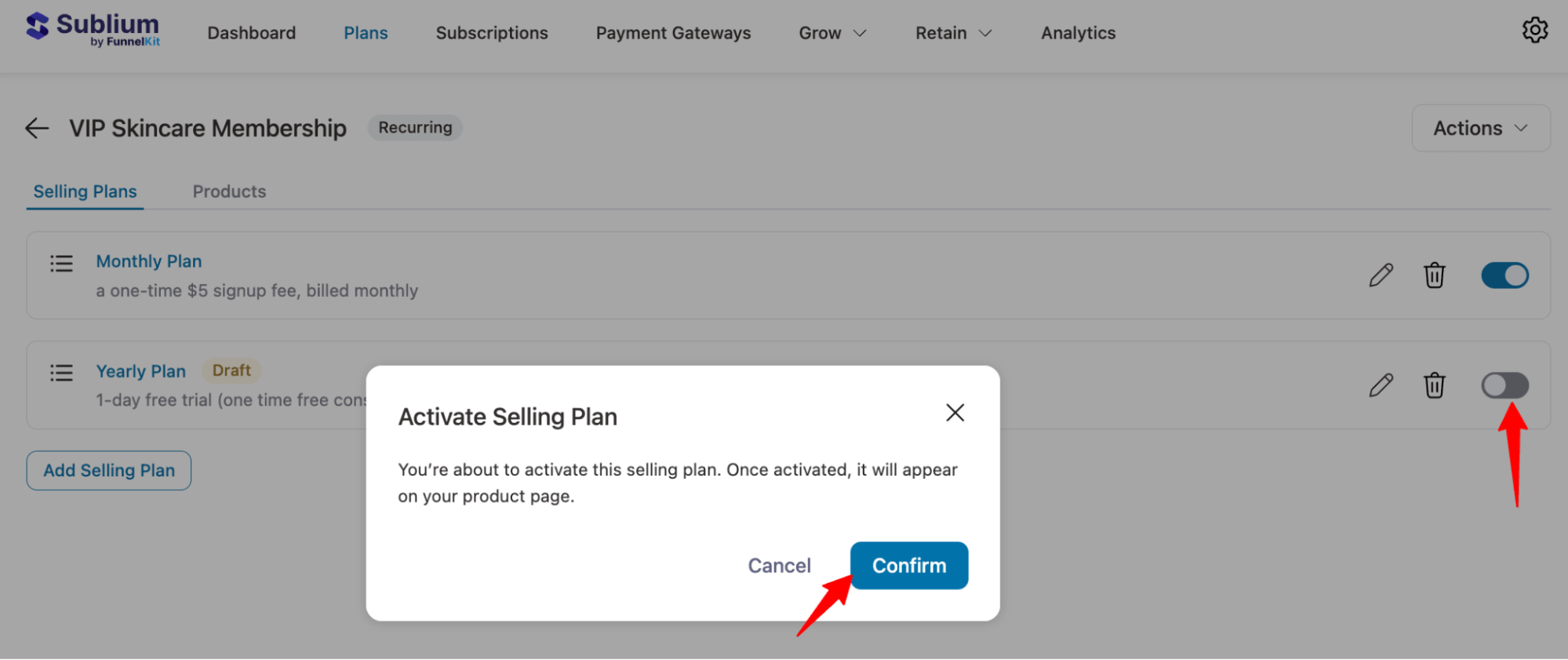
You can add as many plans as you want with different frequencies and intervals.
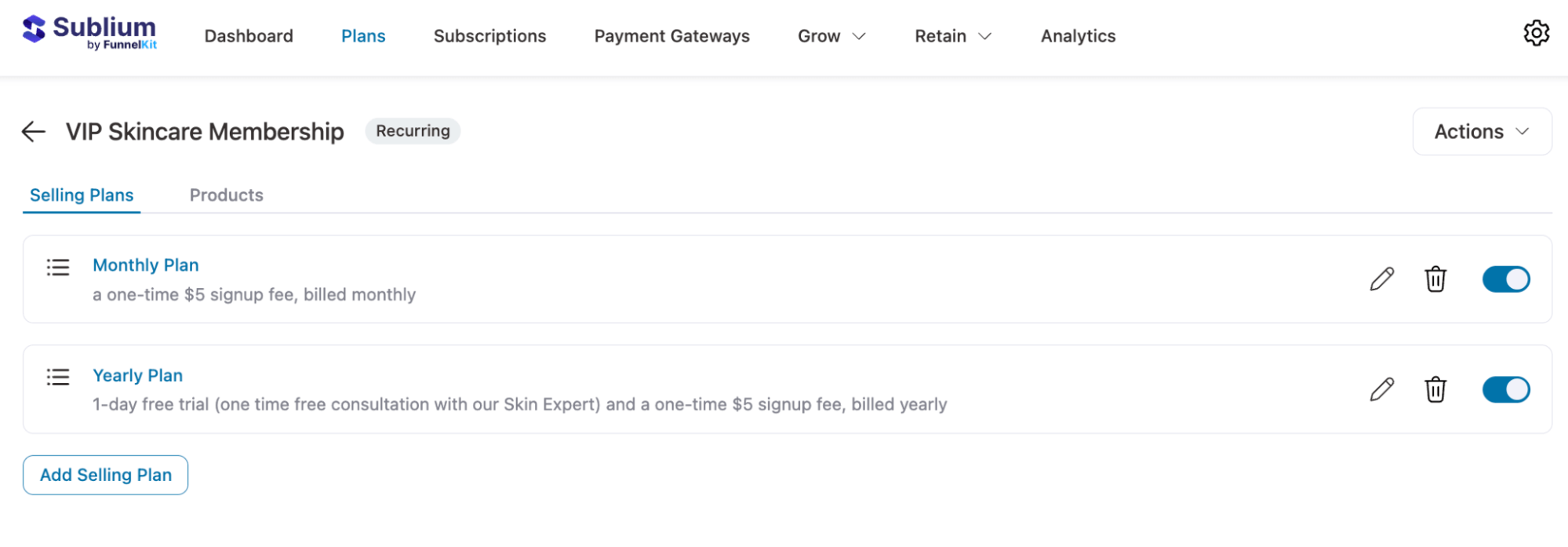
Step 4: Assign products to selling plans
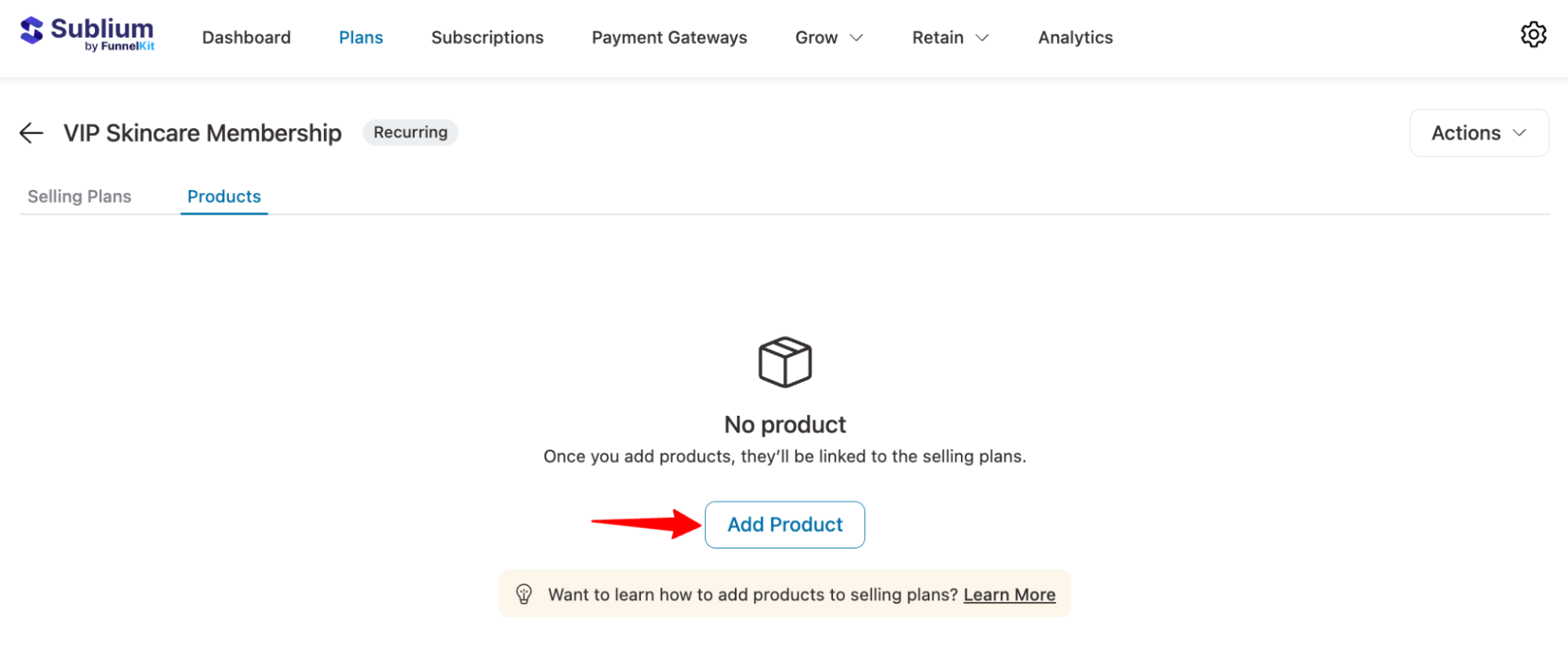
Now move to the Products tab to assign the specific products available with this subscription plan. To add any product, hit the “Add Product” button.
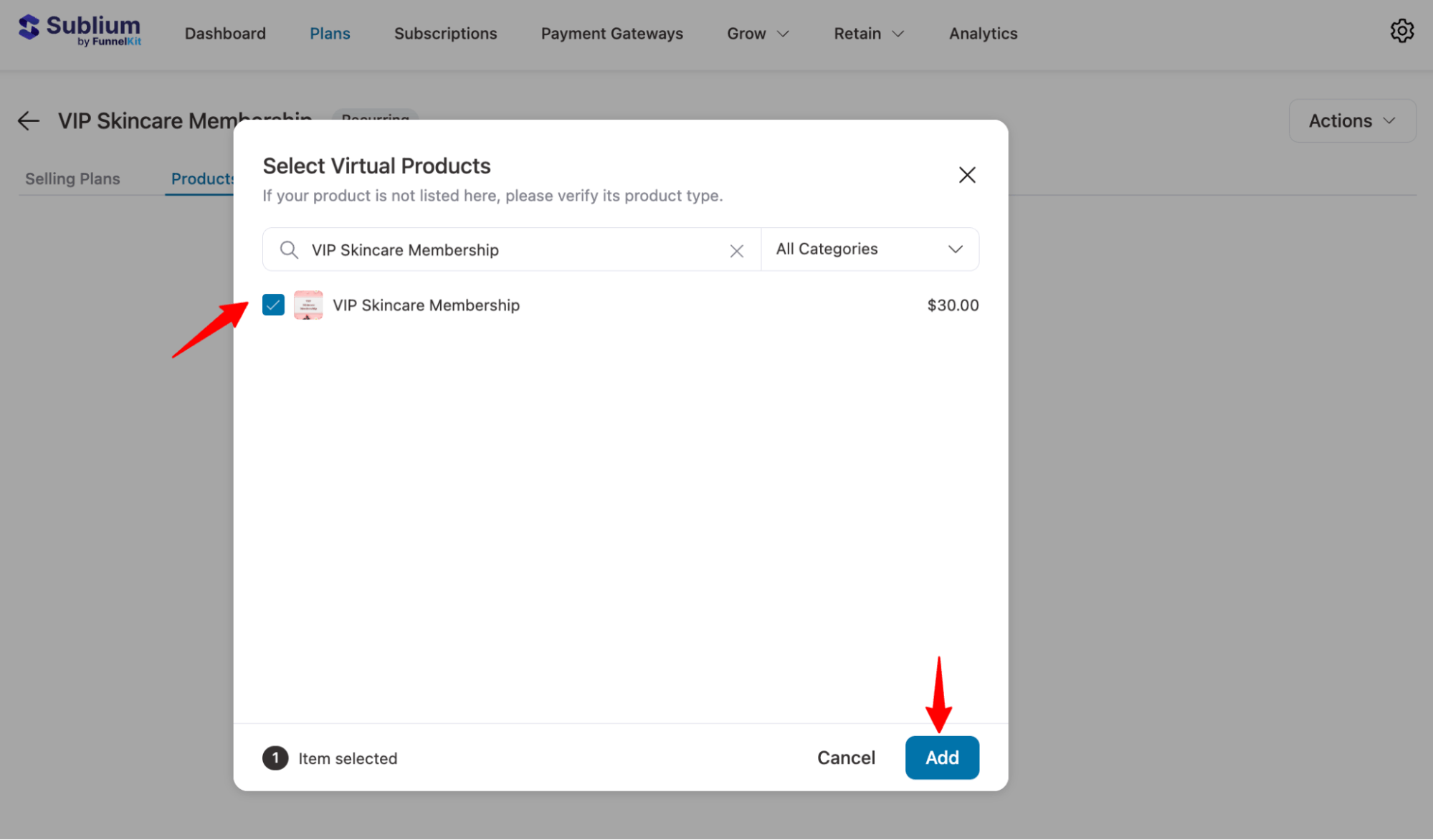
Next, search for and add the product.
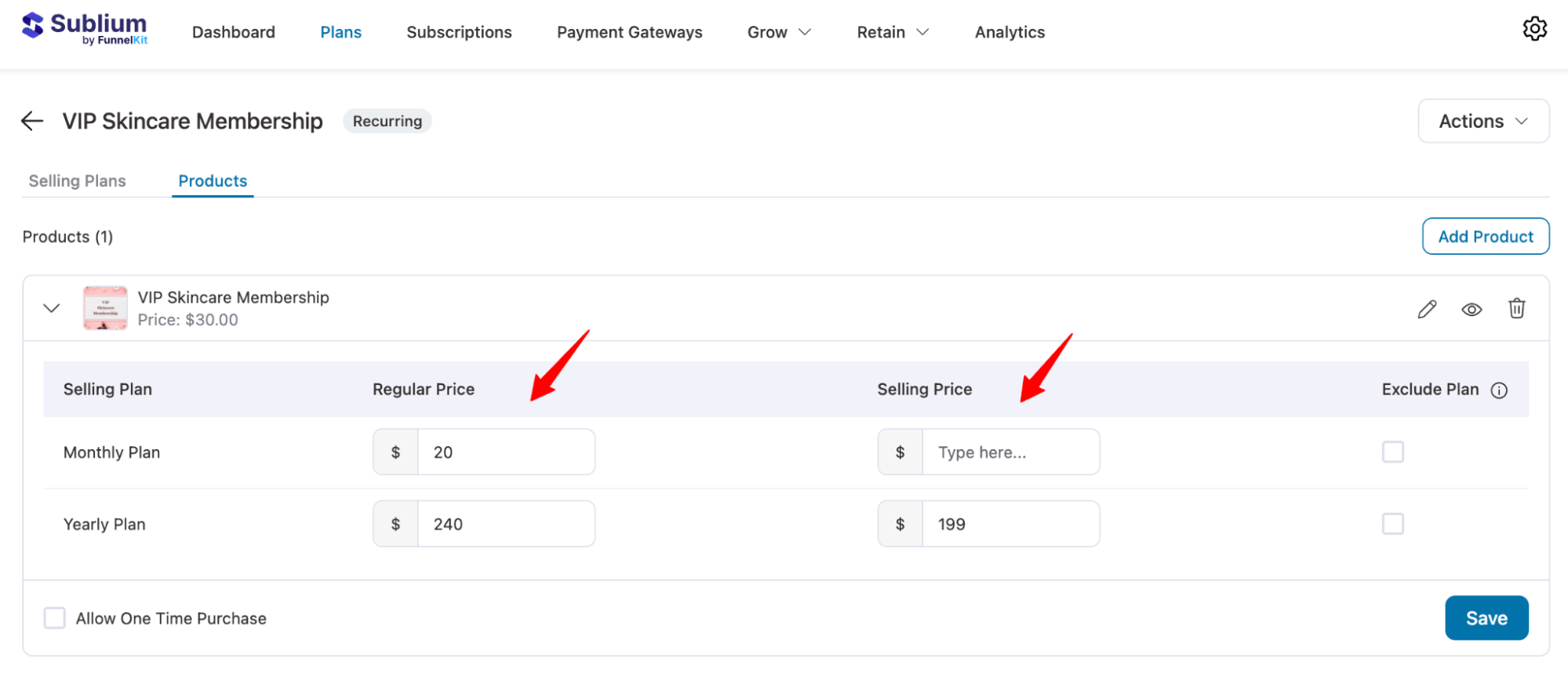
Step 5: Set up selling plan prices
Once you’ve added the product, set both the regular and discounted prices (if applicable) for each selling plan you’ve created.
Note: You can exclude any plan for that product by checking the Exclude Plan option for that plan.
Step 6: Add one-time purchase (optional)
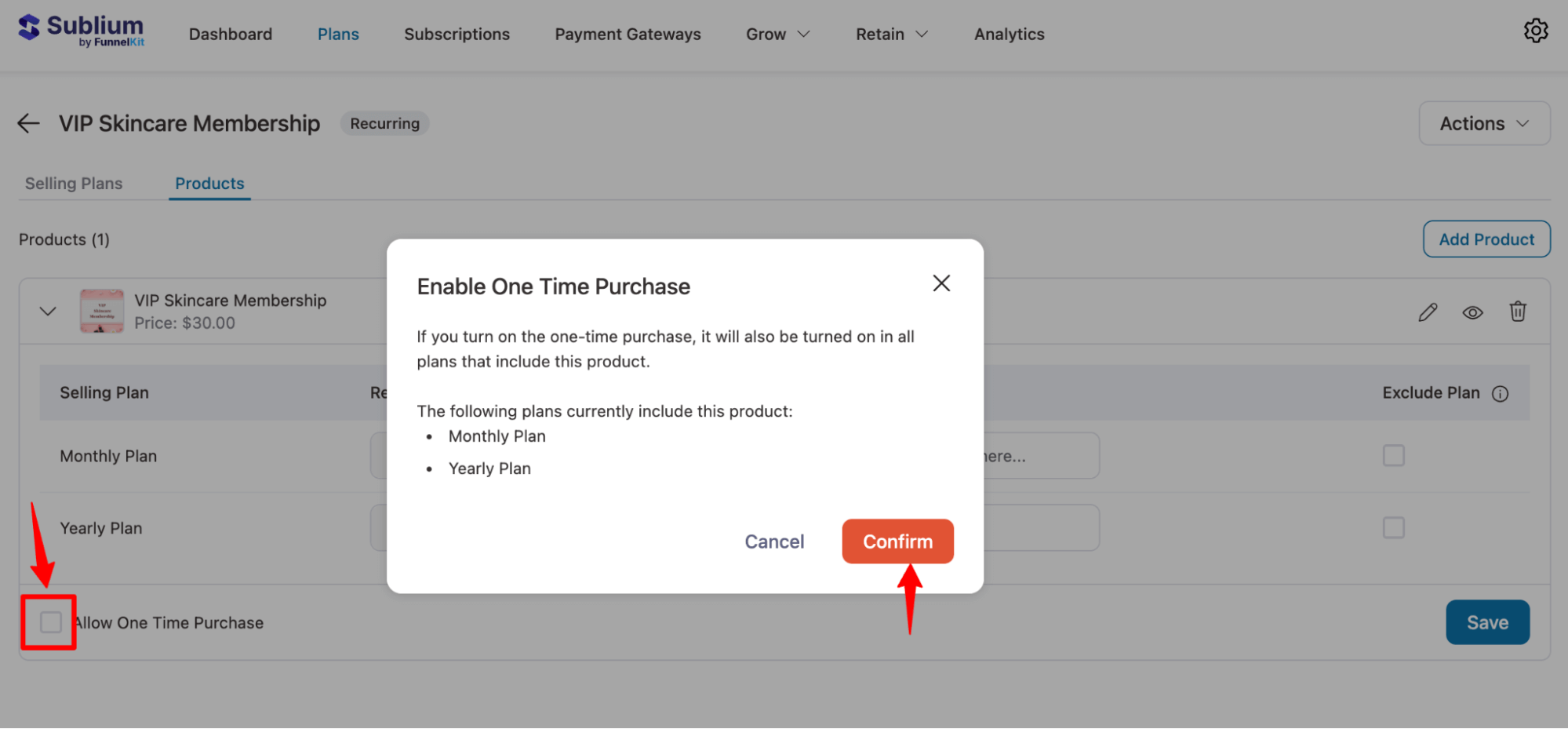
Plus, depending on your product, you can also offer one time purchase. For this, check the “Allow One Time Purchase” box and confirm.
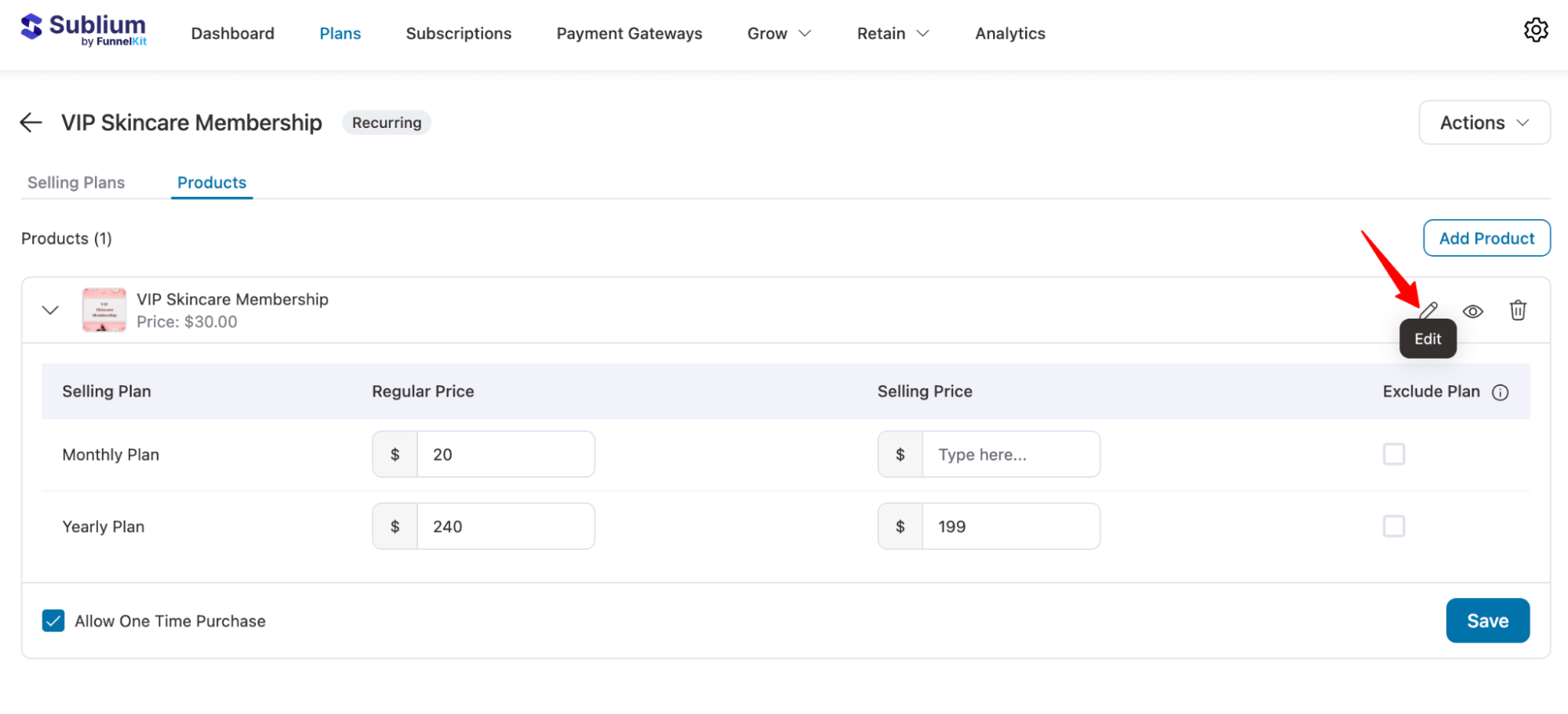
In case you want to change the one-time purchase price, hit the Edit icon to go directly to the WooCommerce product page and change the price.
Make sure to hit “Save” Changes.
To add multiple products to the same recurring plans, hit the Add Product button and repeat the process.
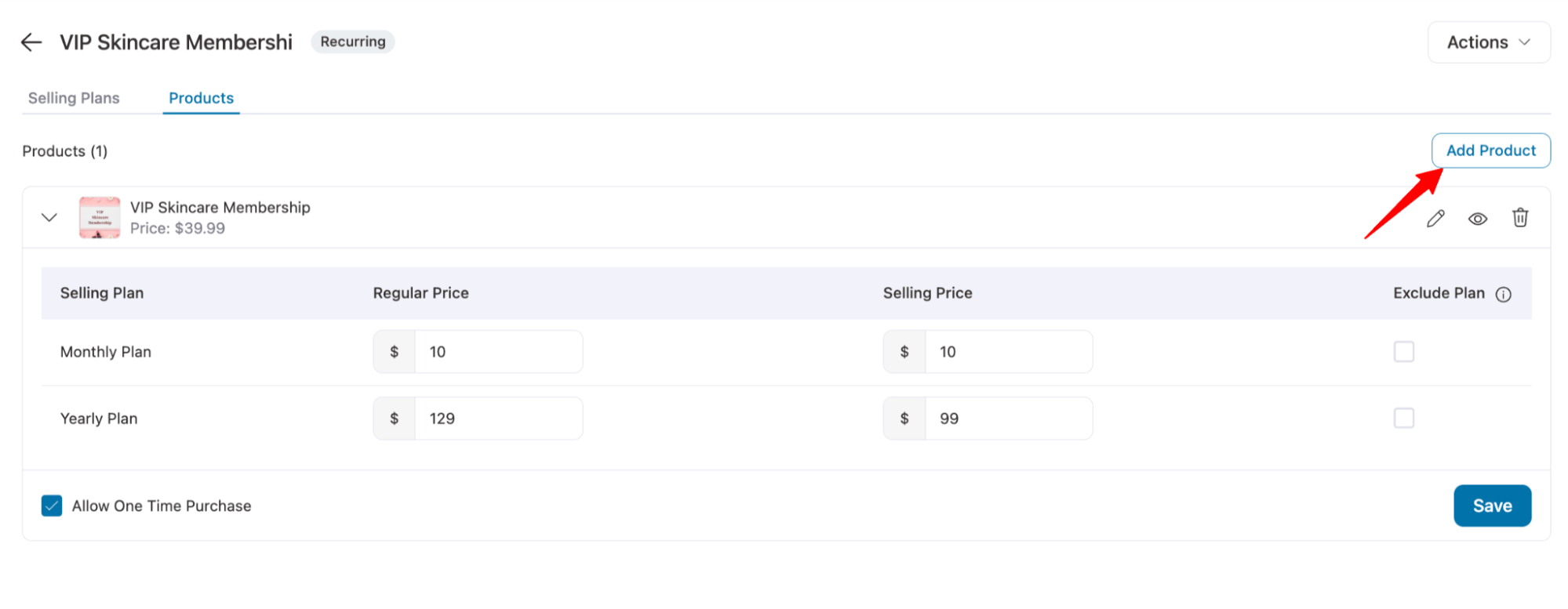
This is how you can create recurring plans in Sublium and assign multiple products to them.
Storefront Purchase Flow Of Recurring Plan
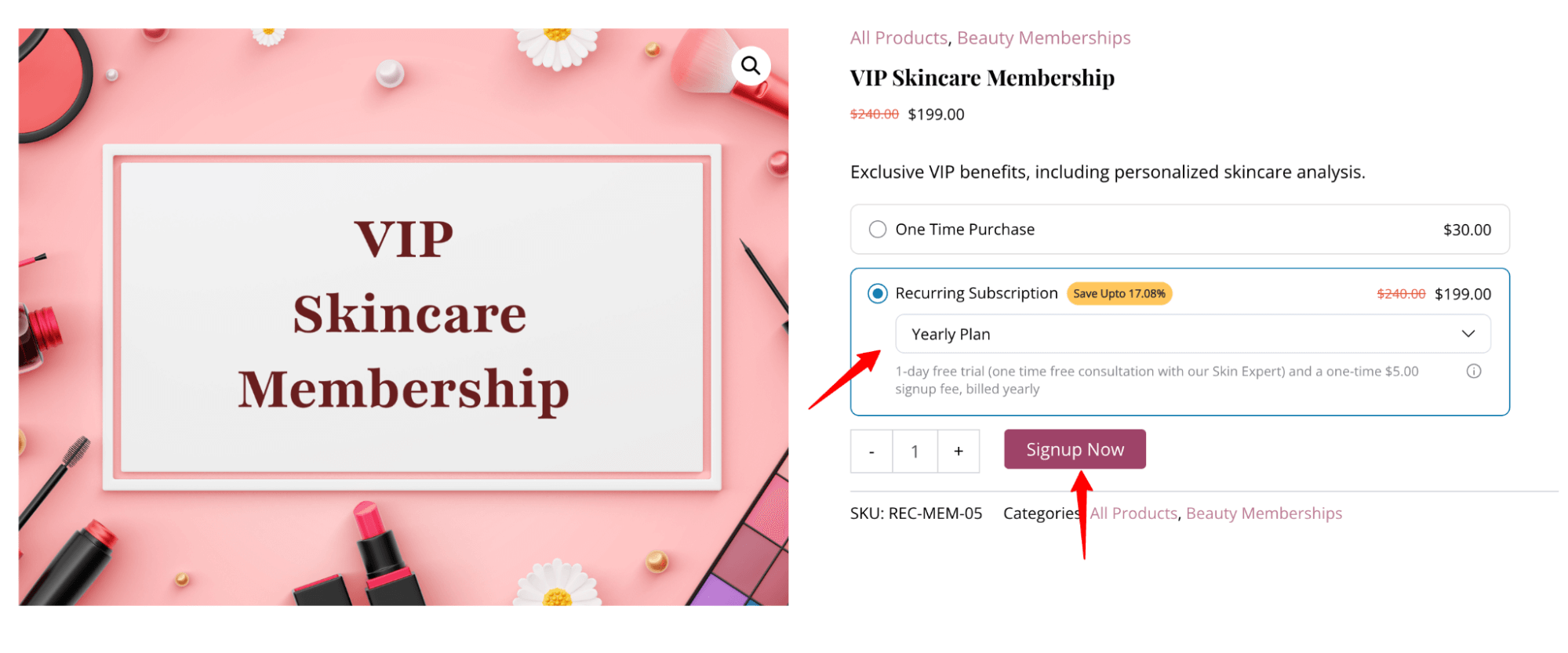
Once you assign products to their respective recurring plans and complete the selling plan configurations, all available selling options will automatically appear on the product page for customers.
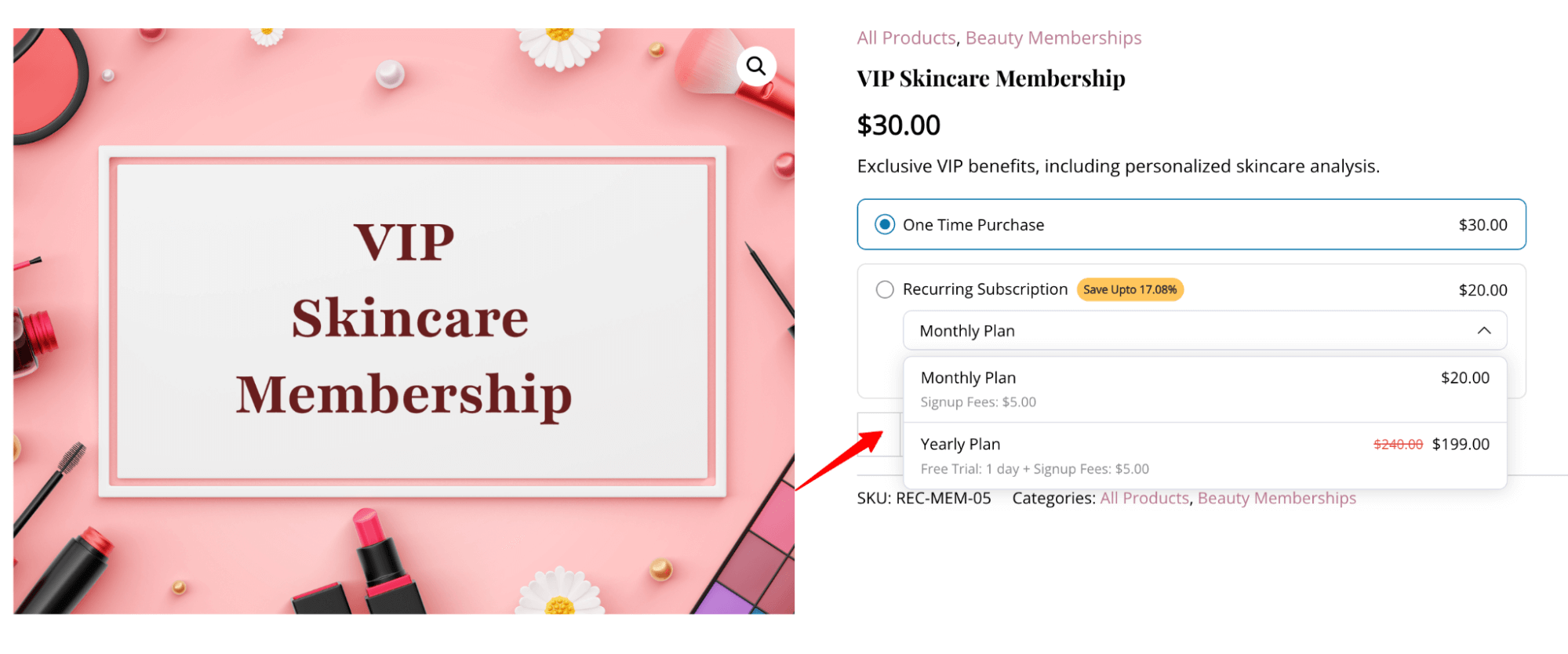
Users can easily select any plan and start the purchase process.
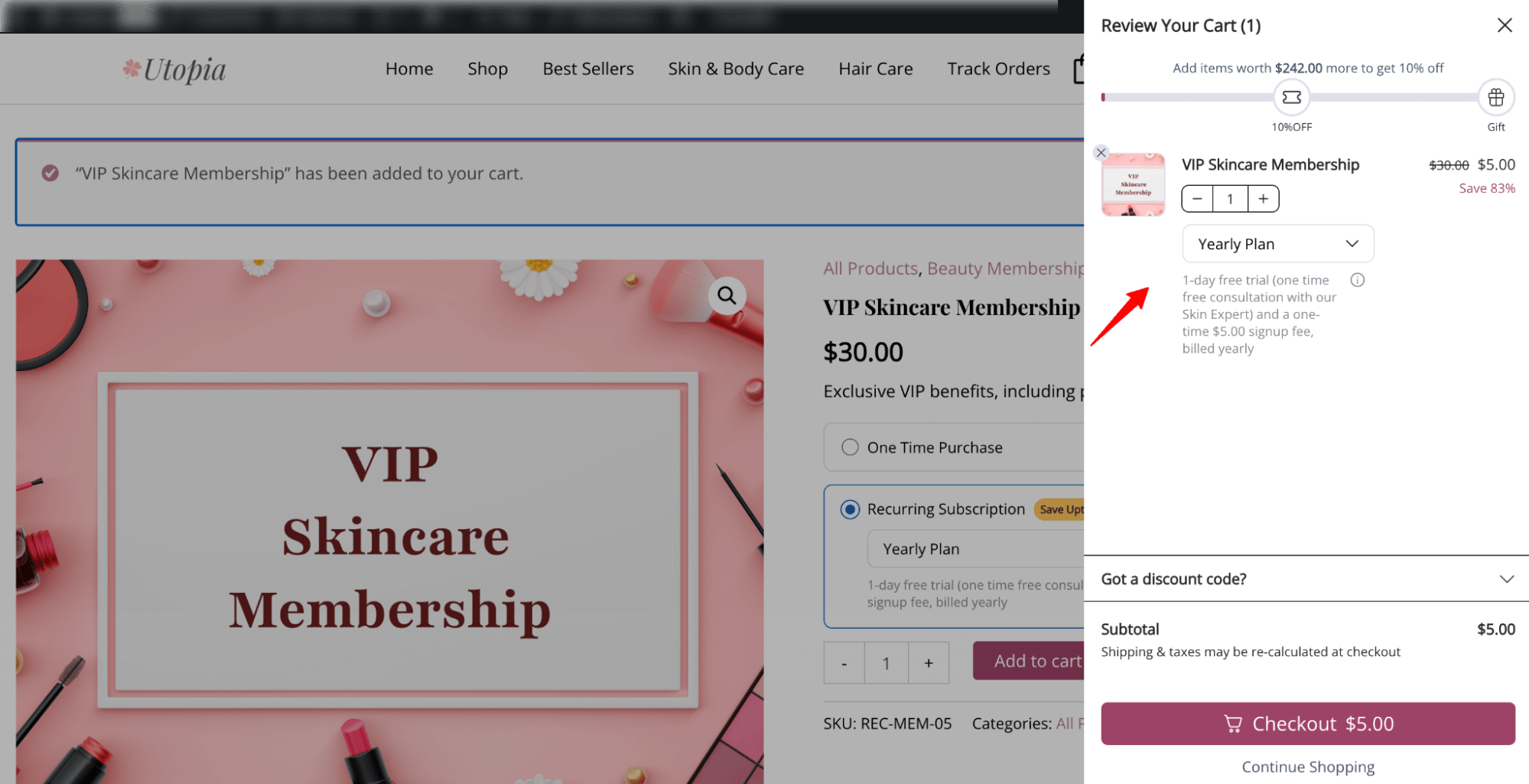
In case you use a side cart like FunnelKit Cart, this is what it looks like on a cart side:
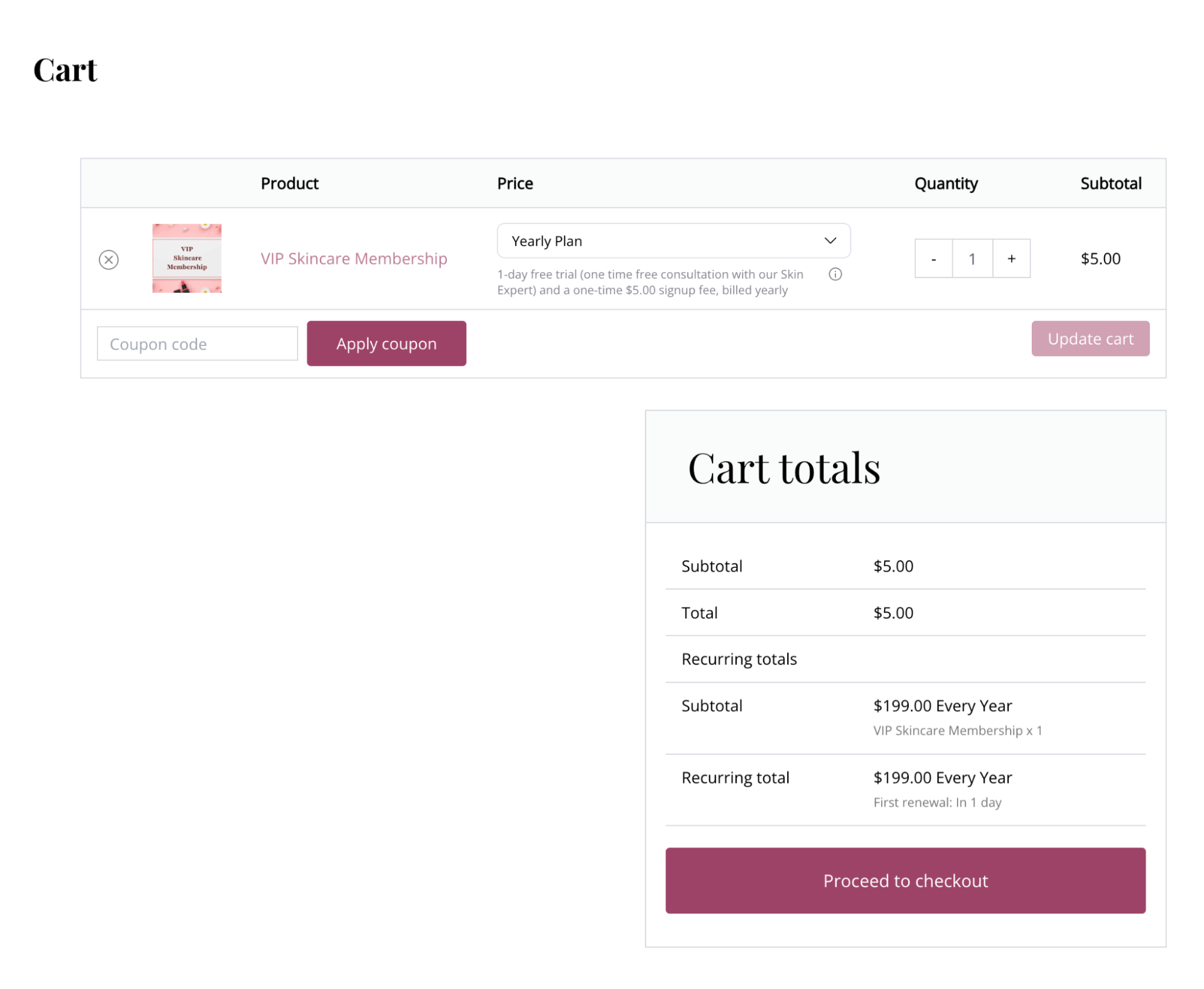
This is how the selling plans look on a default WooCommerce cart page:
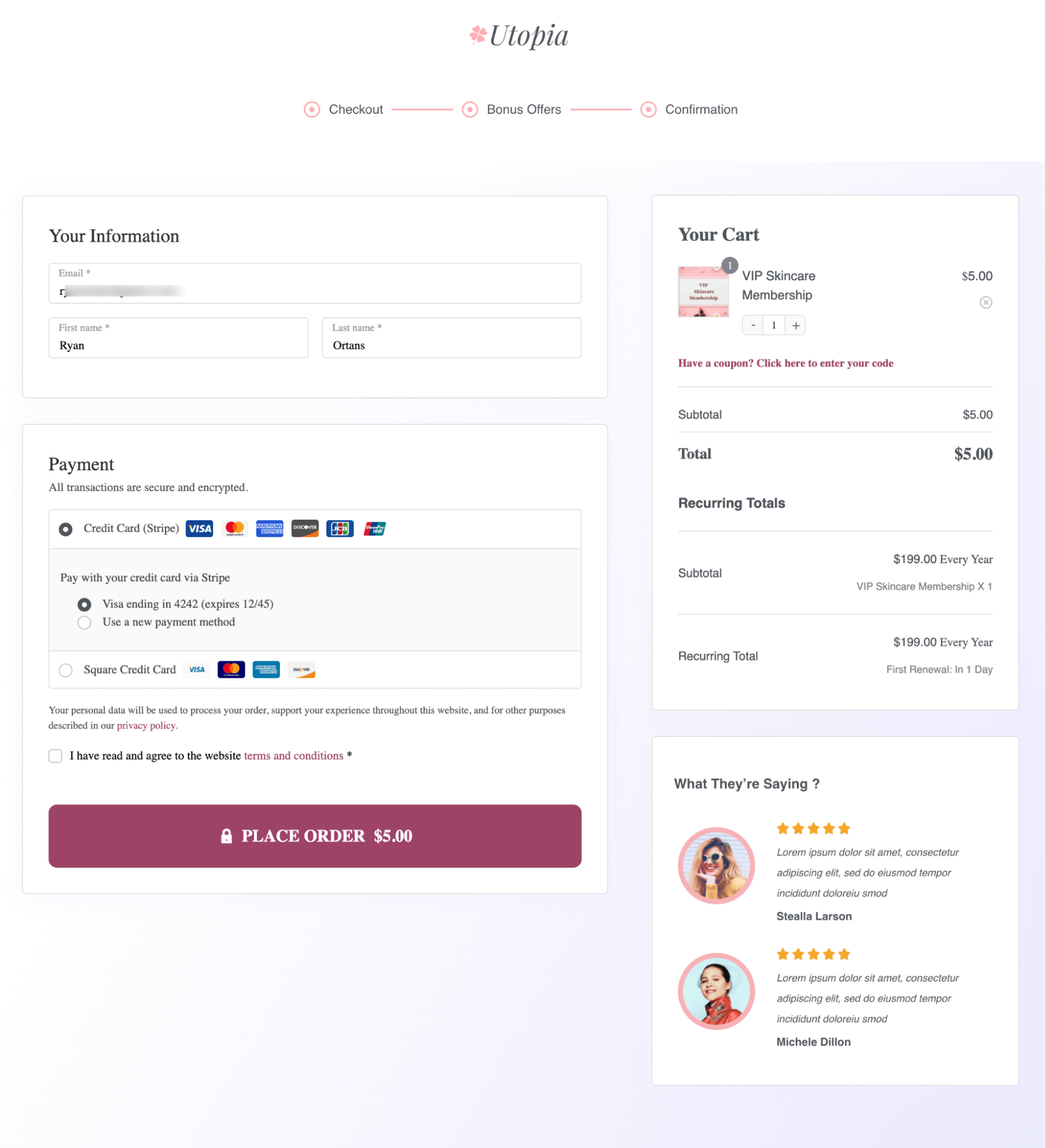
Next, users can check out with any of the available payment methods:
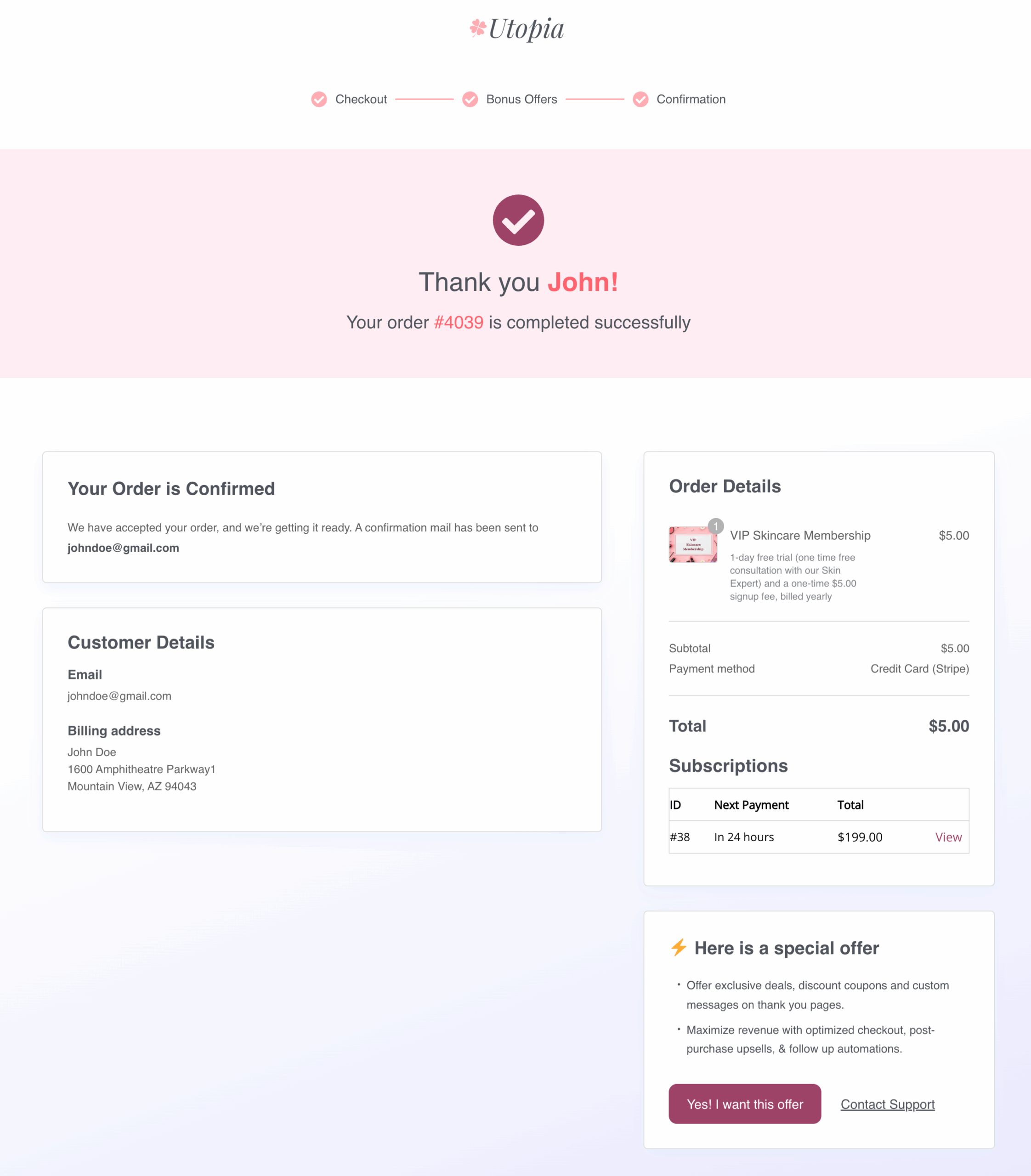
This is what the thank you page looks like after a successful purchase.