

The Edit Subscription feature in Sublium allows store administrators to modify active WooCommerce subscriptions based on customer requirements or business needs.
This functionality ensures smooth operations, enhances customer satisfaction, and reduces churn by allowing quick and effective adjustments.
Navigate to Sublium Subscriptions ⇨ Subscriptions and click on a Subscriptions ID.
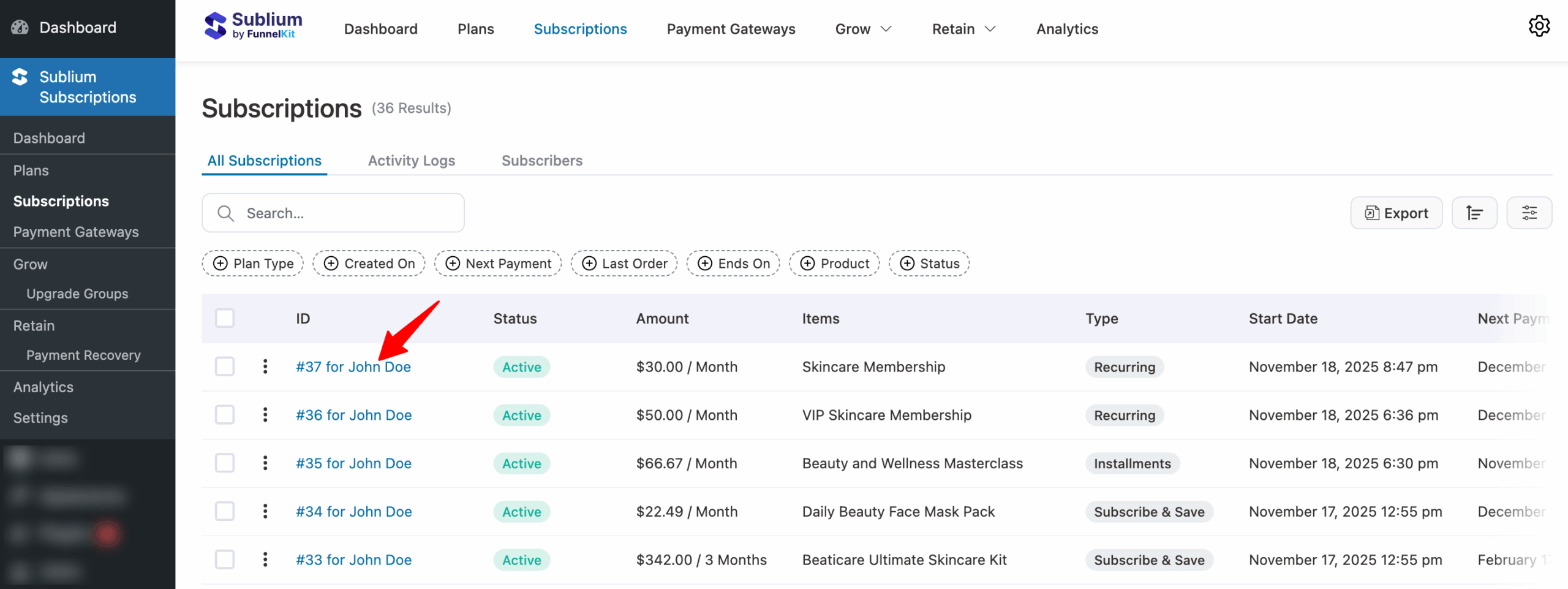
You will land on the Subscription profile page, where you will find the relevant information.
Edit Subscription Details
To edit a subscription, click on the pen icon here:
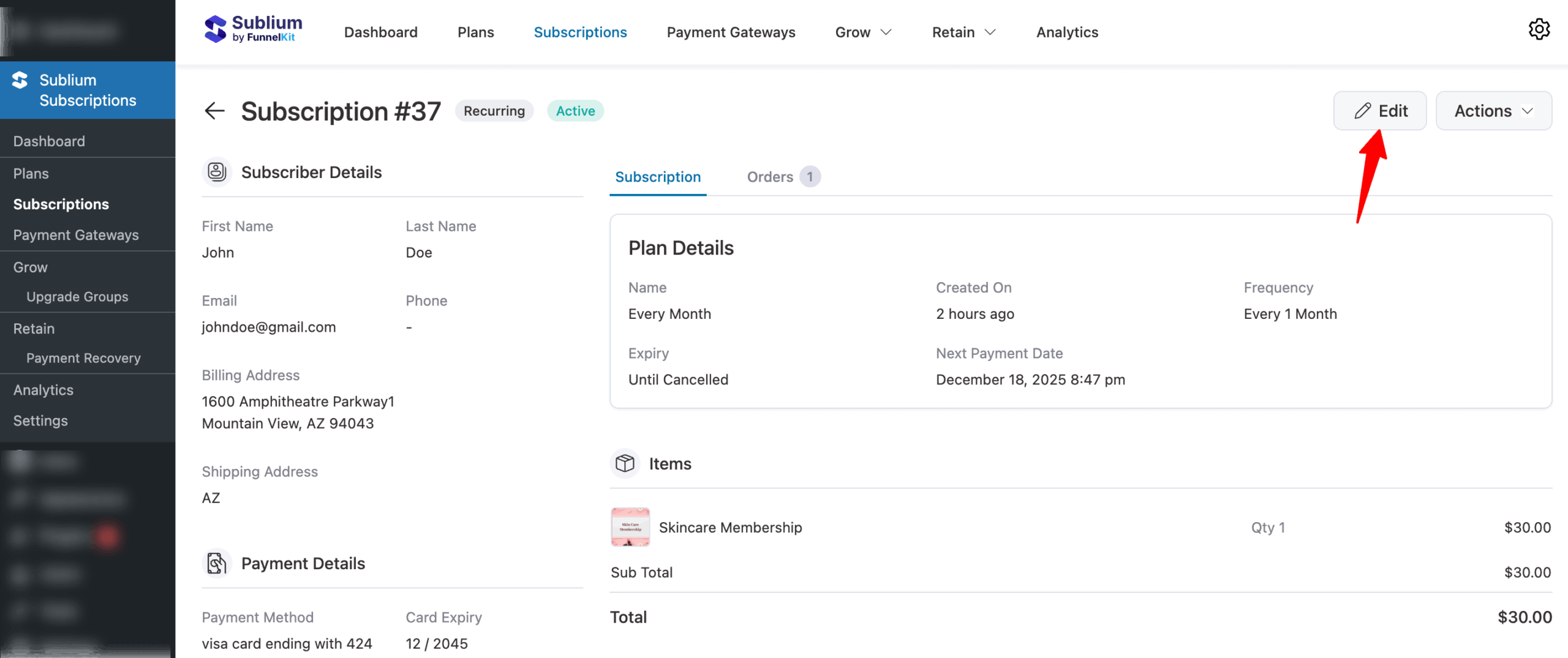
A sliding window will appear with all the subscription details that an administrator can modify. Here are the options that you can modify:
- Schedule: In this section, you can modify all scheduling-related settings, including the subscription frequency, interval between billing cycles, upcoming order date and time, and whether the subscription ends never or on a specific date.
- Pricing: Here, you can manage all pricing elements of the subscription. This includes updating the quantity and cost of existing products, as well as adding new products, additional fees, or applying coupon discounts.
- Subscriber Details: This section lets you update the subscriber’s contact information, including their email address and phone number.
- Billing/Shipping Details: Under billing details, you can edit all billing-related fields such as the customer’s first and last name, company name, street address, apartment or suite details, city, state, ZIP code, and country or region.
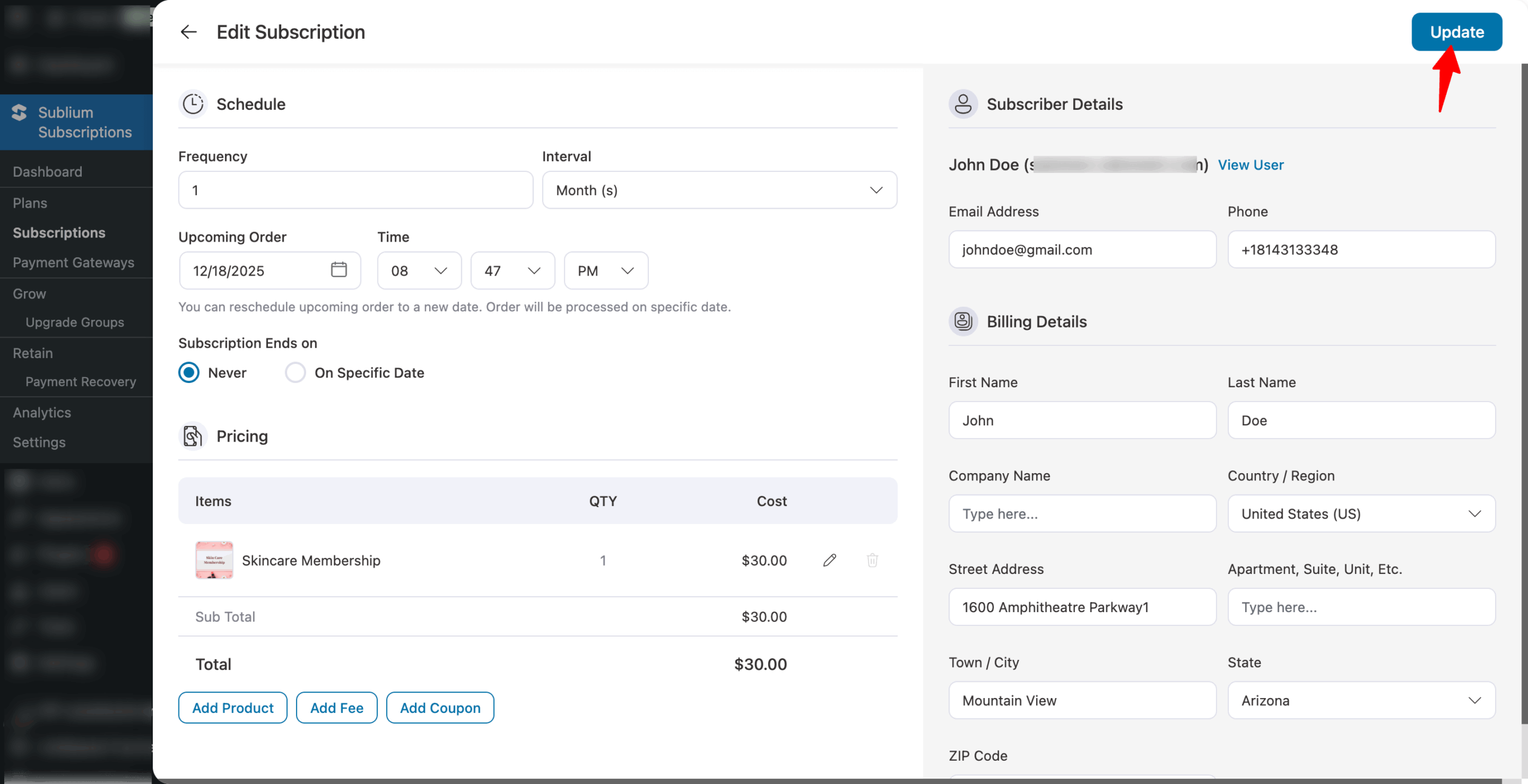
Make sure to hit “Update” after editing to save.
Actions
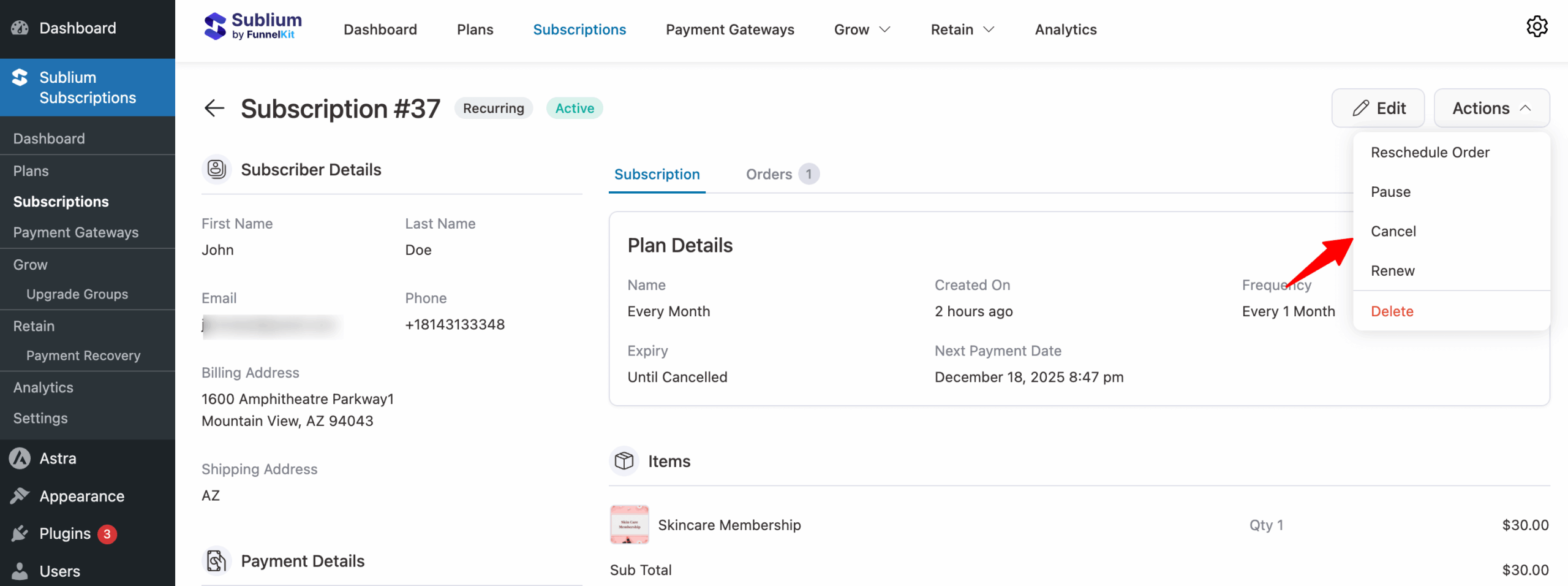
You can take the following actions on this page:
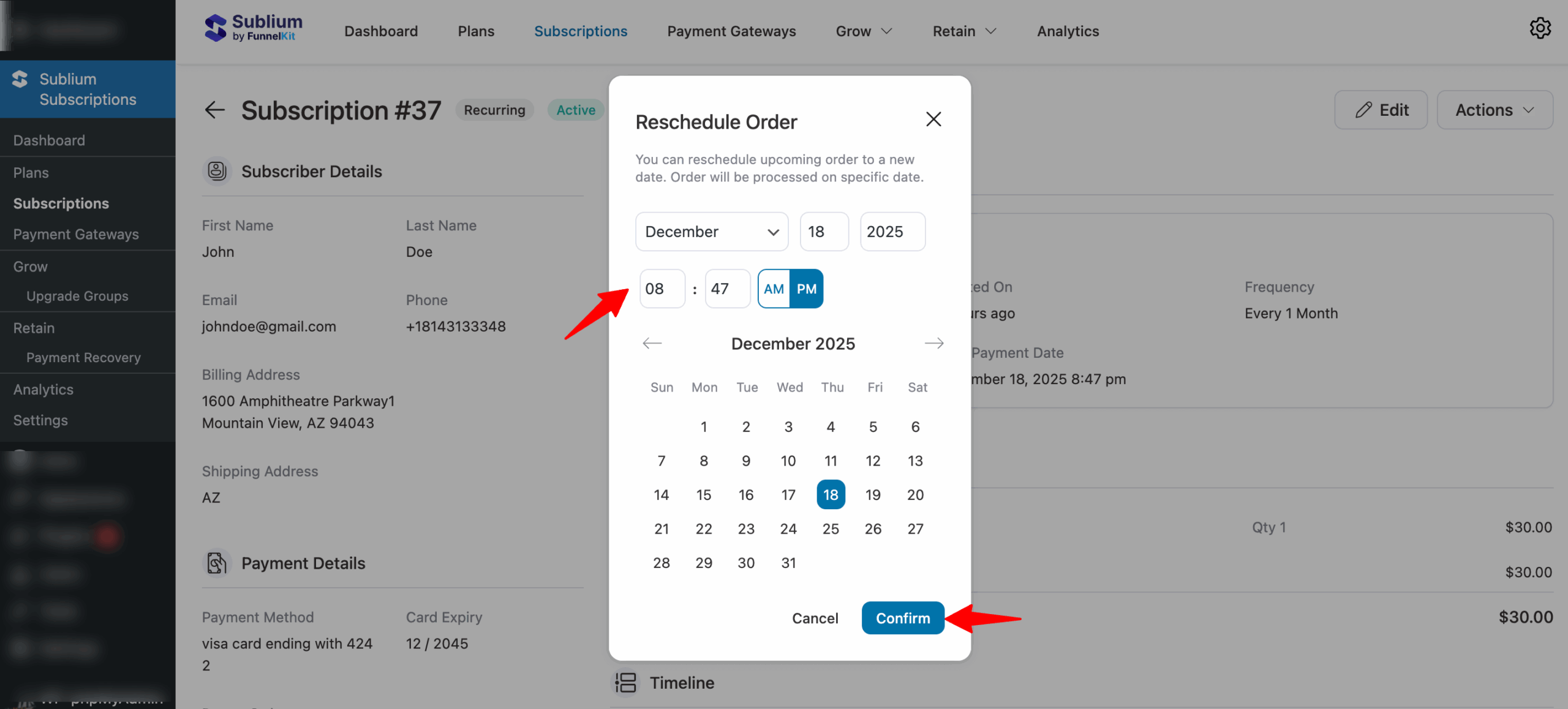
- Reschedule: Change the date and time of the upcoming subscription order.
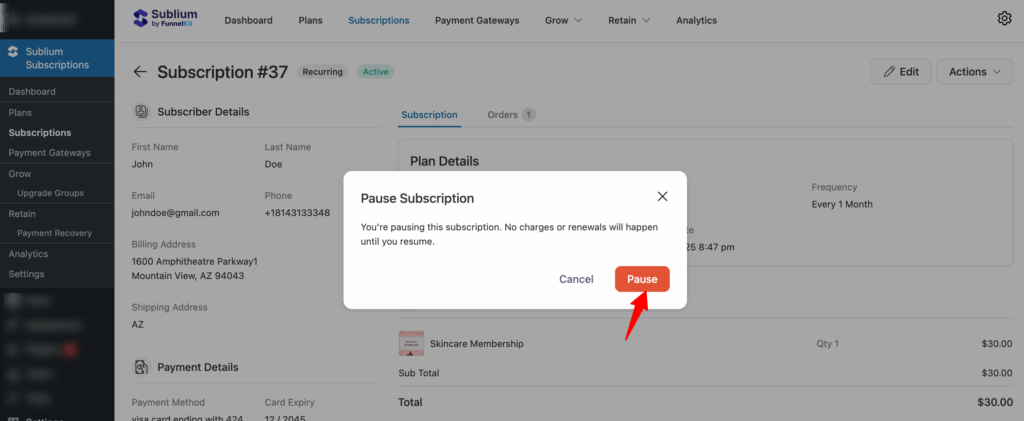
- Pause: Temporarily suspend the subscription without canceling it.
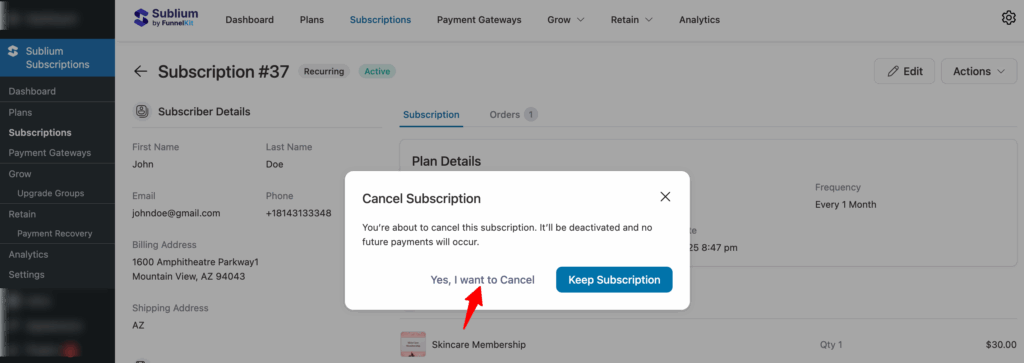
- Cancel: End the subscription immediately or at the end of the billing cycle.
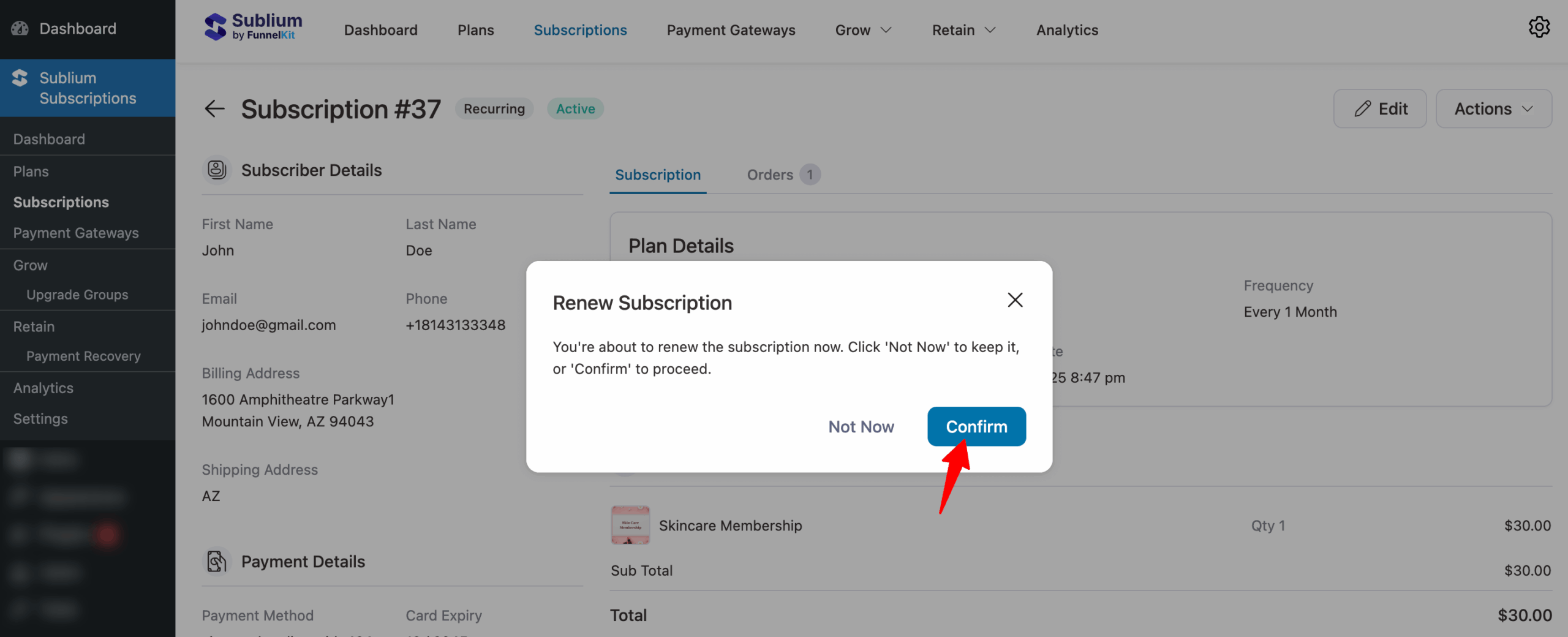
- Renew: Restart or extend the subscription for a new billing cycle.
Reschedule
To reschedule, select that option from the actions menu. Next, set the date, time, and confirm.
Pause
To pause a subscription, choose Pause from the Actions menu and confirm the action by hitting Pause.
Cancel
To cancel a subscription, click Cancel in the Actions menu. A confirmation pop-up will appear, asking you to confirm the cancellation or keep the subscription active.
Renew
To renew a subscription, choose Renew from the Actions menu and confirm the action by hitting “Confirm“.
This is how you can edit and change status of susbcriptions.


