Export

This documentation explains how to delete upgrade groups, all of them at once, or specific ones.

Note: Exporting is important to keep a backup or to import data on another site using Sublium Subscriptions without starting from scratch.

To delete any of the upgrade groups, first, navigate to Sublium Subscriptions ⇒ Grow ⇒ Upgrade Groups. 
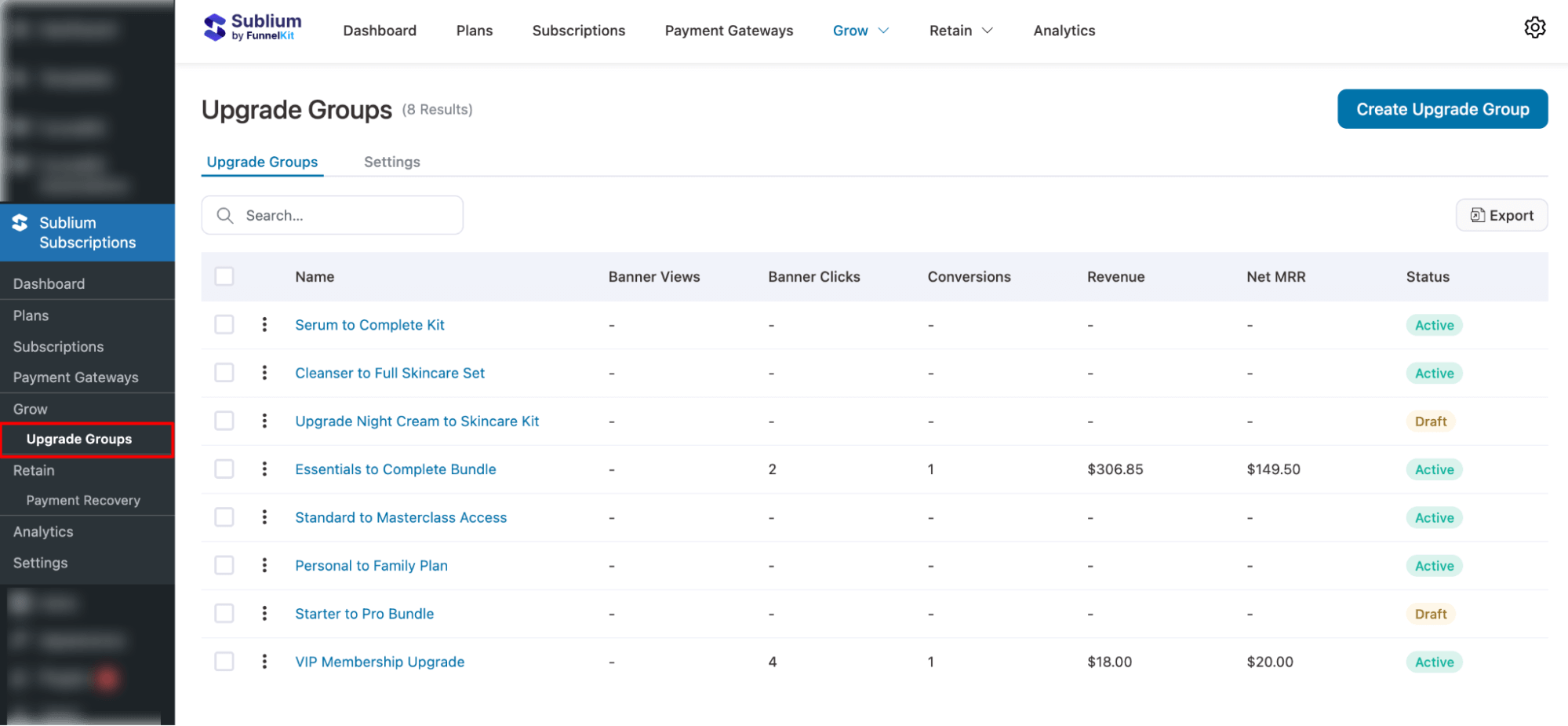
navigate to Upgrade Groups in Sublium Subscriptions

Export All Upgrade Groups

To export all the data, you can hit the “Export” button on the right and “Confirm”.
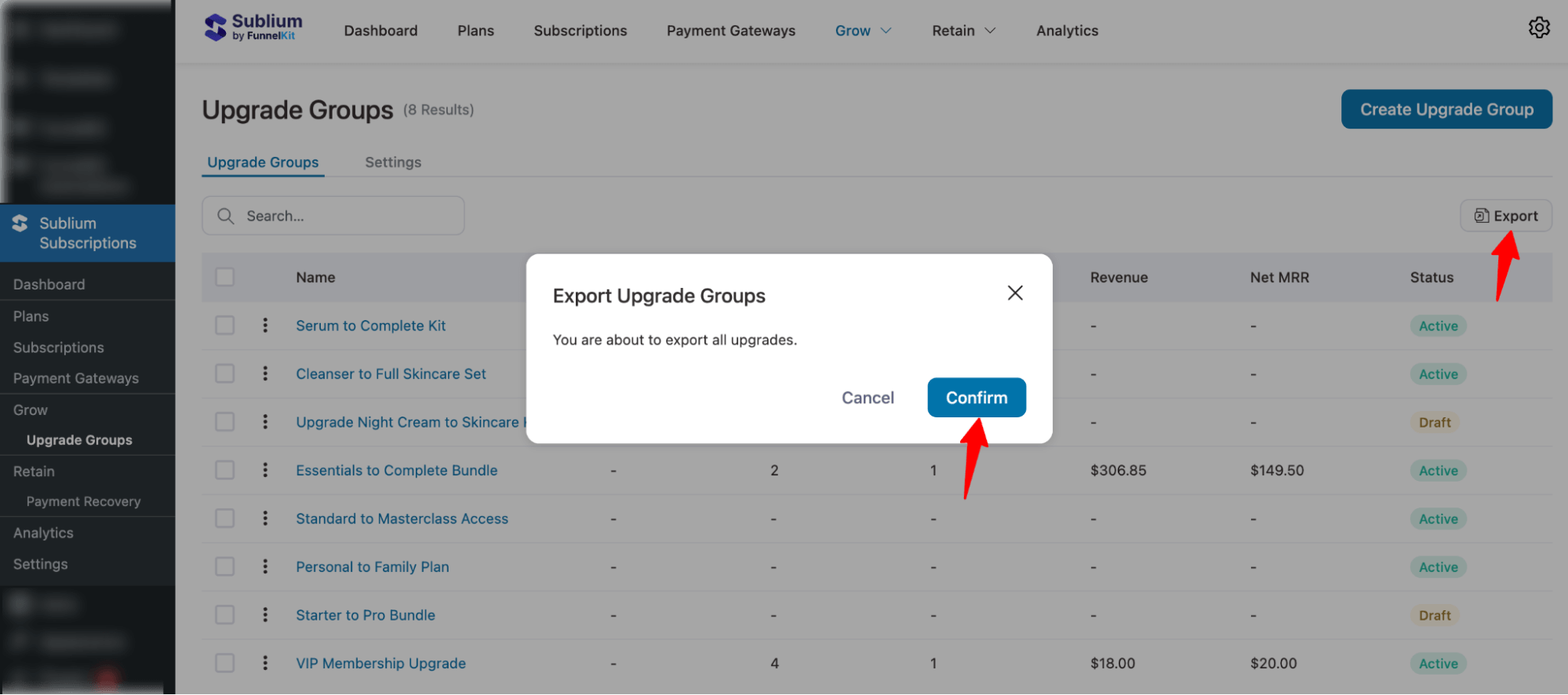
Note: If your upgrade groups export seems stuck or isn’t completing, make sure that WP-Cron is properly set up and running on your server.

export all Upgrade Groups in Sublium Subscriptions

Export Specific Upgrade Groups

You can export specific Upgrade Groups by selecting their checkboxes, then clicking Export and confirming the action.
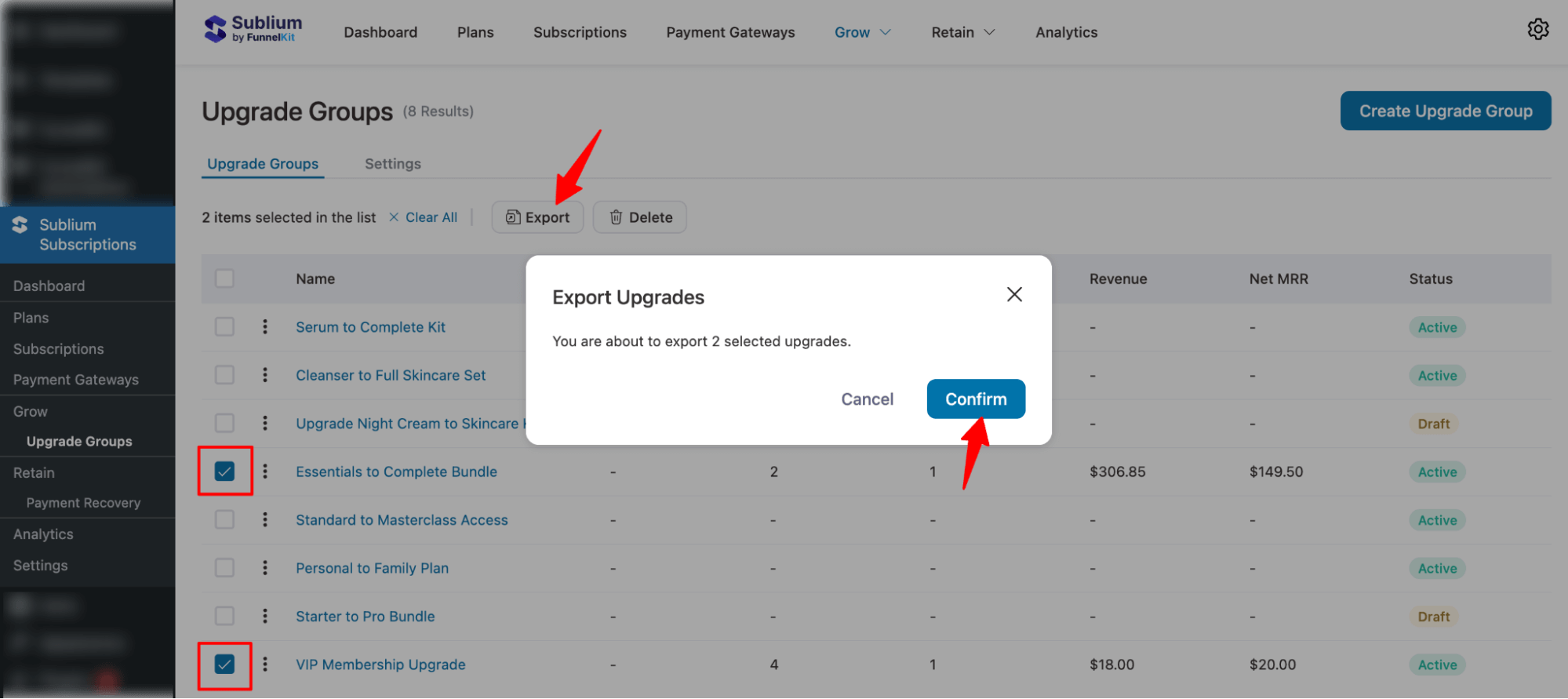

export selected Upgrade Groups in Sublium Subscriptions

Need Support?

Can't find the answer you're looking for?
Contact Support

Ready to Transform Your Subscriptions?

Join a growing community of WooCommerce store owners who rely on Sublium to power their recurring revenue.
Sublium WooCommerce subscription plugin support team - expert help and guidance
5 star rating from Sublium WooCommerce subscription plugin customer
Transform WooCommerce subscriptions with Sublium - superior plugin alternative
