

The General Settings page allows you to configure your Sublium subscription setup.
Here, you can activate your Sublium Pro license, customize core subscription labels, button text, checkout messages, theme colors, subscription slugs, and downloadable product behavior.
Use these settings to control how subscription and purchase options appear across your store.
Access General Settings
Navigate to Sublium Subscriptions ⇒ Settings and on the General tab.
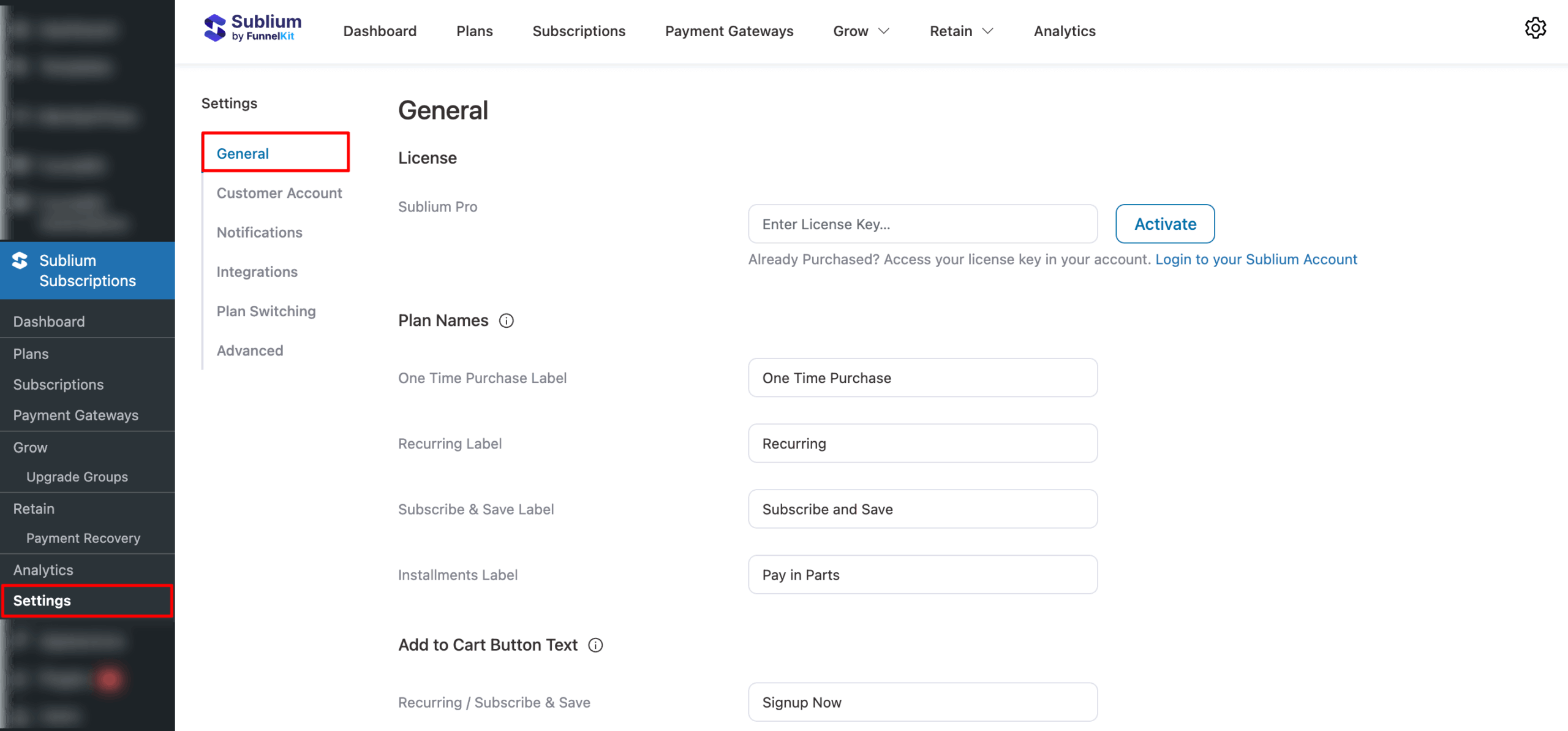
License
Enter your Sublium Pro license key to unlock premium features.
Note: Visit your Sublium Account to retrieve or manage your license key.
#imagw
Plan Name
In this section, you can change the plan name displayed on your website. The updated name will appear on the Product Page, Cart Page, and Checkout Page.
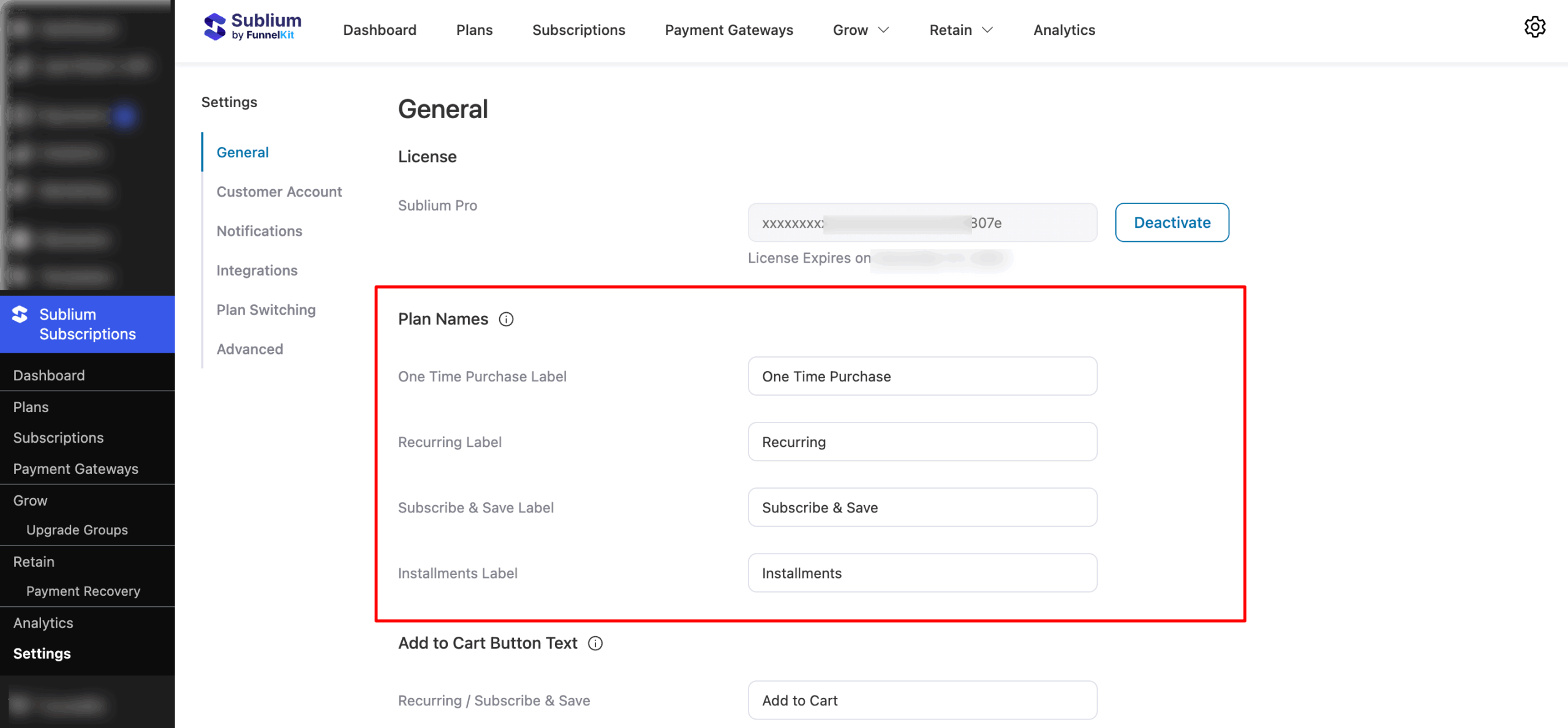
Set the following:
- One Time Purchase Label: Set the One Time Purchase label. Default: One Time Purchase
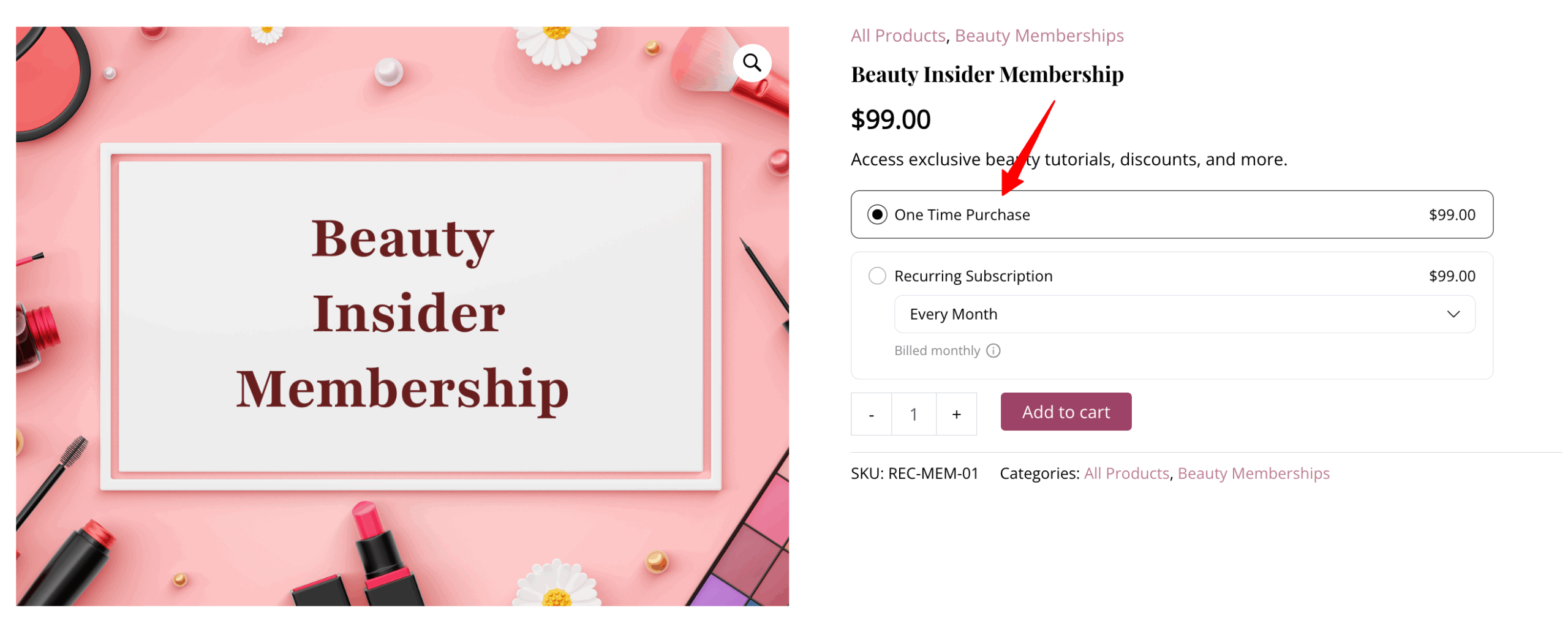
- Recurring Label: Set the Recurring label. Default: Recurring
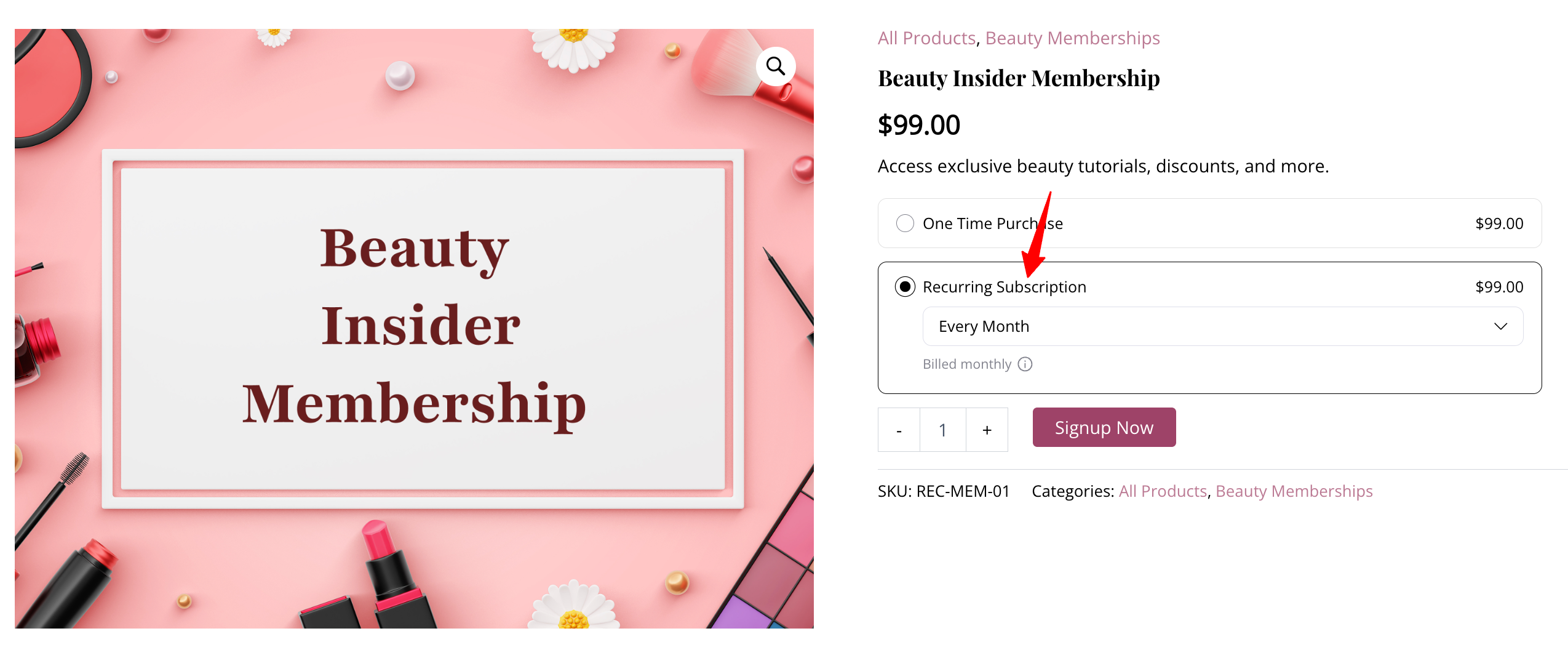
- Subscribe & Save Label: Set the Subscribe & Save label. Default: Subscribe and Save.
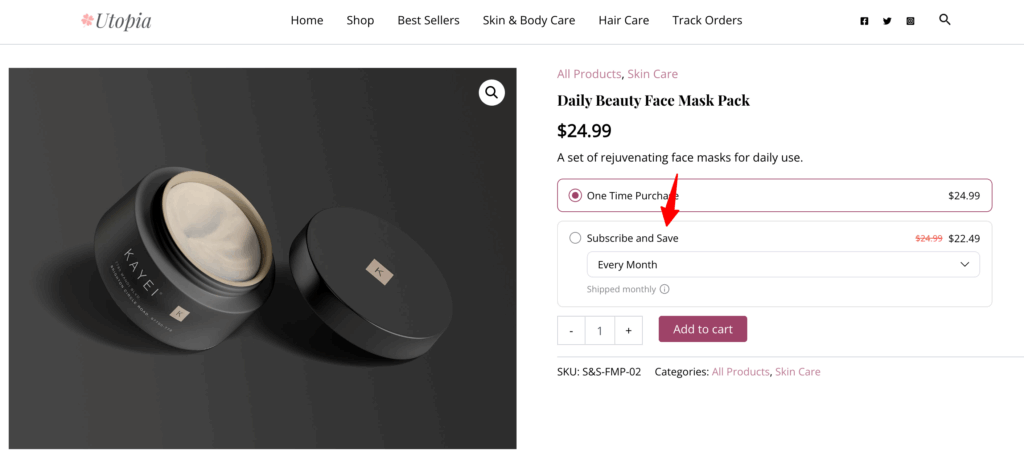
- Installments Label: Enter the label for installment payments. The default value is Installments (pay in parts).
Add to Cart Button Text
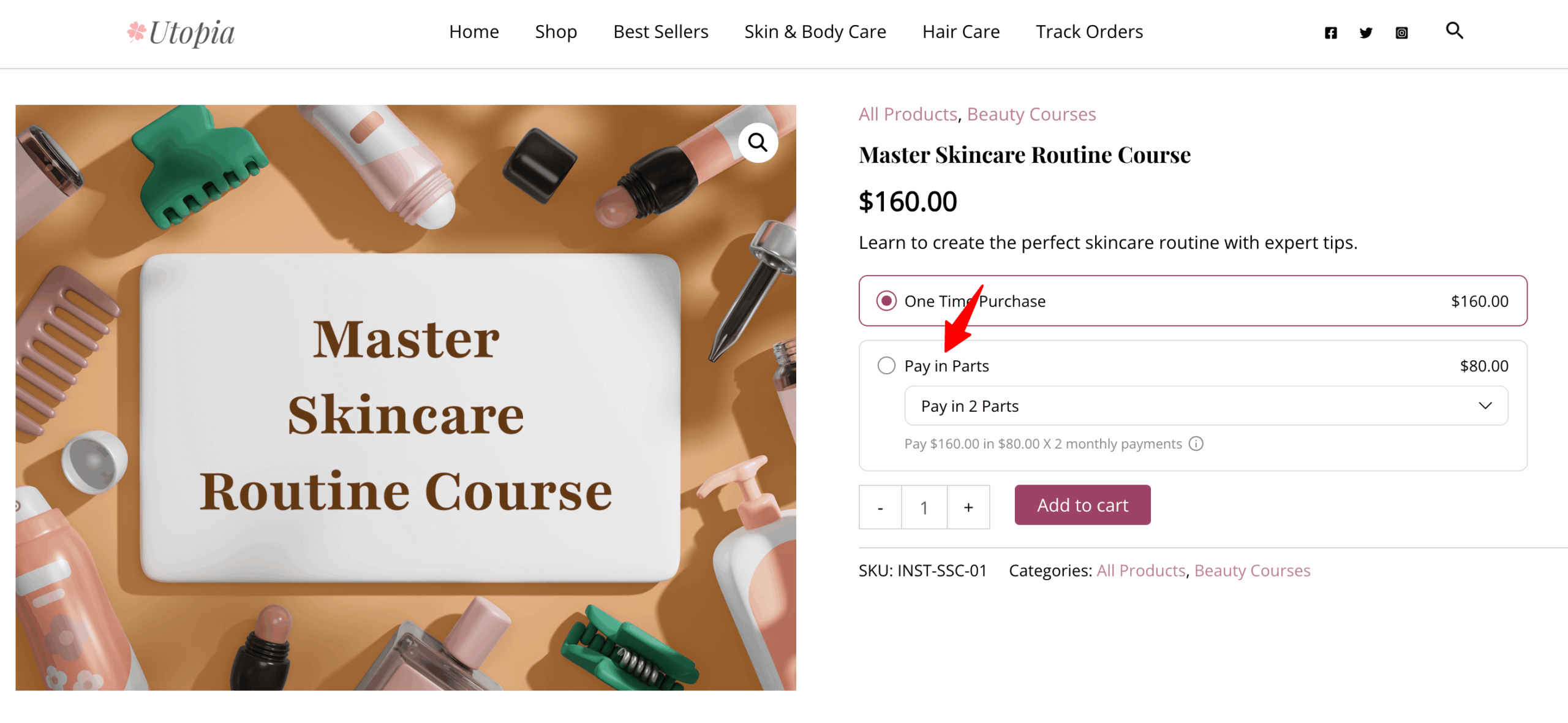
In this section, you can customize the Add to Cart button text shown for each purchase type on product pages.
Set the following:
- Recurring / Subscribe & Save Button: Set the button text for recurring or Subscribe & Save plans. Default: Signup Now
- Installment Button: Set the button text for installment plans. Default: Add to Cart
- One-Time Purchase Button: Set the button text for one-time purchases. Default: Add to Cart
Checkout Recurring Total Message Text
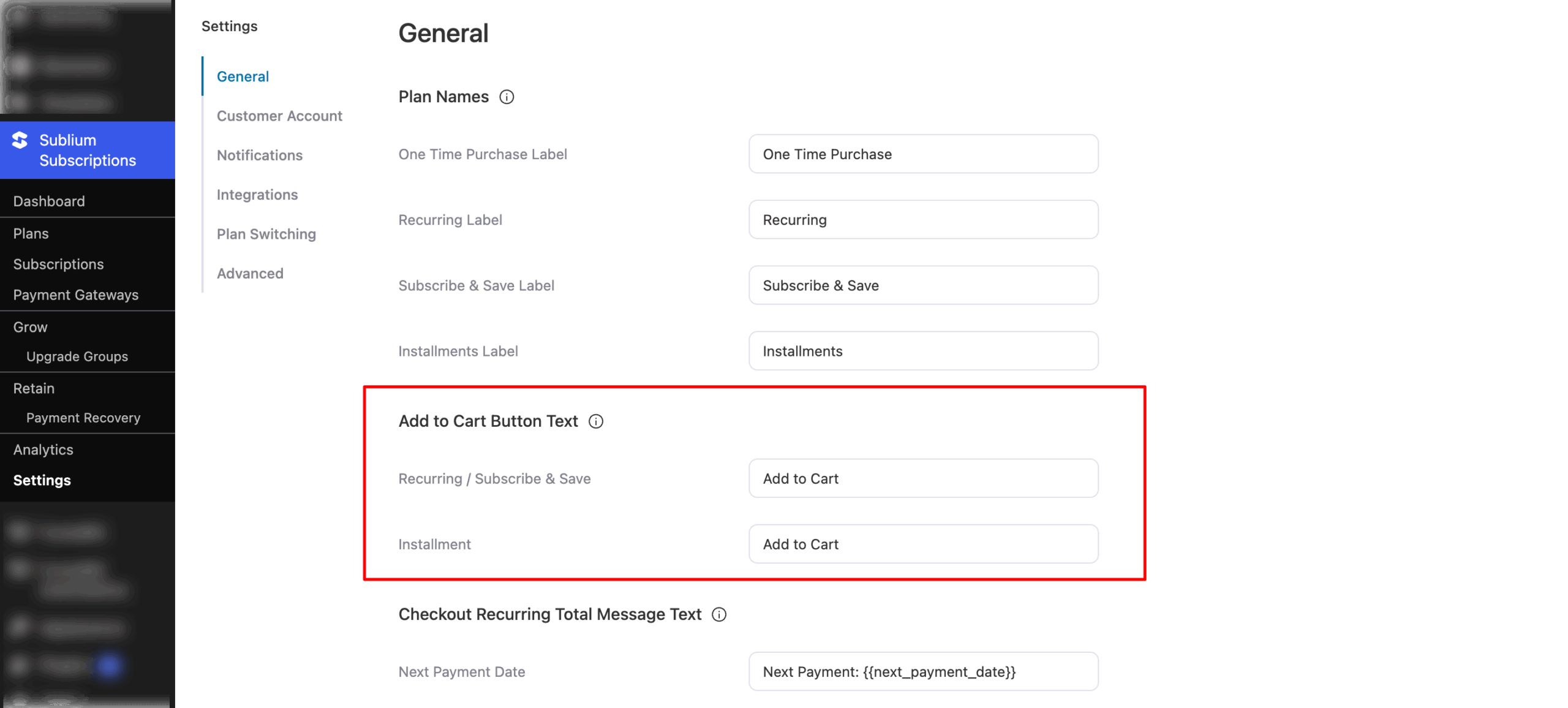
In this section, you can customize the recurring total message and next payment details displayed during checkout. The updated text will appear on the Checkout Page for subscription products.
Set the following:
- Next Payment Date: Set the text that shows the next payment date for a subscription. Default: Next Payment: {{next_payment_date}}
- Recurring Total Info: Set the text that summarizes subscription items in the cart. Default: {{subscription_product_count}} {{item_text}} in your cart {{are_text}} {{subscription_text}}.{{subscription_view_details}}
Here are the variable you can use in the checkout recurring total message text:{{next_payment_date}}: Shows the next scheduled payment date.{{subscription_product_count}}: Number of subscription products in the cart.{{item_text}}: Text for “item/items.”{{are_text}}: Text for “is/are,” depending on quantity.{{subscription_text}}: Describes the subscription type or total.{{subscription_view_details}}: A link thats opens a pop-up with subscription details.
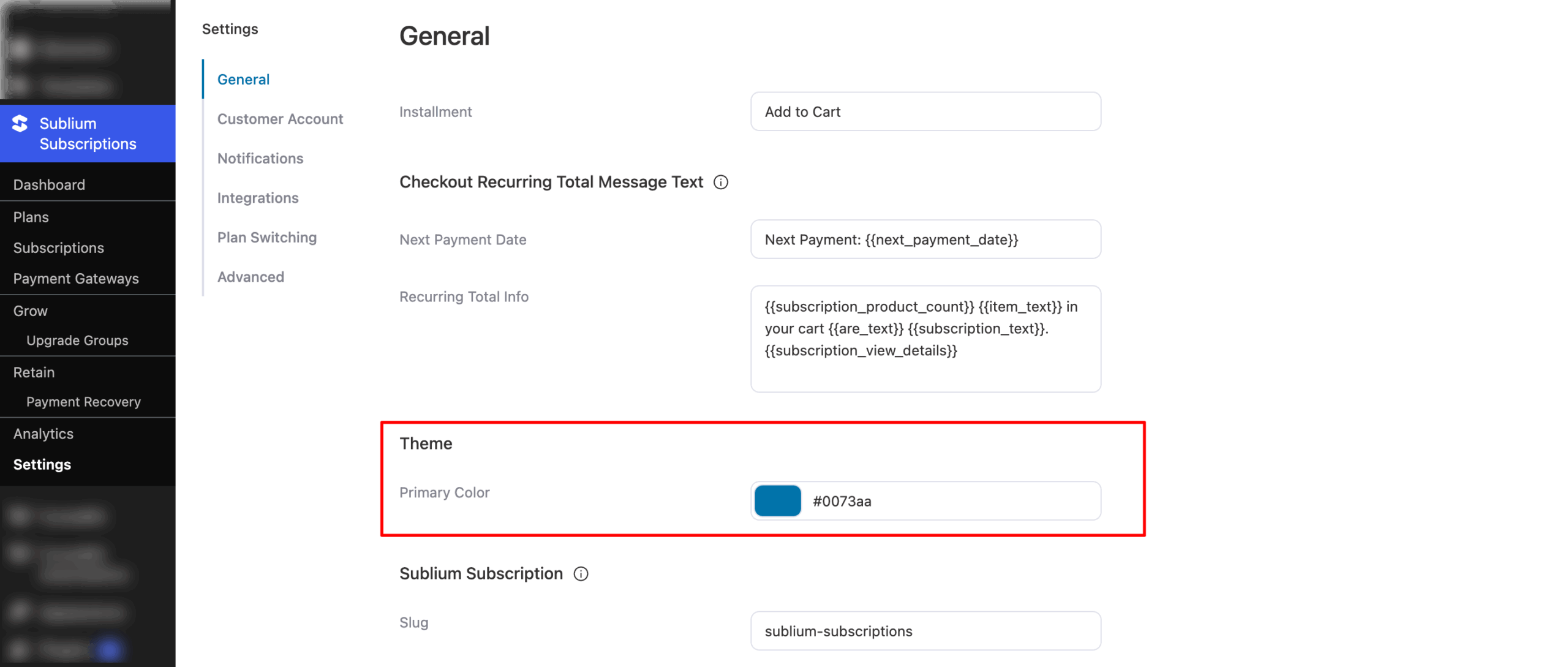
Theme
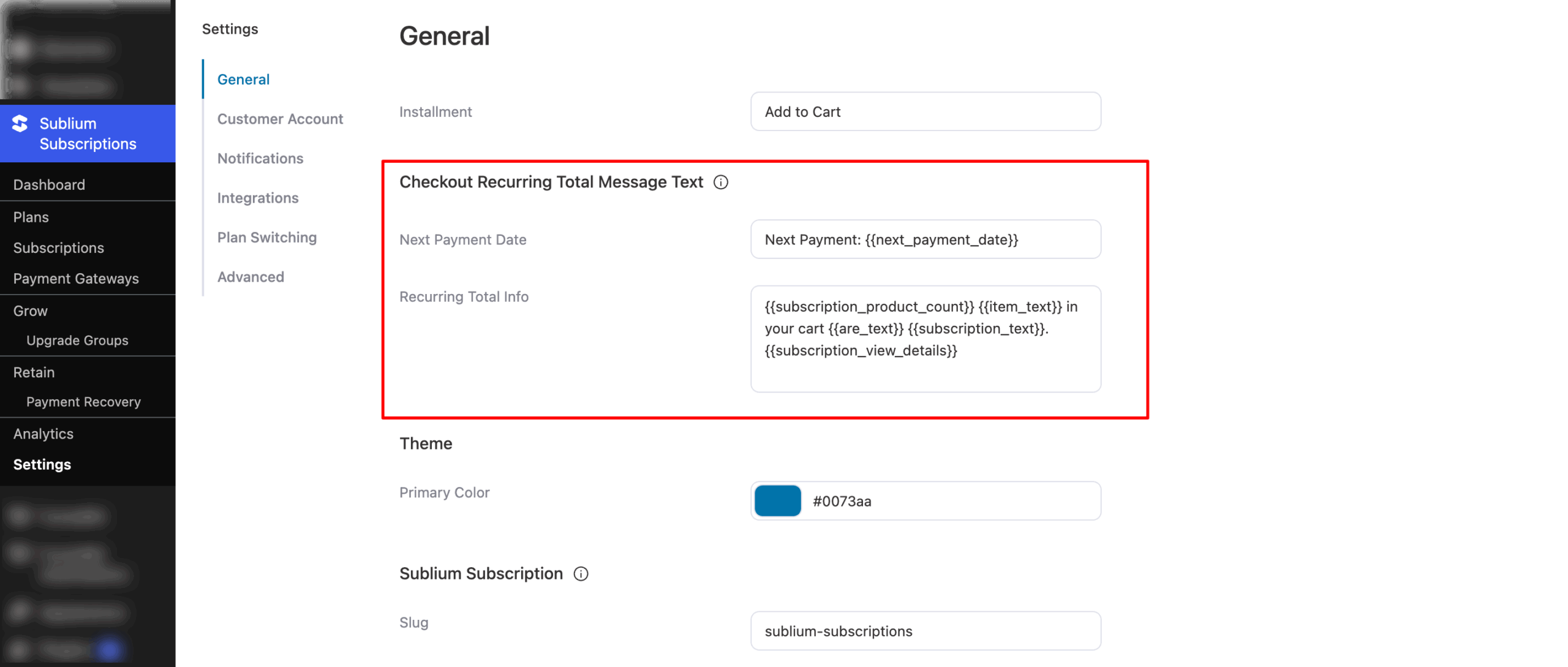
- Primary color: Set the primary color. Default is #0073aa
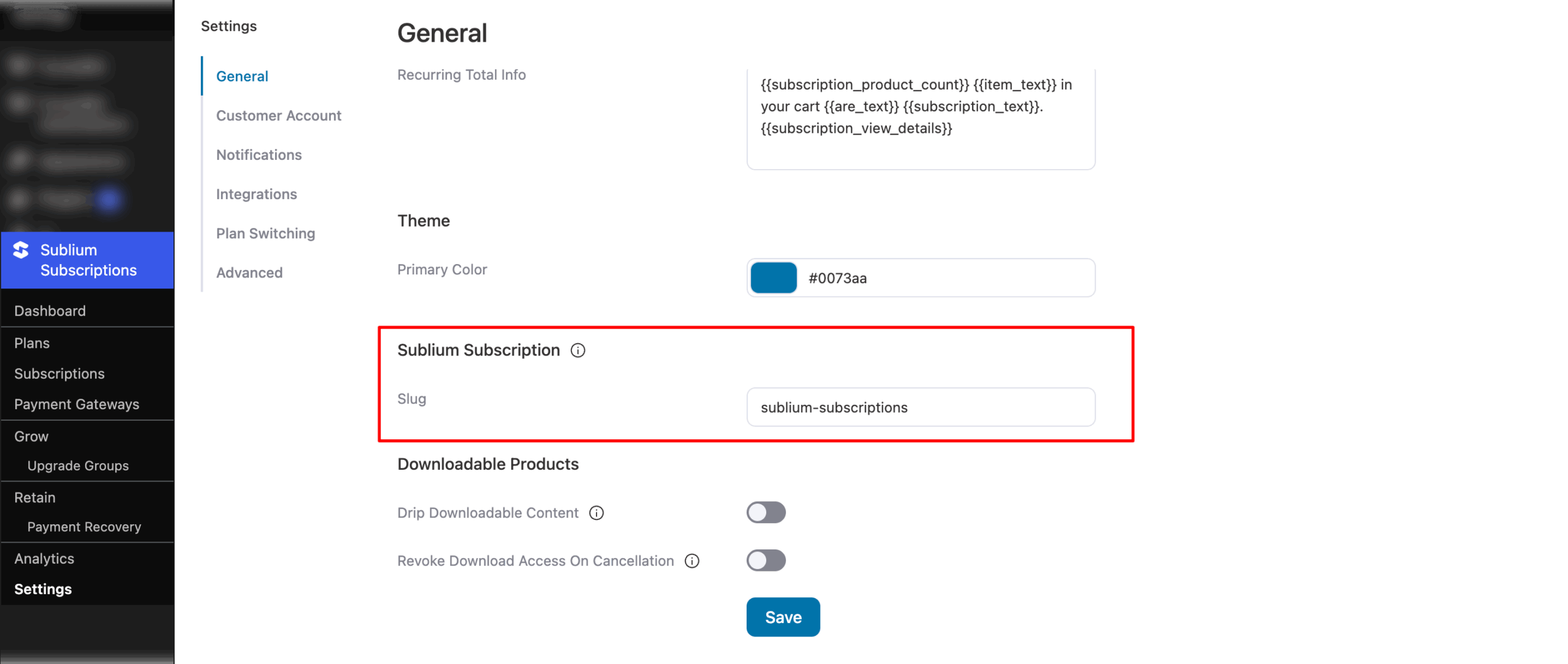
Sublium Subscription
- Slug: Modify the page slug to change the URL. Default: sublium-subscriptions
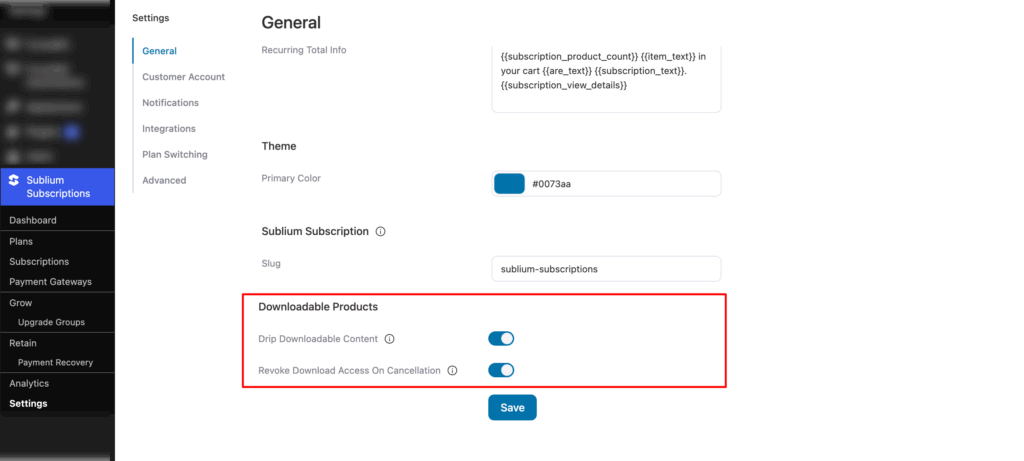
Downloadable Products
In this section, you can manage how downloadable files are delivered and accessed for subscription products. The settings control when new files become available and whether access is removed on cancellation.
Set the following:
- Drip Downloadable Content: When enabled, new downloadable files added to subscription products will only be accessible to customers after their next renewal payment is processed.Default: New files are immediately accessible to all active subscribers.
- Revoke Download Access on Cancellation: When enabled, customers will lose access to downloadable files if their subscription is cancelled. Default: Download access continues even after cancellation.
Make sure to hit “Save” to update.


