

Offers are retention incentives shown to customers when they attempt to cancel a subscription. They are designed to reduce churn by giving customers a compelling reason to stay, such as a discount, free gift, or plan adjustment.
What Are Offers?
Offers appear during the cancellation flow after the customer selects a reason for cancelling and before the final confirmation step. Based on priority and eligibility rules, Sublium automatically displays the most relevant offer to the customer.
When multiple offers are configured, only one offer is shown, the one with the highest priority that matches the customer’s subscription and conditions.
Note: Offers are optional but highly recommended. They are always evaluated automatically and shown inline within the cancellation modal.
Each offer follows this lifecycle:
- Customer initiates cancellation
- Customer selects a cancellation reason
- System evaluates available offers
- Highest-priority eligible offer is displayed
- Customer either:
- Accepts the offer (retained)
- Rejects the offer and continues cancelling
Offer performance is tracked automatically, including views, acceptances, and revenue saved.
Offer Types
You can create different types of offers depending on your retention strategy:
Discount Offer
Provides a percentage or fixed discount on future renewals.
Common use cases:
- Price sensitivity
- Temporary financial difficulty
Example:
Get 20% off your next 3 renewals if you stay with us today.
Free Gift Offer
Gives the customer a free product or bonus item while keeping the subscription active.
Common use cases:
- Increasing perceived value
- Rewarding loyalty
Example:
Stay subscribed and receive a free bonus product with your next order.
Offer Listing Overview
Navigate to Sublium Subscriptions ⇒ Cancellation Flow ⇒ Offers to view all configured offers.
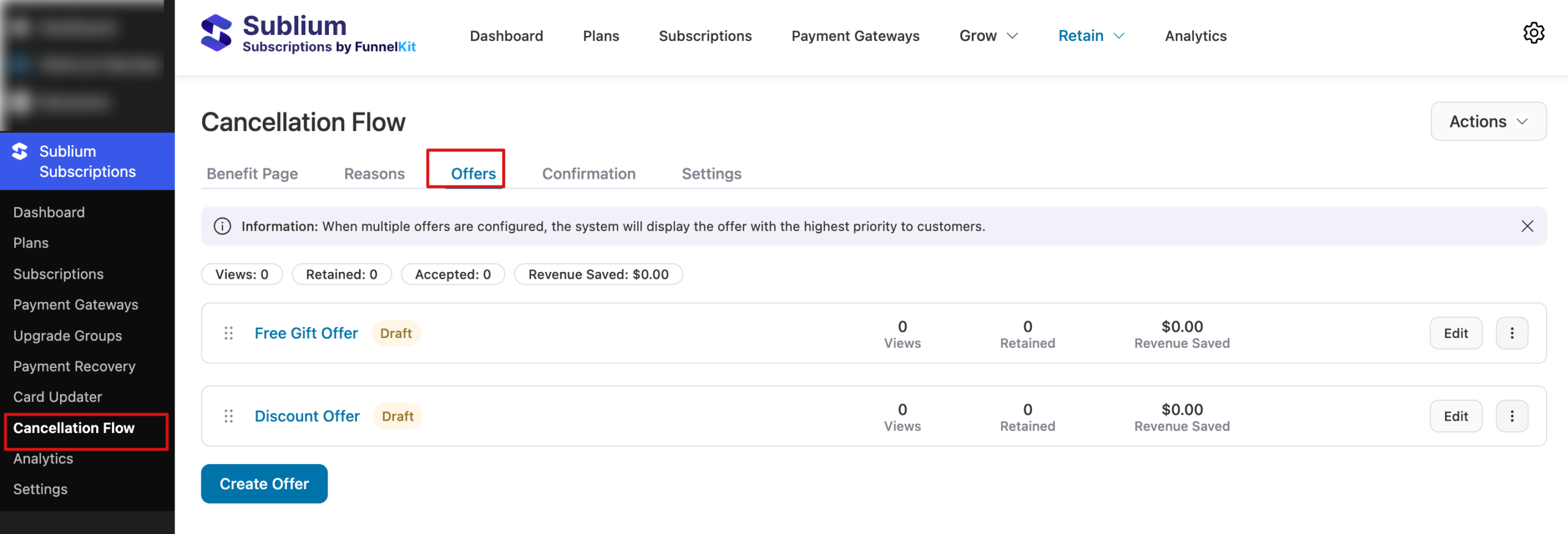
The offers list shows:
- Offer Name
- Status (Draft or Active)
- Views – How many times the offer was shown
- Retained – How many customers stayed after accepting
- Revenue Saved – Estimated revenue preserved
You can reorder offers using drag-and-drop to control priority.
How to Create or Edit an Offer
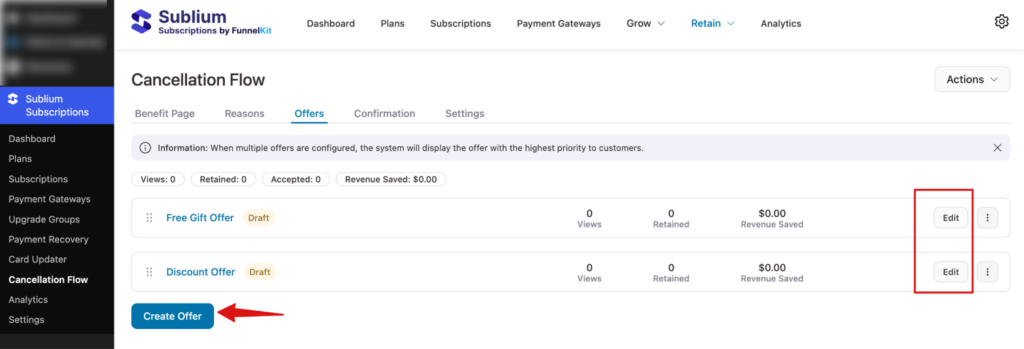
Step 1: Create or select an offer
Click Create Offer to add a new one, or click Edit next to an existing offer.
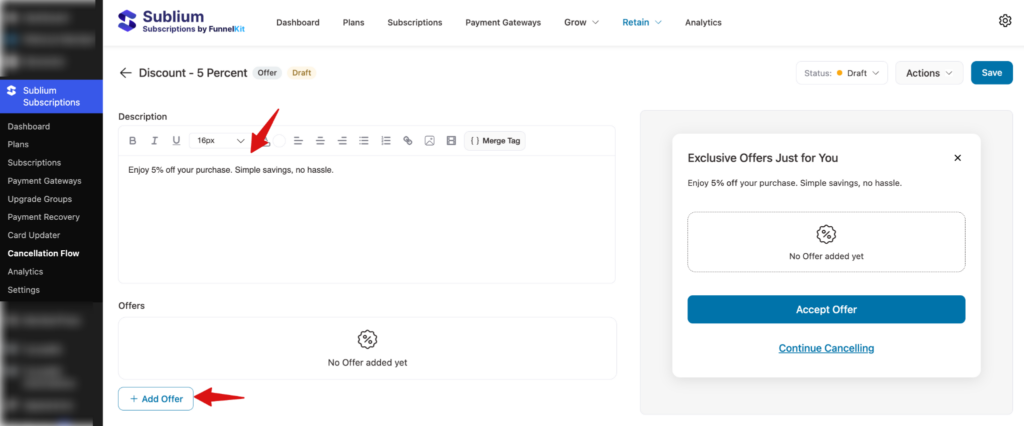
Step 2: Configure offer details
Next, add the description and add the offer, and hit “+ Add Offer”.
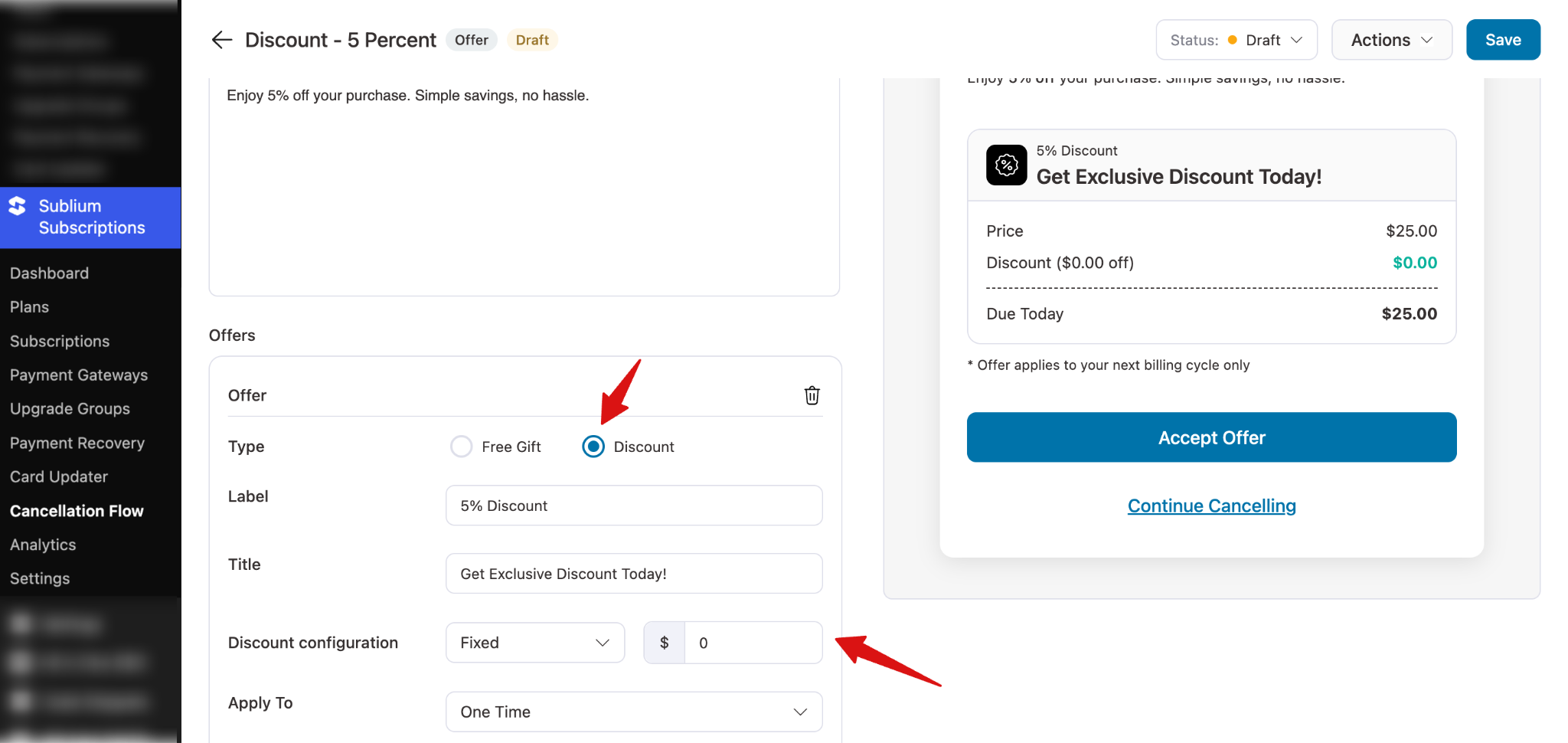
Discount Offer
Next, set the following for the discount offer:
- Type: Select type as Discount
- Label: Set the level
- Title: Set the title
- Discount configuration: Select either fixed or percentage. Then set the amount.
- Apply To: Set if the discount should be set to one time or all upcoming billings.
Free Gift Offer
Next, set the following for the free gift offer:
- Type: Select type as Free gift
- Label: Set the level
- Title: Set the title
- Product: Search and add the product.
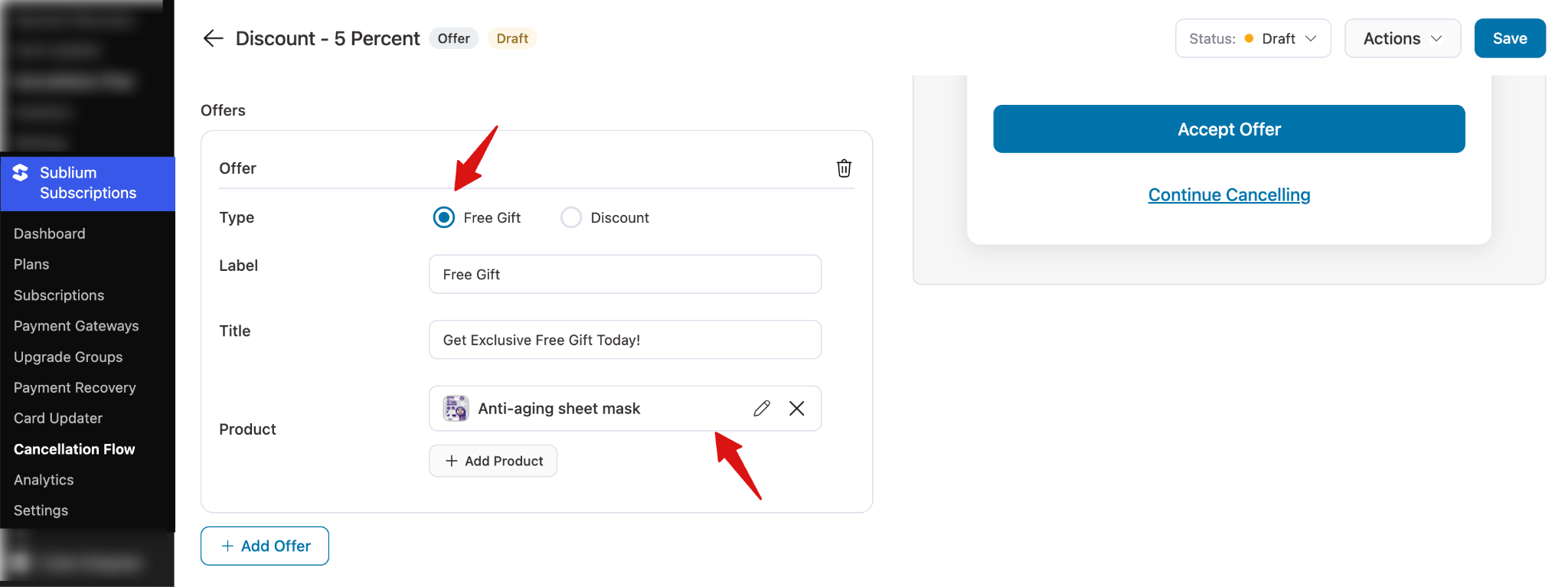
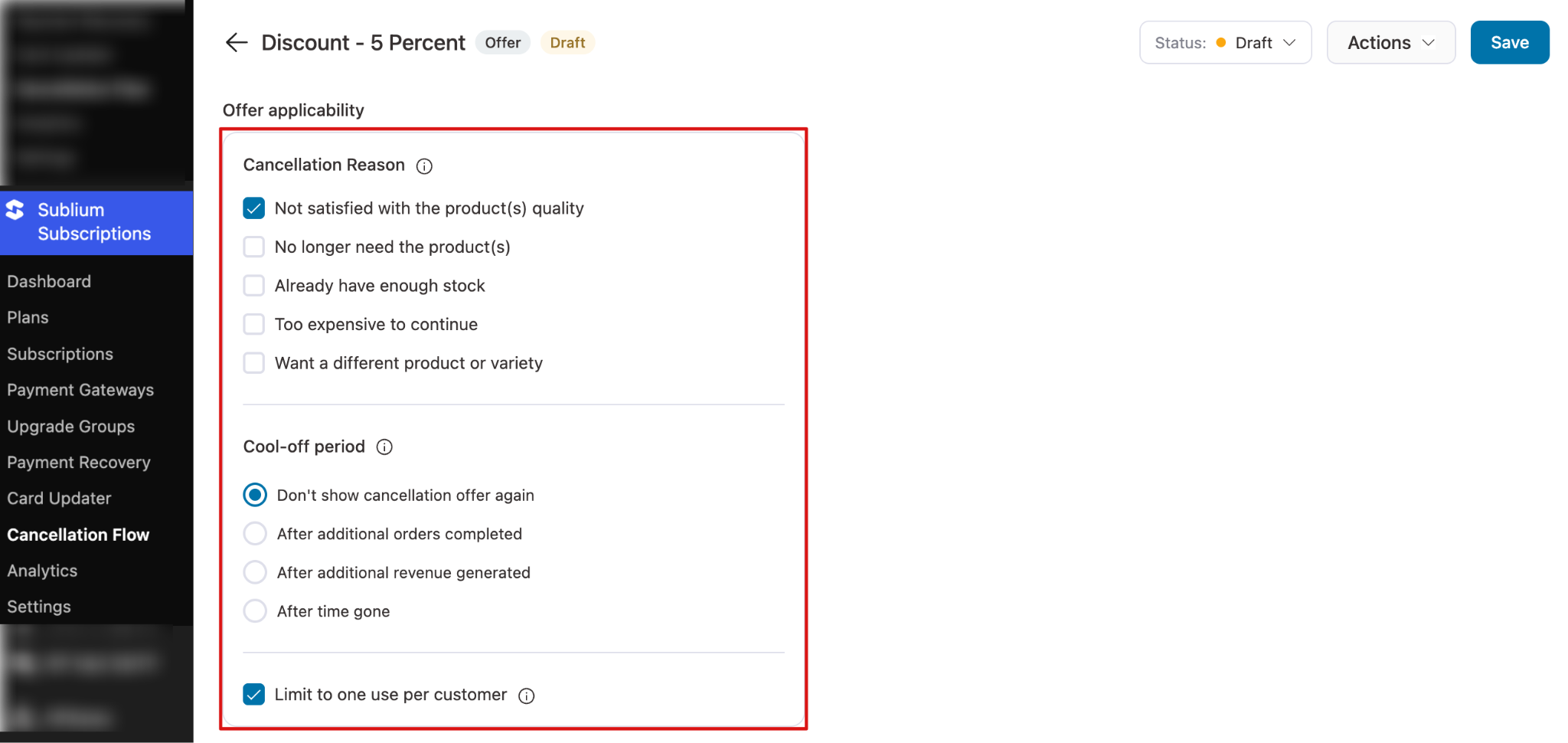
Step 3: Define offer applicability
Cancellation Reason
Choose which cancellation reasons should trigger this offer from the available list.
Note: Learn how to set up cancellation reasons.
This ensures customers see only the most relevant offer for their situation.
Cool-off period
Prevent overexposure by controlling how often the offer appears:
- Don’t show the cancellation offer again
- After additional orders are completed
- After additional revenue is generated
- After a specific time has passed
Usage limits
Limit how often a customer can benefit from the same offer.
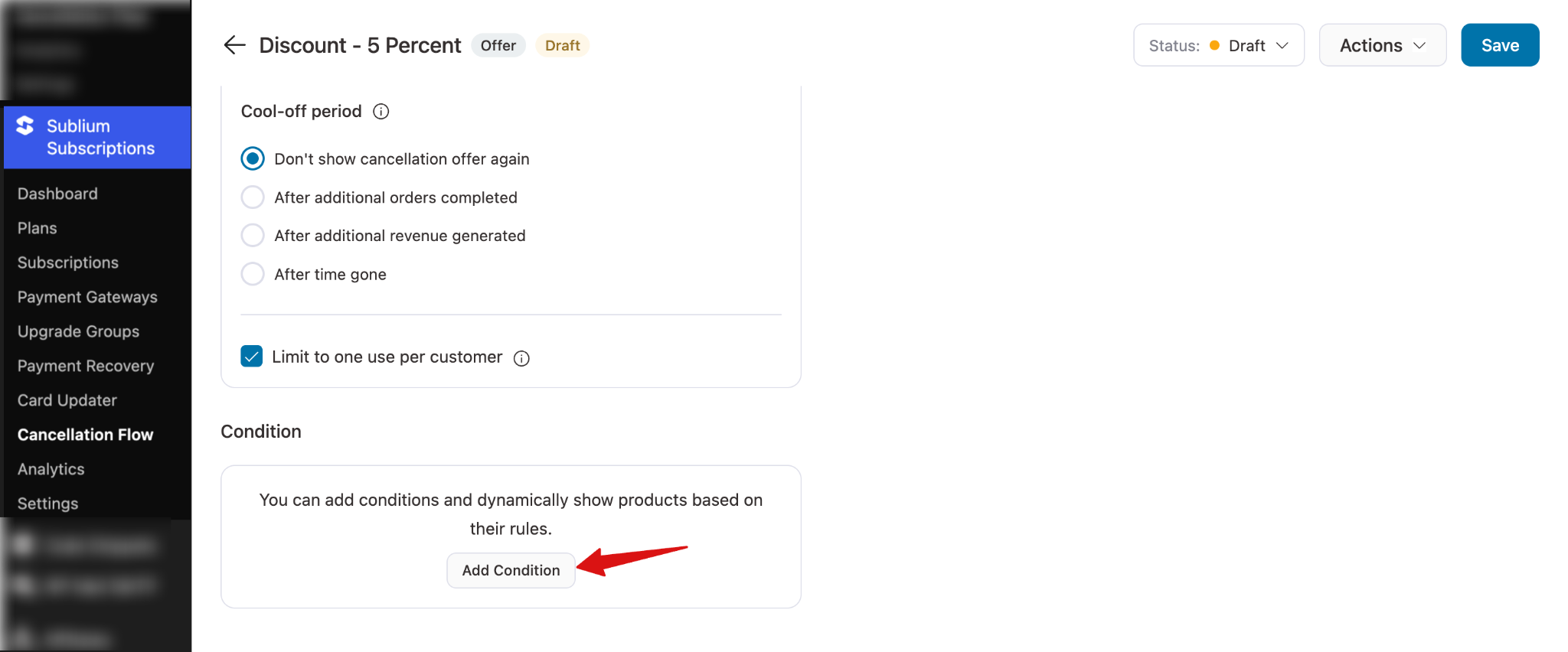
Step 4: Add a condition
Next, you can add conditions and dynamically show products based on their rules.
To add a condition, scroll down and hit “Add Condition”.


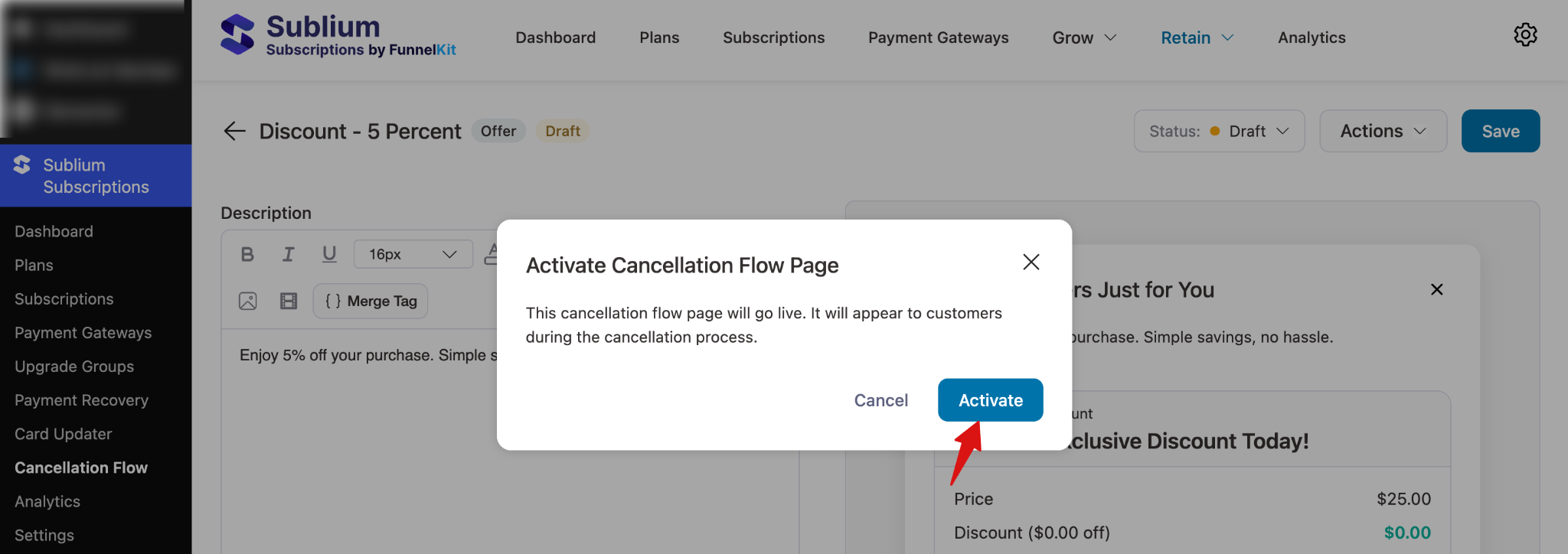
Step 5: Set the status to active
Next, set the status to Active.
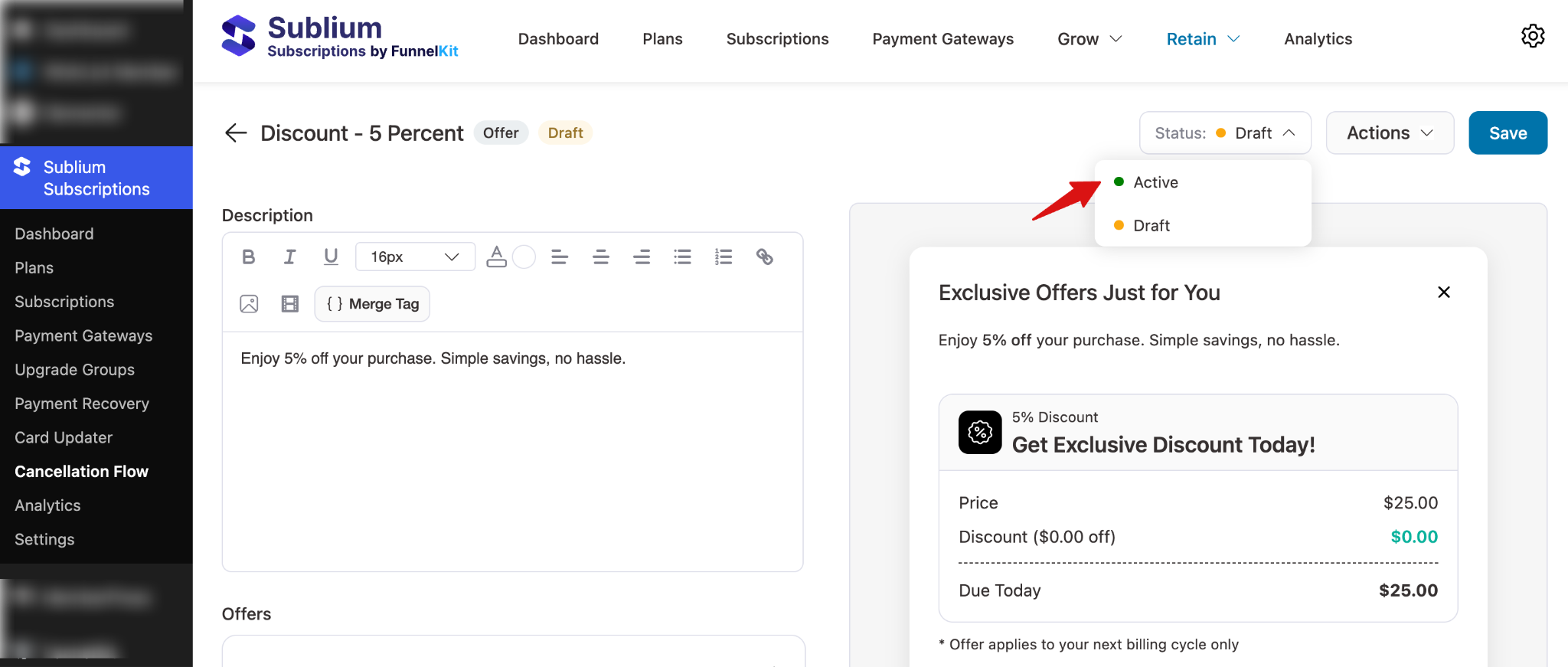
Next, make sure hit Activate to Confirm.
Customer Experience
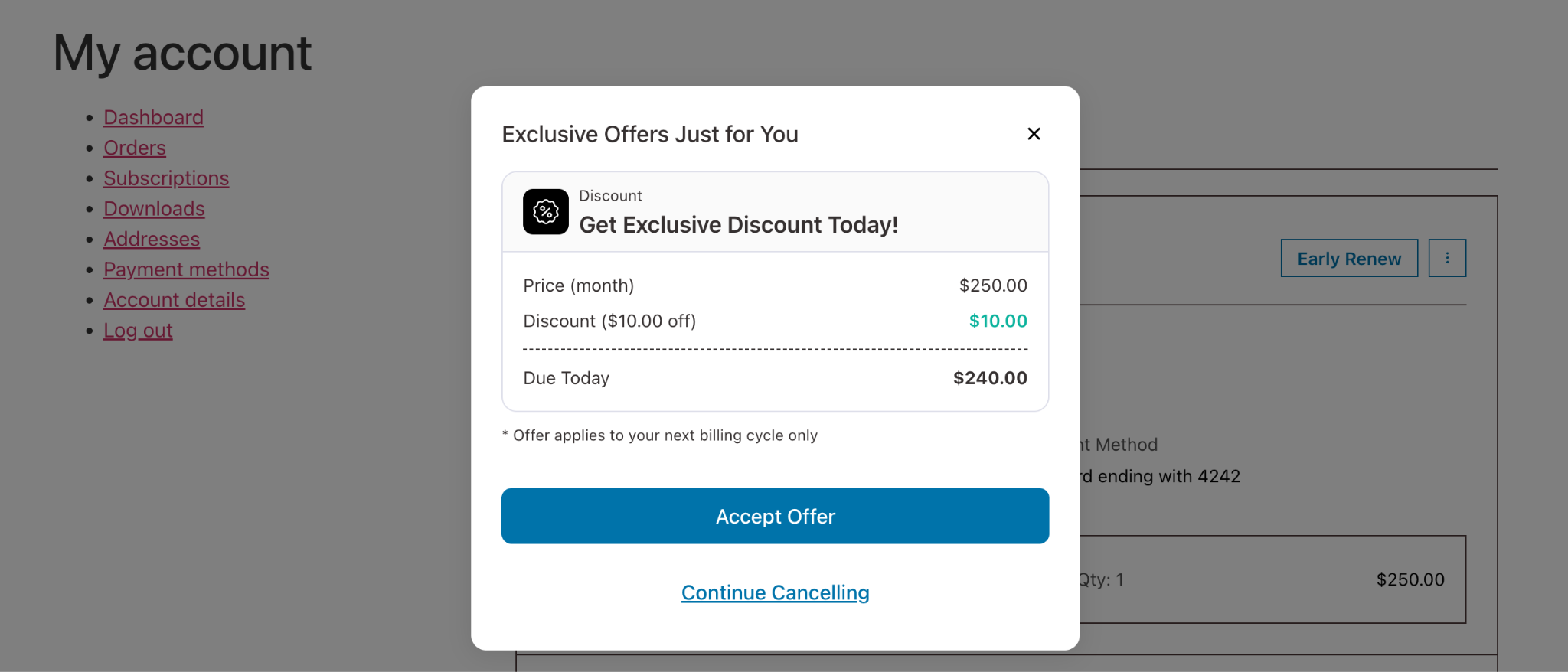
From the customer’s perspective:
- The offer appears seamlessly during cancellation
- They can clearly accept or decline the offer
- Accepting an offer immediately applies the benefit
- The flow continues to a confirmation page based on their choice
If an offer is accepted, the Offer Accepted confirmation page is shown automatically.
Best Practices for Offers
- Keep copy short and benefit-focused
- Match offers to common cancellation reasons
- Avoid overwhelming customers with too many choices
- Test one offer at a time and review performance metrics
- Pair strong offers with clear confirmation messaging
Key Notes
- Multiple offers can exist, but only one is shown per cancellation attempt
- Offers are evaluated automatically based on priority
- Performance metrics update in real time
- Offers integrate seamlessly with confirmation pages
Offers are a critical part of the cancellation flow, helping turn potential churn into retained revenue with minimal friction.


