

Sublium sends many transactional and notification emails (order receipts, password resets, subscription notices, admin alerts).
To ensure every Sublium email reaches the inbox, use a reliable SMTP provider, authenticate your sending domain (SPF, DKIM, DMARC), and properly configure your WordPress SMTP plugin.
Recommended Email Service Providers
These providers offer reliable infrastructure and developer-friendly APIs:
- Amazon SES
- SendGrid
- Mailgun
- Postmark
- Elastic Email
Note: Gmail/Outlook can work for low-volume testing (Gmail limits apply: ~2000/day for regular accounts; ~500/day for some trial/educational accounts). For production or higher volume, prefer an ESP.
Recommended WordPress plugins
Use one of the following to connect Sublium (WordPress) to your ESP via API or SMTP. These plugins replace the default wp_mail() sending method with the provider’s API or authenticated SMTP:
- WP Mail SMTP: Versatile: integrates with SendGrid, Mailgun, Elastic Email, and offers direct API integrations.
- WP Offload SES Lite: Amazon SES integration.
- Postmark for WordPress: Postmark official plugin.
- Elastic Email Sender: Elastic Email official plugin.
How to Configure WP Mail SMTP for Email Deliverability
First, make sure to install and activate the WP SMTP plugin by Syed Balkhi.
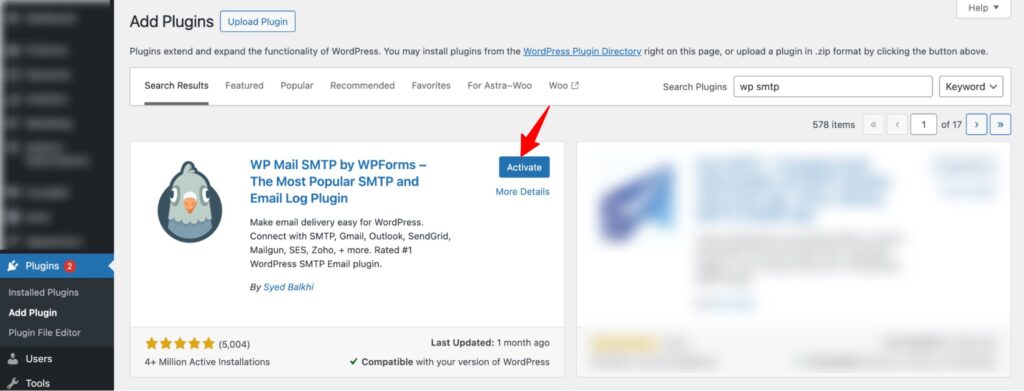
Step 1: Select the SMTP service
Once activated, you will be redirected to the setup wizard. Click the “Let’s Get Started” option to proceed.
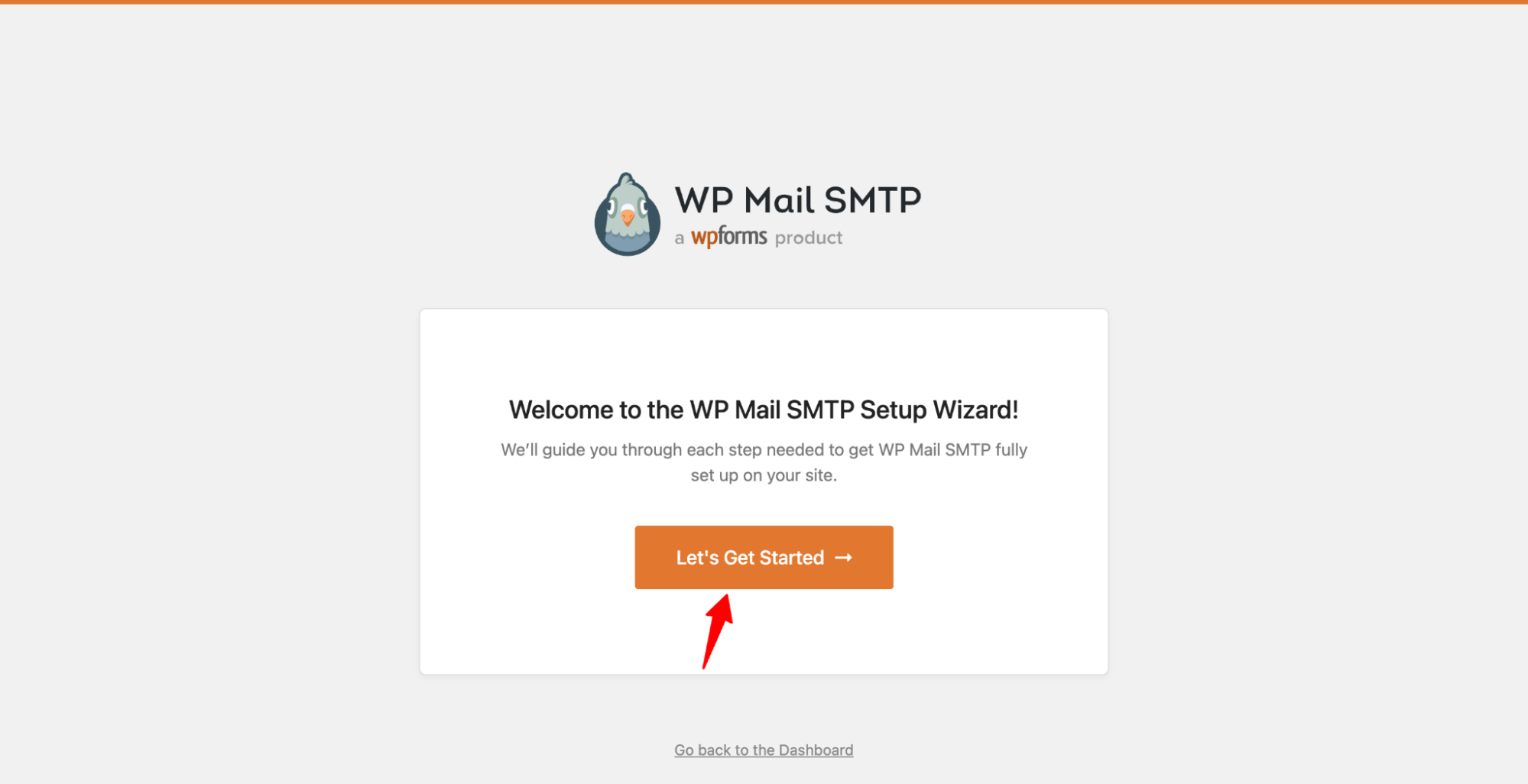
Then, hit Let’s Get Started.
Next, choose the SMTP service you want to use.
The WP SMTP Mail plugin recommends SendLayer, SMTP.com, and Brevo (Sendinblue) because they can send bulk emails without triggering spam filters. However, you can pick the one you like from the list.
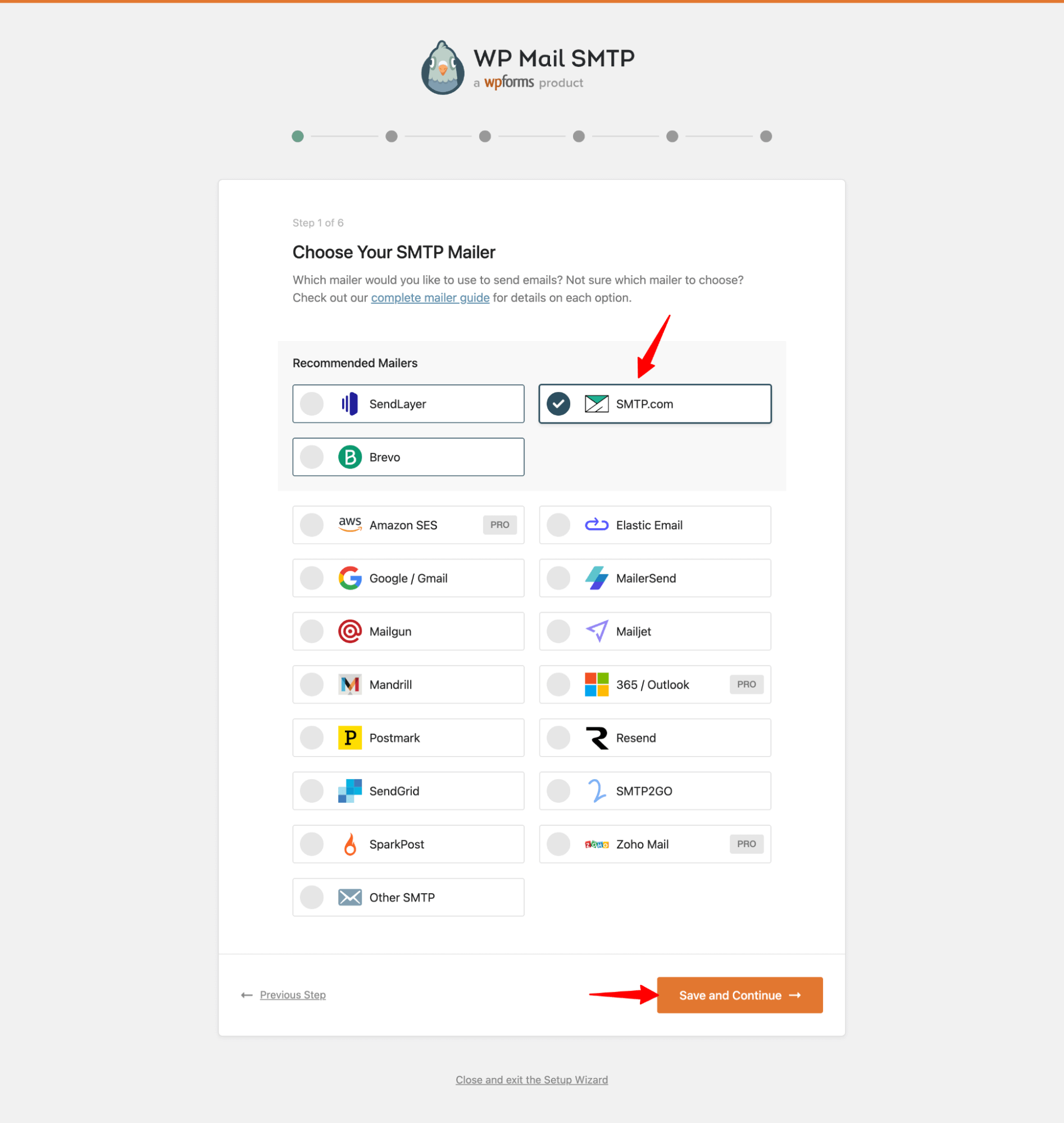
Hit the ‘Save and Continue’ button when done.
Step 2: Configure the SMTP mailer settings
In the next step, copy and paste the API key of the SMTP service you selected above.
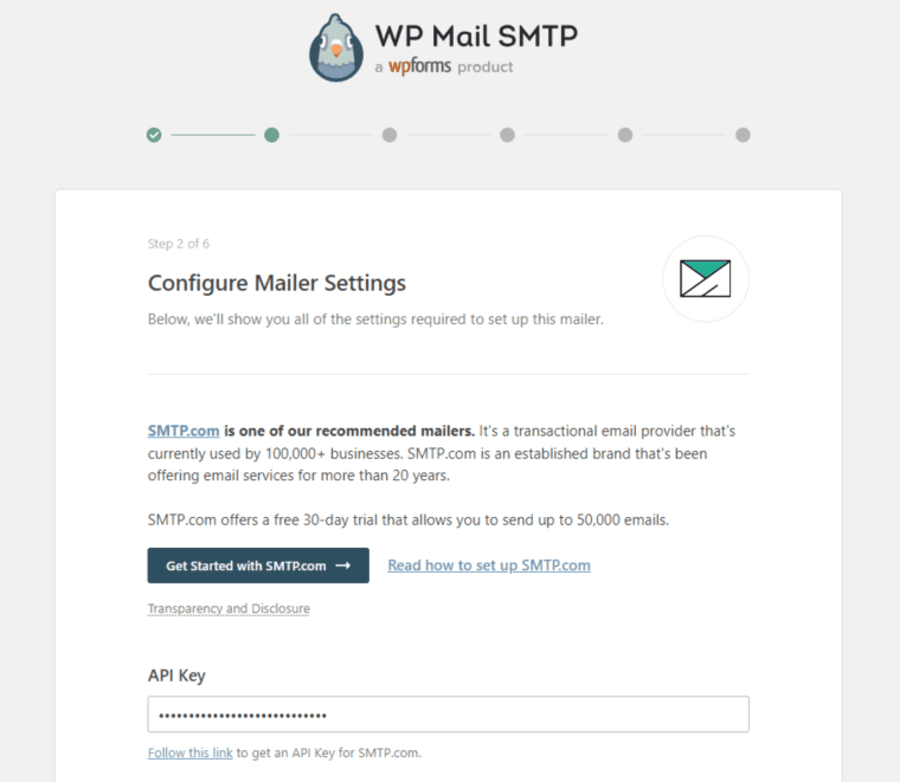
Now enter the From Name, From Email, and other information. Use the same business email address to set up your SMTP mailing service.
Experts also recommend checking ‘Force From Email’ to ensure your WooCommerce emails don’t go to spam.
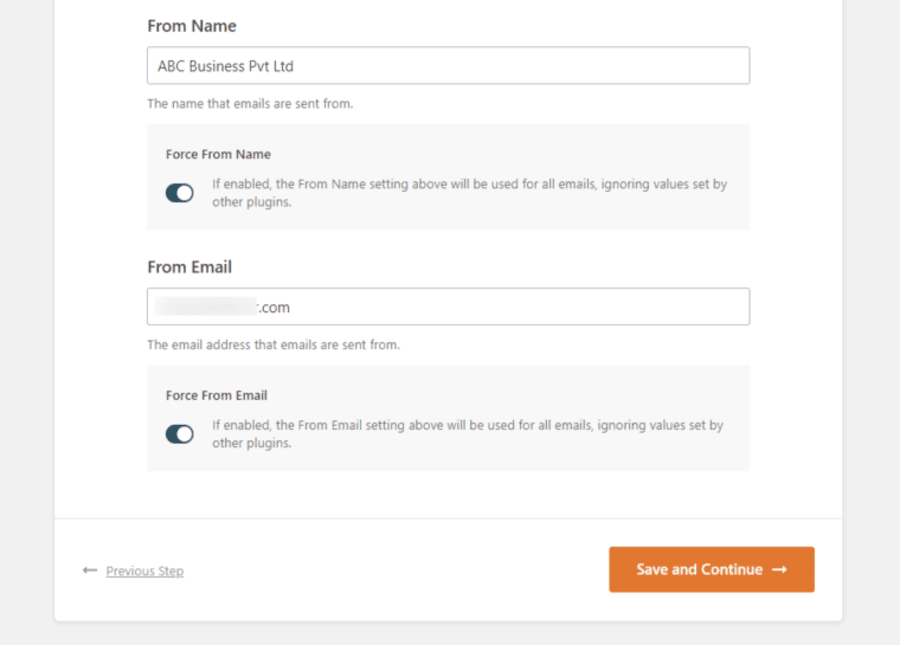
Click on ‘Save and Continue’ once done.
Step 4: Enable the email features
Next, enable the email features you want. To fix the WooCommerce issue of not sending emails, you can enable improved email deliverability and email error tracking.
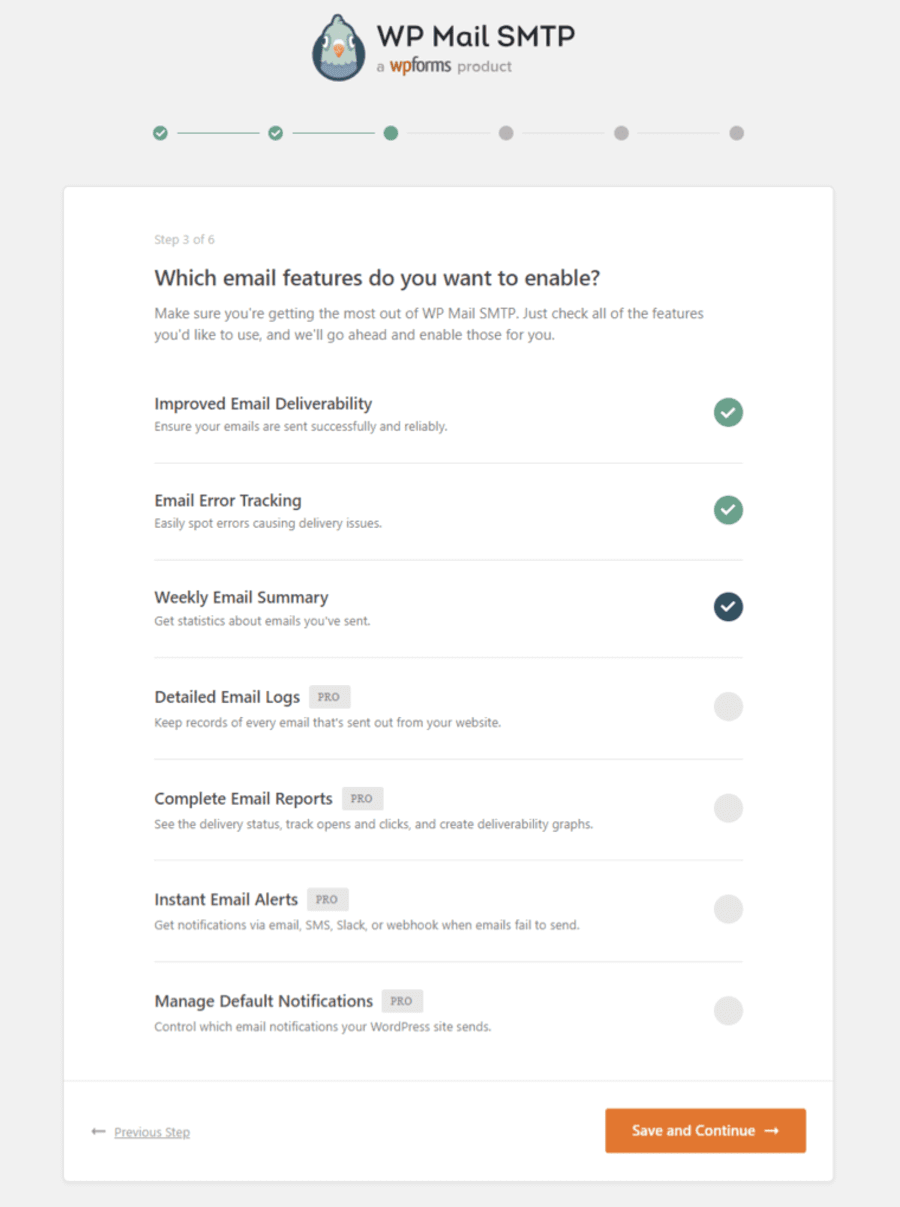
A few premium additional features are also available with the WP Mail SMTP Pro version.
You can skip the next two steps because they ask to enable intelligent recommendations and activate the plugin’s premium version.
Once done, hit the ‘Finish Setup’ button.
Well done! You’ve successfully set up the WP Mail SMTP plugin on your website.
Step 5: Send a test email
Navigate to WP Mail SMTP ⇒ Tools from the WordPress dashboard. On the ‘Email Test’ tab, send a test email.
Enter your email address, enable the HTML format, and click the ‘Send Email’ button.
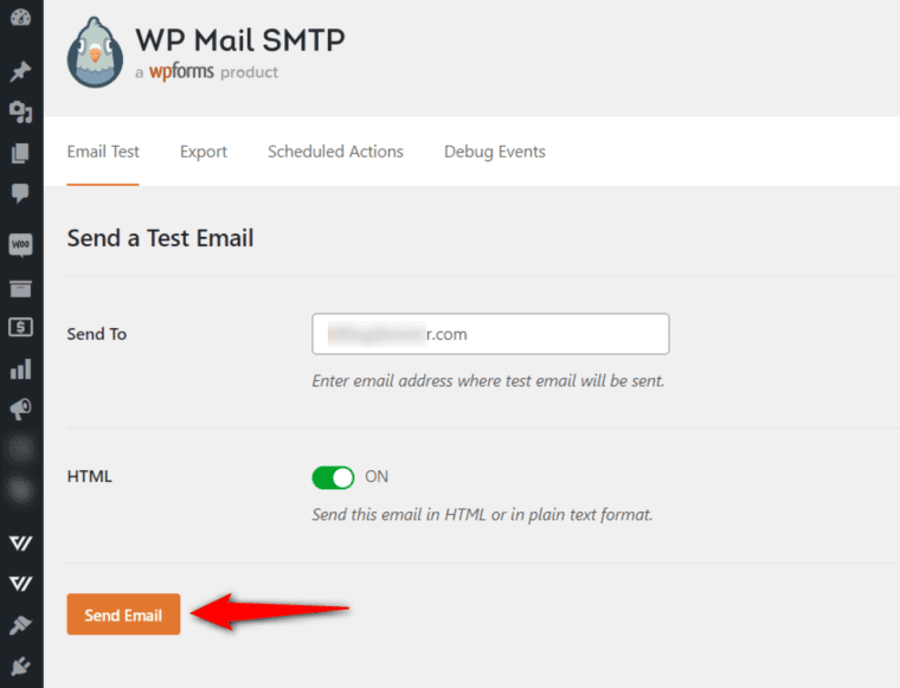
If you’ve set up everything correctly, you should be able to see a “Success” message. Make sure to go to the inbox to see the email you received.
Email Authentication Checklist (actionable)
- Add an SPF record that includes your ESP.
- Add DKIM records (selector + public key) from ESP.
- Add DMARC TXT record (start with p=none for testing).
- Verify the domain in your ESP console.
- Ensure From address matches the verified domain.
- Send test messages to multiple providers (Gmail, Yahoo, Outlook) and review headers.
Deliverability Best Practices
- Clean your mailing lists frequently and remove bounces.
- Send only relevant, permission-based content for notifications and marketing.
- Do not use URL shorteners in transactional emails.
- Monitor your sending reputation via your ESP or third-party tools.
- Run Mail-Tester prior to large sends.
Troubleshooting tips
- If test emails go to spam: review SPF/DKIM/DMARC, check Mail-Tester report, ensure domain isn’t on blocklists (MXToolbox).
- If emails fail to send: check plugin API keys/SMTP credentials and server firewall/port blocks.
- If bounce rates are high: pause campaigns, run list hygiene, and contact ESP support.


