

The Subscriber Profile in Sublium allows you to view and manage all details related to an individual subscriber.
This page provides an organized overview of subscriber information, subscriptions, orders, and activity logs, enabling you to make necessary updates efficiently.
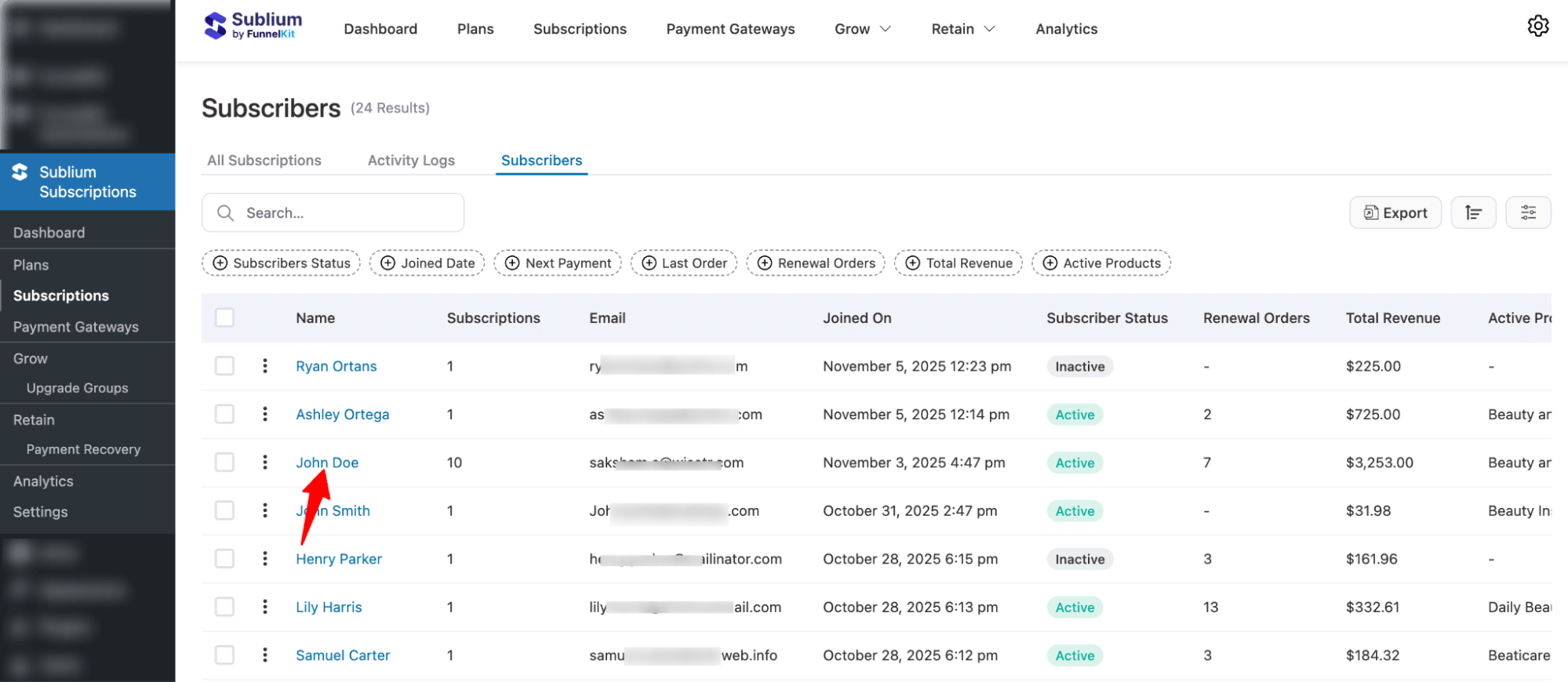
Navigate to Sublium Subscriptions ⇒Subscriptions, then switch to Subscribers.
Here you will find an overview of all the subscribers. Click on a subscriber’s name to access their profile.
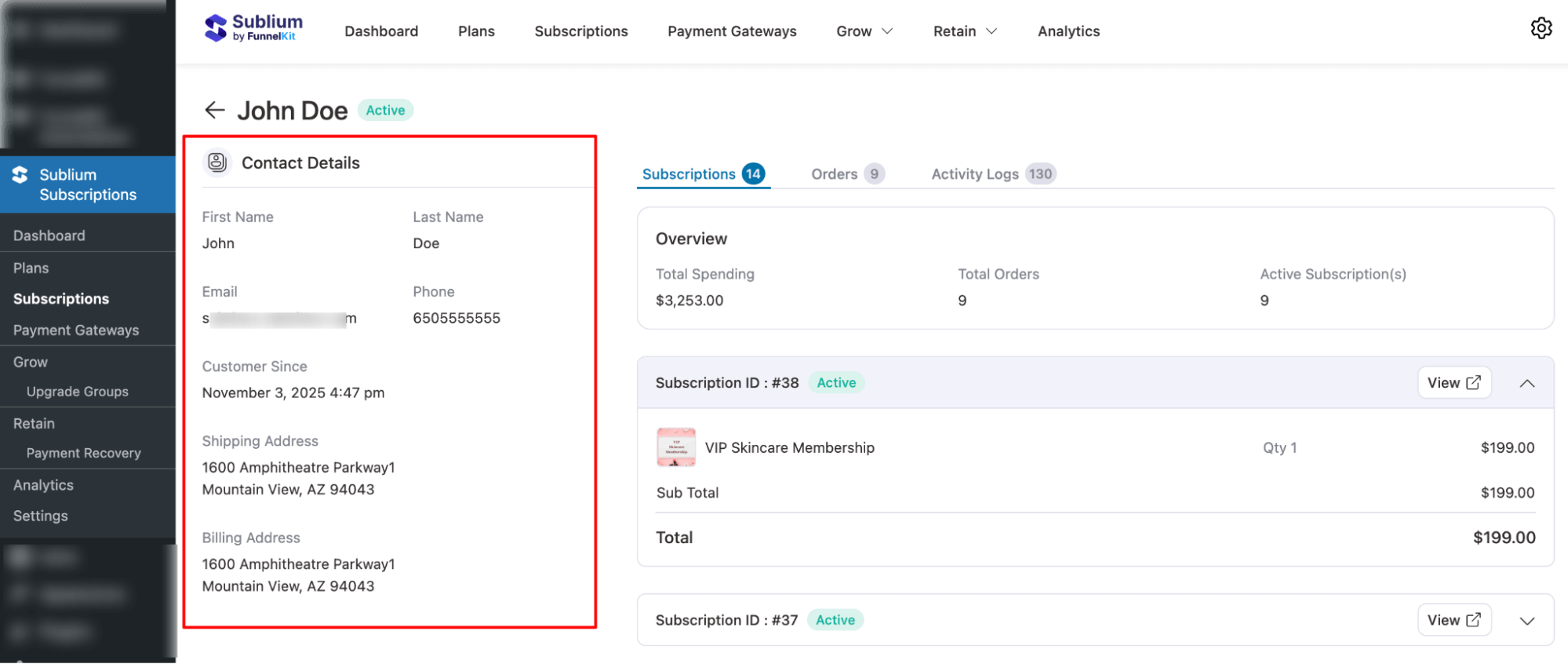
Customer Details
In this section, you will find the subscriber’s first name, last name, email, phone, customer since, billing address, and shipping address.
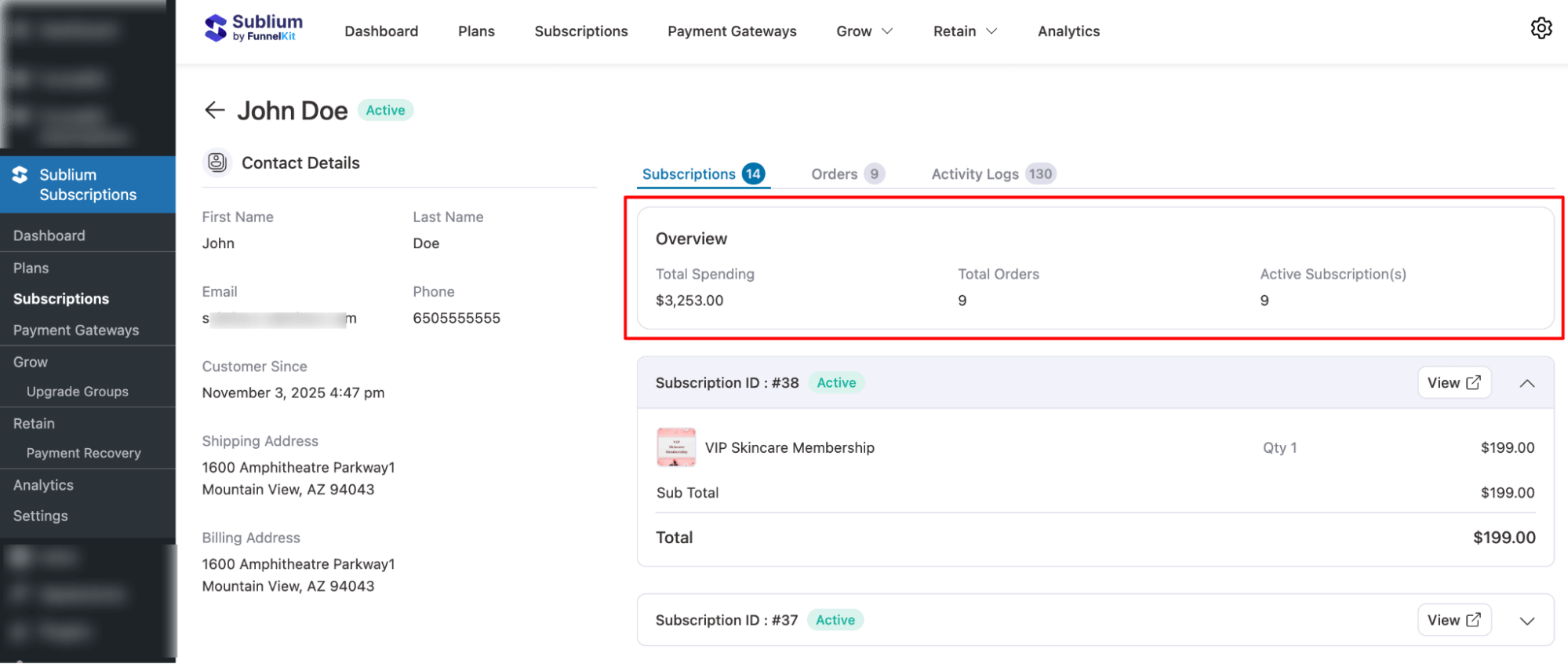
Subscription List
In the subscriptions tab, you will find an overview and all the subscription details.
Overview
In this section, you will find total spending, total orders, and active subscriptions.
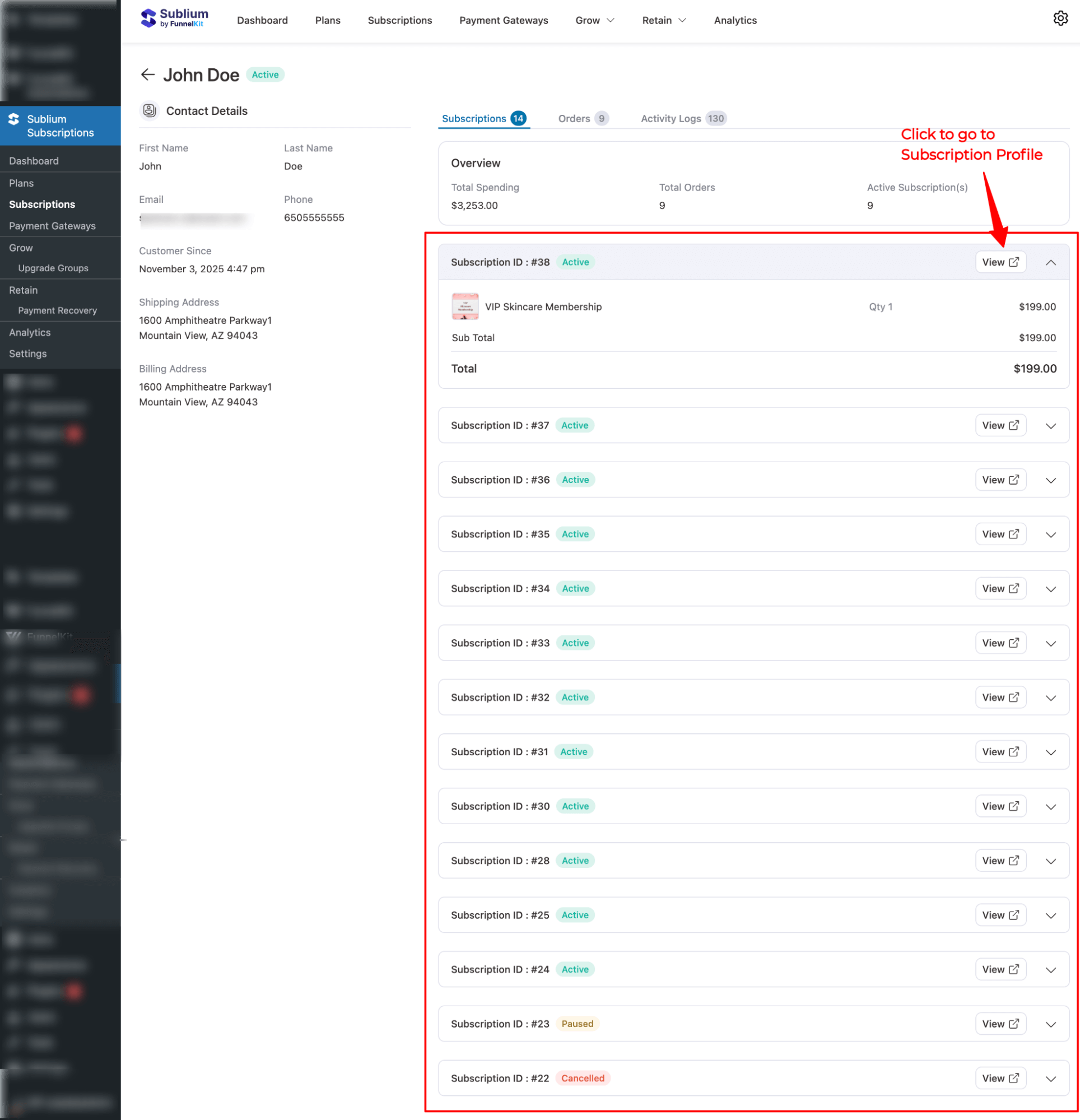
Subscriptions
Here, you can find a list of all subscriptions associated with the subscriber, including their status and key details.
You can expand any of the subscriptions to find the following details:
- Subscription ID & Status: Unique ID and current status of the subscription.
- Plan Name & Quantity: Name of the subscription product and quantity of items.
- Price, Subtotal, and Total: Cost breakdown of the subscription, including shipping if applicable.

Orders
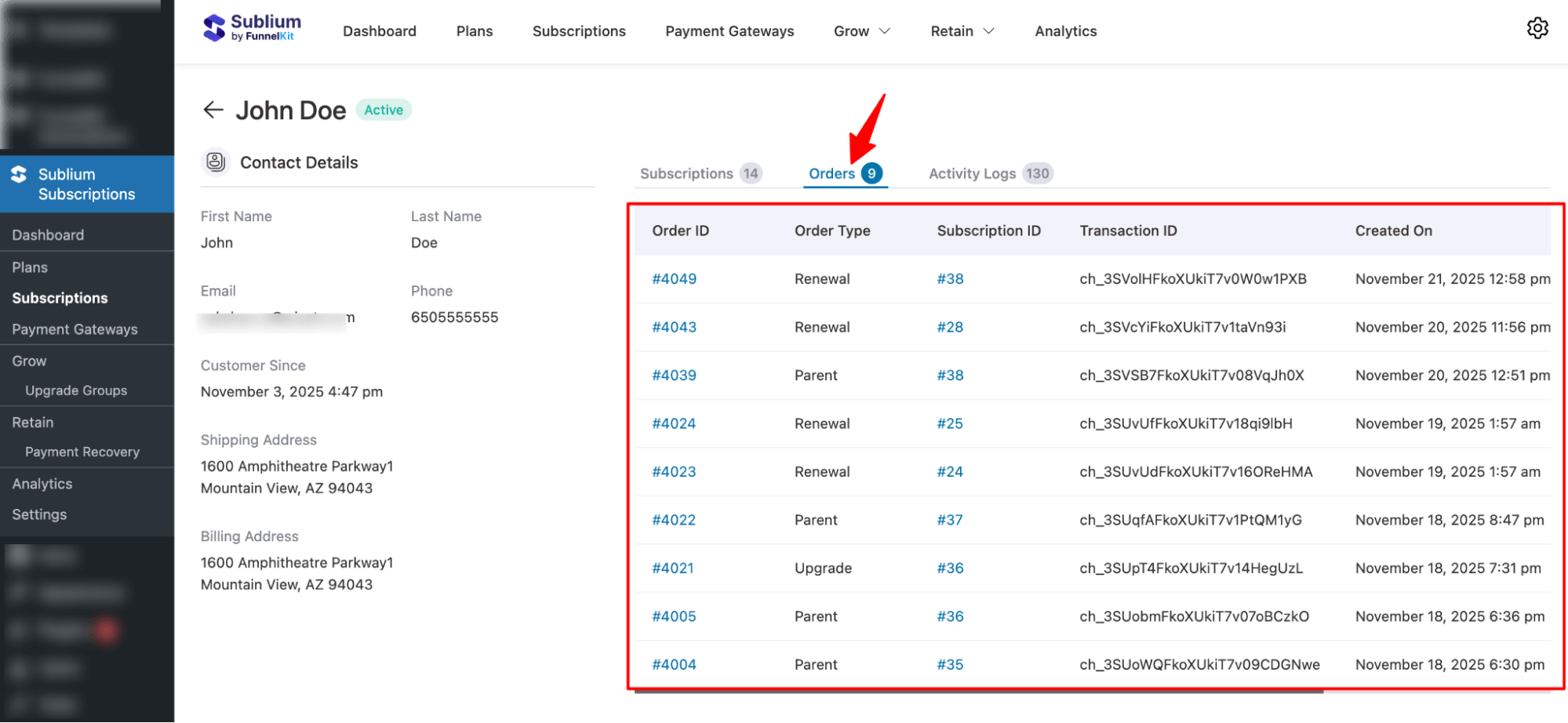
In this section, you will find all orders linked to the subscriber, including renewals, parent orders, and upgrades.
Each order entry shows the order ID and type, subscription ID, transaction ID, created on, amount, and order status.
Activity Logs
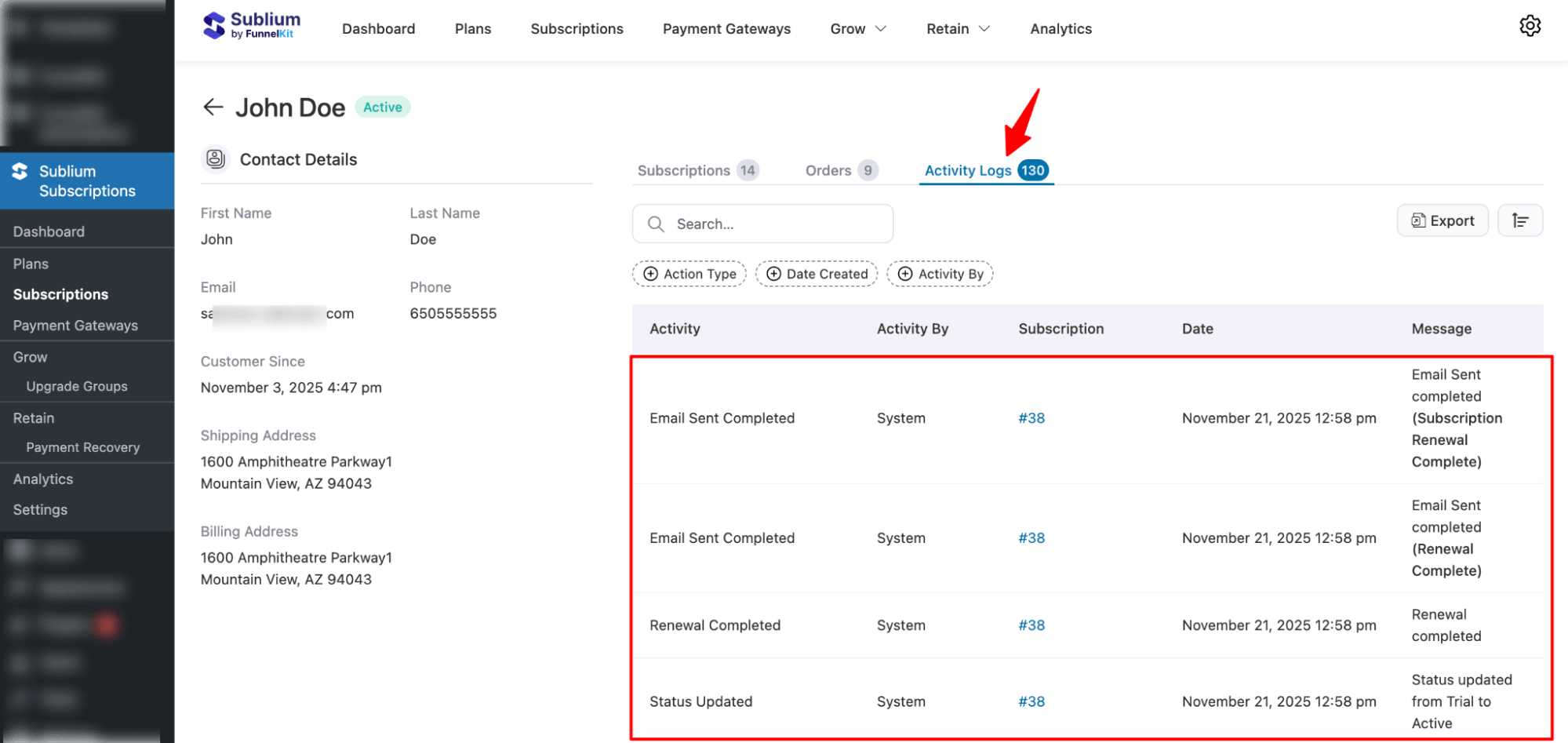
In this section, you will find all actions related to the subscriber, including subscription activity, orders, and email notifications.
Each activity entry shows the action type, date created, activity by, subscription, and message or details.
Search
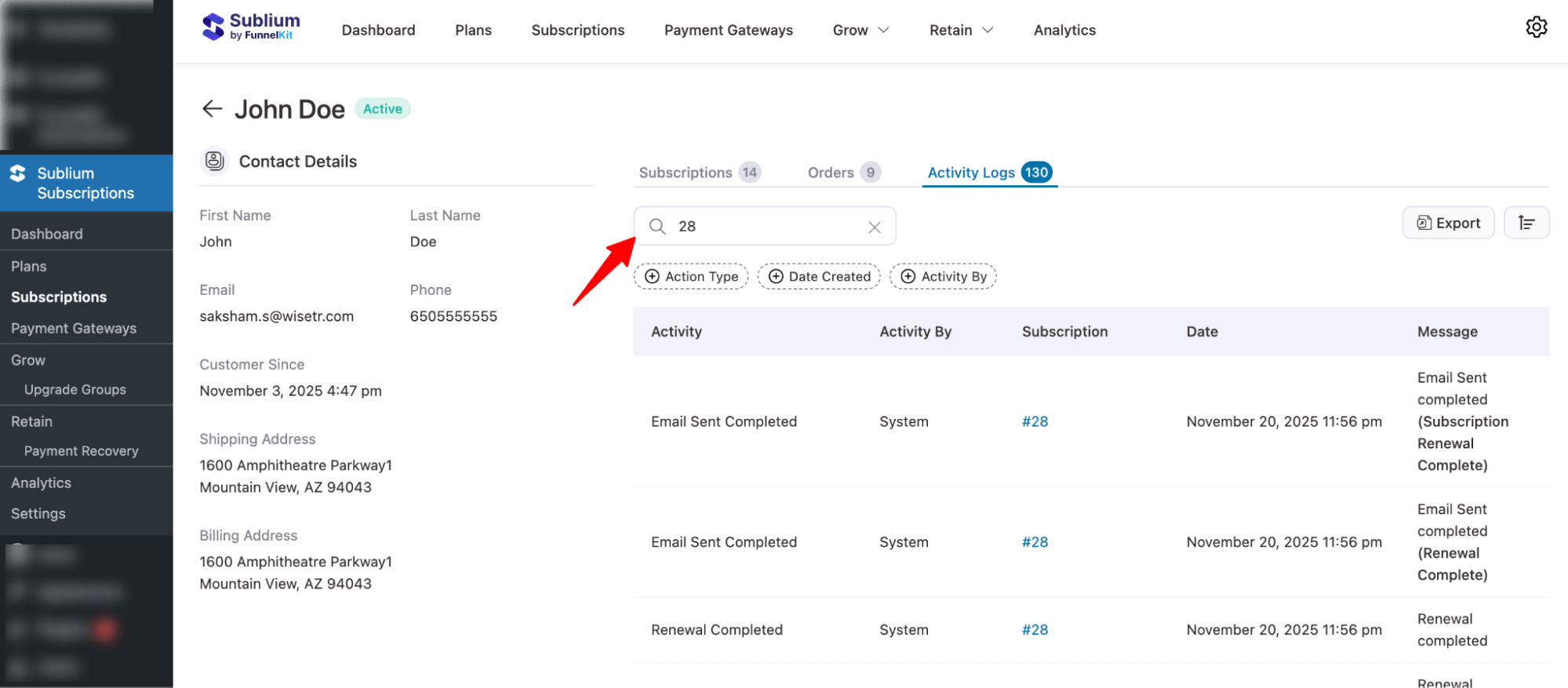
You can search the activity log using the subscription ID.
Activity Log Filter
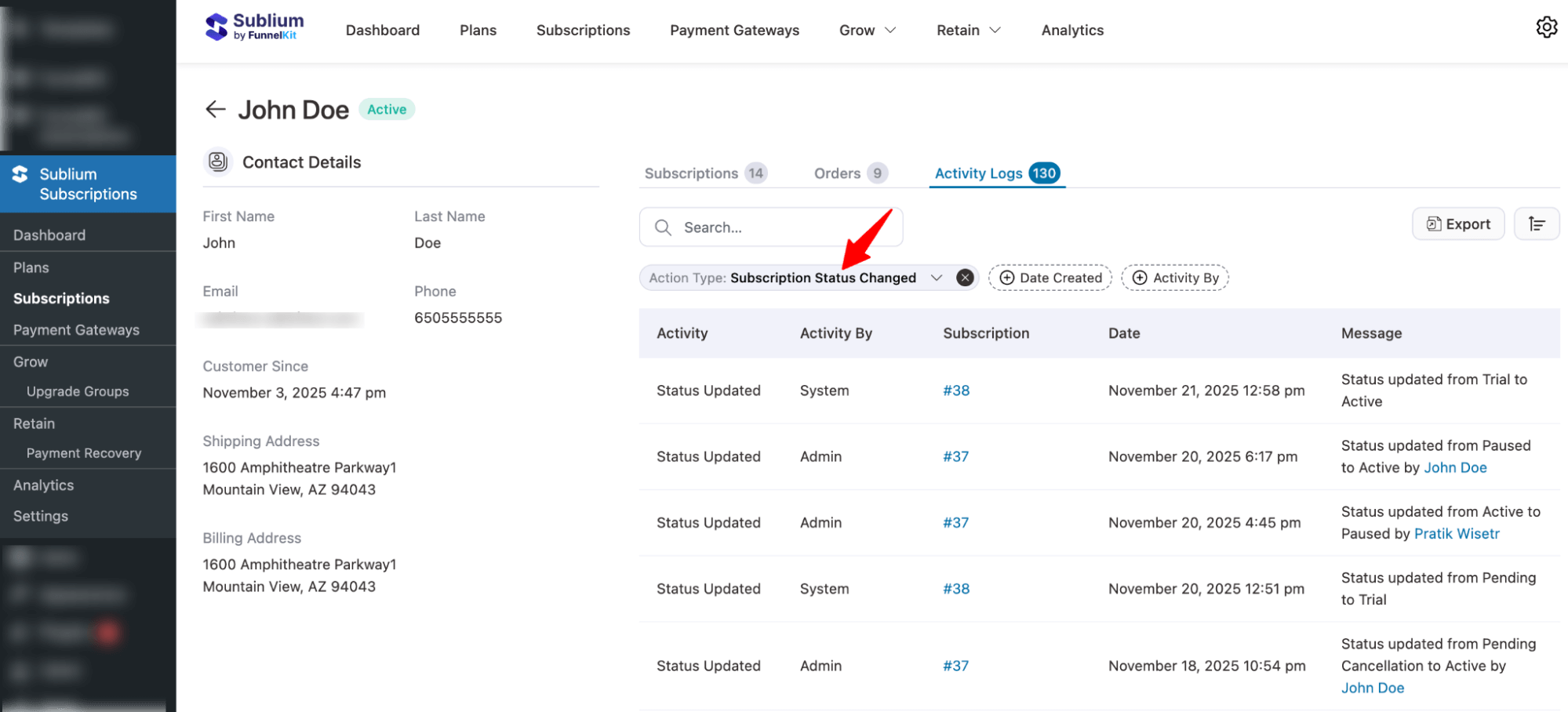
You can use the following filter options to find specific activity logs:
- Action Type: First, choose a category such as Subscriptions, Frequency and Schedule, Address, Product, Coupon, Shipping, Renewals, Payments, Upgrades, Dunning, or Emails, then select a specific action like Subscription Created, Subscription Status Changed, Manual Note, or Manual Order.
- Date Created: Select a date range such as Today, Yesterday, This Week, Last Week, This Month, Last Month, Quarter to Date, Last Quarter, Year to Date, Last Year, On Specific Date, or a Custom Date Range.
- Activity By: First, choose a role such as Other, Customer, Admin, System, or FKA, then select the specific user.
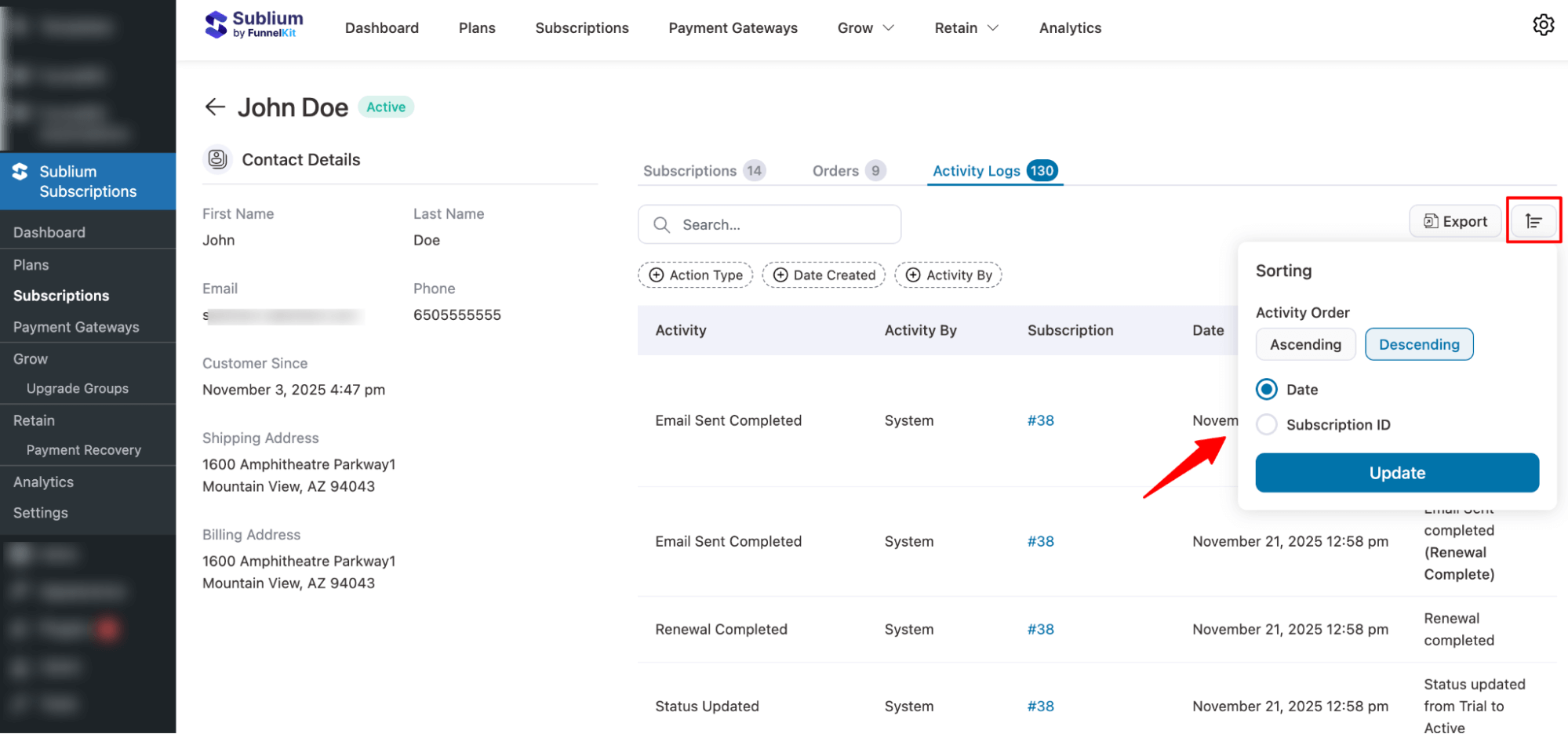
Sort
You can sort the activity logs by Date and Subscription ID in ascending or descending order.
Export
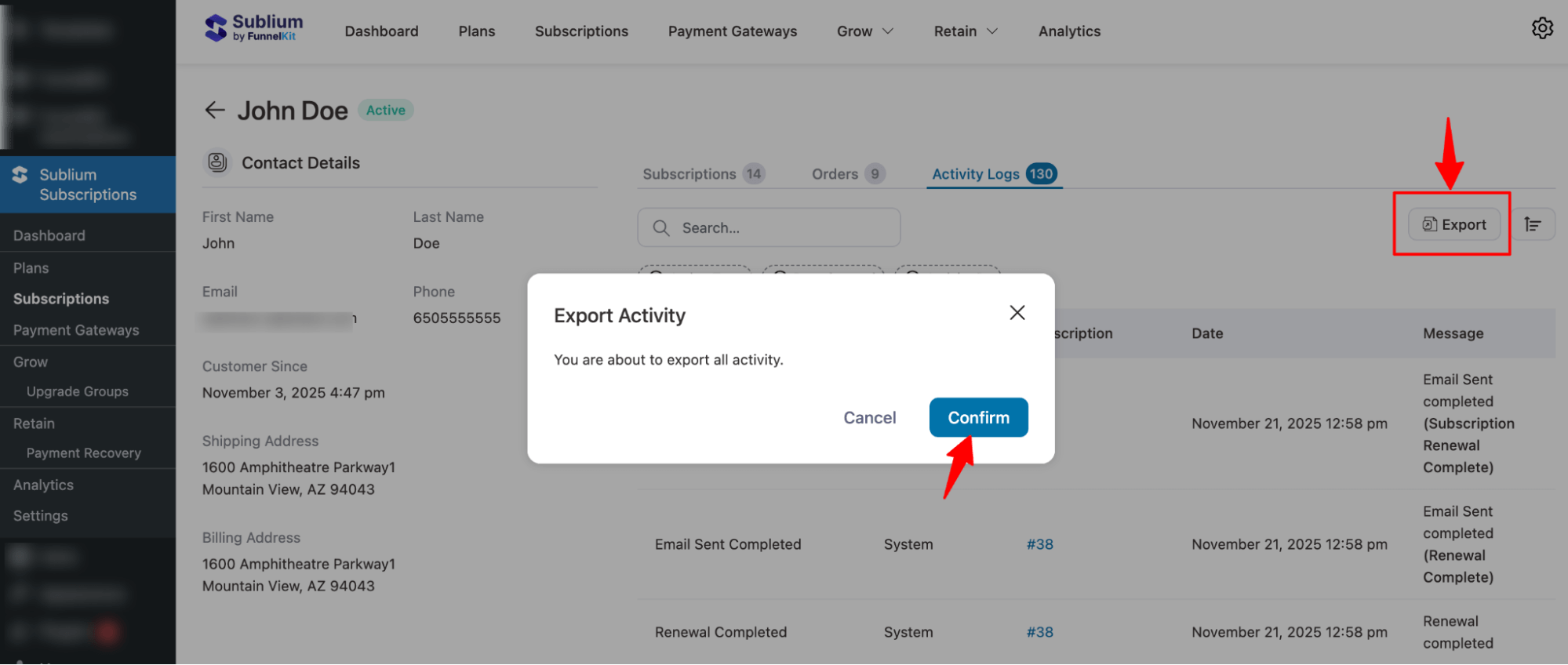
To export the activity log for the subscriber, hit the Export button and then Confirm.
If you want to export filtered data, first apply the filter, then hit Export and Confirm.
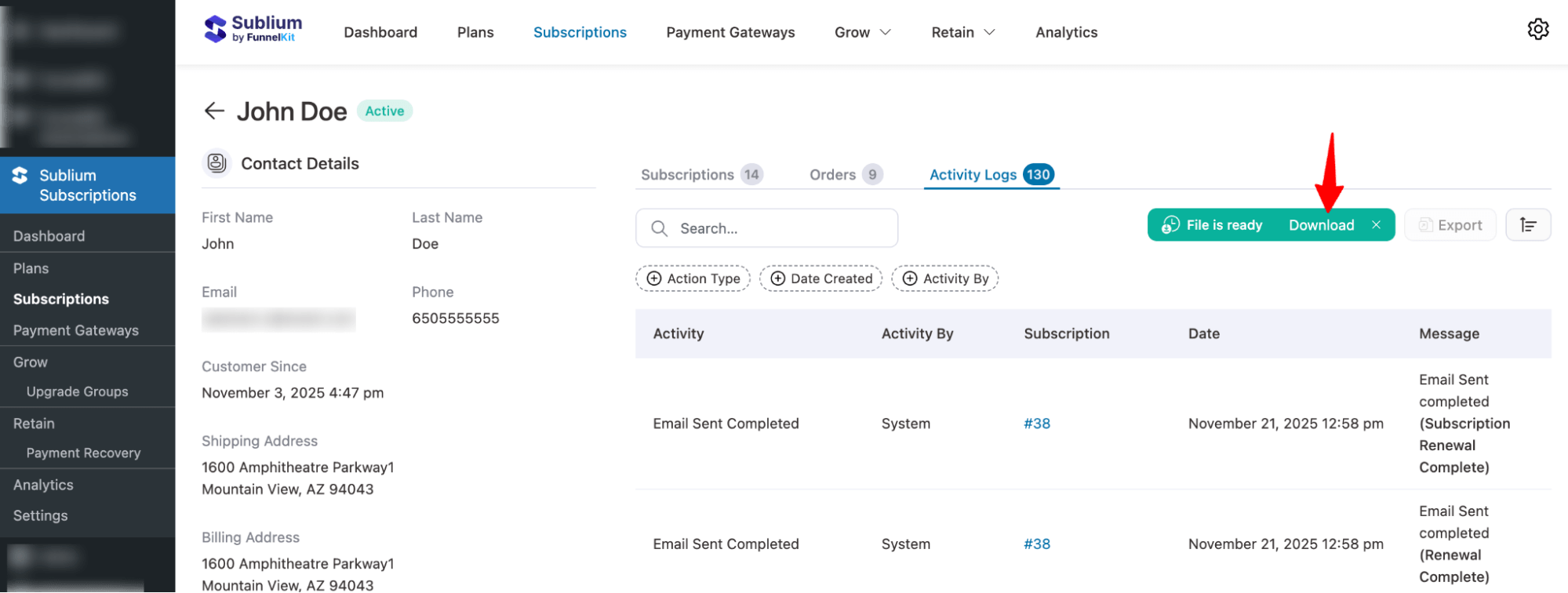
Once the file is ready, hit “Download” to download it to your device.
That’s it. This is how you can view and manage a single subscriber profile.


