


Getting people to buy a course once is great. Getting them to pay you every month is a lot better. That’s exactly where LearnDash subscriptions in WooCommerce come into play.
Connecting LearnDash’s powerful course-building tools with WooCommerce’s flexible subscription system, you charge learners on a recurring basis, manage access when a subscription lapses or renews, and prevent cancellation or churn.
In theory, it’s a brilliant setup. In practice, getting these two massive plugins to play nicely takes some work.
If you mess up the access logic or misconfigure the gateway, you might accidentally grant lifetime access to someone who immediately canceled their trial.
In this guide, we’ll walk through how to actually configure LearnDash WooCommerce subscriptions.
We’ll look at the exact settings you need to check, how to handle payment gateways, and the retention tactics that actually keep learners paying month after month.
What Is the LearnDash WooCommerce Subscription Integration?
The LearnDash WooCommerce setup connects three tools: your courses, your checkout, and a recurring billing add-on that handles subscriptions.
LearnDash actually has basic Stripe and PayPal recurring payments built right in. But honestly, they’re quite limited. You can’t easily set up free trials, charge upfront signup fees, or let students switch between tiers on their own.
For most serious course creators, offering subscriptions is the better path.
Here’s what the integration actually enables:
- Automatic enrollment when a student subscribes, and automatic removal when a subscription lapses or is cancelled
- Flexible billing periods (weekly, monthly, yearly, or custom intervals)
- Free trial periods and optional sign-up fees
- Variable subscription products so students can choose their own plan
- Access to 25+ payment gateways for automatic recurring payments
- Student self-service, such as upgrading, downgrading, pausing, or cancelling directly from their account
- Subscription status management is tied to course enrollment through the Enrollment Status dashboard
- Coupon and discount code support for subscription products
- Detailed recurring revenue reports and active subscriber tracking
Prerequisites (What You’ll Need Before Starting)
Make sure you have the following plugins installed and activated on your WordPress website.
- LearnDash LMS: $199/year for a single-site license. All plans include the WooCommerce add-on.
- WooCommerce: Available for free. The core e-commerce plugin for WordPress.
- WooCommerce for LearnDash: This is the free bridge plugin. Just grab it straight from the LearnDash add-ons menu in your dashboard.
- Sublium Subscriptions: A cheaper and more powerful alternative to WooCommerce Subscriptions. Has a free version and its premium version starts at $99.50/year.
Total estimated cost: $298.50/year minimum for the LearnDash plugin + Sublium Subscriptions. WooCommerce itself is free, and hosting costs vary.
If you’re using LearnDash Cloud (the hosted version starting at $29/month) rather than the self-hosted plugin, your ability to install third-party WooCommerce extensions may be limited depending on your plan.
The self-hosted LearnDash LMS plugin gives you full control over which plugins you install and is the recommended path for WooCommerce subscription setups.
How to Set Up LearnDash Subscriptions in WooCommerce
To set up LearnDash WooCommerce subscriptions, we will use Sublium Subscriptions.
It is a WooCommerce subscription management plugin designed for recurring payments, with features such as automated dunning, optimized cancellation flows, and built-in MRR analytics.
Unlike some WooCommerce subscription plugins that focus primarily on physical product subscriptions, Sublium is designed for all types of subscriptions, including digital products, memberships, and online course platforms.
It supports free trials, installment payment plans, plan upgrades and downgrades, and a self-service subscriber portal where students can manage their own accounts.
Learn more about Sublium and its pricing tiers on the Sublium pricing page.
Follow the step-by-step instructions below to complete your WooCommerce LearnDash subscription setup:
Step 1: Create a LearnDash course
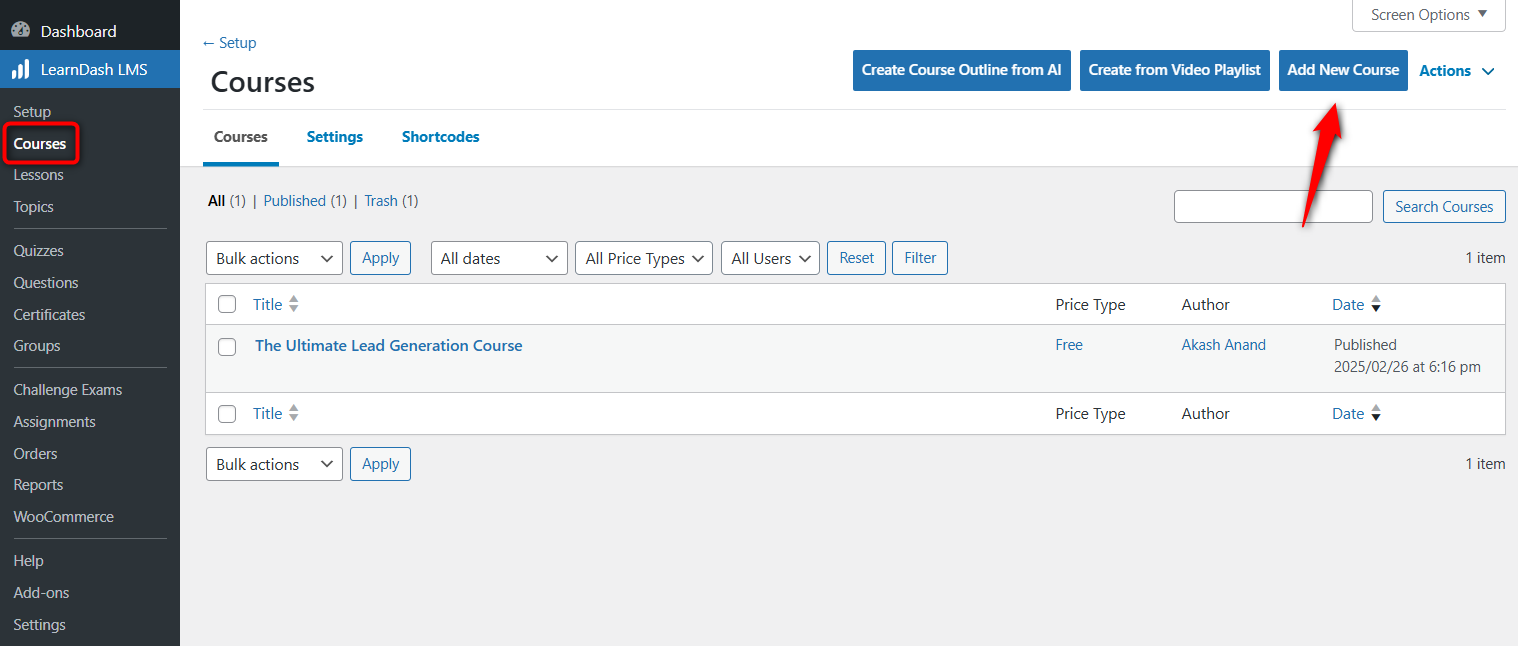
Go to LearnDash LMS ⇨ Courses and click on the ‘Add New Course’ button to start creating your online course.
Create course content with lessons, headings and quizzes from the ‘Builder’ tab.
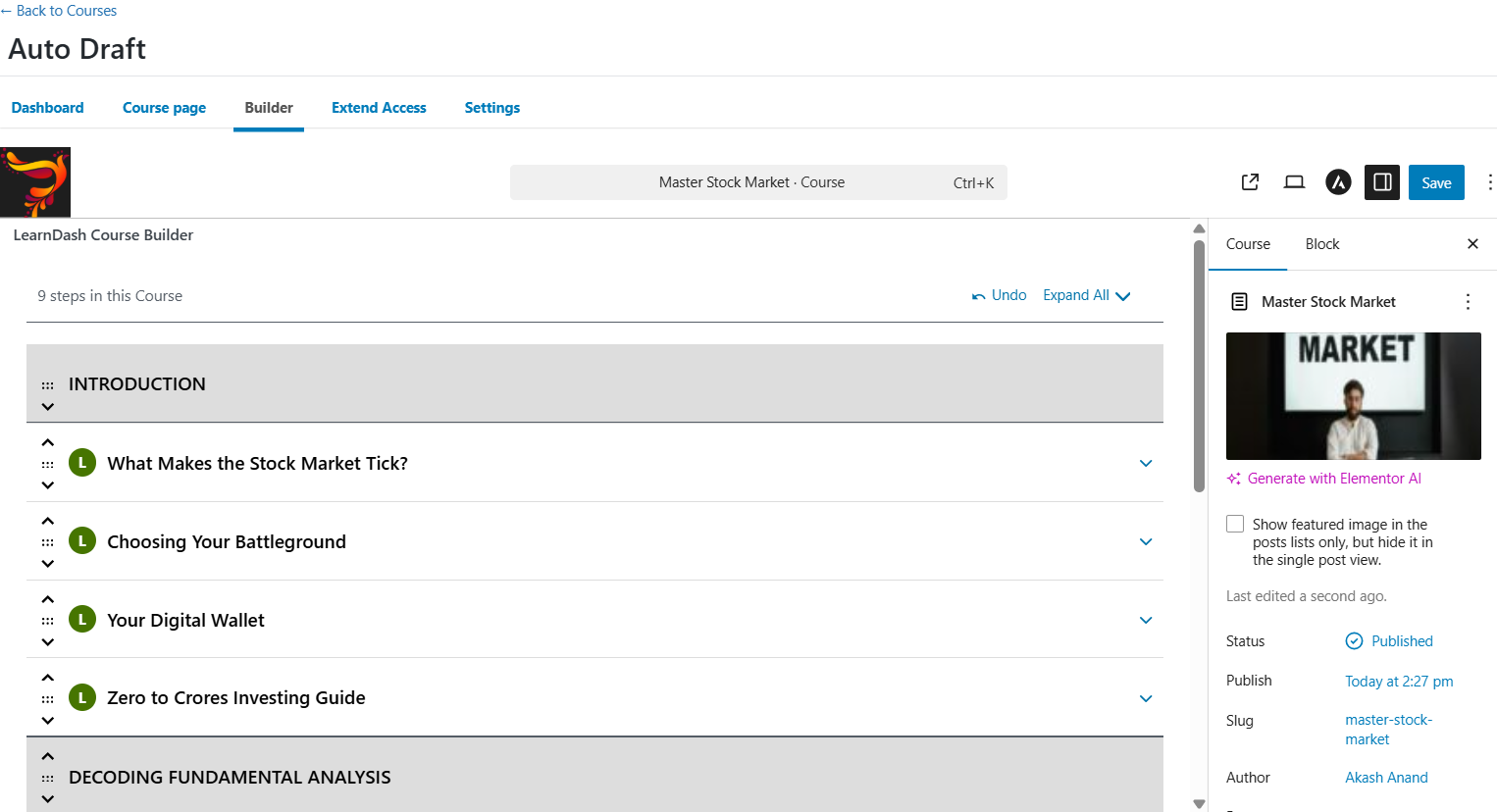
Once done, hit ‘Publish’ to make your LearnDash course live.
Step 2: Create a product for the course in WooCommerce
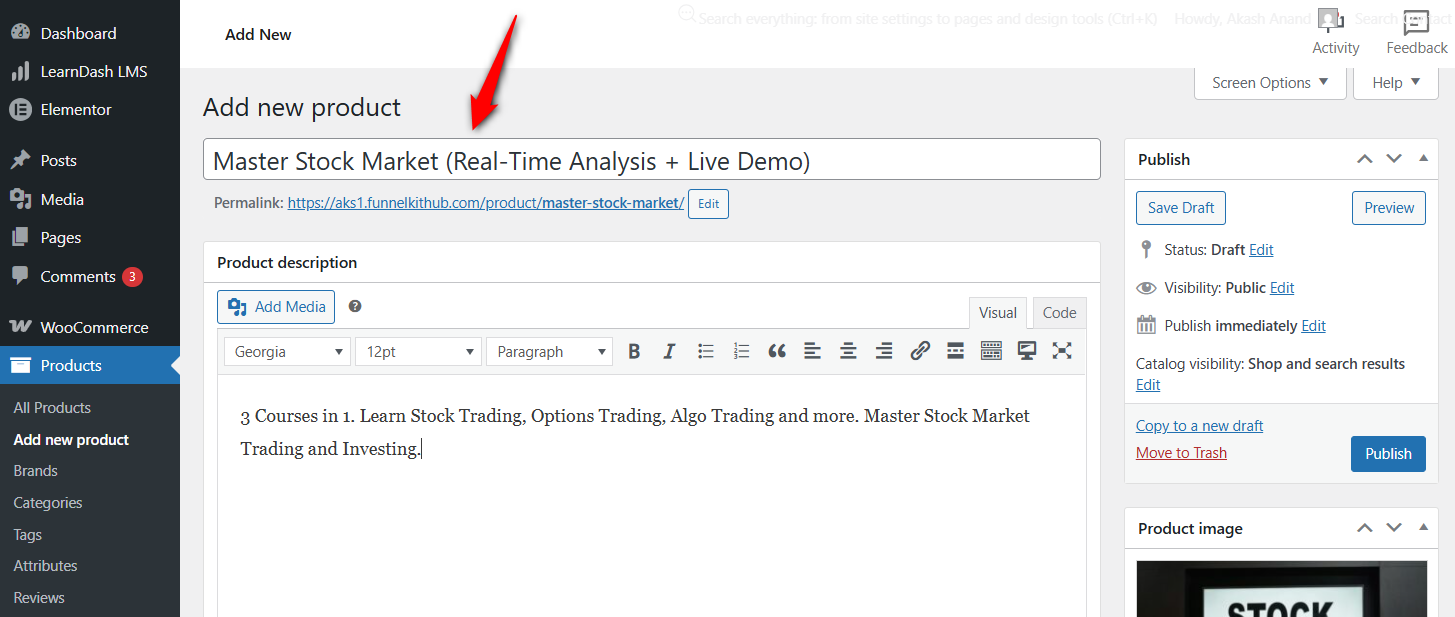
Next, create a WooCommerce product by going to Products ⇨ Add new product section.
Enter the product name, description, and price.
Next, scroll down and link your LearnDash course.
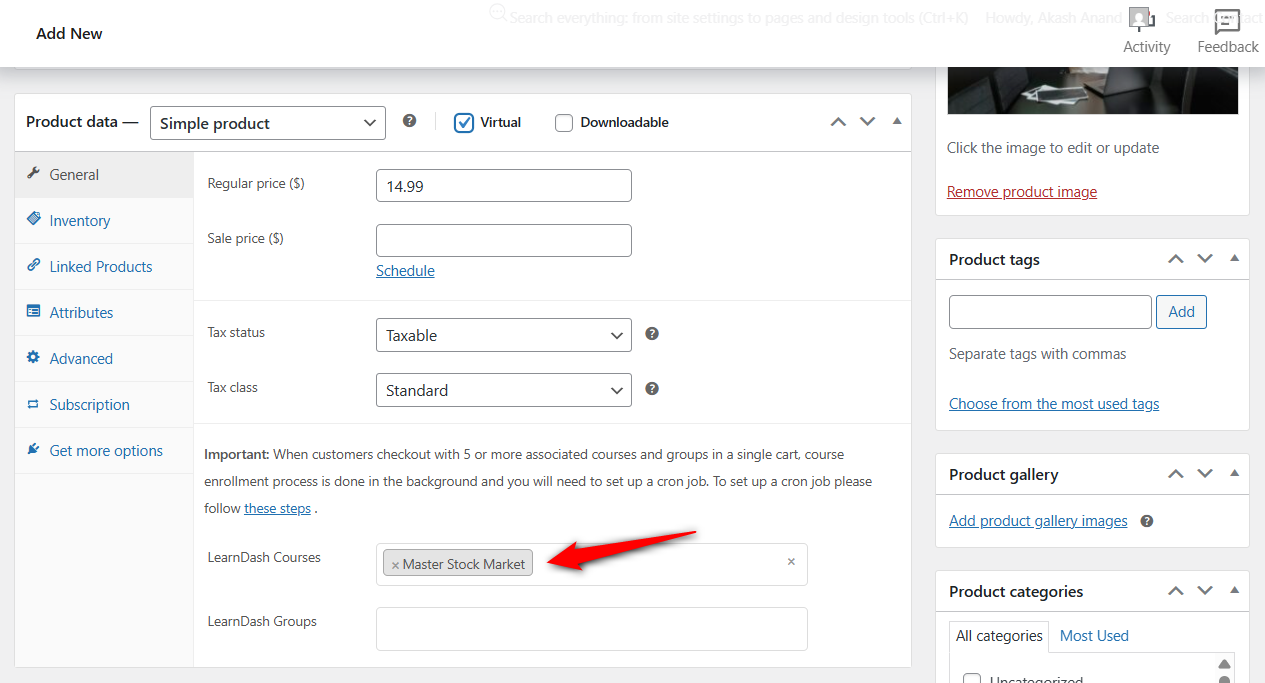
Once done, hit ‘Publish’ to make your product live.
Step 3: Set up a LearnDash subscription plan in WooCommerce
Sublium Subscriptions lets you add multiple subscription plans to a single product. This means you can offer both monthly and annual options on the same course page, with the better value.
Make sure to activate the LearnDash integrations from the Settings ⇨ Integrations section.
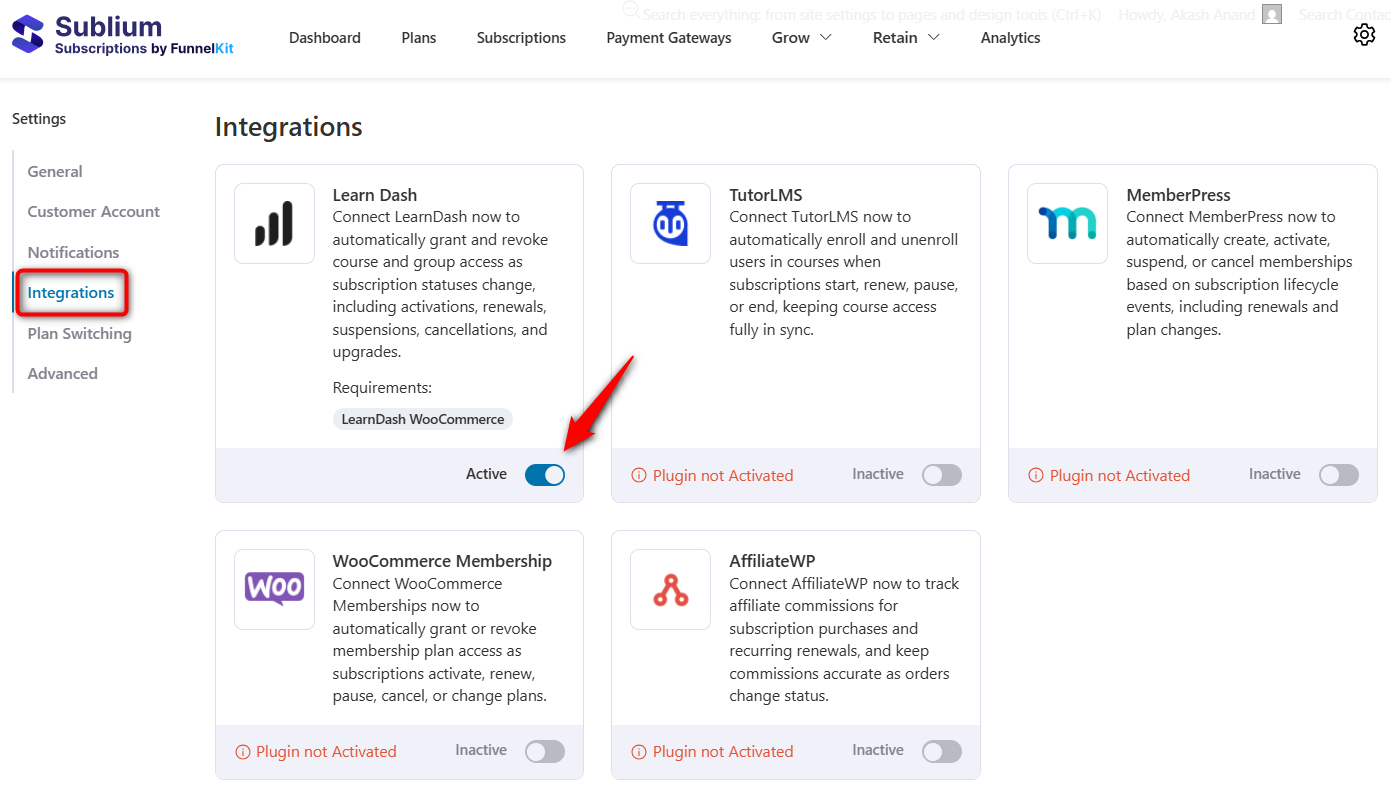
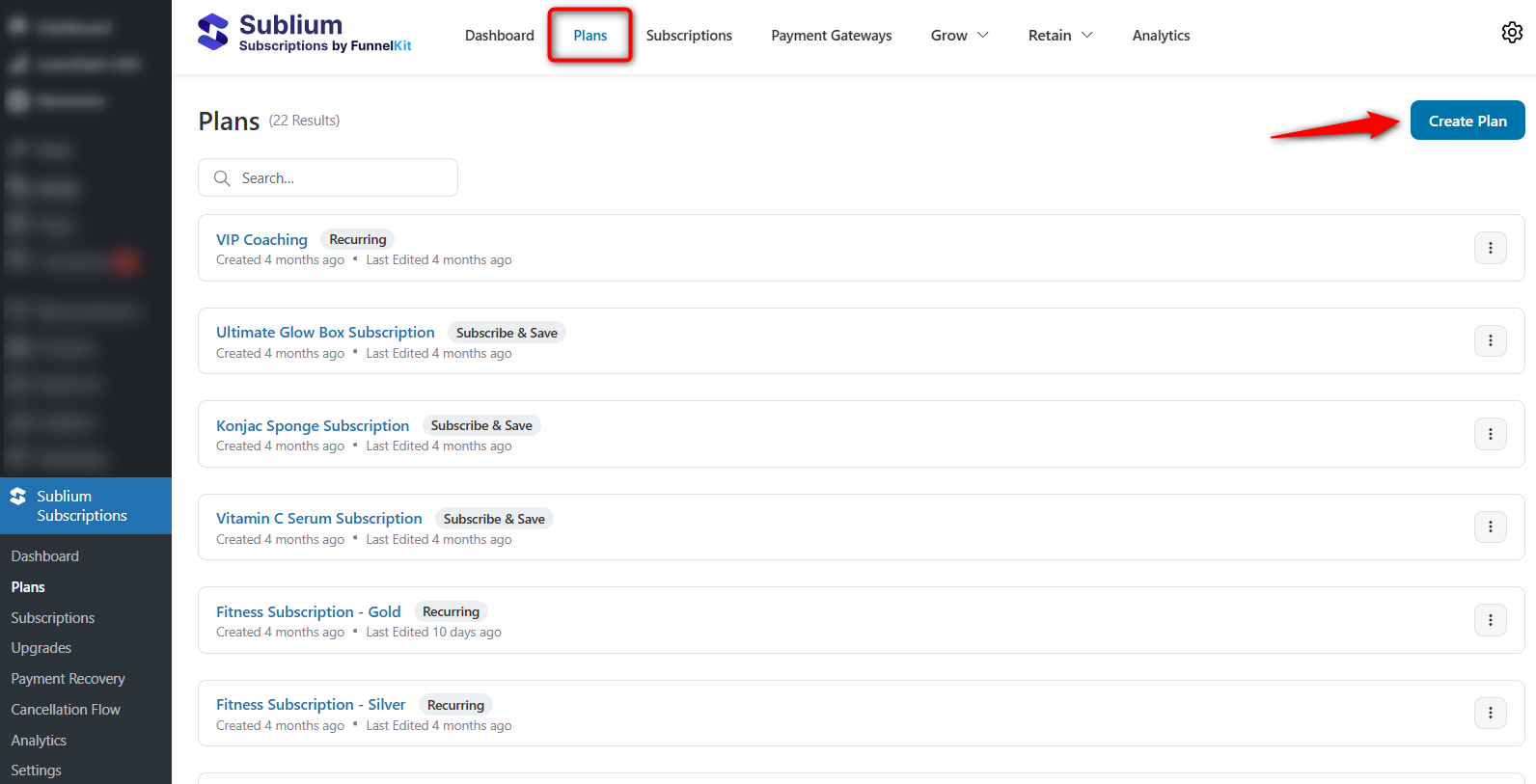
To create it, go to Sublium Subscriptions ⇨ Plans and create a new subscription plan.
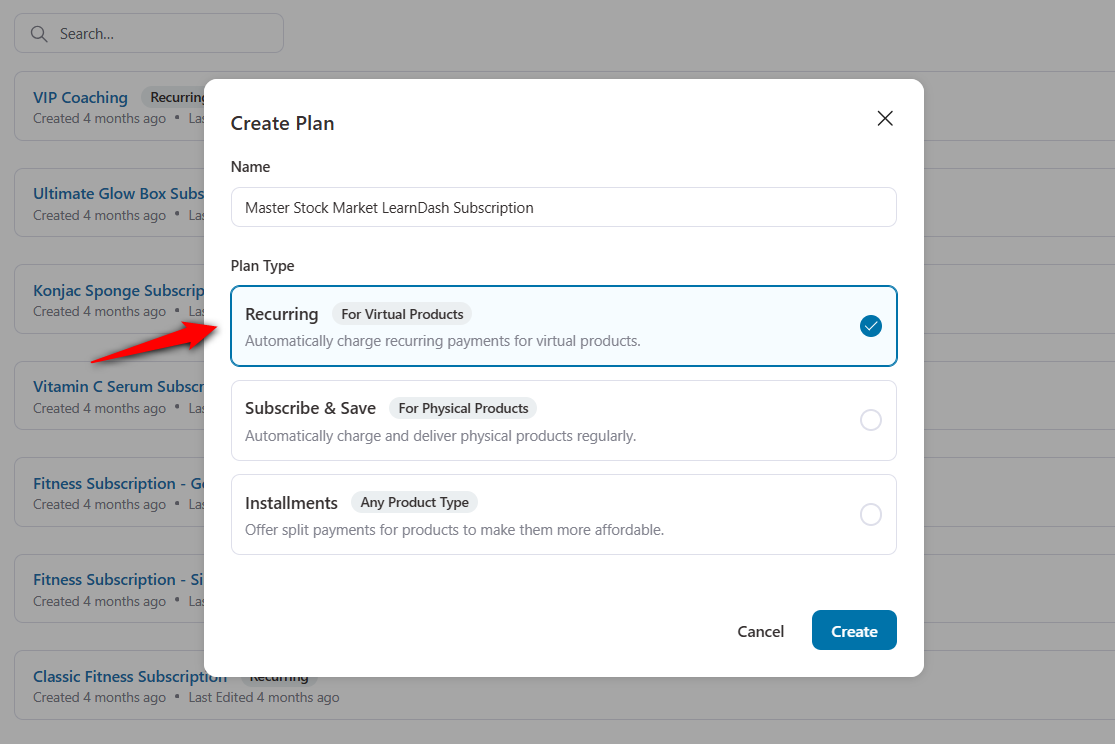
Enter the name and select ‘Recurring’ for your LearnDash course.
Next, set up sales plans for each month and each year.
Under each subscription plan, you can set the billing frequency, set up a free trial, add a signup fee, or set an expiry.
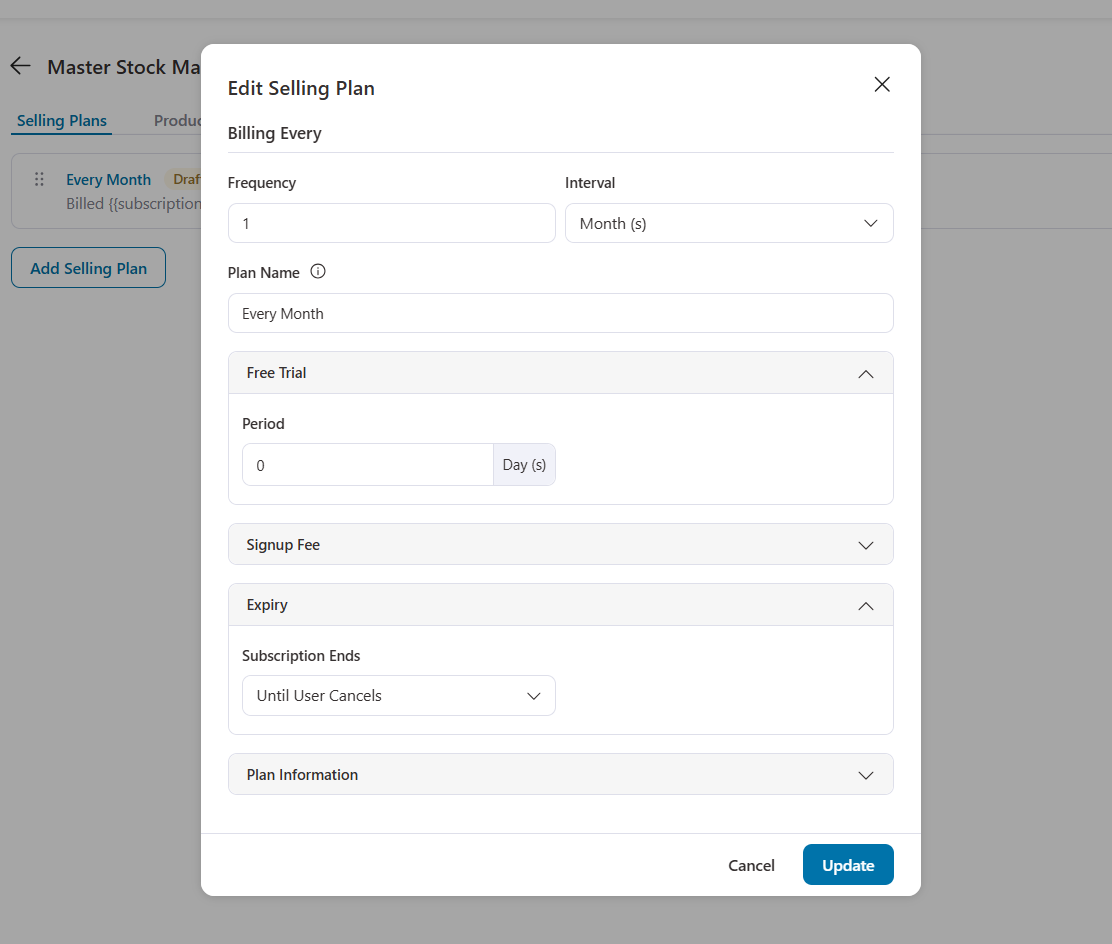
Once done, hit ‘Update’.
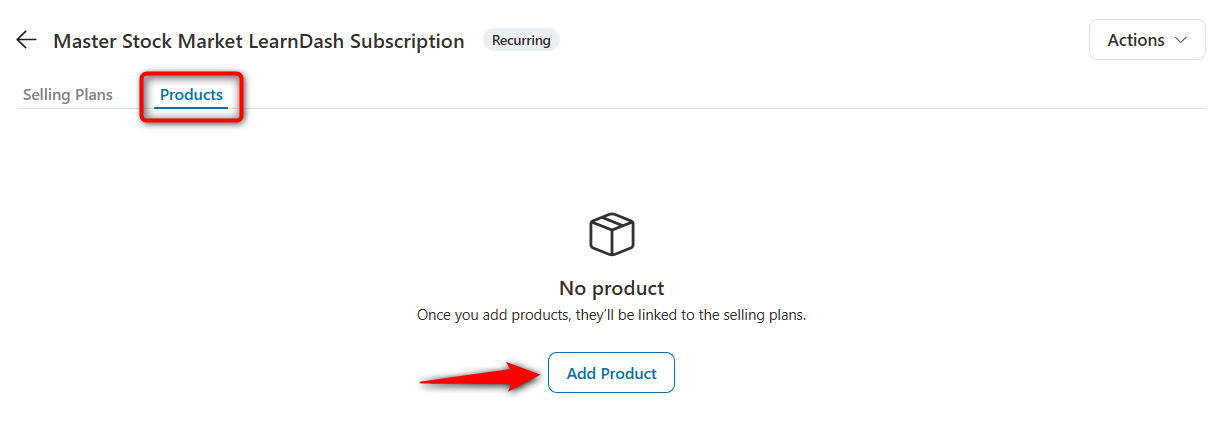
Make sure to add the LearnDash course to your WooCommerce subscription plan from the ‘Products’ section.
Offer discounts and adjust the selling price as needed.
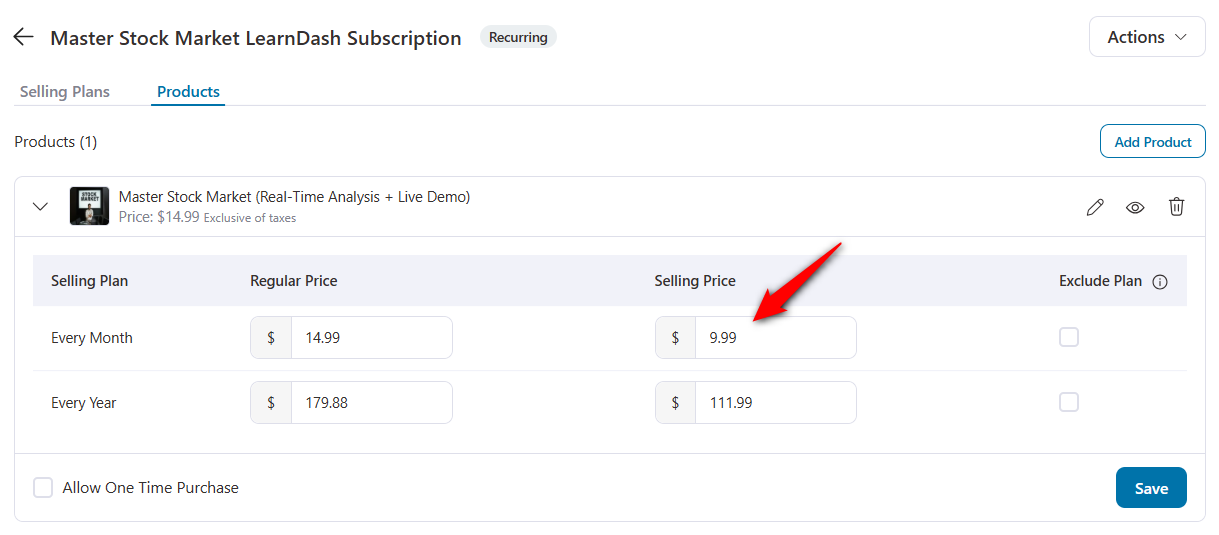
Hit ‘Save’ when you’re satisfied with your changes.
Step 4: Set up your payment gateway
Go to Sublium Subscriptions ⇨ Payment Gateways and configure the payment gateways such as Stripe, PayPal, and Square that supports recurring billing.
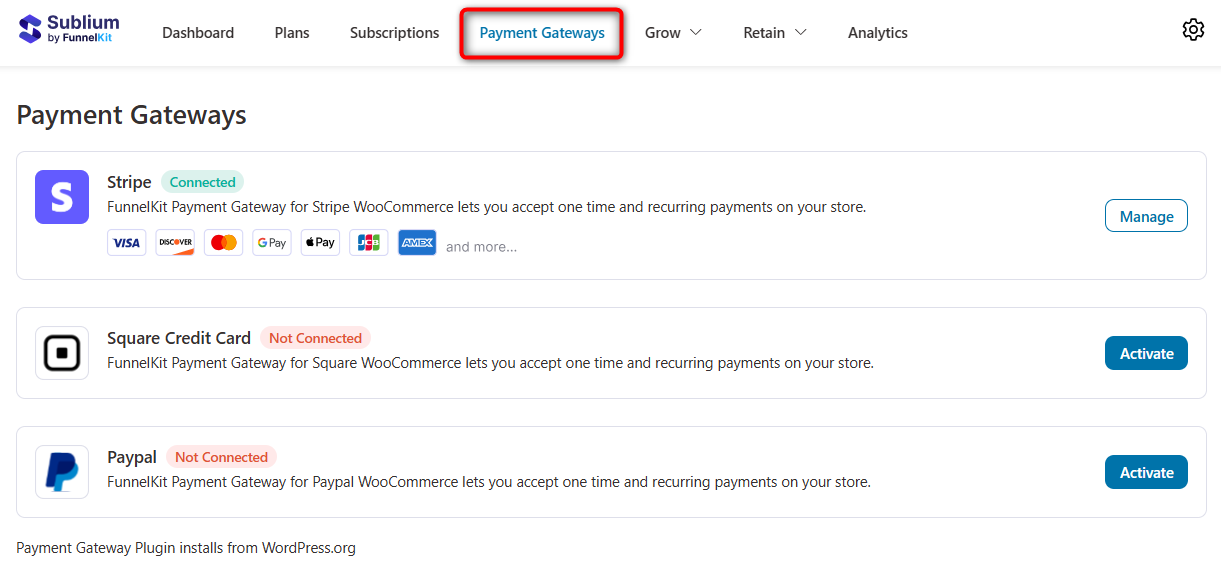
These payments are the solid options for LearnDash WooCommerce subscriptions because they both support automatic recurring charges and tokenized card storage.
Step 5: Test your LearnDash subscription in WooCommerce
To test the full flow, go to the product page on the frontend. This is how it looks like:

Add the subscription to your cart, and complete a test checkout using your payment gateway’s test mode.
After payment, verify that you are automatically enrolled in the associated LearnDash course.
Check that the subscription appears in WooCommerce > Subscriptions in the admin dashboard.
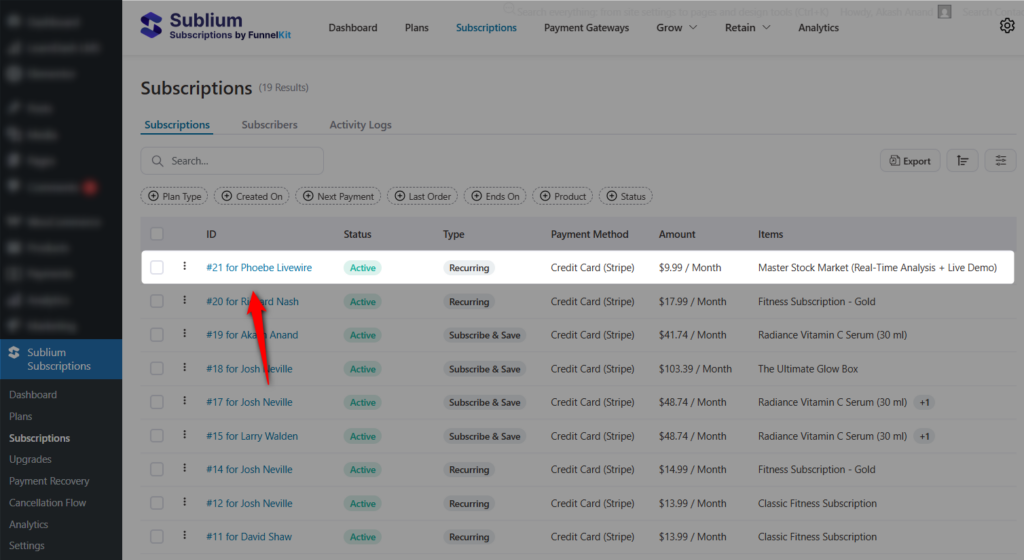
Confirm that the ‘My Account’ portal shows the subscription details correctly.
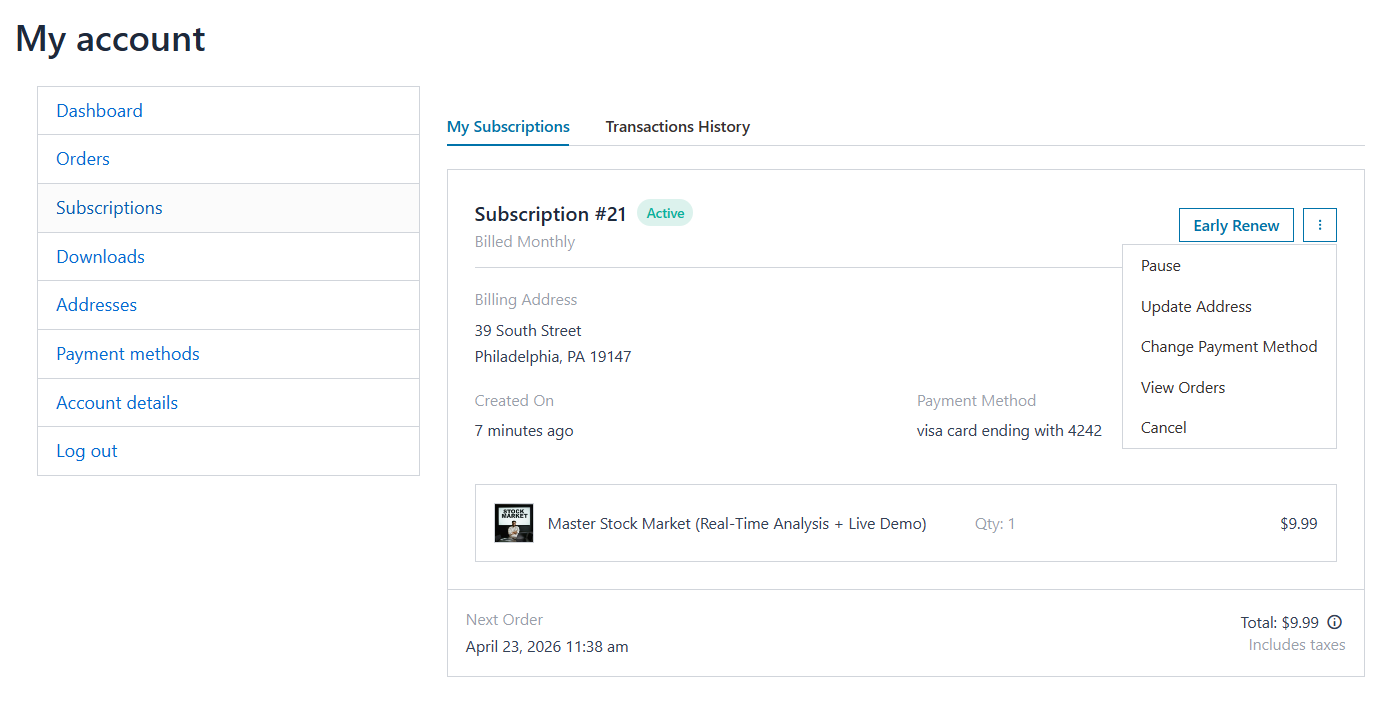
You can also provide certain actions which customers can take from their account dashboard.
They can early renew, pause their subscription, update their address, change payment method, view order, and even cancel their subscriptions in WooCommerce.
Subscription Business Models for LearnDash Course Creators
Before setting up your subscription product, decide which business model fits your content. Here are the five most common LearnDash WooCommerce subscription types used by successful course creators:
- Single course retainer: Students pay monthly for one course. If they stop paying, access is revoked. This is perfect for marketing playbooks or software tutorials that require constant, monthly updates to stay relevant.
- The netflix library pass: Got more than five courses? Bundle them. Charge a flat annual fee for access to your entire course library. Lifetime value skyrockets here because students stick around as long as you keep uploading fresh material.
- Drip-fed coaching: Release lessons on a schedule (weekly, biweekly, or monthly) and charge students each billing cycle. You sync LearnDash’s drip schedule directly with WooCommerce’s renewal engine. Great for intense 12-week bootcamps where you don’t want users binging the content and then requesting a refund.
- The ‘try before you buy’ trial: 7 days free trial. Then the card gets hit. It kills upfront conversion friction. Just make sure the WooCommerce subscription product settings are actually configured to grant access during that zero-dollar period.
- Tiered access (variable products): A basic plan at $19/month gives access to one course, a pro plan at $39/month includes three courses plus live Q&A sessions, and a premium plan at $79/month unlocks everything plus one-on-one coaching. Map different LearnDash groups to specific WooCommerce product variations to control exactly who sees what.
Choosing the right model depends on how many online courses you have, how frequently you publish new content, and whether you serve individual learners or corporate teams.
Most successful academies eventually end up combining two of these models.
7 Best Practices to Maximize Recurring Revenue From LearnDash Subscriptions
Getting a subscriber is hard. Keeping them is harder. Here is what actually moves the needle on recurring revenue.
- Offer both monthly and annual plans with a clear savings incentive
Annual plans dramatically reduce churn because students commit for a longer period.
Price your yearly tier at a 15-20% discount against the standard 12-month rate. Make that savings visually obvious on the pricing table. Give them a mathematical reason to commit to your revenue stability.
- Use free trials strategically to increase enrollment
A 14-day trial is usually too long. People forget. A 7-day trial creates urgency.
Watch your trial-to-paid conversion rate like a hawk and adjust the window if users are dropping off before the first charge.
- Set up automated engagement emails for new subscribers
If a new student doesn’t log in during week one, they will cancel in week four. Use an automation tool like FunnelKit Automations.
Fire off a welcome sequence that forces them to take that crucial first lesson and get an early win.
- Set up dunning management for retention
Failed payments are the leading cause of involuntary churn in subscription businesses.
For this, configure automatic payment retry logic. Set up the first retry immediately, second retry after three days, and a final retry after seven days.
Pair this with payment recovery emails that notify students about the failed payment and include a direct link to update their card.
Enable the card updater feature to proactively detect expiring credit cards and send students a reminder 30 days before their card expires.
- Track MRR, churn rate, and retention weekly
Monitor your churn rate, monthly/annual recurring revenue (MRR/ARR) and cohort retention on a weekly basis to spot trends early.
If there is a spike in cancellations, this could be due to a content gap, pricing issue, or a technical issue with your payment.
Sublium’s built-in detailed analytics dashboard tracks these metrics automatically.
- Offer a pause option before allowing cancellation
According to Swell, 27% of subscribers would cancel if they could not pause or skip their subscription.
Rather than enabling one-click cancellations, Sublium Subscriptions lets you present an exit survey, offer a pause option as an alternative, or show a retention discount offer.
This gives you a chance to save subscribers who might otherwise leave.
- Optimize your checkout for mobile devices
With over 65% of students learning on mobile devices, your subscription checkout must work flawlessly on phones and tablets.
For this, use a streamlined checkout layout with minimal form fields, express payment options like Apple Pay and Google Pay, and a clear subscription plan selector that renders well on smaller screens.
Frequently Asked Questions
Can I sell LearnDash course bundles with subscriptions?
Yes. You can link multiple LearnDash courses to one WooCommerce product directly inside the product data option. Selling an “all-access pass” works perfectly this way. The moment that monthly payment fails, the user gets locked out of the entire bundle automatically. If you’re selling to B2B clients or corporate teams, definitely map these using LearnDash Groups instead of individual course tags.
Can I use variable subscriptions with LearnDash?
Yes. You just set up a standard variable product in WooCommerce to handle “Good, Better, Best” tiers. Map variation A to your base course, and variation B to your premium coaching group. It’s the exact mechanism you need if you want users to unlock private community forums or 1-on-1 calendar links by upgrading their monthly spend.
Should I use LearnDash native subscriptions or an effective subscription plugin for WooCommerce?
It depends entirely on the complexity of your billing needs:
Stick to the native LearnDash integration if your setup is incredibly basic. Don’t bloat your site with extra ecommerce add-ons if you are just charging $10/month for a single standalone course.
But if you need real ecommerce logic, get Sublium or Woo Subscriptions. You will need this route if you want to offer multiple pricing tiers (like monthly vs. annual), sell course bundles, allow users to upgrade/downgrade plans, or utilize automatic payment recovery for declined cards.
If you decide to use WooCommerce to manage your subscriptions, you must set your LearnDash courses to the Closed access mode. Do not use the “Recurring” mode, or it will create conflicts between the two systems.
How do I fix common enrollment and access issues?
Enrollment and access mismatches usually come down to two primary configuration settings:
Students aren’t enrolled at checkout: Guest checkout is almost certainly turned on. LearnDash physically cannot attach a course to a user if they don’t have a WordPress user ID. Go into WooCommerce > Settings > Accounts & Privacy right now and force account creation during the checkout flow.
Students retain access after expiry/cancellation: Go to LearnDash LMS > WooCommerce and ensure the “Expired” and “Cancelled” subscription statuses are set to Deny. Next, check WooCommerce > Settings > Subscriptions and verify that “Access Removal on Expiration” is not disabled.
If you have existing students with incorrect access due to past settings, run the Retroactive Course Access tool under LearnDash LMS > WooCommerce to re-sync your user base.
Why are my course timelines behaving unexpectedly during subscription renewals?
Timeline bugs happen due to conflicting settings or outdated add-ons when a subscription renews:
Expiry dates not extending: This occurs when a “Course Access Expiration” is set directly within the LearnDash course settings. Strip all expiration dates out of the core LearnDash course builder. WooCommerce needs total control over the access duration.
Drip content resetting: The system thinks the renewal payment is a completely new user signing up. Check your plugins. Updating the LearnDash WooCommerce add-on past version 2.0 patches this exact timeline bug.
Do instructors earn recurring commissions on subscription renewals?
By default, no. If you are using the LearnDash Instructor Role add-on, commissions are only calculated on the initial subscription payment. If you want your instructors to earn recurring commissions on every renewal payment, you will need a custom-coded solution or a third-party affiliate/commission plugin designed to hook into WooCommerce’s recurring renewal events.
Start Earning Recurring Revenue From Your LearnDash Courses
We covered how to set up LearnDash WooCommerce subscriptions from start to finish, including the critical prerequisites, subscription product creation, plan configuration, payment gateway setup, and retention optimization.
Connect these two correctly, and the system scales entirely on its own. It handles the billing and lockout logic for 50 users exactly the same way it handles it for 5,000.
Do not skip the testing phase. Map your product tiers, triple-check your webhook statuses, and run a real credit card through your checkout before letting live traffic in.
The technical setup isn’t difficult, but the details matter, especially around enrollment status rules, payment gateway compatibility, and the interaction between drip-fed content and recurring billing.
For course creators who want a WooCommerce subscription solution with built-in dunning management, MRR analytics, and cancellation flow optimization, we recommend Sublium.
It integrates seamlessly with WooCommerce and LearnDash, and gives you the tools to not just collect LearnDash recurring payments but actively retain subscribers over time.
Keep your initial launch simple. Don’t build a massive five-tier architecture on day one. Get students enrolled, validate your pricing, and build from there.
The recurring revenue compounds. Every new subscriber adds to what you earned last month.


