

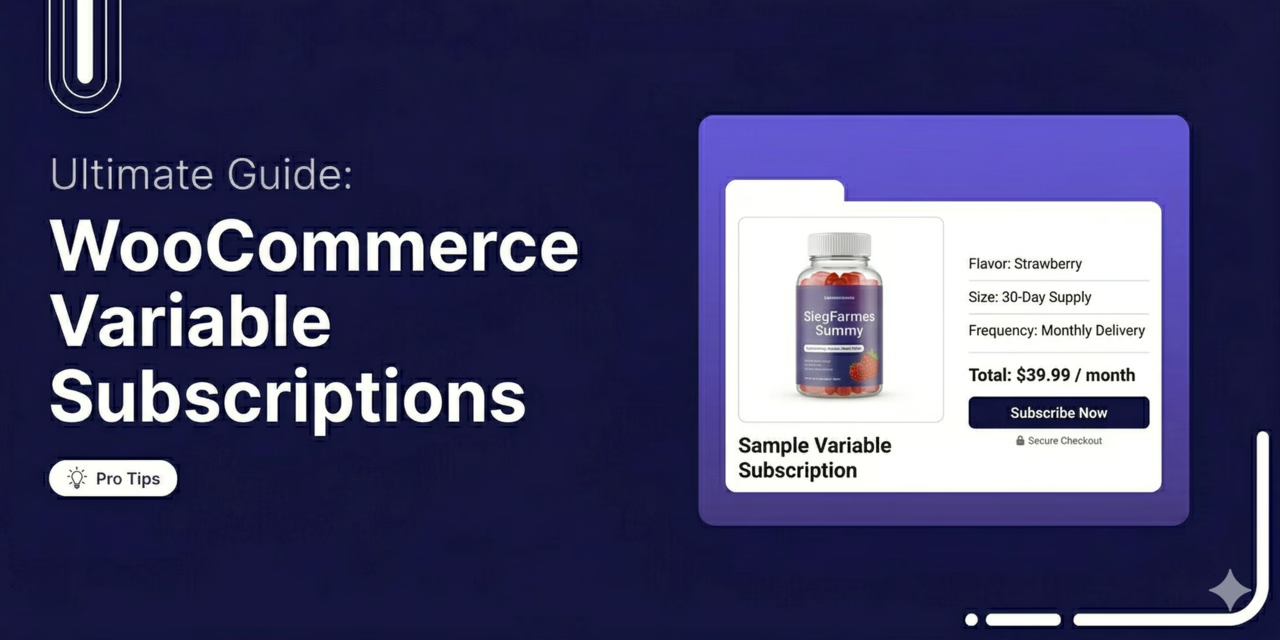

Want to sell a subscription but need to offer a few different options? Maybe a basic tier and a premium tier, or monthly versus annual billing. That’s what a WooCommerce variable subscription is for.
Rather than cluttering up your shop page with a bunch of different listings for the same basic service, you just build one product.
The customer selects their preferred item from available options.
For store owners, that flexibility means higher conversions, lower churn, and more predictable recurring revenue.
But the problem is that WooCommerce can’t handle recurring payments on its own. You’re going to need a subscription plugin.
In this guide, we will show you how to create and manage WooCommerce variable subscriptions using a WordPress plugin, with no code required.
We will also cover the best pricing strategies for subscription variations and share best practices for maximizing recurring revenue.
Why Offer Variable Subscriptions in WooCommerce
The subscription ecommerce market is valued at over $20 billion in 2025 and is projected to grow at a 9.36% CAGR through 2034.
Stores that offer subscription options with multiple plans are well-positioned to capture this growing demand for recurring products and services.
Here is why we recommend them for your WooCommerce store:
- Higher average revenue per subscriber: Giving buyers the option to lock in quarterly or annual plans alongside standard monthly plans naturally increases order values. You capture multiple budgets without forcing users to go to separate landing pages.
- Lower churn through flexibility: A user who needs to downgrade their delivery frequency won’t just hit “cancel” if the alternative tier is sitting right there. Flexibility saves recurring accounts.
- Simplified product catalog: Stop building different product IDs. Managing everything in a single parent listing keeps inventory tracking accurate and prevents your WooCommerce dashboard from turning into a mess.
- Better customer experience on the product page: Buyers can instantly compare the savings of an annual commitment versus a monthly one. Side-by-side tiers on a single page just convert better.
- Versatility across business models: Variable subscriptions work for physical product boxes, digital memberships with tiers, SaaS products with monthly and annual pricing, and service subscriptions with different package tiers.
Types of Products Work Best With Variable Subscriptions
For product variations, offering a subscription with multiple options significantly improves conversions and average order value.
Here are a few products that work best:
1. Subscription boxes with size or frequency tiers
Physical subscription boxes are quite popular among stores for variable subscriptions.
Think of a gourmet snack brand. They might push a small 5-item “Starting” tasting box for $10 per month. Beside it sits their 15-item flagship package at $30 per month.
Note that each size is a product variation with its own price and billing terms, but customers browse and compare them on a single product page.
You can also combine box size with billing frequency, such as monthly versus quarterly delivery.
2. Digital memberships and online courses
Membership sites and online learning platforms often need tiered access levels.
A yoga instructor, for instance, might sell access to a video library for a flat $9 monthly fee. But they also need a way to upsell one-on-one coaching for $19, or live studio access for $39.
Packing all three tiers into a single product listing keeps the backend straightforward.
3. SaaS products and software licenses
Software products sold through WooCommerce often use monthly and annual pricing.
Lock in a WordPress plugin at $12 monthly, or drop $99 to cover the whole year. That annual discount incentivizes longer commitments.
Each billing cycle becomes a variation, and customers choose their preferred commitment level at checkout. This is quite common for digital product subscriptions.
4. Physical product replenishment (subscribe and save)
Daily-use products such as coffee, vitamins, milk, pet food, and skincare naturally fit the subscribe-and-save model.
A local coffee roaster thrives on this setup by letting buyers pick their delivery rhythm. They ship a standard bag every two weeks for $18. Need less? The same bag ships monthly. Have a huge office? They swap in a massive two-month bulk bag for $34.
The actual bean blend never changes, just the delivery intervals and sizing.
5. Service subscriptions and retainer plans
Freelancers and agencies use this setup to sell recurring work.
Consider a WordPress maintenance agency. They charge a $49 baseline for basic monthly plugin updates. A Standard plan with weekly updates and backups for $69 per month.
Clients who need daily monitoring and instant priority support just select the $99 tier from that exact same checkout page.
How to Create Variable Subscriptions in WooCommerce?
To create variable subscription products in WooCommerce, we will use Sublium Subscriptions.
Sublium is a complete subscription management plugin for WooCommerce that supports both simple and variable subscription products.
It handles recurring billing, subscriber management, payment recovery, and analytics from a single dashboard.
Unlike some plugins that require a separate “Variable Subscription” product type, Sublium adds subscription capabilities directly to standard WooCommerce variable products.
This avoids the common confusion where the subscription tab disappears after switching a product to “Variable” in the product data dropdown.
Make sure to install and activate Sublium Subscriptions in your WordPress website.
Follow the step-by-step instructions below to create your first variable subscription product:
Step 1: Create a variable product and set up attributes
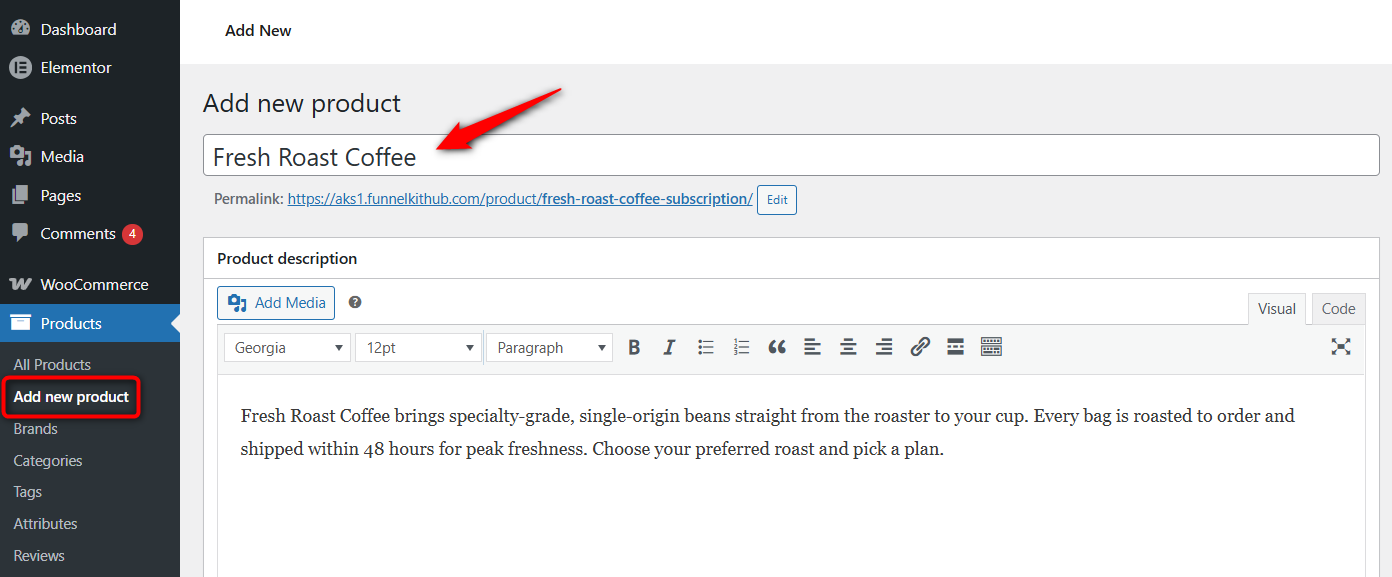
Go to Products and click ‘Add New Product’. Enter your product name and description.
Let’s go with the coffee variable product of Light, Medium and Dark roast.
Scroll down and under the Product Data dropdown. Select ‘Variable Product’ as the product type.
From there, click on the Attributes tab and create the attributes that define your subscription options.
Enter the new attribute as ‘Roast Type’ here.
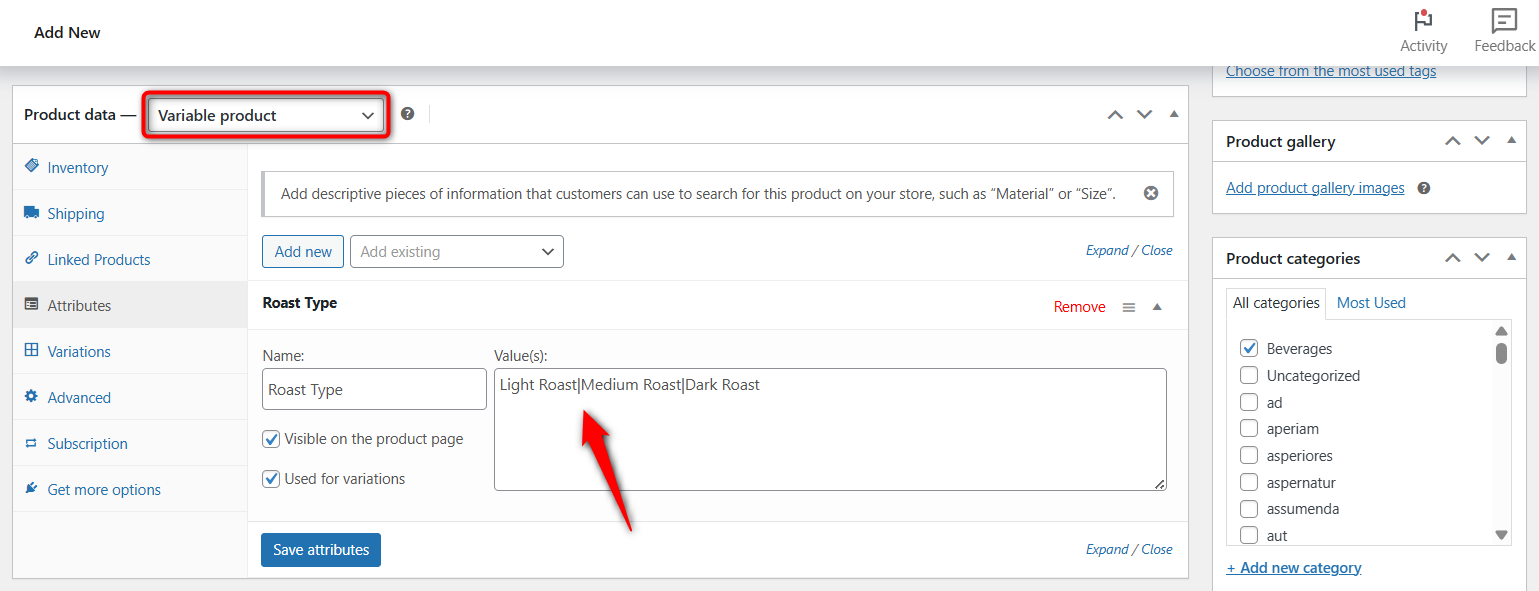
Check the “Used for variations” box and save.
Next, go to the Variations tab and generate variations from your attributes. Enter SKU, price, weight, description, stock management, and more for each variable product.
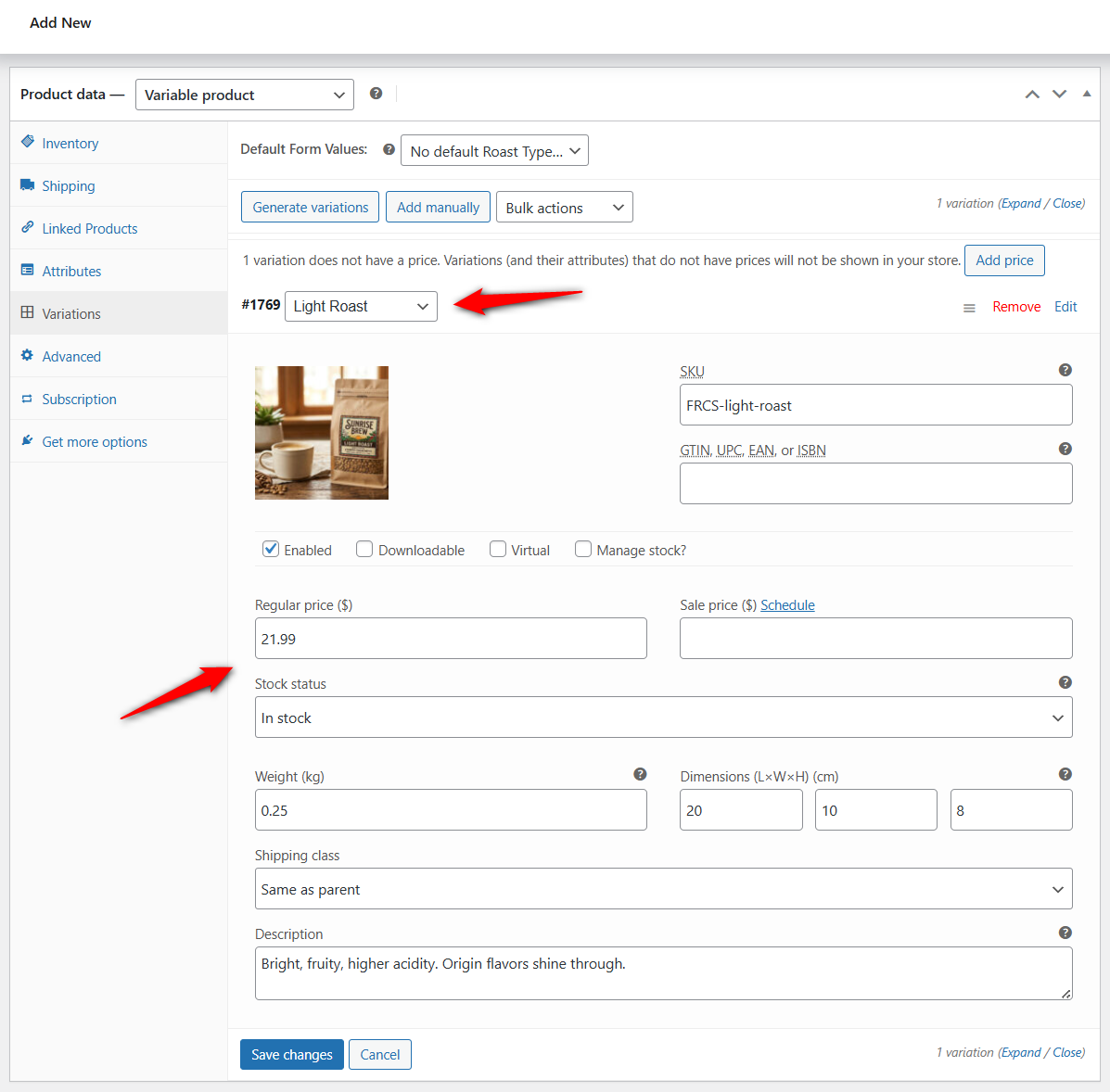
Do the same for all product variations.
Step 2: Create a subscribe and save subscription plan in WooCommerce
Navigate to Sublium Subscriptions ⇨ Plans and click on the ‘Create New Plan’ button.
Enter your plan name, then select ‘Subscribe and Save’ for a physical-product (coffee, in our case) subscription.
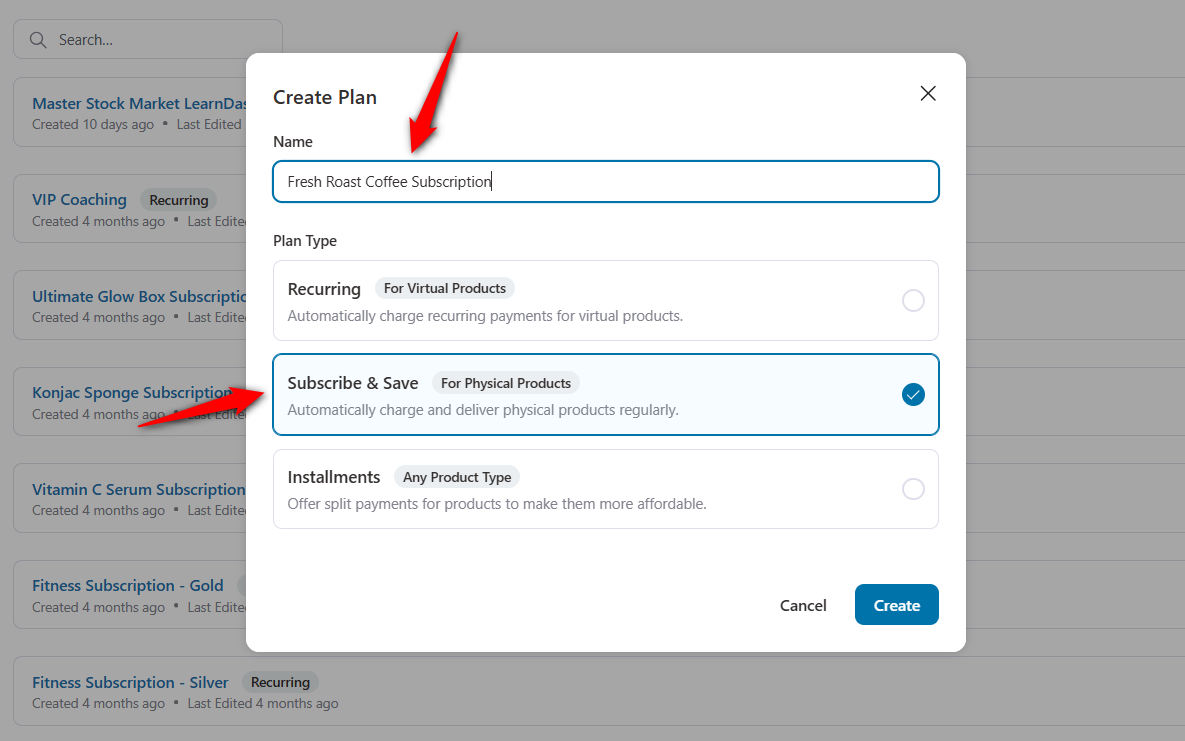
Clicking on ‘Create’ will publish a new variable subscription plan in WooCommerce.
Next, edit the monthly plan by clicking on it.
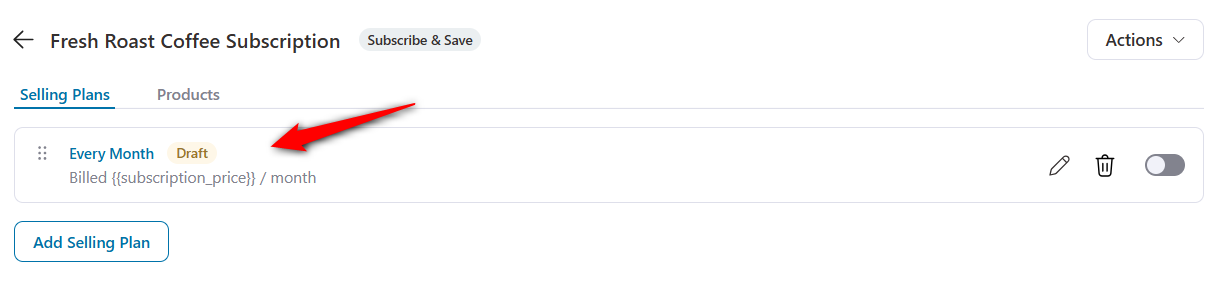
Customize the selling plan frequency, discount, free trial, signup fee, and expiry for your variable subscription in WooCommerce.
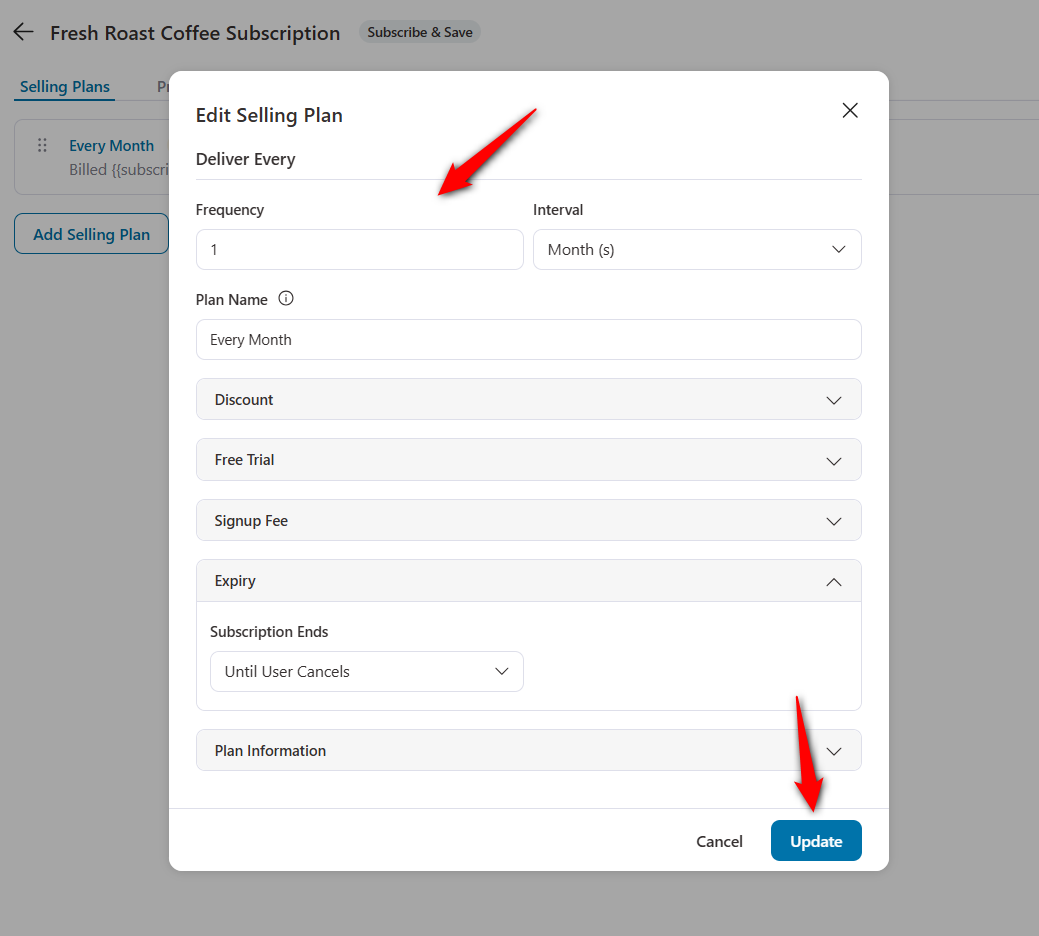
Click on ‘Update’ when done.
Step 3: Assign WooCommerce variable products to your subscription plan
From the Products tab, assign the variable product to this subscription plan.
To do this, click on the ‘Add Product’ button.
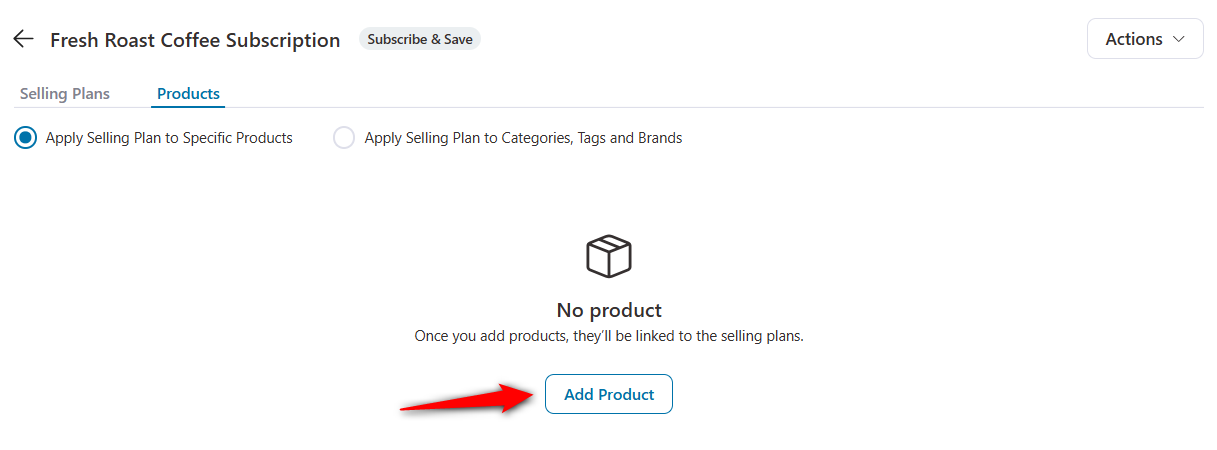
Add the variable products you created.
For each variation, enter the discount and selling price of the subscription.
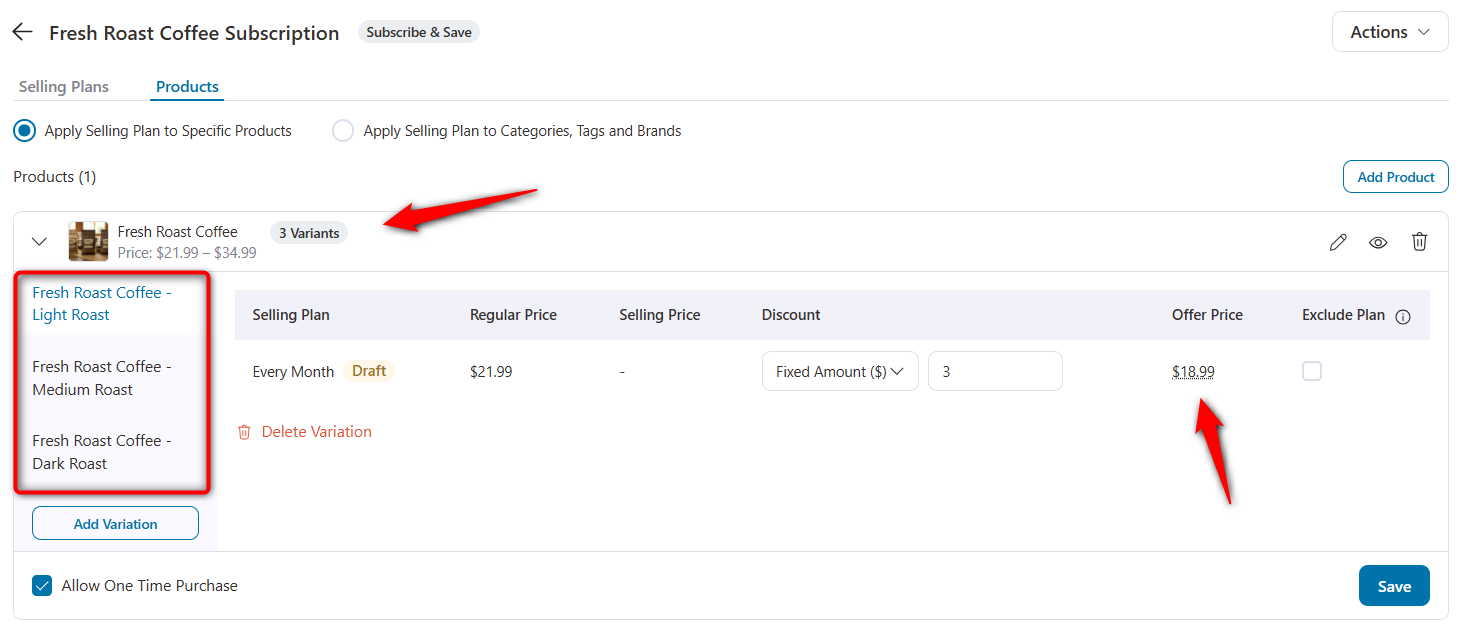
Once done, hit ‘Save’ to lock your changes.
Step 4: Activate and test your WooCommerce variable subscription
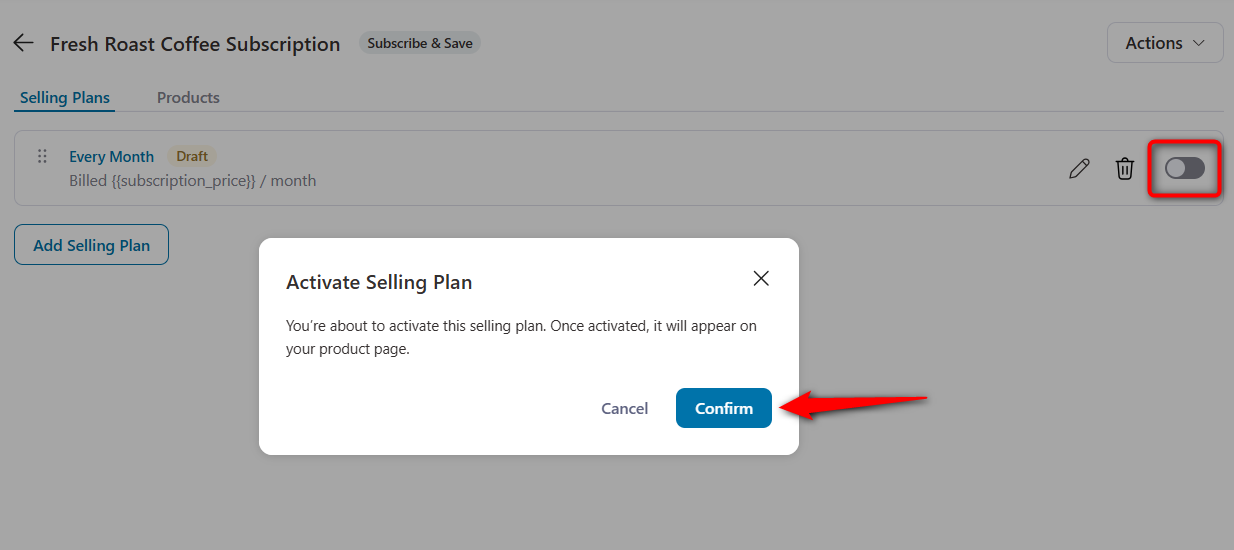
Go back and activate your WooCommerce variable subscription plan by turning on the toggle.
To test, visit your product page and verify that all variations appear correctly with their respective prices and billing intervals.
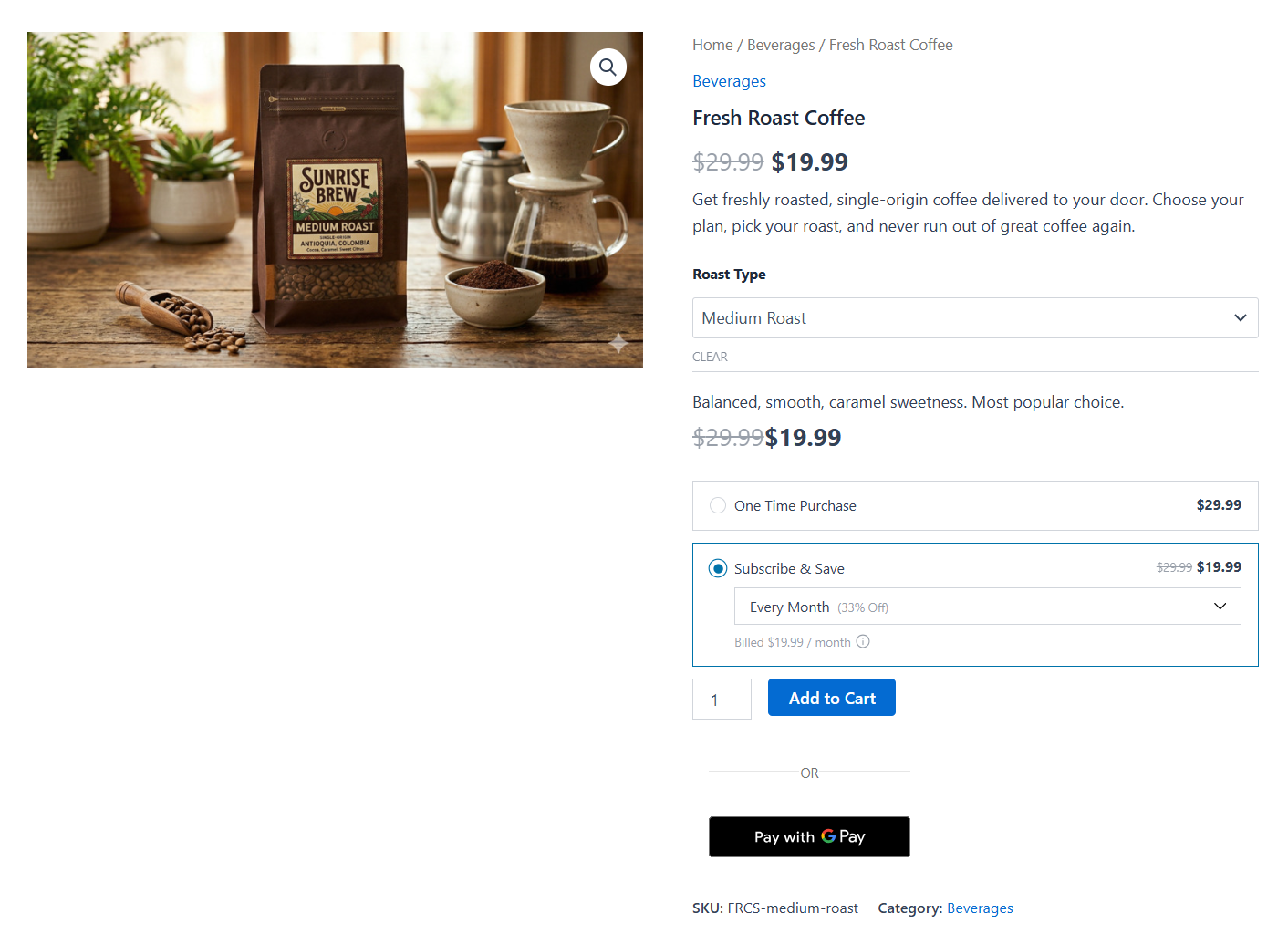
Add a subscription variation to your cart, proceed to checkout, and place a test order using a payment gateway in test mode.
Test on both desktop and mobile devices. Confirm that the variation selector is easy to use on smaller screens and that the subscription details, including billing frequency and renewal date, are clearly visible.
Well done! This is how you can create WooCommerce variable subscription in your store.
Managing WooCommerce Variable Subscriptions After Setup
Getting your variable subscriptions set up is only half the battle. It’s quite crucial to manage them effectively to drive long-term recurring revenue.
Here is how you can handle the most common subscription management tasks.
Handling upgrades and downgrades
When a customer decides to upgrade from monthly to annual billing, nobody wants to calculate the prorated difference by hand.
Sublium handles the math automatically.
It credits the unused portion of their current month and charges the new rate.
You just flip a switch to decide if that change kicks in immediately or at the next renewal date.
Managing renewals and failed payments
Cards decline. Payment fails. Happens all the time.
Instead of forcing you to manually email customers, Sublium’s recovery system automatically retries the card on an intelligent schedule.
Every time it fails, the plugin sends a recovery email with a direct link to update their payment method.
The best part is the one-click card updater; they don’t even have to remember their password to fix their billing, which saves a massive amount of lost revenue.
Using the admin dashboard
Use the dashboard to actually see what’s going on at a glance.
Filter active or paused accounts, manually force a renewal, bump a payment date back, or leave internal notes.
Plus, the activity log tracks exactly who changed what and when, so you’re never guessing.
Tracking performance with subscription analytics
You shouldn’t need a separate expensive SaaS tool just to see your MRR or ARR.
With the detailed analytics, track your churn rate and active subscriber count right inside WordPress.
The cohort analysis is particularly useful for figuring out which of your pricing tiers actually keeps people around the longest.
Cancellation flows
When someone hits the cancel button, you don’t have to just let them walk away.
You can trigger a cancellation flow that intercepts them with a targeted offer.
Offers like a temporary discount, a freebie, or just the option to pause their account for a month until their budget recovers.
5 Best Practices to Maximize Revenue From Variable Subscriptions
Let’s look at some effective tips that will help you boost profits from variable subscriptions in WooCommerce.
- Offer limited three plan options
Too many choices overwhelm shoppers and slow down decisions. Research on pricing psychology consistently shows that three tiers, such as Basic, Standard, and Premium, strike the best balance between choice and clarity.
Highlight the middle option as “Most Popular” or “Best Value” to guide decisions.
If you need both frequency and tier options, consider using two separate variable subscription products instead of one product with twelve variations.
- Show savings for longer commitments
When offering monthly and annual variations, calculate and display the exact savings customers get by choosing the annual plan.
A visible badge like “Save 20%” next to the annual option motivates customers to commit to longer billing cycles.
Annual subscribers are 2.4 times more profitable than monthly subscribers. (Source: Marketing LTB) Make those savings impossible to miss.
- Use discounts and recurring coupons to attract more subscribers
Create recurring coupon codes that apply a discount to the first payment or to every recurring payment in a subscription.
Recurring coupons work especially well for variable subscriptions because you can restrict them to specific variations, like offering a first-month discount only on the monthly plan to drive signups, while keeping the annual plan at its already-discounted rate.
Promote these codes through email campaigns, social media, and your product page to drive subscription growth.
- Send renewal reminders before each billing cycle
Transparent communication builds trust. Send a reminder email two to three days before each renewal charge so subscribers are never surprised.
This small step reduces payment disputes, chargebacks, and voluntary cancellations triggered by unexpected charges.
Most subscription plugins, including Sublium, let you automate these notifications.
- Optimize the product page for mobile devices
The variation selector, pricing display, and savings badges must all work well on small screens.
Test that customers can easily compare subscription plan variations and switch between options using dropdowns or radio buttons on mobile.
A clunky mobile experience on the product page can cost you subscribers before they even reach checkout.
Frequently Asked Questions on WooCommerce Variable Subscription
What is the difference between a simple subscription and a variable subscription?
Think of a simple subscription as a take-it-or-leave-it offer. One price. One billing schedule. Variable subscriptions change that by stacking multiple tiers into a single listing. Instead of cluttering your shop page with three separate coffee bags for monthly, quarterly, and annual buyers, you pack all those options into one clean dropdown menu.
Can I set up subscriptions on WooCommerce without a plugin?
No. WooCommerce does not include subscription functionality by default. You have to install a dedicated plugin like Sublium Subscriptions or the official WooCommerce Subscriptions extension to actually charge customers on a schedule and manage subscribers in your store.
How do I change the subscription price in WooCommerce?
If you are using Sublium, navigate to the product editor, open the specific variation, and update the price. The tricky part is deciding what happens to your current user base. You can force the new rate on them at their next renewal, or grandfather them in so the price bump only hits new signups. You can even notify existing subscribers about price changes via email before the new rate takes effect.
Can I offer a free trial on a variable subscription?
Yes, you can offer a free trial on variable subscriptions. Trials are handled at the variation level. This gives you strategic flexibility. You might attach a 7-day free trial to your basic monthly tier to hook hesitant buyers. Meanwhile, you completely skip the trial on your annual tier because the heavy upfront discount is already doing the conversion work.
Are there limitations to WooCommerce variable subscriptions?
Pushing past 100 variations on a single product will absolutely drag your database performance down. Beyond that, you are entirely reliant on third-party code to keep revenue flowing. You also have to carefully check your payment gateway. Plenty of older merchant processors still fail to handle automated tokenized rebilling properly. Keep your tier structure tight, pick a lightweight plugin, and test your checkout flow thoroughly.
Start Selling Flexible Variable Subscription Plans in WooCommerce!
WooCommerce variable subscriptions are a great source of massive revenue. By offering customers flexible subscription plans with different prices, billing cycles, and perks, you meet them where they are and give them a reason to stay.
The setup doesn’t have to be complicated. With a plugin like Sublium Subscriptions, you can go from zero to a fully functional variable subscription product in under half an hour.
That too with complete with tiered pricing, automated renewals, payment recovery, analytics, and a customer portal that practically manages itself.
Whether you’re launching your first subscription box, building a SaaS membership, or adding subscribe-and-save options to your existing catalog, Sublium Subscriptions gives you the tools to start, scale, and retain from a single plugin.


