

In this document, you will learn how to create upgrade groups in Sublium Subscriptions.
Upgrade Groups in Sublium Subscriptions allow customers to seamlessly transition to higher-tier products, whether they need additional features, better value, or access to premium offerings.
Creating and managing an upgrade group is quite effortless with Sublium.

Refer to the table below for allowed upgrade combinations:
| Upgrade From | To | To | To |
|---|---|---|---|
| Recurring | Subscribe & Save | Installment | |
| Recurring | Yes | No | Yes |
| Subscribe & Save | No | Yes | Yes |
| Installment | No | No | No |
As an example, we will set up an Upgrade Group that allows customers to upgrade from a basic product, such as “Anti-Aging Night Cream,” to a complete kit, such as “Beaticare Advanced Anti-Aging Kit”. Both have 2 subscription plans
Follow this step-by-step process to create a subscription upgrade group:
Step 1: Create an Upgrade Group
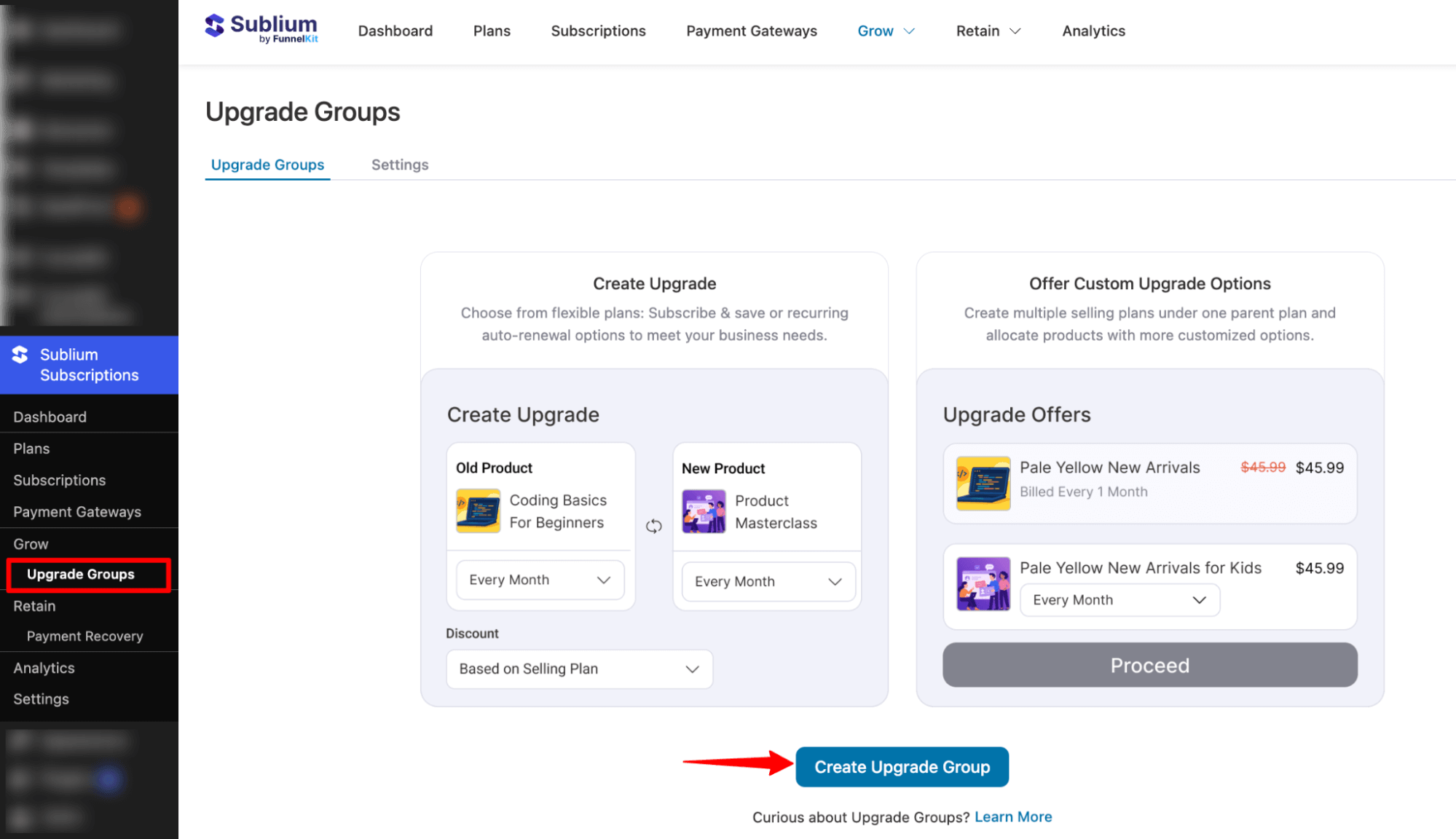
Navigate to the Sublium Subscriptions ⇒ Upgrade Groups and click on the “Create Upgrade Group” button.
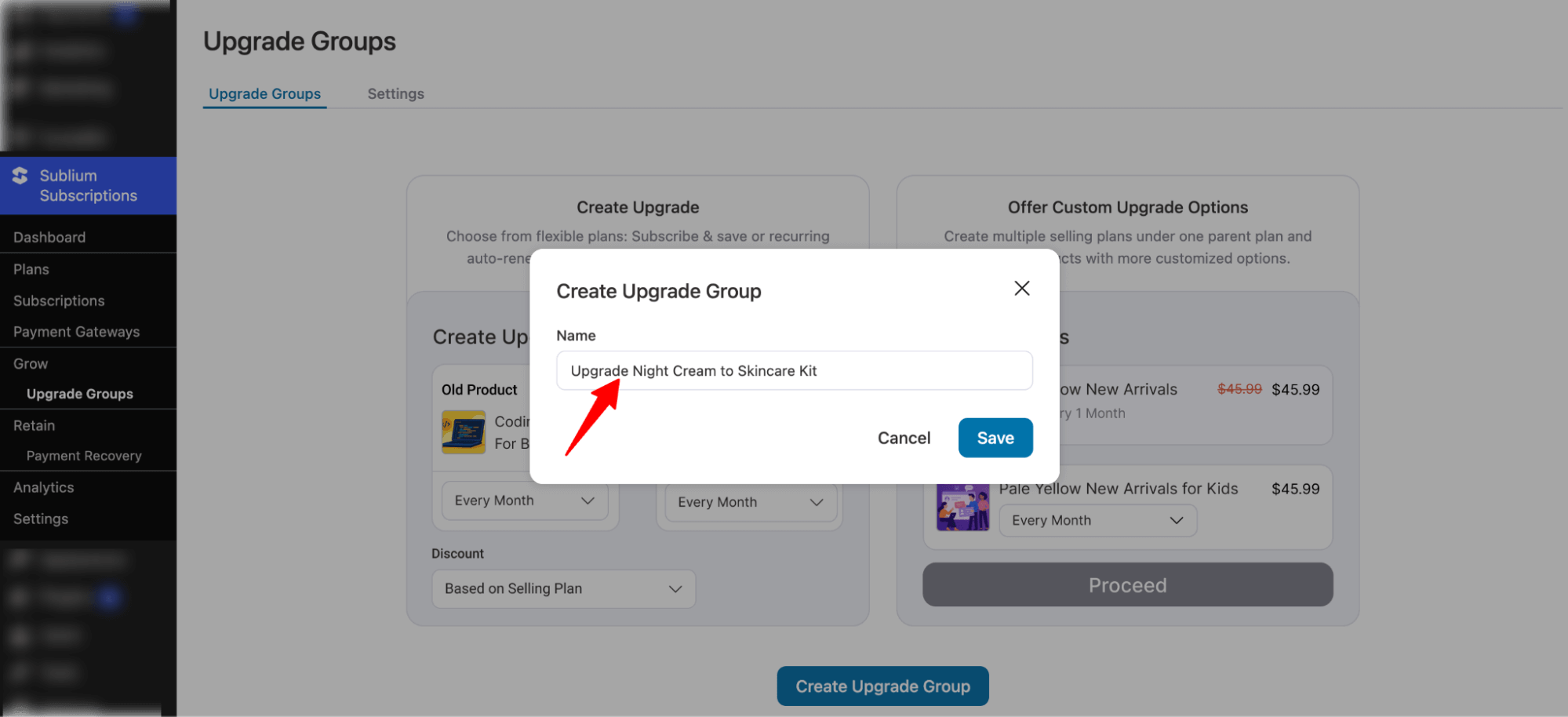
Enter the name of your upgrade and hit Save.
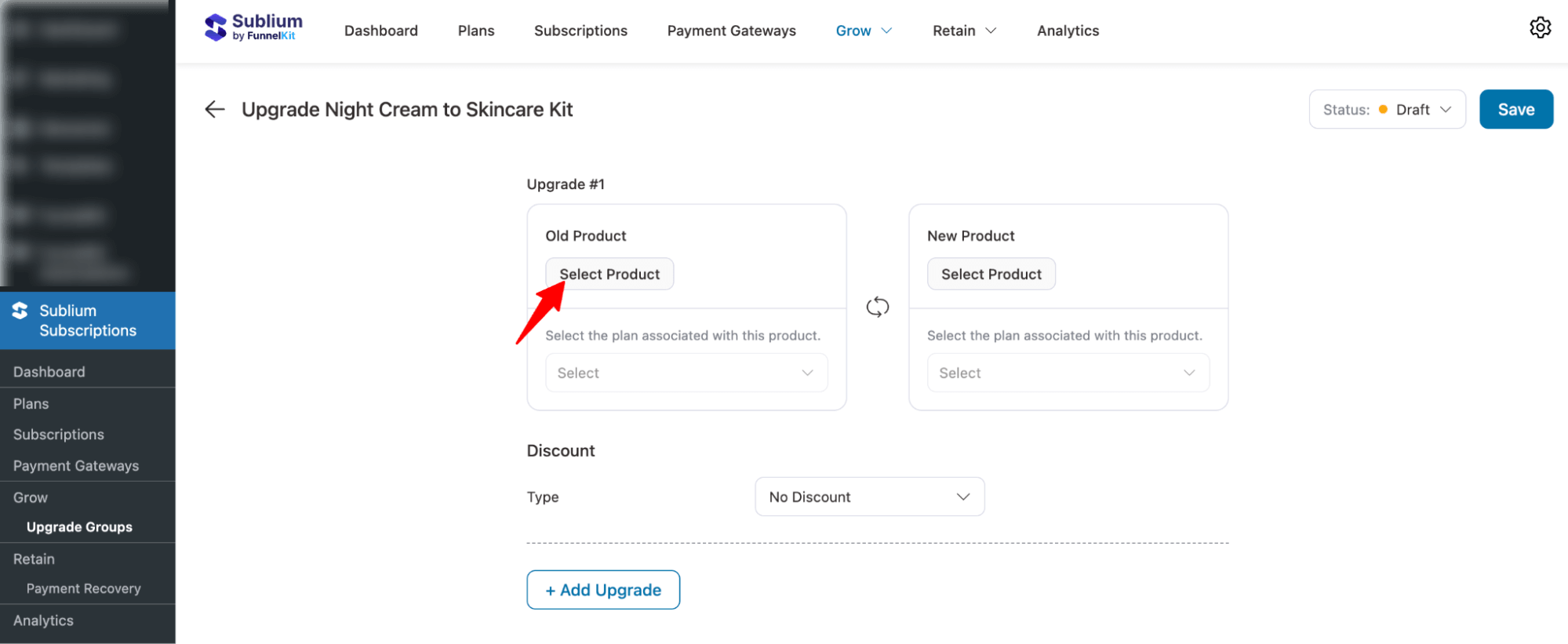
This will create your product upgrade group in Sublium.
Step 2: Add old product and plans
Next, click the Select Product button under the Old Product section. The old product is the base item the user is currently subscribed to and the one they will upgrade from.
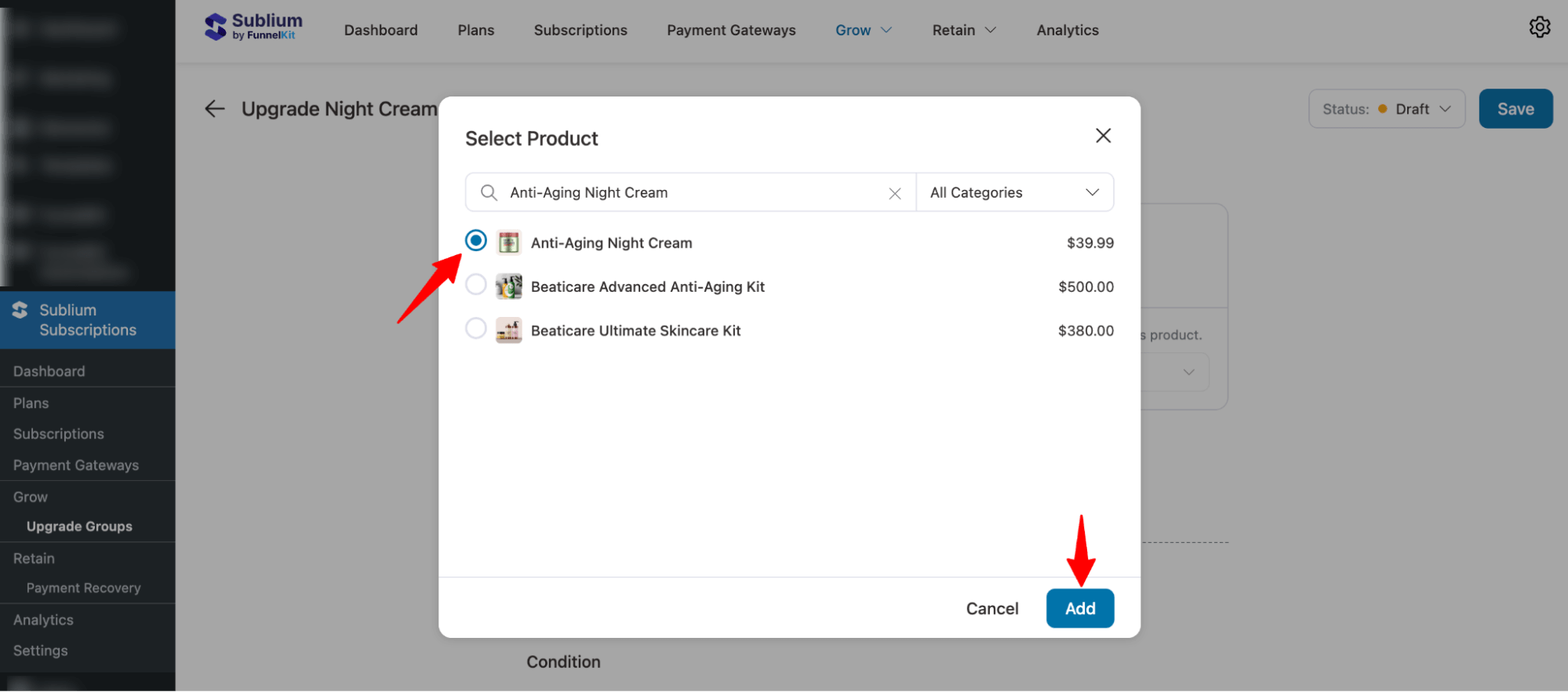
In our case, the old product is “Anti-Aging Night Cream.”
Now search for the product and add it.
Next, click Select and choose the plans for which you want to offer upgrade options. These plans represent the different versions or subscription tiers of the product.
For example, if a customer initially purchased an Anti-Aging Cream under Plan A and you offer the same product across multiple plans, you can allow them to upgrade from Plan A to a higher-value plan, such as Plan B.
In this setup, we are selecting the Every 3 Months and Every 2 Months plans as the starting point from which customers will upgrade.
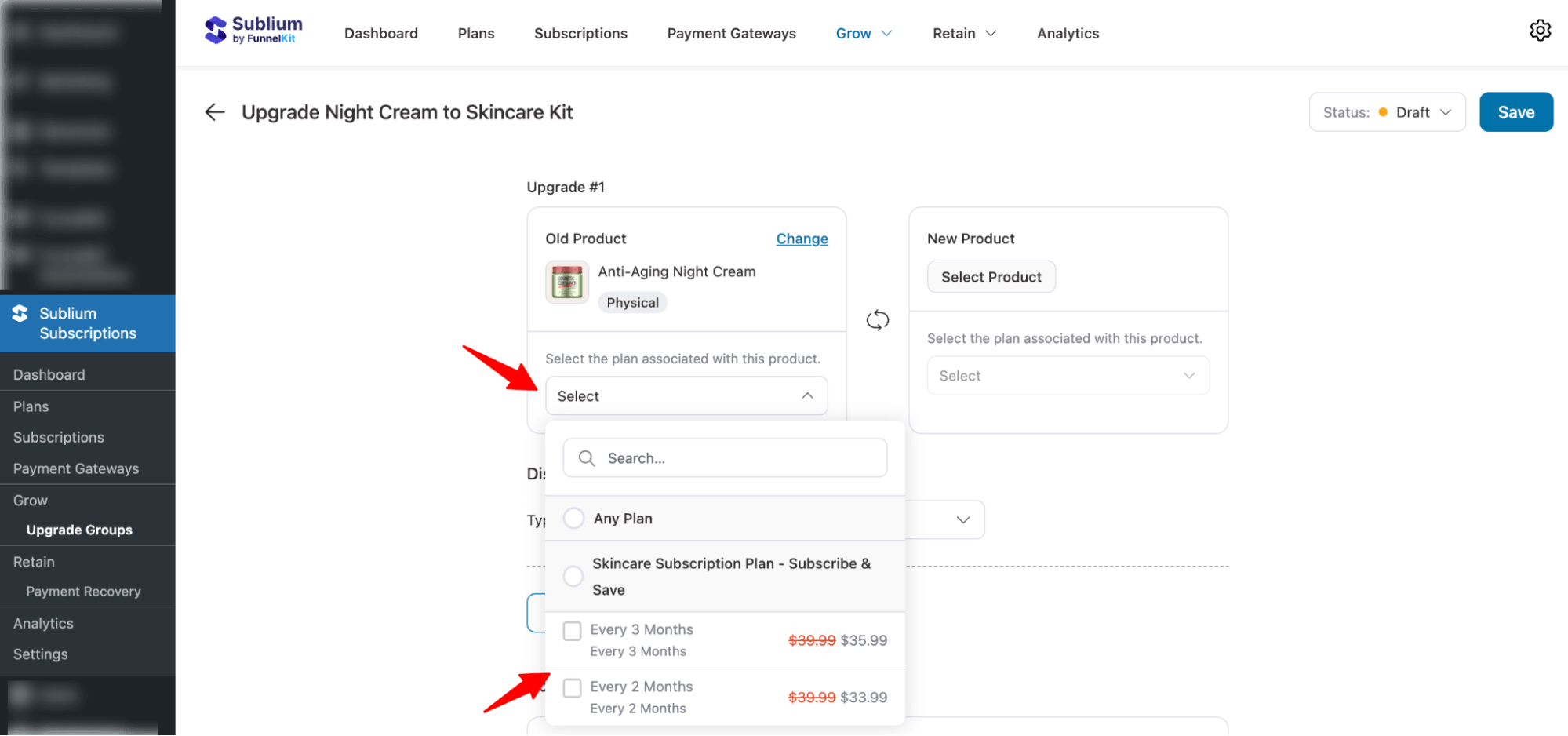
Simply checking the options will add the plans. You can also select multiple plans from different subscription types if the product is part of those plans. For example, Anti Aging Cream is a physical product, so it can be sold via Installment and Subscribe & Save.
If this product is included in any installment plan, those plans will also appear here for selection.
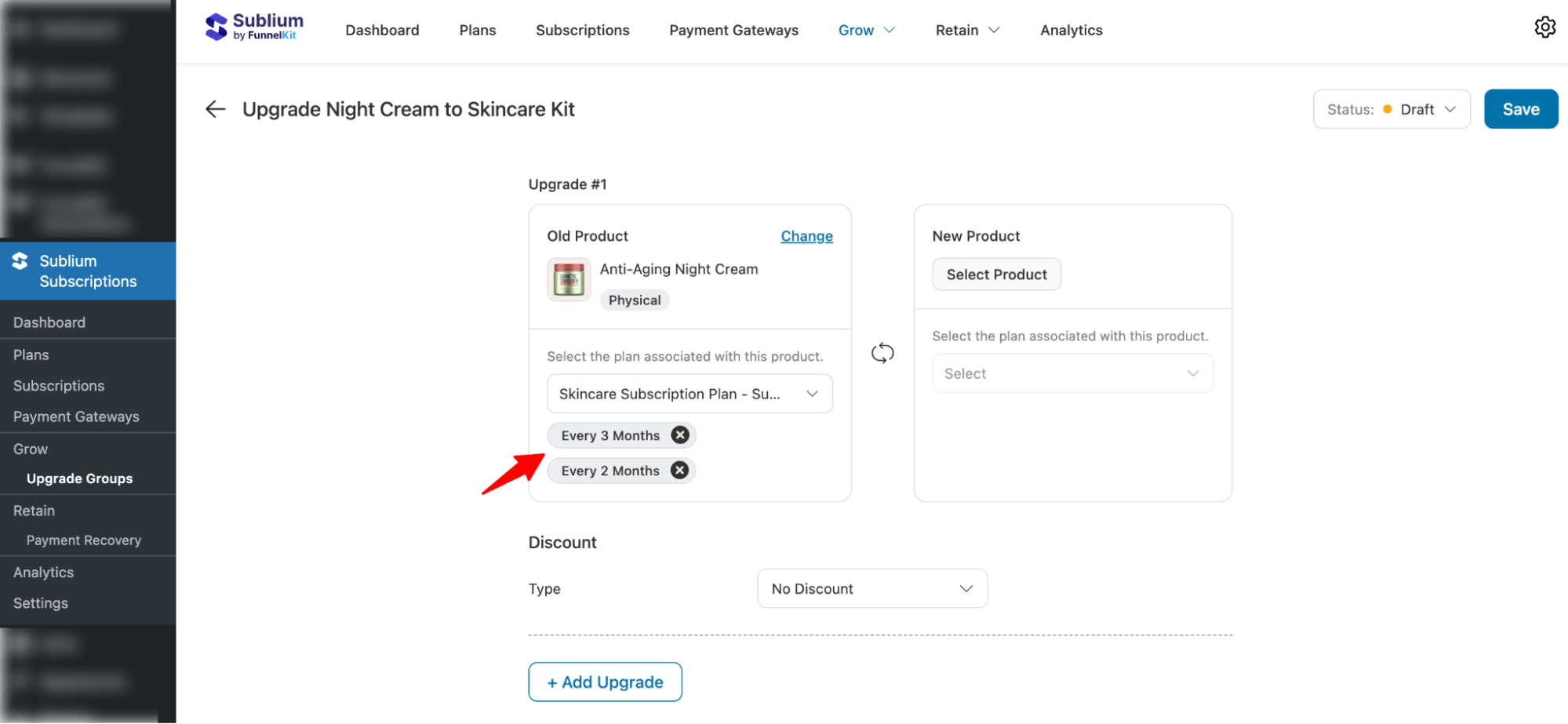
Step 3: Add new product and plans
Now, just like you added the old products, hit Select, then search and add the new product. In this case, the new product is the “Beaticare Advanced Anti-Aging Kit.”
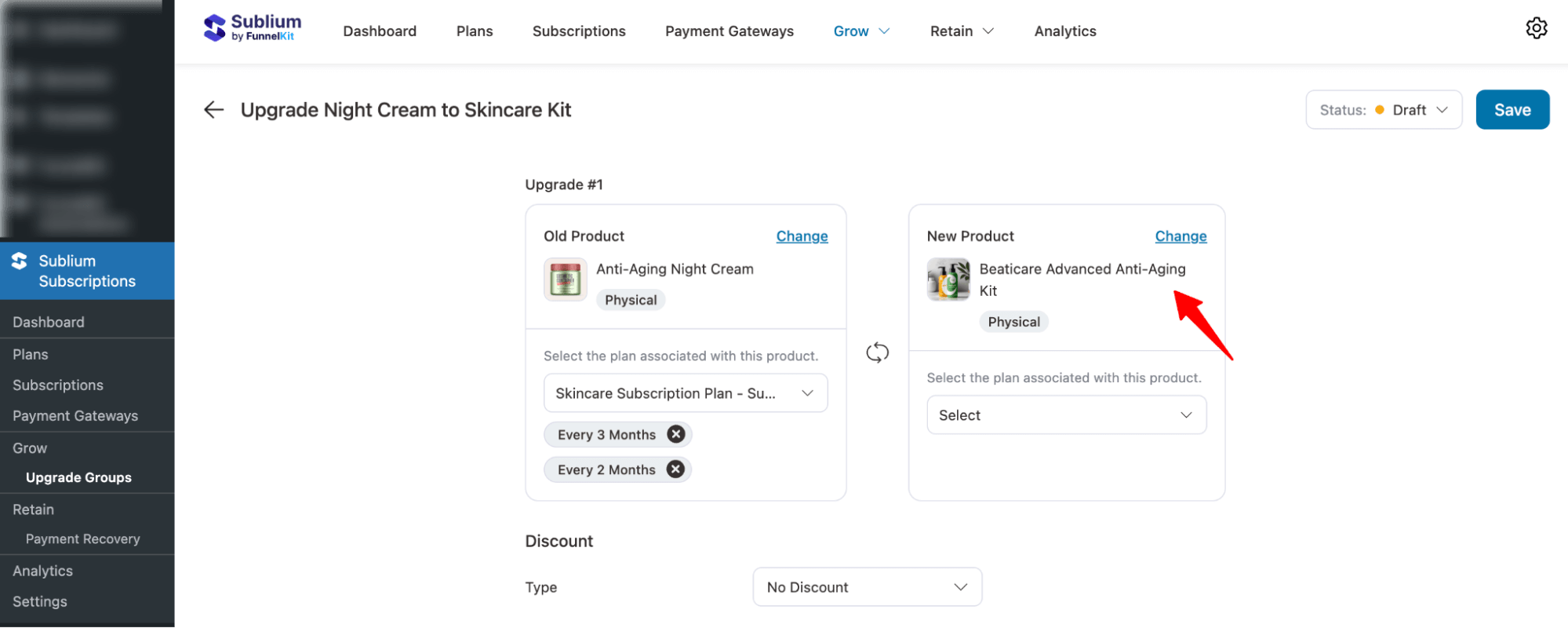
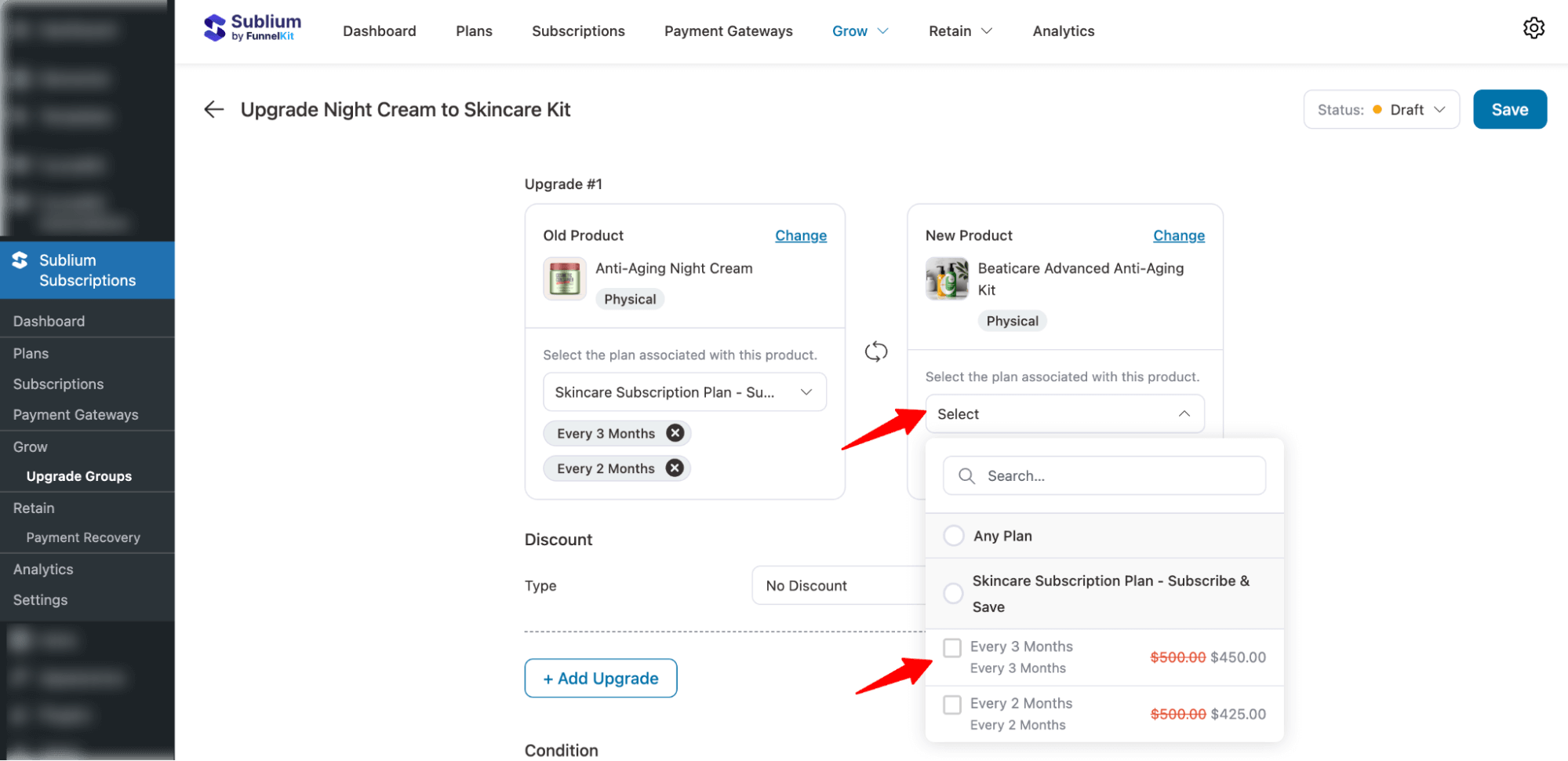
When setting up upgrade plans for a new product, you need to choose which subscription plans will be available for the upgrade.
For example, if the old product had two plans, like every three months and every two months, and the customer wants to upgrade to the new product, such as Beaticare Advanced Anti-Aging Kit, you can decide which options they can move to.
The upgrade does not have to match the original plan exactly. Customers can:
- Upgrade from every three months to every three months
- Upgrade from every three months to every two months
- Upgrade from every two months to every two months
- Upgrade from every two months to every three months
Essentially, you can allow customers to switch between any of the available plans when upgrading, giving them flexibility in choosing how frequently they receive the new product.
Step 4: Set discounts for the upgrade group
You can offer discounts during the upgrade process.
Offer a discount, such as:
- Fixed discount (e.g., $5 off)
- Percentage discount (e.g., 5% off)
You can set the discount to apply only to one-time or to All Upcoming Billing.
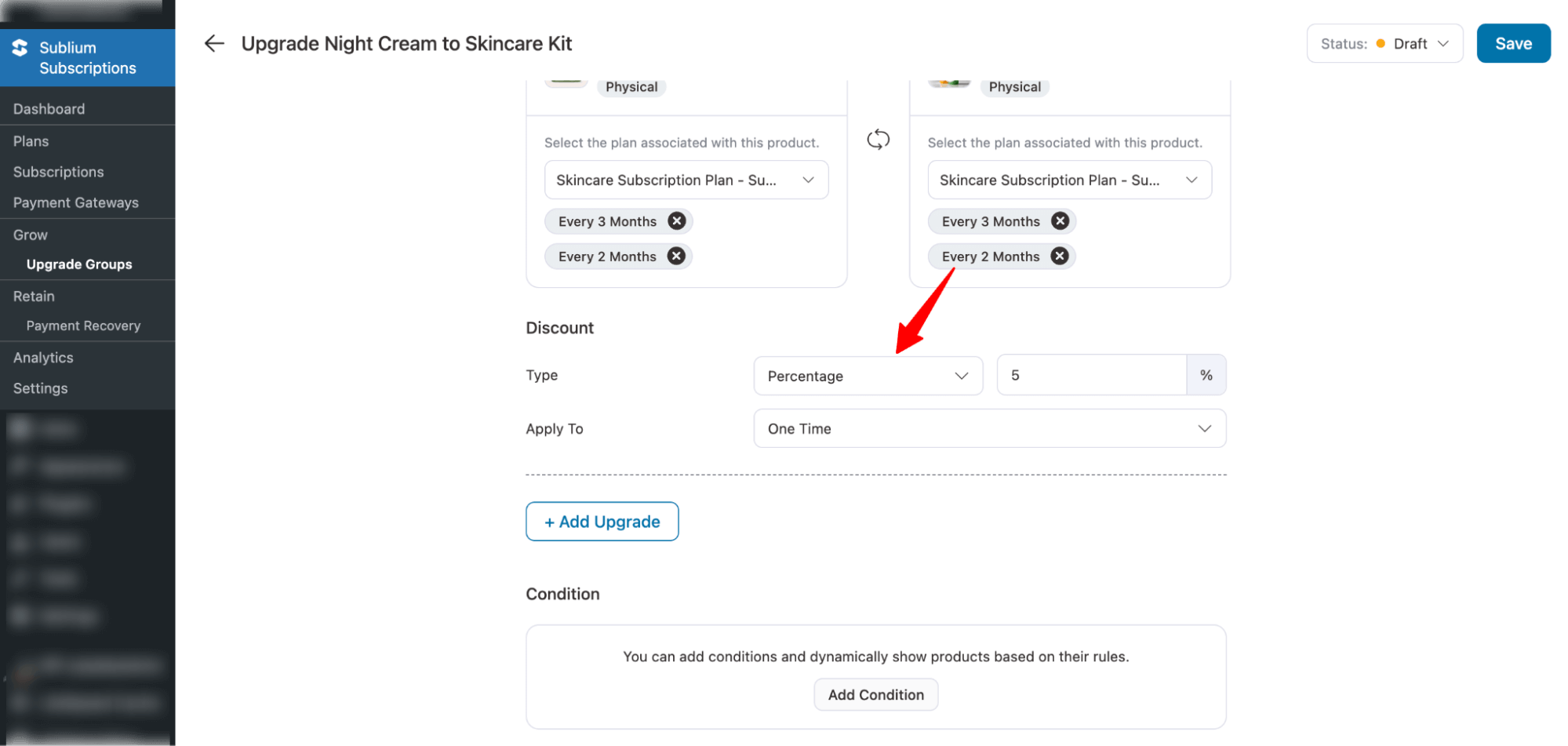
Step 5: Add conditions to show the upgrade group
Using the conditions feature, you can dynamically show products based on set rules.
To set a rule, hit “Add Condition”.
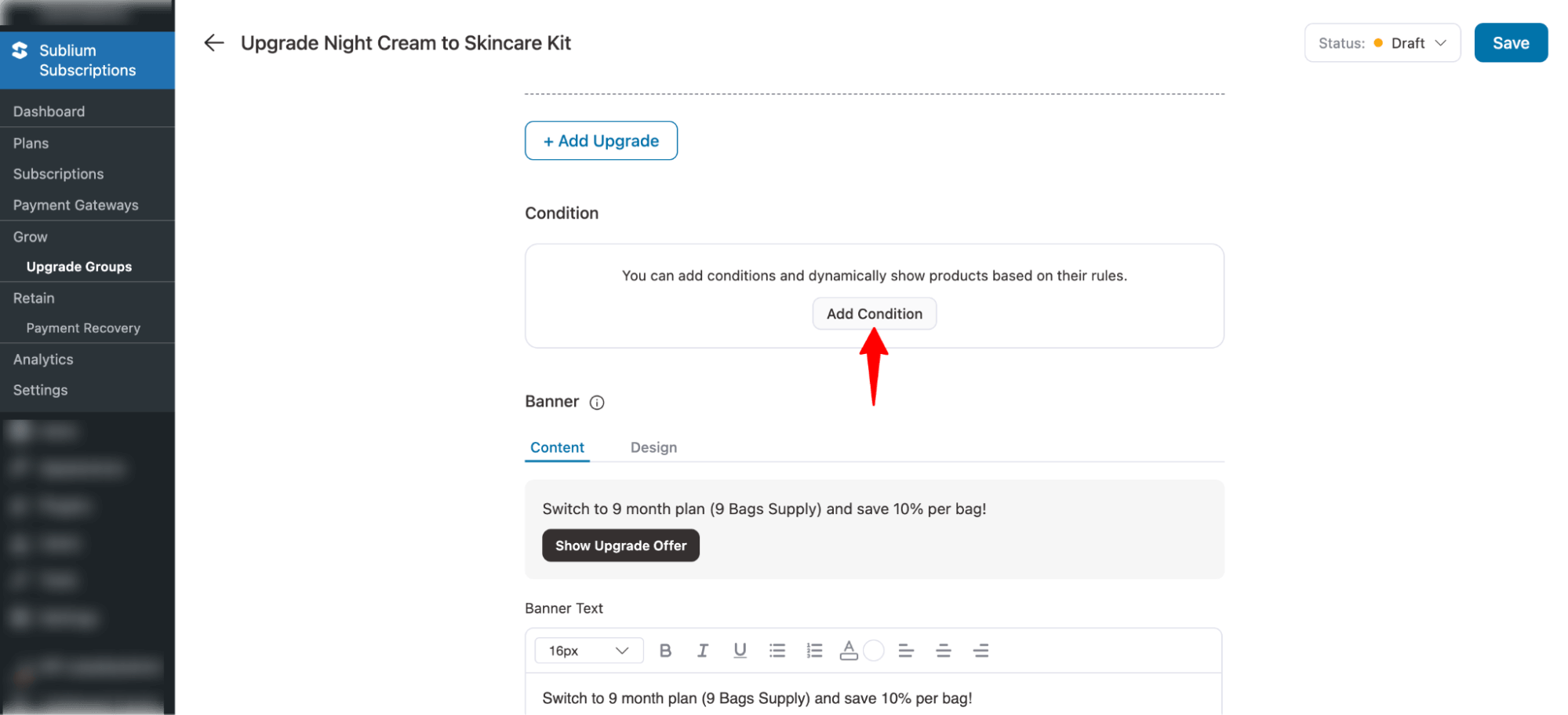
Next, choose between the two categories: Subscriber and Current Subscription.
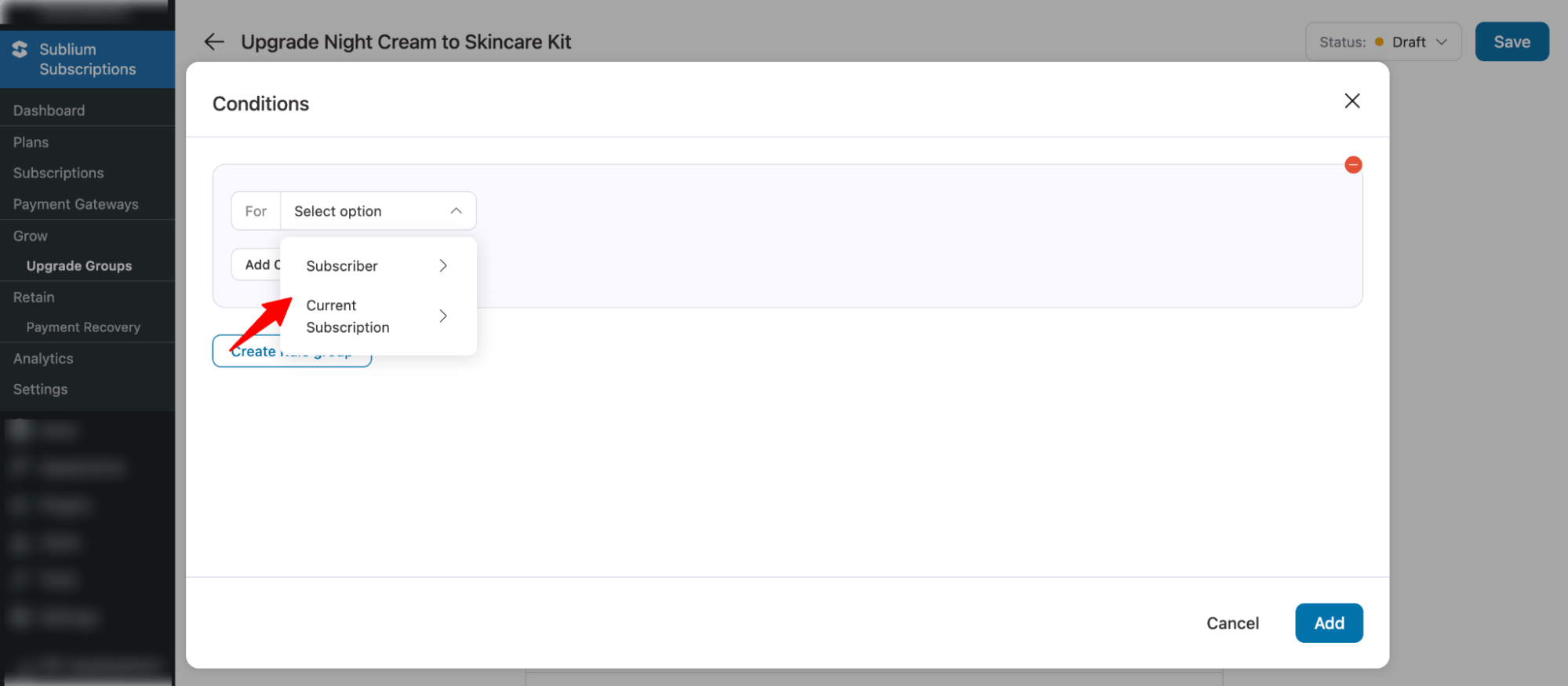
Here are the values you get for each category:
Subscriber :
| Field | Description |
| Back | Indicates if the customer has returned to a previous plan or navigated back. |
| Subscriber’s email address. | |
| First Name | Subscriber’s first name. |
| Last Name | Subscriber’s last name. |
| Joined Date | Date when the subscriber first joined. |
| Joined Days | Number of days since the subscriber joined. |
| Has Active Subscription | Whether the subscriber has any active subscription. |
| Renewal Count | Total number of times the subscriber’s subscriptions have been renewed. |
| Active Count | Number of currently active subscriptions the subscriber has. |
| Purchased Products | List of products purchased by the subscriber. |
| Active Subscription Product | Product(s) associated with the subscriber’s active subscription(s). |
| Revenue | Total revenue generated from this subscriber. |
| Inactive Count | Number of subscriptions the subscriber had that are now inactive. |
| MRR | Monthly Recurring Revenue from this subscriber. |
| ARR | Annual Recurring Revenue from this subscriber. |
| Last Order Date | Date of the subscriber’s most recent order. |
| Next Renewal Date | Upcoming renewal date for the subscriber’s active subscription(s). |
| Next Renewal Days | Number of days remaining until the next renewal. |
Current Subscription Category:
| Field | Description |
| Is Active | Shows whether this specific subscription is currently active. |
| Renewal Count | Number of times this subscription has been renewed. |
| Purchased Products | List of products included in this subscription. |
| Revenue | Revenue generated from this specific subscription. |
| MRR | Monthly Recurring Revenue from this subscription. |
| ARR | Annual Recurring Revenue from this subscription. |
| Last Order Date | Date of the most recent order for this subscription. |
| Next Renewal Date | Upcoming renewal date for this subscription. |
| Next Renewal Days | Days remaining until this subscription’s next renewal. |
After selecting a value, set the Rule. For instance, only show the upgrade if MRR exceeds $10.
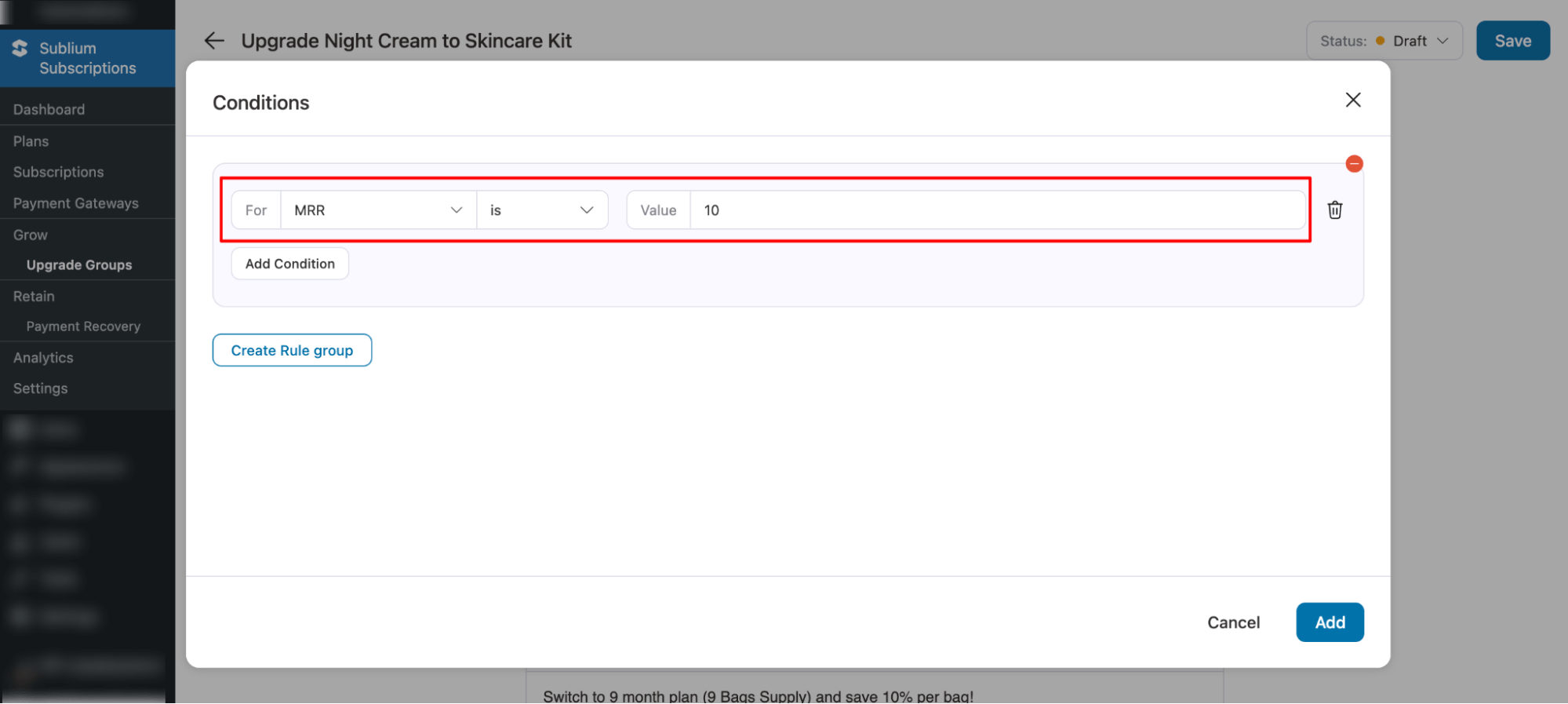
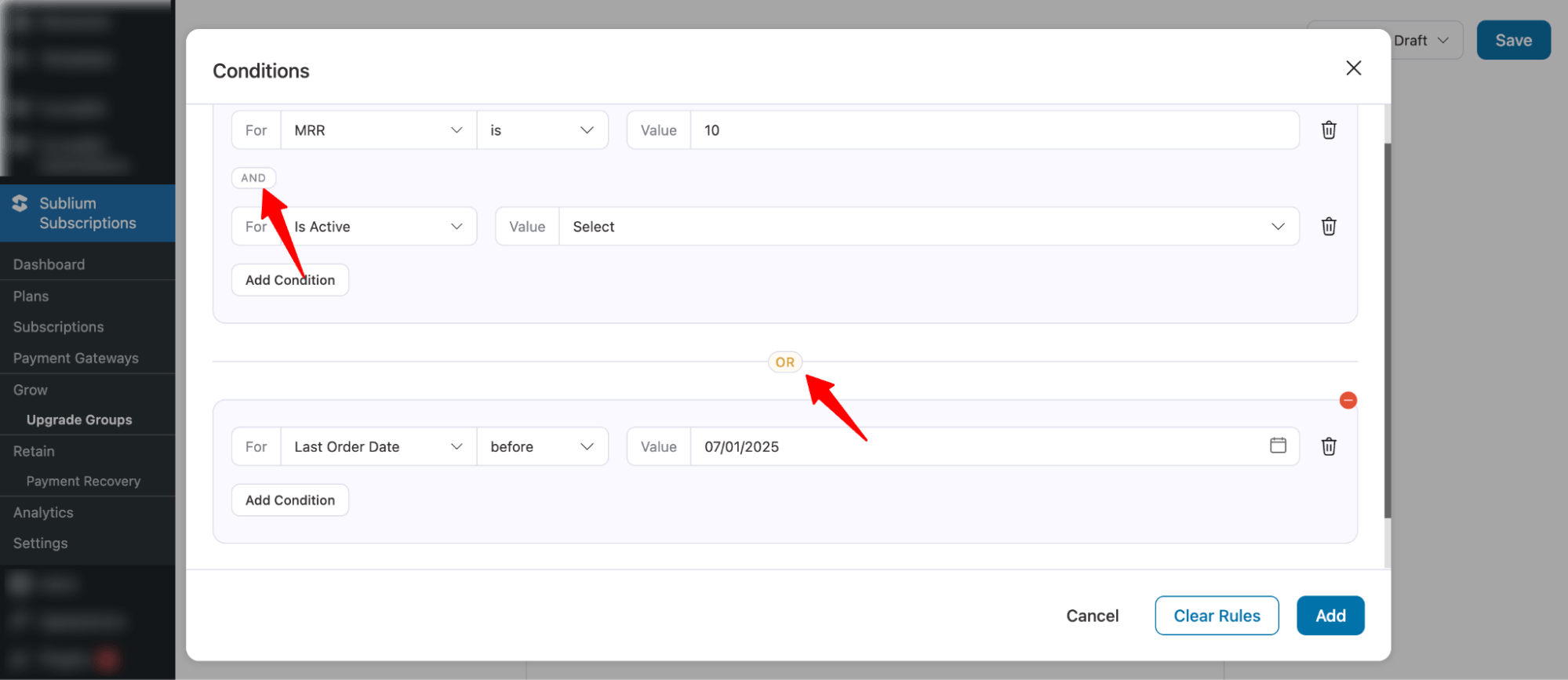
Step 6: Configure Content and Design of the Upgrade Banner
Use a banner to catch customers’ attention and promote your upgrade offer.
- Banner Text: Clearly communicate the value customers will get when upgrading. For example, “Switch to a Beaticare Advanced Anti-Aging Kit and save 5% Off!”
- Button Text: Add a strong call-to-action button that triggers the upgrade popup. For example, “Show Upgrade Offer.”
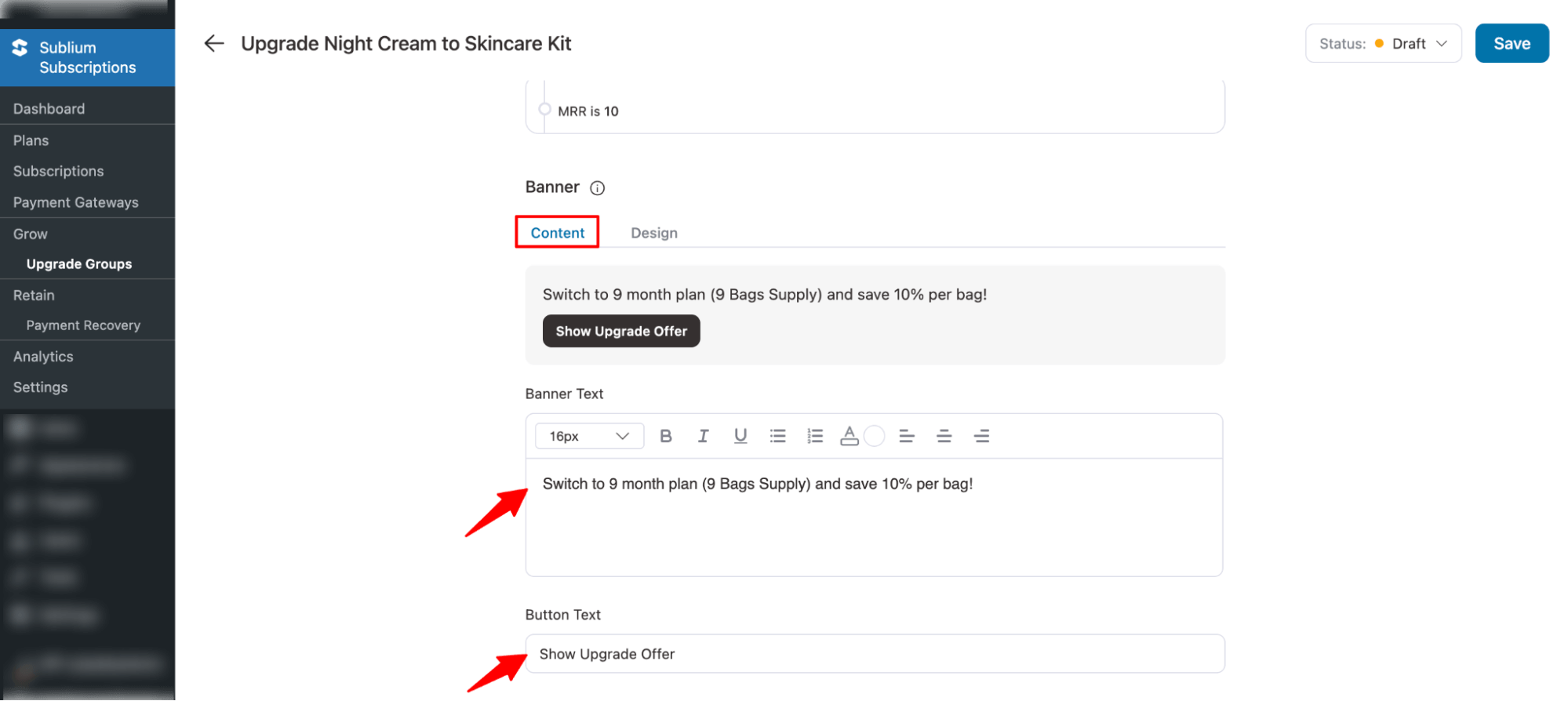
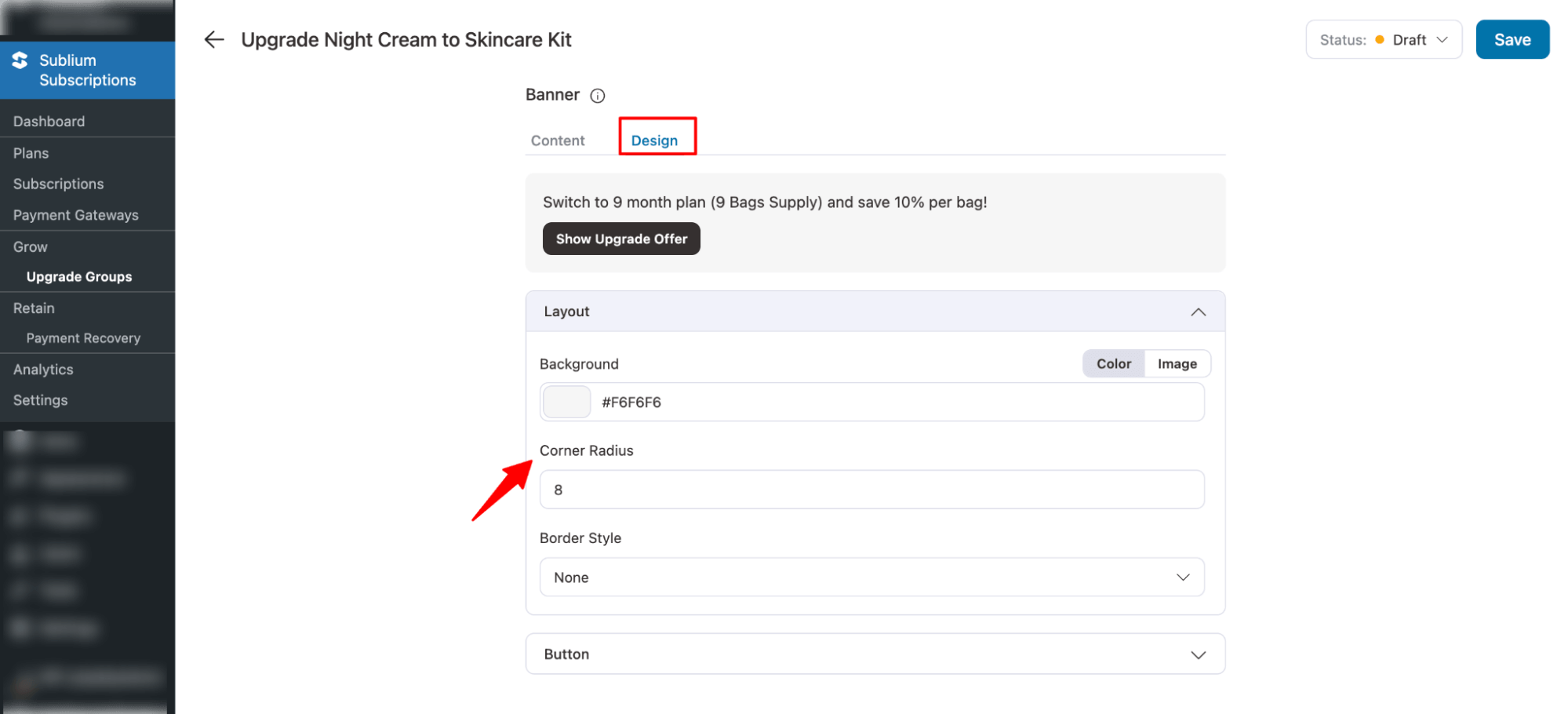
Move to the design tab to configure the layout and button design.
For Layout, set the following:
- Background: Set the background color for the offer block. Default: #F6F6F6
- Corner Radius: Round the edges of the offer block for a softer look. Default: 8px
- Border Style: Choose the border style for the offer block. Default: None.
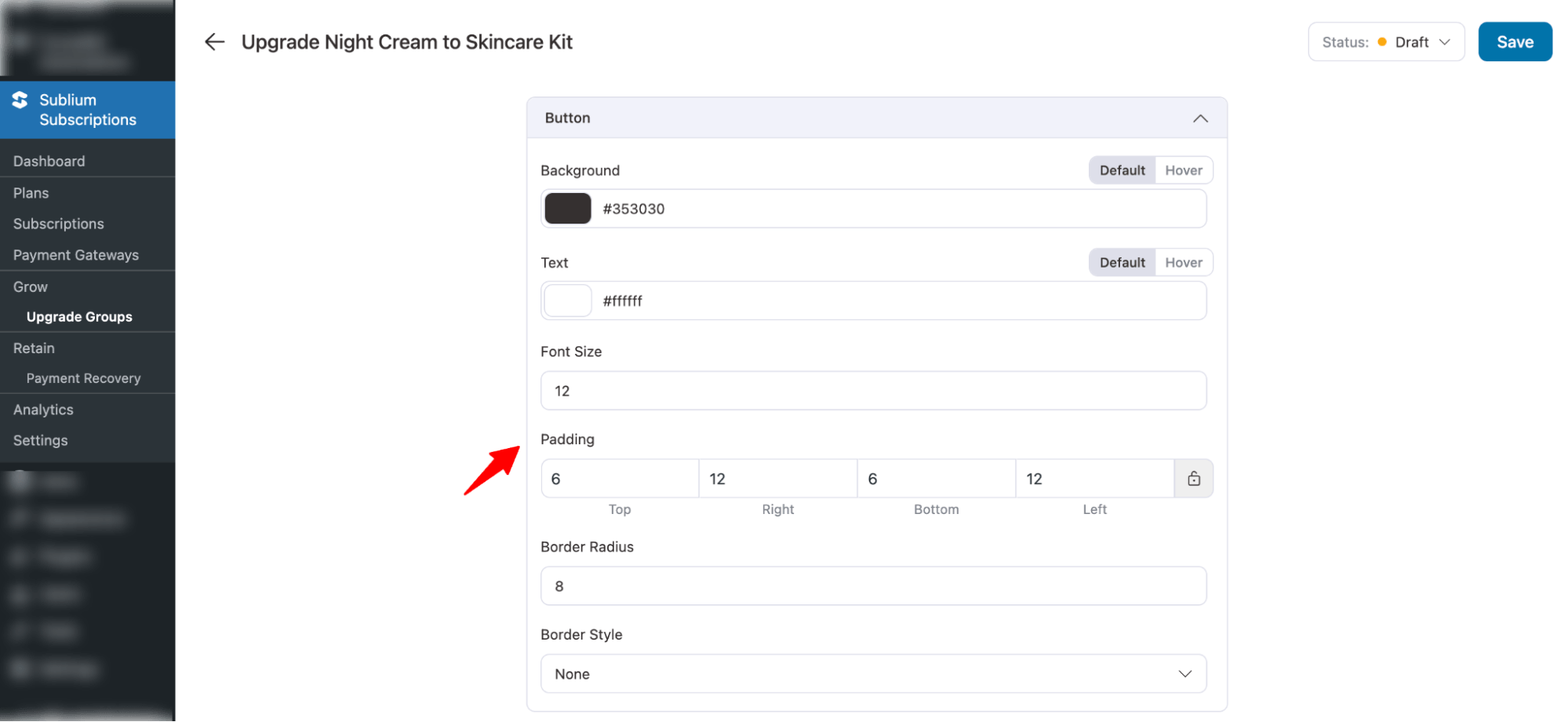
For Button, you can set the following
- Button Background (Default): Normal background color of the button. Default: Default
- Button Background (Hover): Background color when the button is hovered. Default: #353030
- Button Text Color (Default): Normal text color of the button. Default:fffff
- Button Text Color (Hover): Text color when the button is hovered. Default: None.
- Button Font Size: Size of the text inside the button. Default: 12px
- Button Padding: Space inside the button around the text. Default: Top:12px, Right:6px, Bottom:12px, Left:6px
- Border Radius: Round the edges of the button. Default: 8px
- Border Style: Border style of the button. Default: Standard
Once done, save the changes.
Step 7: Activate the upgrade group
Lastly, you need to set the upgrade group is Active. For this, select the status Active.
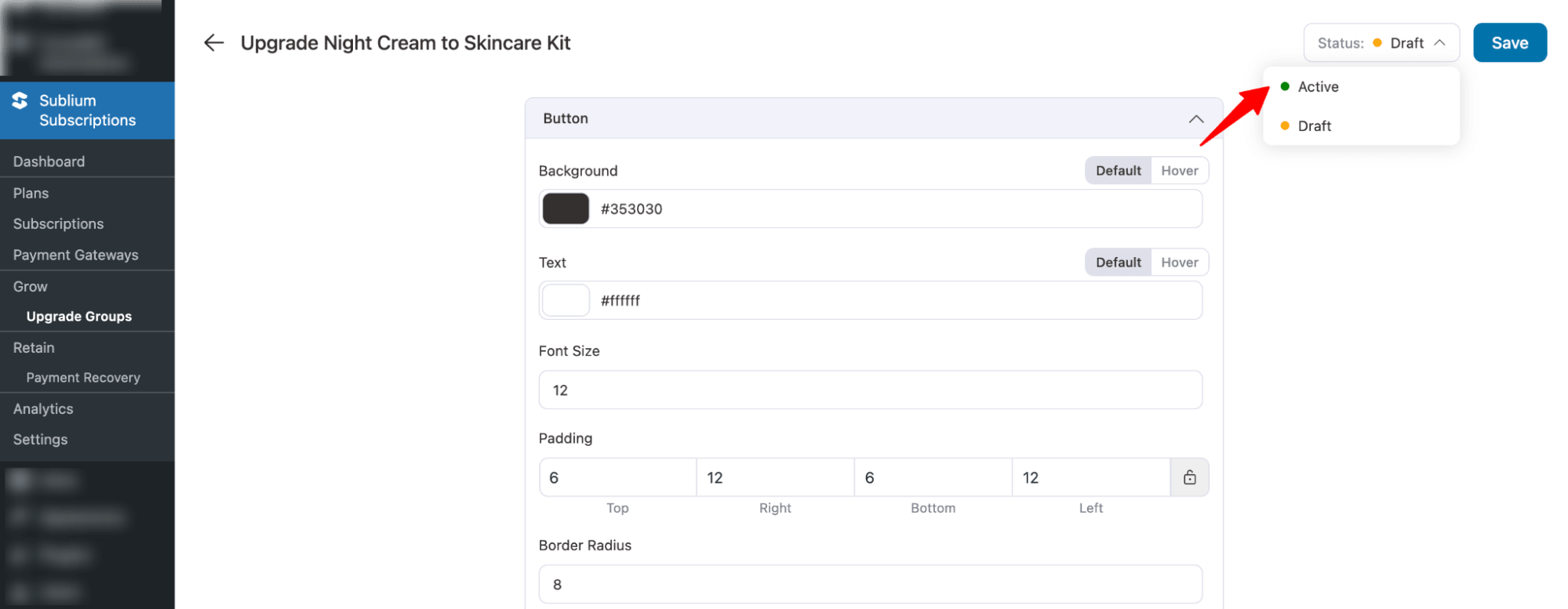
Make sure to “Confirm”.
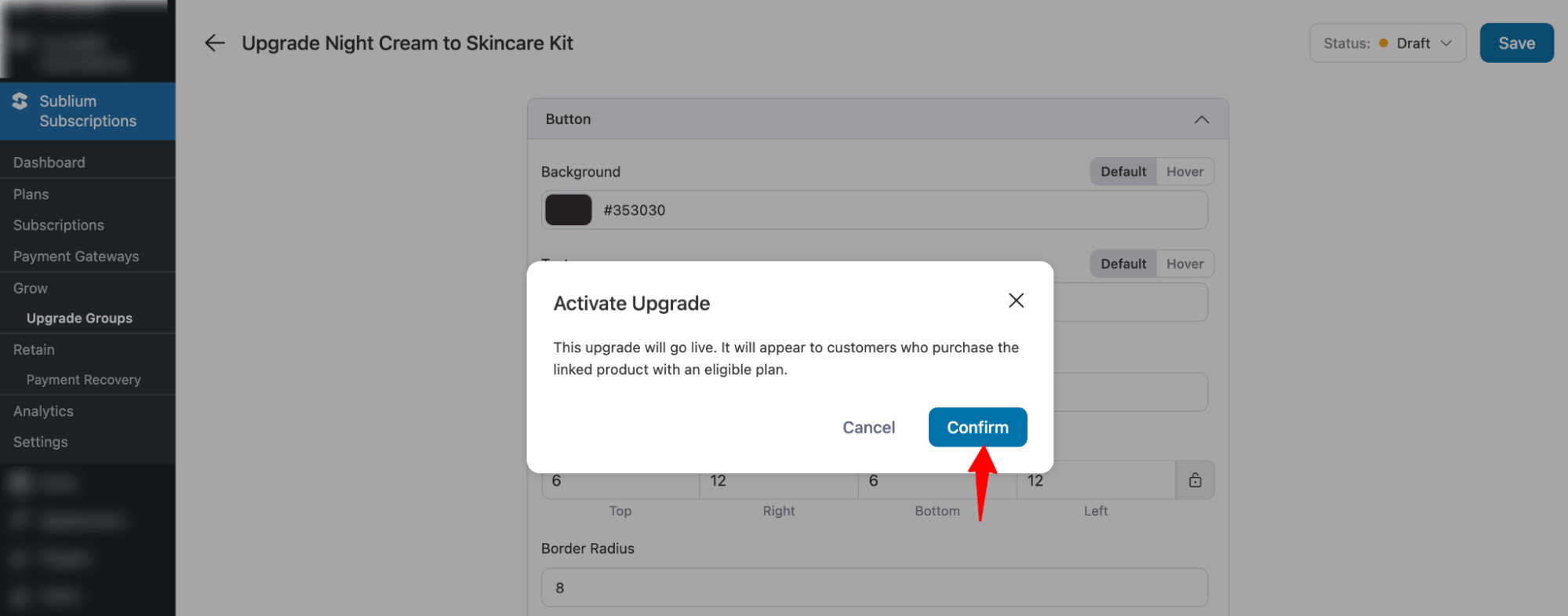
That’s it! This is how you can create product upgrades inside Sublium.


