

These texts appear when the customer checks the upgrade offer details. The Upgrade Details Popup Texts settings let you control all the text displayed throughout the subscription upgrade process.
You can customize titles, labels, confirmation messages, and success states shown to customers when they interact with upgrade offers.
Access Upgrade Settings
Navigate to Sublium Subscriptions ⇒ Grow ⇒ Upgrade Group ⇒ Settings Tab.
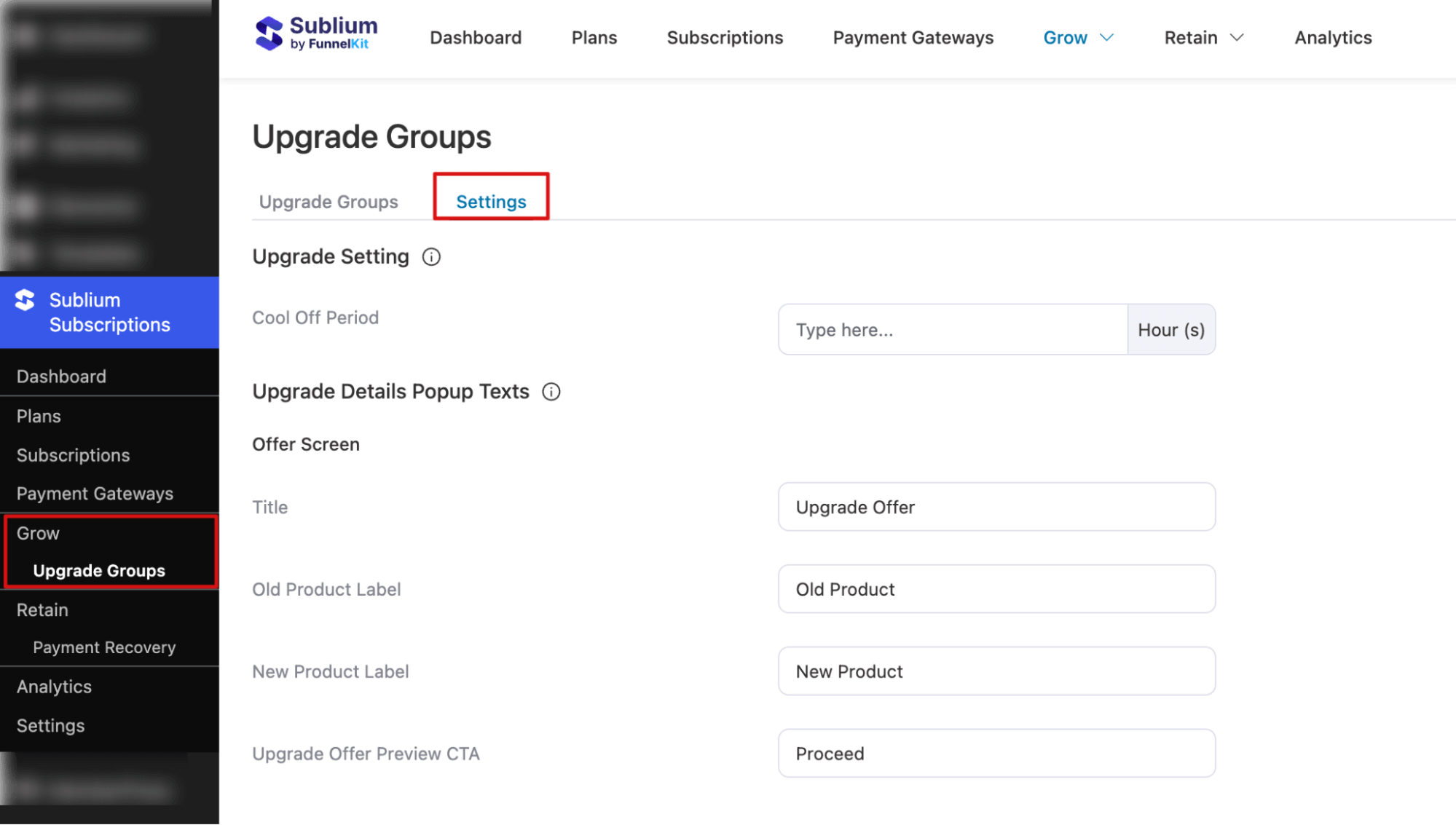
Here, you can configure all text elements used in Upgrade popups, Confirmation screens, Success screens, Dismiss prompts, and Global banners
These options define what customers see at each stage of the upgrade experience.
Upgrade Setting
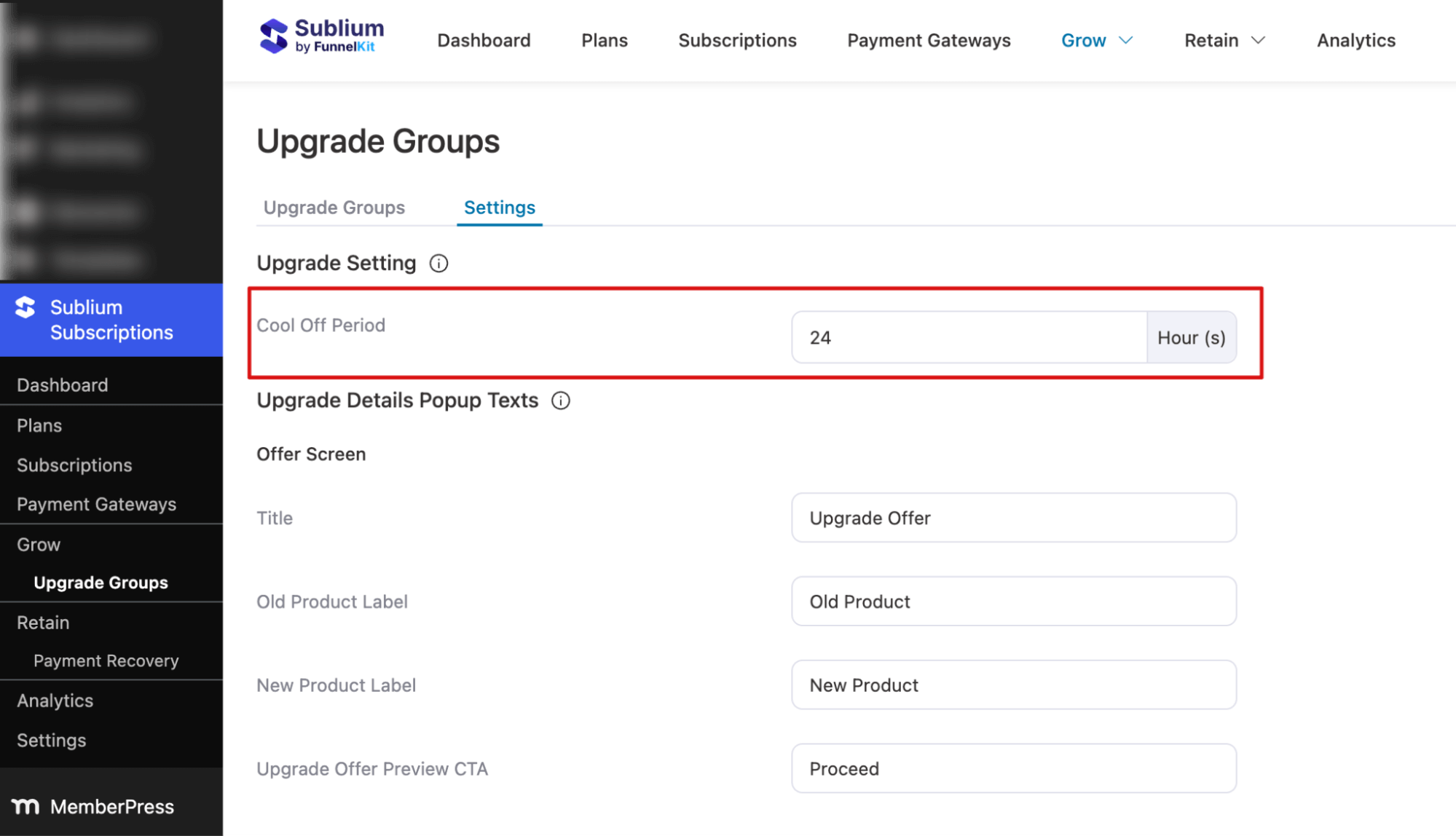
Cool Off Period
Defines a waiting time after a customer upgrades their subscription during which certain actions are restricted. Enter the duration in hours. Default: 24
Note: Customers can upgrade immediately but cannot downgrade, reverse, or re-upgrade during this period. Prevents frequent plan switching and ensures billing stability.
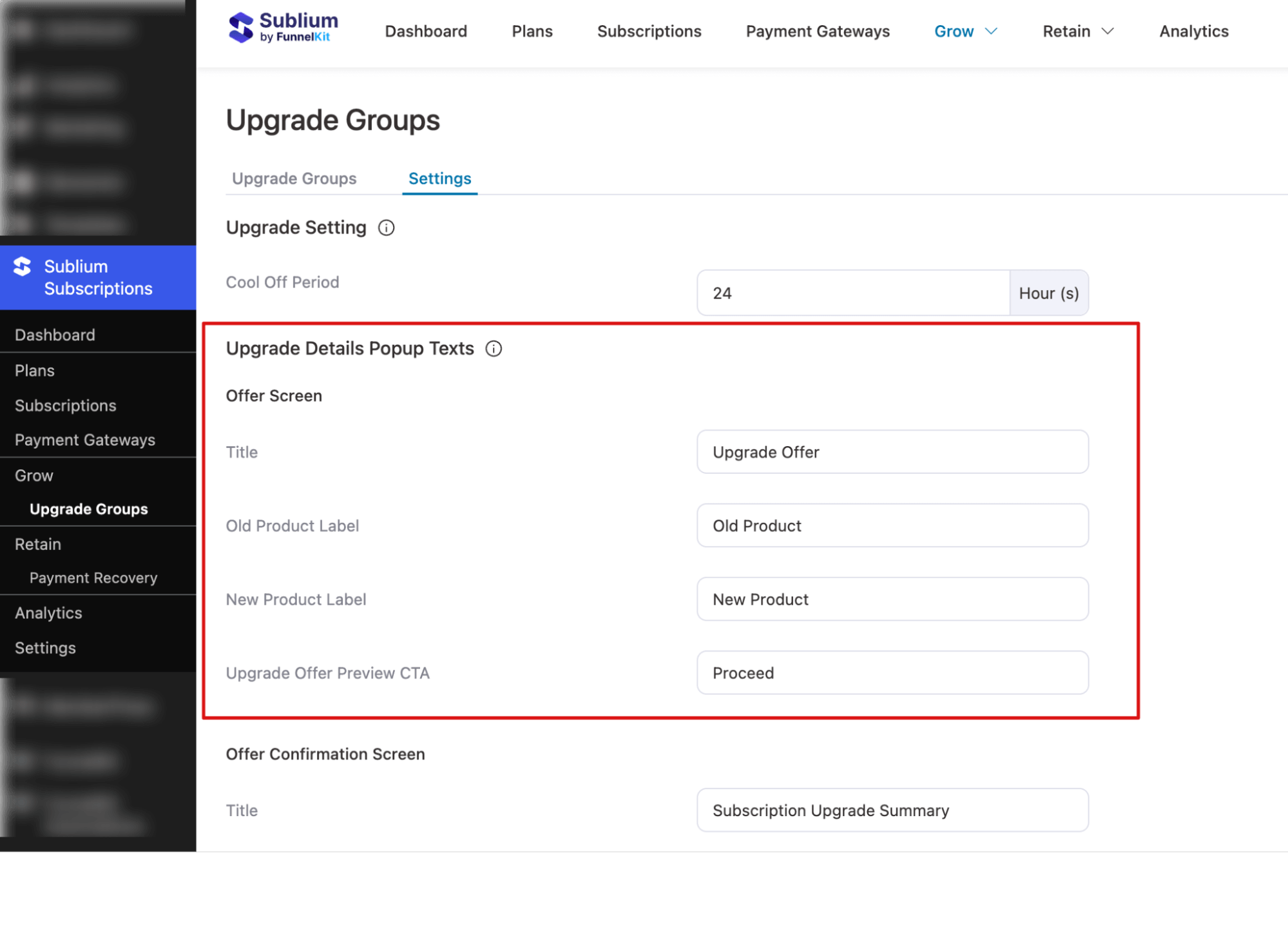
Upgrade Details Popup Texts
Customize the text displayed throughout the subscription upgrade flow.
Offer Screen
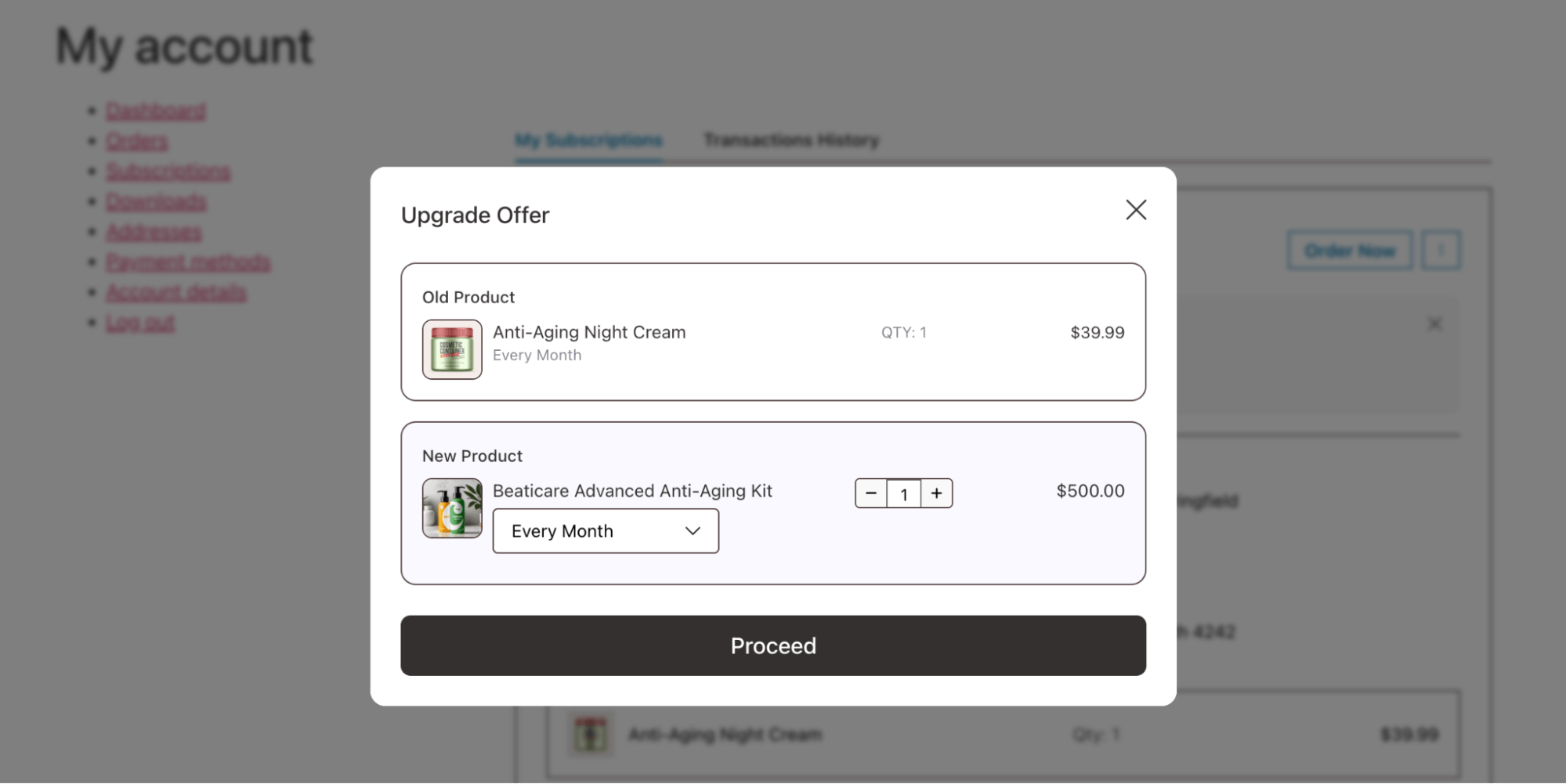
Controls the text displayed in the first upgrade popup your customers see.
- Title: Heading shown at the top of the upgrade popup. Default: Upgrade Offer
- Old Product Label: Label for the customer’s current subscription item.
Default: Old Product - New Product Label: Label for the upgraded subscription item. Default: New Product
- Upgrade Offer Preview CTA: Button to proceed to the confirmation screen.
Default: Proceed
Here is what it looks like on the front end:
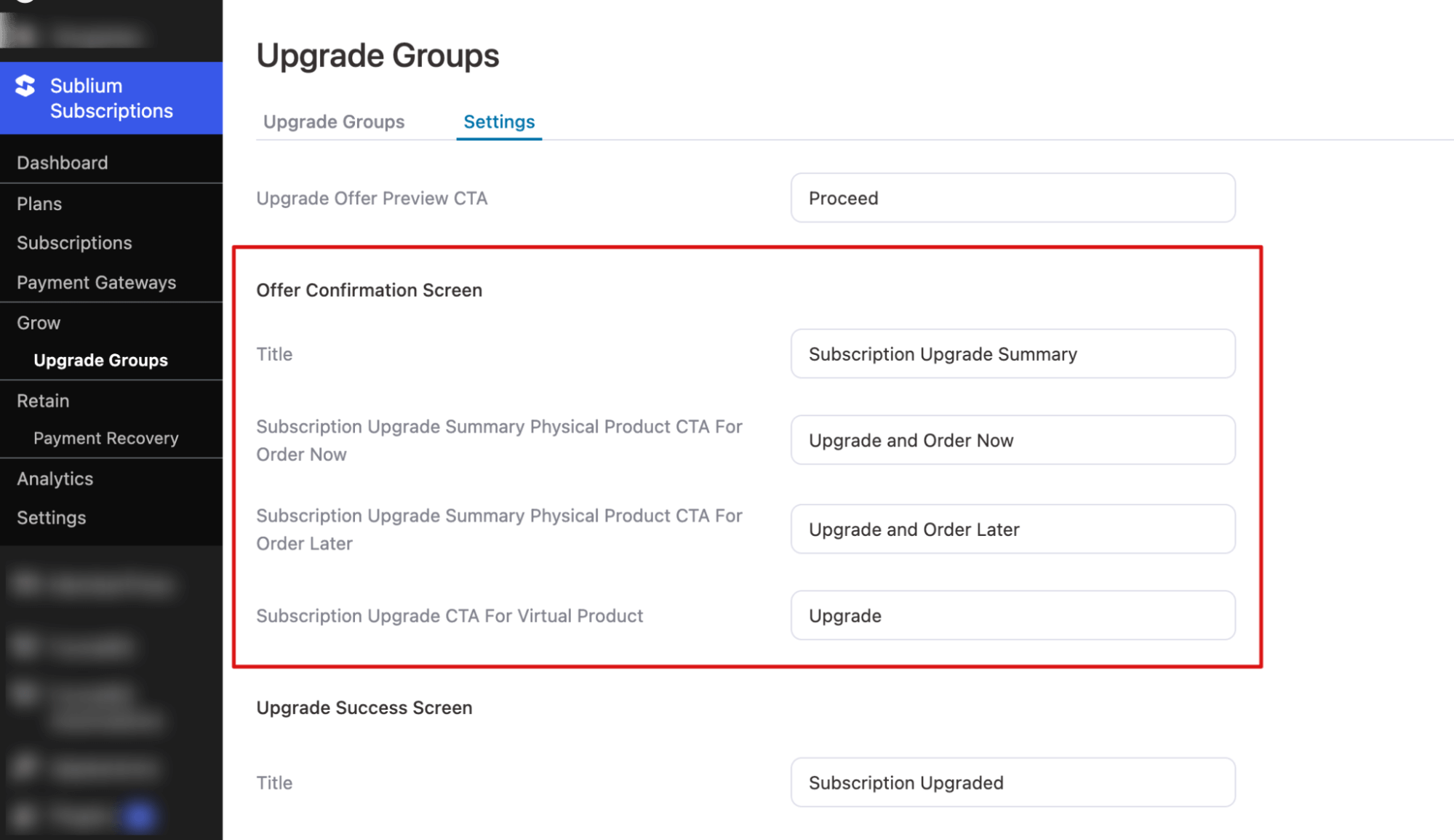
Offer Confirmation Screen
Controls the text shown when customers review the upgrade details before confirming.
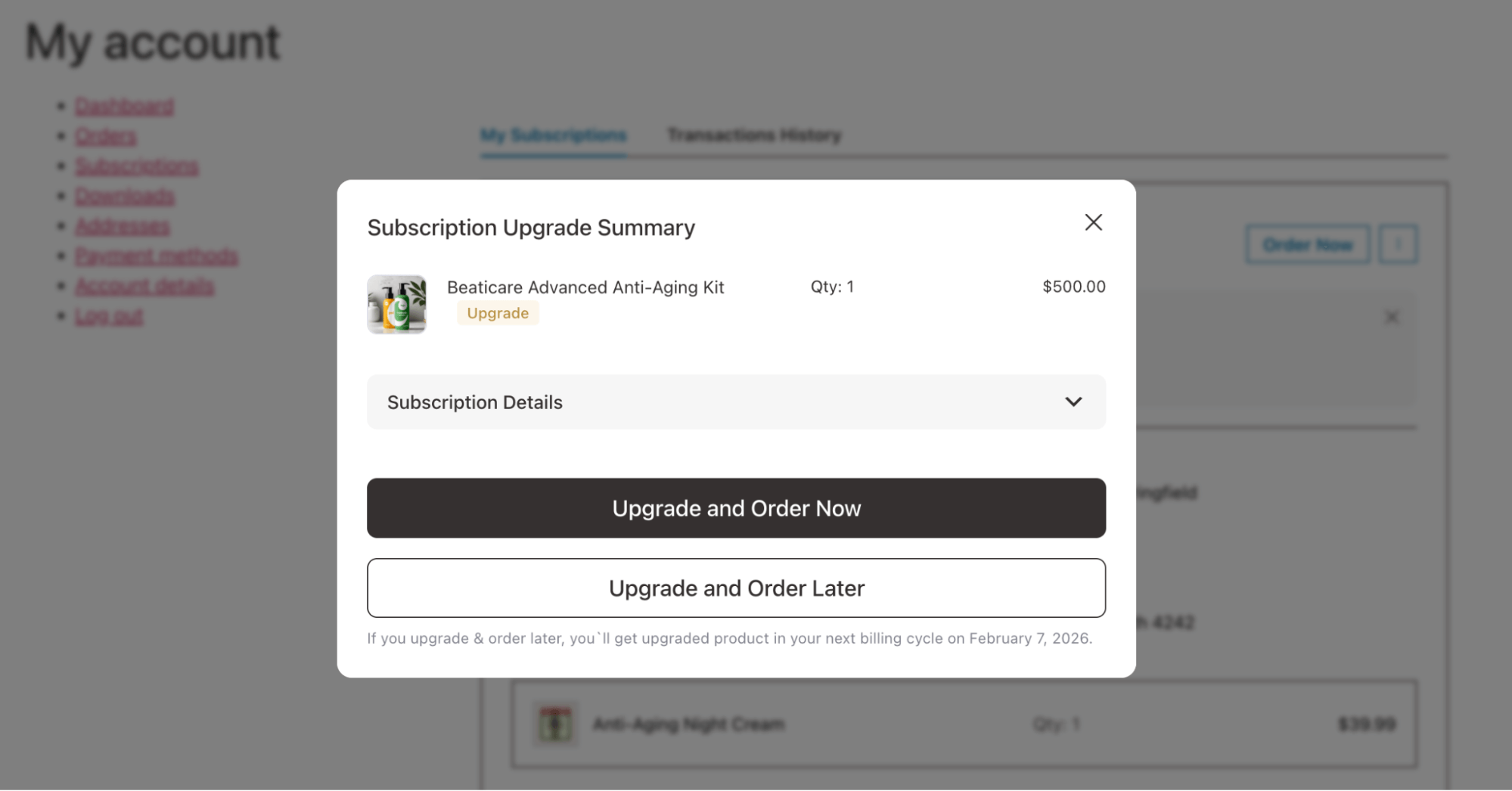
- Title: Heading shown on the upgrade confirmation screen.
Default: Subscription Upgrade Summary - Subscription Upgrade Summary Physical Product CTA for Order Now: Button label for upgrading a physical product and placing the order immediately.
Default: Upgrade and Order Now - Subscription Upgrade Summary Physical Product CTA for Order Later: Button label for upgrading a physical product and placing the order in the next cycle.
Default: Upgrade and Order Later - Subscription Upgrade CTA for Virtual Product: Button label for upgrading a virtual product.
Default: Upgrade
Here is what it looks like on the front end:
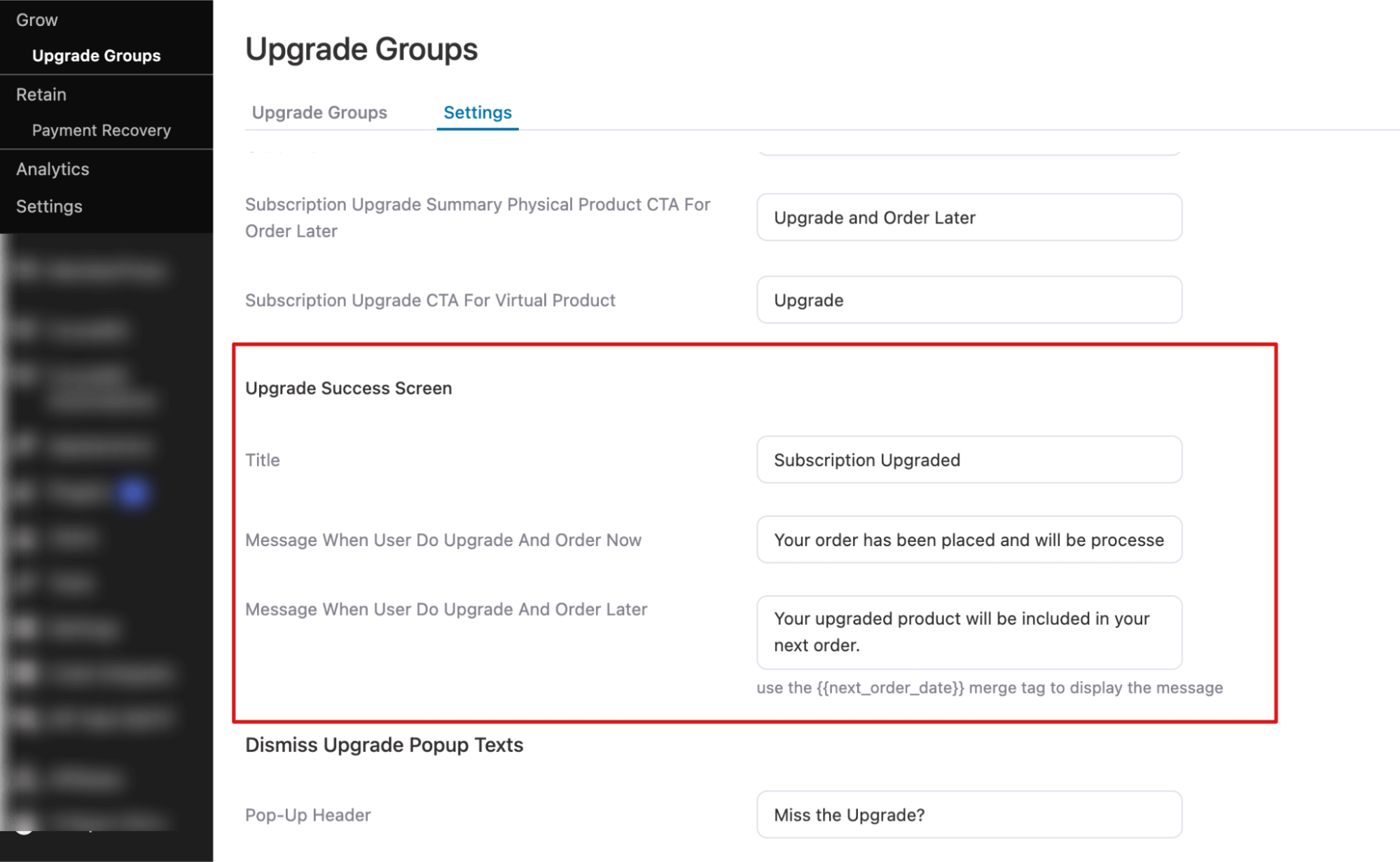
Upgrade Success Screen
Controls the text displayed after a successful subscription upgrade.
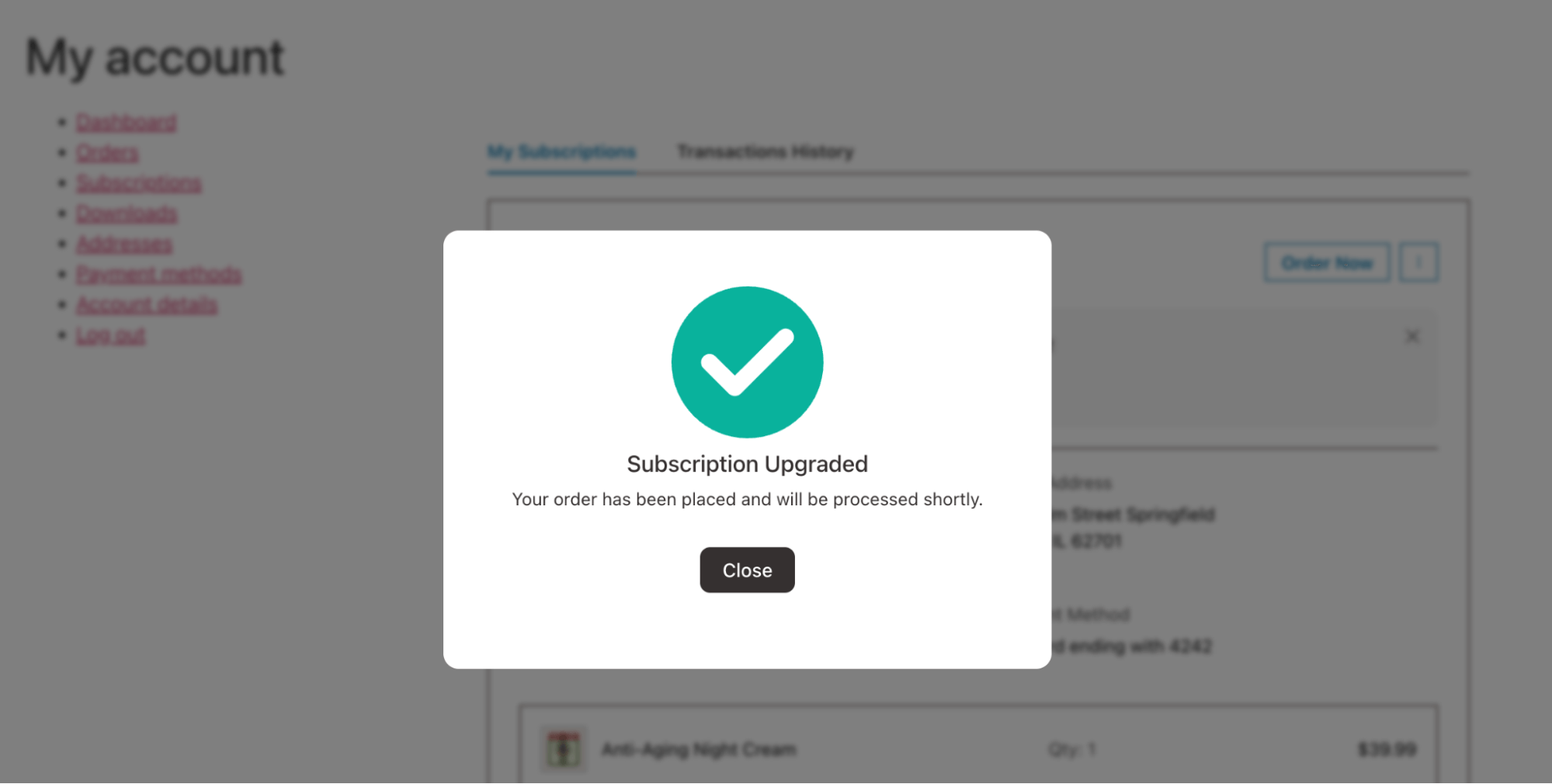
- Title: Heading shown on the upgrade success screen.
Default: Subscription Upgraded - Message: When the user upgrades and orders now, the order is immediately processed. Default: Your order has been placed and will be processed shortly.
- Message When user does Upgrade and Order Later: Message displayed when the customer upgrades but chooses to place the order in the next cycle.
Default: Your upgraded product will be included in your next order.
Note: Use the merge tag {{next_order_date}} to dynamically display the customer’s next order date in this message.
Here is what it looks like on the front end:
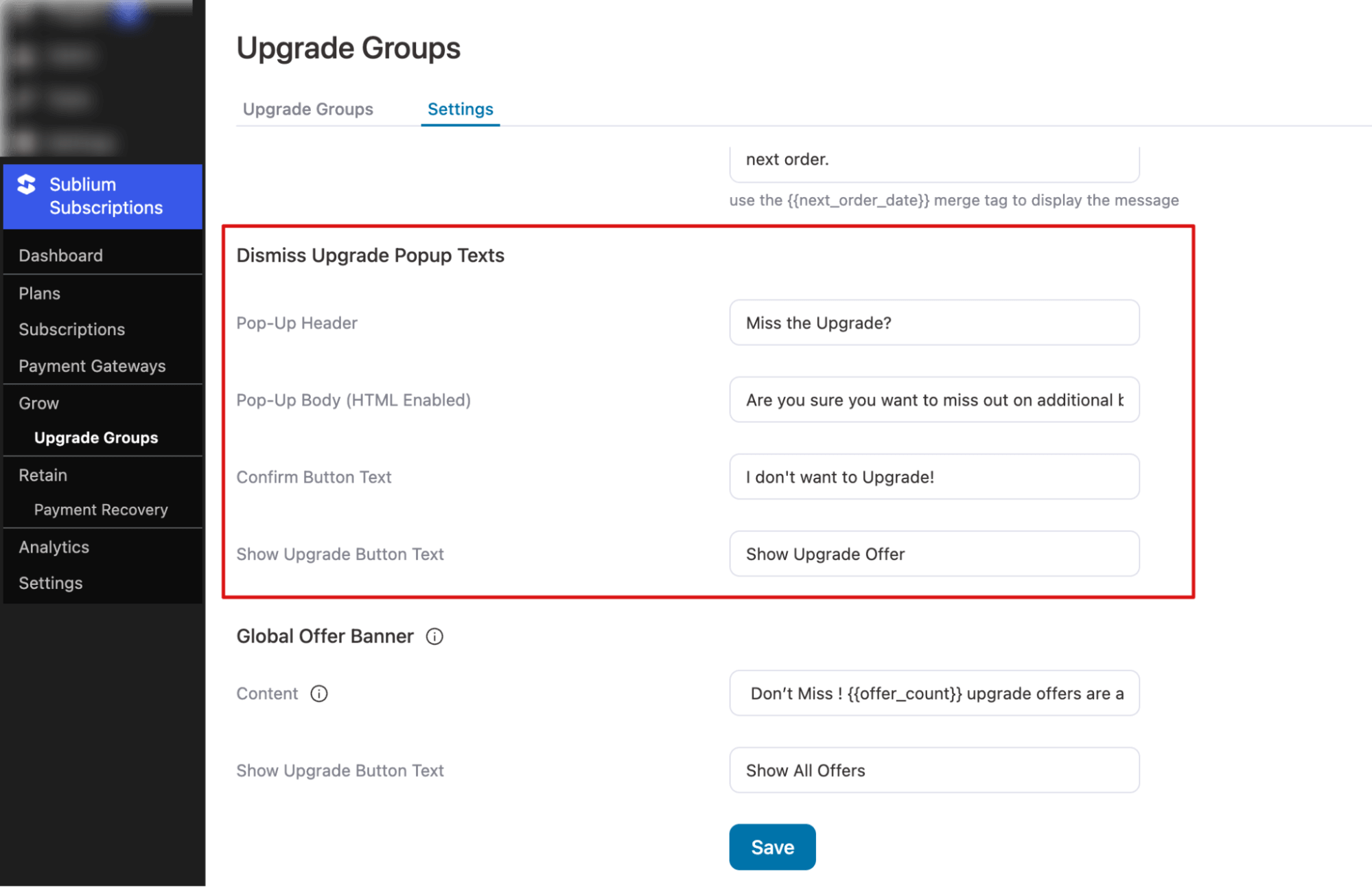
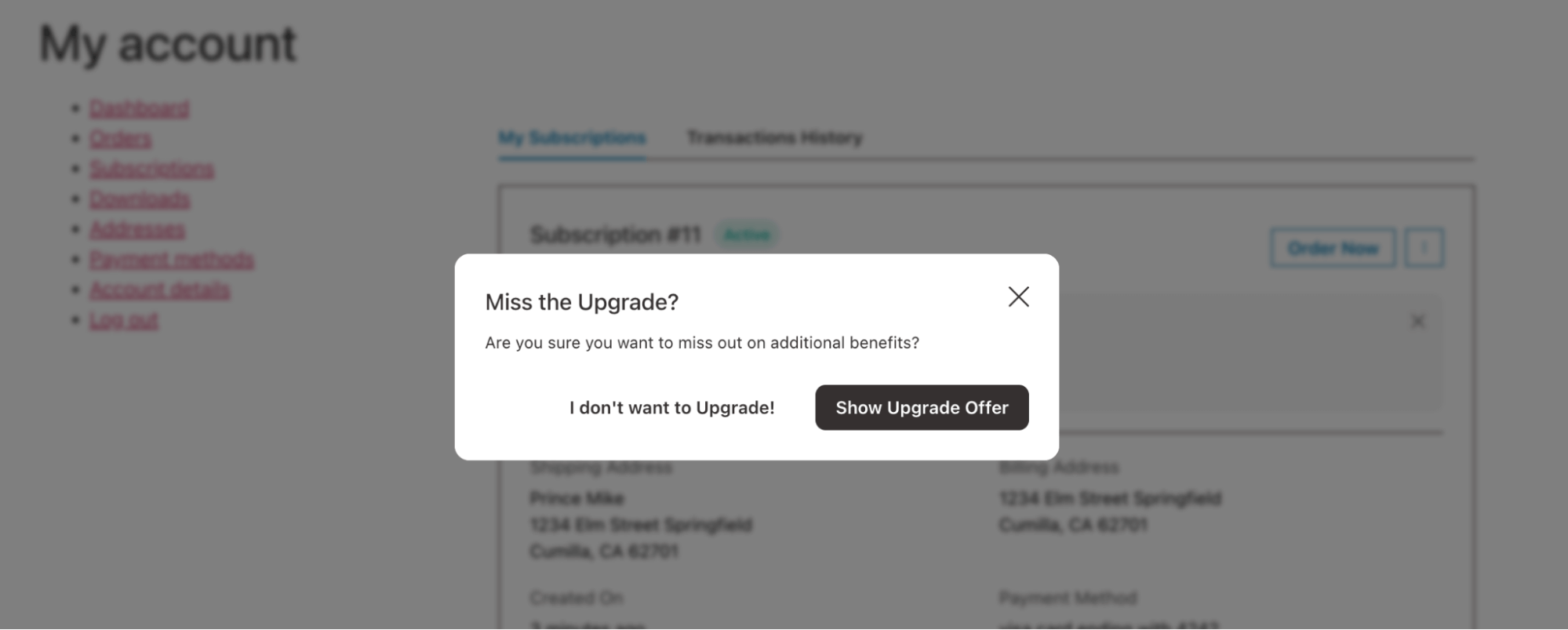
Dismiss Upgrade Popup Texts
Controls the text displayed when a customer attempts to dismiss or skip the upgrade offer.
- Pop-up Header: Heading shown at the top of the dismissal popup.
Default: Miss the Upgrade? - Pop-up Body (HTML enabled): Message displayed inside the dismissal popup.
Default: Are you sure you want to miss out on additional benefits? - Confirm Button Text: Button label to confirm skipping the upgrade offer.
Default: I don’t want to Upgrade! - Show Upgrade Button Text: Button label to reopen the upgrade offer. Default: Show Upgrade Offer
Here is what it looks like on the front end:
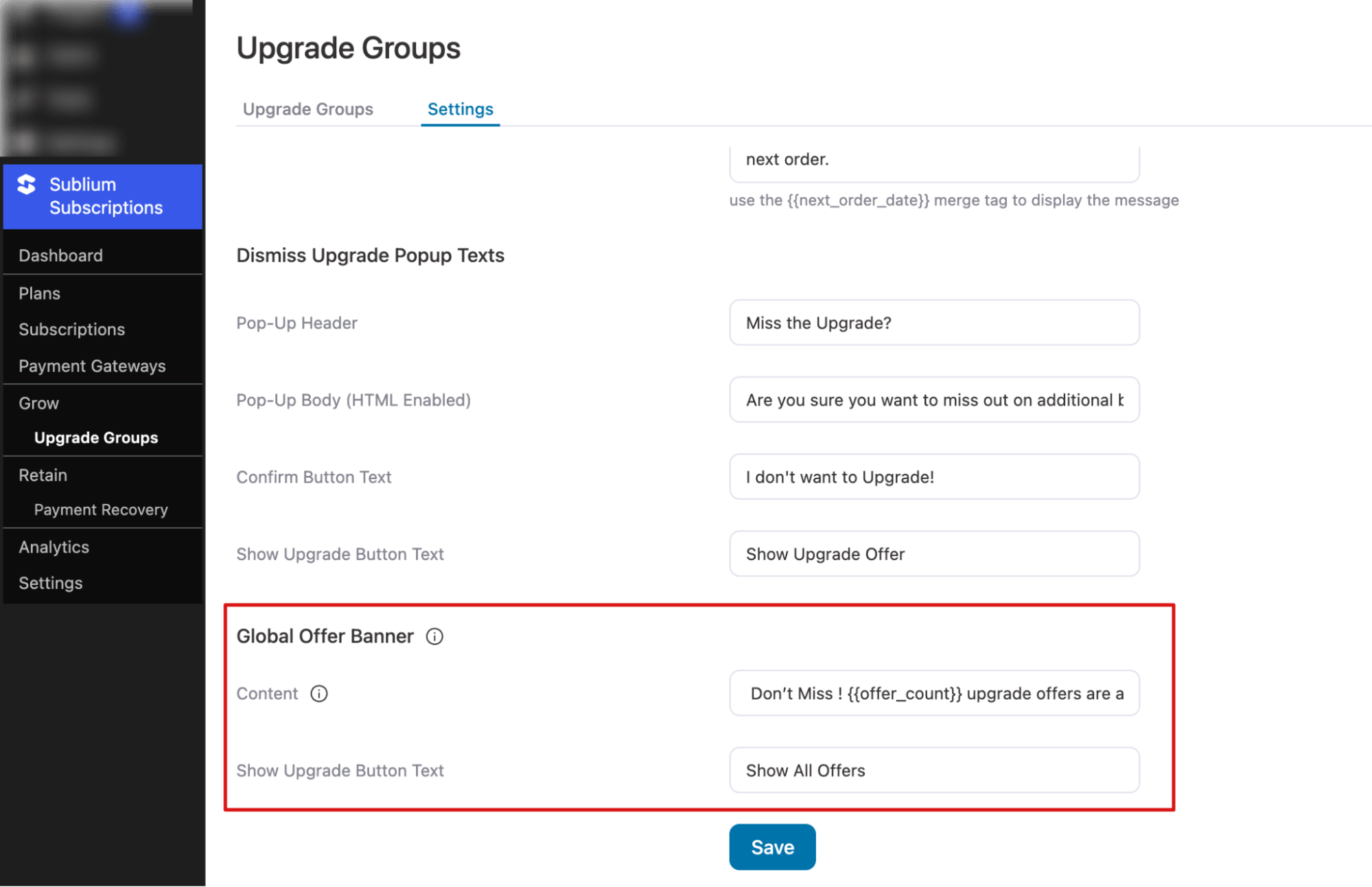
Global Offer Banner
Controls the banner displayed across the site to notify customers about available upgrade offers.
- Content: Message shown inside the global offer banner.
Default: Don’t Miss! {{offer_count}} upgrade offers are available for you - Show Upgrade Button Text: Button label to open the upgrade offers from the banner.
Default: Show All Offers
Note: The merge tag {{offer_count}} dynamically displays the number of active upgrade offers available to the customer.
Make sure to hit “Save” to update.


