


The real threat to eCommerce growth in 2026 isn’t a lack of traffic. Instead, it’s the rising cost of acquiring it.
With Customer Acquisition Costs (CAC) at an all-time high, relying solely on one-off purchases is no longer sustainable.
The most profitable WooCommerce stores aren’t just selling products; they are selling recurring value.
If you want a reliable way to offset rising ad costs and squeeze maximum revenue from every transaction, subscription upsells are your fastest path forward.
This isn’t just about suggesting a “related product” at checkout. It is about strategically converting a one-time buyer into a recurring subscriber before they even leave your funnel.
When done right, subscription upsells deliver two instant wins: they boost your average order value (AOV) and lock in long-term customer lifetime value (LTV).
I have analyzed thousands of checkout flows and one pattern is undeniable: the stores that successfully bridge the gap between one-time carts and subscription revenue are the ones that scale.
In this guide, you’ll learn the exact strategies, technical setups, and psychological triggers you need to implement high-converting subscription upsells on your WooCommerce store without annoying your customers and without needing custom code.
The Mechanics of Profit: AOV vs. LTV
Before diving into the tactics, it’s essential to understand the underlying math.
Most WooCommerce store owners obsess over AOV (Average Order Value), which is the average amount a customer spends per transaction.
While increasing AOV is essential, subscription upsells create a multiplier effect by boosting both AOV and LTV (Customer Lifetime Value).
Here’s the difference:
- Example of a standard upsell
A customer purchases a $50 razor. You offer them $10 for a can of shaving cream.
The AOV rises to $60, which is helpful, but that revenue ends with the transaction.
- Example of a subscription upsell
A customer buys the same $50 razor. This time, you offer a blade refill subscription for $15/month.
The AOV increases to $65 immediately, but the real benefit appears over time. If the customer stays subscribed for a year, that single upsell can generate $200+ in additional recurring revenue.
This is why subscription upsells are so powerful. They increase the initial order value and fundamentally shift your business’s economics by generating predictable, long-term revenue.
Instead of beginning each month at zero, you start with guaranteed income already in place.
5 Proven Strategies to Drive Subscription Upsells
The placement of your subscription upsell directly determines its conversion rate. You cannot simply drop a subscription offer in front of a customer and hope it converts; you must align the offer with the customer’s level of purchase intent.
Below are the four most effective and battle-tested frameworks for WooCommerce stores.
1. The subscribe & save switch (cart or product page level)
This is the lowest-friction way to introduce a subscription.
When a customer adds a consumable product, such as supplements, coffee, grooming items, or pet food, to their cart, don’t just display the product. Display the savings.
The Strategy: Add a toggle switch or a radio button to the product page or in the shopping cart drawer.
- Buy One-Time: $50
- Subscribe & Save 15%: $42.50
Why It Works:
This leverages loss aversion, which is one of the strongest conversion drivers. By showing a higher one-time price, customers subconsciously feel they are “losing” money if they don’t subscribe.
You are offering them a small incentive to become a recurring revenue customer.
2. The pre-checkout order bump
An order bump is a compact, relevant offer shown directly on the checkout page, typically right above the place order button.
The Strategy: Offer a light, low-commitment subscription that complements the main product.
- If buying a digital tool, add VIP Priority Support for just 9/month.
- If buying gym equipment, get access to our Daily Workout App for only $5/month.
Why It Works:
This strategy taps into impulse buy psychology. The price point is intentionally small, so the customer does not need to reconsider their decision. It feels like a natural enhancement or protection plan for their main purchase.
3. The one-click post-purchase upsell
This is the most powerful subscription upsell method in WooCommerce. The offer appears after the customer completes checkout but before the thank-you page.
The Strategy: Once the customer has successfully entered their payment information, present a dedicated upsell page: “Wait! Upgrade your order to a Monthly Supply and get 30% off your first month.”
Why It Works:
- Zero friction: Their payment details are tokenized, so they don’t need to re-enter them.
- Psychological momentum: The “pain of paying” has already passed. The customer is still in buying mode, which makes them significantly more receptive to optimizing or upgrading their order.
This is why post-purchase subscription upsells consistently generate the highest conversion rates across WooCommerce stores.
4. Tier upgrade for existing subscribers
Subscription upsells don’t end after the first transaction. If you run a membership, SaaS-style product, or subscription box, your My Account area is a goldmine.
The Strategy: Identify customers on the “Basic” or entry-level plan and offer a prorated upgrade to a higher tier.
Why It Works:
These users are already engaged and experiencing the value you provide. They do not need convincing; all they need is just a timely nudge.
Tier upgrade upsells consistently deliver high acceptance rates because they target customers who are actively invested in your product.
5. Automated subscription upsell emails
Not every customer will commit to a subscription the first time they see it. Many want to try the product first, use it for a few weeks, and then decide whether it’s worth subscribing.
This is where the built-in Sublium email system becomes a powerful revenue recovery tool.
Instead of relying on external automation tools, you can place a targeted subscription upsell directly within the emails Sublium automatically sends, such as renewal reminders, upcoming charge notices, or subscription expiry notices.
This gives you a second chance to convert customers who previously declined your upsell.
The Strategy: A customer buys your product as a one-time purchase or starts with a basic subscription plan.
When Sublium sends any lifecycle email (upcoming renewal, renewal failed, new subscriptions, etc.), you insert a subscription upsell CTA directly inside that email.
The CTA links to a preloaded checkout or upgrade page, creating a frictionless conversion path.
Why It Works:
- Perfect timing: Customers are already thinking about their reorder or existing subscription. This is a natural moment to suggest an upgrade.
- High open rates: System emails, such as renewal notices, are opened 2-3x more than promotional campaigns. This means more eyes on your upsell.
- Zero friction: You’re offering an upgrade while the customer is already engaged with your product. No ads. No chasing. Just a simple “Want to save more?” moment.
You have the strategy. Now you need the engine. We will use FunnelKit to handle the upsell logic and Sublium to handle the recurring billing.
The Stack:
- Backend: Sublium (Creates product subscriptions)
- Frontend/Flow: FunnelKit (Sells the product)
Create and Display Your Subscription Option on the WooCommerce Product Page
Now that your tools are in place, let’s build the actual subscription product that you’ll upsell across your store.
Here’s the clean, step-by-step process:
Step 1: Install and activate Sublium
Make sure Sublium is installed on your WooCommerce site.
Once Sublium is active, you can turn any simple product into a subscription product without writing a single line of code.
Step 2: Create a recurring subscription plan
For this example, we’ll use a Radiance Vitamin C Serum product. Make sure the product already exists in WooCommerce.
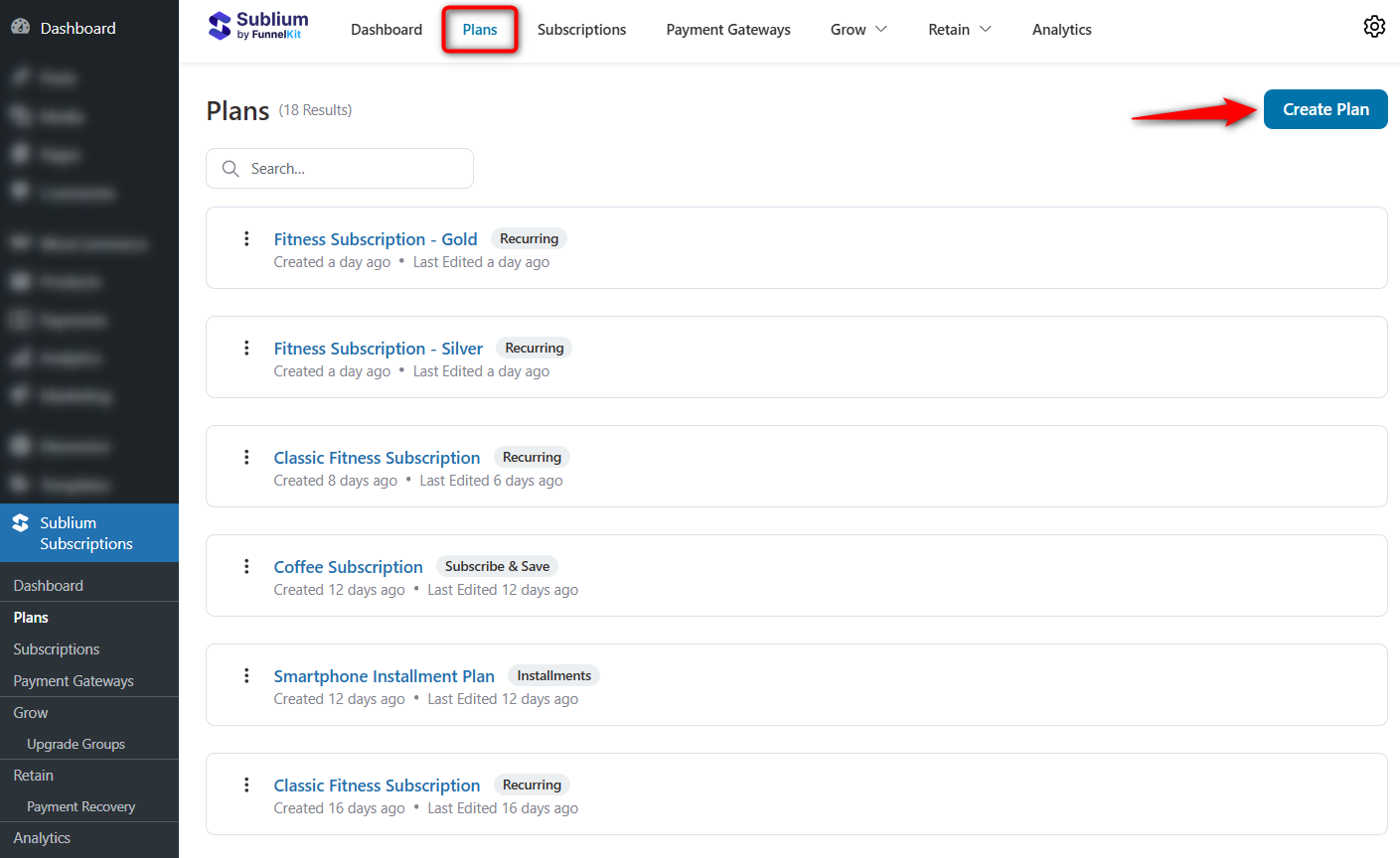
Navigate to Sublium ⇨ Plans and click on the ‘Create Plan’ button.
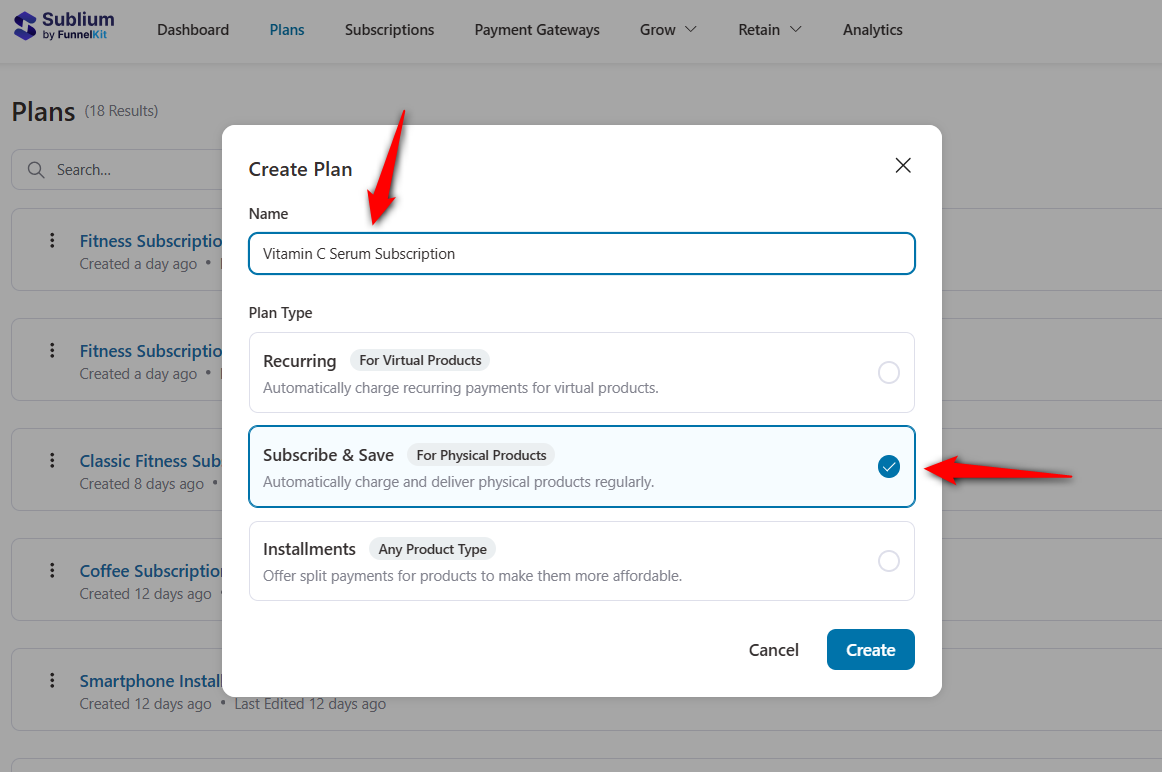
Enter your subscription plan name, select the ‘Subscribe and Save’ option and click on ‘Done’.
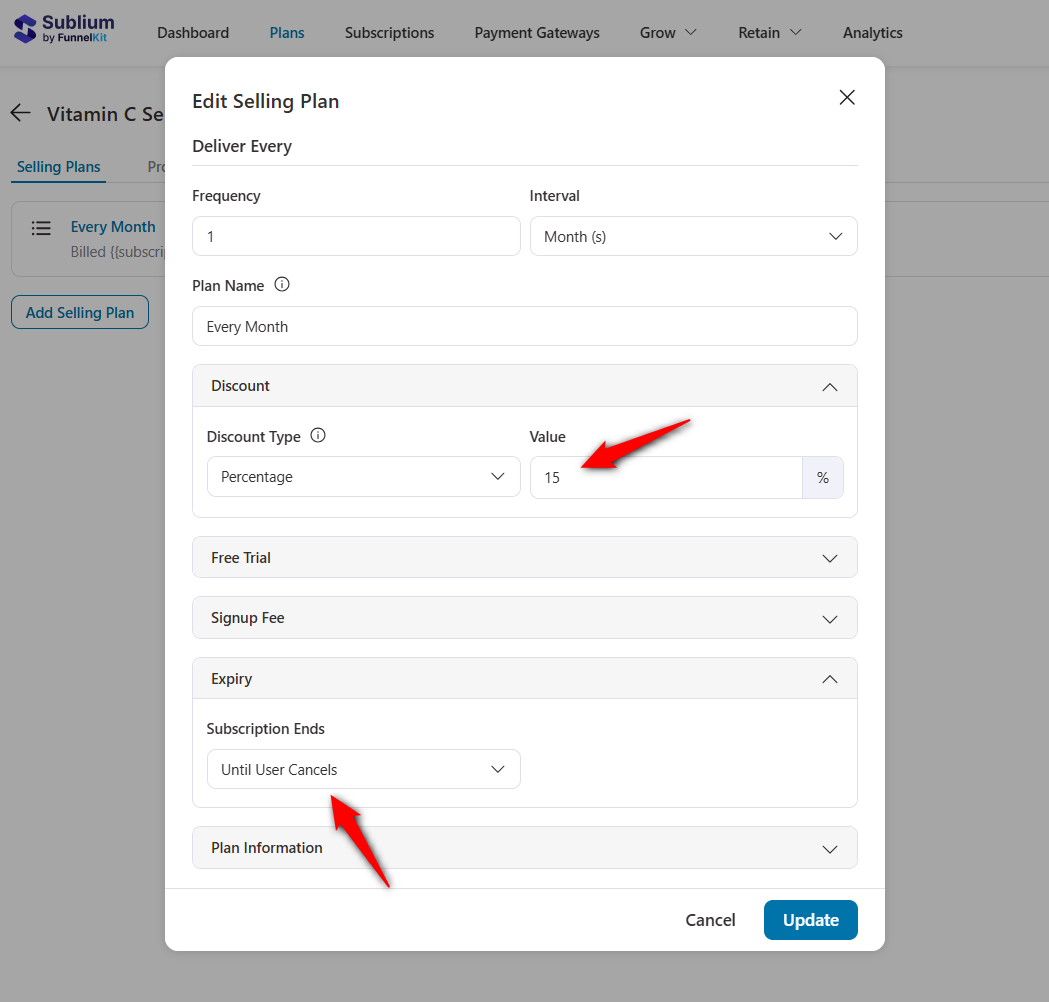
When you configure your plan, make sure to create a simple monthly subscription with a 15% recurring discount and no free trials or signups.
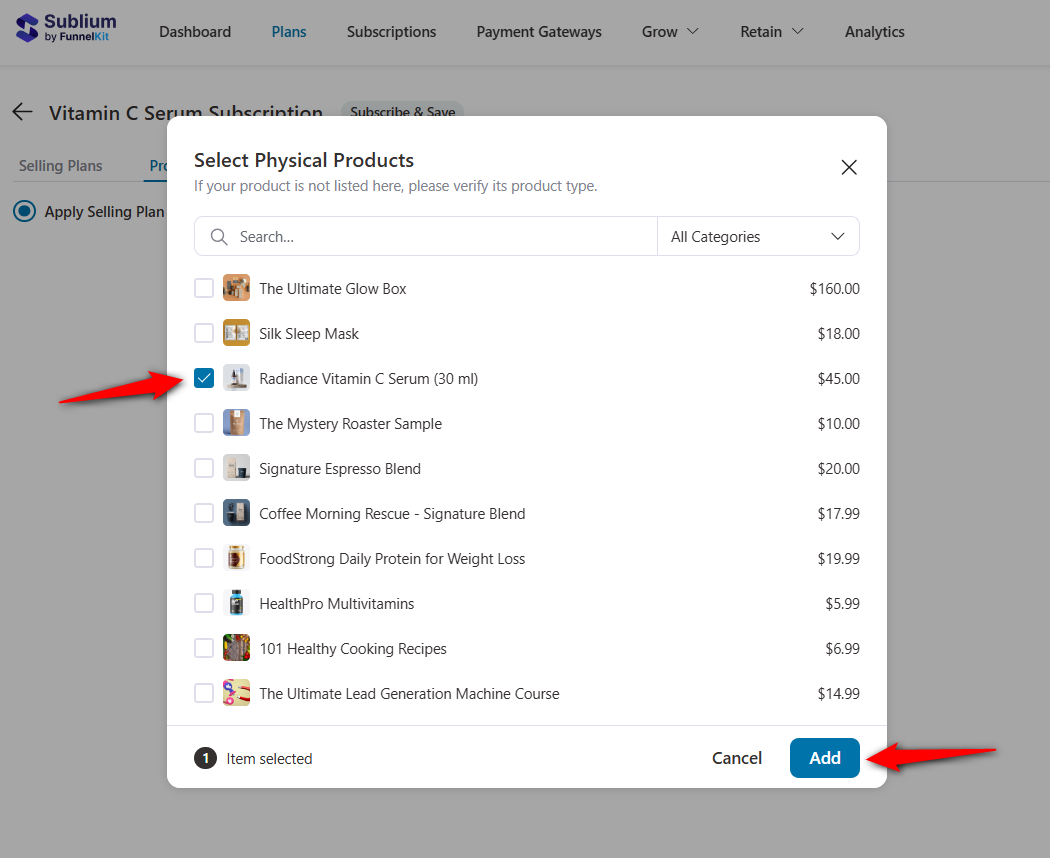
Once done, add the Radiance Vitamin C Serum to the subscription plan under the ‘Products’ tab.
Now set your subscription pricing. This is where you offer your “Subscribe & Save” discount.
For example, I’ve set it to $45 from $38.25 (a 15% discount) and enabled the one-time purchase option.
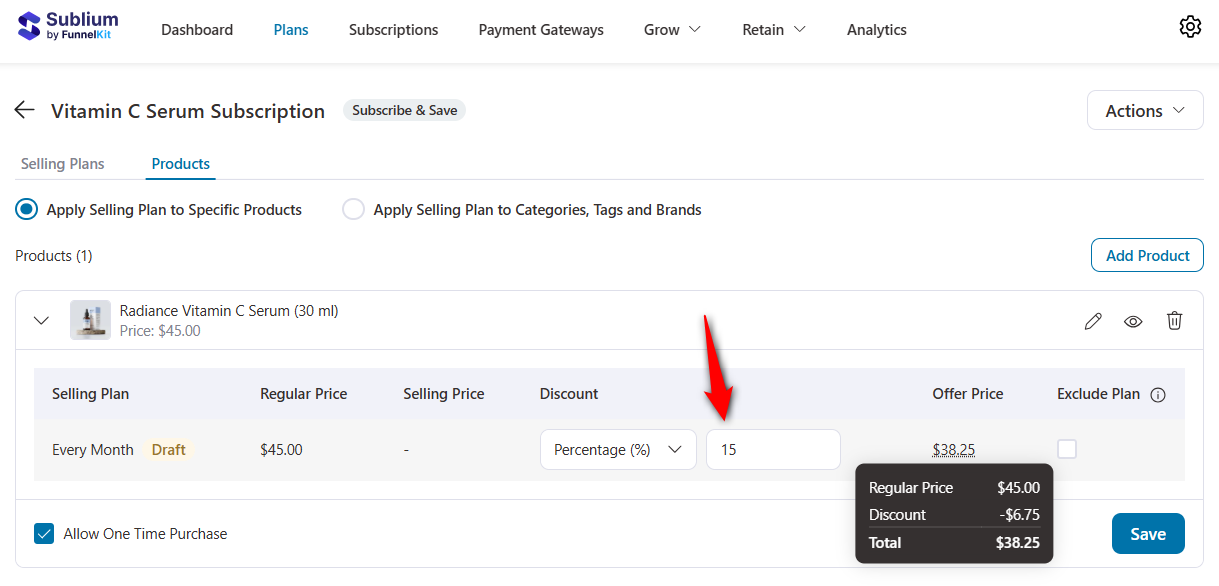
Hit ‘Save’ when done.
Step 3: Test run your subscription plan on the product page
Visit the product page on the frontend and you’ll see the one-time purchase and subscription options with a discount appear correctly:
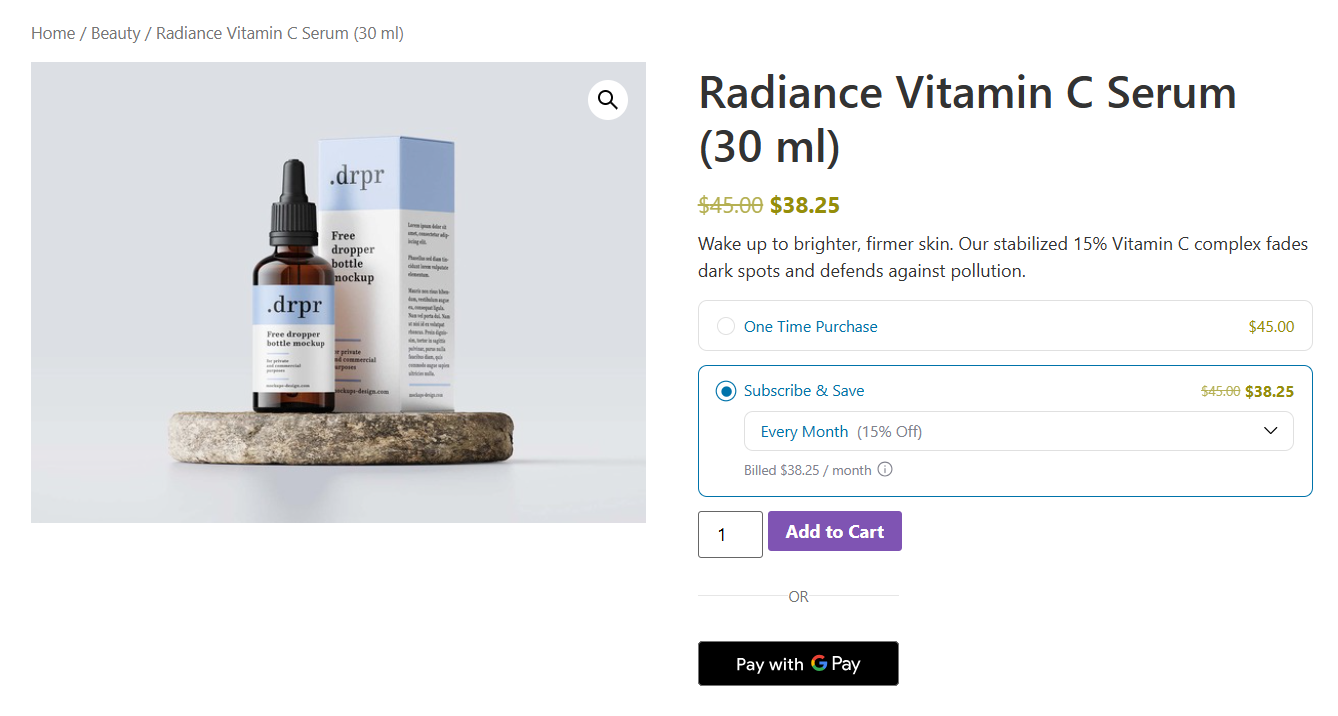
This is how you can display the subscribe switch option next to one-time purchases on the product page.
Add Your Subscription Upsell Inside the Side Cart
Now that your subscription product is ready, the next step is to place it where customers are most likely to upgrade inside the FunnelKit Side Cart.
The side cart is one of the highest-converting locations for upsells because shoppers are actively reviewing their order and already in buying mode.
It replaces the redundant cart page and skips it directly to the checkout page.
Before setting this up, you’ll need FunnelKit Funnel Builder installed.
Step 1: Enable FunnelKit Cart for WooCommerce
Navigate to FunnelKit ⇨ Cart and turn on the side cart.
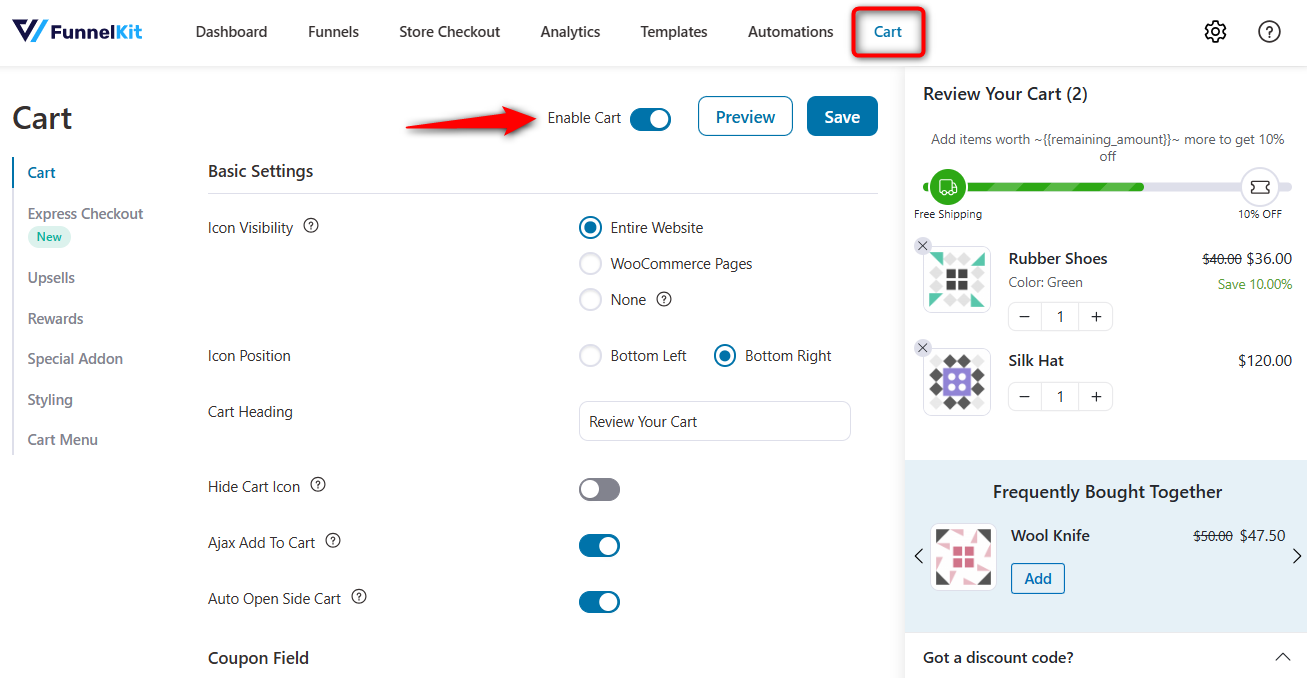
This will activate the side cart in WooCommerce.
Step 2: Add subscription upsells to the cart
Click on the Upsells tab and add any relevant product to your main product.
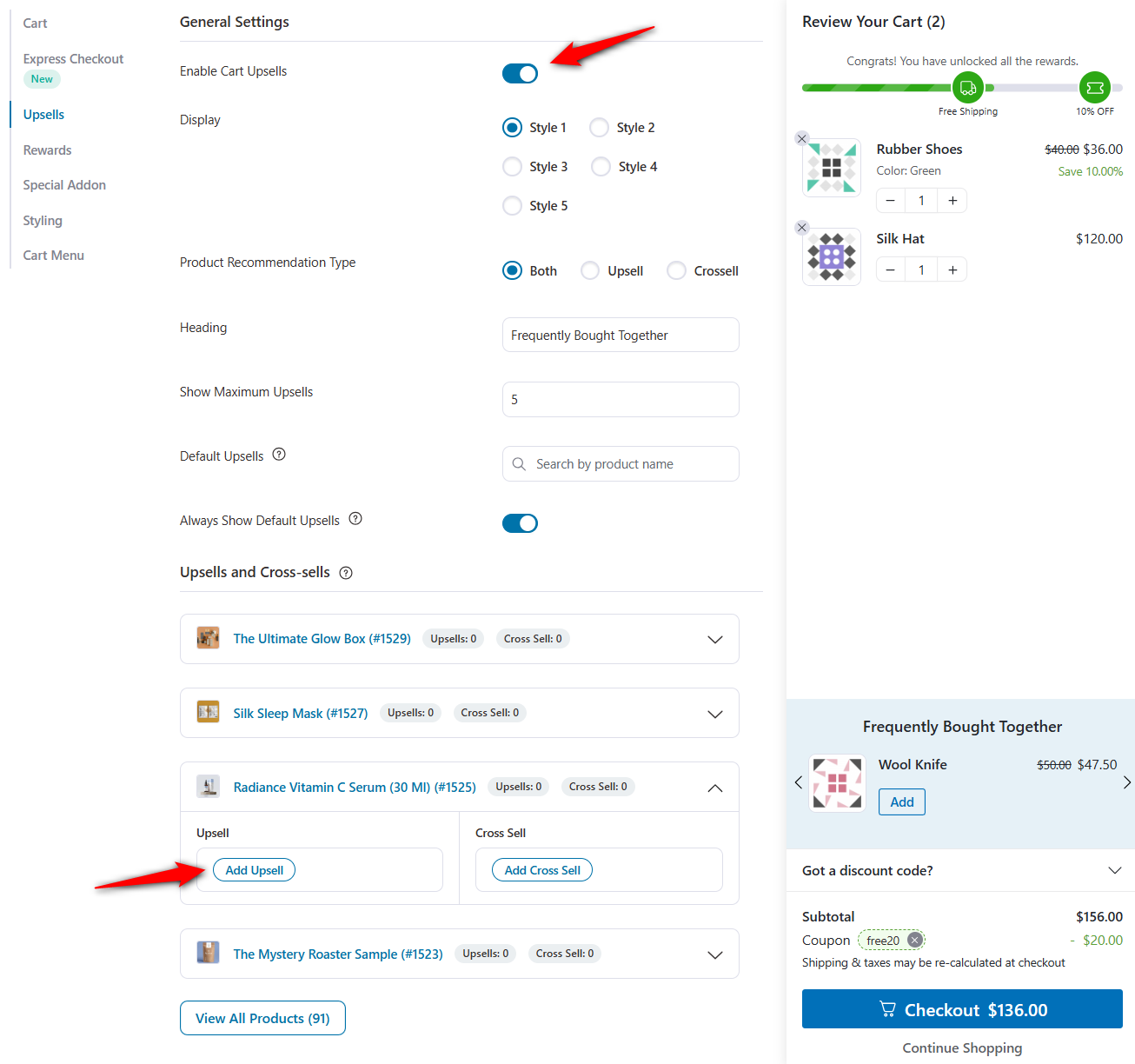
I’ve added 2-3 related products here.
Not just that, you can customize the side cart colors, layout, cart drawer width, button, rewards, and the free shipping bar from the Style tab.
Step 3: Test your upsell on the WooCommerce side cart
Add your original product to the cart. The Side Cart should slide open instantly.
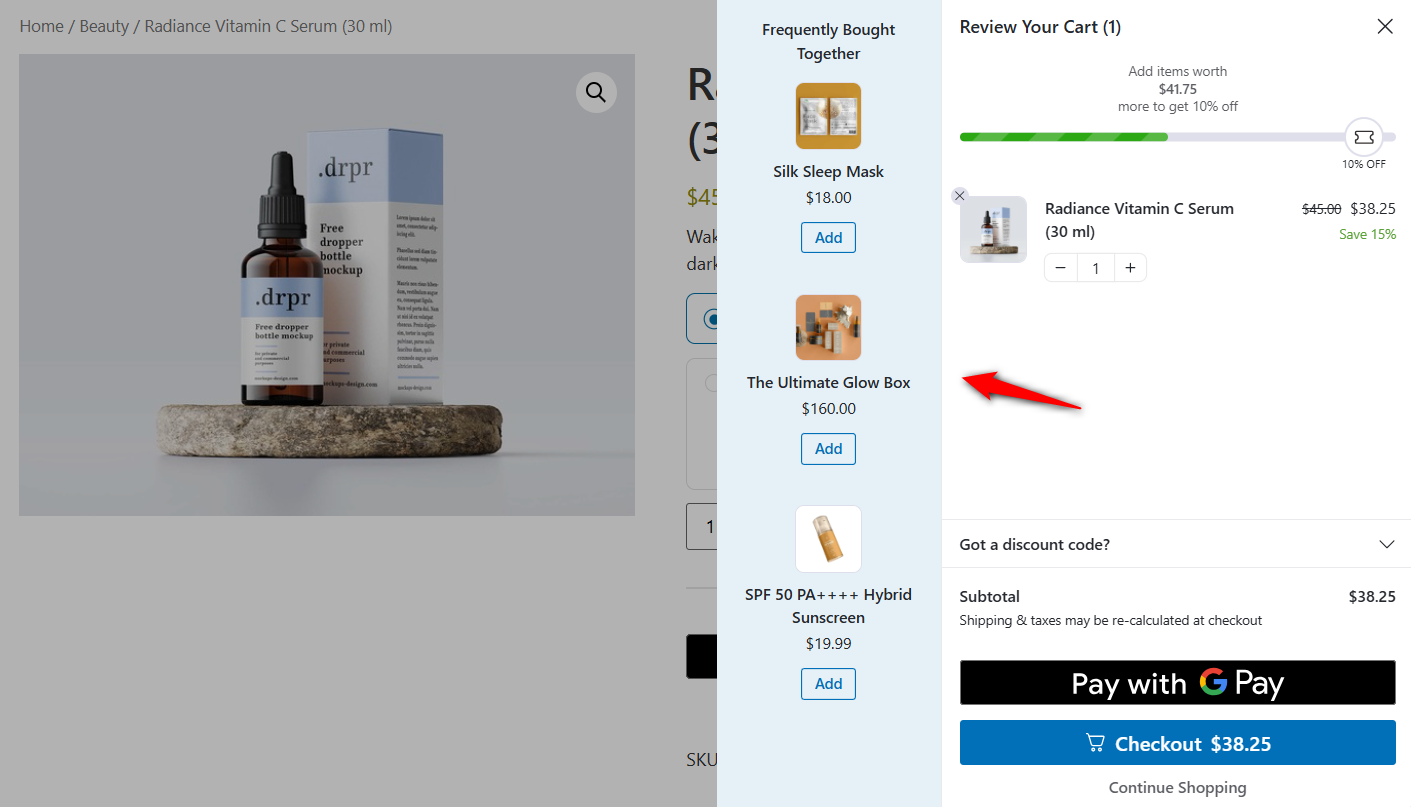
You’ll now see your subscription offer displayed as a clear, compelling upgrade often available with a single click.
Add a Subscription Order Bump on the Checkout Page
Order bumps on the checkout page are among the most powerful ways to present subscription upgrades because customers are moments away from completing their order and already in a high-intent mindset.
With FunnelKit Funnel Builder, adding a subscription order bump takes just a few clicks.
Step 1: Add an order bump to your WooCommerce store checkout
Navigate to FunnelKit ⇨ Store Checkout and make sure you’ve already created a store checkout.
Here’s a detailed guide on creating a custom checkout page in your WooCommerce store.
Click on the ‘Add Order Bump’ button.
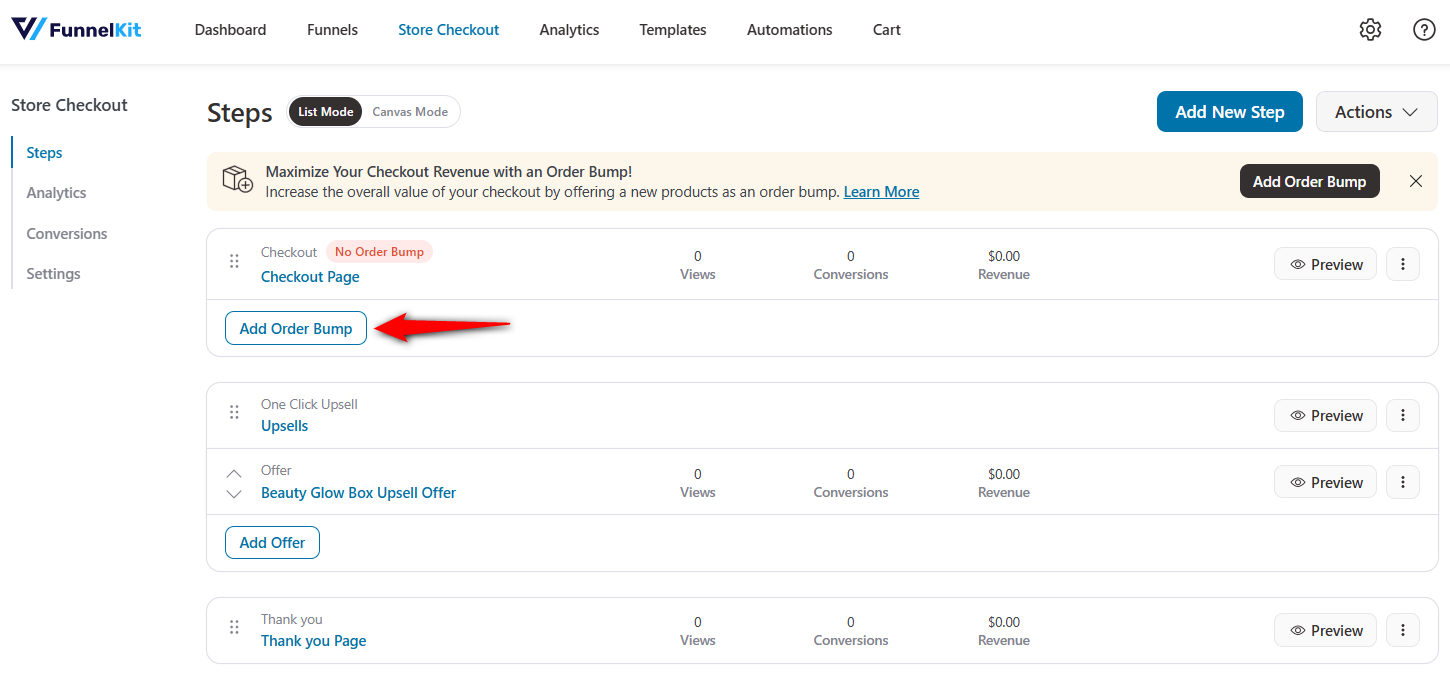
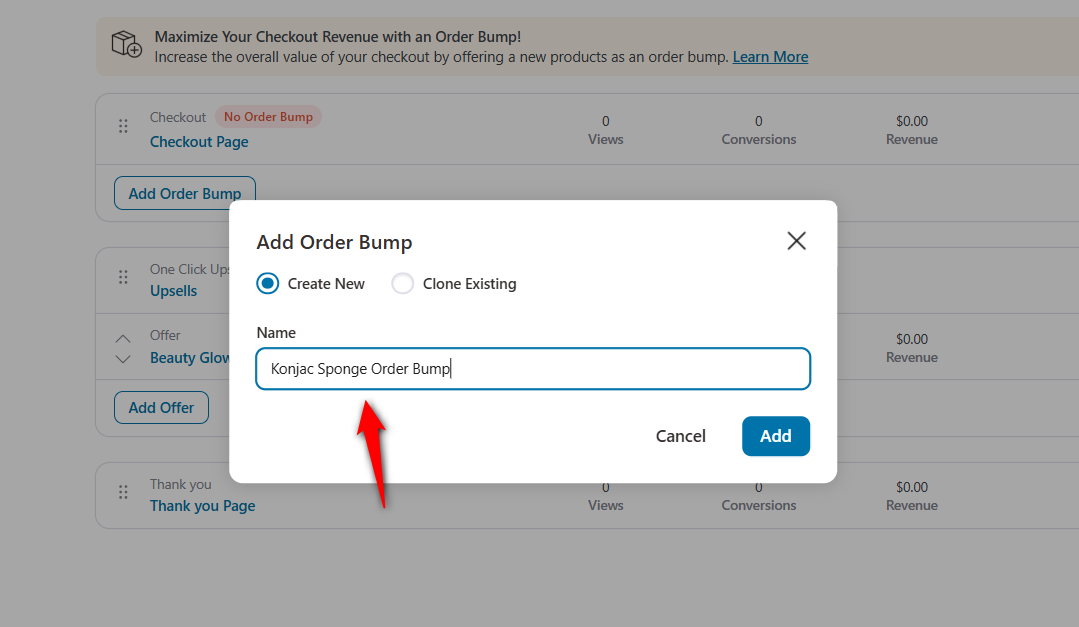
Enter the name of your order bump and hit ‘Add’.
Choose your favorite order bump skin by clicking on ‘Import’.
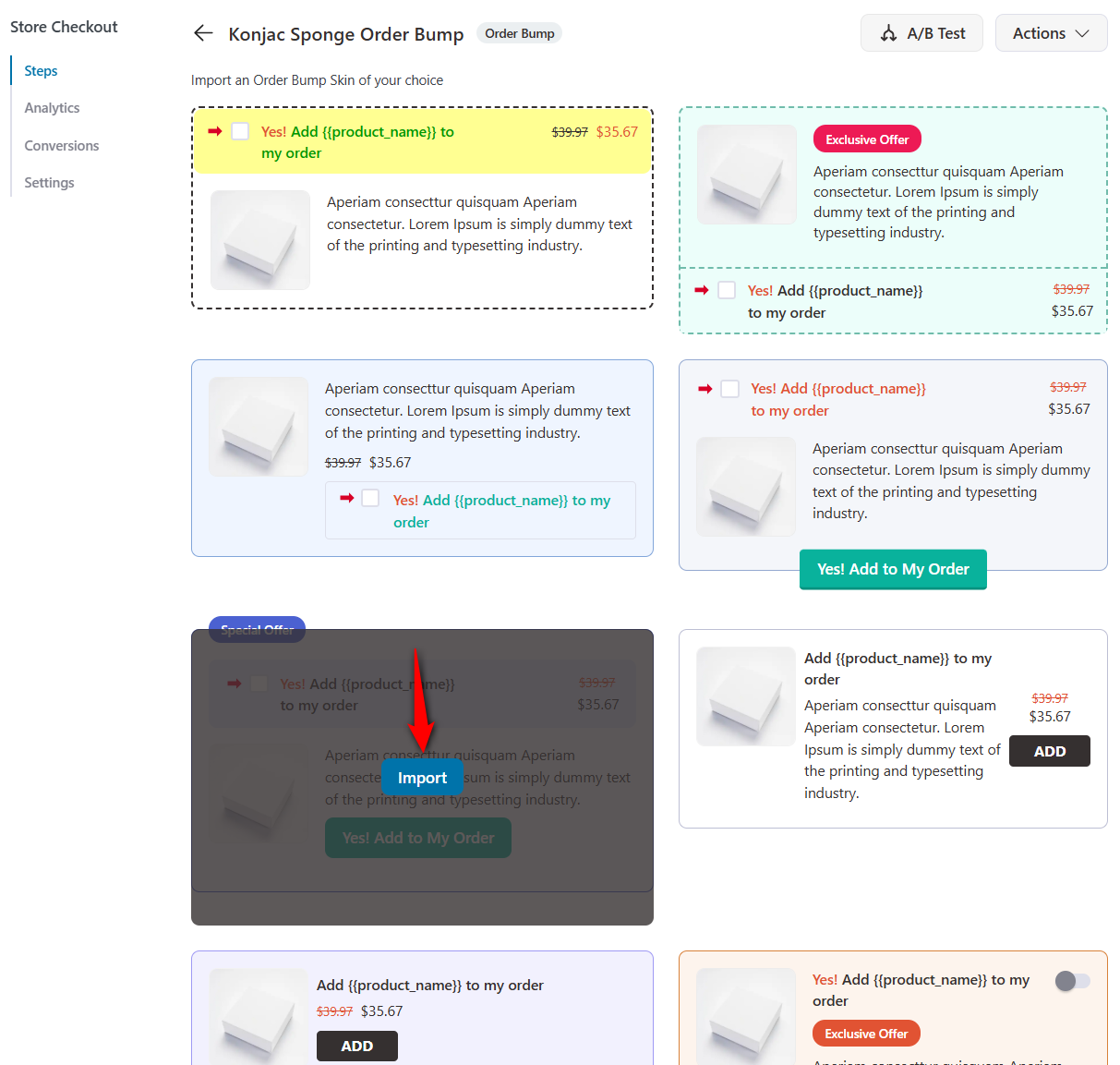
Add the order bump product. I’ll select the ‘Konjac Sponge’ as an example of a complementary item to our main product.
Sponges amass bacteria. You need a fresh one every month. It is the perfect logical recurring add-on to offer.
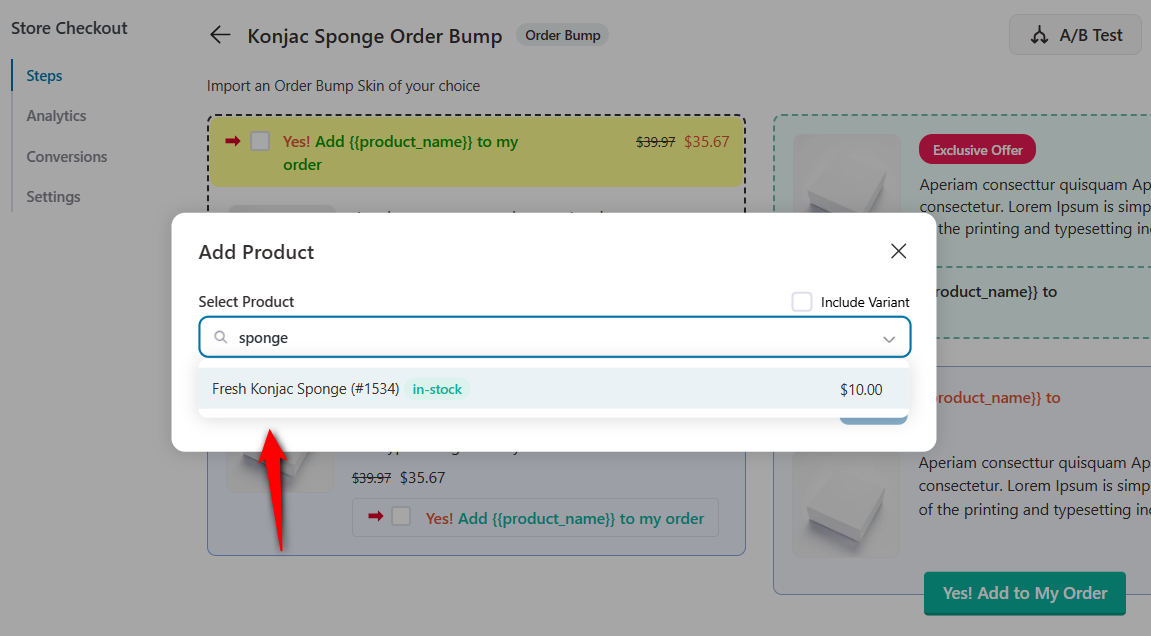
Click on ‘Add’ and your order bump offer will get created successfully.
Step 2: Configure discounts on your order bump offer
Configure a discount to make your order bump offer attractive.
I haven’t added any discount (because I already added the discount while creating a subscription plan in Sublium) and you also have the option to configure product behavior settings.
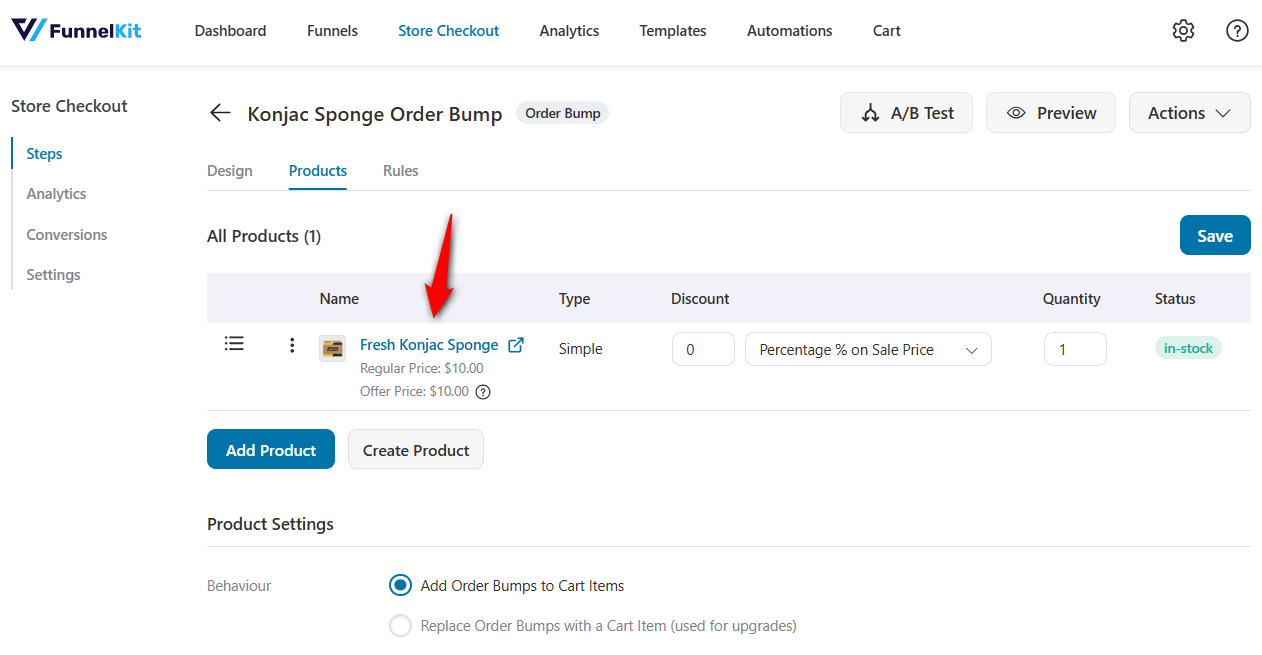
FunnelKit gives you complete control over how your bump looks and feels from the Design tab.
Configure conditional rules to show the order bump offer only when the main product (Vitamin C Serum) is added to the cart.
Refer to our detailed guide on setting up order bumps in WooCommerce.
Step 3: Test your order bump on the WooCommerce checkout page
Add the main product (Vitamin C Serum) and load the checkout page.
If you’ve added a one-time product, you’ll see the option to upgrade it to a subscription:
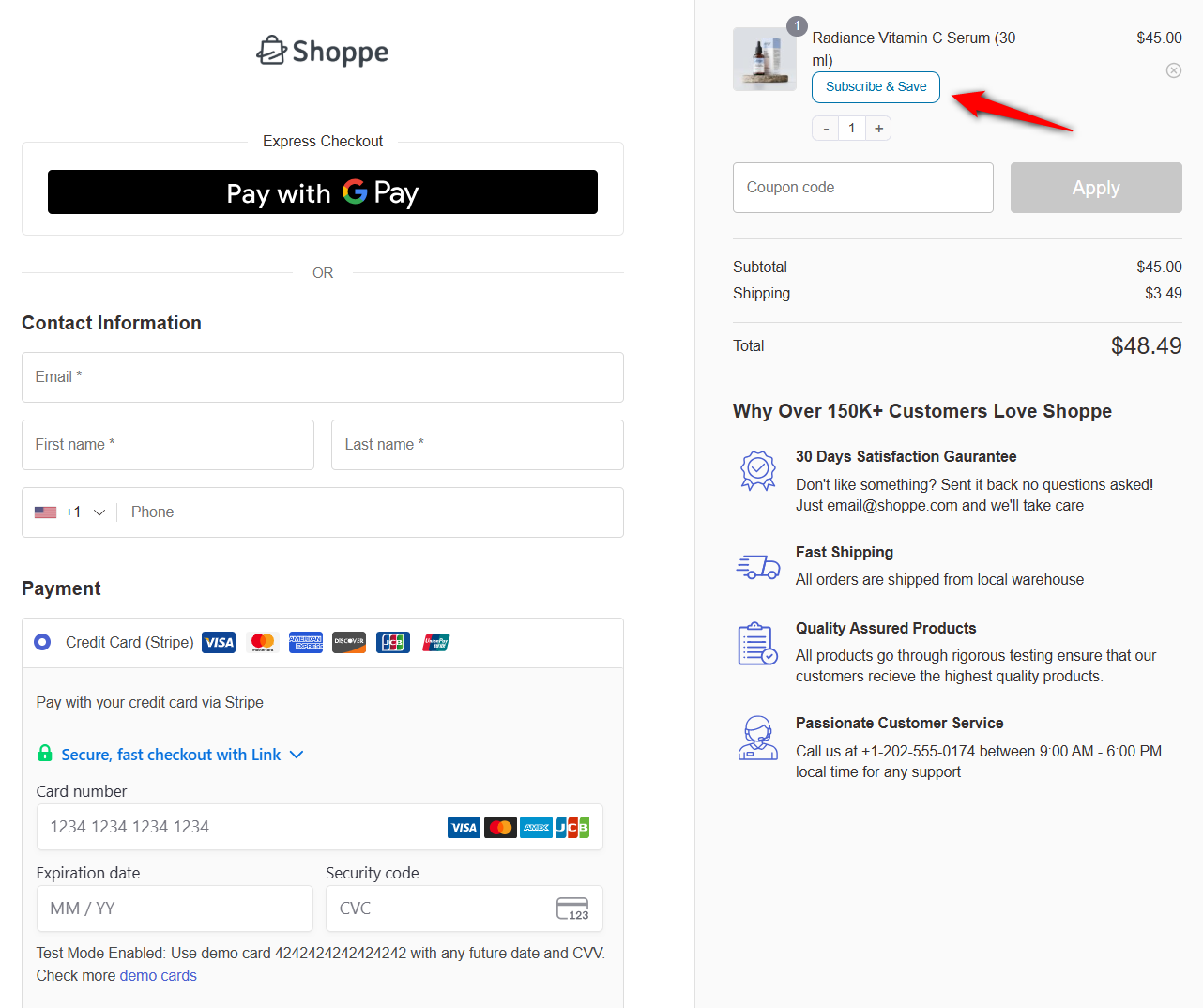
You can see the order bump appears just inside the mini cart, which can be added with a single click.
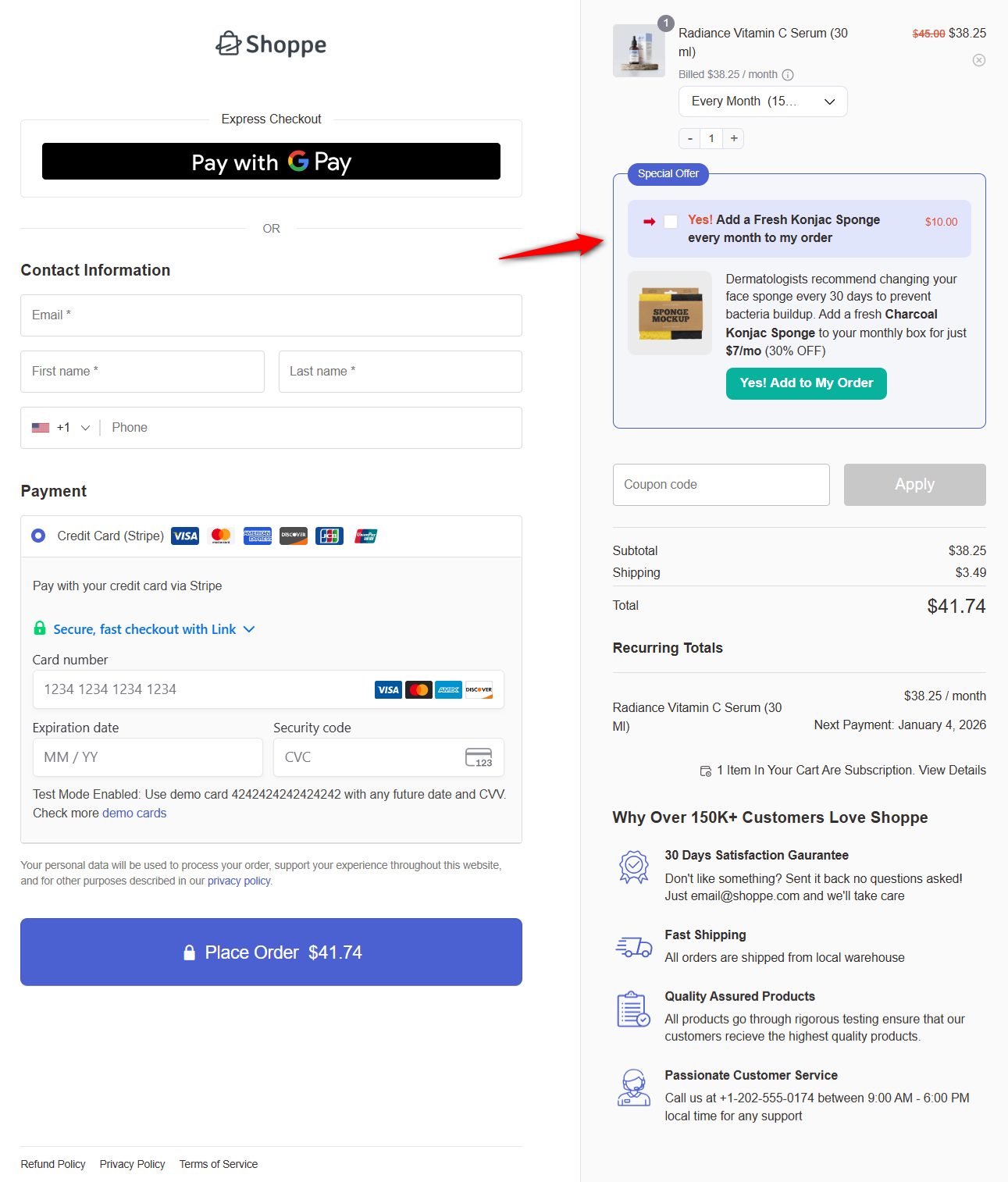
This is how you can display recurring order bumps on the WooCommerce checkout page.
Add a One-Click Post-Purchase Subscription Upsell
If you want to skyrocket subscription conversions, the post-purchase upsell is the single most powerful tactic in your entire funnel.
Why? Because the customer has already completed the checkout. They’ve entered their payment details, their card is tokenized, and the “pain of paying” is over.
At this point, they are in pure buying mode, and a well-positioned subscription upgrade converts exceptionally well, often 15-40% on average.
FunnelKit Funnel Builder makes it incredibly simple to add a one-click post-purchase subscription upsell to any WooCommerce order.
Step 1: Create a post-purchase upsell step in your funnel
Navigate to FunnelKit ⇨ Store Checkout and click ‘Add Offer’ under One Click Upsells.
Select ‘One Click Upsell Offers’ and click on ‘Preview’ on the templates you like.
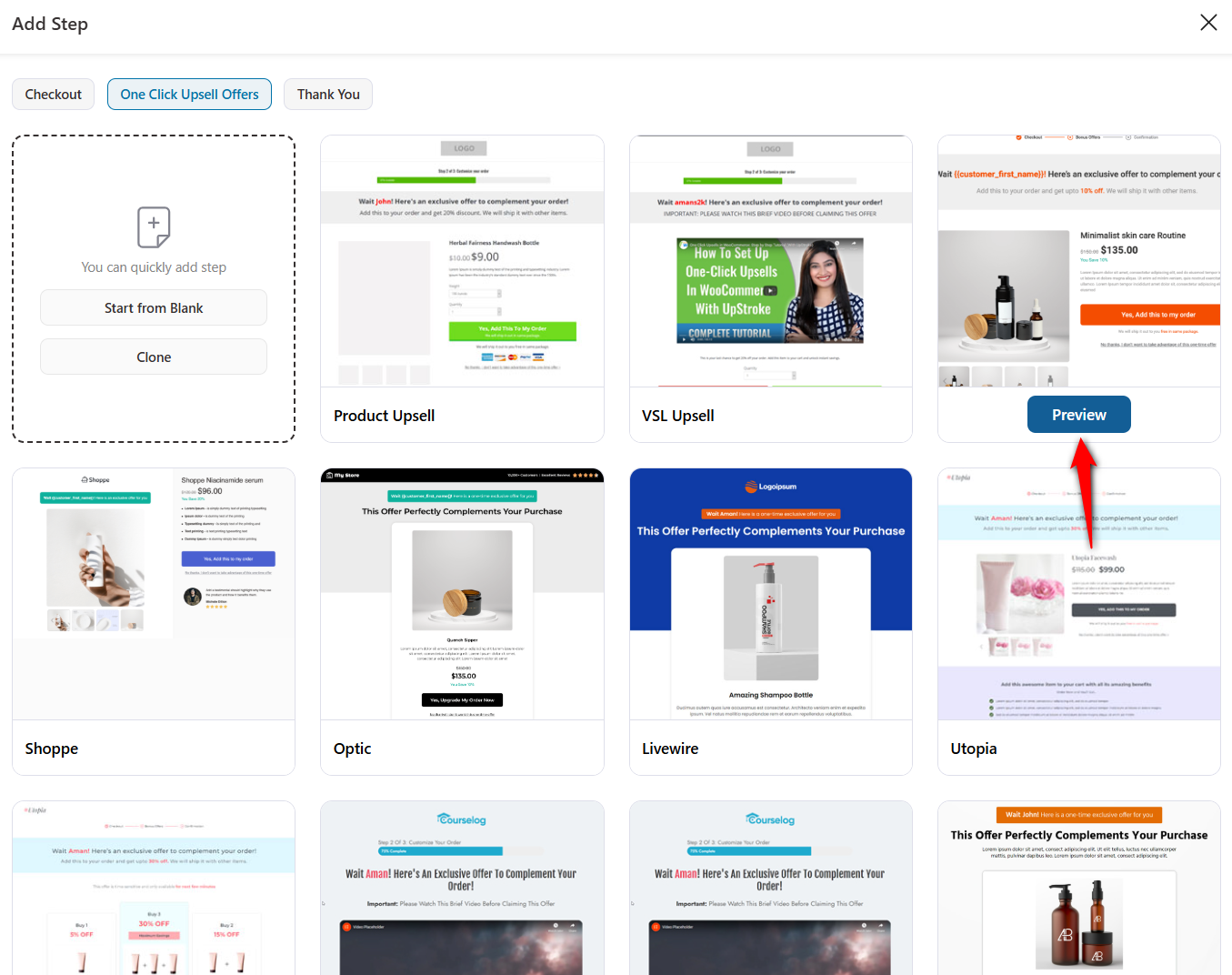
Import the template, enter the upsell offer name and click on the ‘Add’ button.
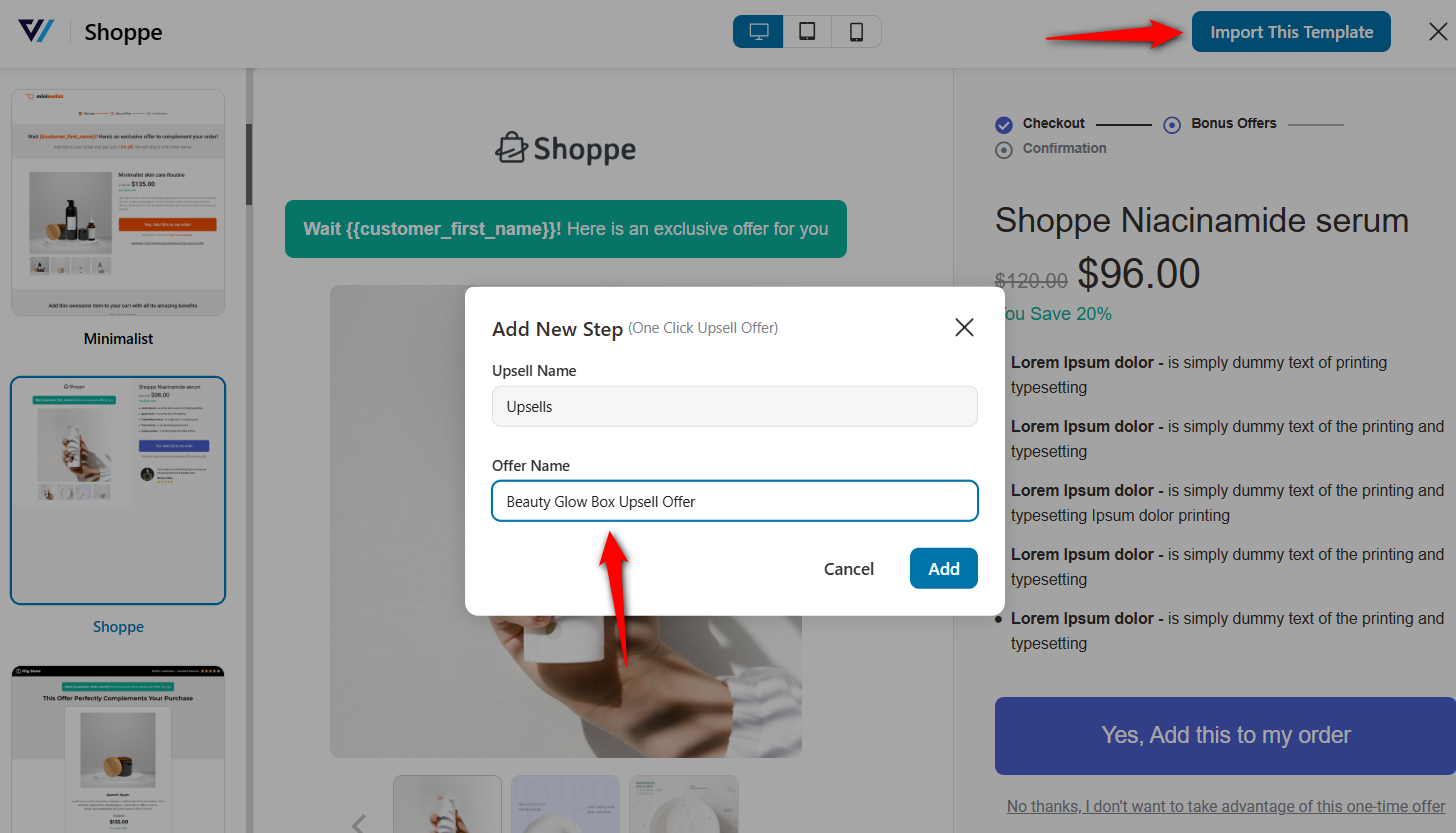
This will add a dedicated post-purchase one-click upsell page to your store checkout.
Step 2: Add your subscription product to the upsell offer
You can customize your one-click upsell offer page with your favorite page builder from the Design tab.
Click on the ‘Add Product’ button from the Products section.
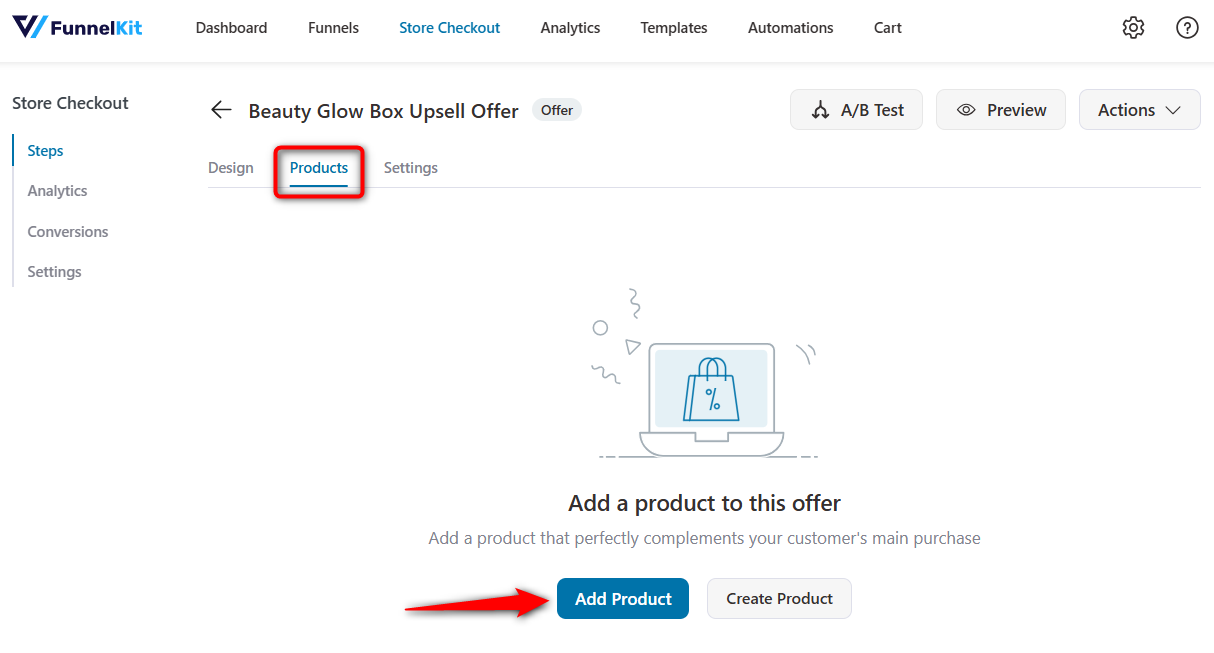
Select your subscription product and configure the discount.
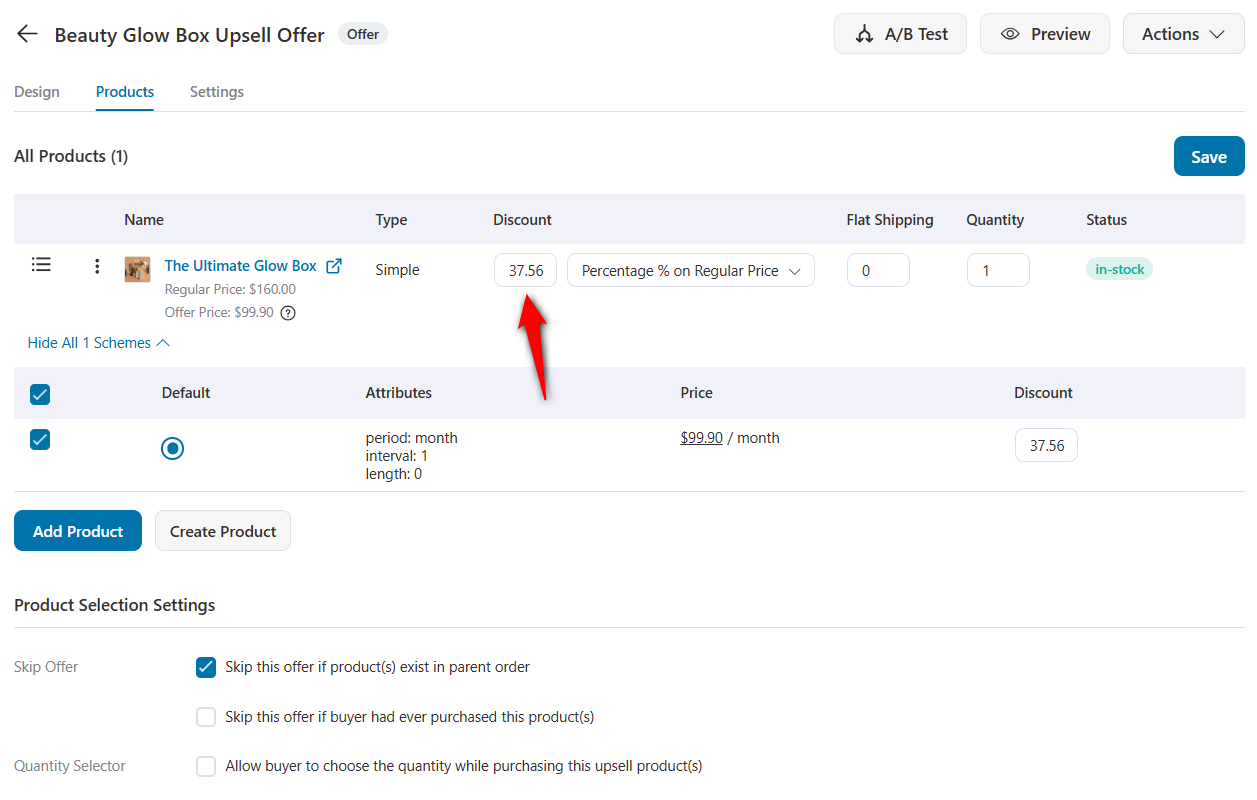
Click on ‘Save’ when done.
Adjust the conditions to display the upsell offer when the user has purchased the main item (Vitamin C Serum).
Check out our detailed post on setting up one-click upsells in WooCommerce.
Step 3: Test your WooCommerce subscription upsell offer
Run a test order and ensure the checkout completes normally. The post-purchase upsell page appears immediately:
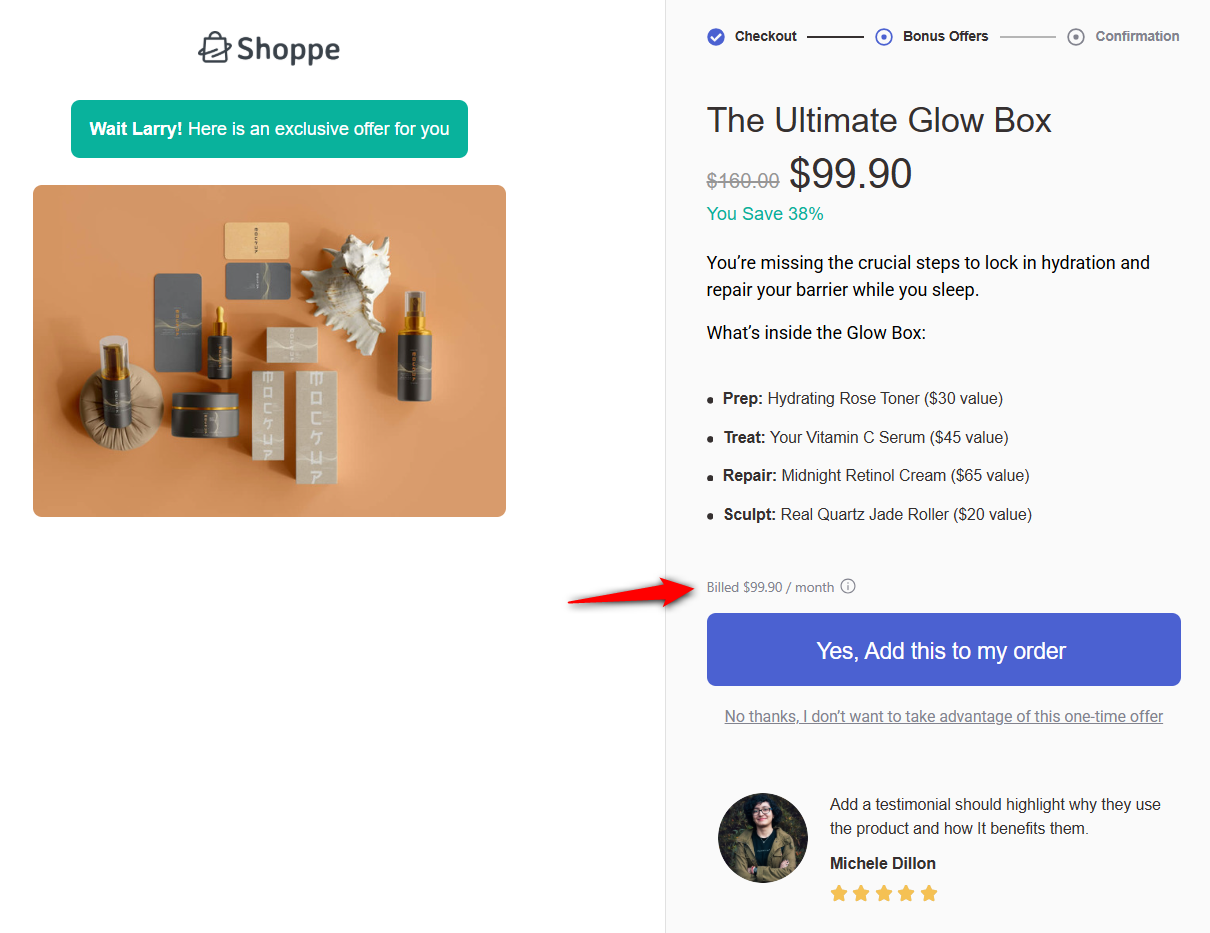
Clicking the accept offer button adds the subscription without requiring payment details again and the order confirmation page loads correctly afterward.
This is how you can add a one-click post-purchase subscription upsell in WooCommerce.
Offer Prorated Subscription Upgrades Inside the My Account Page
Not all subscription revenue comes from first-time buyers. Some of the most profitable subscription upsells occur after purchase within the customer’s My Account area.
They’ve already experienced your product, trust your brand, and are the most likely to convert into higher-value plans with just a slight nudge.
Sublium makes it easy to offer prorated upgrades so customers can move to a higher-tier plan without waiting for the next billing cycle.
Step 1: Create a higher-tier subscription plan in Sublium
Before offering upgrades, make sure you have multiple subscription tiers configured.
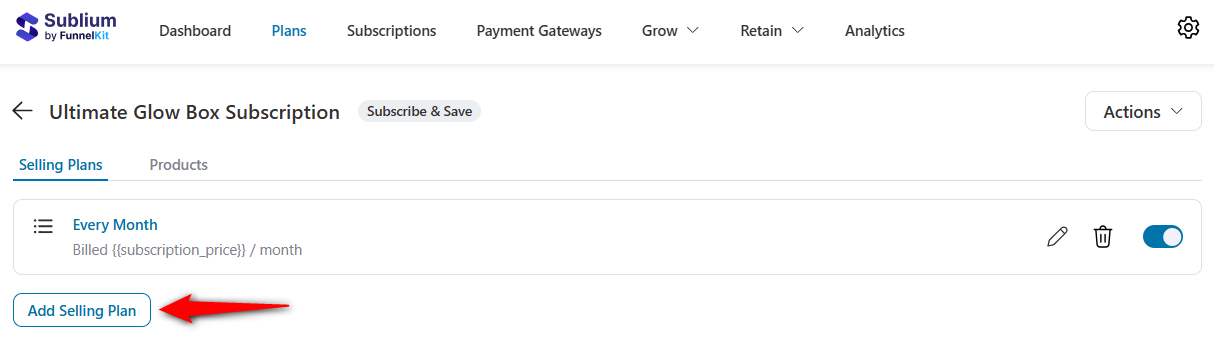
We already have a 1-month plan for the Glow Box subscription. Now let’s create a 3-month recurring plan.
To do that, click on the ‘Add Selling Plan’ button.
Configure the 3-month subscription plan and set a 50% discount.
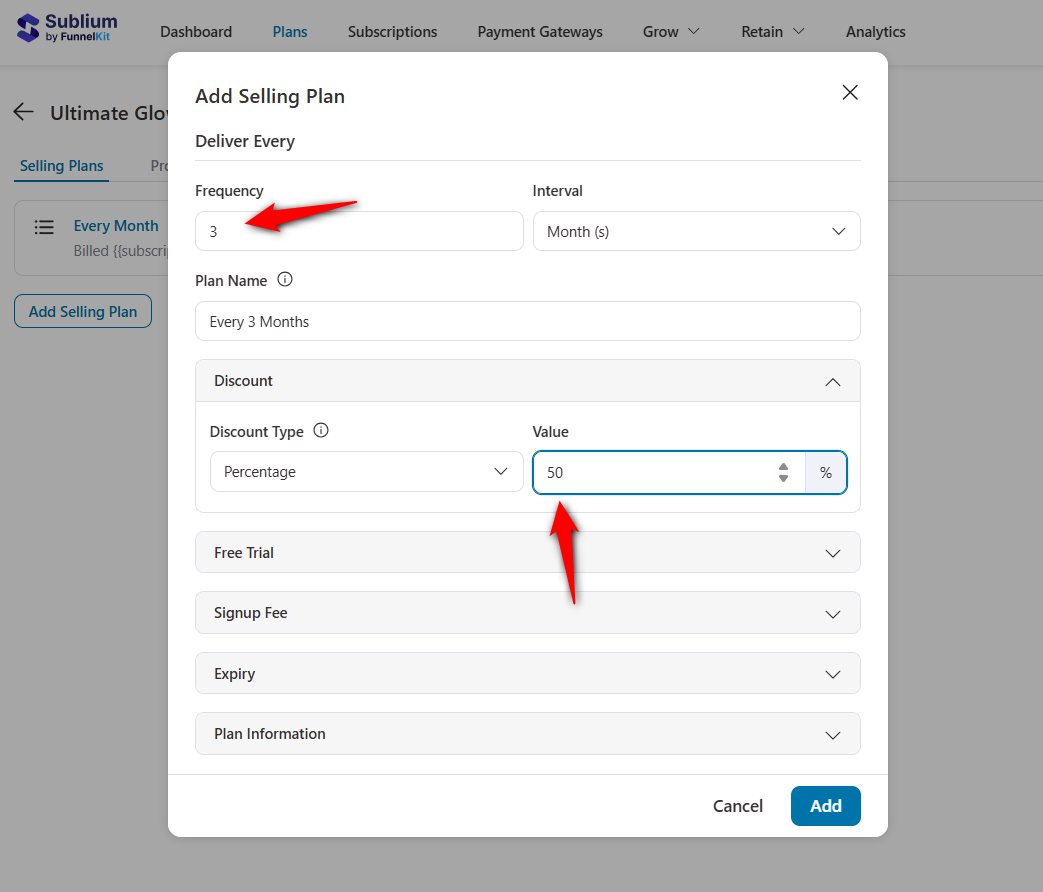
Hit ‘Add’ when done.
Step 2: Enable prorated upgrades
Sublium automatically handles prorations for subscription upgrades.
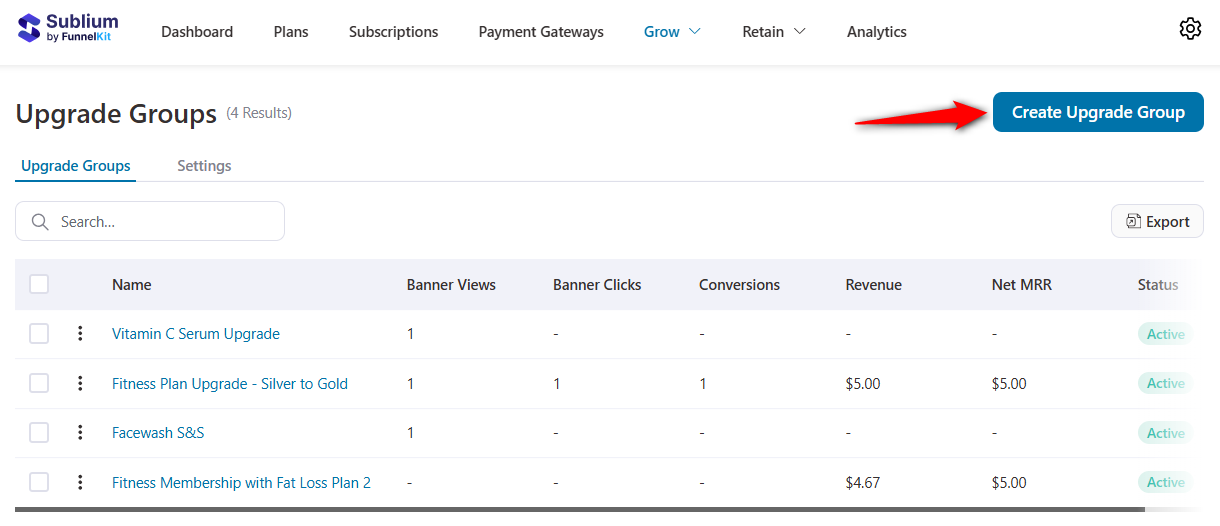
Navigate to Grow ⇨ Upgrade Groups and click on the ‘Create Upgrade Group’ button.
Next, select the old product (Glow Box: 1-month plan) and the new product (Glow Box: 3-month plan).
Add discounts and configure rules to dynamically show upgrade offers to the right users.
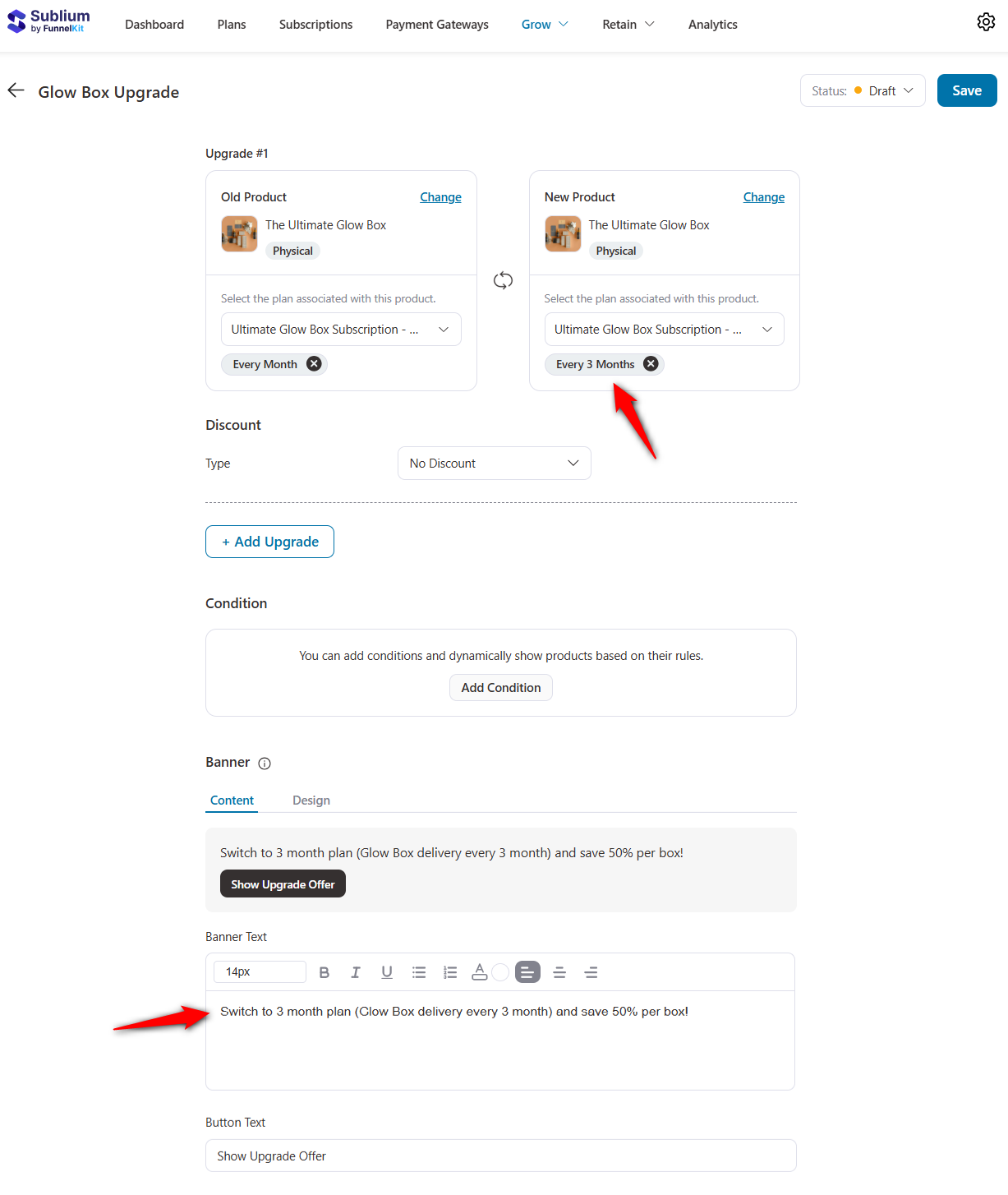
Enter the banner and button text along with the design customization.
Save your upgrade offer and activate it.
Refer to our detailed post on setting up subscription product upgrades and understanding proration in WooCommerce.
Step 3: Test the complete upgrade flow
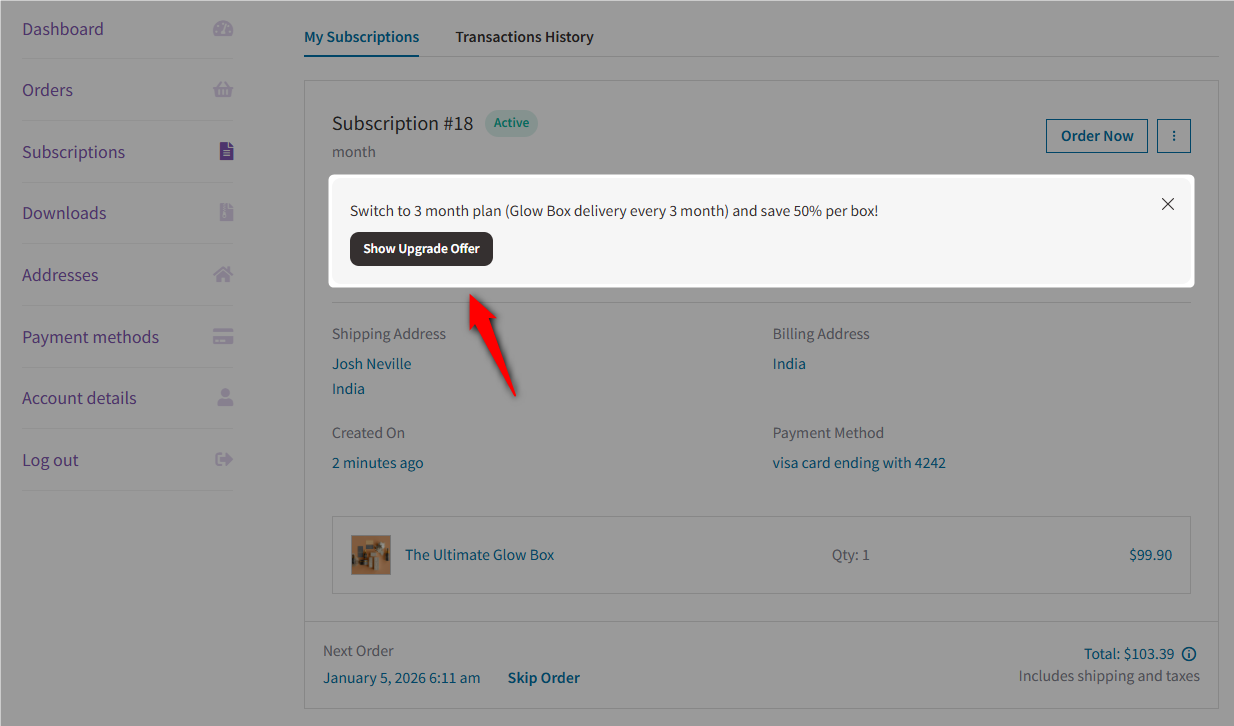
Log in as a test customer and view the My Account page:
Click on the upgrade link and confirm that Sublium shows the amount due.
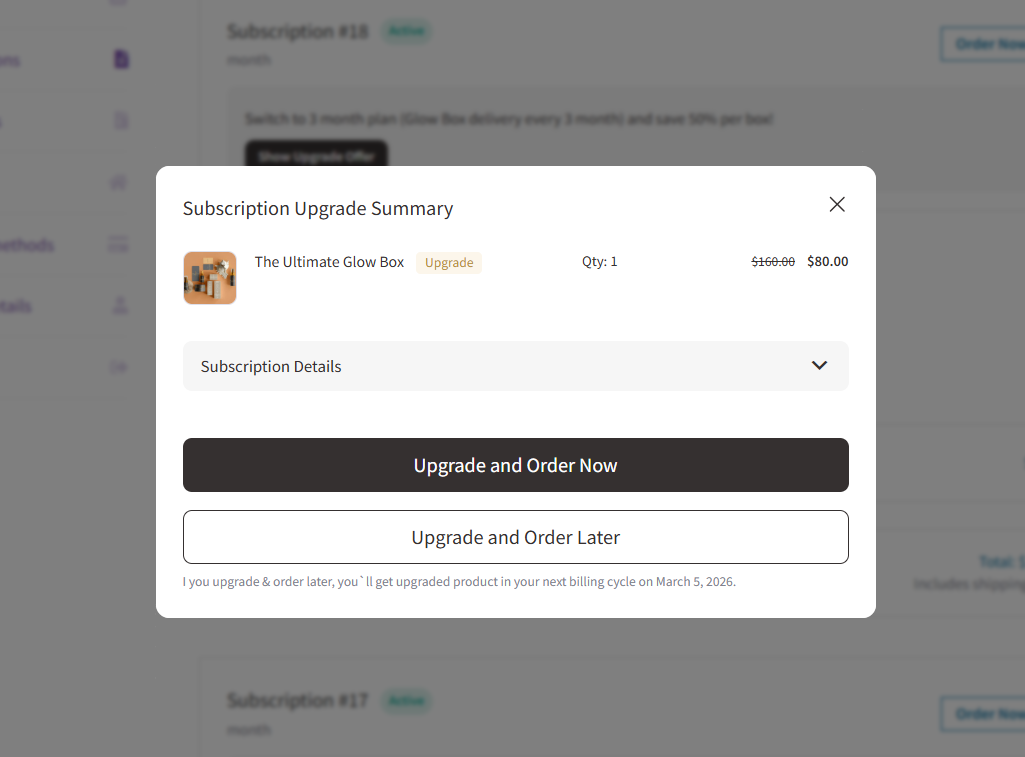
Complete the upgrade with a single click (no need to re-enter card details).
A smooth upgrade experience can significantly increase LTV, especially for digital products, membership sites, and consumables.
Add Subscription Upsells Inside Sublium’s Built-In Subscription Emails
Sublium automatically sends important subscription emails, including renewal reminders, upcoming charge notifications, payment-failed notices, and new subscription confirmations.
These emails achieve very high open rates because they’re transactional, making them the perfect place to insert subtle, high-converting upsells.
The goal here isn’t to “sell hard”. It’s to place a perfectly timed offer where customers are already paying attention.
Step 1: Open Sublium’s email templates
Navigate to Sublium ⇨ Settings ⇨ Notifications.
You’ll find emails for subscriptions, installments, and admin templates to choose from.
Next, let’s click on ‘Edit’ next to the subscription created email. The Subscription Created email is one of the best places to place an upgrade offer because customers are most excited right after signing up.
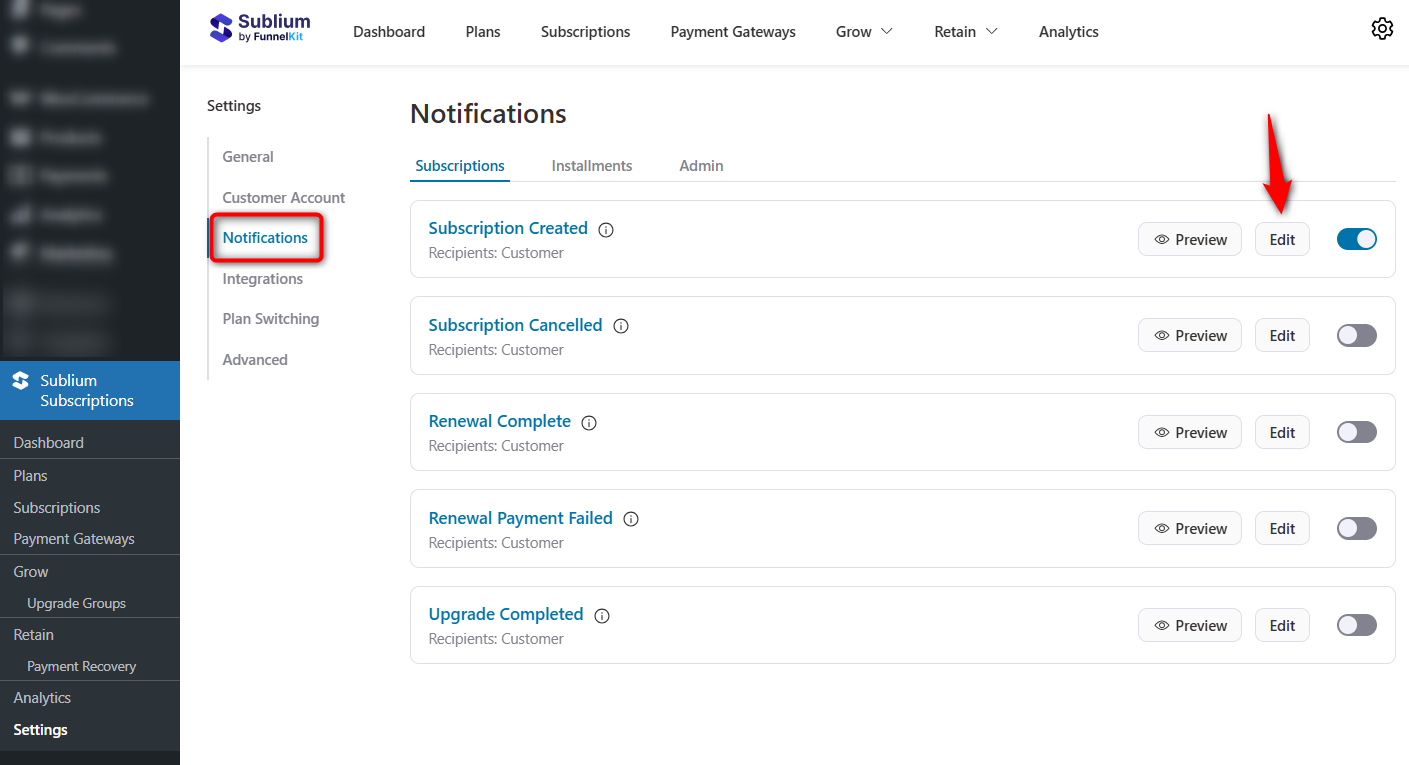
It’ll open the email builder. We’ll now customize this email template using Sublium’s built-in drag-and-drop editor.
Step 2: Customize the high-value subscription upgrade email
Inside the email editor, scroll to the content block where you want to place the upsell.
Drag and drop the Product block to your email space.
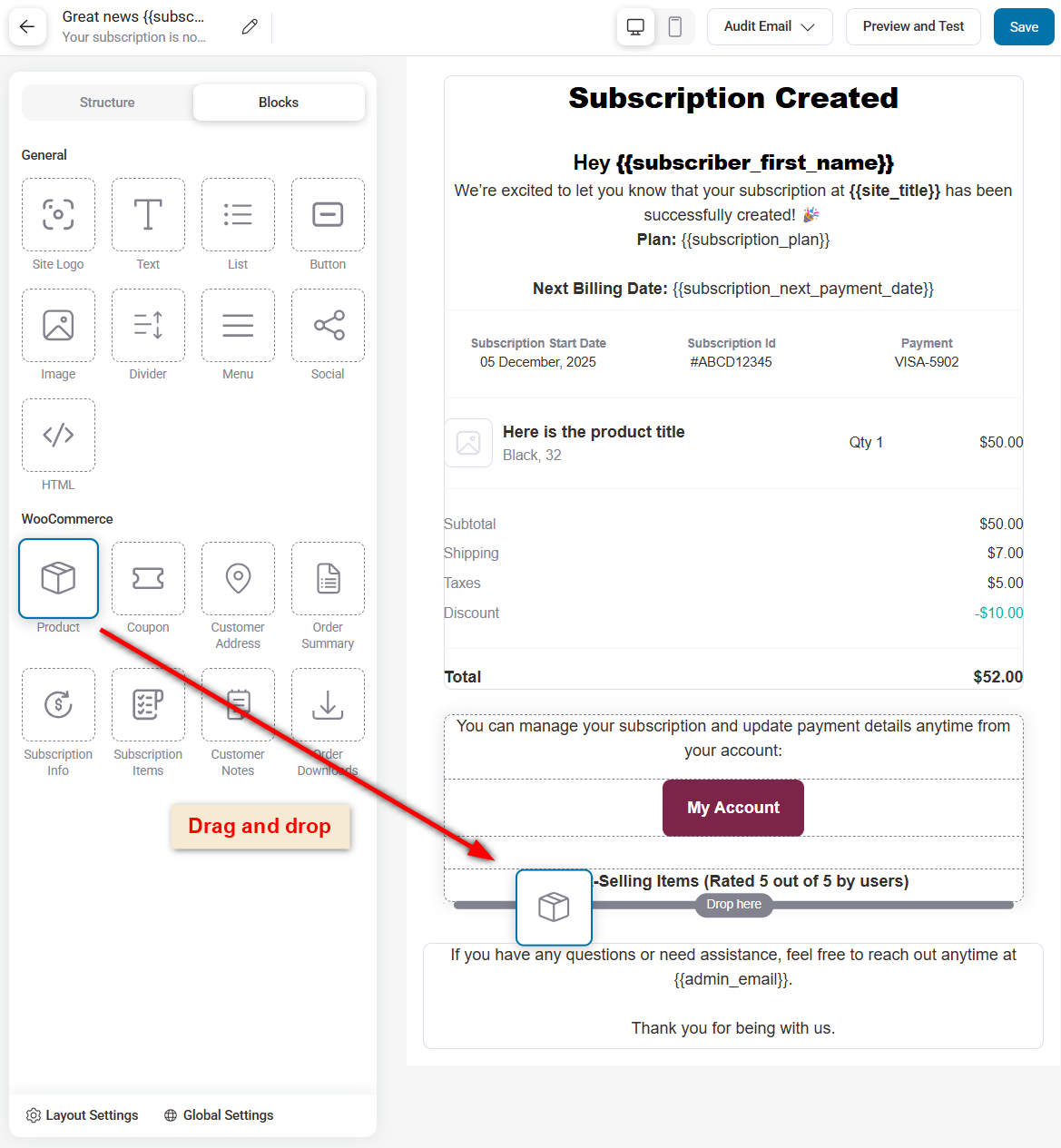
Select the item column width and configure the product feed. If you want to offer your items, select the ‘Specific Product’ feed.
Add the product you want to recommend to your email.
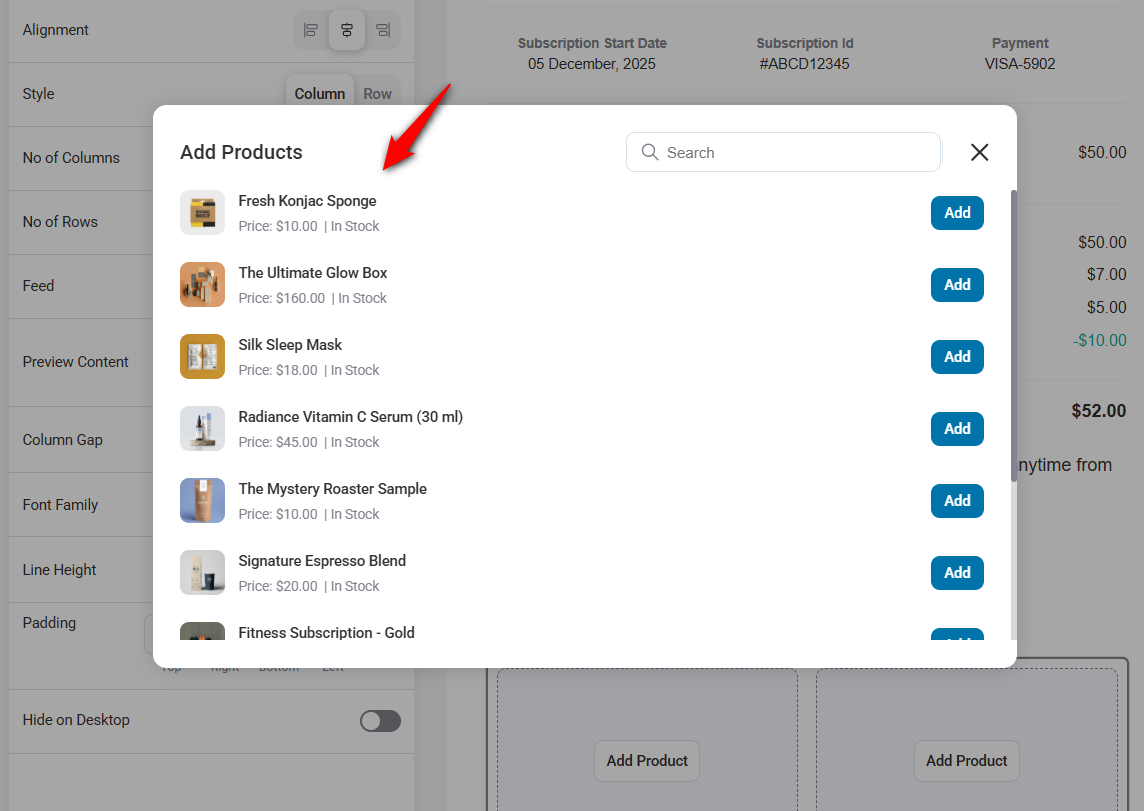
I’ve added both products to my email. You can even have more product recommendations in your email.
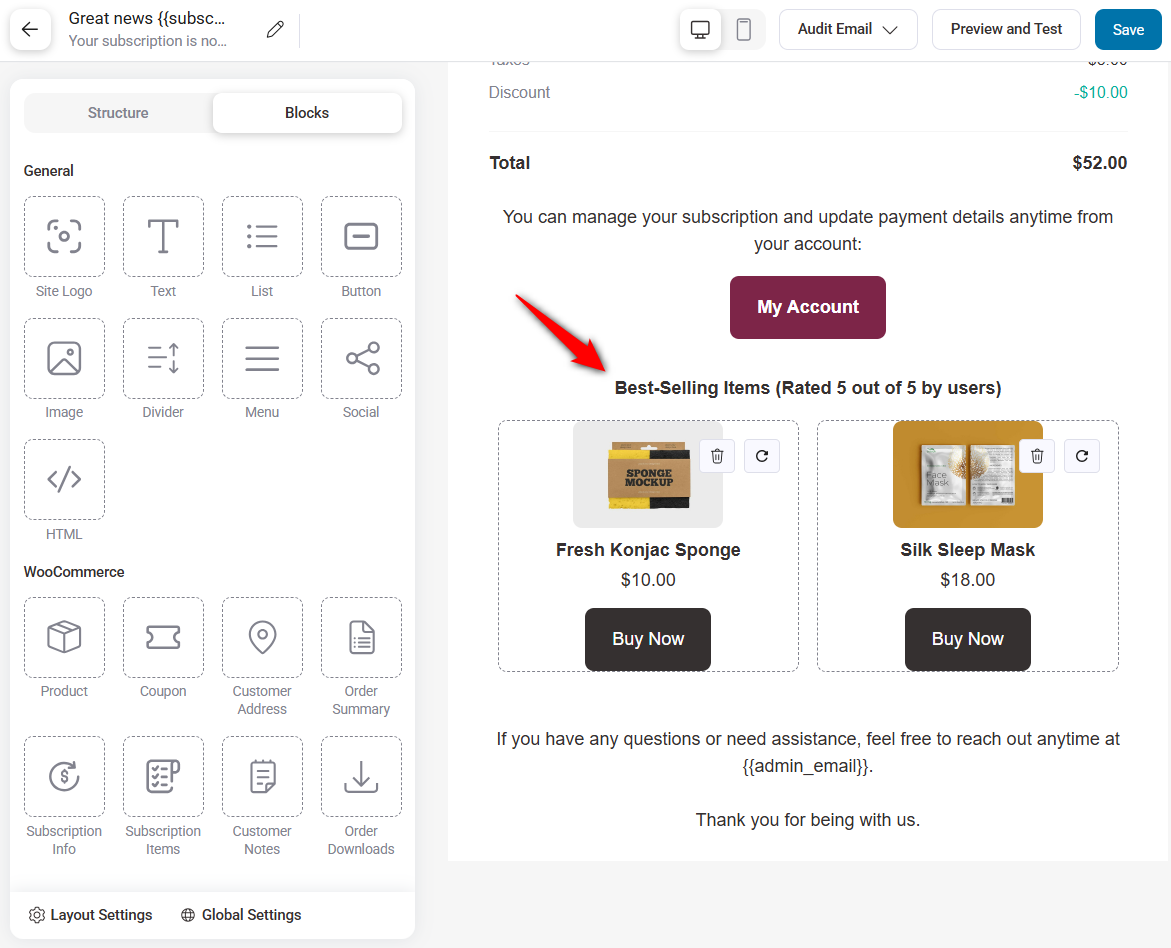
Next, hit the ‘Save’ button to lock all your changes.
Step 3: Send a test upsell email
Click on ‘Send Test Email’ to see how the upsell looks on desktop and mobile.
Make sure the CTA button is visible without scrolling.
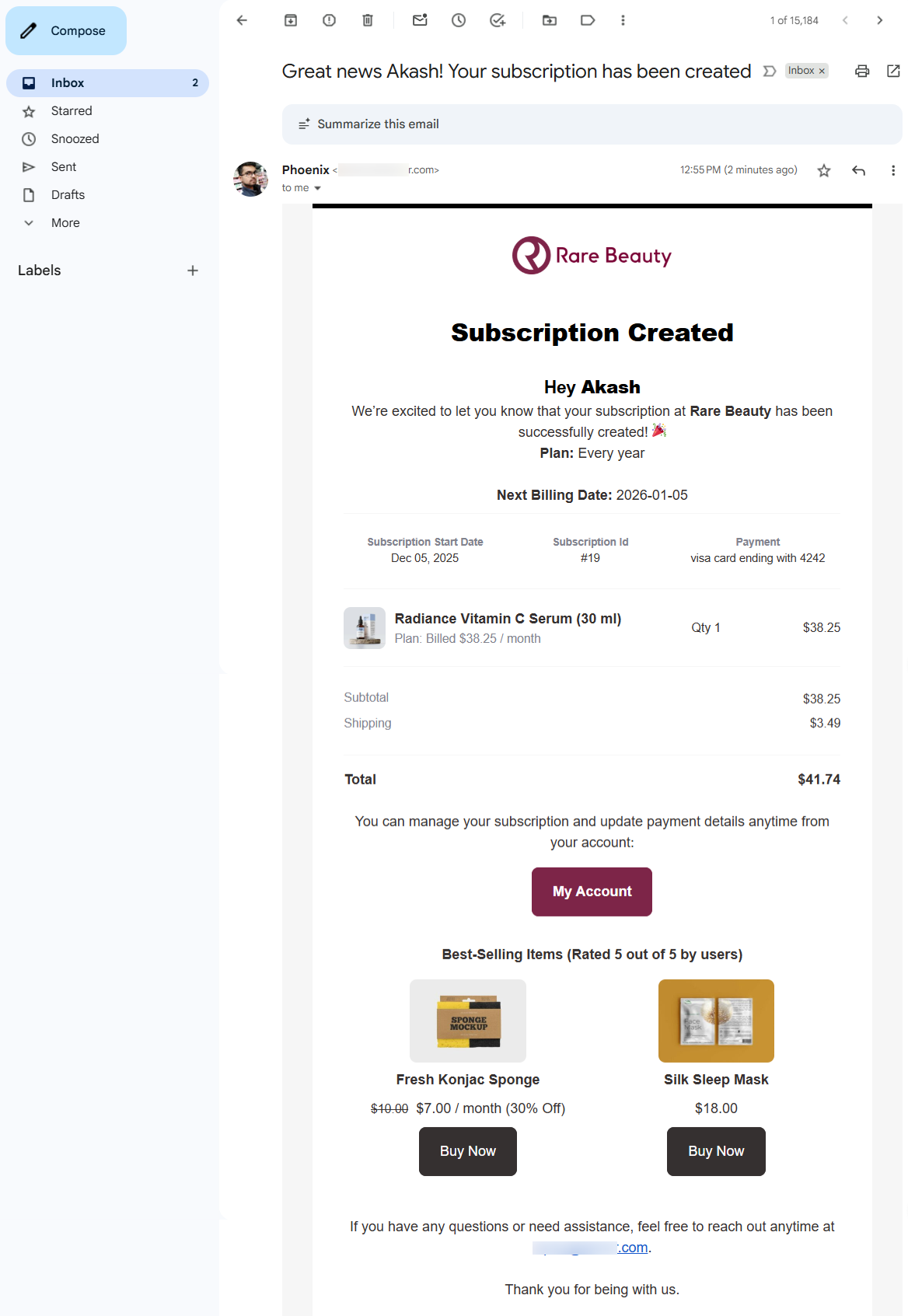
This is how you can add upsells inside Sublium’s built-in WooCommerce subscription emails.
5 Best Practices for High-Converting Subscription Upsells to Help Increase Average Order Value
You now have the strategy and the tools. But the real difference between a 2% conversion rate and a 20% conversion rate comes down to execution.
Subscription upsells are psychological. You’re asking a customer to shift from a “one-time purchase” to an ongoing commitment.
To make saying “Yes” effortless, follow these five proven principles.
1. Make the “yes” button the clear and dominant choice
Your upsell design should guide the user’s eye toward the upgrade button.
Make the ‘Yes’ impossible to miss by using a large, high-contrast button and communicating a benefit directly in the button copy.
For example, a good CTA is “Yes! Upgrade My Order & Save 20%”.
This small tweak taps into loss aversion because people hate losing a deal even more than they love gaining one.
2. Remove commitment anxiety
The biggest reason customers avoid subscription upsells: fear of commitment.
They worry: “What if I want to cancel? What if it renews without warning?”
I recommend addressing these questions directly near the CTA.
Add micro-copy like “Cancel anytime in 1 click”, “No contracts, no hidden fees”, or “We’ll notify you before each renewal”.
If you’re using FunnelKit, adding a guarantee badge or seals right below the offer further strengthens trust.
3. Use the “smart shopper” frame
Position your subscription as the wise choice, not the “buy more” option.
For consumables, such as supplements, skincare, and pet supplies, reframe the offer around convenience and savings.
For example, “Don’t Run Out. Secure Your Monthly Supply at 20% Off.”
This moves the user from “Should I subscribe?” to “It makes sense to subscribe.”
4. Use a paid trial as a low-risk gateway
If your subscription is high-ticket (like coaching, premium memberships, or monthly programs), pushing the full price as an upsell may be too much friction.
Instead, use a paid trial. For example, “Try 1 Month of VIP Coaching for Just $1”.
Once they enter your ecosystem, retention naturally rises.
You can easily set this up in Sublium by setting a $1 signup fee and a 1-month free trial. The recurring billing will begin after the trial period ends.
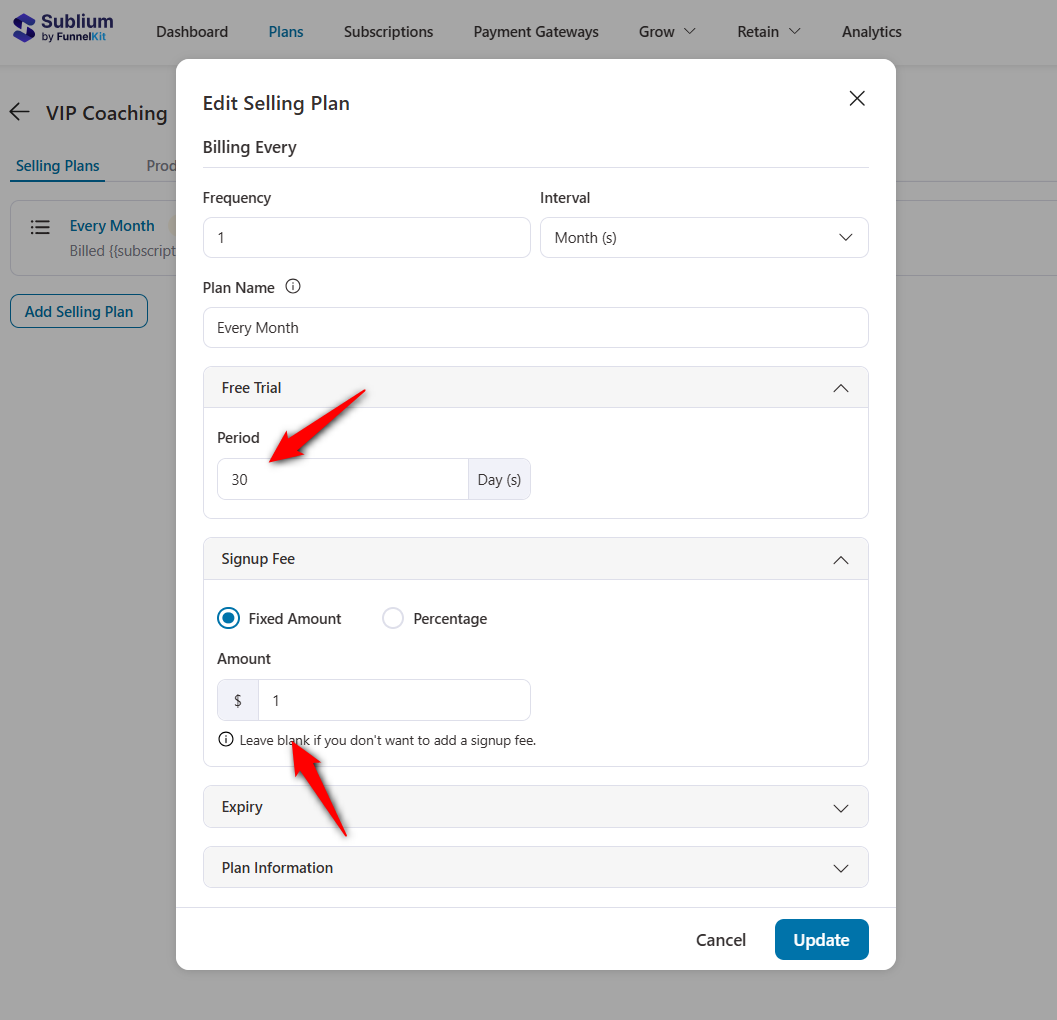
This dramatically increases opt-in rates for premium subscriptions.
5. Keep the offer simple (don’t over-optimize it)
When customers feel overwhelmed, they decline by default. Simplicity wins.
You should offer one clear subscription option (ideally, your most popular plan) with 2-3 concise bullet features.
Keep the layout clean, visual, and distraction-free because a clear, compelling offer always says yes.
Frequently Asked Questions (FAQs)
These are the questions store owners most often ask when they start implementing subscription upsells in WooCommerce and the answers that clear up the confusion instantly.
Can I upsell a subscription if the customer only bought a one-time product?
Absolutely. And honestly, this is one of the highest-converting approaches. Suppose a shopper buys a one-time item, such as a single bag of coffee. You can use tools like FunnelKit to detect that purchase and automatically offer them a subscription upgrade afterward.
The system simply replaces the product or adds the subscription as a new line item, and the customer never has to redo their checkout.
Do I need a specific payment gateway for one-click subscription upsells?
Yes, if you want true one-click upsells. Your payment gateway must support tokenization (also known as Reference Transactions). Gateways like Stripe and PayPal Express work perfectly and integrate smoothly with WooCommerce and FunnelKit.
If your gateway doesn’t support tokenization, all the upsells except the post-purchase one-click upsell will work.
Will offering upsells annoy my customers?
Only if the upsells are irrelevant. When the offer actually makes sense, like a replenishment subscription for a product they’ll naturally run out of, it feels helpful and not pushy.
Data consistently shows that relevant post-purchase offers convert at rates between 15% and 40%, indicating customers appreciate them when done right.
What’s the difference between an order bump and a post-purchase upsell?
Order bumps are shown on the checkout form before the customer pays. Perfect for small, easy yes/no add-ons like “Add Priority Support for $5/month”.
Post-purchase upsells are shown after payment but before the Thank You page. It’s ideal for bigger upgrades, such as a quarterly subscription or a premium bundle.
Both have different jobs and both work beautifully together.
Can customers cancel these upsell subscriptions easily?
Yes, and they should. With Sublium, customers can log in to their My Account page and pause, cancel, or change their subscription frequency with one click. In fact, highlighting the “Easy Cancellation” policy on your upsell pages boosts conversions by removing the biggest fear customers have.
Do I need to know how to code to set this up?
Not at all. Everything in this guide, from creating the subscription to adding upsells, can be done without writing a single line of code. Both FunnelKit and Sublium give you a visual builder where you can drag, drop, customize, and launch.
Ready to Increase AOV with WooCommerce Subscription Upsells?
You can keep fighting rising ad costs every month… or you can fix the real problem: your funnel.
Subscription upsells are the most powerful lever you have to increase AOV today and build predictable revenue for tomorrow. But high-level strategy only works when you pair it with the right tools.
To build an actual recurring revenue engine, you need a stack designed for scale:
- FunnelKit is the Salesman: It captures revenue with high-converting slide carts, order bumps, and seamless one-click upsells.
- Sublium is the Engine: It handles flexible billing, smooth upgrades, prorations, and retention, all the mechanics that keep customers subscribed month after month.
In the long run, the store with the highest LTV wins.
Subscriptions aren’t just a feature; they’re your moat that will help you build a recurring brand empire.


