


Managing subscriptions in WooCommerce can be challenging.
One of the biggest frustrations I’ve noticed is when customers forget to renew or let their payment details expire. This small slip often leads to failed payments, cancellations, and rising churn.
I’ve found that automated WooCommerce subscription reminder emails are one of the simplest yet most effective ways to solve this.
A timely reminder not only reduces failed renewals but also improves customer satisfaction by keeping them informed and in control.
In this article, I’ll break down how to set up automated reminders in WooCommerce, why they work, and how they can help you protect recurring revenue while building long-term loyalty.
What Are WooCommerce Subscription Reminder Emails?
WooCommerce subscription reminder emails are automated notifications sent to subscribers before important billing or renewal events.
They help keep customers informed about:
- Upcoming renewal charges
- Expiring subscriptions
- Billing card expirations
- Failed payment attempts
These reminders help build trust, reduce surprise cancellations, and ensure transparency in your subscription business.
For example, if a customer’s monthly plan is set to renew in 7 days, you can automatically send an email reminder to give them time to update their payment method or review their subscription.
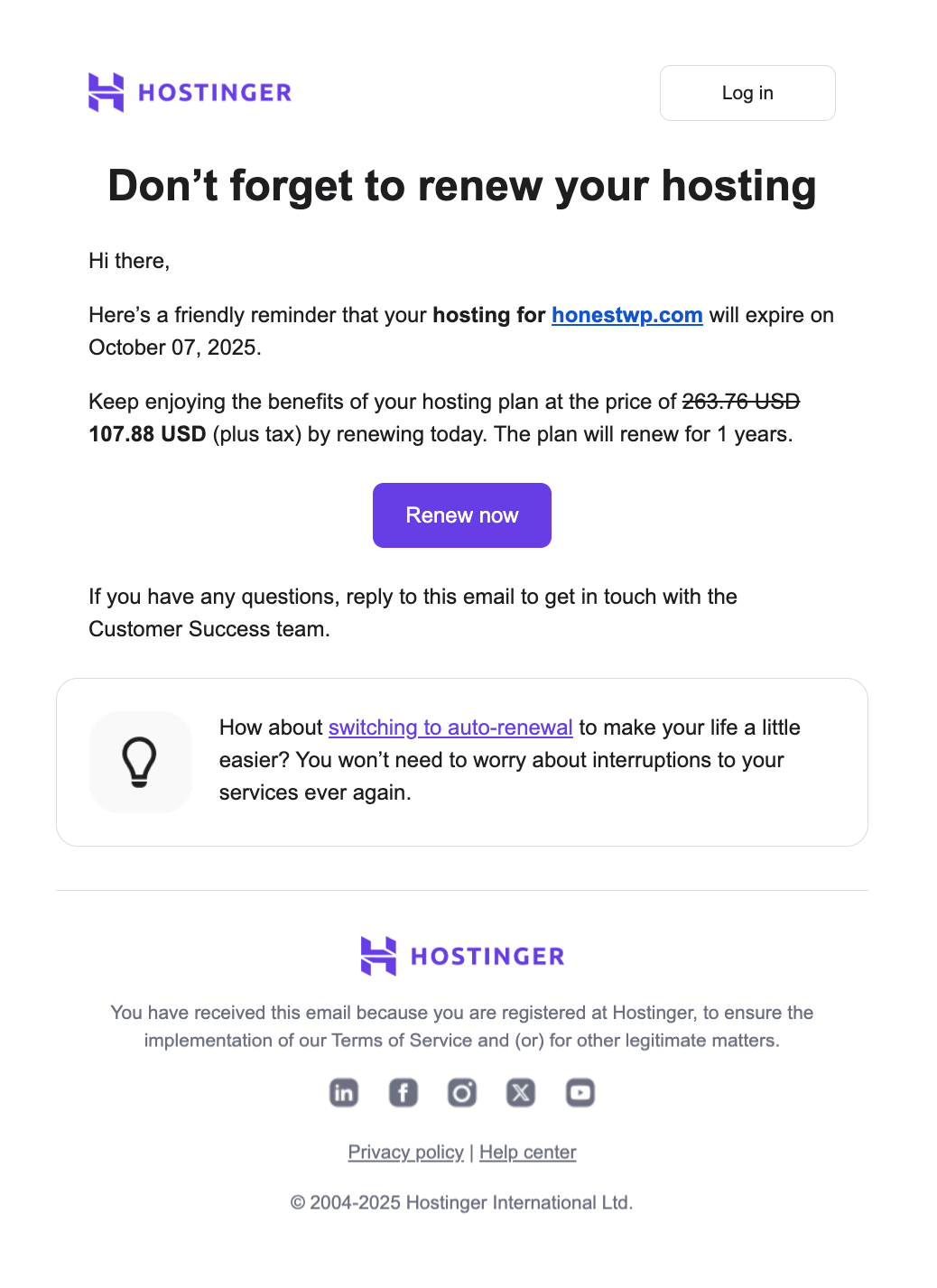
Here is a real-life example:
Hostinger sends a subscription reminder email to users 10 days before the expiry date, notifying them about the upcoming charge required to renew their subscription.
This gives customers time to update their payment method, decide whether to continue, or switch to another plan.
It’s important to note that subscription reminder emails don’t have to be a single message.
Many businesses send multiple reminders at different intervals, such as:
- One month before renewal
- Two weeks before renewal
- A few days before renewal
These emails can also check for expiring billing cards and encourage users to update their payment method or change their plan if they wish.
Sending multiple reminders ensures customers don’t miss the subscription reminders.
How Reminder Emails Benefit Both Store Owners and Customers
Reminder emails are not just courtesy messages. They directly impact how smoothly your subscription business runs and how customers perceive your brand.
Here are the key benefits:
- Build trust and loyalty: Providing customers with advance notice of charges demonstrates transparency and respect. This strengthens trust and encourages long-term retention.
- Reduce churn and refunds: By giving subscribers control over renewals, you minimize accidental cancellations, refund requests, and lost revenue.
- Prevent support headaches: Surprise charges often lead to disputes, chargebacks, and support tickets. Reminder emails cut these issues before they happen.
- Protect your brand reputation: Clear communication reduces the chance of negative reviews and increases the likelihood of positive customer feedback.
- Ensure legal compliance: In regions with GDPR, CCPA, or other subscription laws, renewal notices are required. Reminder emails keep you compliant and protected from penalties.
- Encourage upsells and engagement: Renewal emails can double as marketing touchpoints, highlighting new features, add-ons, or special offers to increase customer value.
- Proactively handle billing issues: Reminders nudge customers to update payment details before renewal, avoiding failed payments and service interruptions.
- Give customers control: With direct links to manage subscriptions, reminders make it easy for users to continue, pause, or cancel, reducing frustration and building goodwill.
In practice, reminder emails improve both customer satisfaction and business performance. They reduce risks, create transparency, and open the door to stronger, longer-lasting relationships with subscribers.
How to Set Up an Automated WooCommerce Subscription Reminder Email?
To set up an automated WooCommerce reminder email, I highly recommend Sublium Subscriptions.
This is an all-in-one solution for creating subscription products in WooCommerce and sending automated emails, including WooCommerce subscription reminder emails.
Sublium Subscriptions sends the following types of reminder emails:
- Renewal Reminder: Before X Days: Sends a reminder email X days before the subscription renews.
- Renewal Reminder: Before Y Days: Sends an additional reminder Y days before the renewal date.
- Before Card Expiry: Sends a notification to the customer before their saved card expires.
You can also enable payment recovery for failed payments and send emails about failed renewal payments (retries left).
In this blog post, we will show you how to customize the “Renewal Reminder: Before X Days” email.
You can follow the same process to set up one reminder 7 days before the subscription renewal and another 1 day before the renewal. Also, send the card expiry if applicable.
Before starting the process, ensure that you have installed and activated Sublium.

Step 1: Navigate to subscription reminder emails
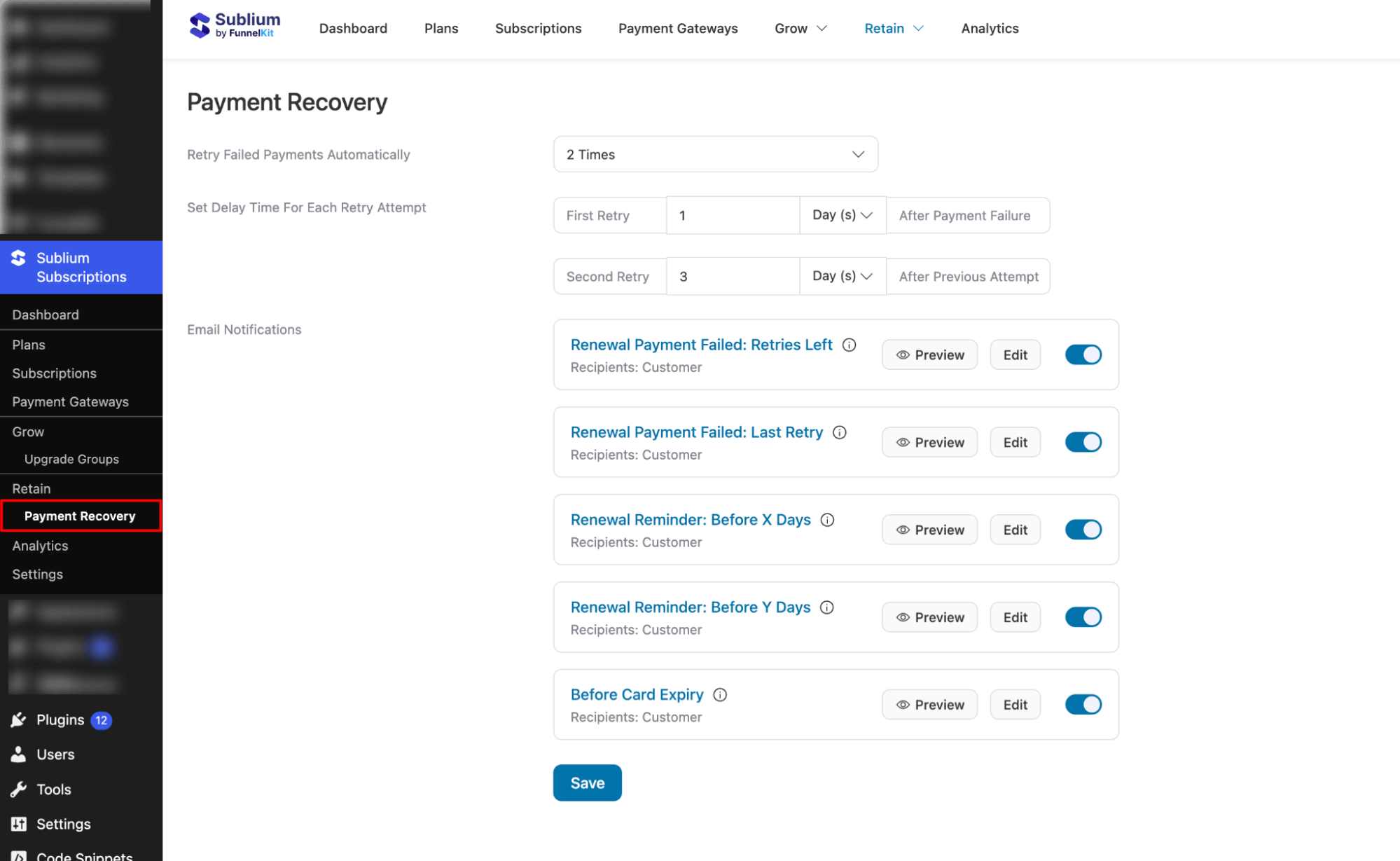
Navigate to Sublium Subscriptions ⇒ Retain ⇒ Payment Recovery.
Here you will find all email notifications related to subscription reminders and payment recovery in case of a failed payment.
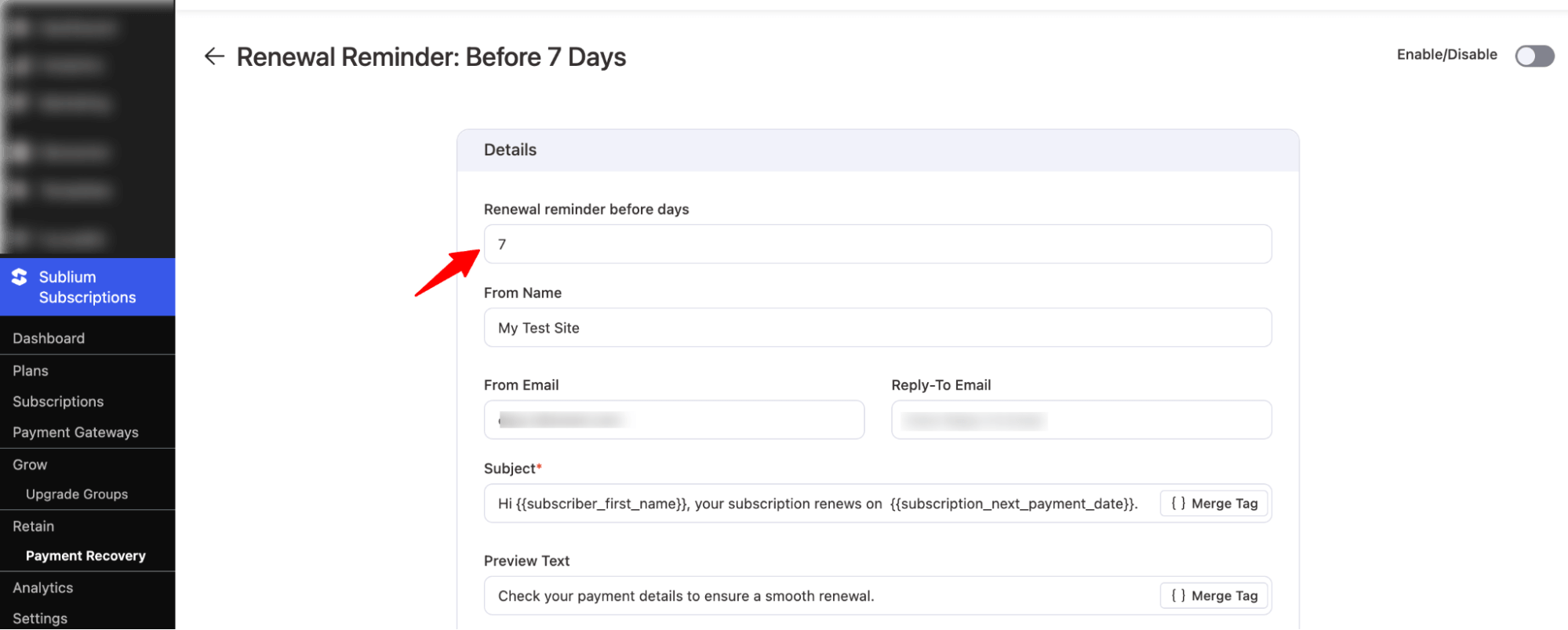
Step 2: Specify the number of days before sending the subscription reminder
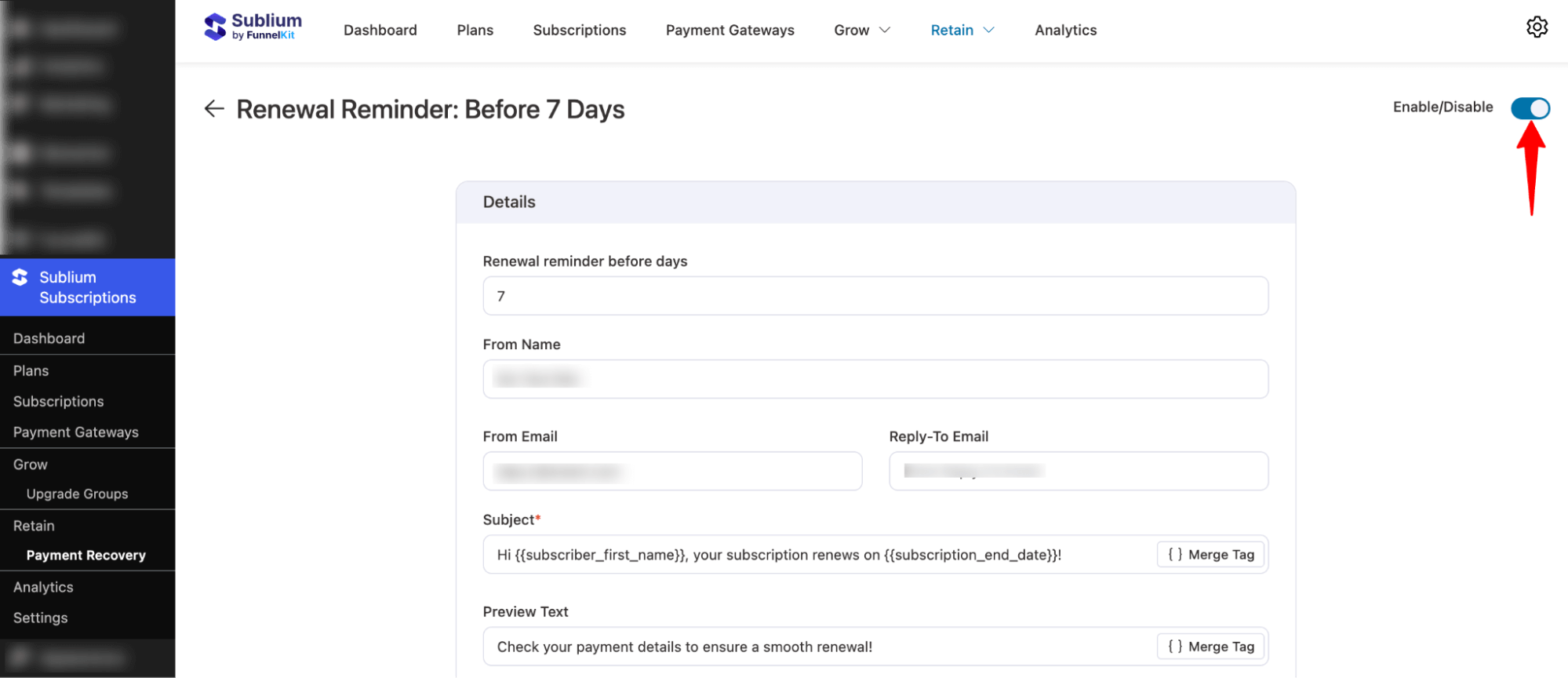
Next, hit the Edit button next to “Renewal Reminder: Before X Days” email.
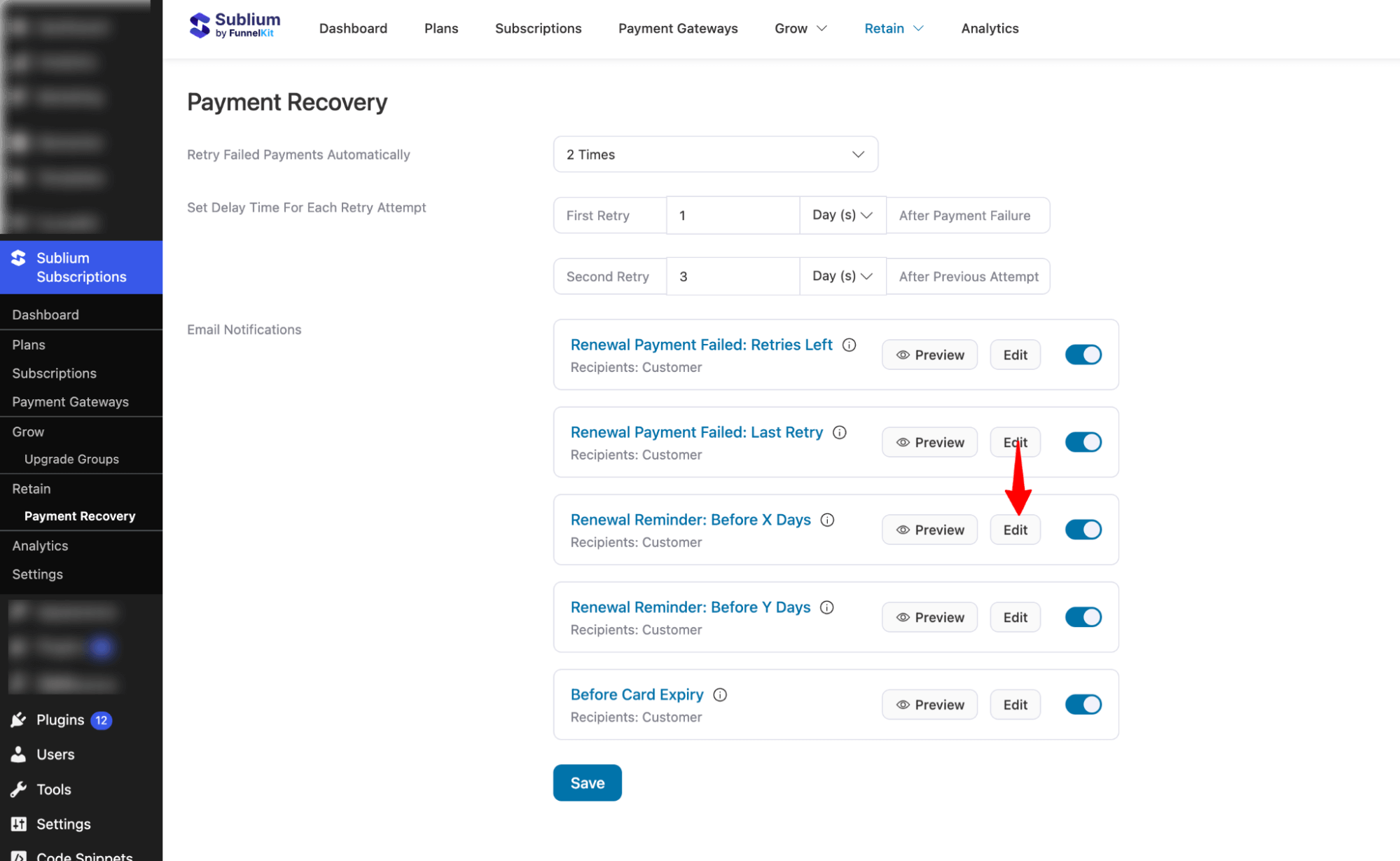
Now set the “Renewal reminder before days” value to determine when reminder emails will be sent to users.
For Renewal Reminder: Before X Days, I would recommend setting 7 days.
Step 3: Set email details
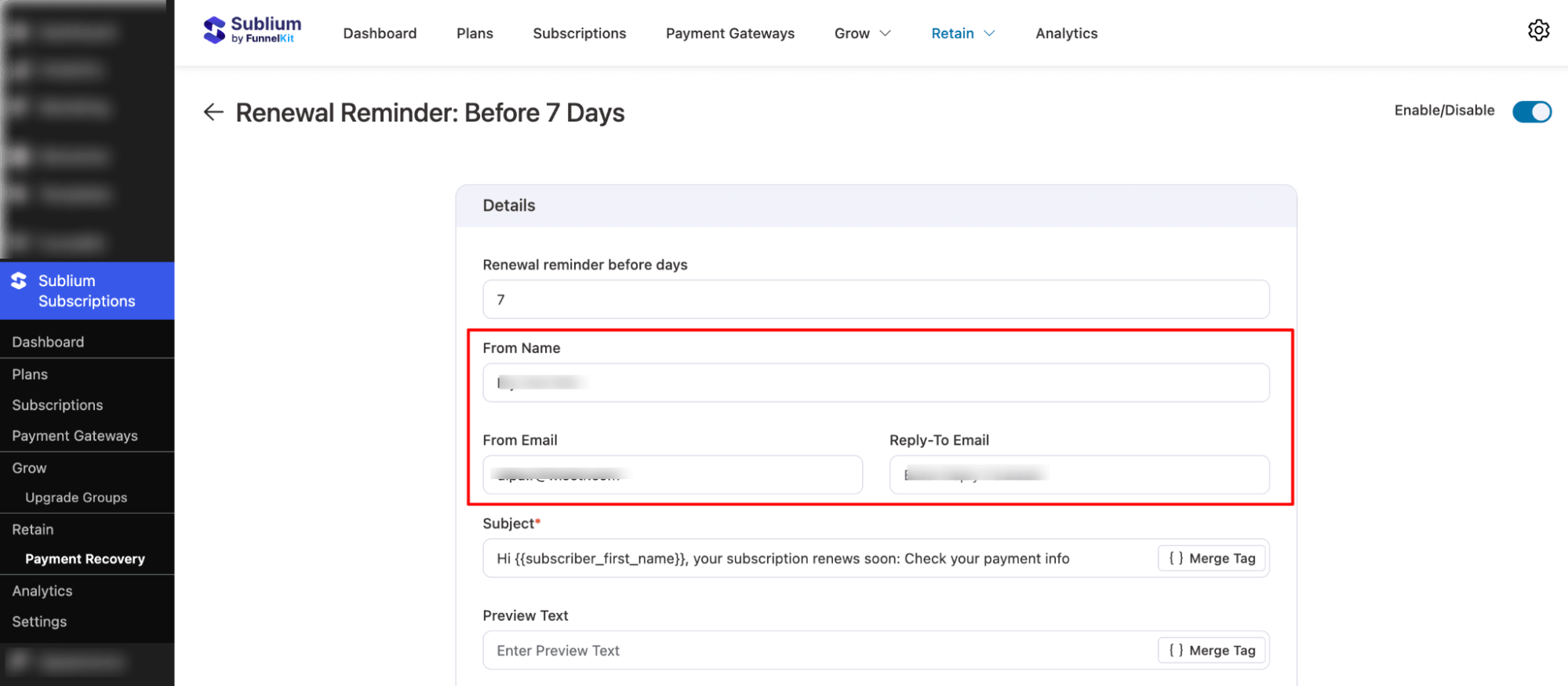
Next, configure your email details:
Configure the following fields:
- From Name: Name that appears as the sender.
- From Email: The email address the message is sent from.
- Reply-To Email: The address where recipients can respond.
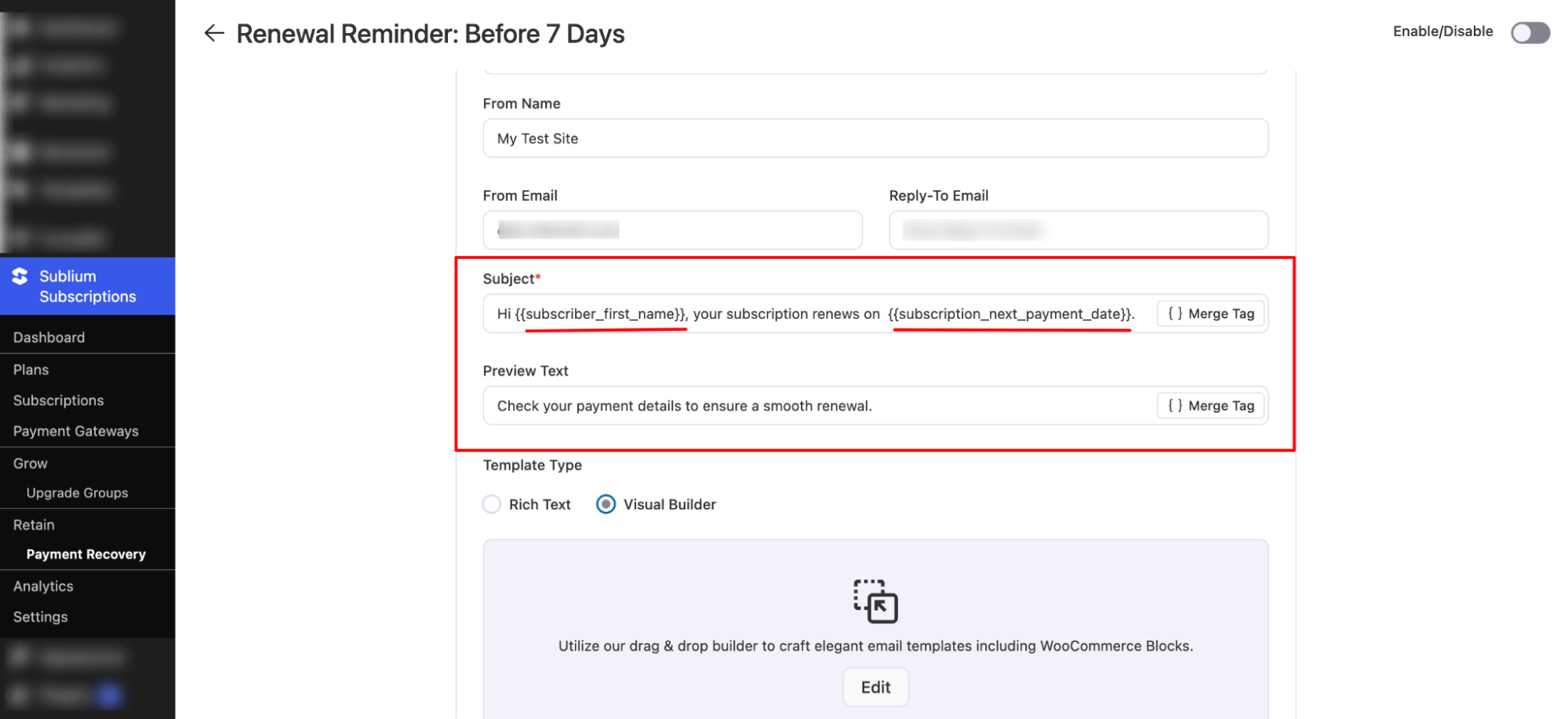
Then, add an engaging Subject Line and Preview Text
To personalize the subject line or preview text with dynamic customer details, use merge tags:
- Click the {} Merge Tag button
- Search for the field you need
- Copy and paste it where required
For instance, use {{subscriber_first_name}} to add the subscriber’s name and {{subscription_end_date}} for the renewal date.
Step 4: Customize subscription reminder email
Now it’s time to customize the body of the subscription reminder email.
For this, Sublium offers two types of email templates:
- Rich Text: Provides basic text editing with limited customization options.
- Visual Builder (Recommended): A drag-and-drop editor with pre-built optimized templates for full design control.
Select Visual Builder and hit Edit.
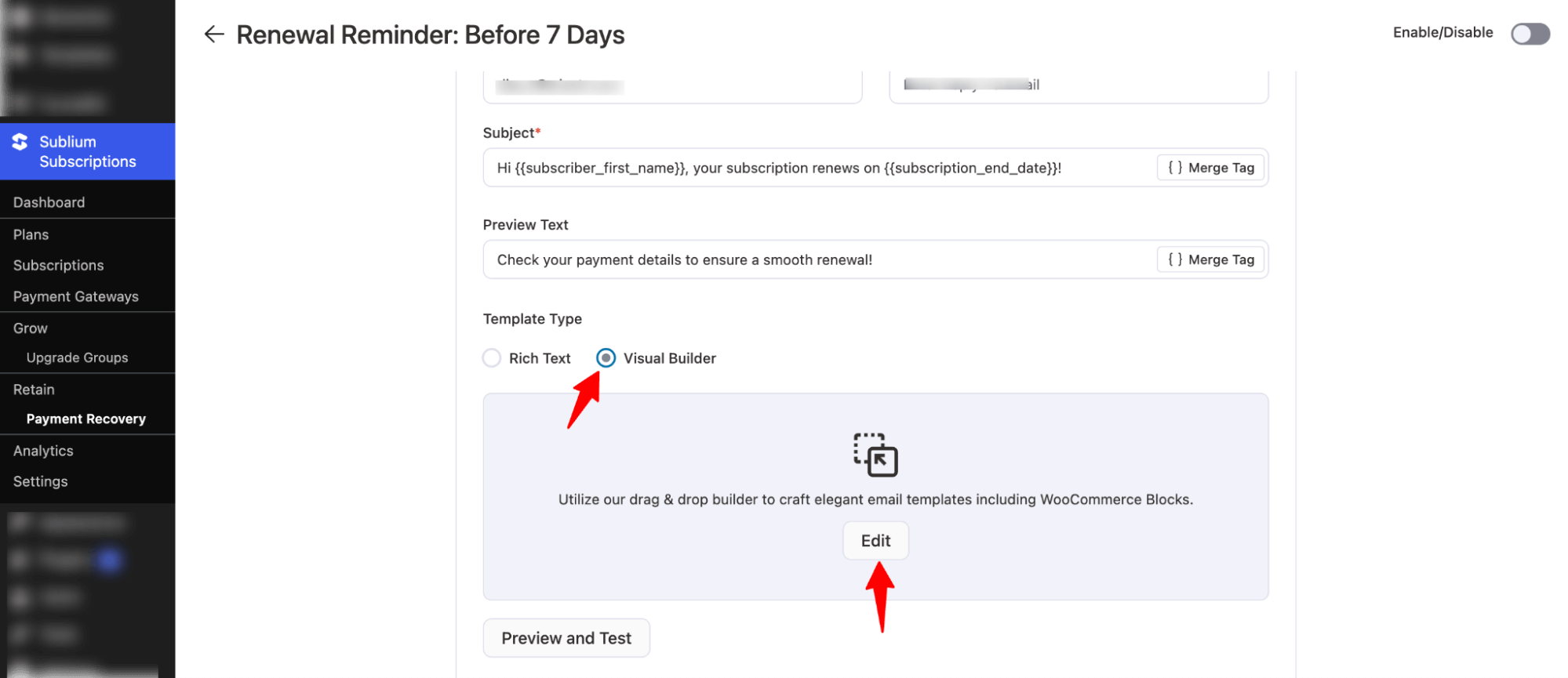
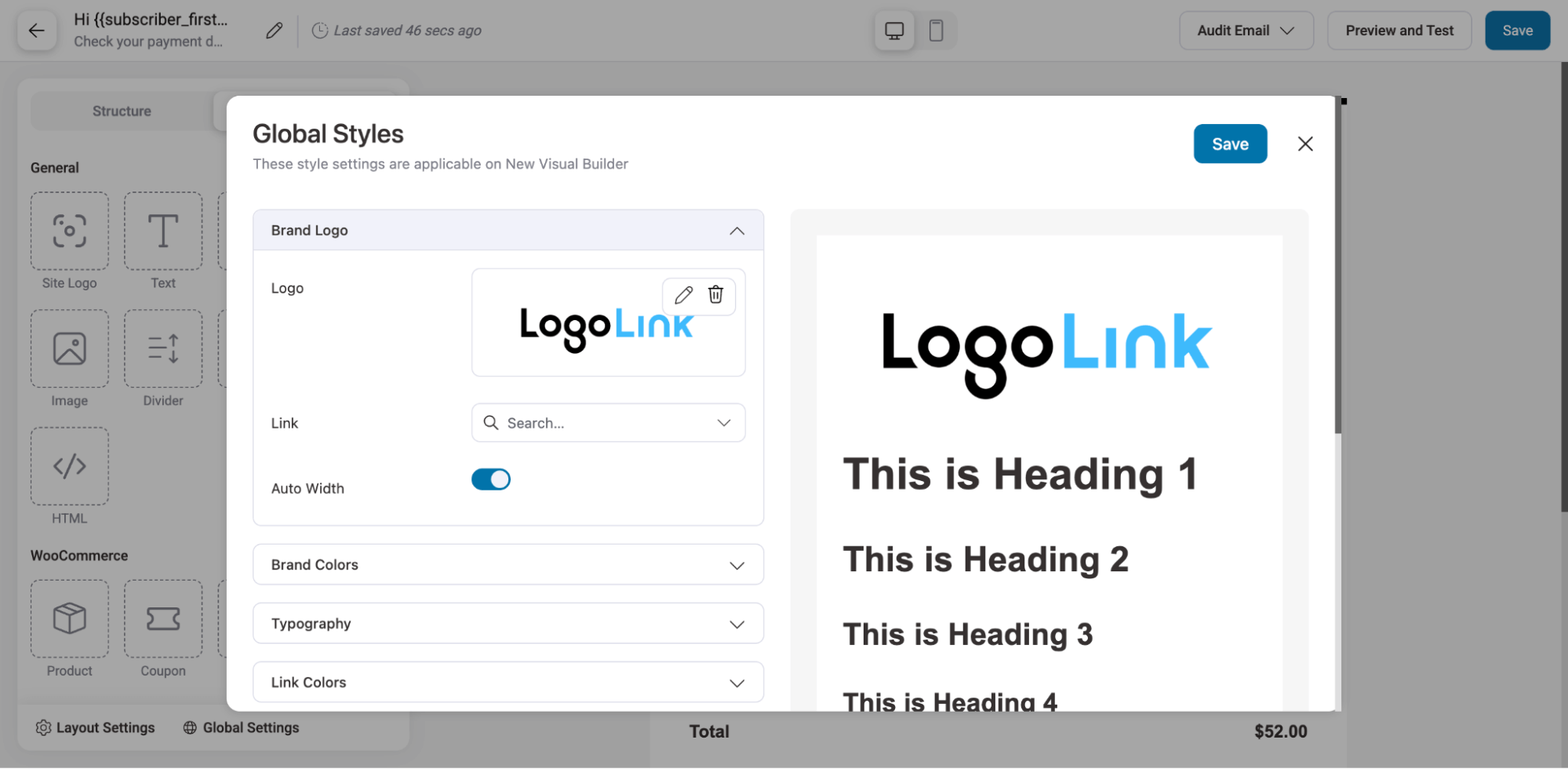
You will land on the visual builder and pop-up to define Global Styles.
Under Global Styles, you can set Brand Logo, Brand Colors, Typography, Link Colors, Button, Layout, Social Icon, etc.
For more information, check our documentation on Global Styles.
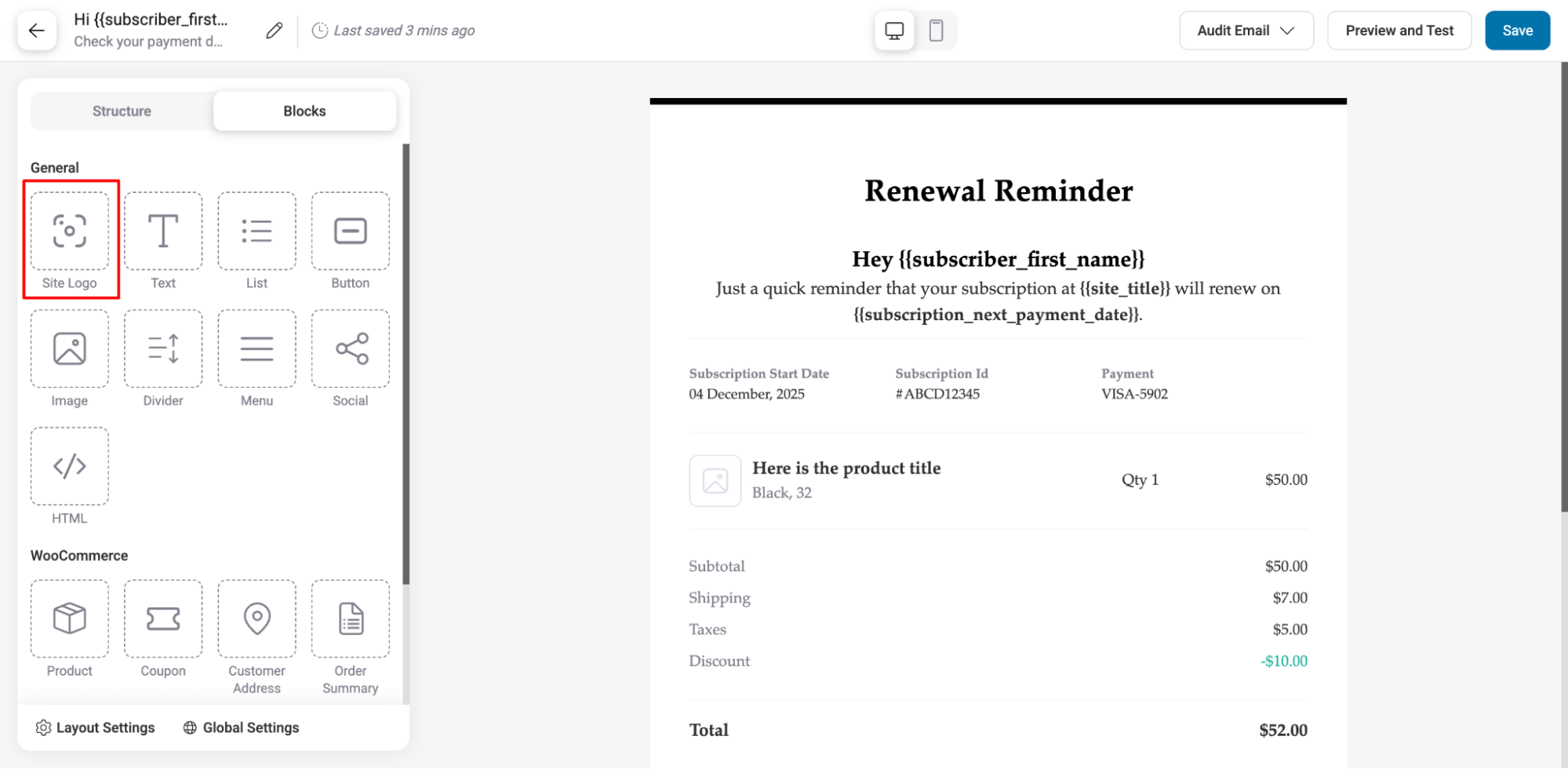
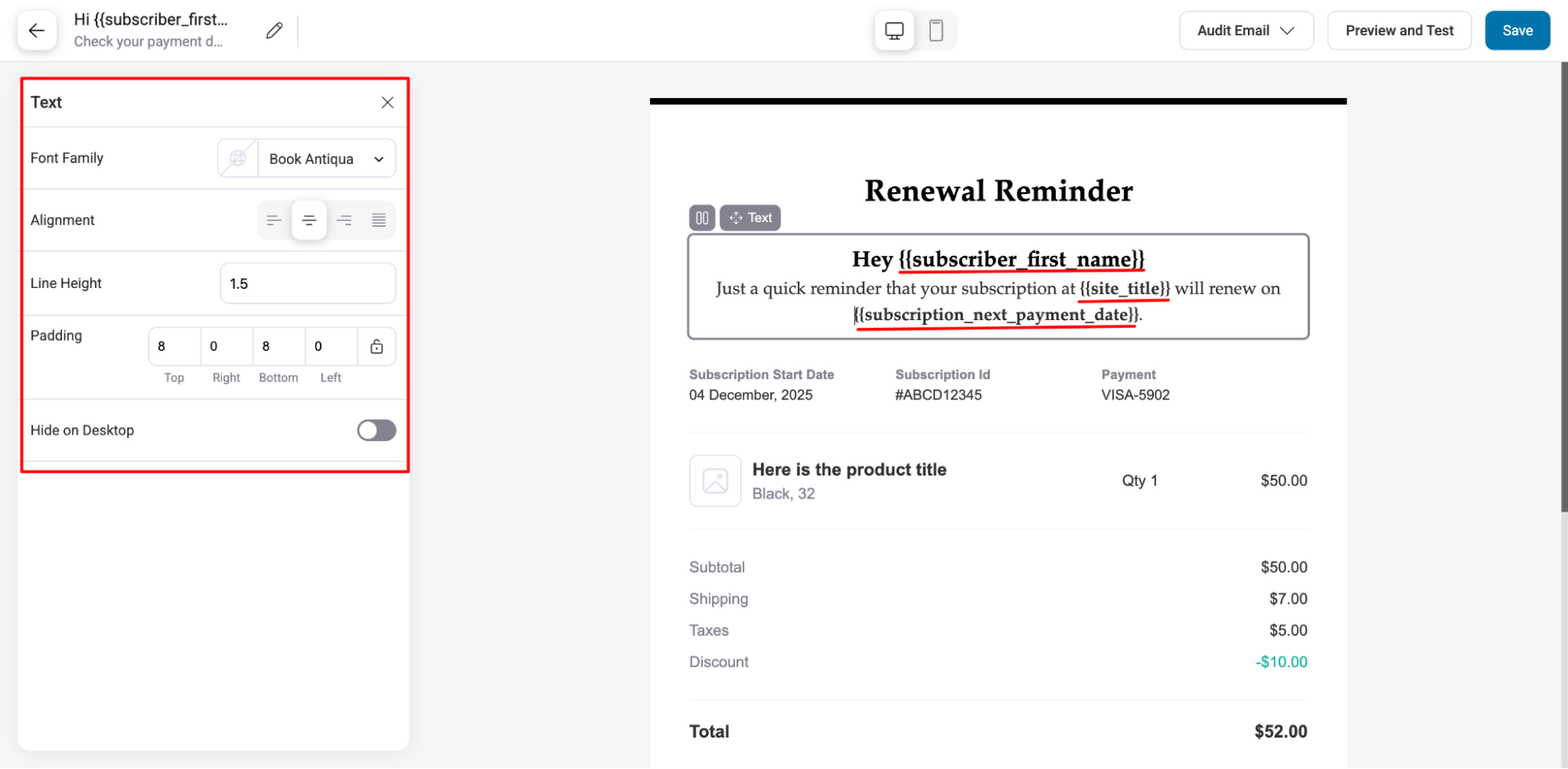
Next, set the heading and subheading. By default, the template uses the following merge tags:
- {{subscriber_first_name}}: Displays the subscriber’s first name.
- {{site_title}}: Displays the title/name of your website as set in WordPress settings.
- {{subscription_next_payment_date}}: Displays the date when the subscriber’s next renewal payment is scheduled.
For the message blocks, you can customize the font family, alignment, line height, and padding. You can also choose to hide the block on the desktop if needed.
The Subscription Items block contains all the details about the Subscription. If you wish to hide/display details such as Subscription Start Date, Subscription ID, Payment, and Product Images, you can do so.
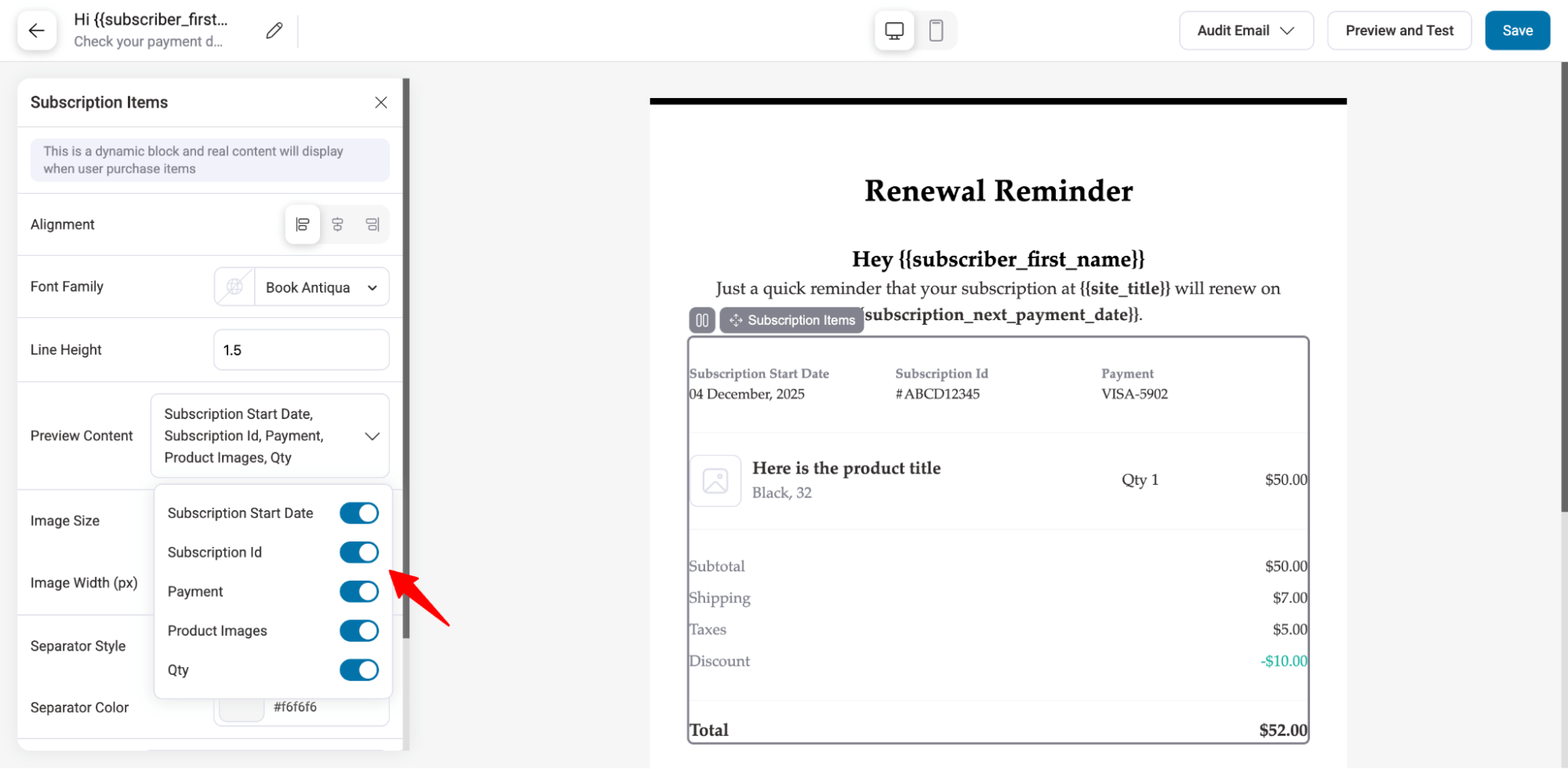
Apart from that, in this block, you can also set image size, image width (px), separator style, separator color, and font style, along with other design options.
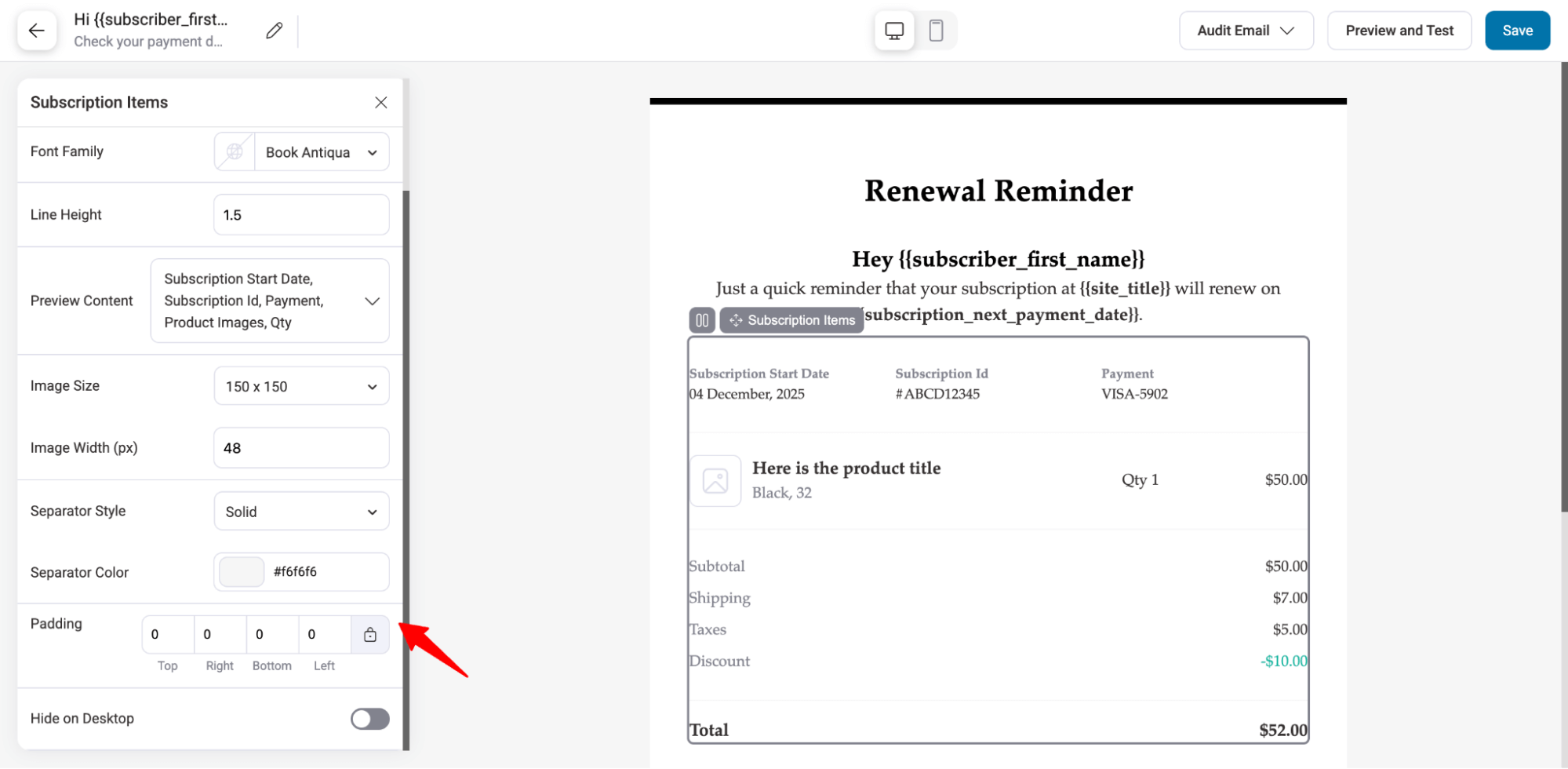
You can customize any other message blocks as needed.
Ensure the CTA is styled to stand out. You can configure the button position, font family, width, padding, border style, and more.
Use the {{subscription_payment_url}} merge tag to link the button to the payment page dynamically.
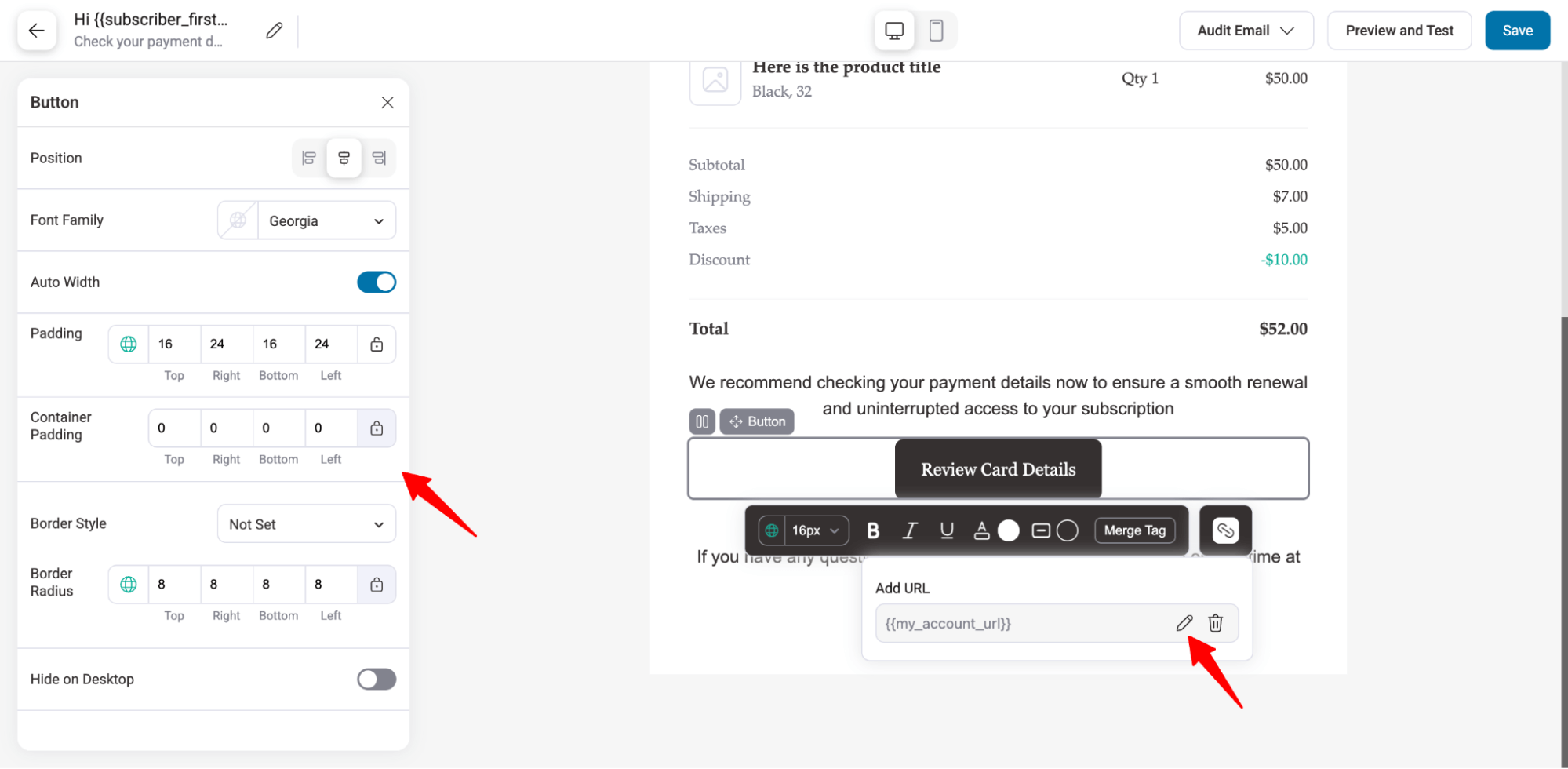
After completing all the customizations, ensure that you hit Save.
Step 5: Activate subscription reminder email
Once you’re ready, send a test email. If everything looks good, activate the subscription reminder email.
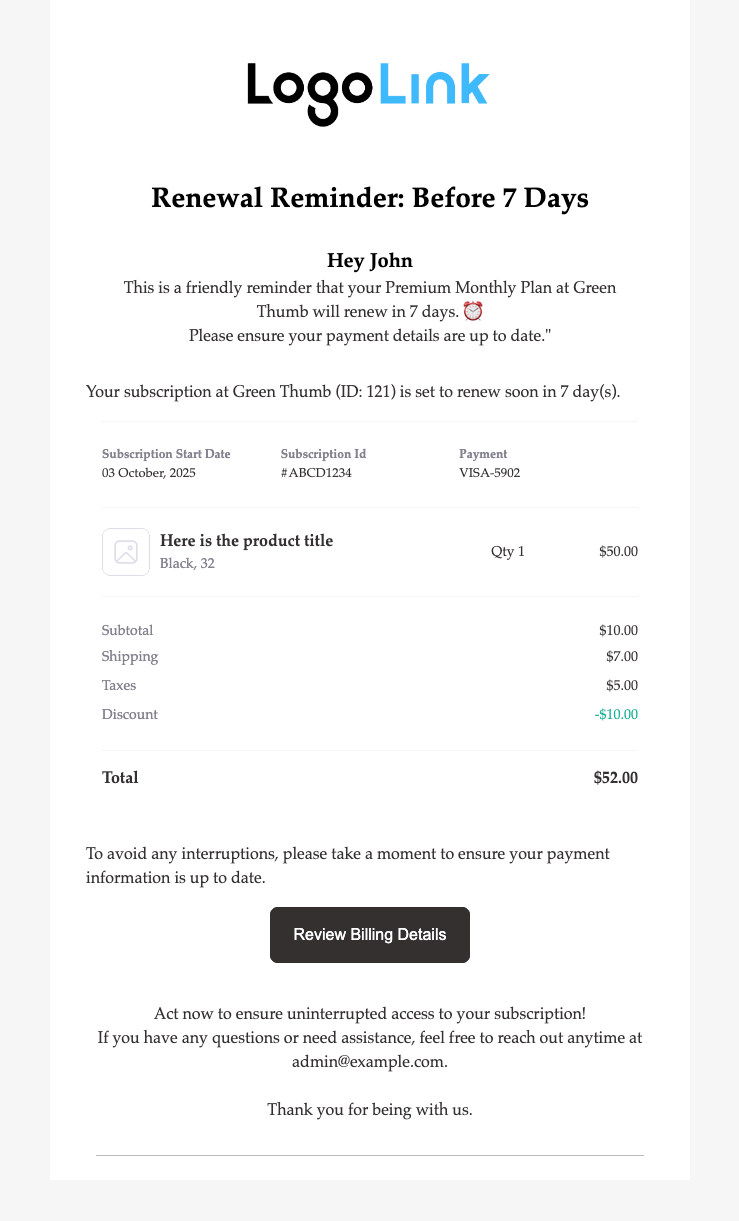
Here is a preview:
5 Tips for Subscription Reminder Emails
- Timing and Frequency
Send renewal reminders at the right moments, early enough to be helpful but not overwhelming. A good approach is to send one reminder 1 week before the renewal and another 2 days before.
- Card expiry reminder
It’s important to keep customers’ payment details up to date for a successful renewal. Send card expiry reminders whenever their saved card is nearing expiration.
- Send payment retry reminder
Send emails informing them that their payment is still being retried and the subscription will remain active until the final attempt.
- Keep messages clear and actionable
Use short, straightforward language and include direct links for updating payment details or reviewing the subscription. This reduces confusion and increases the chance of timely action.
- Personalize the content
Use the customer’s name, subscription type, and renewal date to make reminders feel relevant and helpful. Personalized emails typically get higher open and engagement rates.
More Questions About WooCommerce Subscription Reminder Emails
Here are the commonly asked questions about subscription email reminder in WooCommerce:
When should I send subscription reminder emails?
Send reminders a few days before the subscription renewal or expiration. This ensures customers have enough time to act without feeling rushed.
What should I do if a payment fails?
You can send them retry emails that clearly explain why the payment failed, such as an expired card or insufficient funds. Include simple steps so customers can easily update their payment method or retry the payment.
How can I make it easy for customers to act?
Include direct payment links, upsell or cross-sell suggestions, and clear customer support contact info. This reduces friction and increases conversions.
How can I prevent overwhelming customers with excessive email communications?
Space reminders appropriately and monitor engagement metrics. Adjust the number or timing based on open rates, clicks, and customer responses.
Ready to Reduce Churn With WooCommerce Subscription Reminders Emails?
Automating WooCommerce subscription reminders is a simple yet powerful way to reduce churn, improve customer retention, and maintain steady revenue.
By setting up timely, personalized notifications for upcoming renewals, expiring trials, and payment issues, you keep customers informed and engaged without manual effort.
Sublium Subscriptions ensures your reminders are personalized, well-timed, and effective.
This helps you build trust, minimize cancellations, and streamline your subscription business.
Start automating today, and watch your retention rates improve effortlessly.
Get Sublium Subscriptions today!


