

The Card Updater feature allows customers to update their card details with a single click for Stripe, Square and PayPal payments, even without logging in.
The Card Updater Settings let you customize all the text displayed throughout the card update process.
You can personalize page headers, button labels, success messages, and error messages shown to customers when they update their payment methods.
Access Card Updater Settings
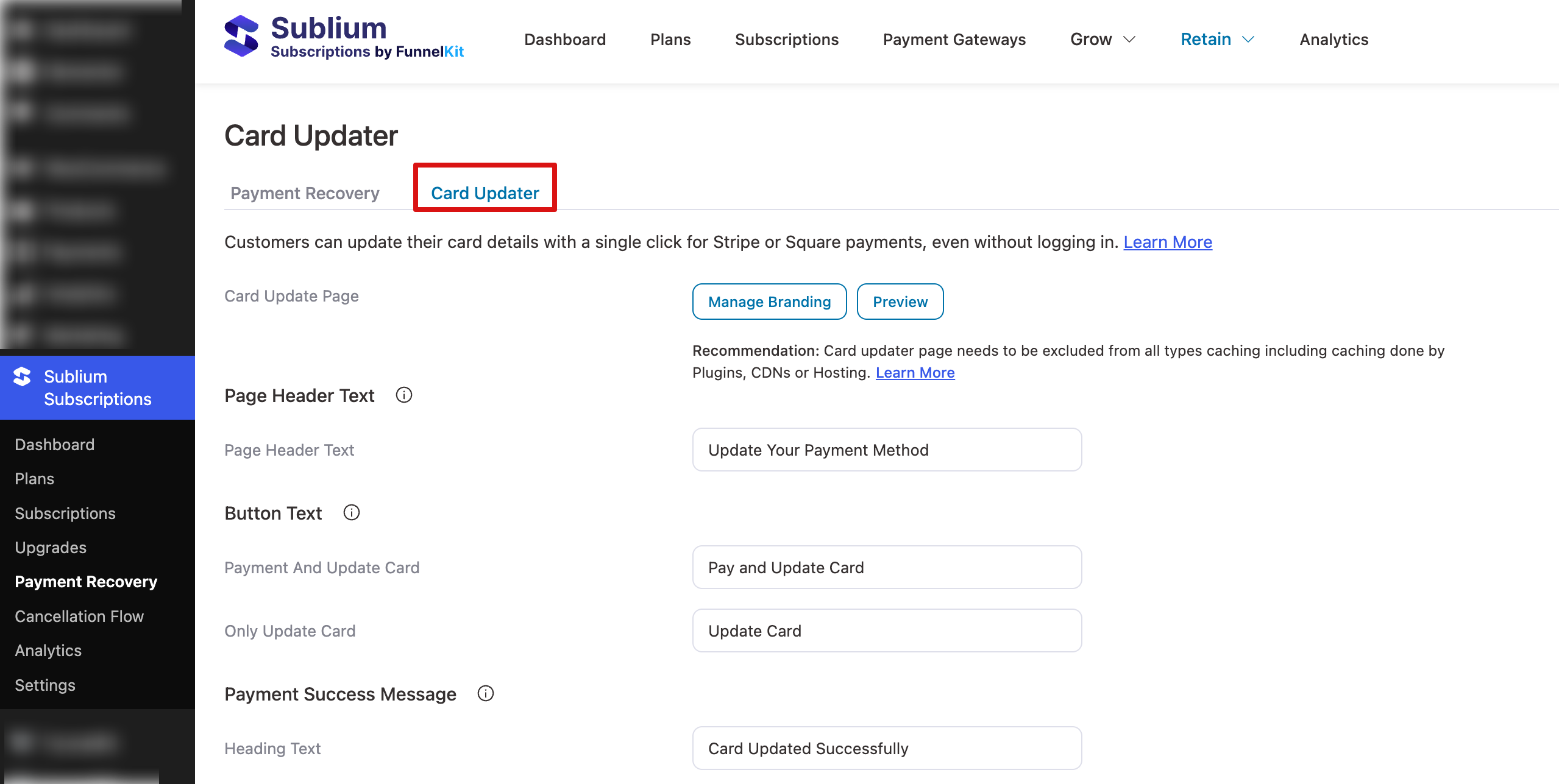
Navigate to Sublium Subscriptions ⇒ Card Updater.
Here, you can configure the card update page, manage branding, and customize all text elements used throughout the card update experience.
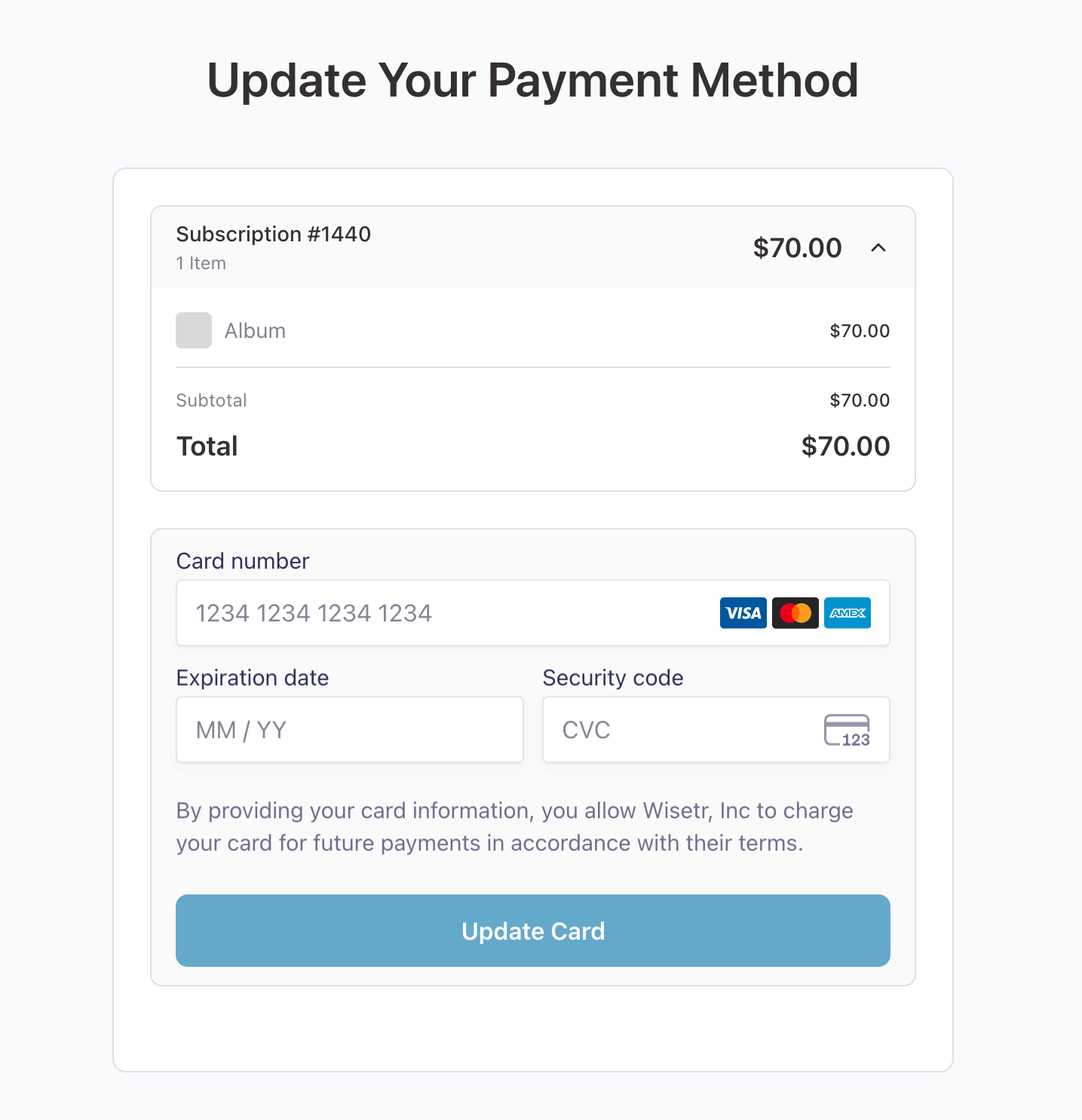
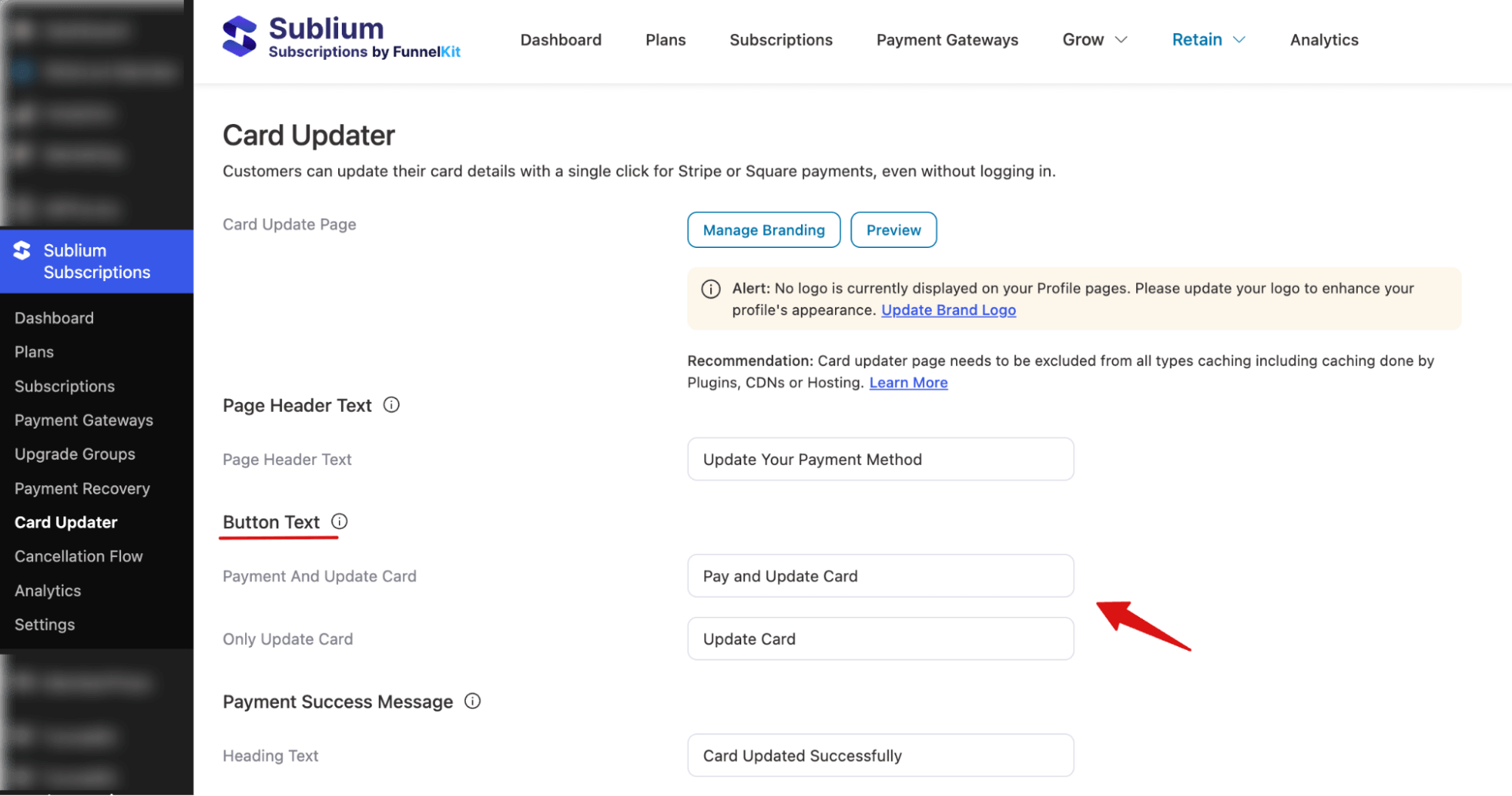
Here is what the card updater page looks like:
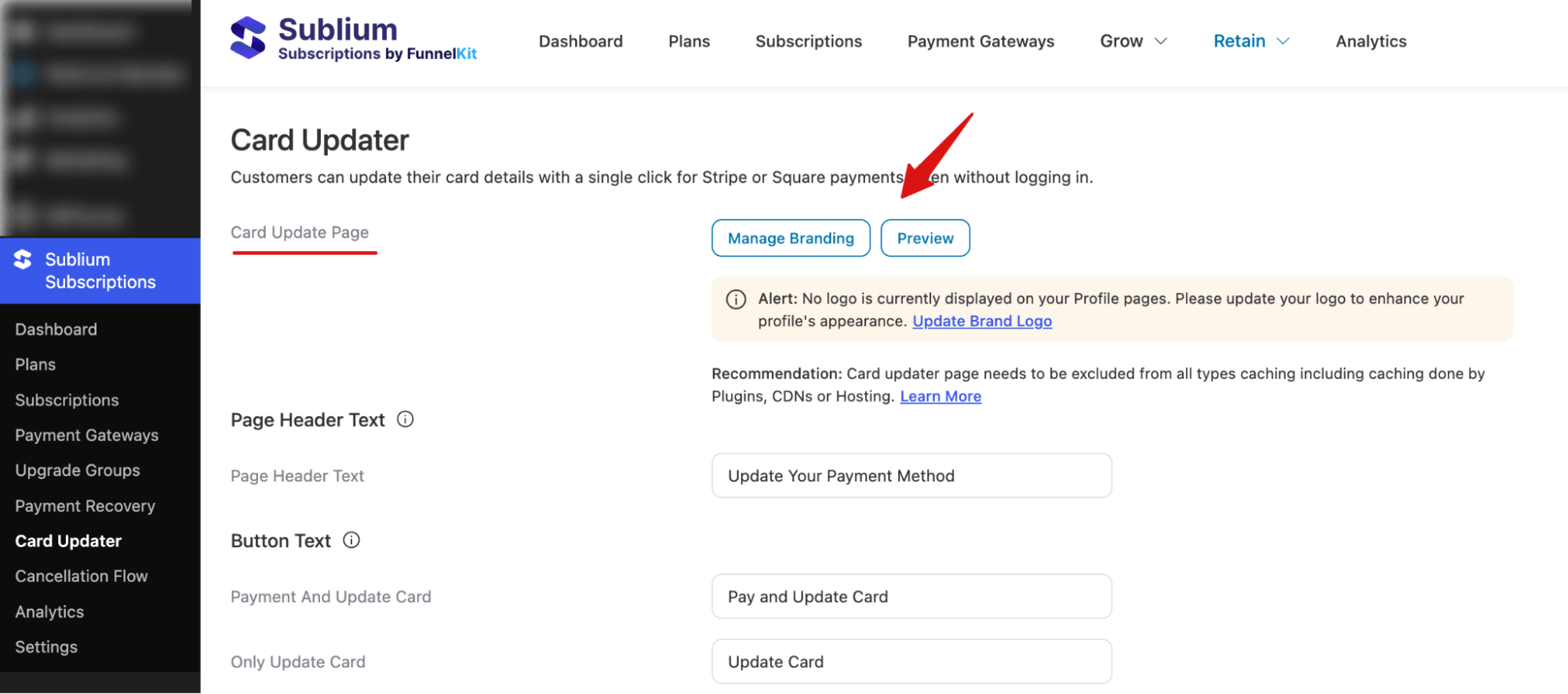
Card Update Page
This is the dedicated page where customers land to update their payment card details.
Available Actions:
- Manage Branding: Customize the page appearance with your logo and brand colors
- Preview: View how the card update page appears to customers

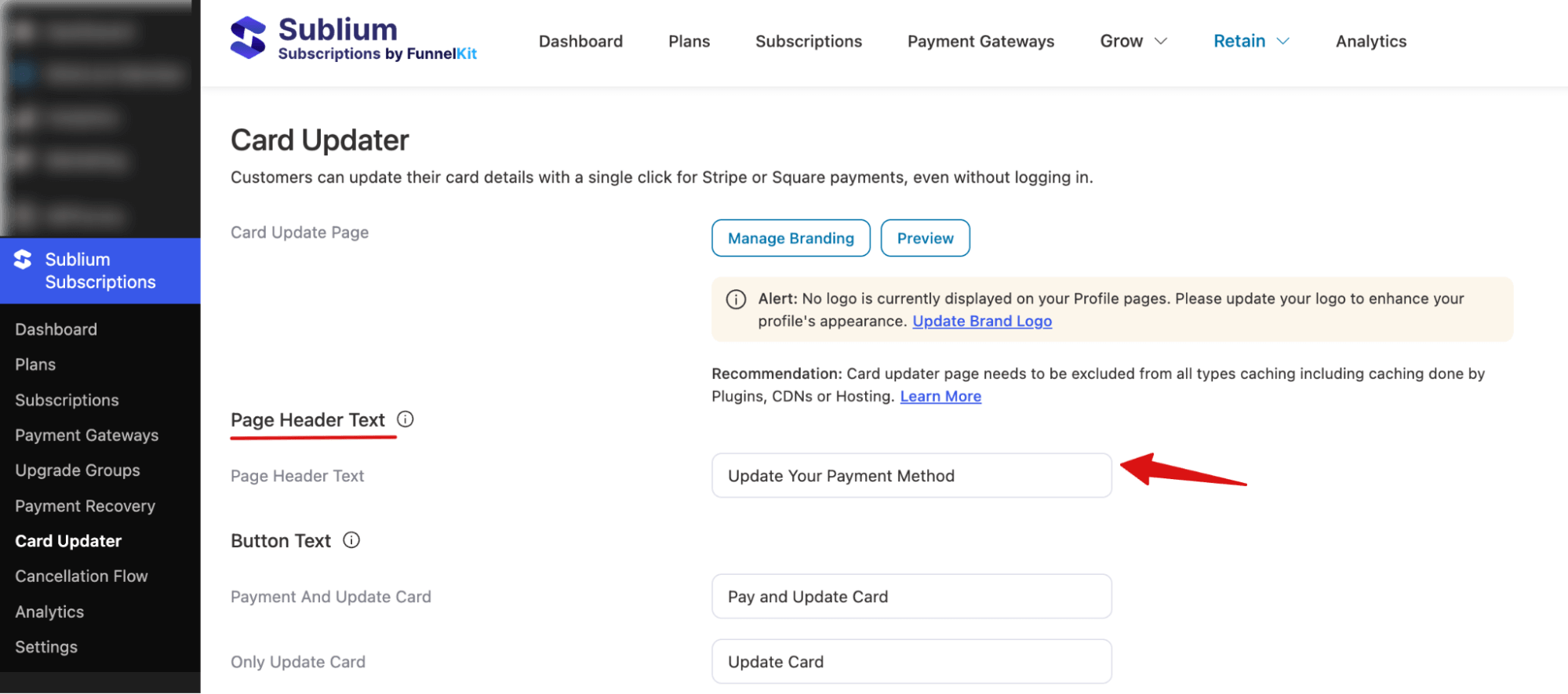
Page Header Text
Controls the main heading displayed at the top of the card update page.
- Page Header Text: Heading shown when customers access the card update page. Default: Update Your Payment Method
This text should clearly communicate the purpose of the page to your customers.
Button Text
Customize the button labels for different card update scenarios.
- Payment And Update Card: Button label for processing payment and updating card simultaneously. Default: Pay and Update Card. This button appears when there’s an outstanding payment that needs to be settled. When clicked, it processes the pending payment and updates the card information at the same time.
- Only Update Card: Button label for updating card details only. Default: Update Card. This button appears when the customer wants to update their payment method proactively, without any failed or pending payments.
Payment Success Message
Controls the text displayed after a successful card update with payment processing.
- Heading Text: Title shown on the success screen after payment and card update. Default: Card Updated Successfully
- Subheading Text: Message displayed below the heading when payment is processed. Default: Your payment method has been updated, and due renewals have been cleared.
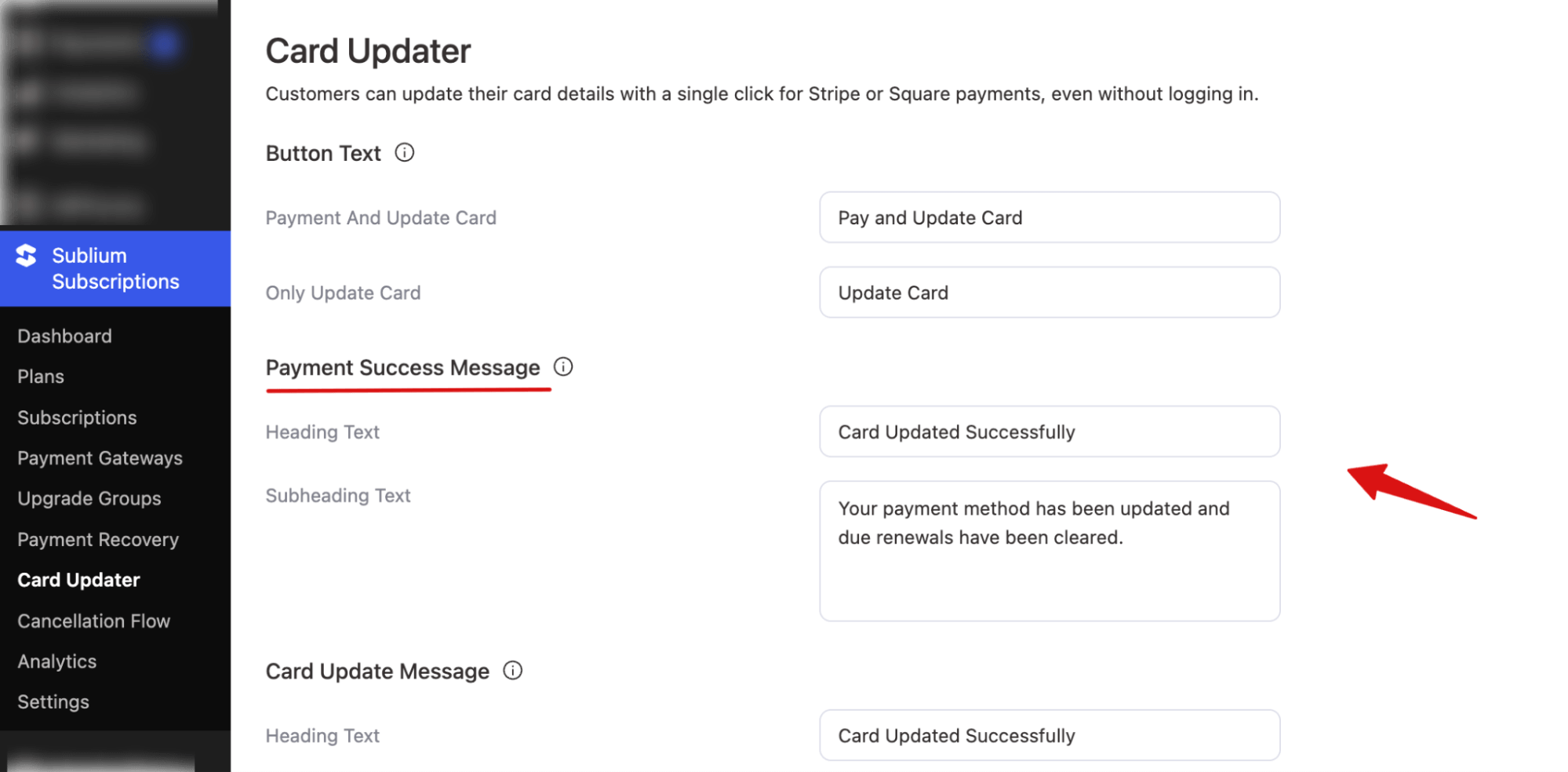
This confirmation reassures customers that both their payment was processed and their card information was successfully updated for future renewals.
Card Update Message
Controls the text displayed after successfully updating the card without processing any payment.
- Heading Text: Title shown on the success screen after card update only. Default: Card Updated Successfully
- Subheading Text: Message displayed below the heading when only the card is updated. Default: Your payment method has been saved for future renewals.
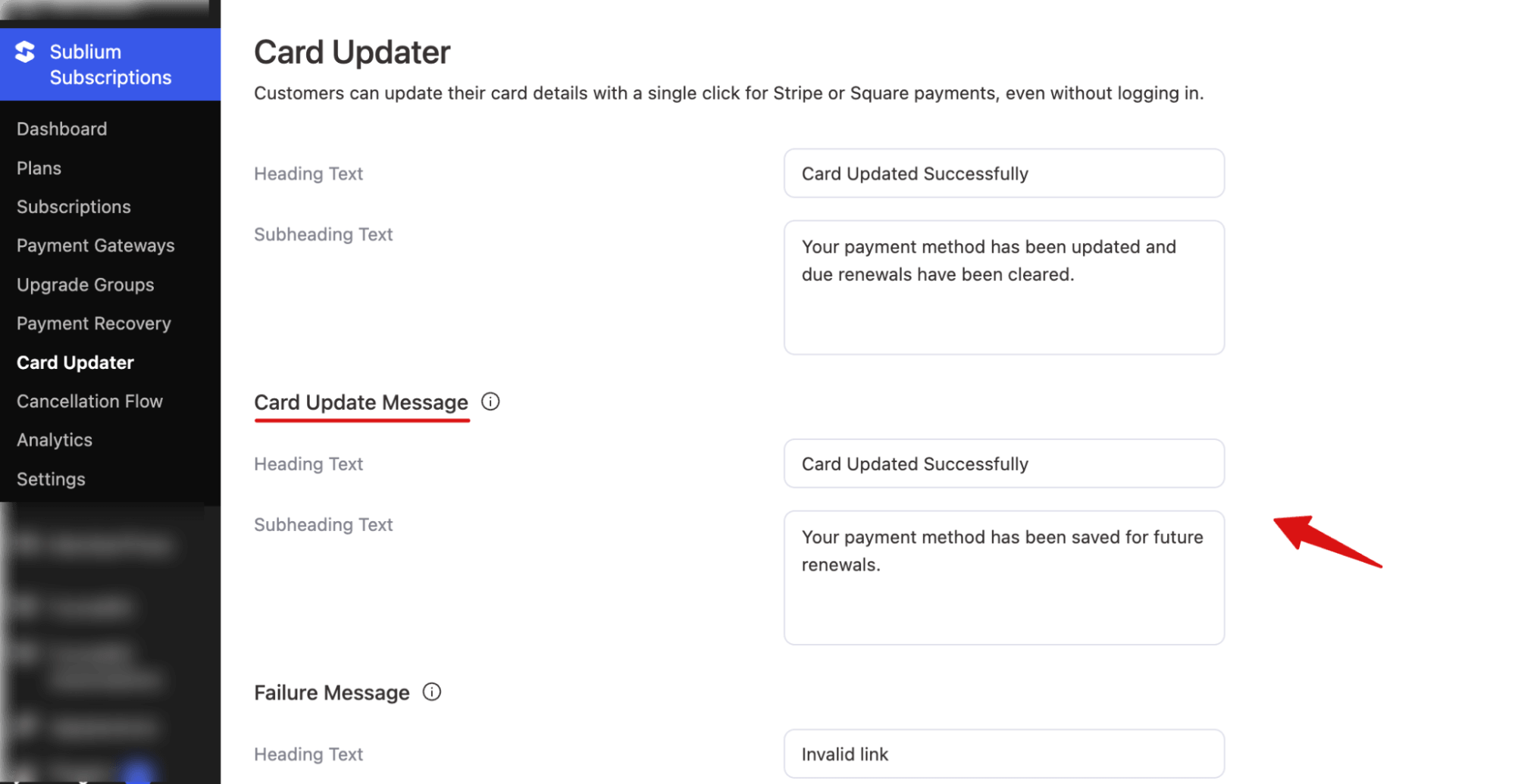
This confirmation lets customers know their new payment method is now on file for upcoming subscription renewals.
Failure Message
Controls the text displayed when the card update process fails.
- Heading Text: Title shown when card update fails.Default: Invalid link
- Subheading Text: Error message explaining why the update failed. Default: We couldn’t find an active subscription for this link.
This message appears when the card update link is expired, invalid, or the subscription is no longer active.
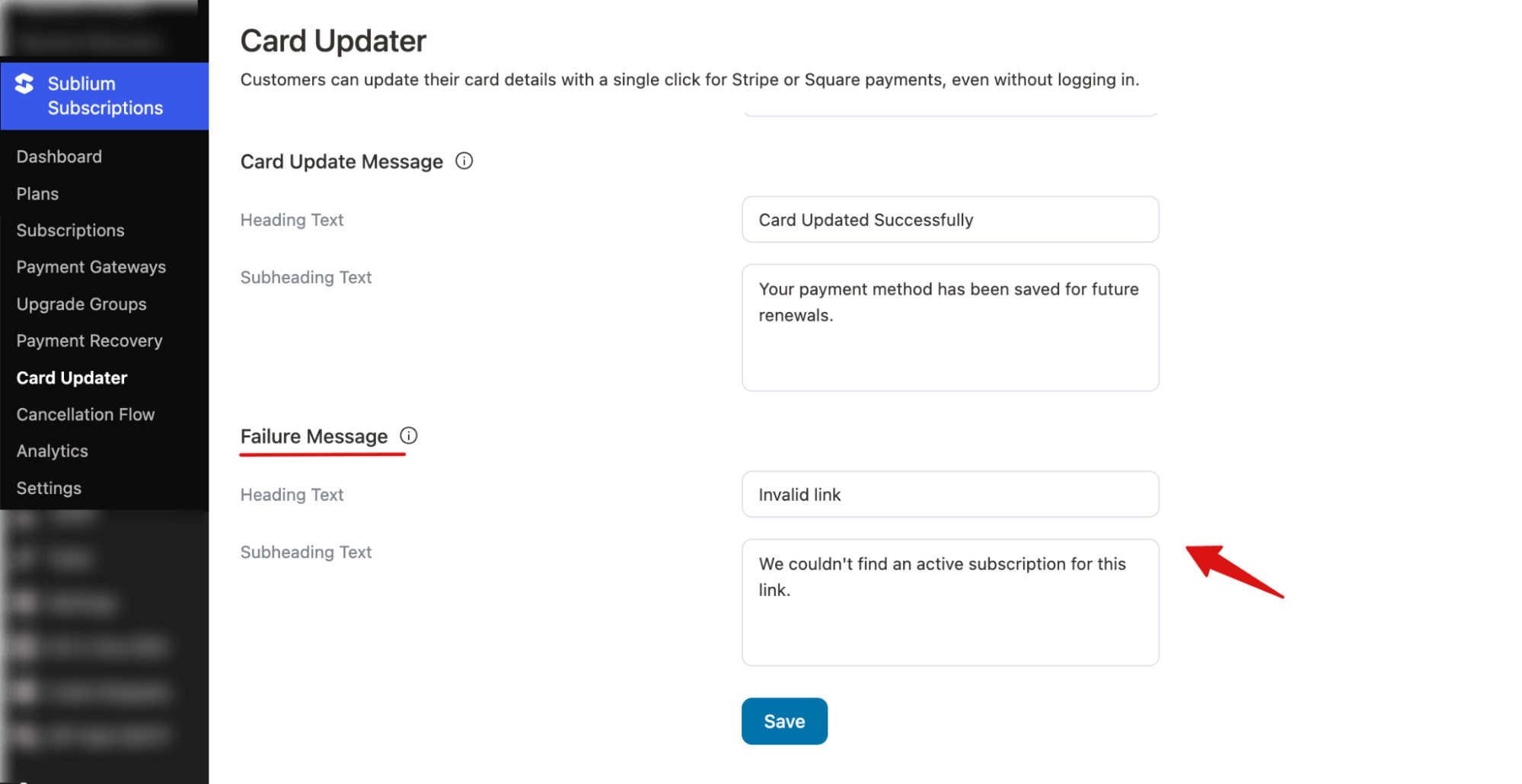
Make sure to hit “Save” to update.
Common Failure Scenarios:
- The card update link has expired
- Subscription has been cancelled
- Invalid or malformed update URL
- Subscription not found in the system


