This document contains all information on subscription cancellation, email notifications, email customization, and activation.

Overview
“Subscription Cancelled” is the email notification sent automatically when a customer cancels an active subscription.
This notification confirms the cancellation and summarizes the key subscription details so customers clearly understand what happened.
It typically includes:
- Subscription plan name
- Subscription ID
- Cancellation date
- Last active date or final billing date
- Product details (title, variation, quantity, price)
- Any remaining balance or refund information (if applicable)
- A link to the My Account page to review subscription history or resubscribe
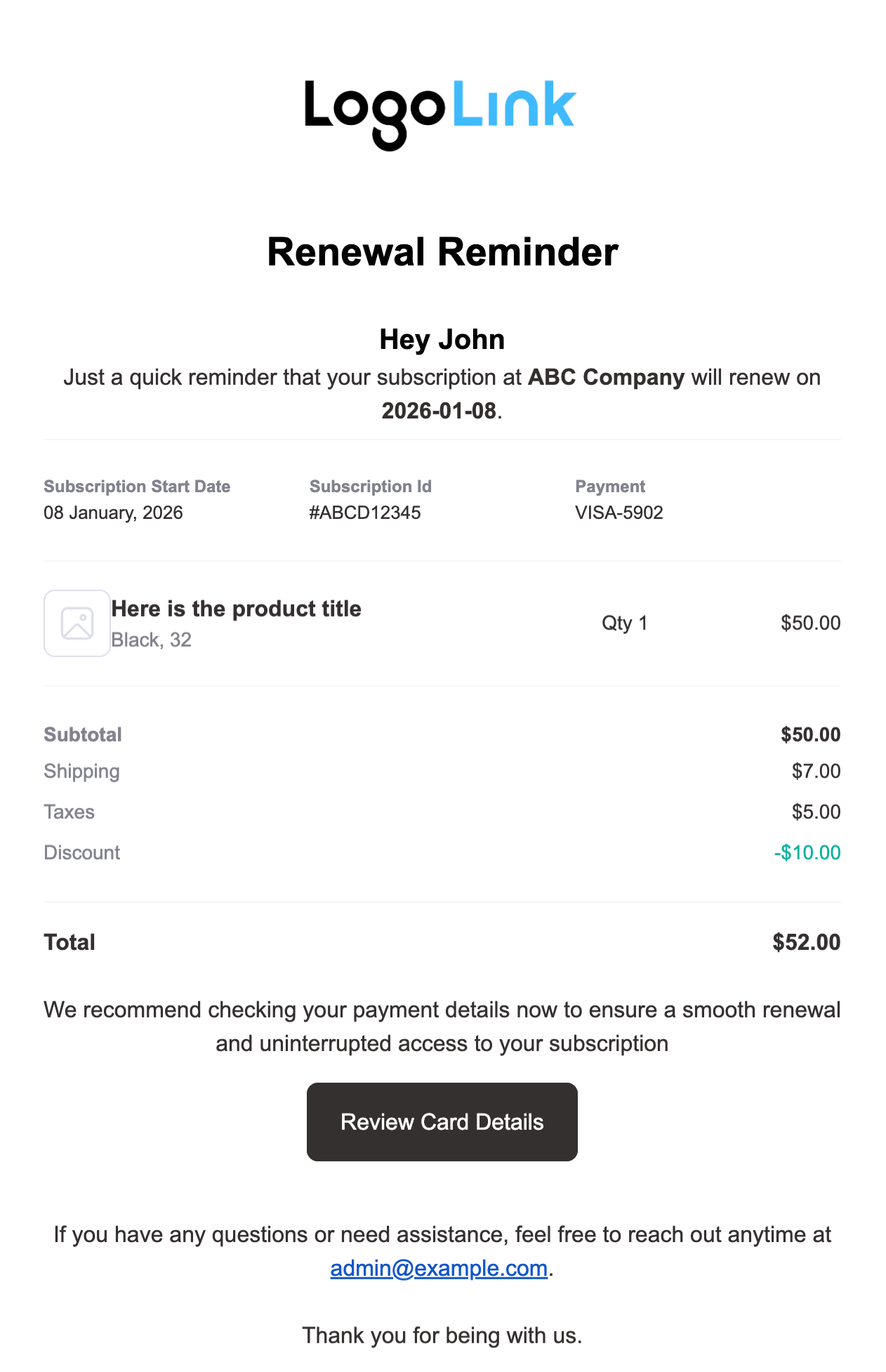
Here is a prebuilt template by Sublium Subscriptions:

When It Is Sent
This email is sent when:
- A customer cancels their subscription from the My Account page
- An admin cancels the subscription manually
Recipient
This notification is sent to the customer by default.
How To Activate “Subscription Cancelled” Email Notification
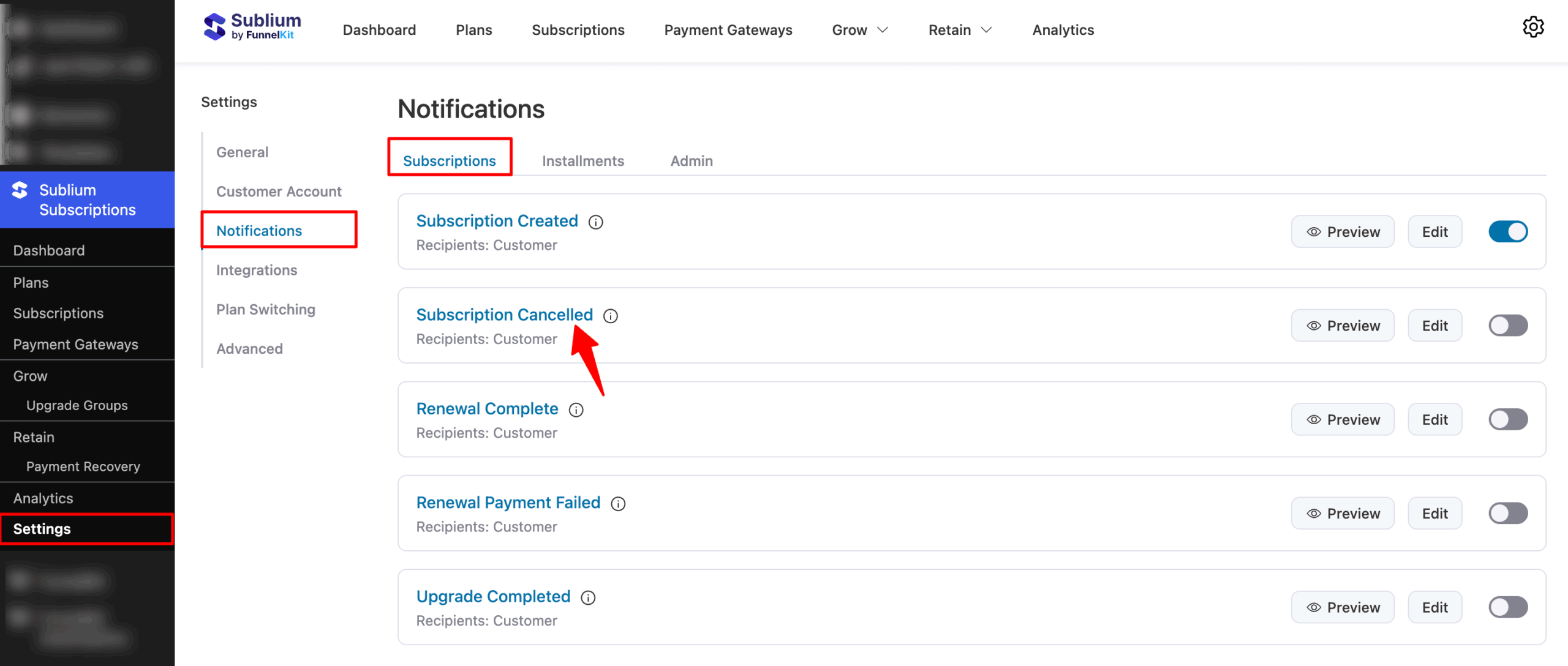
Navigate to Sublium Subscriptions ⇒ Settings ⇒ Notifications.
Under the Subscriptions tab, you will find the Subscription Cancelled email notification.
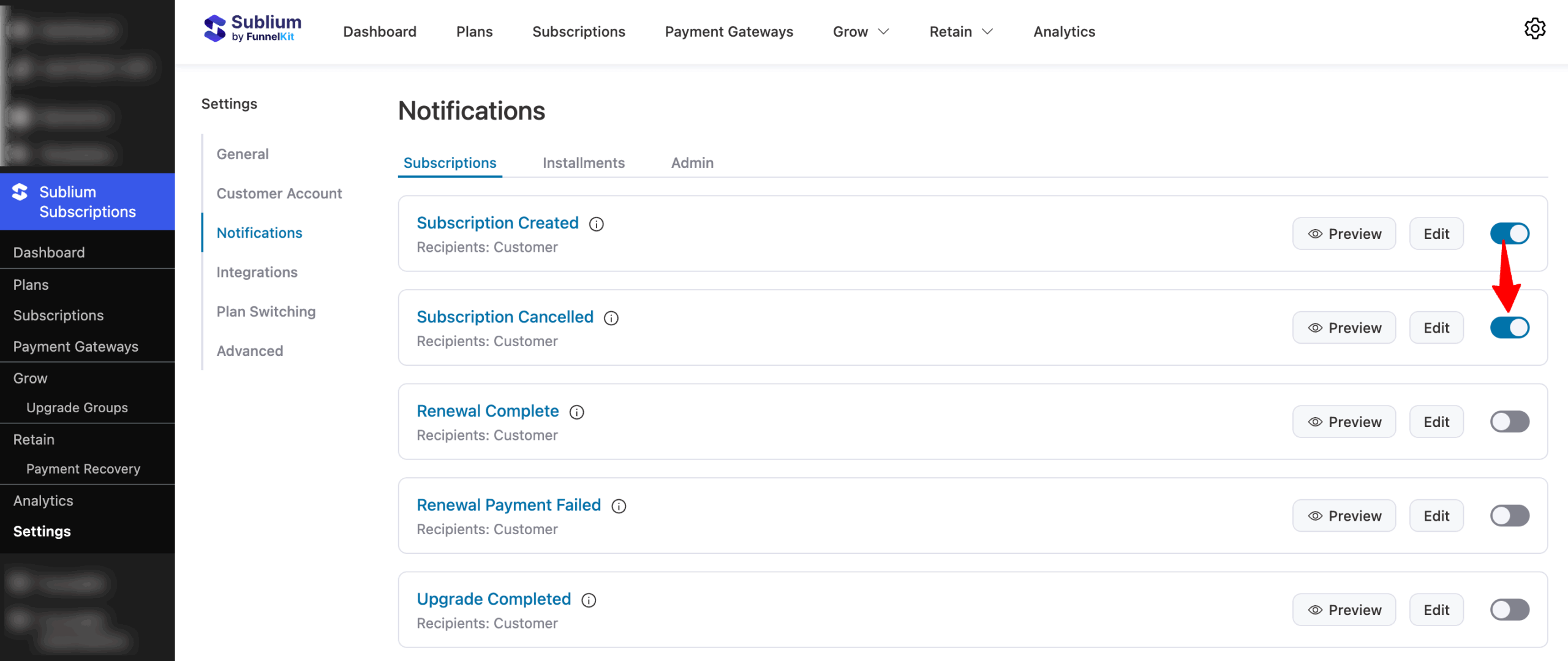
To activate the “Subscription Cancelled” email, turn ON the toggle next to the notification in your Sublium settings.
Email Customization
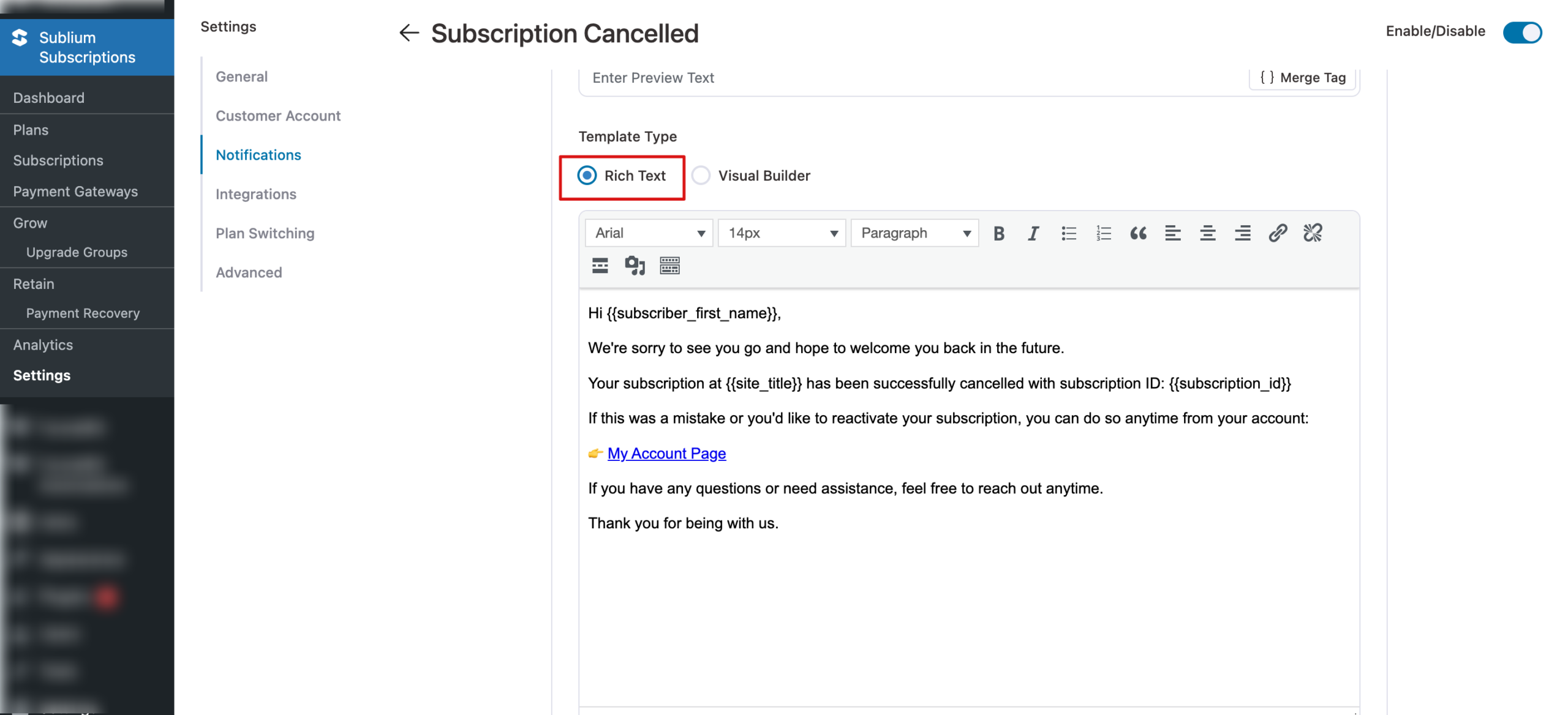
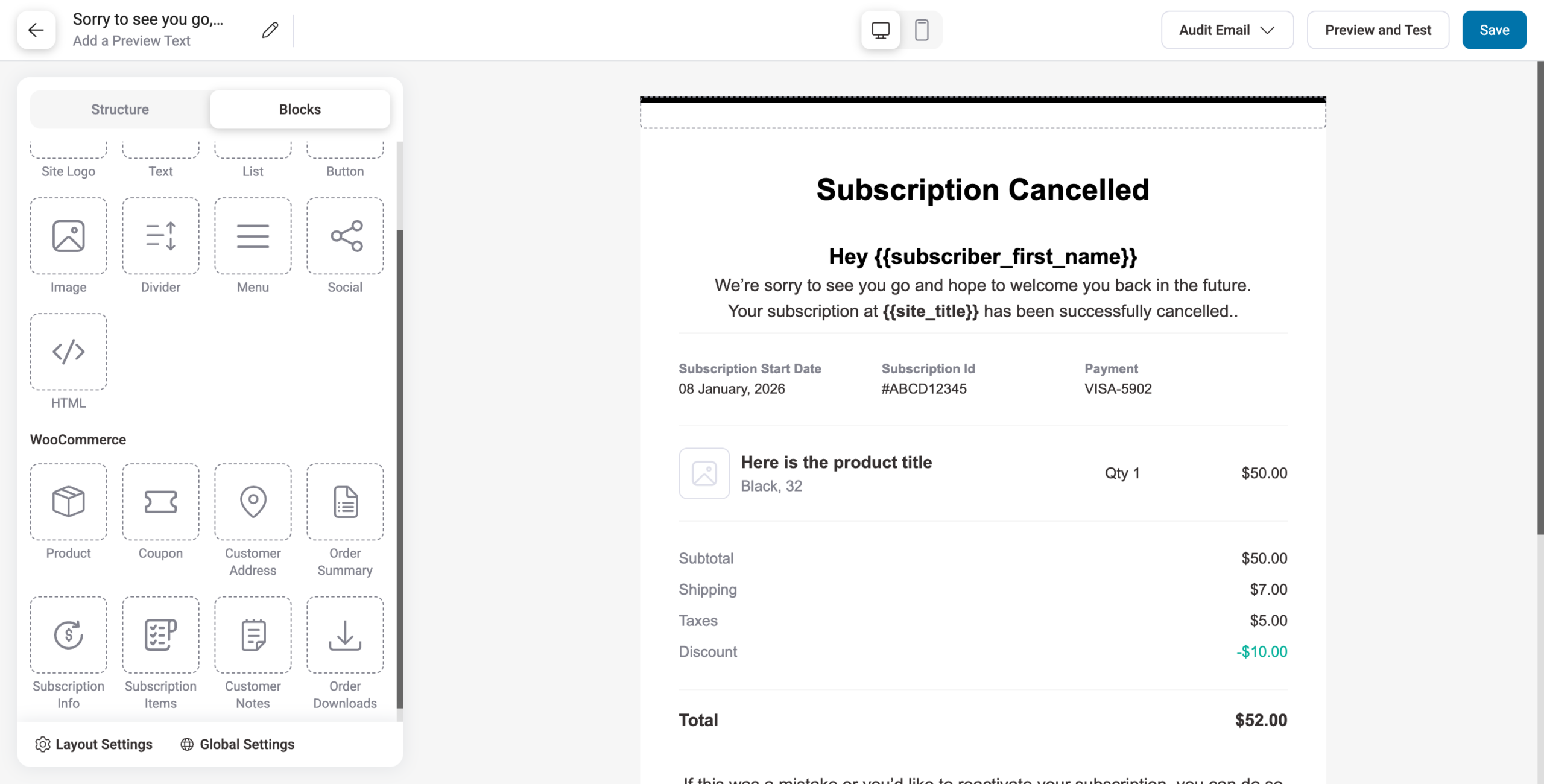
You can customize this email using two editors:
- Rich Text
- Visual Editor
Both editors come with a prebuilt “Subscription Cancelled” email template that you can fully customize.
Here is how the Rich Text editor:
Here is the Visual Email Builder:
Personalization
You can personalize the subject line, preview text, and body using merge tags.
Simply copy and paste them where needed.
Here are the merge tags used in the prebuilt template:
- {{subscriber_first_name}} – Subscriber’s first name
- {{subscription_id}} – The unique ID of the subscription
- {{site_title}} – Your website/store name
- {{subscription_next_payment_date}} – The next scheduled renewal date
- {{admin_email}} – Admin/support email address
- {{my_account_url}} – URL to the subscriber’s account page
Testing The Email
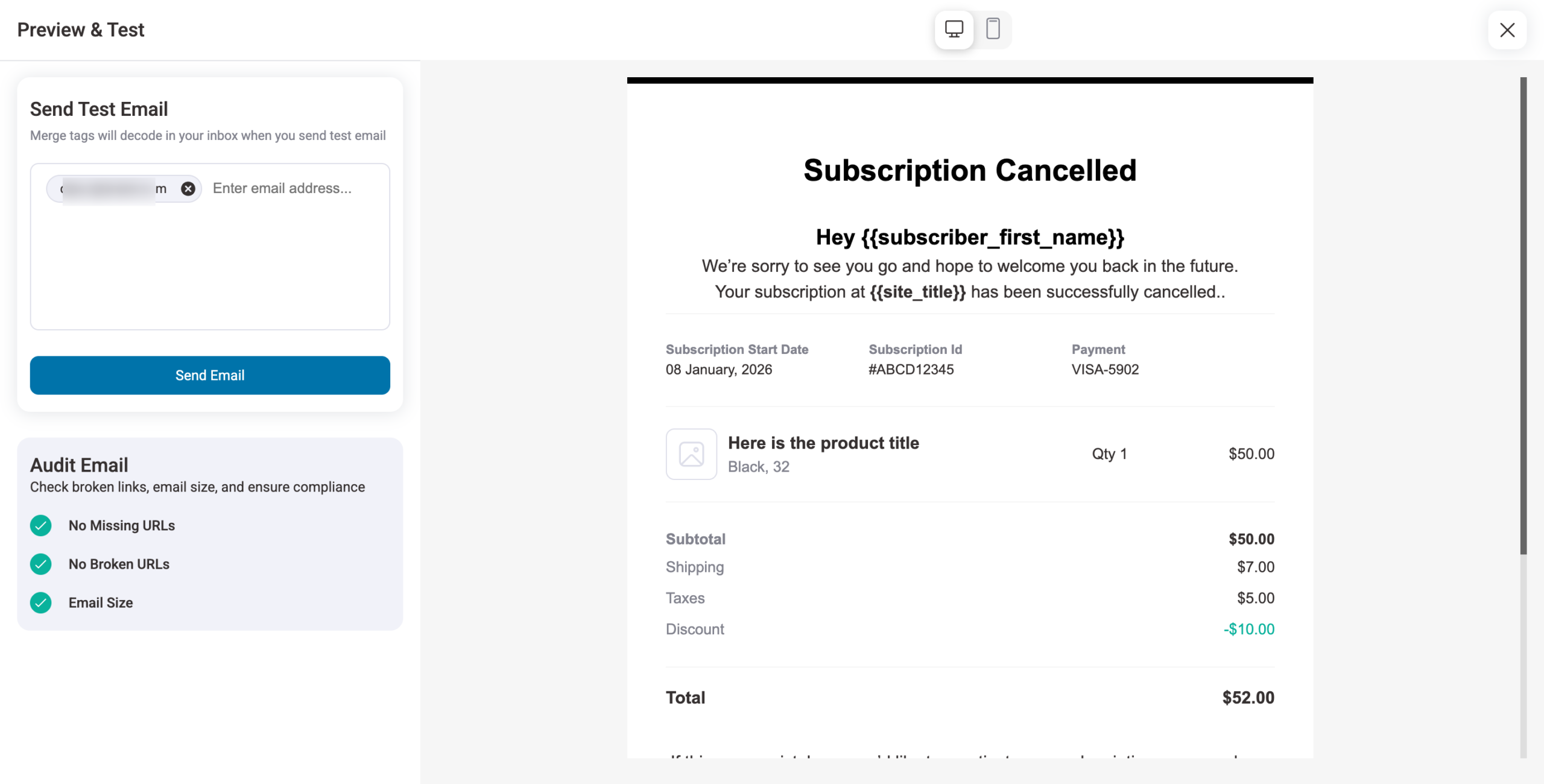
To send a test email, click “Preview & Test”, enter the email address(es), and click Send Email.