

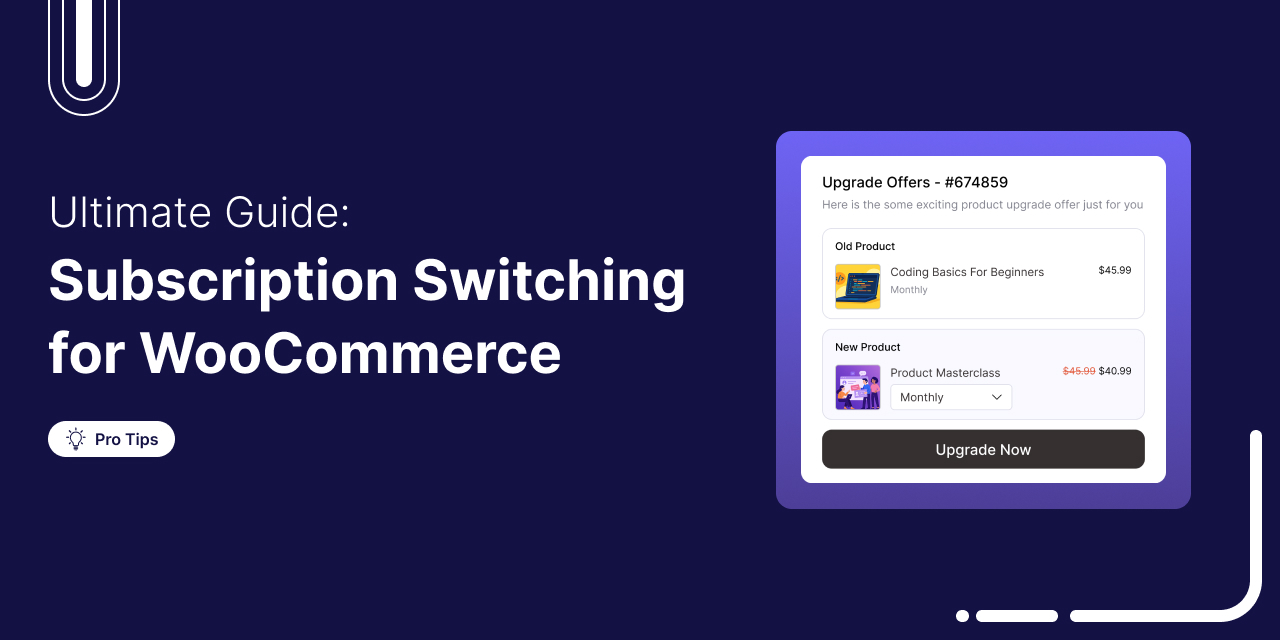

A customer loves your product. They start on your “Basic” monthly plan, their business grows, and now they’re ready to upgrade to the “Pro” tier.
They visit their account page, but there’s no upgrade button. No option to change plans. After getting frustrated, they cancel their subscription, thinking they’ll “resubscribe later”. But they forget, and you lose a loyal customer for no good reason.
All this happened because your store wasn’t flexible enough.
Subscription switching is the ability for customers to upgrade, downgrade, or cross-grade on their own.
It’s a retention engine that transforms cancellations into downgrades (saving customers) and satisfied users into higher-paying upgrades (boosting LTV).
In this guide, I’ll show you how subscription switching works, explain the proration math behind the scenes, and walk you step-by-step through setting it up seamlessly in your WooCommerce store.
What is Subscription Switching in WooCommerce?
In WooCommerce, subscription switching refers to the process where a subscriber changes their existing plan or product variation without cancelling their current subscription.
This ensures that the billing schedule, payment tokens, and order history remain intact.
There are three main types of switches you need to strategize for:
- Upgrades (Upselling): Moving a customer from a lower-priced plan to a higher-priced one (e.g., Silver → Gold). This instantly increases your Monthly/Annual Recurring Revenue (MRR/ARR).
- Downgrades (Retention): Shifting from a higher-priced plan to a more affordable one. You may lose some revenue upfront, but you avoid churn, which is far worse.
- Cross-grades: Switching between products or billing cycles, such as Coffee → Tea, or Monthly → Yearly. These changes allow flexibility without breaking the subscription flow.
Subscription switching keeps customers in control, reduces cancellations, and boosts long-term revenue.
How to Set Up Subscription Switching in WooCommerce (Step-by-Step)
Many subscription plugins make switching overly complicated, packed with confusing settings and fragile checkout flows.
Sublium does the opposite. It’s powerful, beginner-friendly, and gives you full control over proration without the usual technical headaches.
Sublium is available for free on the WordPress repository. To unlock everything, like advanced proration logic, plan groups, and powerful switching controls, upgrade to the premium version.
Below is the complete step-by-step guide to setting up frictionless subscription switching in WooCommerce using Sublium.
Step 1: Create a recurring subscription plan
For this example, let’s create two fitness subscription tiers for setting up upgrades:
- Fitness Subscription – Silver ($9.99/month): Full workout plan
- Fitness Subscription – Gold ($12.99/month): Workout plan + personalized diet plan
Make sure this product is already added to your WooCommerce store catalog.
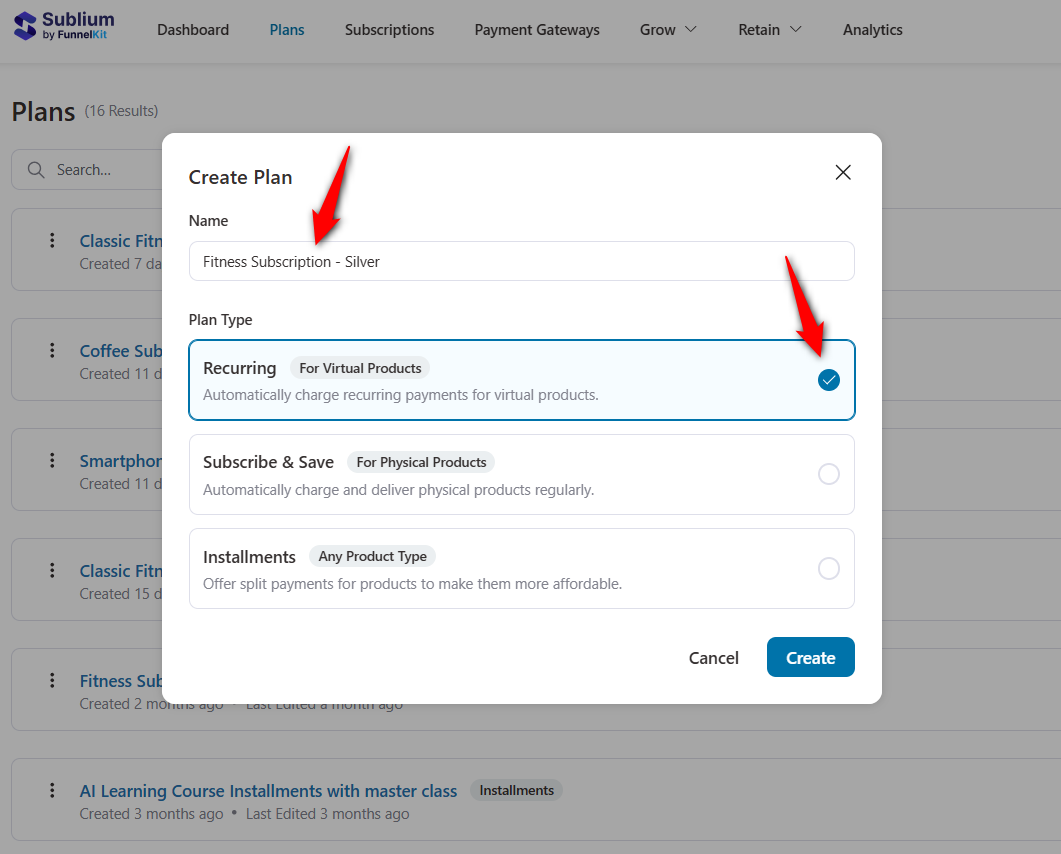
Next, navigate to Sublium ⇨ Plans and click on the ‘Create Plan’ button.
Enter the name of your subscription and select ‘Recurring’.
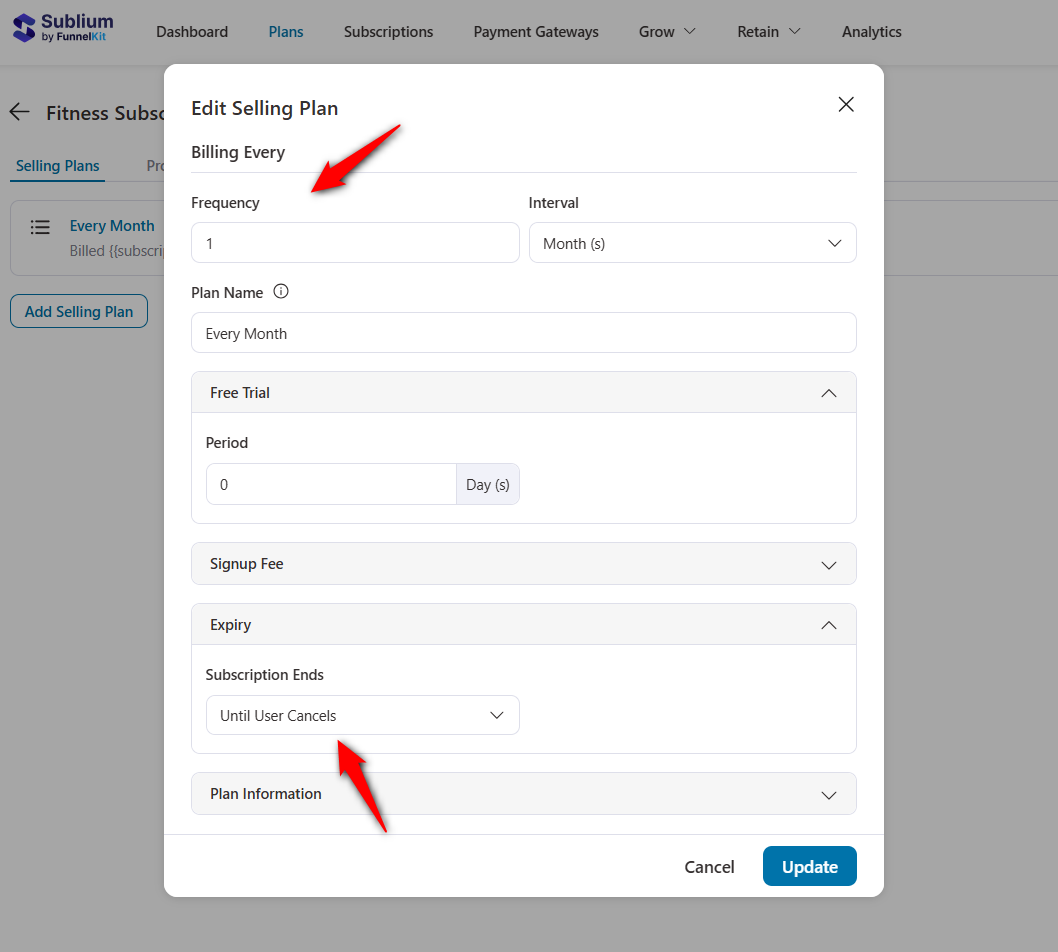
Configure the monthly subscription plan:
- Frequency: Set the recurring billing and intervals (e.g., monthly)
- Free Trial: Set the duration of the free trial if you offer one
- Signup Fee: Specify any signup cost (leave blank if none)
- Expiry: Set when your subscription will expire
- Plan Information: Add any helpful internal notes or descriptions
This will create your subscription plan.
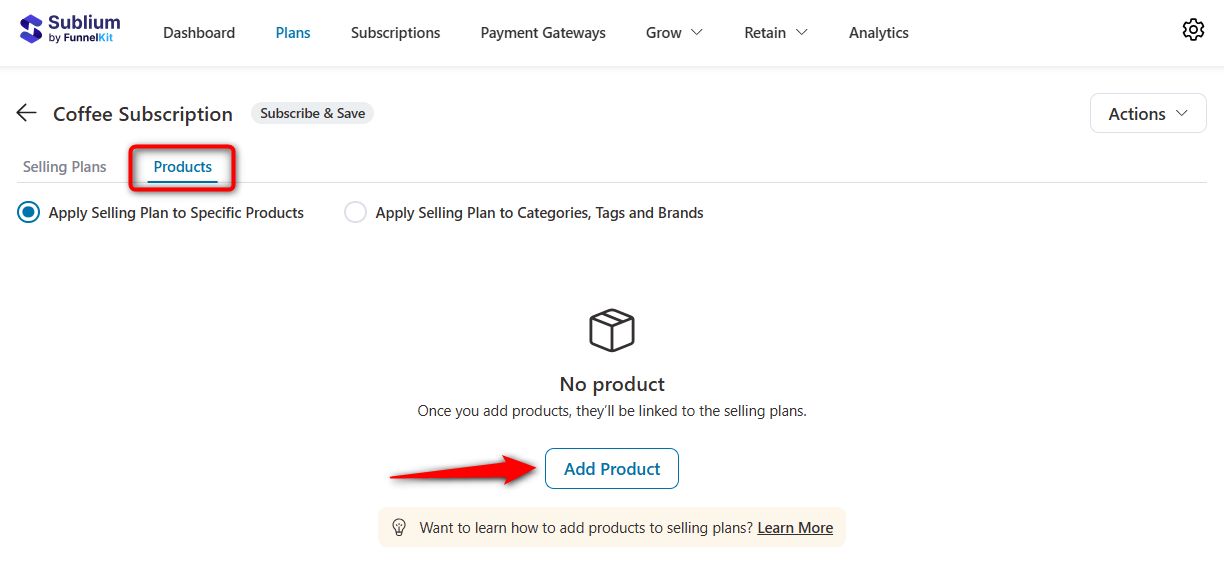
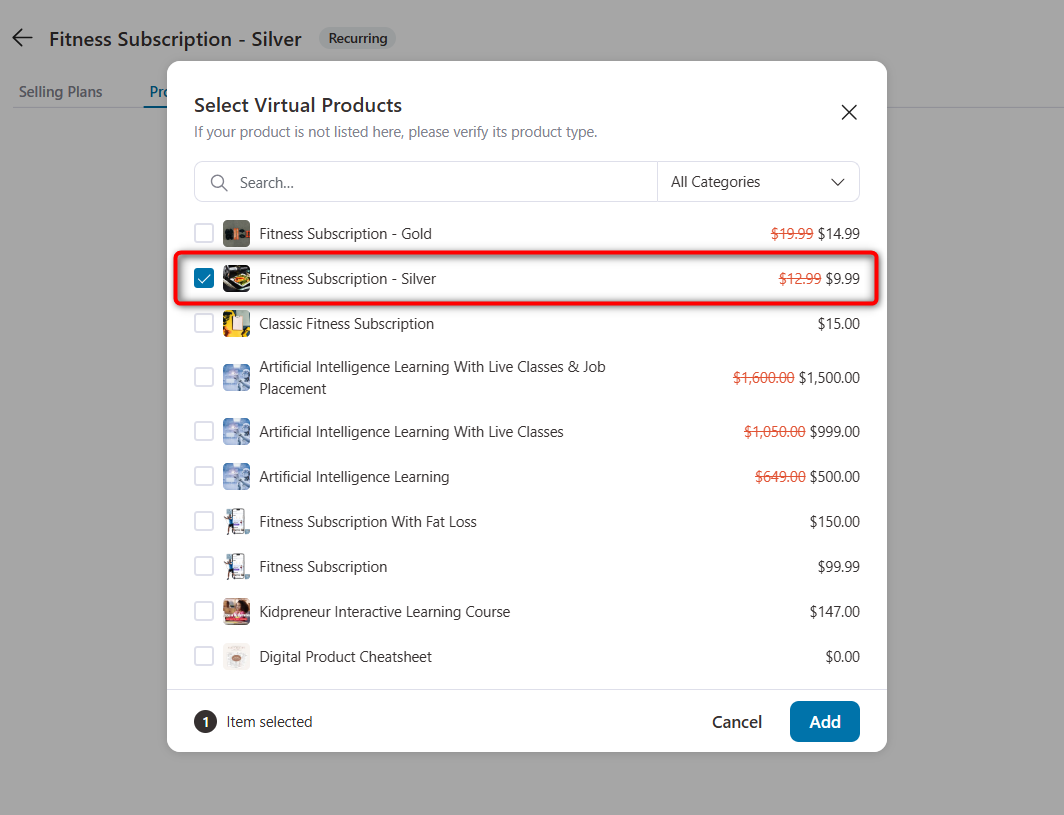
Next, go to the Products tab and click on ‘Add Product’ to assign the product to this subscription plan.
Select the product you want to add to this subscription plan.
Your product will get added to the subscription plan. Configure the selling price, offer a one-time fee, and more.
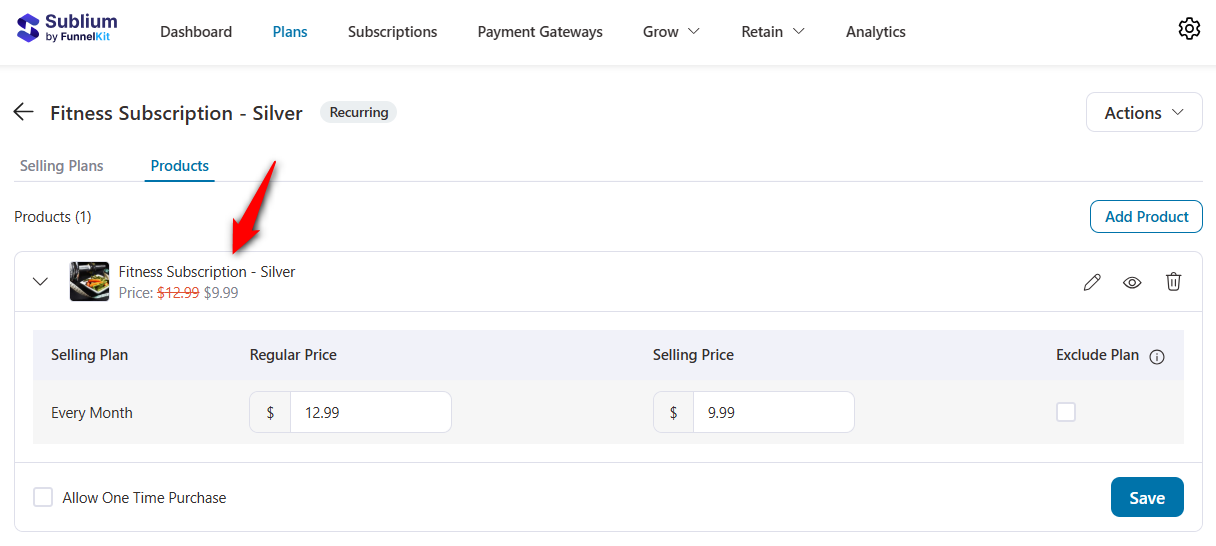
Hit ‘Save’ when done.
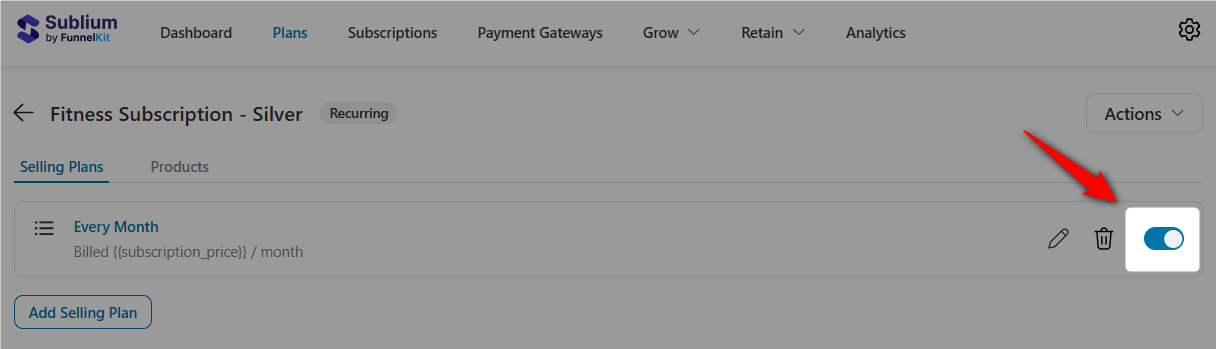
Now that your subscription plan is finalized, toggle it to active to make it live in your WooCommerce store.
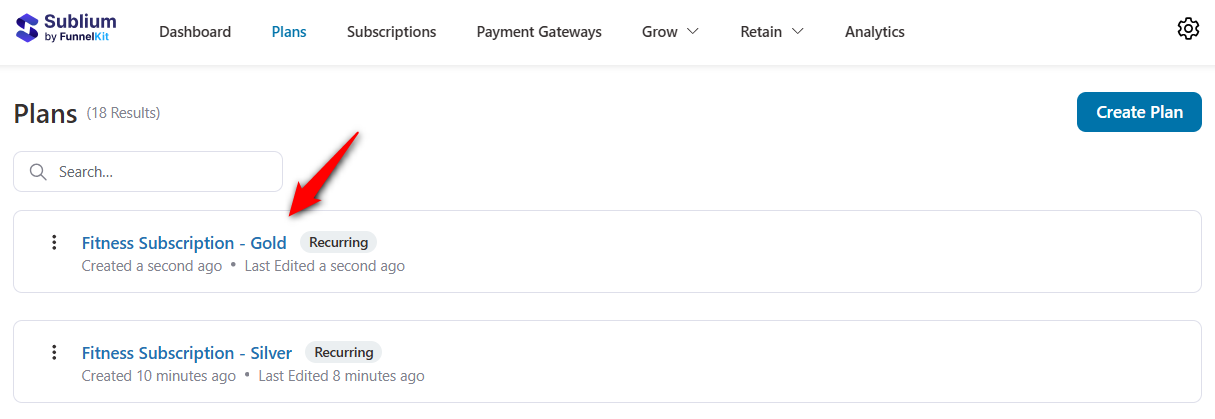
Similarly, create another subscription for your Gold plan. We’ll consider this for the subscription switch.
Step 2: Set up the upgrade group
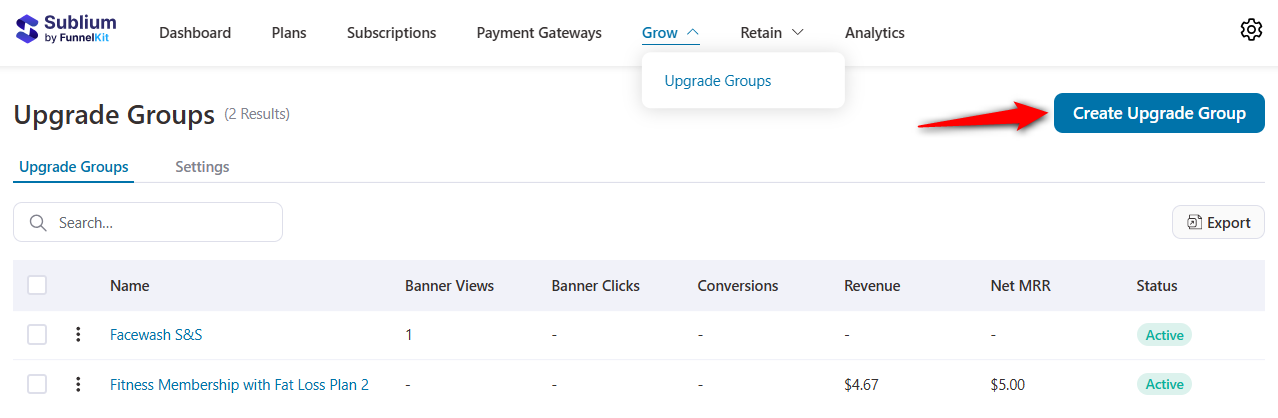
Navigate to Sublium ⇨ Grow ⇨ Upgrade Groups and click on the ‘Create Upgrade Group’ button.
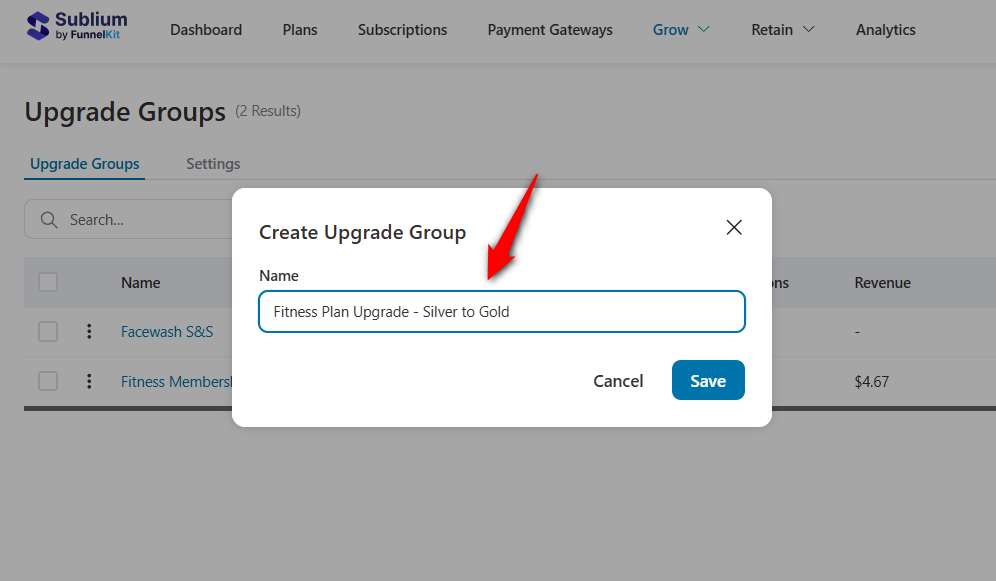
Enter the name of your upgrade group and click on ‘Save’.
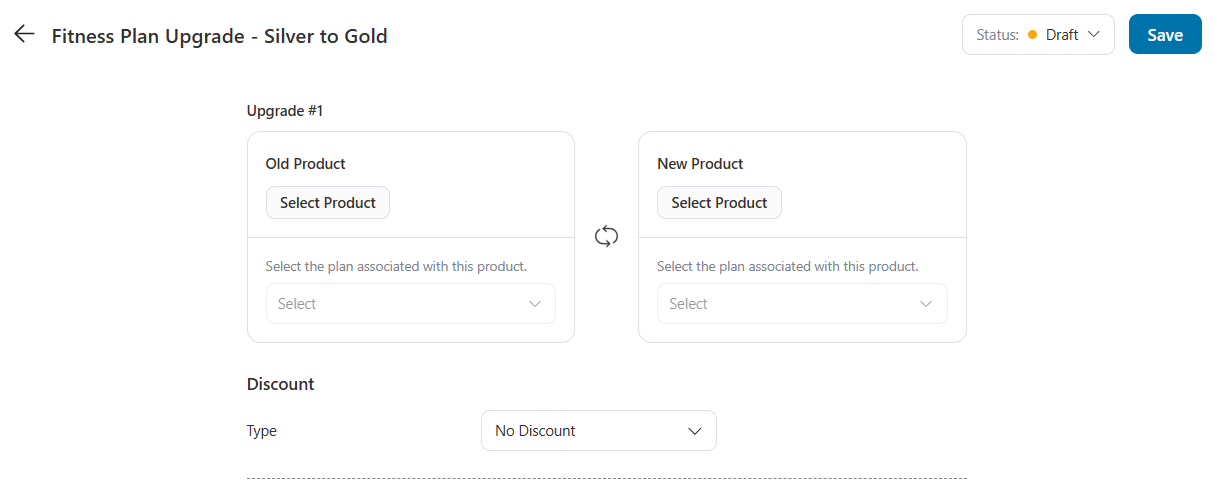
Sublium will successfully create your upgrade group in WooCommerce.
Step 3: Add the old and new products to the upgrade group
Now that your upgrade group has been created, it’s time to assign both subscription plans (Silver → Gold) to it.
Select the product, both old and new.
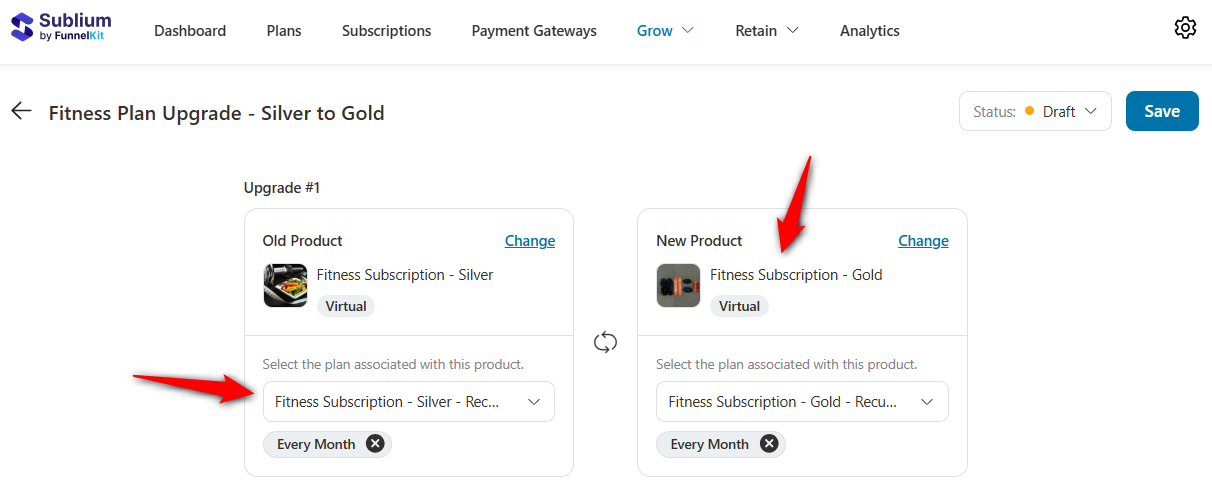
Assign the silver plan to the old and the gold plan to the new product.
Make sure to specify the subscription plan for the switch.
Hit ‘Save’ when done.
Step 4: Configure the WooCommerce subscription switch settings
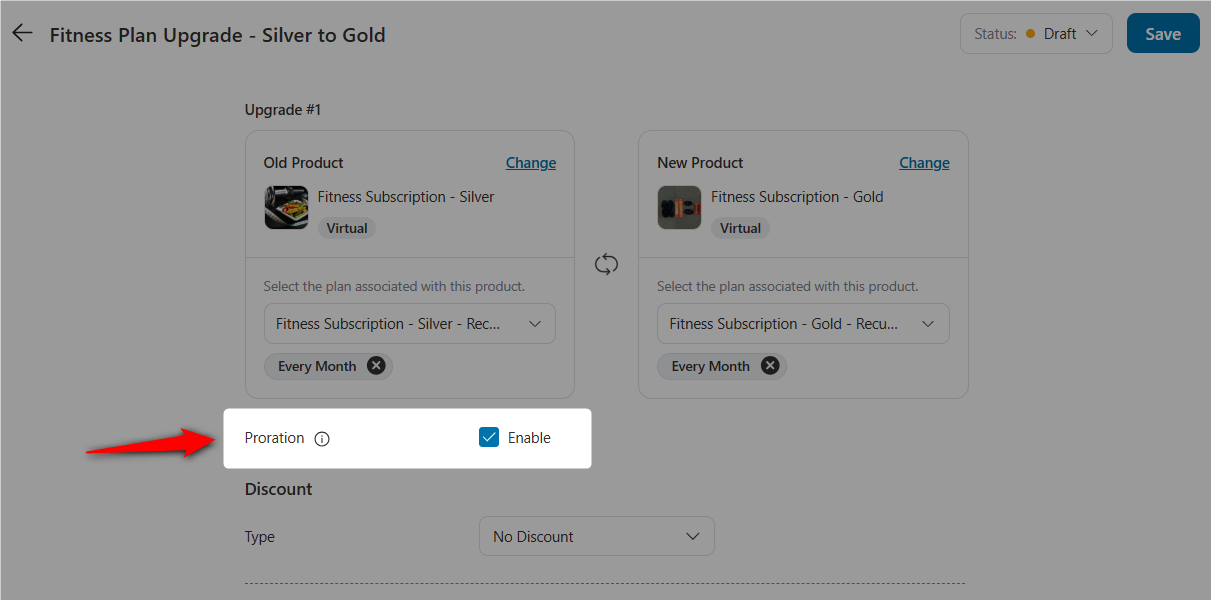
Proration
Turn on Proration to ensure customers are charged fairly when switching to a different plan mid-cycle.
When enabled, Sublium automatically calculates the remaining value of the old plan, compares it with the cost of the new plan, and computes the Gap Payment.
This ensures users only pay (or are credited) for the portion of the billing cycle they’re upgrading within.
We’ve explained proration in the next section.
Discount
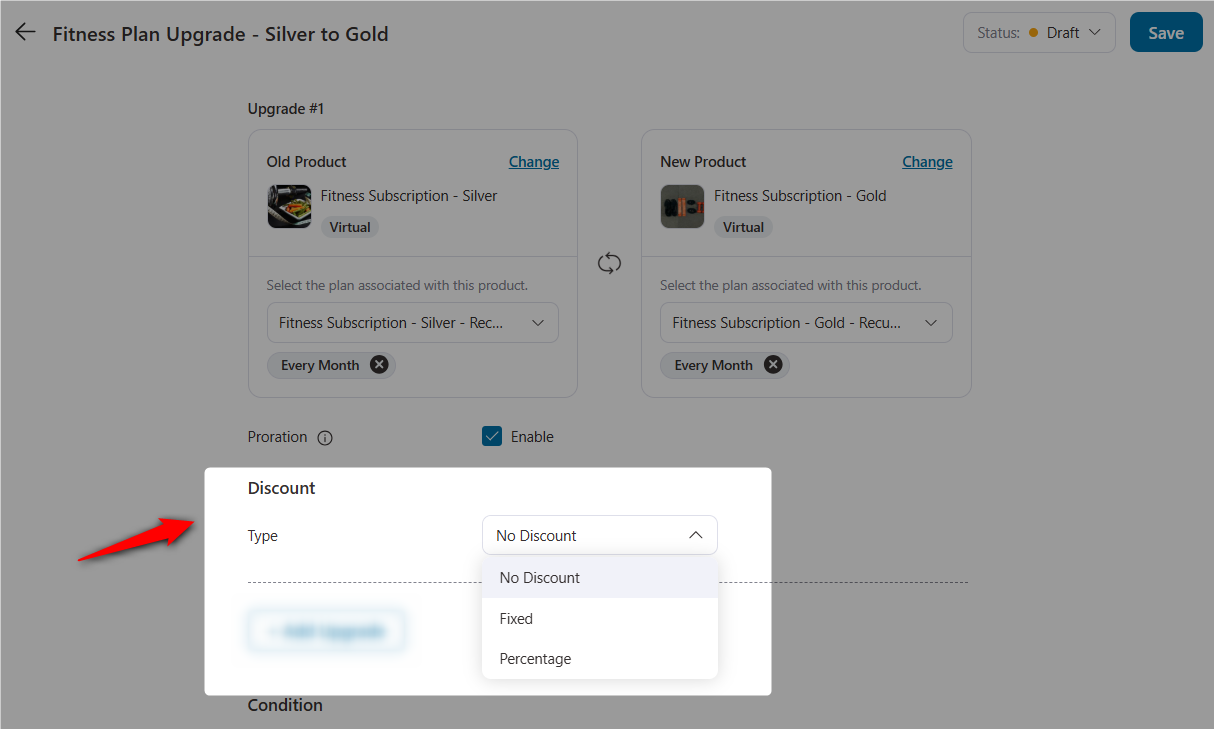
You can incentivize customers to switch by offering a discount on the upgrade itself.
Sublium supports:
- Fixed discounts: e.g., $5 off the upgrade
- Percentage discounts: e.g., 10% off the new plan
This is a powerful nudge to encourage subscribers to move to higher-value plans.
Add Upgrade
Sublium allows you to create multiple upgrade paths within the same group.
This is useful if you offer several subscription tiers (Silver → Gold → Platinum), or alternative billing cycles (Monthly → Quarterly → Yearly).
Each upgrade option can have its own proration rules and discount.
Conditional Rules (Optional)
You can dynamically show upgrade options only when specific criteria are met.
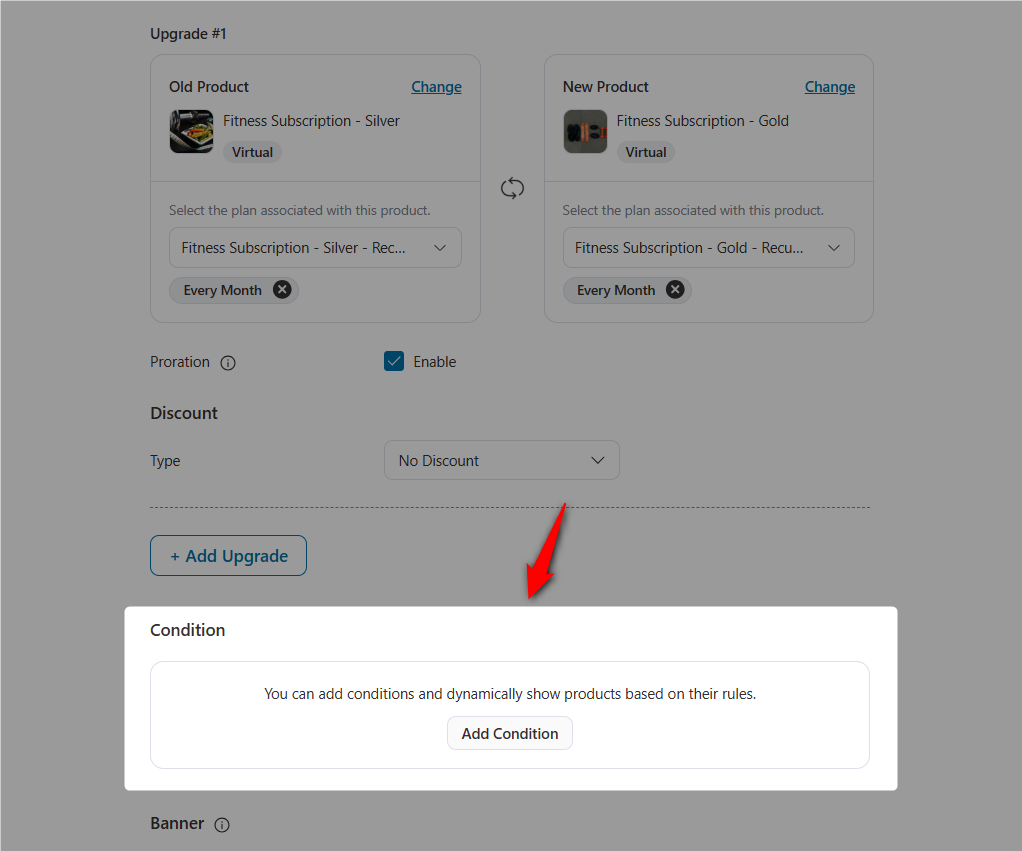
Sublium offers a wide array of display conditions, such as:
- Subscriber: Email, name, joined date, active subscription, renewal, product purchased, revenue, MRR, ARR, etc.
- Current Subscription: Renewal count, revenue, product subscribed, last order date, next renewal date, etc.
This keeps the upgrade experience clean and personalized.
Upgrade Banner Customization
Use the Banner – Content section to display a promotional message inside the customer dashboard.
For example, banner text can be “Switch to the Gold plan and save 33% on your workout + diet!”
Button text can be “Upgrade to Gold Plan”.
This banner appears above the subscription options and helps drive more upgrades through clear, targeted messaging.
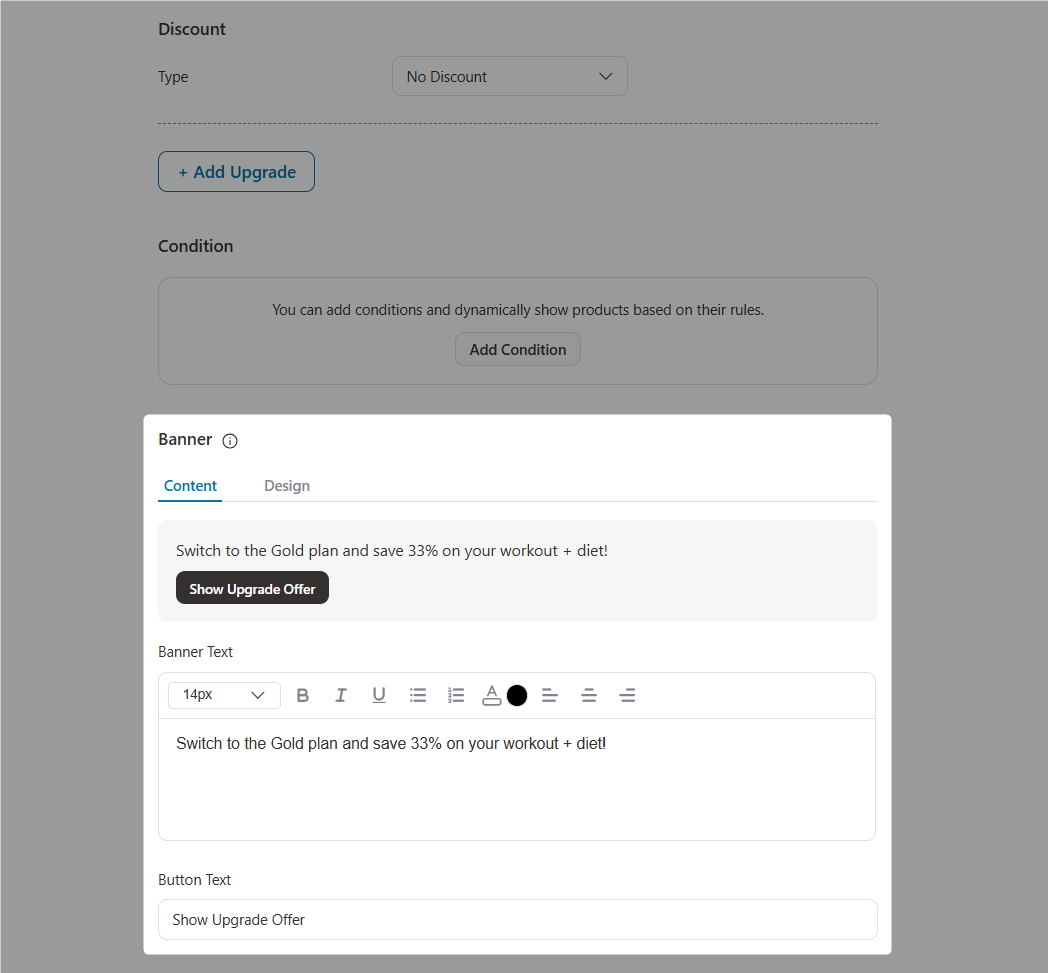
In the Banner – Design section, you can customize the background color, corner radius, border style, upgrade button styling, and more.
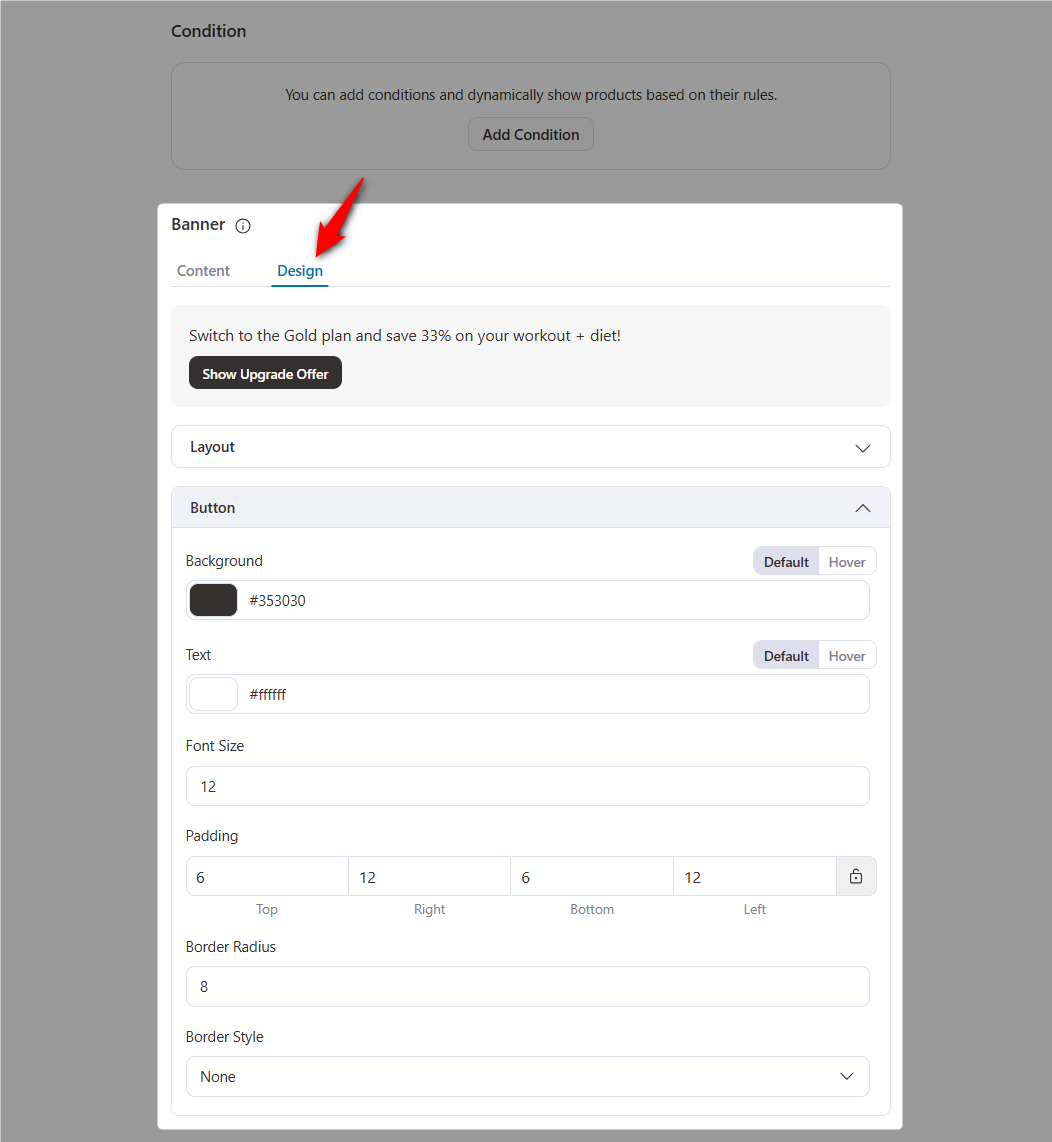
Once done, click on ‘Save’ to lock your changes.
Now that everything is complete, set the status of your subscription upgrade group to ‘Active’.
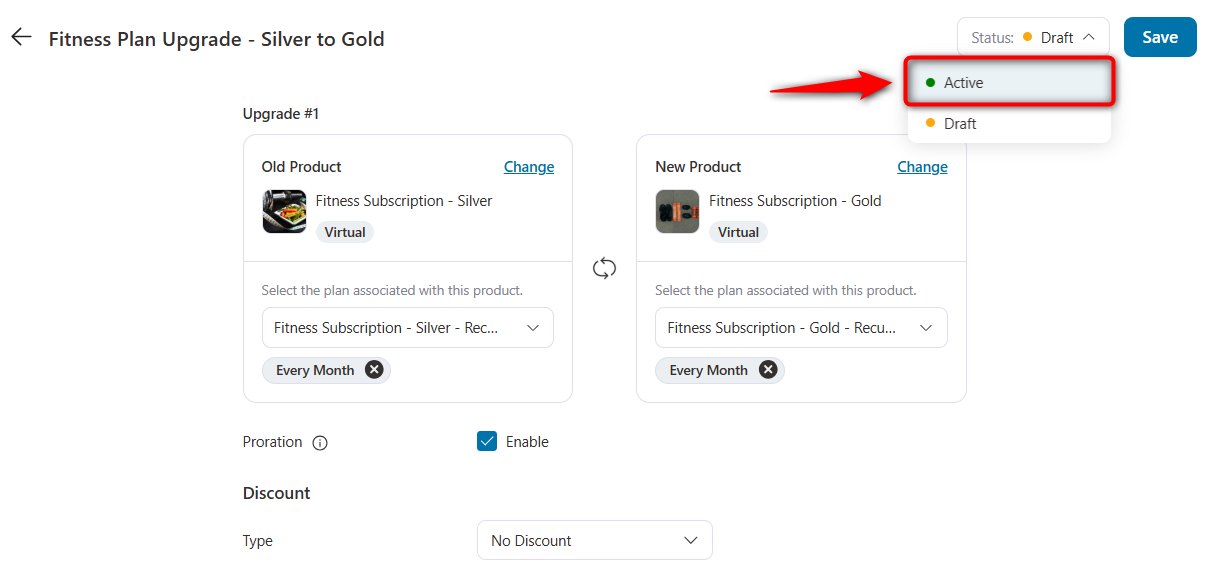
Let’s configure a few additional upgrade path settings.
Step 5: Enable subscription plan switching settings
This section controls where your customers can switch plans and how the switching options appear during their shopping experience.
Sublium gives you complete flexibility to make switching accessible without disrupting the checkout flow.
We’re intentionally keeping all switching options disabled. This prevents decision fatigue and ensures buyers stay focused on completing their purchase without distractions.
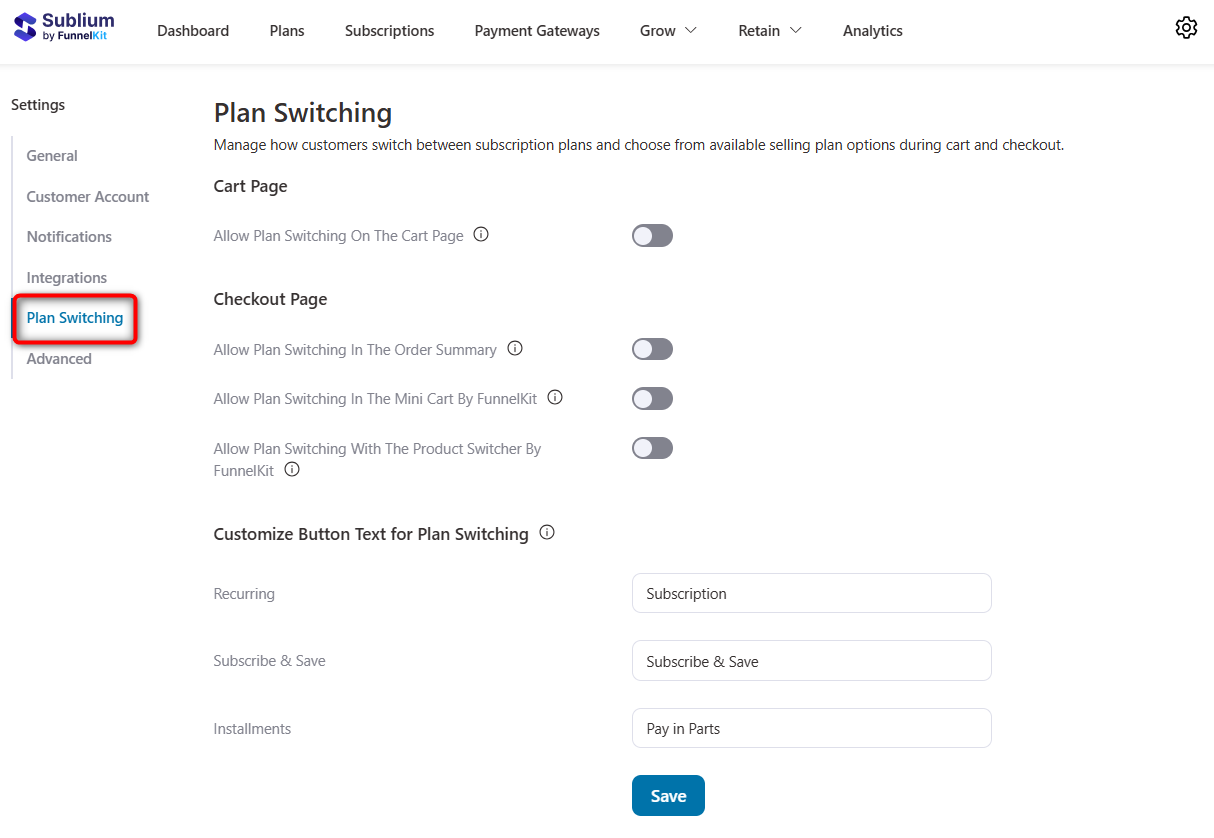
Click on ‘Save’ when done.
This is how you can set up subscription switching in WooCommerce.
Test the Switching Flow (Highly Recommended)
Before you make your subscription switching live for customers, it’s crucial to test the entire flow from start to finish.
1. Verify payment gateway setup
First, ensure your payment gateway is correctly integrated with Sublium and that you are operating in Test Mode.
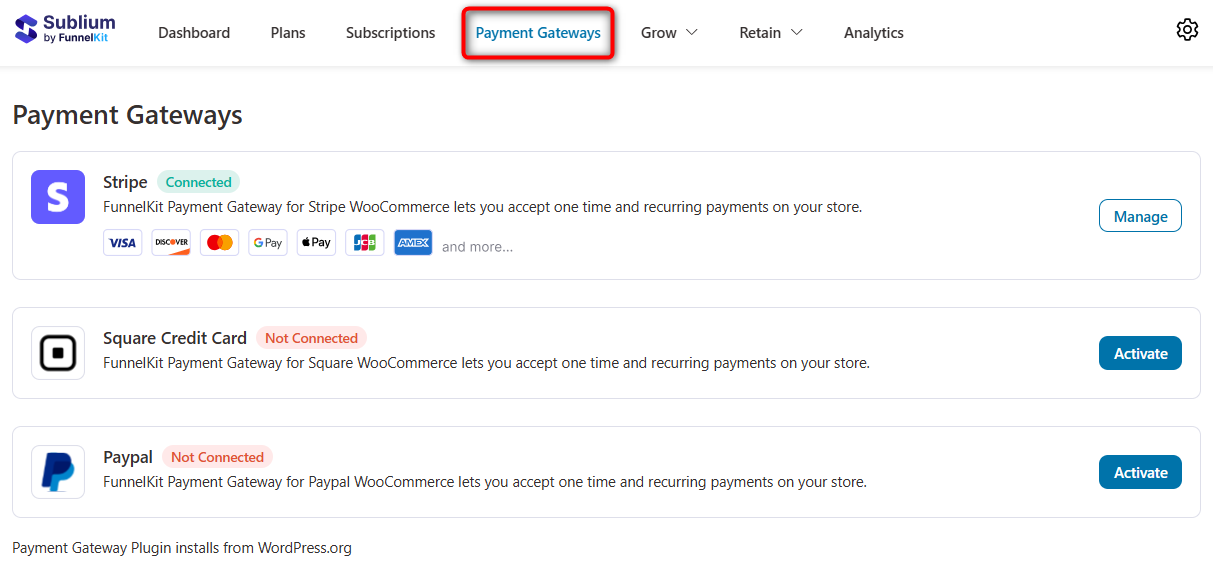
2. Purchase the base plan
Go to the product page and purchase the Silver plan as a customer would.
3. Access your subscription
Next, navigate to My Account ⇨ Subscriptions and confirm that the Upgrade / Change Plan button appears next to the active subscription.
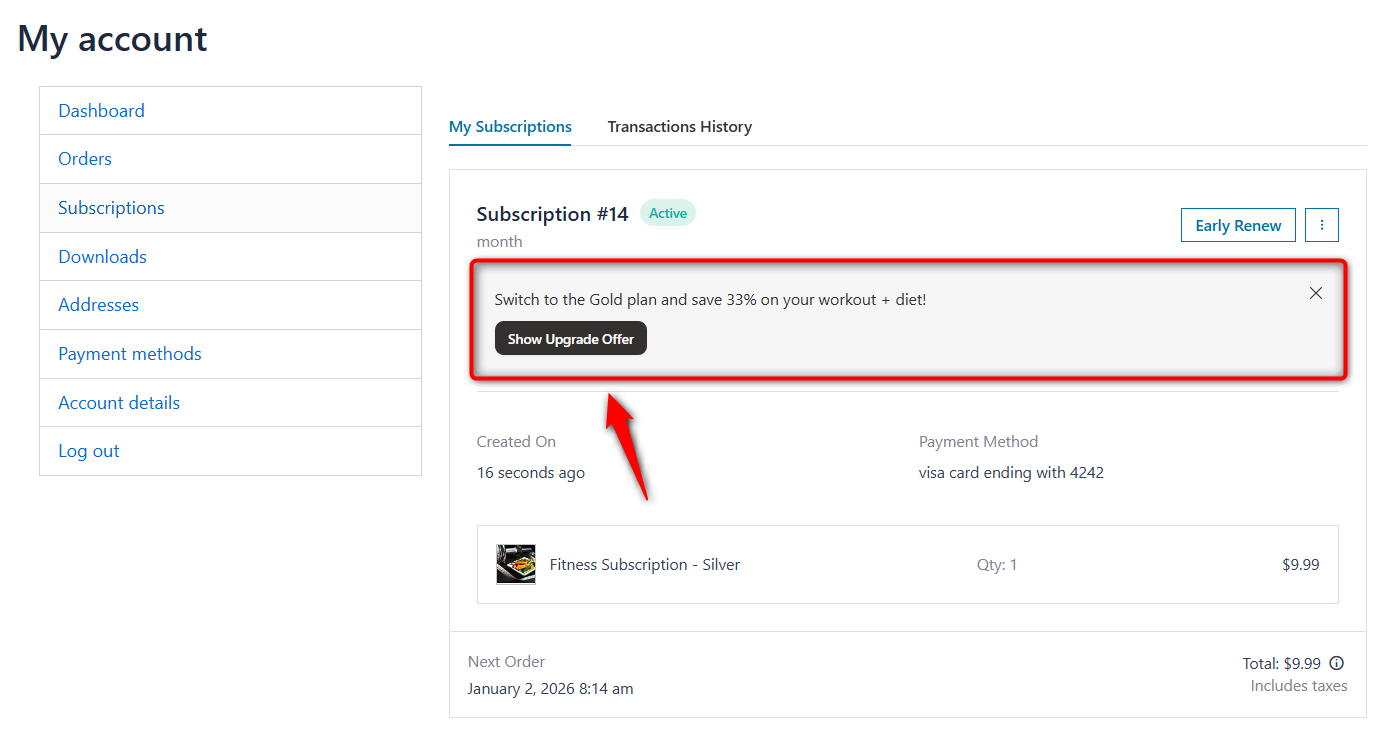
4. Initiate the switch
Click on the subscription switch button and a confirmation pop-up will appear asking you to proceed with the upgrade.
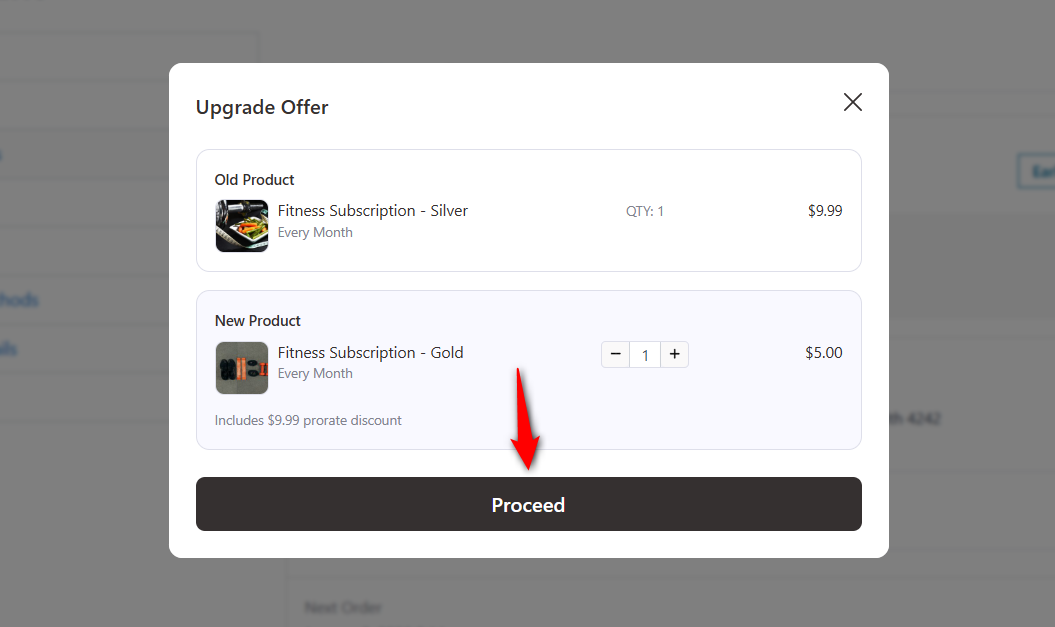
5. Review the upgrade summary
You’ll now see a detailed subscription switching summary, including new plan details, prorated charges, discounts, and the amount due right now.
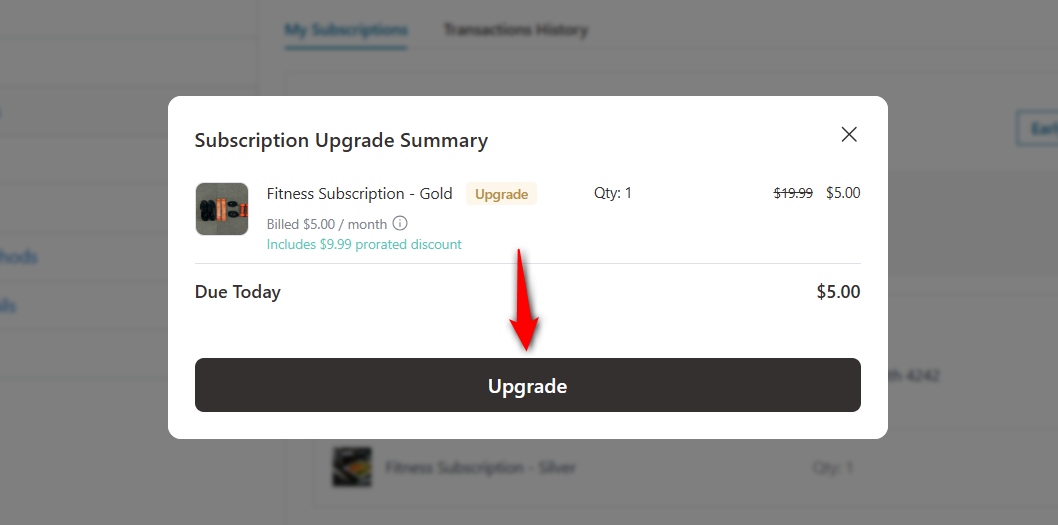
This mirrors what your customers will see when switching plans.
6. Complete the upgrade
Click ‘Upgrade’ to finalize the switch.
Sublium will attempt to charge the user’s original payment method automatically.
Once successful, the plan is immediately updated.
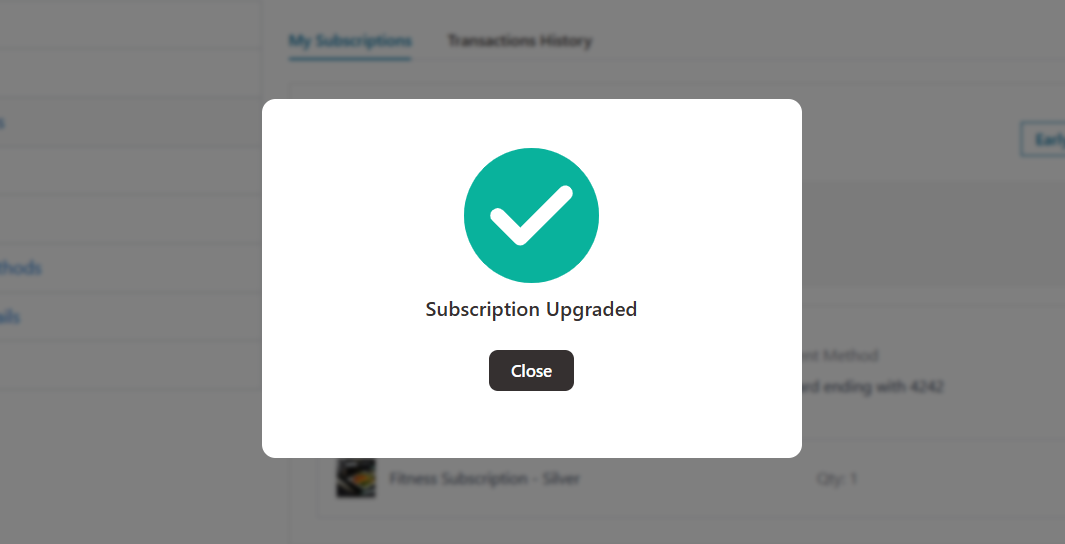
7. Confirm the updated subscription
You’ll see the upgraded plan reflected instantly inside My Account under the Subscriptions section.
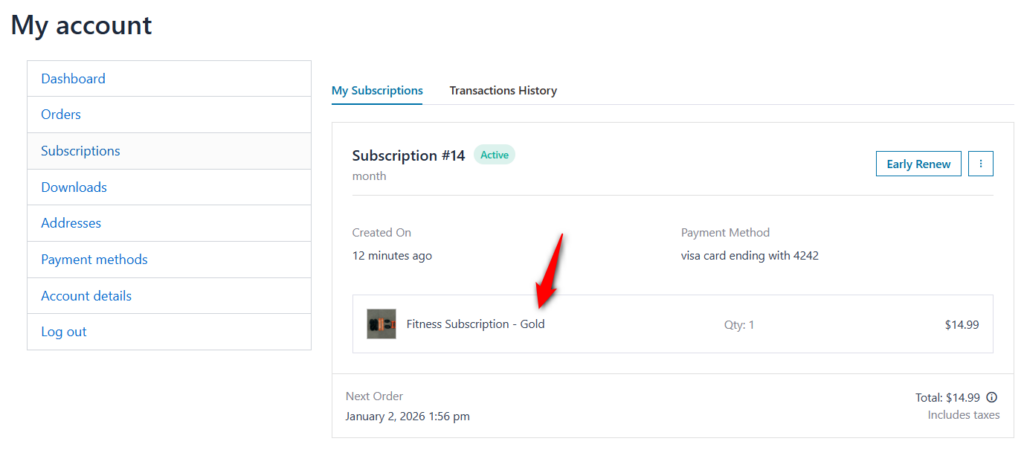
If you see the updated plan and the correct prorated amount was applied, your subscription switching setup is working perfectly in WooCommerce.
The Math of WooCommerce Subscription Switching: Understanding Proration
If you want to operate like a true subscription expert, you need to understand the proration math happening behind the scenes.
When a customer asks, “Why was I charged $15?” you should be able to explain it clearly.
1. Proration for upgrades
When a user switches to a plan with a different price mid-cycle, Sublium calculates a Gap Payment, the fair difference between what they’ve already used and what they’re moving to.
Here’s the formula:
Gap Payment = (New Plan Daily Rate - Old Plan Daily Rate) × Days Remaining Consider a real-world example:
Let’s suppose you’ve an old plan charging $30/month, the daily rate becomes $1.
Now, a customer switches to the new plan for $60/month with a daily rate of $2.
And let’s say, the customer switches on day 15 of a 30-day cycle.
So the days remaining are 15.
Here’s the step-by-step calculation:
- Used portion of Old Plan: First 15 days × $1/day = $15
- Remaining value of New Plan: Next 15 days × $2/day = $30
- Remaining value of Old Plan: Next 15 days × $1/day = $15
- Gap payment (Proration): $30 (new plan value) – $15 (old plan value) = $15
The customer pays:
- Immediately: $15 (the prorated upgrade cost)
- Next renewal: Full $60/month new rate
Note: Sublium performs all these calculations automatically. You never need to crunch numbers manually, but you should understand the logic that will help you answer customer questions and write clearer FAQs.
2. Proration for downgrades
For downgrades, the same proration formula applies, but the result is typically zero or negative, meaning the customer would technically be owed money.
Most subscription businesses do not issue mid-cycle refunds for downgrades because it creates complications with payment gateways, accounting, and fraud prevention.
Instead, the lower price takes effect at the next renewal.
How Sublium Handles Downgrades:
- No immediate charge: Checkout shows a total of $0.
- No partial refunds: Sublium does not return the unused value of the old plan.
- Future billing: The new, lower subscription price begins at the next renewal date.
This approach keeps billing predictable, prevents gateway issues, and avoids customers gaming mid-cycle refunds.
3. Proration for billing cycle changes
Switching billing cycles, such as Monthly to Yearly or Yearly to Monthly, requires a different proration method because the billing period value changes.
How Sublium manages billing cycle changes:
- Monthly → Yearly (Upgrade):
Sublium calculates the remaining value for the current month and charges only the prorated difference needed to convert the remaining cycle to a full year.
- Yearly → Monthly (Downgrade):
The change takes effect at the next renewal. The customer completes the paid annual period and transitions to monthly billing. This prevents complex partial refunds on large annual amounts.
4. Signup fees and fixed-length plans
Sublium also supports more advanced pricing structures:
Signup fees
- Upgrade: If the new plan includes a higher signup fee, Sublium charges only the difference.
- Downgrade: Signup fees are non-refundable, and Sublium does not prorate or return past fees.
Fixed-length plans
If prorate length is enabled, Sublium adjusts the subscription end date based on the upgrade:
For example, a customer is halfway through a 6-month course and upgrades to a 12-month plan. Sublium extends the expiration date to match the new total duration.
Handling Edge Cases (Technical Reliability)
A common fear for store owners is: “What if the proration math breaks?”
Calculation errors can lead to support tickets and chargebacks. Sublium is built to automatically account for the difficult edge cases that custom coding often misses:
- Leap years: Accurately handles 28, 29, 30, and 31-day month variations in daily rate calculations.
- Timezones and offsets: Handles time zone offsets to ensure a user isn’t charged twice or cut off entirely due to server time differences.
- Mid-day switches: Sublium handles the cutoff rounding for switch timestamps, ensuring users aren’t overcharged for the day the switch occurred.
- Cross-structure switching: Seamlessly handles logic for switching products within a variable product or across grouped plans.
All this complex math is performed behind the scenes, ensuring your customers get an accurate, transparent bill every time.
7 Expert Best Practices for WooCommerce Subscription Switching
Subscription switching is a powerful revenue and retention engine.
Once you’ve set up Sublium, use these proven best practices to maximize upgrades, reduce churn, and create a smoother customer experience.
1. Use a maintenance mode plan to reduce cancellations
Many customers cancel simply because they’re not using the service at the moment.
Instead of losing them completely, offer a low-cost maintenance plan (around $2-$5/month) as a downgrade option.
This keeps their data, settings, and payment method active, making it effortless for them to upgrade again later.
It’s one of the easiest ways to cut churn while still maintaining predictable recurring revenue.
2. Prevent plan manipulation with proper proration
Some users may try to downgrade just before renewal and upgrade again afterward to avoid higher charges.
Enabling proration in Sublium automatically eliminates this loophole.
When they upgrade again, the system instantly charges the correct gap payment to ensure every user pays fairly for what they actually use.
This protects your pricing structure without creating friction.
3. Use smart, contextual upgrade banners
Don’t wait for customers to find the upgrade button. Present the option at the right moment.
Sublium’s Conditional Rules let you show personalized banners based on user behavior. For example, offer a discounted yearly plan to loyal subscribers who’ve been active for over three months, or display an upgrade banner when a Basic user tries to access a Pro feature.
These contextual prompts convert far better than generic upgrade notices.
4. Encourage monthly-to-yearly switching for better cash flow
Getting customers to switch from monthly to yearly subscriptions dramatically boosts upfront revenue and reduces churn.
Run a “Switch & Save” campaign a couple of times a year, offering something like 10% off the first year of service.
A small discount today secures twelve months of guaranteed earnings, which is a win for both your business and your customers.
5. Remove upgrade friction by avoiding micro-charges
If someone upgrades just a day or two before renewal, the prorated amount might be as low as $0.30 or $0.50.
Forcing customers to go through checkout for less than a dollar creates friction that kills upgrades.
For such cases, consider disabling proration so the user can upgrade instantly for $0 and get charged the new full amount on the next renewal date. It feels effortless and encourages more users to upgrade.
6. Send a clear, reassuring switch confirmation email
Once a customer switches plans, they need clarity. A vague or generic confirmation email can cause confusion or even result in a downgrade.
Customize your “Subscription Switch Complete” email to clearly explain what changed, including the new plan name, the next billing amount, the renewal date, and any proration charged today.
This builds trust and greatly reduces support requests.
7. Trigger an immediate “Welcome to Pro” onboarding
A customer upgrade is a high-intent moment. To prevent buyer’s remorse, deliver instant value.
Trigger an onboarding email or automation that highlights three features they’ve unlocked, provides setup guidance, and links to helpful resources.
This ensures the upgrade feels worthwhile right away and significantly decreases downgrade rates.
Frequently Asked Questions (FAQ) About WooCommerce Subscription Switching
Here are the most common questions store owners ask about handling subscription switches in WooCommerce.
Will the customer’s billing date change after switching?
Usually, no. Sublium keeps the original billing date intact so your revenue stays predictable. The only exception is if you configure a switch to reset the cycle, for example, moving from a monthly plan to a yearly plan. For standard plan upgrades, the billing cycle remains unchanged.
Can customers switch between completely unrelated products?
They can, but only if you allow it. Switching in Sublium is controlled by Upgrade Groups. If you place two unrelated products (e.g., Coffee Subscription + Sock Subscription) in the same upgrade group, customers can see this offer and switch between them.
I recommend grouping related tiers, such as Bronze to Silver, and the Gold plan, to avoid fulfillment errors.
What happens to active coupons during a switch?
Recurring coupons (example, “10% off every renewal”) usually carry over to the new plan unless the coupon excludes that product. If you want upgrades to be at full price, add coupons only to entry-tier product IDs so they don’t automatically discount higher plans.
What happens if the payment for the upgrade fails?
Usually, no. Sublium keeps the original billing date intact so your revenue stays predictable. The only exception is if you configure a switch to reset the cycle, for example, moving from a monthly plan to a yearly plan. For standard plan upgrades, the billing cycle remains unchanged.
Which payment gateways support switching?
To support automatic prorated charges and modify recurring totals without asking customers to re-enter their card, the gateway must support subscription modification. Stripe, PayPal and Square are the best payment gateways that support switching and Sublium integrates with all these gateways.
Can I disable proration and charge the new price next month only?
Yes. With proration disabled, customers can upgrade instantly at no extra cost, and the new pricing takes effect on the next regular billing date. This creates a simpler switching experience for both you and the customer.
Can I charge a signup fee on an upgrade?
Yes. Suppose your higher-tier plan has a larger signup fee. In that case, Sublium can charge the difference immediately during the switch to ensure your revenue reflects the added value of the upgraded plan.
Turn WooCommerce Subscription Switching into Revenue
Subscription switching is what separates a rigid billing system that leaks customers from a dynamic one that grows revenue.
When you let users move between plans without friction, they’re far more likely to upgrade when they need more and stay subscribed when budgets tighten.
Every smooth upgrade boosts LTV. Every controlled downgrade prevents a cancellation.
With Sublium, you don’t have to worry about proration math, billing accuracy, or payment failures. The plugin handles everything behind the scenes, giving customers a seamless experience and giving you predictable, reliable revenue.
If you’re ready to stop losing subscribers to rigid plans, head to your Sublium settings, turn on switching, and give your customers the flexibility they expect.
I’m sure your retention rate will thank you!


