

This document explains how to connect PayPal as a payment gateway for Sublium Subscriptions using WooCommerce. It covers plugin installation, activation, gateway enablement, PayPal credential setup, webhook creation, and test order validation.

How to Connect PayPal Payment With Sublium Subscriptions
Follow the steps below to connect PayPal payment with Sublium Subscriptions:
Step 1: Install and Activate the PayPal Gateway
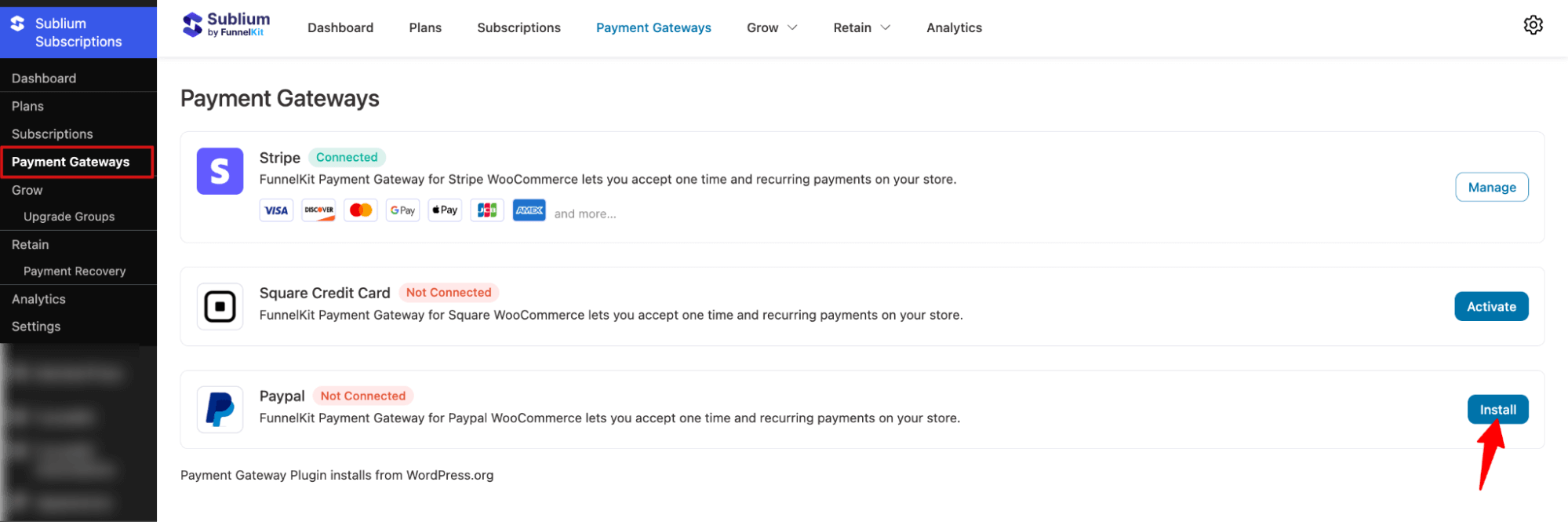
Navigate to Sublium Subscriptions ⇒ Payment Gateways, then click Install next to PayPal.
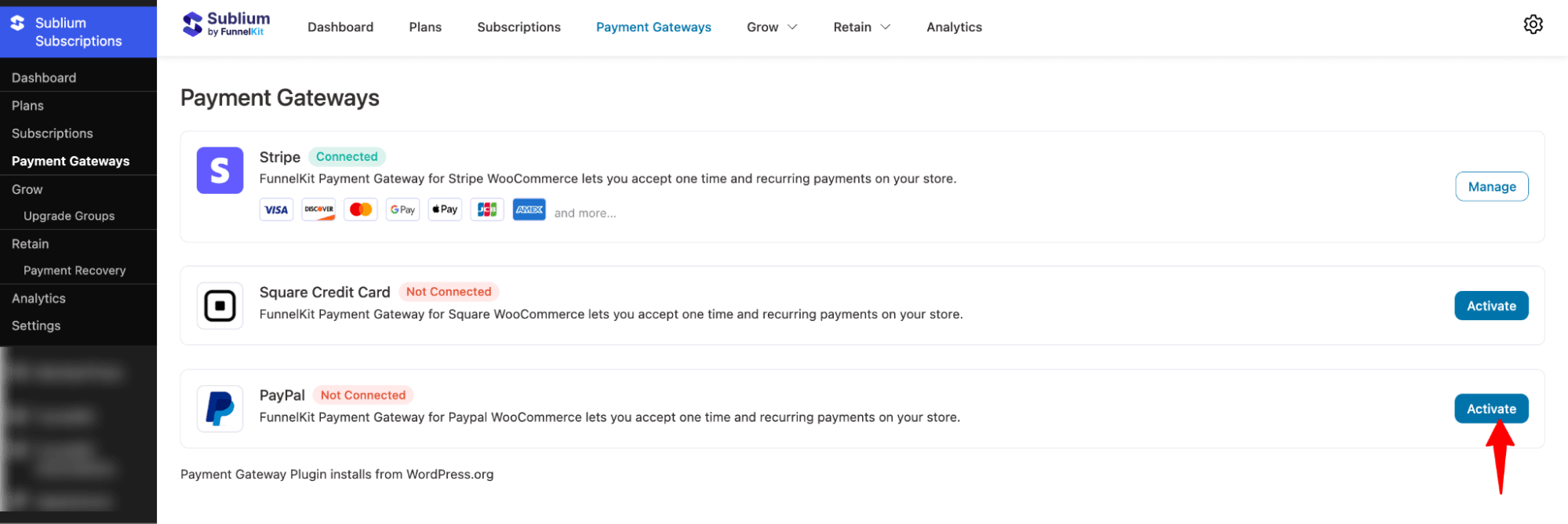
Next, hit Activate.
Step 2: Enable PayPal payment in WooCommerce
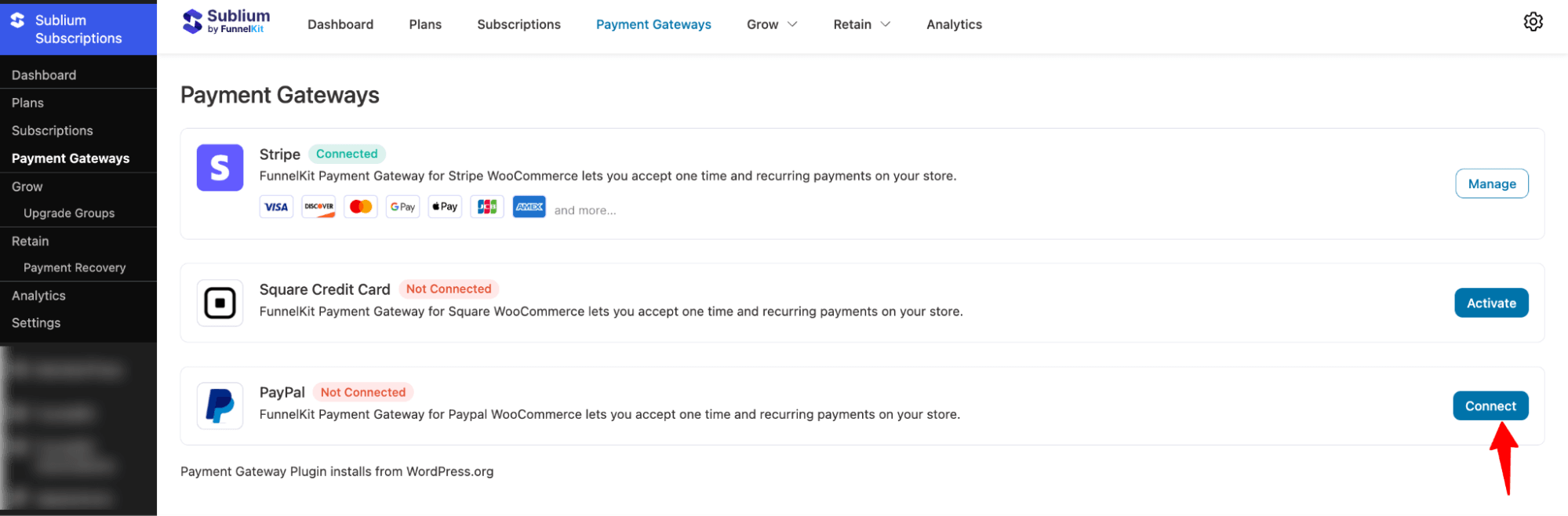
To connect, hit the “Connect” button.
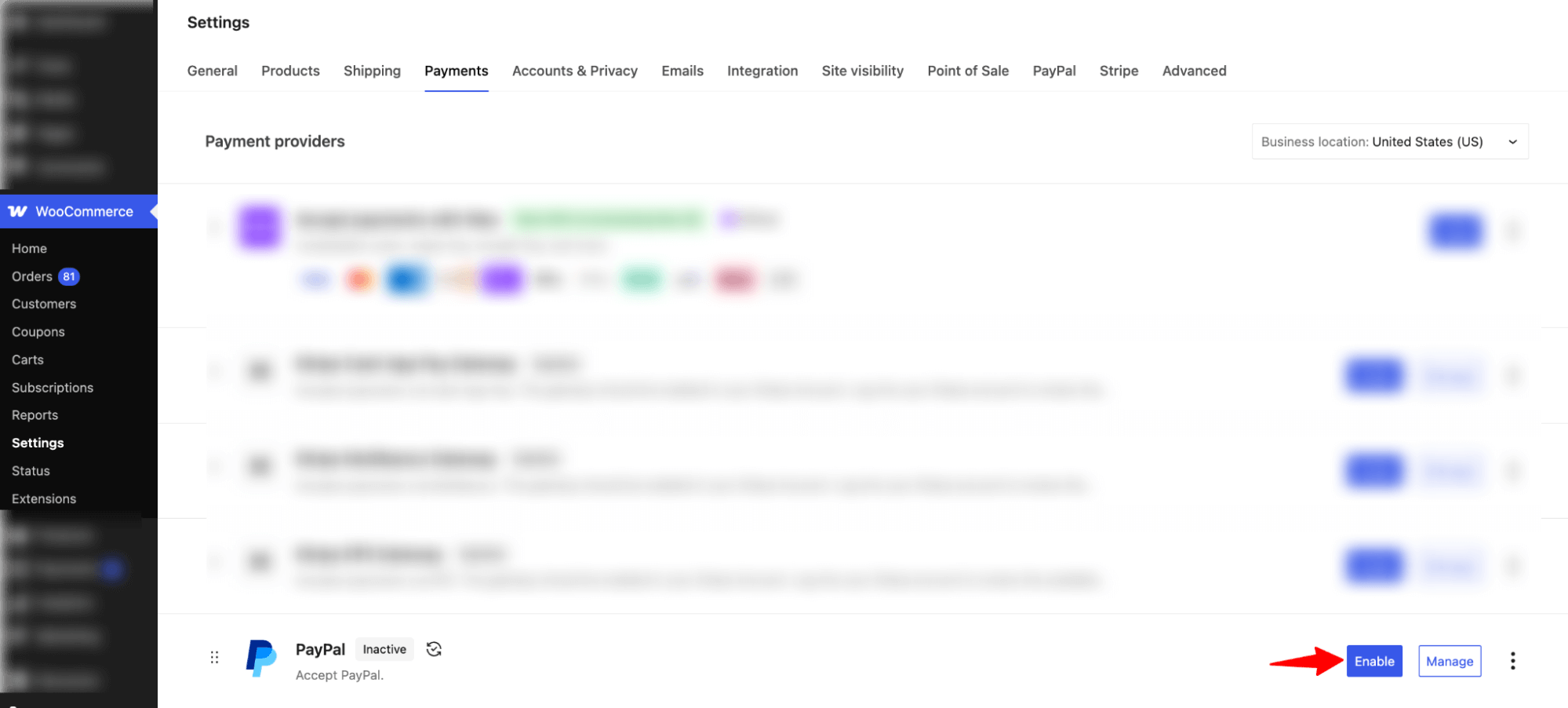
It will take you to WooCommerce ⇒ Settings ⇒ PayPal. Switch to the Payments and hit Enable next PayPal.
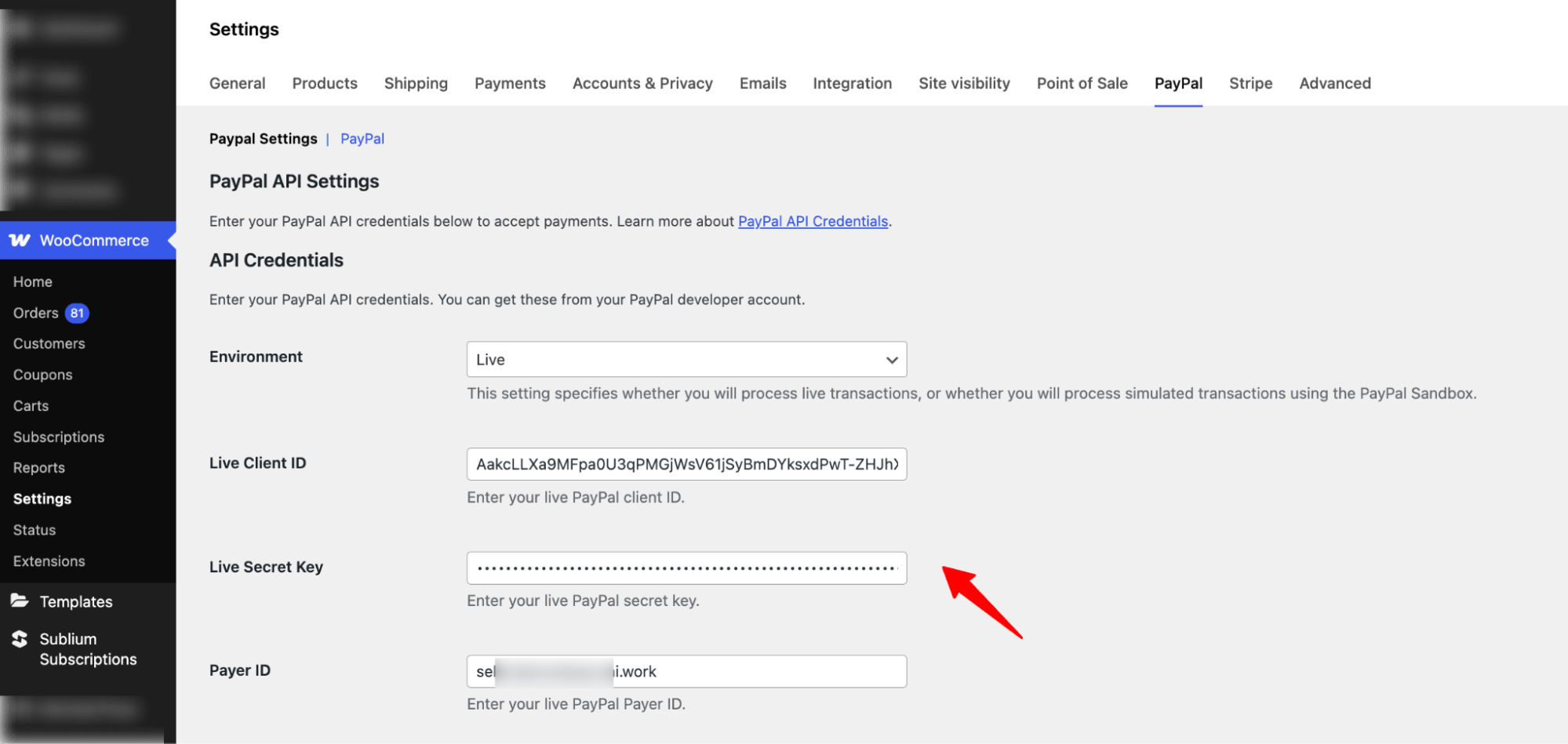
Next, switch to the PayPal tab and add Live Client ID, Live Secret Key, and Payer ID.
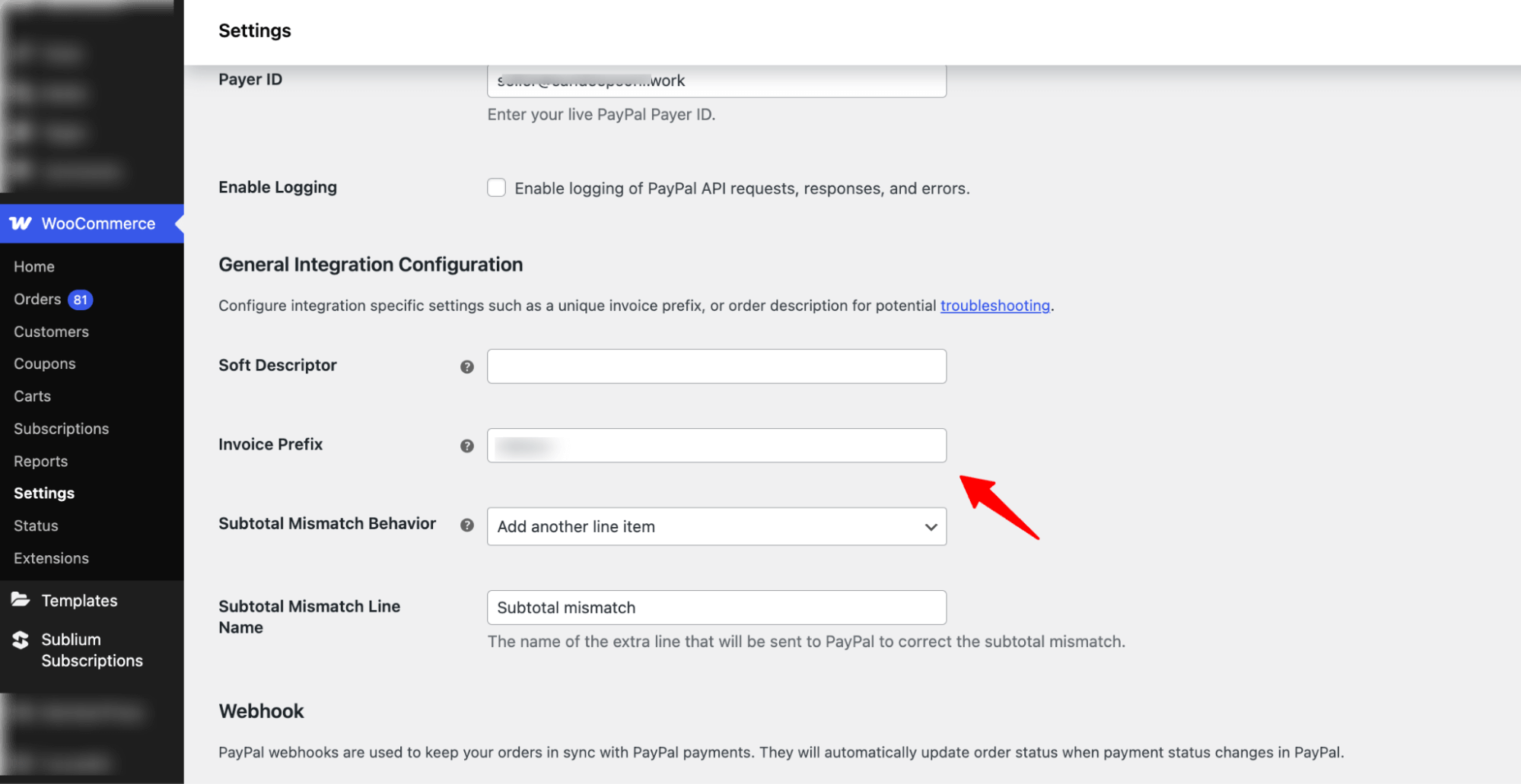
Next, under the General Integration Configuration, set Soft Descriptor, Invoice Prefix, Subtotal Mismatch Behavior, and Subtotal Mismatch Line Name.
Step 3: Create Webhook
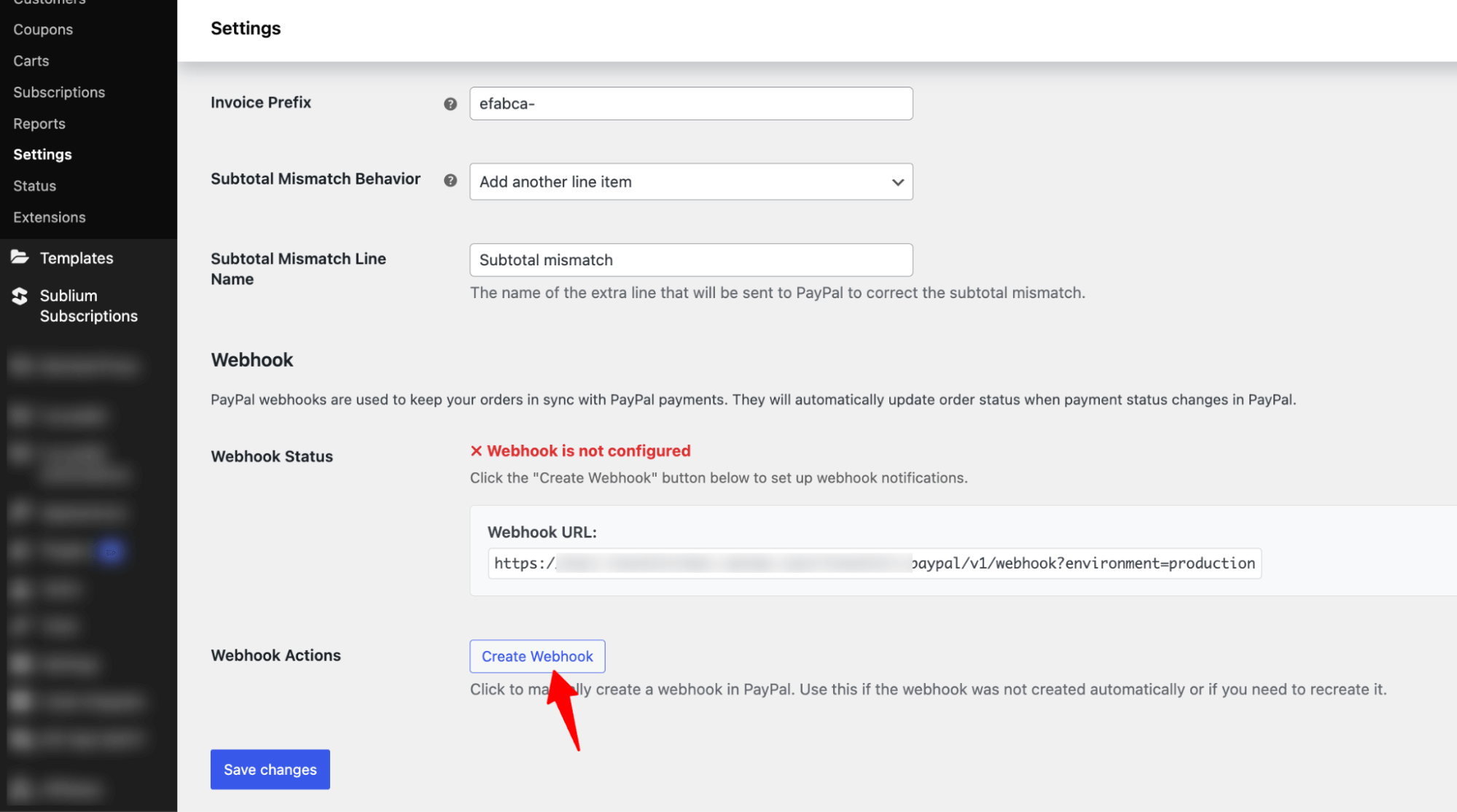
Hit the button “Create Webhook” to start creating the webhook.
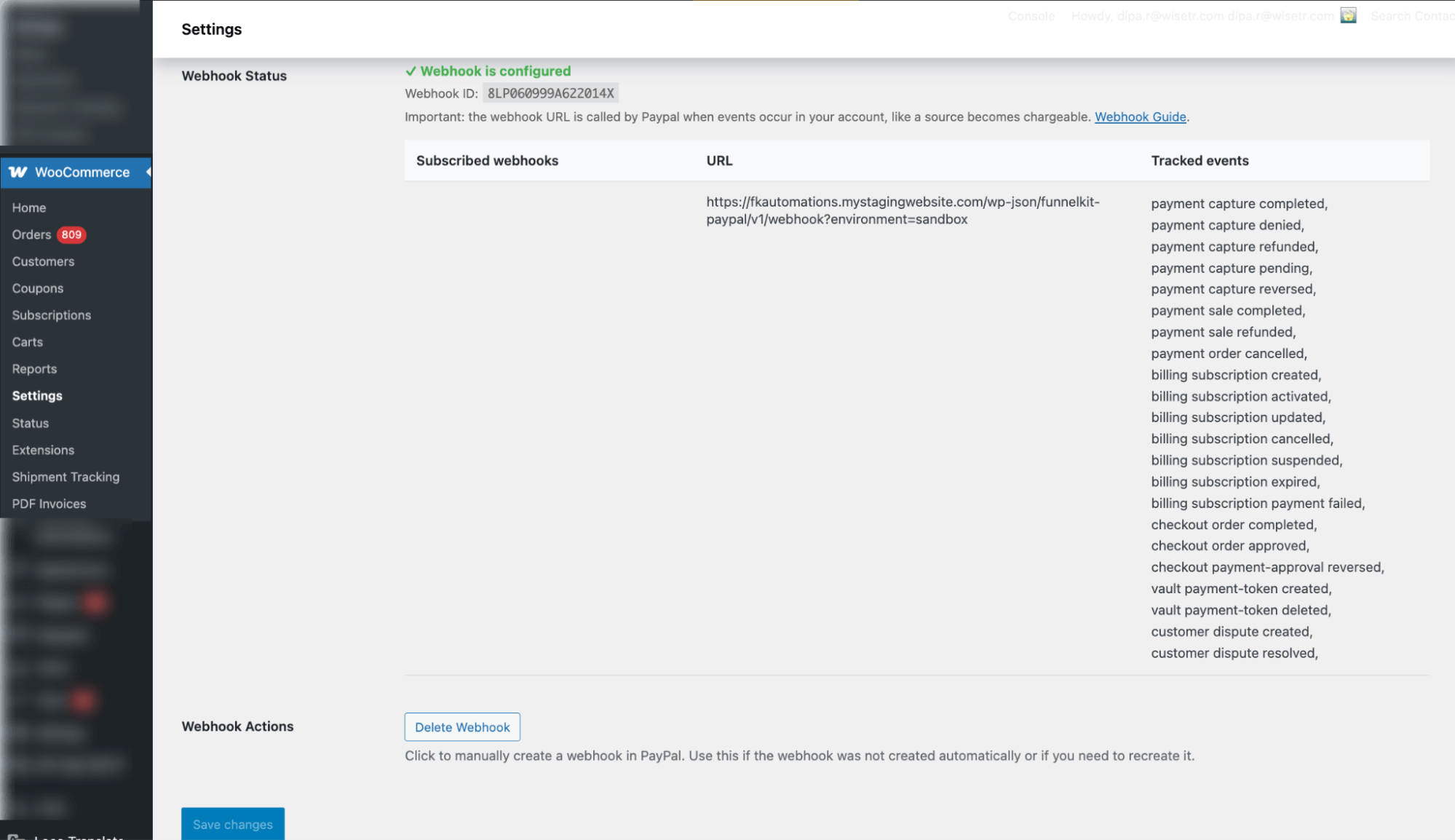
After creating the webhook, make sure to hit Save Changes.
Step 4: Set the design settings
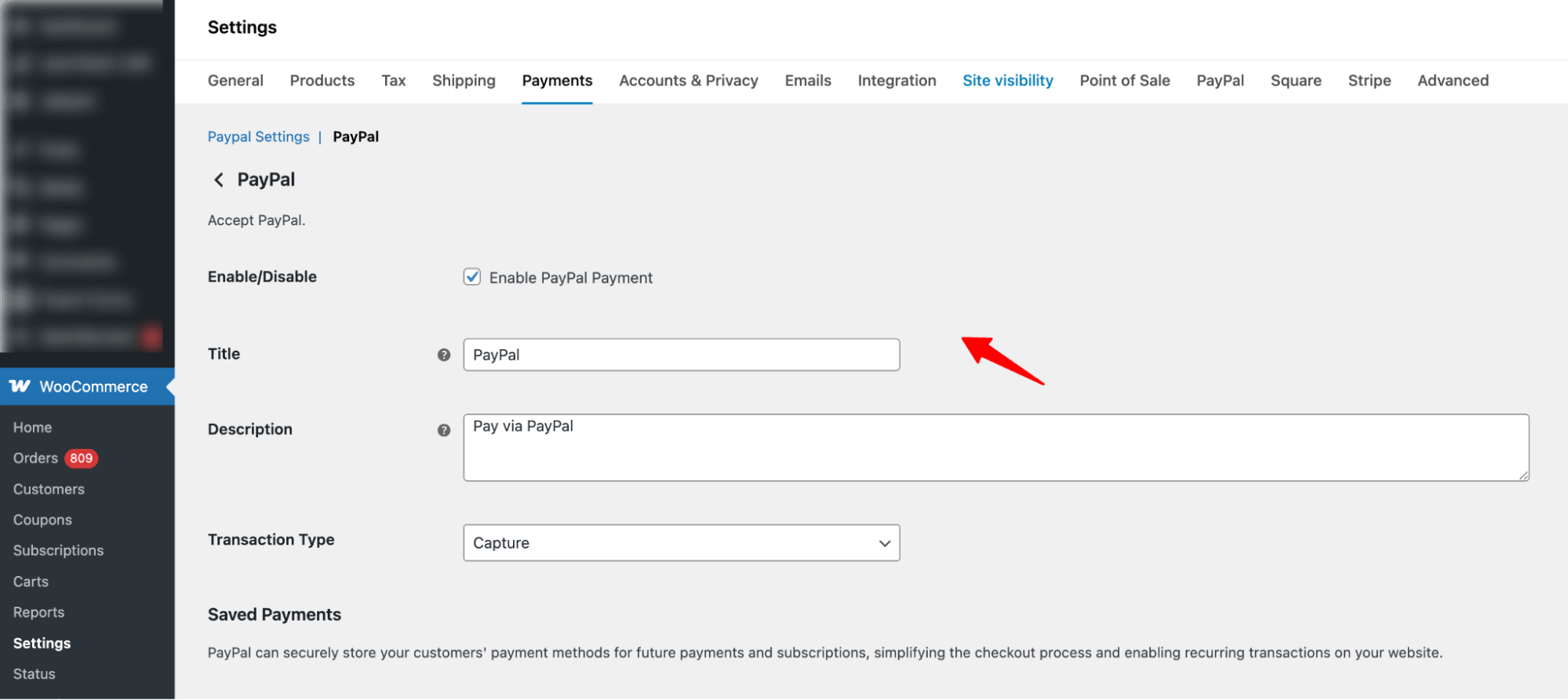
Now move to the PayPal tab and enable PayPal to accept payments, customize how it appears on checkout using a title and description, and choose the Transaction Type, either Capture or Authorize, to control when funds are collected after payment authorization.
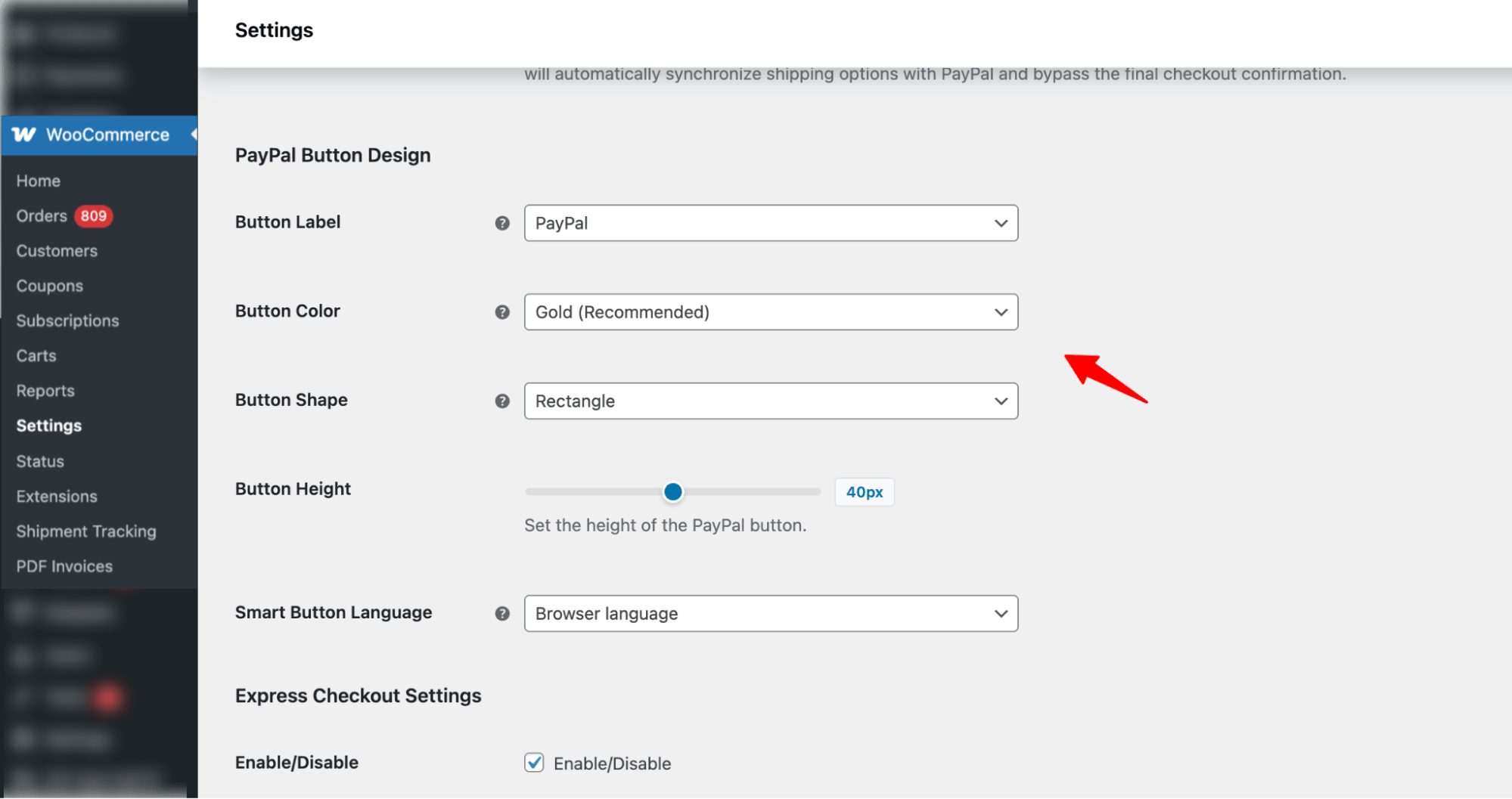
Use PayPal Button Design settings to customize the PayPal button’s label, color (Gold recommended), shape, height (default 40px), and language to match your store’s design and customer preferences.
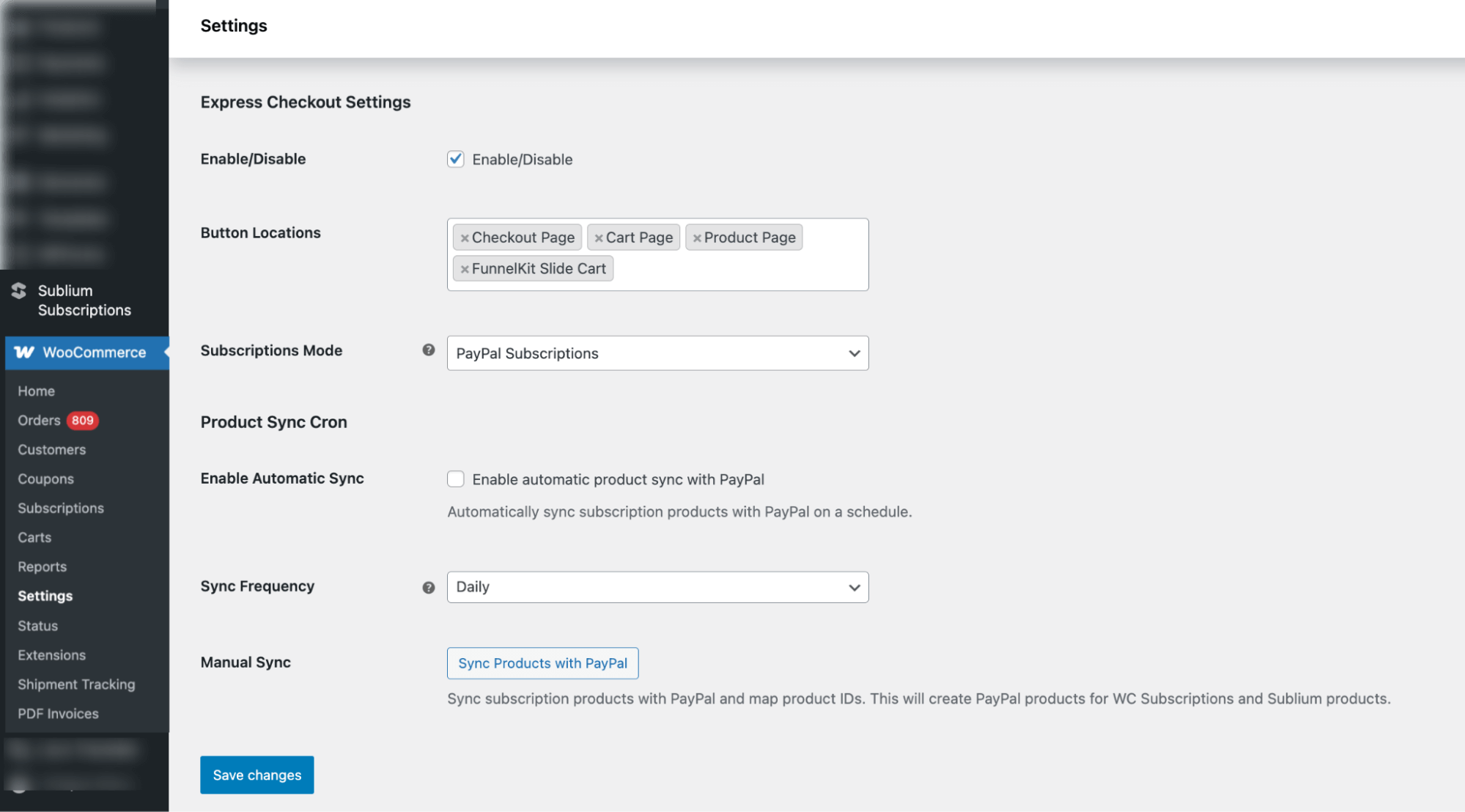
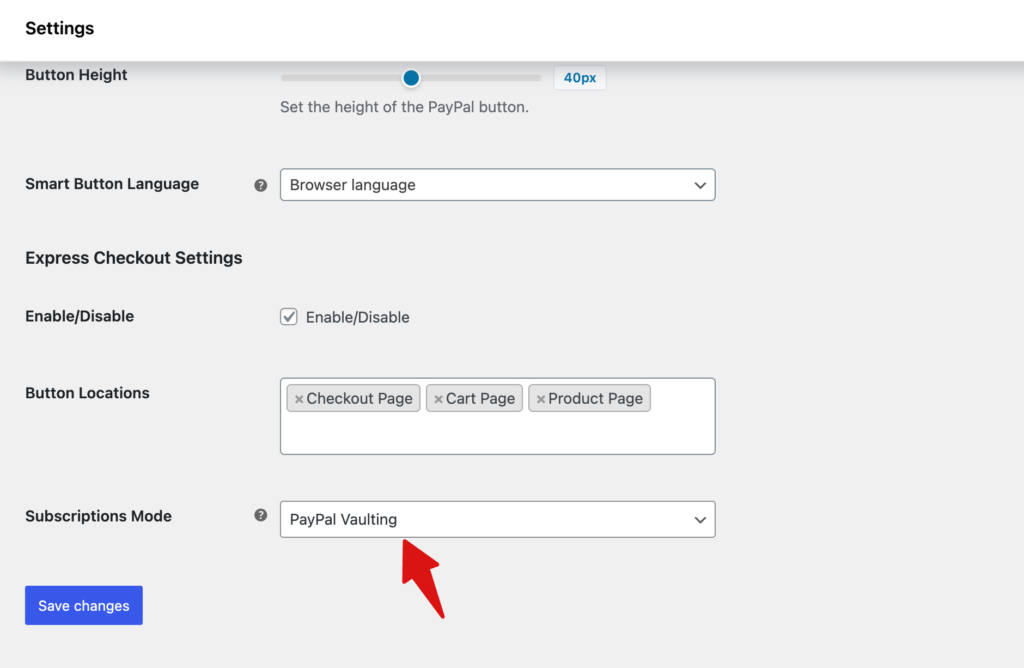
Use Express Checkout Settings to enable or disable PayPal Express Checkout and choose where the PayPal button appears, such as the Checkout page, Cart page, Product page, or FunnelKit Slide Cart, and configure the subscription mode as needed.
Additionally, you can use Product Sync Cron to automatically sync subscription products with PayPal on a scheduled basis, set the sync frequency (daily by default), or manually sync products whenever needed.
Make sure to hit Save Changes.
This is how you can connect Sublium Subscriptions to the PayPal Payment Gateway.
PayPal Gateway Limitations
In PayPal Subscription Mode, admins are unable to modify subscription details or pricing because payment tokens are stored on PayPal’s servers. This restriction can be mistaken for an error, but it is a mode limitation.
Details:
- Vaulting Mode:
- Payment tokens are stored on the admin’s website.
- Admin has full control over subscriptions, including pricing and item changes.
- No restrictions on subscription modifications.
- Subscription Mode:
- Payment tokens are stored on PayPal’s official servers.
- Admin cannot modify subscription data or pricing.
- Attempts to change subscription items or pricing will be blocked.
Here is a quick comparison between the two modes:
| Feature | Vaulting Mode | Subscription Mode |
|---|---|---|
| Token storage | Merchant website | PayPal servers |
| Subscription control | Website controlled | PayPal controlled |
| Modify pricing | Allowed | Not allowed |
| Modify subscription items | Allowed | Not allowed |
Frequently Asked Questions
In PayPal Subscription mode, if the successful webhook is not received for any reason, we have implemented a fallback mechanism. The system will fetch the latest subscription details directly from the PayPal API. If a new payment is detected, a corresponding renewal order will be created for the Sublium subscription. After that, all other processes will continue to function as expected.
We allow switching payment methods between FunnelKit Stripe, Square, or PayPal.
For Stripe & Square, the original subscription is modified, and the upgraded product is added; however, PayPal doesn’t allow modifying the subscription, so the original is canceled, and a new one is created. So you will see a canceled and active subscription in your account section.
If you’re using PayPal Gateway for your subscriptions, the Renew from Admin option won’t work for test renewal orders. This option is available when PayPal Vaulting is enabled, since it lets PayPal work more like Stripe for on-site subscriptions.
If you want to test live transactions and renewal flows from the admin, we recommend switching to PayPal Vaulting whenever possible. With vaulting enabled, the customer’s payment method is stored securely, and admin-initiated renewals can be processed successfully.
If you’re currently using PayPal without vaulting, please check the PayPal Vaulting vs Non-Vaulting documentation to compare both options and see whether vaulting is the right fit for your store.
If you switch PayPal from Subscription Mode to Vaulting Mode, your existing subscriptions will continue to work normally.
- Existing subscriptions that were originally created using Subscription Mode will continue to renew through PayPal’s subscription system. The recurring payments will be handled directly by PayPal, just as they were before the switch.
- New subscriptions created after Vaulting Mode is enabled will follow the vaulting workflow. In this case, the customer’s payment method is tokenized and stored on your website, and renewal payments are processed using the saved payment token.
No. Existing subscriptions created under Subscription Mode are not automatically migrated to Vaulting Mode. They will continue renewing through PayPal’s subscription system, while only newly created subscriptions will use the vaulting process.
No. There is no need to cancel or recreate existing subscriptions. Both subscription types can coexist, with older subscriptions continuing under Subscription Mode and new subscriptions using Vaulting Mode.


