
If you sell subscriptions on WooCommerce, your store starts working a little differently.
Instead of making a sale once and waiting for the next customer, you can keep billing the same customer every month without asking them to come back and pay again.
So a $40 one-time purchase is worth $40. But if that same customer pays $40 every month for 14 months, they are worth $560. Moreover, you only had to acquire that customer once.
However, WooCommerce does not handle recurring payments on its own.
It can take the initial payment, create the order, and send the receipt, but it doesn’t know to charge the customer again next month. But there is no built-in billing schedule, renewal order, or subscriber record to manage all of that.
That is why most stores add a subscription plugin or use a payment service that handles recurring billing.
In this guide, we’ll look at the three ways you can add subscriptions to WooCommerce, then walk through the two plugin-based options step by step.
We’ll also cover which payment gateways actually support automatic renewals, the two common reasons renewals stop working after launch, what subscriptions cost, and the US rules you need to know before turning on auto-renewals.
And if you’re already using another subscription plugin, we’ll cover what to check before switching so you don’t accidentally break the subscriptions you already have.
The Short Answer: What You Need to Sell Recurring Products
WooCommerce does not support recurring billing on its own. So to sell subscriptions, you need a subscription plugin, a payment gateway that can securely store and reuse the customer’s payment method, and a product with a billing schedule.
The actual setup is usually pretty quick. You can have the basics running in under an hour.
However, the harder part is choosing the setup that fits your store and making sure renewals keep working after you go live.
Follow this process.
- Choose how you want to run subscriptions: Use a WooCommerce subscription plugin or a hosted payment link if you only need to sell a few recurring plans.
- Connect a gateway that supports automatic renewals: Stripe, PayPal with reference transactions, Square, WooPayments, and several other gateways can handle recurring charges.
- Create your subscription product: Set the billing interval and add a trial period or sign-up fee if your offer calls for one.
- Test a renewal before launching: On staging, shorten the billing interval to a day, run the renewal, and check that both the payment and the renewal order are created correctly.
| Route | Annual cost | Best for |
|---|---|---|
| WooCommerce Subscription Plugin | Free to roughly $200/year | Most stores, especially subscribe-and-save, boxes, and retention-sensitive catalogs |
| Hosted payment link, no plugin | Gateway fees only | One or two recurring plans sold off a page, with no order records in WooCommerce |
Two Ways to Sell Subscriptions on WooCommerce
There are really only two practical ways to add recurring billing to a WooCommerce store: use a subscription plugin inside WooCommerce, or skip WooCommerce for subscriptions and use a hosted payment link.
For most stores selling physical products, memberships, or anything that needs orders, customers, shipping, or inventory to stay connected, the first option makes more sense.
For a simple digital subscription with one or two plans, the second can be enough.
Route 1: Use a WooCommerce subscription plugin
A subscription plugin adds the recurring billing features WooCommerce does not have on its own. It can create renewal orders, track subscription status, handle trials, and let customers pause, upgrade, or cancel their plans.
The important part is that everything still happens inside WooCommerce.
Subscribers remain customers in your store, their renewal orders appear alongside their regular orders, and things like coupons, shipping, inventory, and reporting continue to work with the rest of your store.
For this route, we’ll use Sublium Subscriptions. It adds subscription functionality to WooCommerce without forcing you to move your recurring business into a separate system.
You can turn products into subscription offers, choose how often customers are billed, add trials or sign-up fees, and let WooCommerce handle the resulting orders.
Take this route if subscriptions will be a real part of your store, not just one recurring payment sitting off to the side.
Pick this route if you sell physical products, replenishable products, subscription boxes, memberships, courses, or anything where recurring payments need to stay connected to your WooCommerce store.
Route 2: Skip the plugin and use a hosted payment link
If you have one simple recurring plan and do not need WooCommerce to manage it, you can skip the plugin entirely.
Create the recurring price in Stripe or PayPal, generate a hosted payment link, and add a button to your site that sends customers to the payment provider’s checkout.
The provider handles the recurring charge, so you don’t need a subscription plugin to configure or maintain.
For a single digital membership, retainer, or similar offer, this can be perfectly practical. You pay the normal payment processing fees and avoid adding another plugin to your store.
The limitations show up when you need WooCommerce to do anything with those subscribers.
They will not have subscription orders in WooCommerce, and you will not get WooCommerce coupons, shipping calculations, order history, inventory updates, or subscription reporting.
Features such as subscribe-and-save, product-based subscriptions, installments, and upgrades also become much harder to manage.
Pick this route if you sell one simple recurring plan, nothing needs to ship with each renewal, and you are happy for Stripe or PayPal to manage the subscription instead of WooCommerce.
Which route fits your store
| Your situation | Best route |
|---|---|
| One flat recurring plan, no shipping | Payment link, no plugin |
| More than one plan or pricing tier | Subscription plugin |
| Adding a recurring option to existing products | Subscription plugin |
| Physical products with subscribe and save | Subscription plugin |
| High-ticket items split into installments | Subscription plugin |
| Customers need to pause, skip, or upgrade | Subscription plugin |
| Reducing churn is a priority | Subscription plugin with built-in dunning |
| Regional or uncommon payment gateway | Subscription plugin with the widest gateway list |
If you are on the fence, the question that settles it fastest is whether you will ever want a second plan. If the answer is yes, start with a plugin now rather than migrating subscribers later.
How to Sell Subscriptions on WooCommerce With a Plugin
For the walkthrough, we will use Sublium, which follows the plan-first model most modern subscription plugins use.
Instead of rebuilding products as a new type, you create a plan and attach existing products to it. If you end up on a different plugin, the sequence below still holds even though the screens will look different.
Sublium has a free version on WordPress.org covering recurring billing and subscribe and save.
The Pro plan starts at $99.50 a year and adds installments, payment recovery, cancellation flows, and subscription analytics.
We will build a digital product as an example, so there is no shipping to complicate things, and it exercises trials, recurring billing, and access control in one build.
Make sure you’ve already installed and activated Sublium on your WordPress website.
Step 1: Create a subscription plan
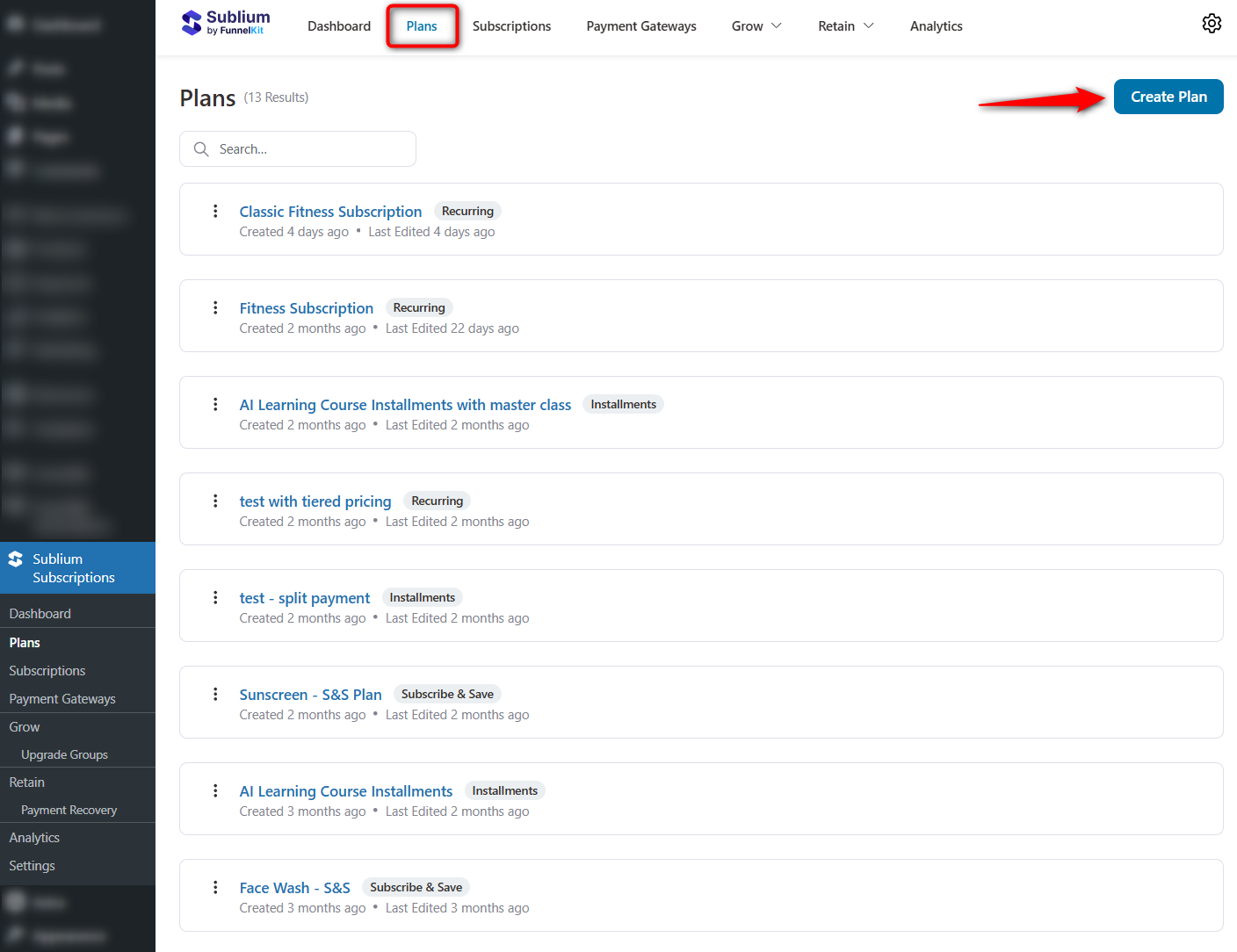
Navigate to Sublium Subscriptions ⇨ Plans and click on the ‘Create Plan’ button.
Enter the name and select the type of your subscription plan in WooCommerce.
You can choose between:
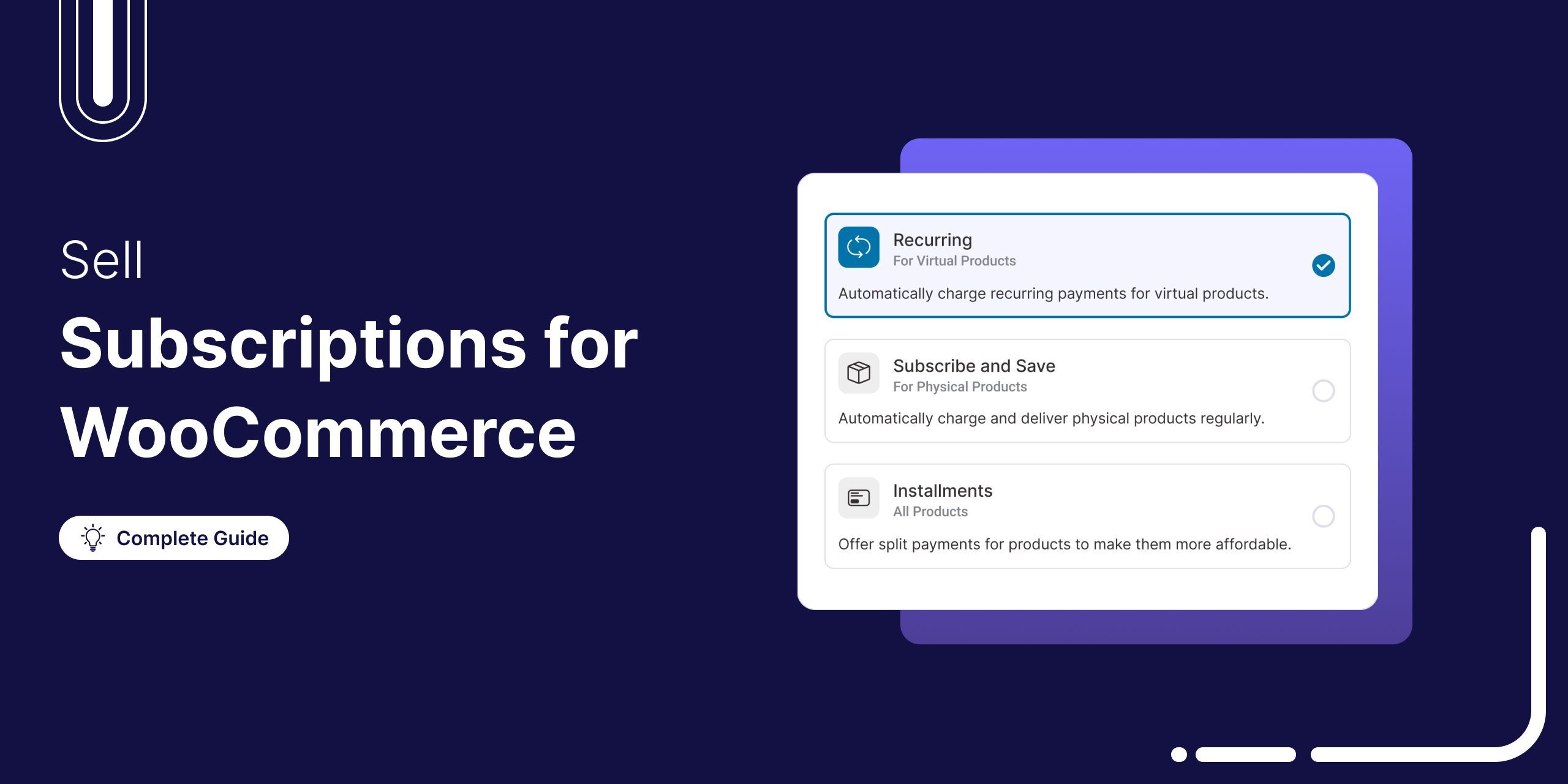
- Recurring Subscriptions: Customers are billed automatically on a weekly, monthly, or yearly basis for digital or virtual products or services. For example, $29/month for access to premium workout plans.
- Subscribe and Save: Customers get a discount when they commit to regular purchases of physical products and deliveries. For example, buy daily milk on subscription and save 10% compared to one-time purchases.
- Installments (Pay Over Time): Instead of paying up front, customers can split high-ticket items into smaller recurring payments. For example, pay $600 in six $100 monthly installments.
Here, we’ll create a Classic Fitness Subscription for $15 per month, which offers a 3-day free trial.
Enter the name and select ‘Recurring’ for your monthly fitness plan.
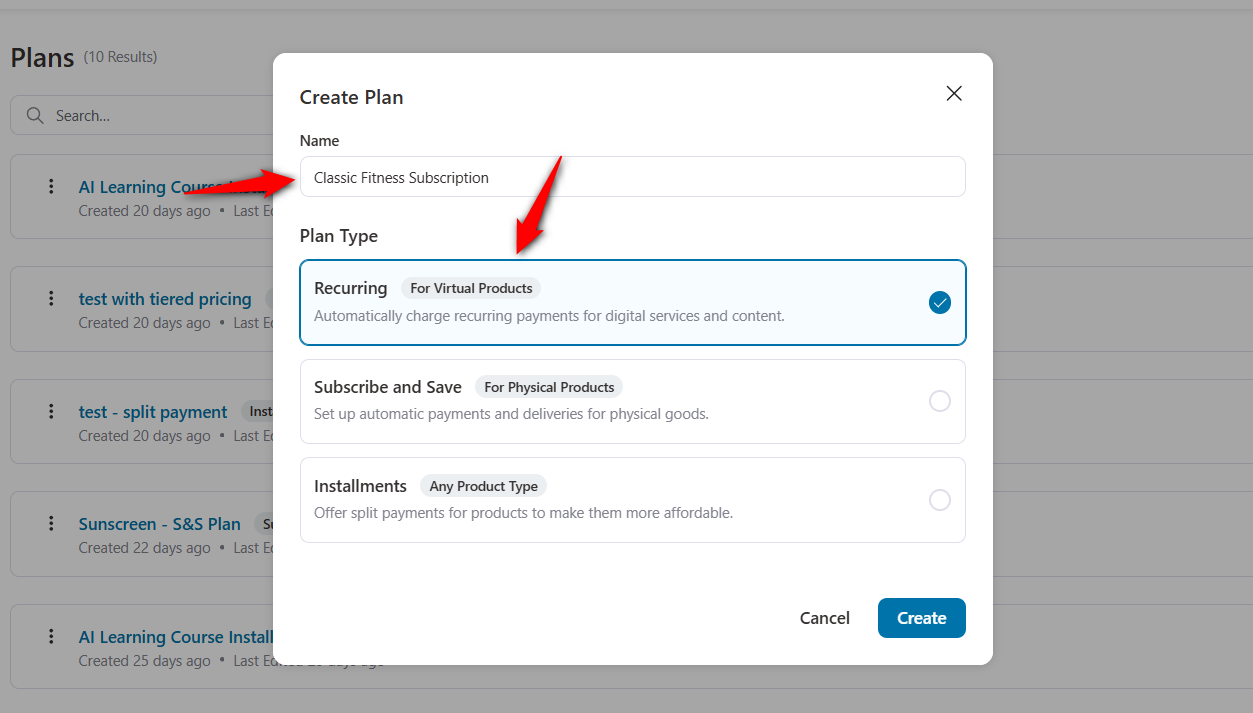
Clicking on ‘Create’ will add a new subscription plan to your WooCommerce store.
Step 2: Configure your recurring subscription plan in WooCommerce
After creating your subscription product, configure the recurring subscription plan. This setup ensures your customers are billed automatically according to the cycle you define.
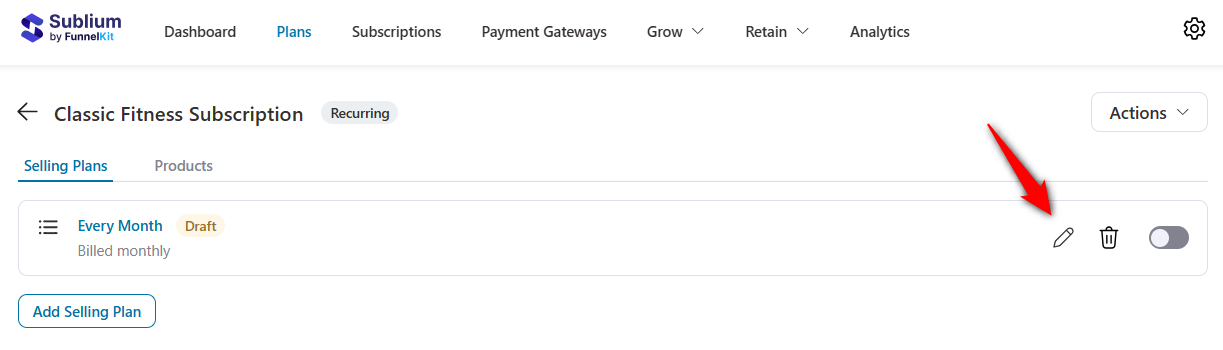
When you enter the subscription settings, you’ll be directed to the Selling Plan screen.
Since this product will be subscription-only, we won’t offer any one-time purchase option.
Then, click the edit (pencil icon) next to the monthly selling plan to customize your details.
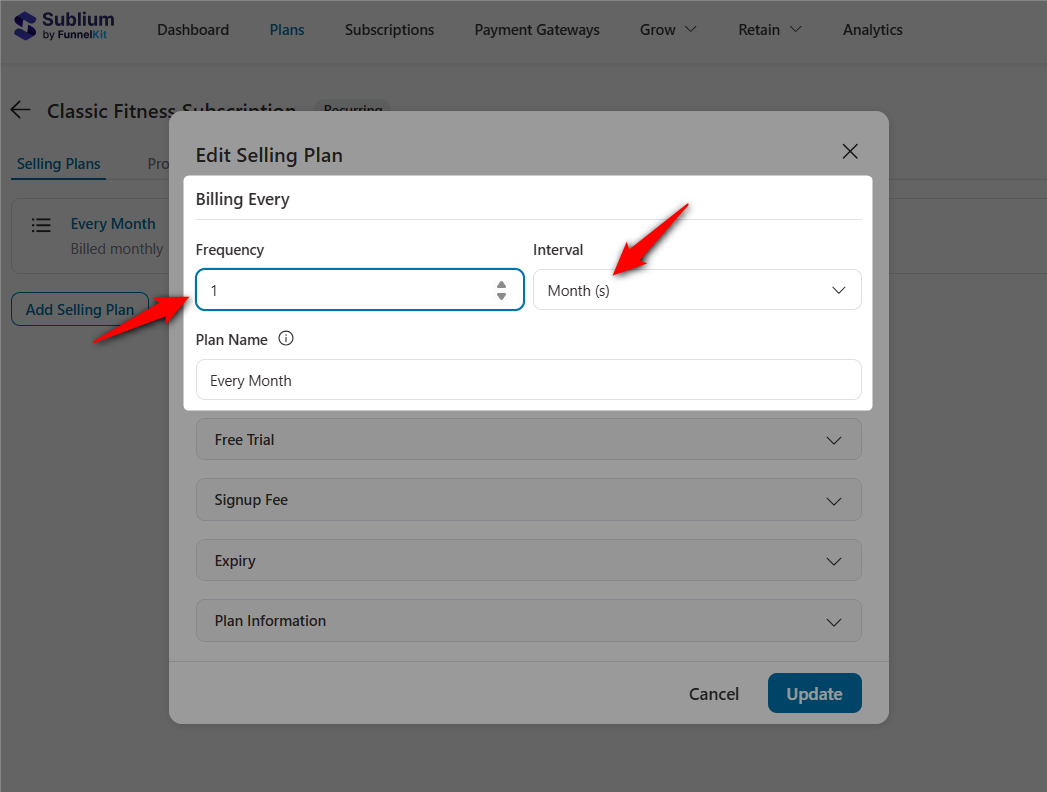
Billing Frequency
Set how often you bill customers. For a monthly subscription, choose 1 Month.
You can also set daily, weekly, or annual billing cycles depending on your product or service.
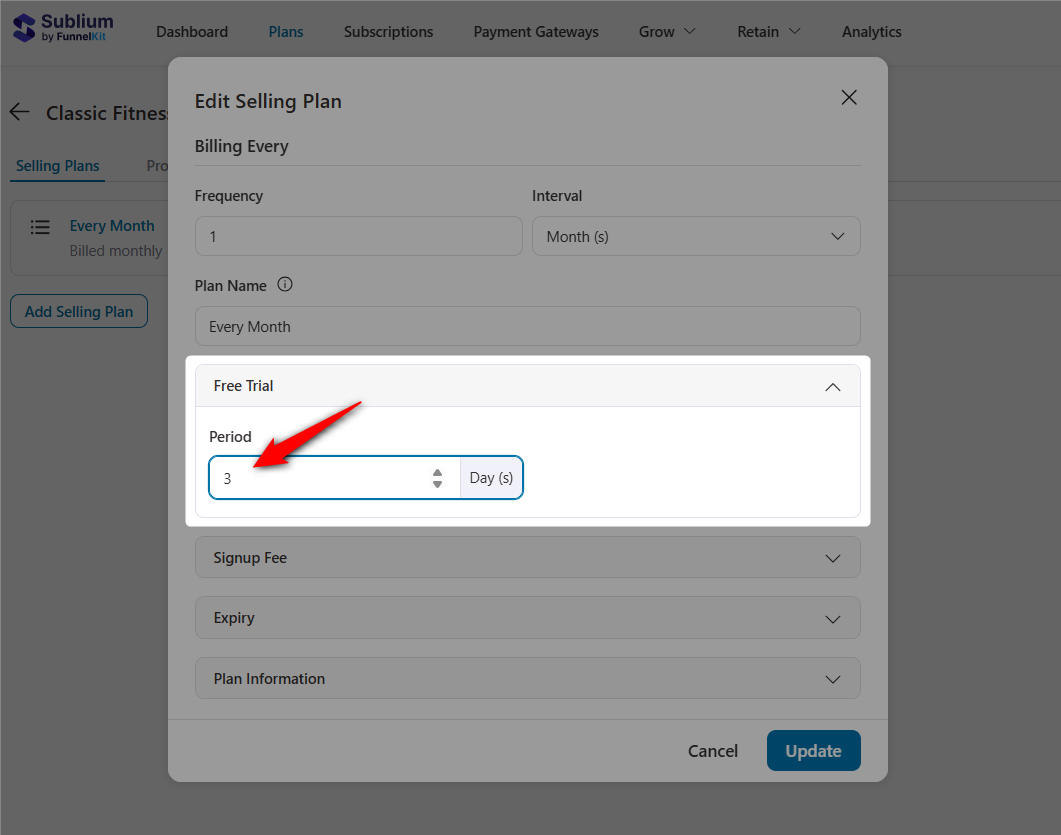
Free Trial
Offering a free trial helps reduce friction for new customers.
For instance, a 3-day or 7-day trial lets users test your product or service before committing.
Set the trial duration based on your business model.
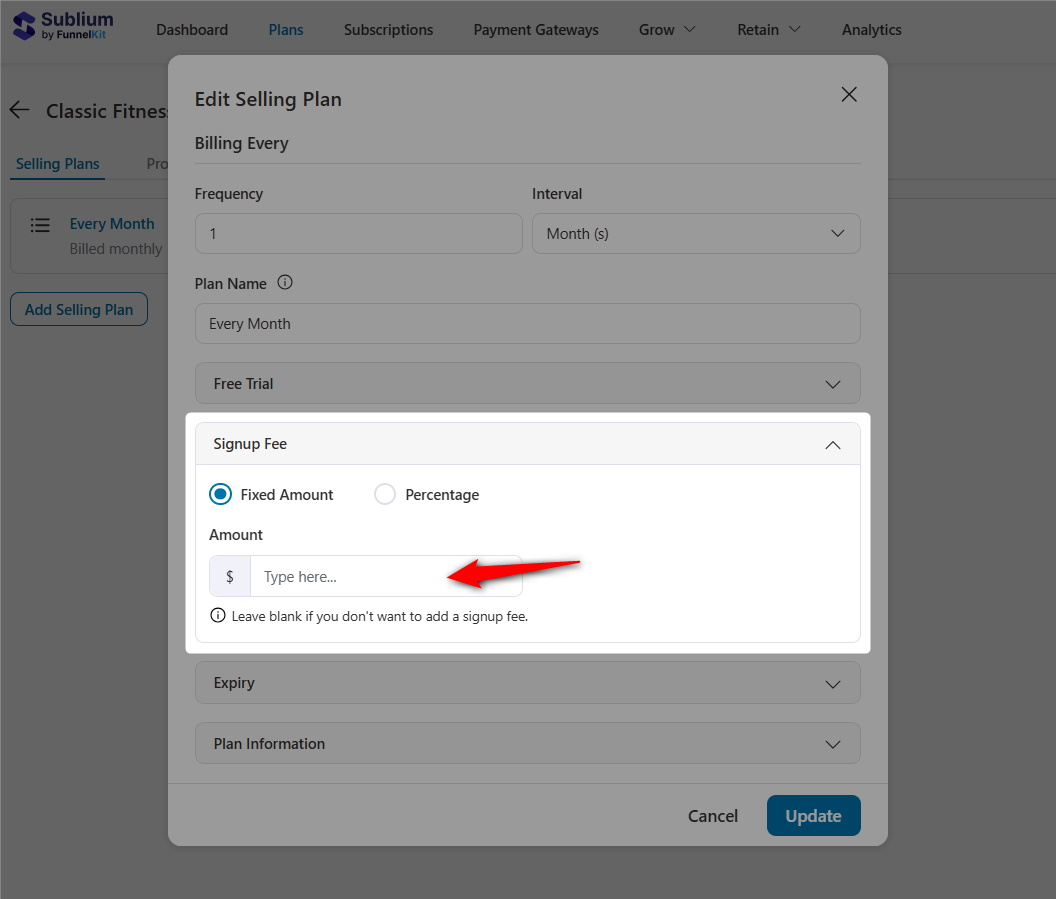
Signup Fee
This is a one-time charge applied when a customer first subscribes. It can help cover onboarding or initial setup costs.
We won’t charge any signup fees here, so we’ll leave this option blank.
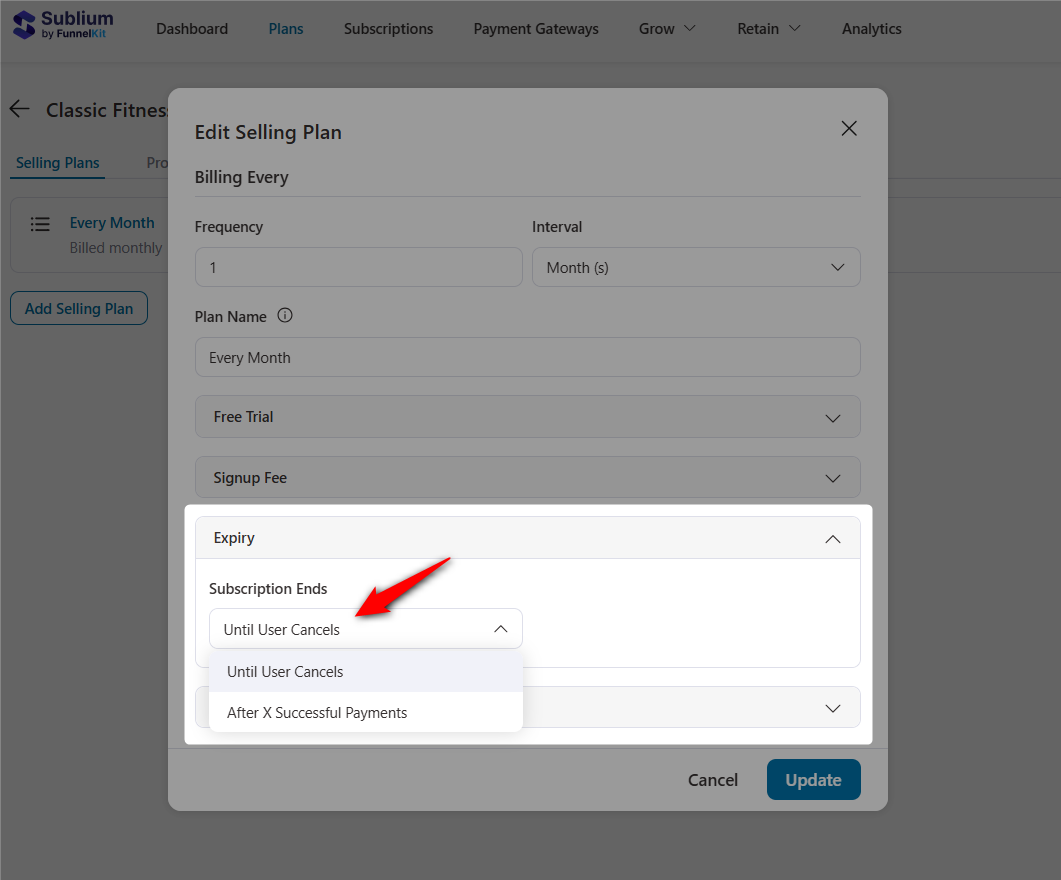
Expiry
Set expiration date for your recurring subscriptions here.
For recurring subscriptions, set it to ‘Until User Cancels’ for ongoing subscriptions.
Plan Information
Include clear details about what the plan entails, such as the features and benefits customers will have access to, billing cycles, applicable discounts, and more.
Transparency builds trust and prevents surprises for your subscribers.
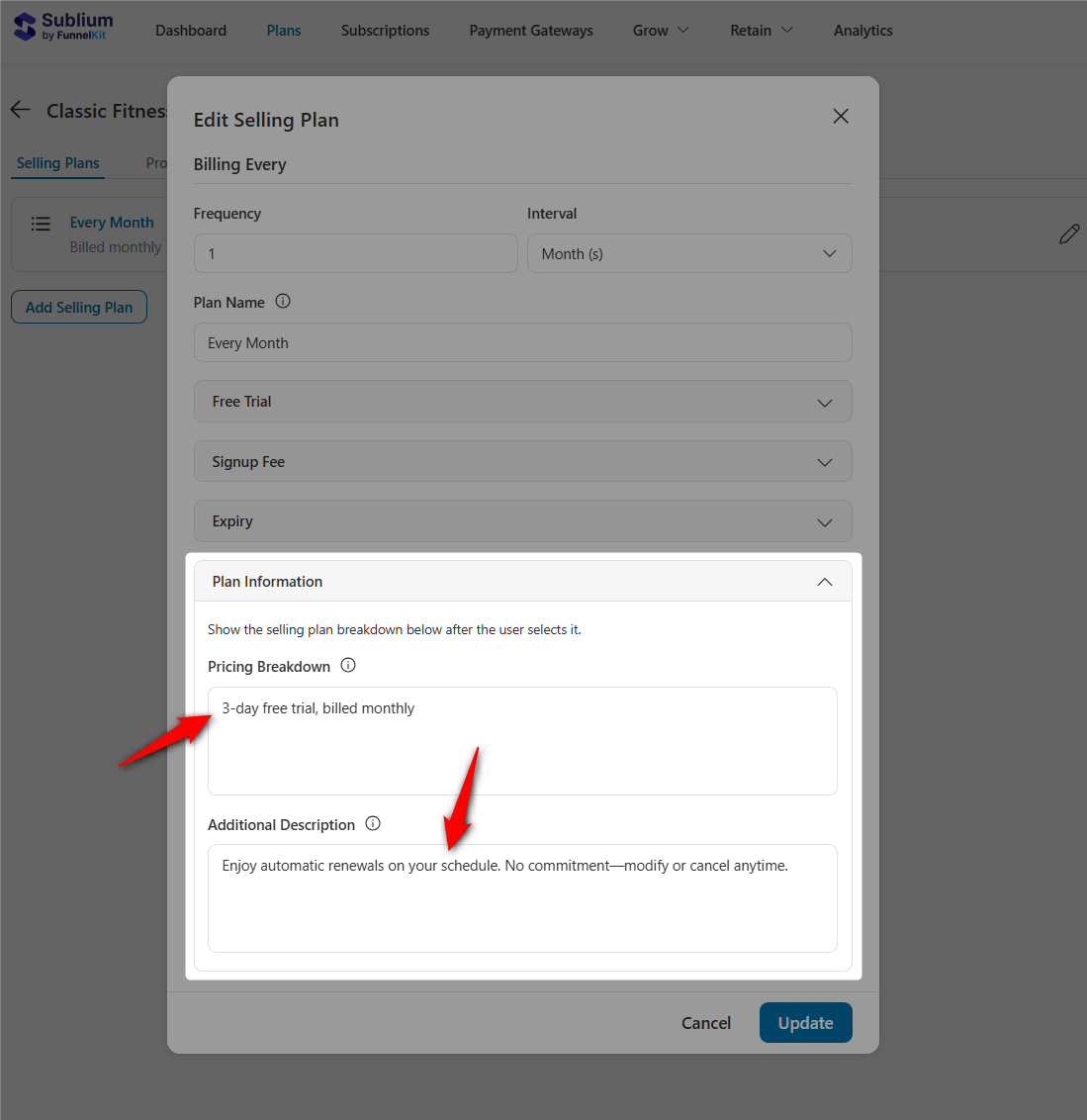
Once done, hit ‘Update’ to save your subscription plan.
Step 3: Assign a product to the new subscription plan
Once your subscription plan is configured, assign products to it. This connects your chosen items to the recurring billing structure you just created.
Go to the Products section and click on the ‘Add Product’ button.
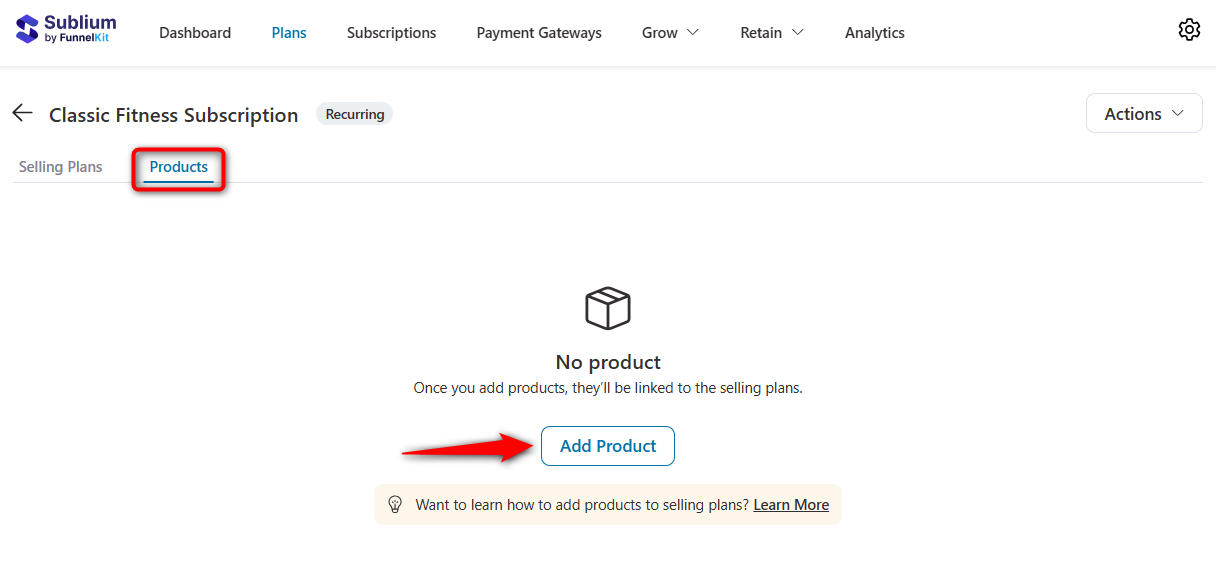
Choose the individual virtual products you want to include in your subscription selling plan. You can search for your product name by entering the initial letters or by browsing its category.
This is perfect for digital goods such as online courses, software licenses, or premium content.
Sublium can convert any simple product(s) in your WooCommerce store into a subscription plan.
Click on the product and hit ‘Add’.
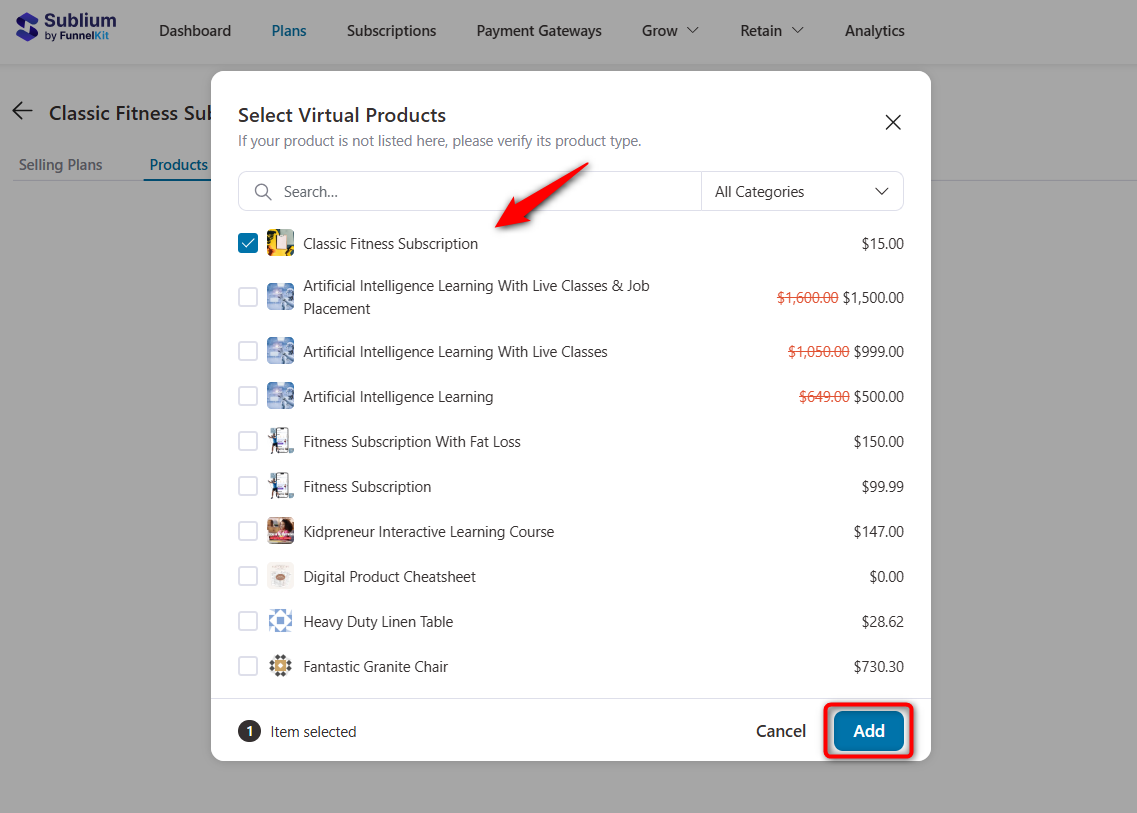
Your fitness product is now linked to the subscription plan.
You can offer discounts on your subscription by entering the selling price of the product:
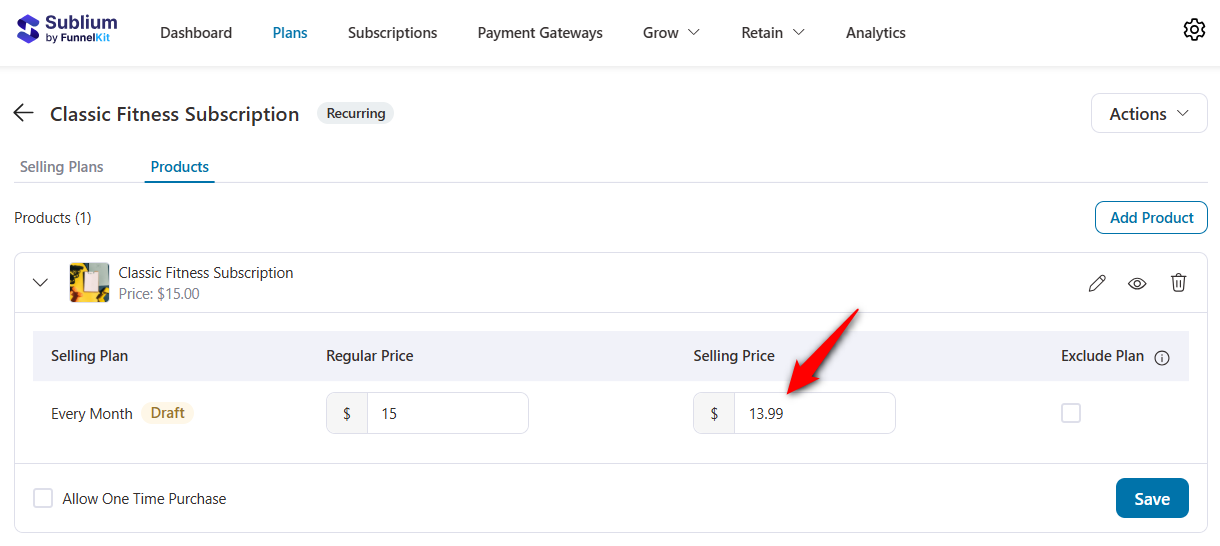
You can also enable the one-time purchase option. When you’re done, hit ‘Save’ to lock your changes.
To make your subscription active, just turn the toggle to ‘Active’.
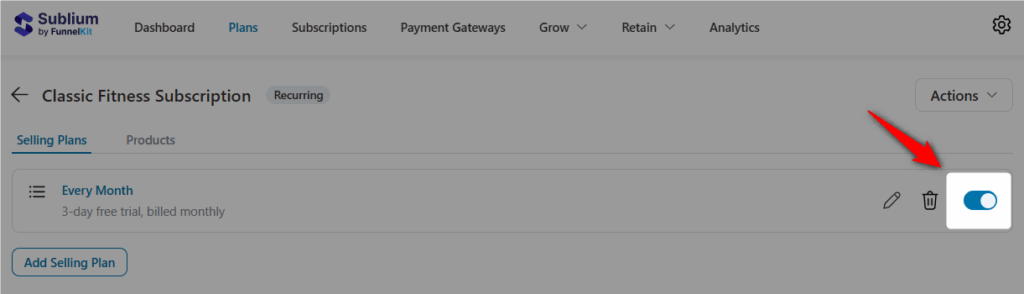
This will launch your recurring subscription product and customers will be able to purchase it with recurring billing enabled.
Step 4: Configure payment gateways for recurring billing
To run subscriptions in WooCommerce, connect your store to a payment gateway that supports recurring payments.
Set it up from the Payment Gateways section. You’ll see Stripe, PayPal and Square. Activate and connect the payment gateway you prefer.
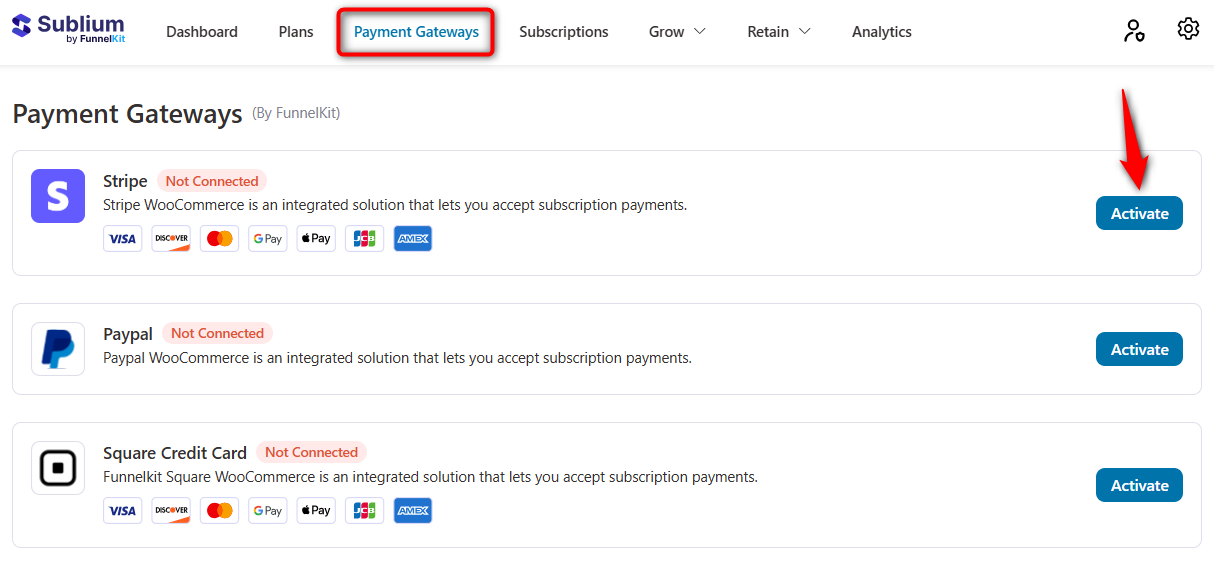
Before going live, test your payment setup in sandbox/test mode to verify that recurring billing triggers are correct and that free trials or signup fees work as expected.
With payment gateways properly configured, your WooCommerce store can now automatically process recurring billing.
This way, you can give customers a seamless subscription experience and ensure reliable cash flow for your business.
Testing Subscriptions in Your WooCommerce Store
Go to the product page in WooCommerce and this is what your subscription plan will look like:
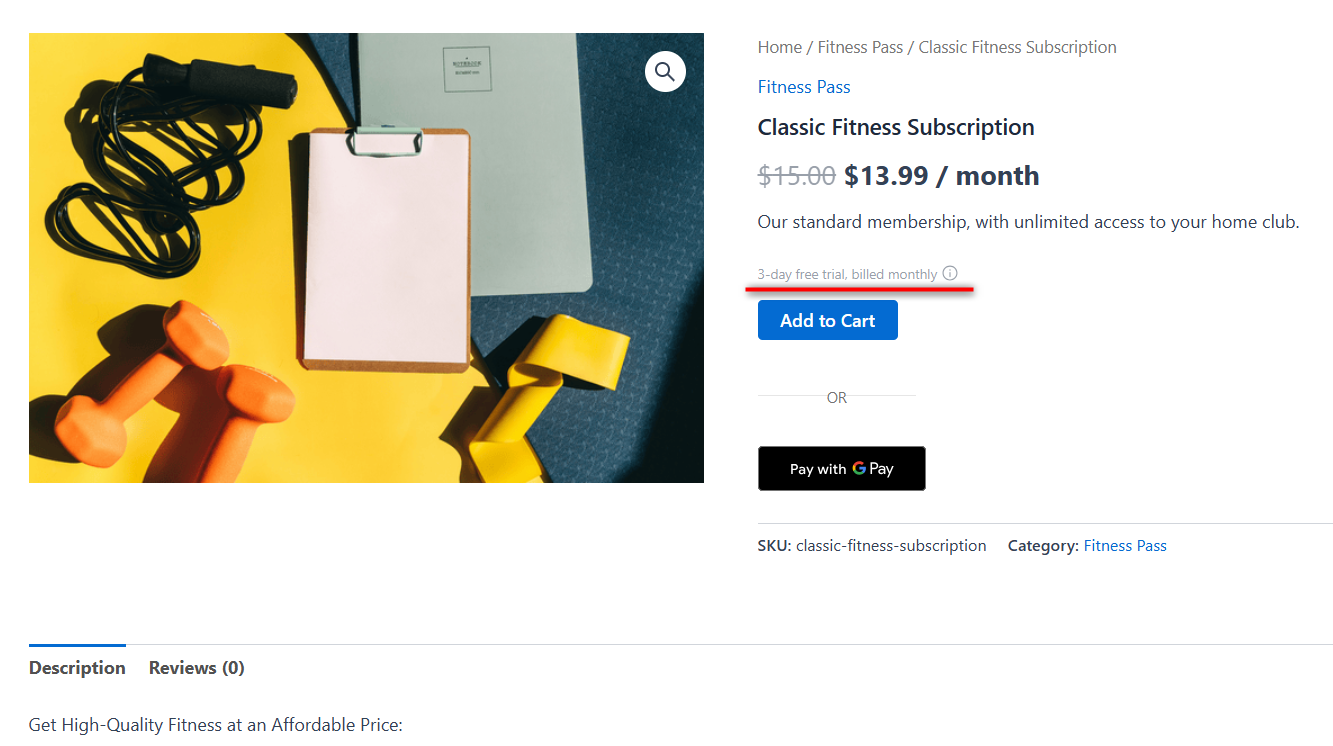
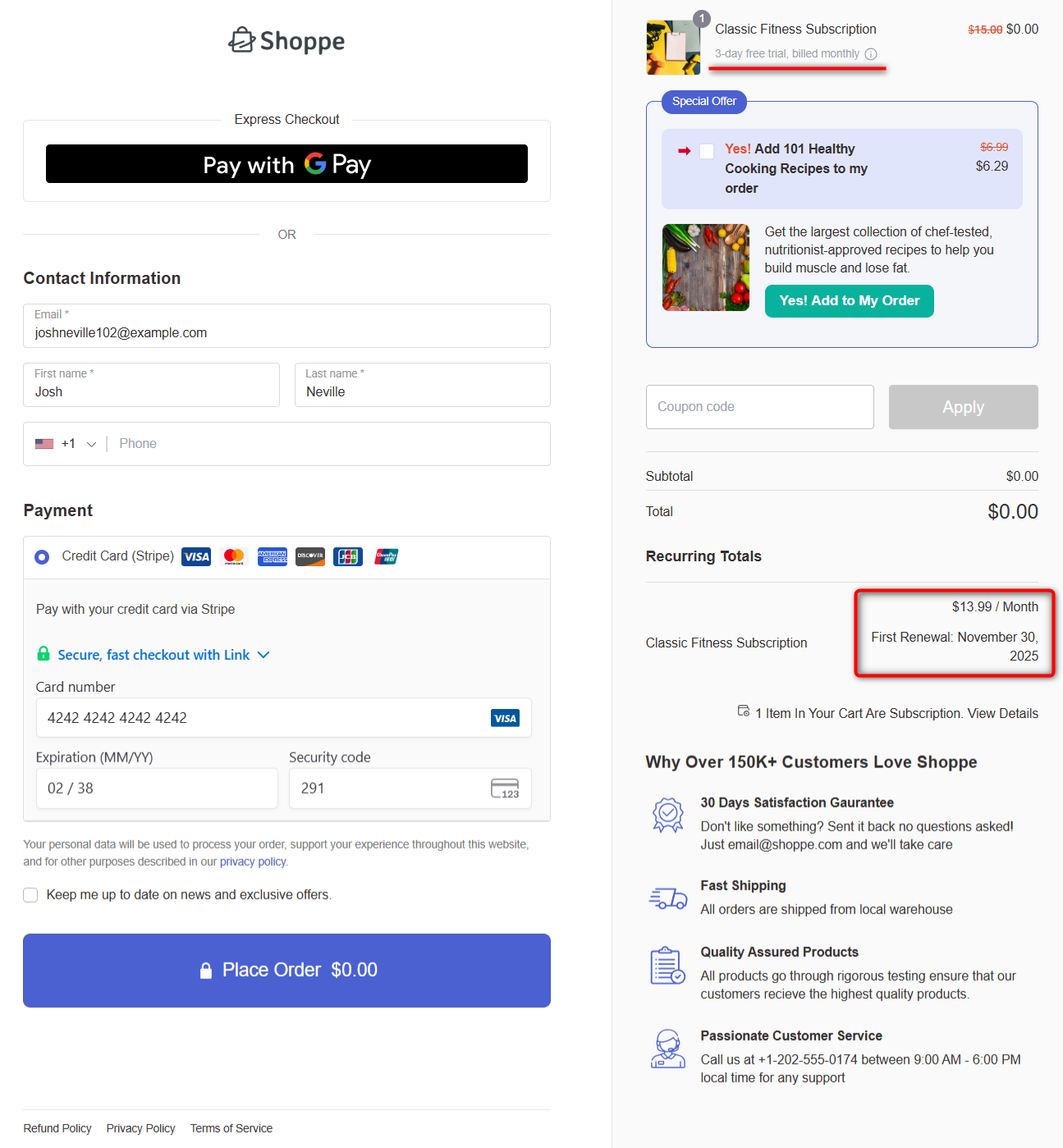
Add this item to the cart, then go to the checkout page.
On the checkout page, you’ll see the $0 price with a 3-day free trial. The recurring price of $13.99 will be charged after 3 days, when the trial period ends:
Upon successful order, you’ll be directed to the thank you page:
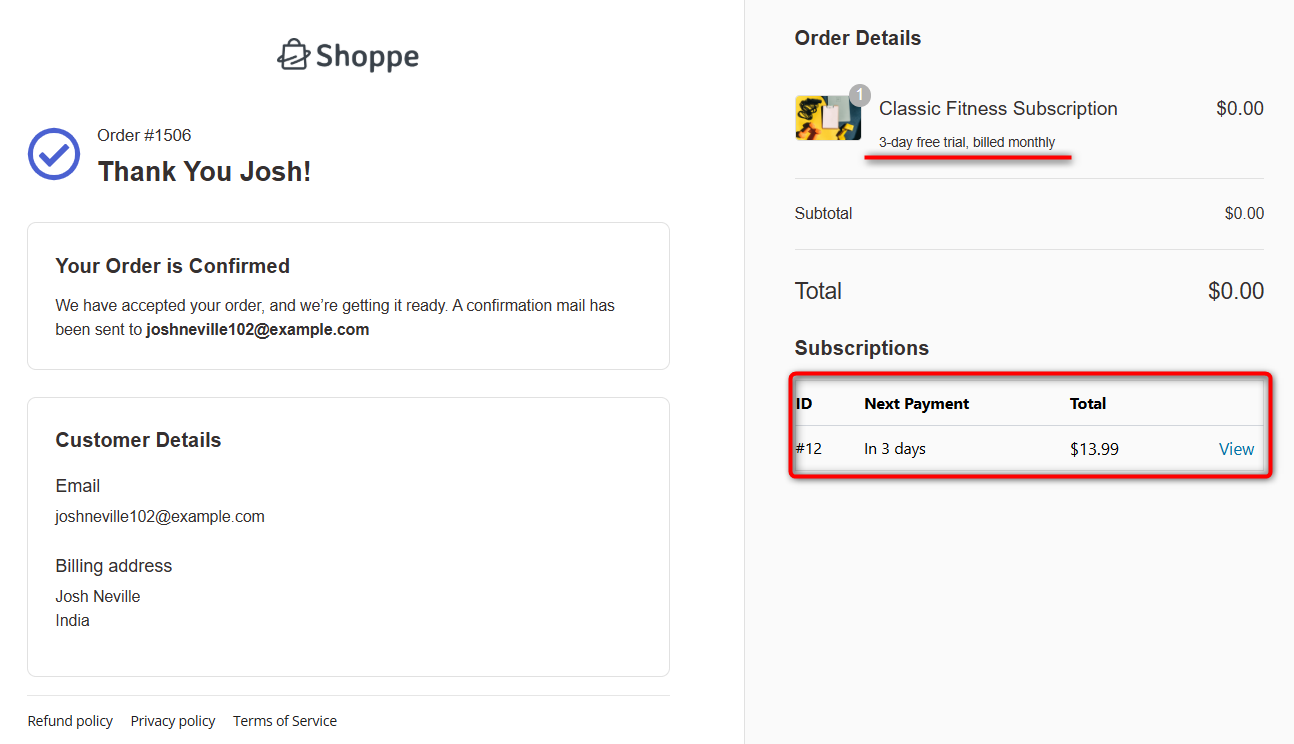
Your subscription plan works perfectly in your WooCommerce store. You’re now ready to sell!
Payment Gateways That Support WooCommerce Recurring Payments
Not every payment gateway that works with WooCommerce can handle subscriptions properly.
For automatic renewals, the gateway must securely store a payment token and let the store charge it again later without the customer returning to checkout.
After that, the differences start to matter. Can customers update their card? What happens when a card expires? Can they use Apple Pay or Google Pay? Can they pause a subscription or have more than one active subscription at the same time?
Here’s how the main options compare:
| Capability | Stripe | PayPal | Square |
|---|---|---|---|
| Card tokenization for auto-renewals | Yes | Yes, with reference transactions enabled | Yes |
| Customer can pause or skip | Yes | Yes | Yes |
| Customer can change payment method | Yes | Limited | Yes |
| Card updater for expiring cards | Yes, via account updater | No | Limited |
| Digital wallets (Apple Pay, Google Pay) | Yes | No | Limited |
| Multiple active plans per customer | Yes | Limited | Yes |
Stripe is the easiest choice for most stores. Its card updater reduces renewals that fail simply because a customer’s card expired or was replaced, and it strongly supports digital wallets.
We would still enable PayPal alongside it where possible. Some customers simply prefer paying through PayPal and may abandon the purchase rather than enter their card details. Giving them both options removes that friction.
WooPayments is built on Stripe’s infrastructure and supports recurring payments, but that does not automatically mean every subscription plugin will work with it.
The compatibility depends on the combination of the gateway and subscription plugin you’re using.
Check that your specific setup supports WooPayments before assuming it will work just because Stripe does.
7 Best Practices When Offering Subscriptions in WooCommerce
Selling subscriptions is more than just enabling recurring billing. Present your offers in a way that attracts new customers, builds loyalty, and maximizes long-term revenue.
Here are some best practices to maximize the benefits of your WooCommerce subscription business.
1. Use subscribe and save discounts
Subscription-tied discounts create a win-win for you and your customers.
By offering a percentage discount for recurring orders, such as 10% or 15%, you encourage regular purchases, while your business benefits from predictable recurring revenue.
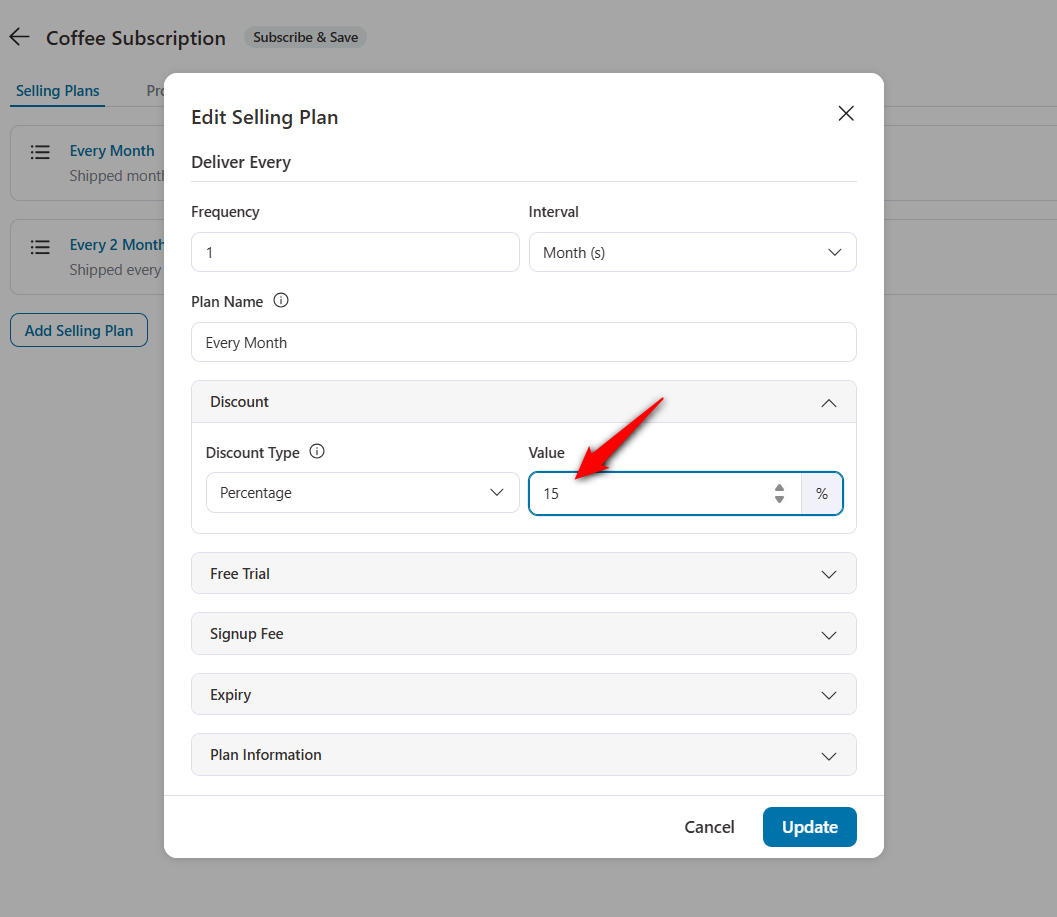
This model works particularly well for physical consumable products, such as daily essentials, supplements, or personal care items.
2. Reduce churn with smart payment recovery
Failed payments are among the top reasons subscriptions are canceled.
To maintain a steady revenue stream, set up automatic payment retries and send reminder emails when a customer’s card is about to expire.
You can find these options under Retain ⇨ Payment Recovery inside Sublium.
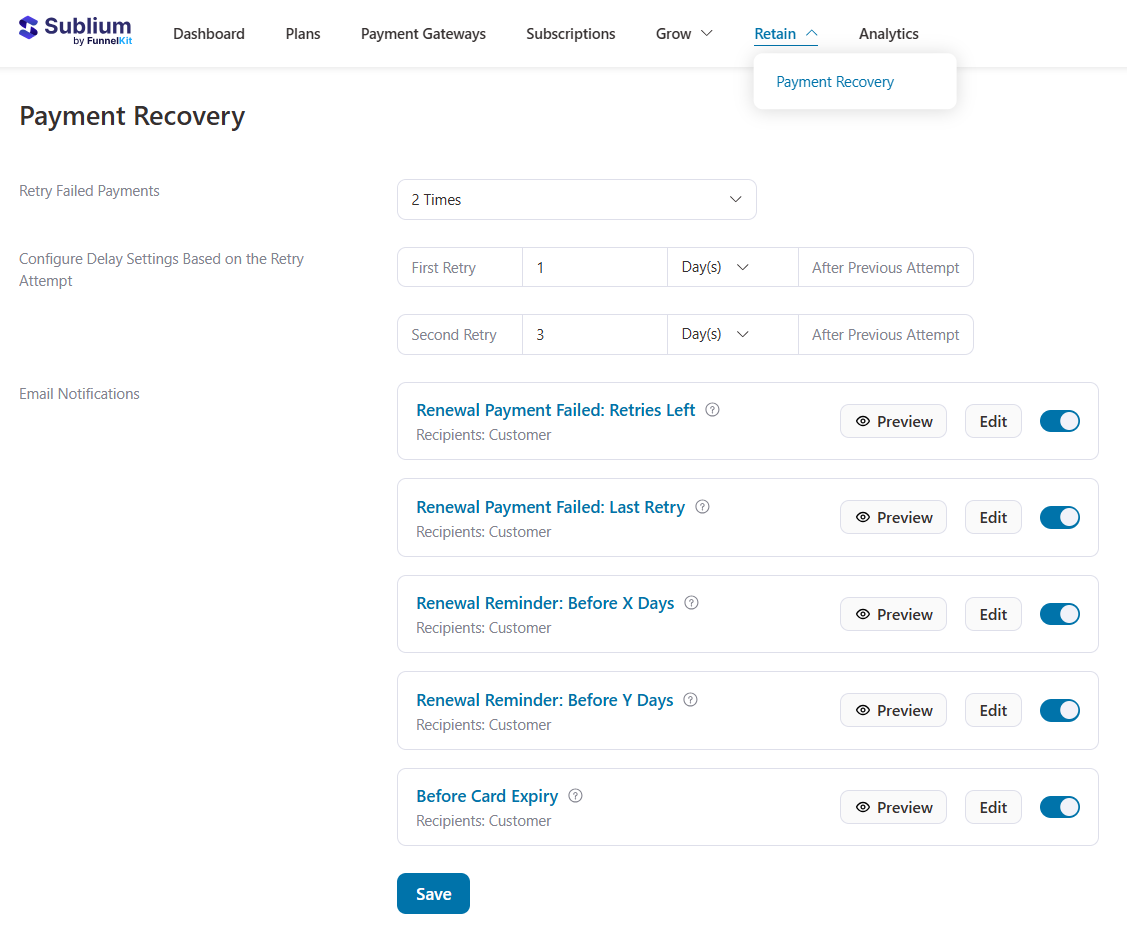
With proactive dunning flows, you can recover up to 30% of failed transactions and prevent unnecessary churn.
3. Personalize the subscriber experience
Retention is just as important as acquisition, so make subscribers feel valued with personalized emails that highlight milestones, savings summaries, and relevant product recommendations.
Offer exclusive perks, such as bonus content or loyalty rewards, to deepen engagement.
Clear communication is essential. Keep subscribers informed about renewals, payments, trials, and cancellations to avoid confusion and reduce failed payments.
WooCommerce provides automated emails, and pairing it with a reliable SMTP plugin (like WP Mail SMTP) helps ensure deliverability.
Sublium’s visual builder lets you design emails with drag-and-drop blocks, preview them, send test emails, and run an email audit to catch missing URLs, broken links, and sizing issues.
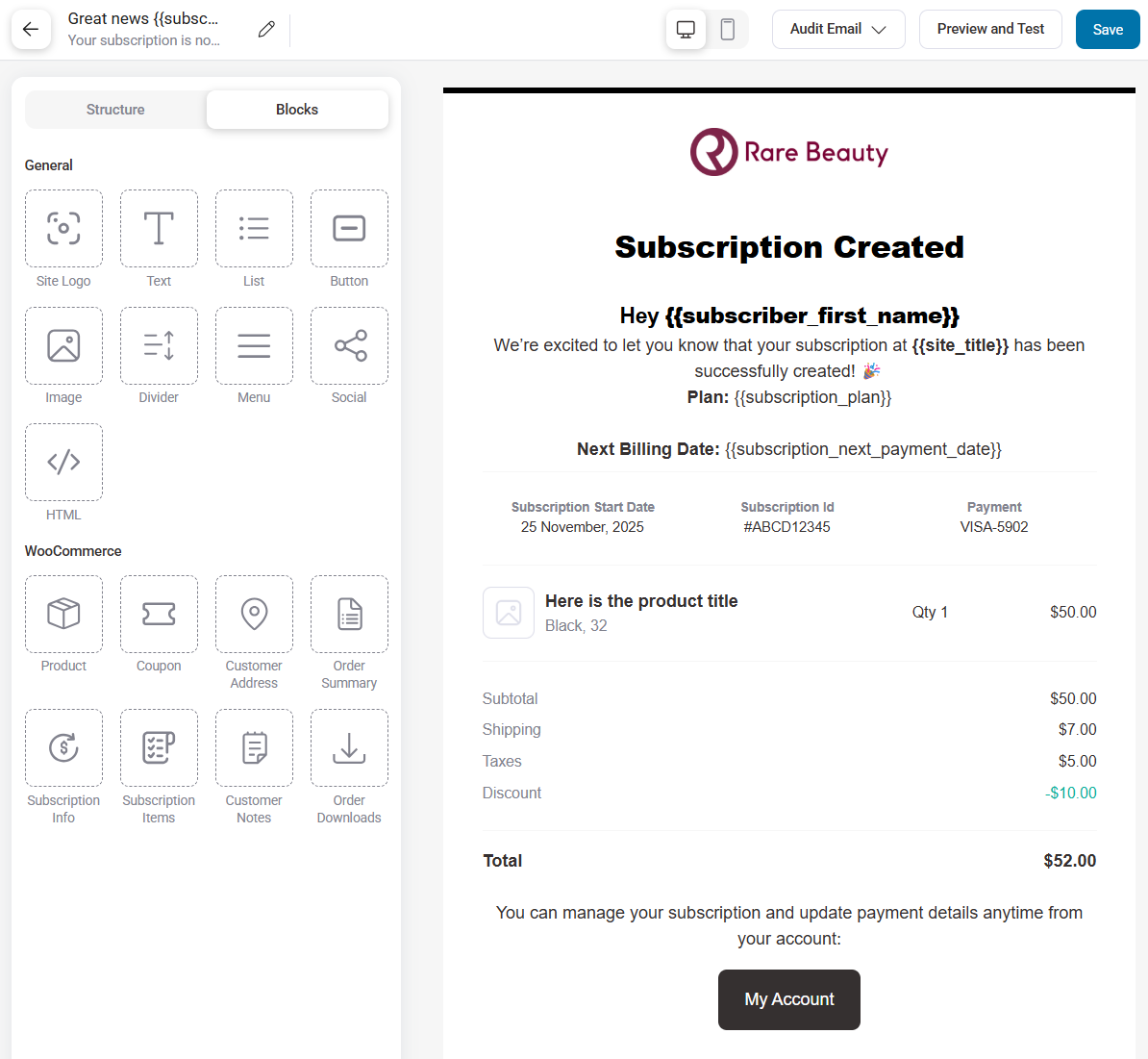
Follow the same process to set up all essential subscription emails: renewals, failed payments, cancellations, and card-expiry reminders.
4. Pitch upsells during shopping journeys
Once a customer has subscribed, they are more open to buying additional products.
This is where FunnelKit comes in.
By adding order bumps on the checkout page, you can pair complementary items with subscriptions.
FunnelKit Cart lets you pitch smart add-ons before checkout, while one-click post-purchase upsells allow you to present higher-value offers, such as an annual plan upgrade, without disrupting the buying experience.
Here’s a classic example of offering upsells on the checkout page:
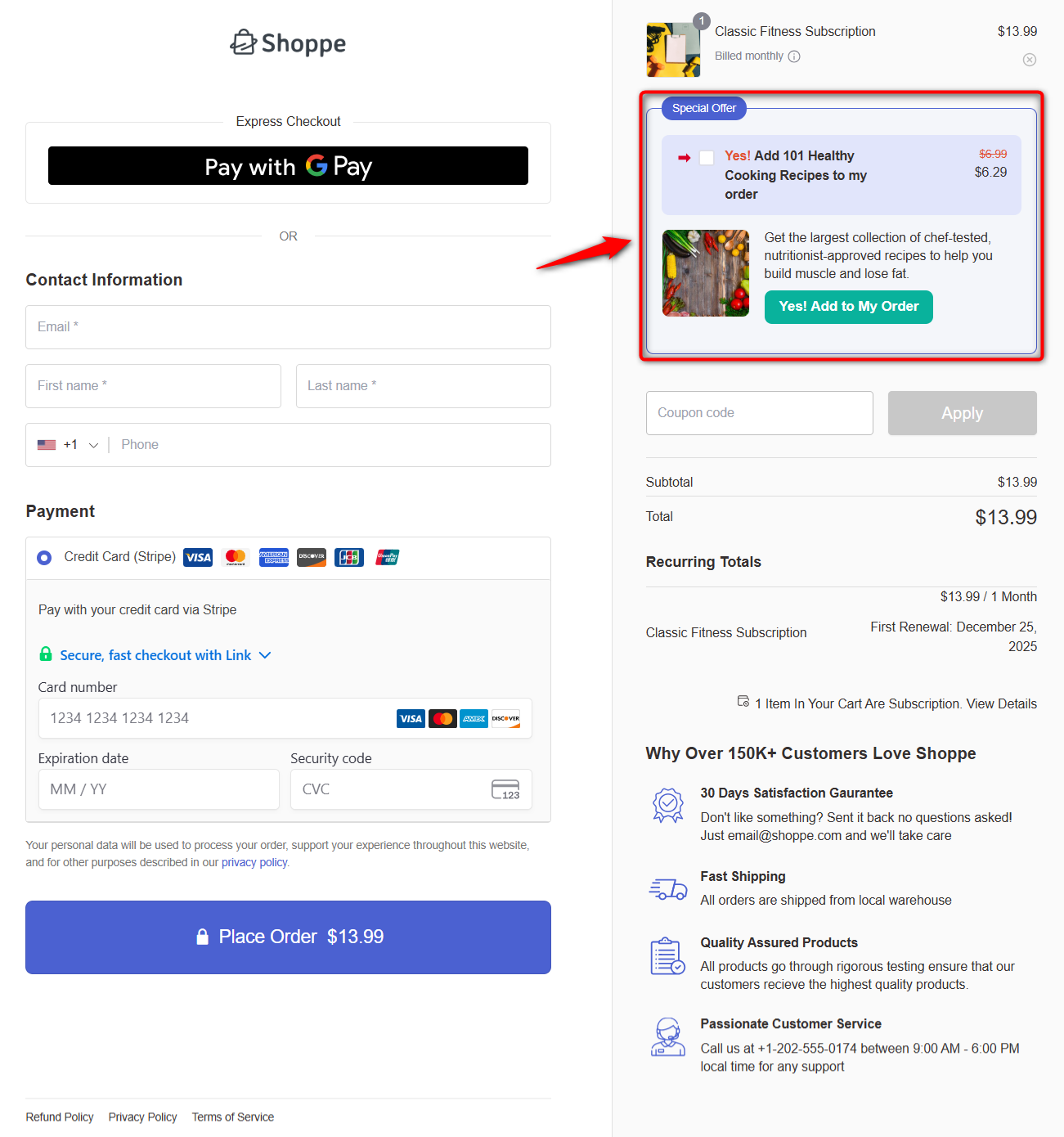
Together, Sublium and FunnelKit create a seamless system that increases average order value and boosts profits.
5. Provide flexible billing cycles and installments
Every customer has different payment preferences.
Offering monthly, quarterly, and annual billing options gives them the flexibility to choose what works best.
For high-ticket items, installment plans can make purchases more affordable without overwhelming buyers.
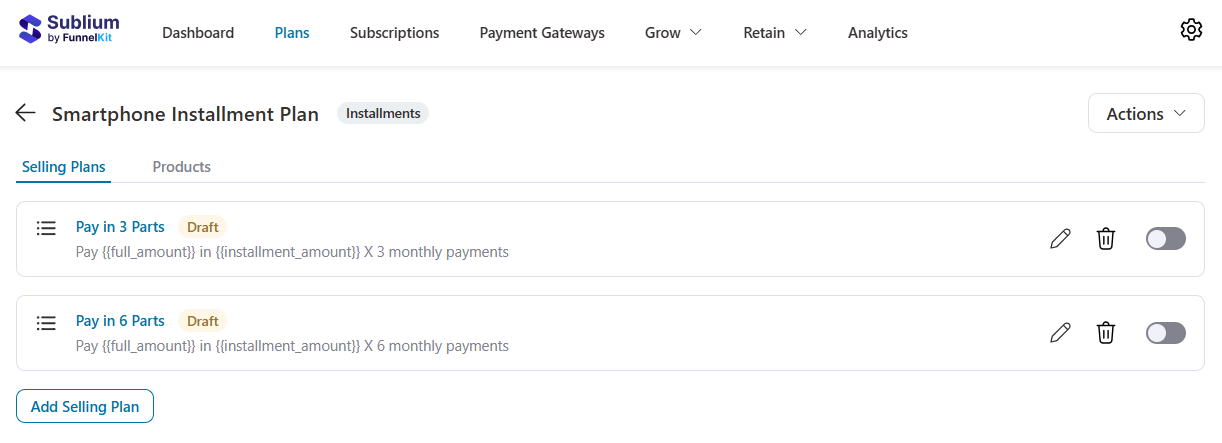
Clear communication about savings, such as “Save 20% when billed annually”, helps nudge customers toward longer commitments.
6. Set up relevant upgrades for different subscription plans
Customer needs may evolve over time, and your subscription system should adapt.
Sublium enables customers to effortlessly upgrade from a lower-tier plan to a higher-tier plan or switch from monthly to annual billing.
The best part is that billing adjustments (proration) occur automatically, making the upgrade process feel seamless and ensuring customers feel secure about their money.
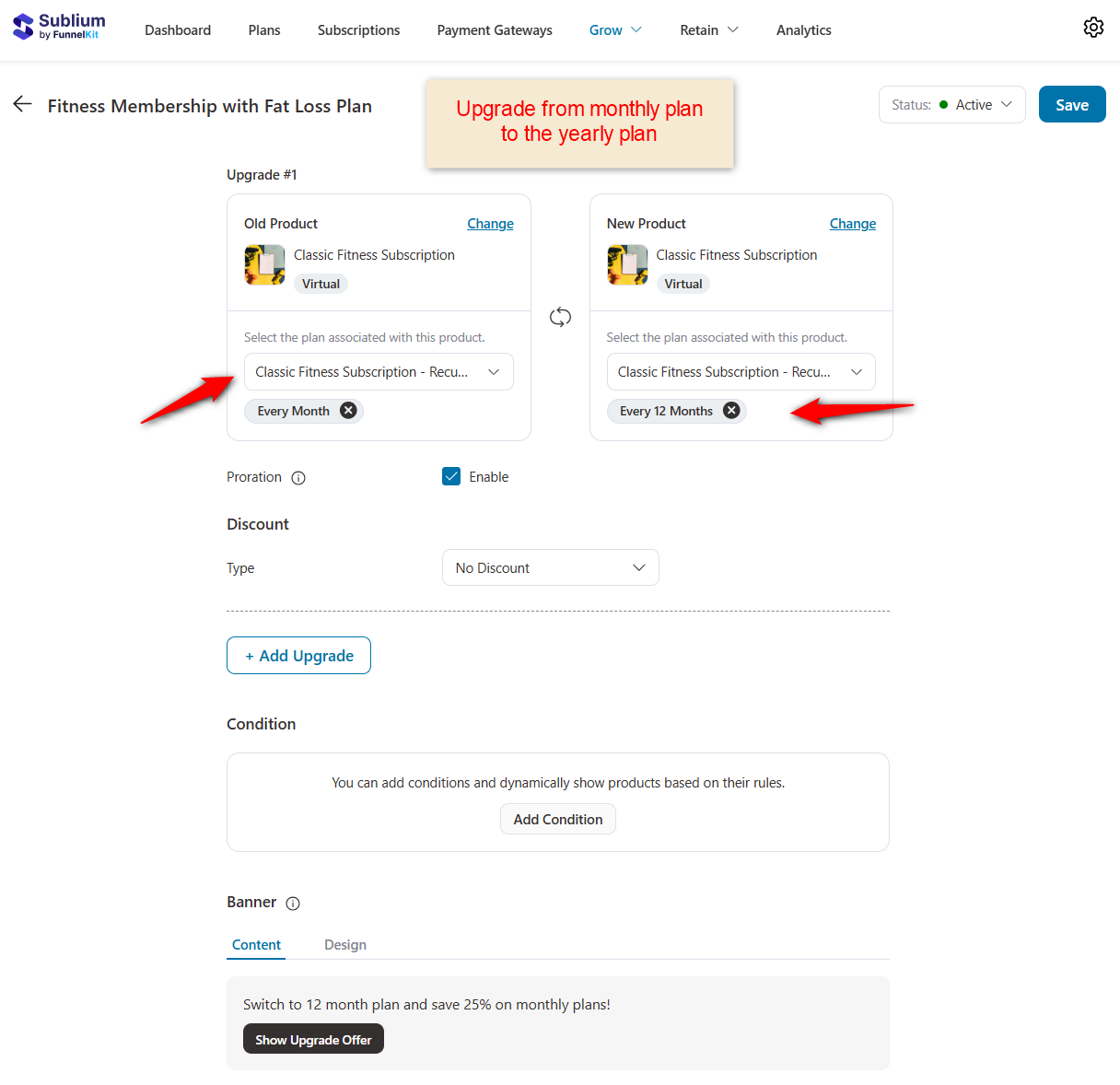
You have full display controls to show customers relevant upgrade offers smartly.
With these settings, you can show upgrade offers on the cart page, FunnelKit mini cart, and checkout page.
You can even show your offers inside the ‘My Account’:
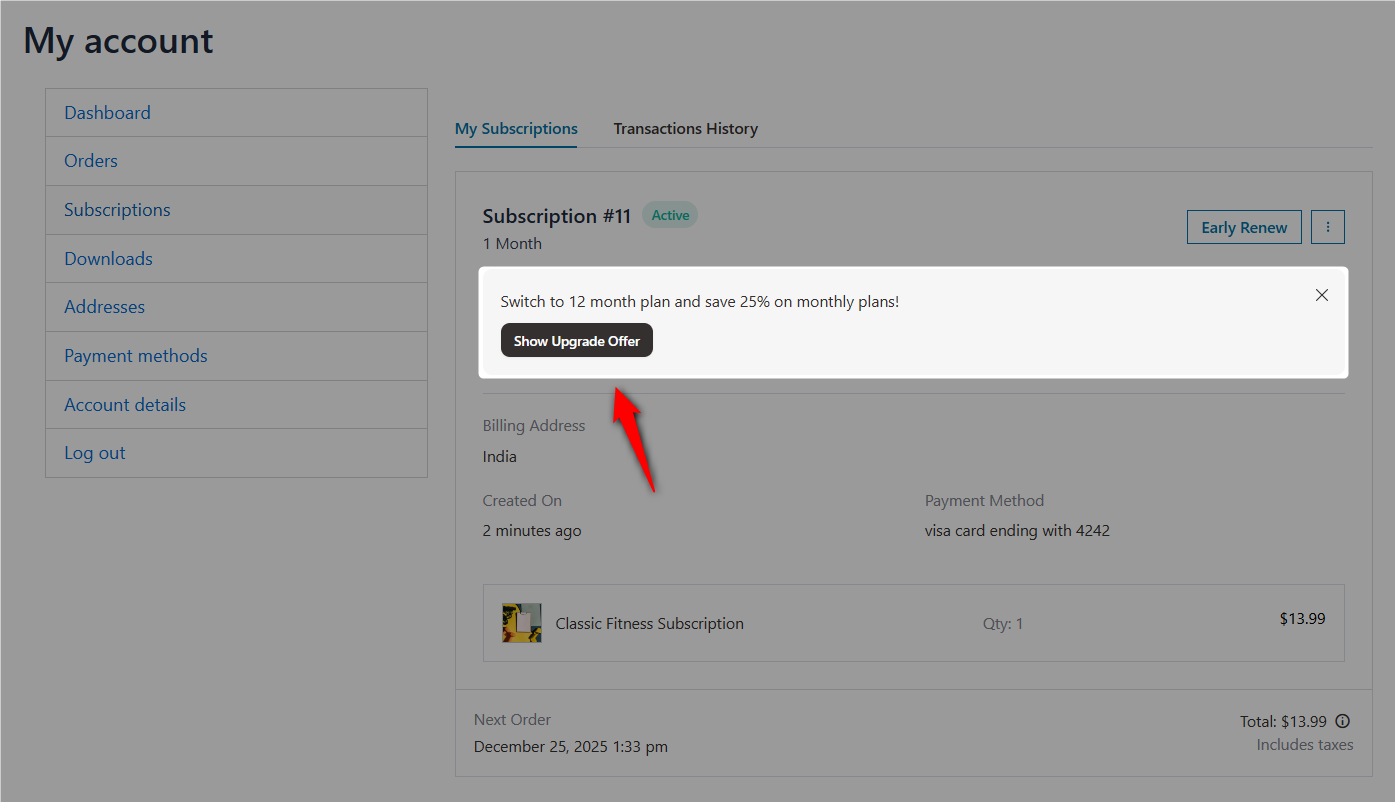
Making upgrades easy reduces cancellations and encourages customers to grow alongside your business.
7. Monitor subscription metrics that matter
To continually improve your subscription strategy, regularly measure performance.
Metrics such as monthly and annual recurring revenue (MRR and ARR), churn rate, subscription revenues, and upcoming payments, among others, reveal how well your plans are performing and where adjustments are needed.
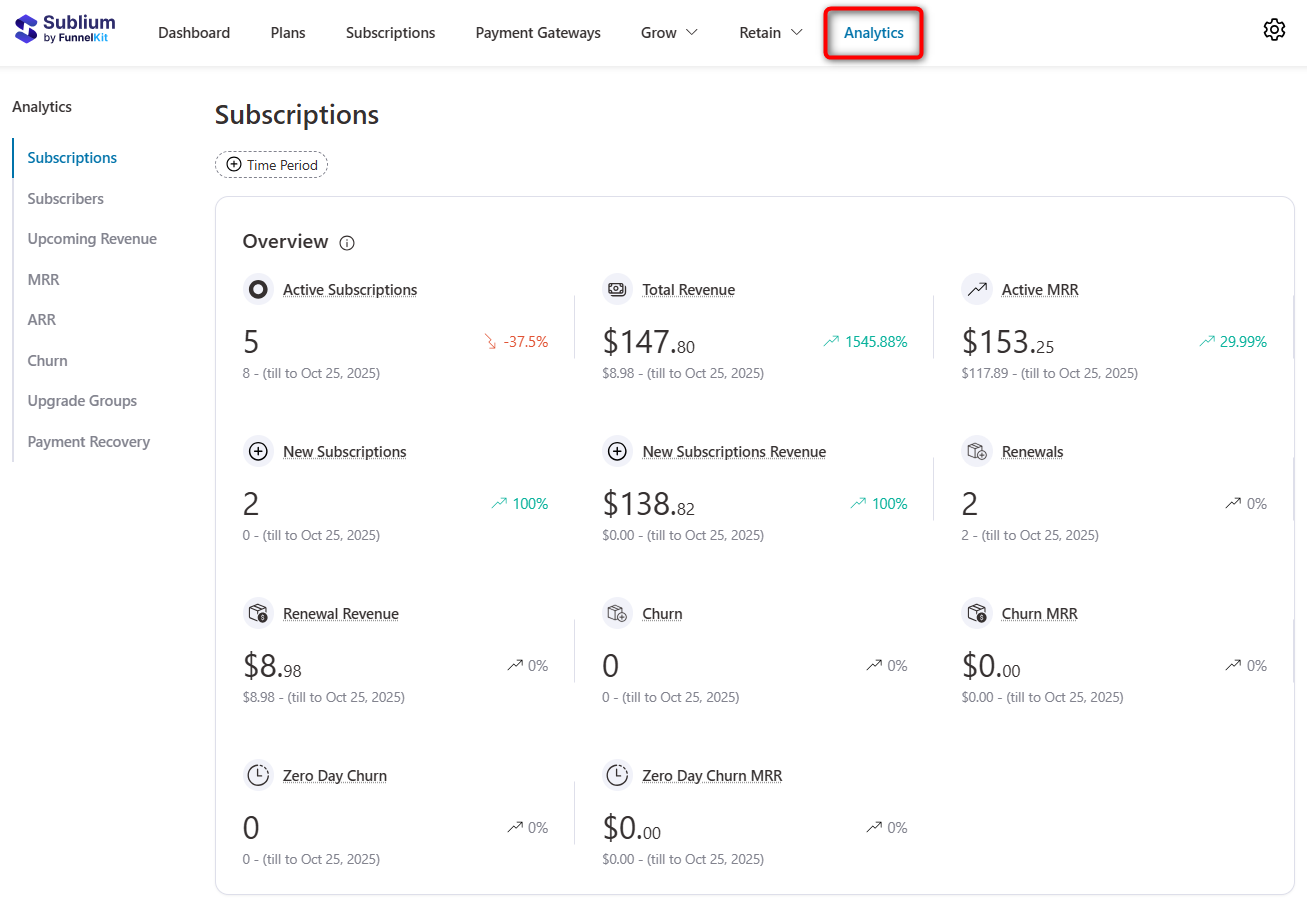
By monitoring these numbers, you can fine-tune pricing, refine offers, and focus on customer retention.
Common Challenges When Handling Subscriptions in WooCommerce (and How to Solve Them)
Running a subscription business in WooCommerce can be highly profitable, but it comes with specific challenges.
Sublium is designed to address these issues directly, keeping your recurring revenue consistent and your subscribers happy.
Recurring payment failures
Issue: Failed payments are a leading cause of subscription cancellations. Common causes include expired credit cards, insufficient funds, or declined transactions. Without recovery, these failures lead to lost revenue and frustrated customers.
Solution: Use smart dunning flows to automatically handle failed payments.
When a transaction fails, Sublium retries the payment on a schedule you define (for example, 1, 3, and 7 days after failure).
At the same time, it sends automated email notifications to customers, prompting them to update their billing details.
Merchants can use the analytics section to track all retries and recoveries directly in the WooCommerce dashboard, helping retain revenue without manual intervention.
High customer churn
Issue: Even satisfied customers may cancel if they feel locked into inflexible billing or aren’t reminded of renewals. High churn directly impacts recurring revenue.
Solution: Reduce churn by offering flexible billing cycles, including daily, weekly, monthly, yearly, and fully custom options.
Sublium offers automated reminders and engagement emails that keep customers informed about renewals, upcoming charges, and subscription benefits.
This proactive communication increases retention and keeps more subscribers active longer.
High upfront costs
Issue: High-ticket subscriptions can deter potential customers when they require full upfront payment.
Solution: Offer installment plans with customizable down payments, allowing customers to spread payments over several cycles.
This lowers the financial barrier for subscribers while securing guaranteed revenue from the initial payment, making high-value products more accessible.
Complex subscription management
Issue: Managing upgrades, downgrades, cancellations, and prorated billing can become overwhelming, especially for stores with multiple subscription plans.
Solution: Sublium simplifies subscription management with seamless plan upgrades and downgrades, automatic prorated billing, and a user-friendly dashboard to track all subscriber activity.
Merchants can make changes without disrupting the customer experience.
Limited marketing integrations
Issue: Many subscription plugins don’t integrate easily with upsells, order bumps, or optimized carts, limiting opportunities to increase revenue per subscriber.
Solution: Integrate your subscriptions with marketing plugins like FunnelKit to implement order bumps, one-click post-purchase upsells, and cart optimization for your subscribers.
This means you can leverage every checkout to maximize average order value (AOV) while maintaining a smooth customer experience.
Gaps in customer communication
Issue: Subscribers often cancel because they don’t know about upcoming renewals, charges, or plan benefits. Poor communication reduces trust and increases churn.
Solution: Sublium automates all subscription-related communications. From welcome emails to renewal reminders, payment-failure alerts, trial-expiry notifications, and milestone messages, your customers stay informed, engaged, and less likely to cancel.
WooCommerce Subscription Plugins Compared
Plenty of subscription plugins for WooCommerce can handle the basics: charge a customer now and charge them again later.
The bigger differences show up once a renewal fails, a card expires, a customer wants to cancel, or you need to see how much recurring revenue the store is actually generating.
| Plugin | Free version | Pro pricing | Gateways | Converts existing products | Built-in churn tools |
|---|---|---|---|---|---|
| Sublium Subscriptions | Yes, on WordPress.org | From $99.50/year | Stripe, PayPal, Square, Mollie, Authorize.Net, and more | Yes | Dunning, card updater, cancellation flows, analytics |
| WooCommerce Subscriptions | No | From $279/year | ~25 supported gateways | Requires a separate extension | Limited, needs add-ons |
| YITH WooCommerce Subscription | Limited | Mid-range annual license | Stripe, PayPal and selected others | Partial | Basic renewal handling |
| WebToffee Subscriptions | Yes | Mid-range annual license | Stripe, PayPal and selected others | Partial | Basic, strong on physical fulfillment |
| WPSubscription | Yes, on WordPress.org | From around $89/year | Stripe, PayPal | Yes | Basic |
| SUMO Subscriptions | No | One-time CodeCanyon license | Several; varies by version | Partial | Minimal |
The key difference isn’t whether a plugin can charge a card again. Most can. It is what happens when something goes wrong, or the customer wants to change their subscription.
WooCommerce Subscriptions is the safer choice if you need support for less common payment gateways or want the deepest compatibility with other WooCommerce extensions.
Third-party plugins generally compete on price, simpler setup, and the ability to turn existing products into subscription products.
Sublium takes a different approach to retention. Dunning, card updates, cancellation flows, and MRR and churn analytics are included in the product rather than being split across separate paid add-ons.
That means you get the tools to manage what happens after the initial sale without building another layer around your subscription setup.
One more compatibility check is worth making if your store uses funnels.
If you run order bumps, one-click upsells, or custom checkout flows, make sure your subscription plugin works with that setup before you commit.
Sublium and FunnelKit are built by the same team, so you can use Sublium subscriptions with FunnelKit checkouts, order bumps, and one-click upsells without custom development.
Want to compare more options? See our guide to WooCommerce Subscriptions alternatives for a broader look at the subscription plugins available for WooCommerce.
Frequently Asked Questions
Can I sell subscriptions on WooCommerce for free?
Yes. Several plugins, including Sublium and WPSubscription, have free versions on WordPress.org that handle basic recurring billing. The official WooCommerce Subscriptions extension has no free tier and starts at $279 a year.
Do I even need WooCommerce for one recurring plan?
No. For a single plan with no shipping, a Stripe or PayPal payment link on a plain WordPress page works and costs nothing extra. You give up order history, coupons, shipping, and store reporting, so it only suits the simplest setups.
Can I turn an existing WooCommerce product into a subscription?
It depends on the route. Most third-party plugins attach a billing plan to existing products. The official extension creates new product types instead, so converting an existing catalog means buying All Products for WooCommerce Subscriptions on top.
Which payment gateways support recurring payments?
Stripe, PayPal, and Square are supported by nearly every subscription plugin. The official extension supports a much wider list of around 25 gateways, which matters if you use a regional processor.
Why did my renewal not charge?
The two usual causes are a declined card and a scheduled task that never ran. Check your failed payment log first, then check whether WP-Cron is actually firing, because low-traffic and heavily cached stores generally need a real server cron job instead.
Can customers pause or skip instead of canceling?
Yes, if your plugin and gateway both support it. Pause and skip are among the most effective churn reducers, and putting them in the cancellation flow can recover subscribers who would otherwise be gone for good.
How does tax work on renewals?
Tax is calculated on each renewal order rather than fixed at signup, so a rate change between cycles changes the renewal total. If you sell digital products into the EU or UK, VAT applies per renewal, and your tax setup has to handle it.
Will recurring billing slow my store down?
It can if the plugin is poorly built or the Action Scheduler queue is never pruned. A well-maintained plugin on a properly configured server cron adds negligible front-end load, because renewal processing happens in the background rather than on page requests.
Start Selling Subscriptions on WooCommerce This Week
Pick the route that fits your payment gateway and your catalog first. Then think about retention before you start sending more traffic your way.
In practice, the stores that struggle with subscriptions usually aren’t the ones that chose the wrong plugin. They are the ones that got customers subscribed and then lost them because a card expired or a renewal failed.
Whether you’re selling physical products, digital goods, or memberships, offering flexible subscription models can turn one-time buyers into loyal customers who stick around for the long haul.
The initial setup can take an afternoon. Once it is working, though, every month starts with customers who are already subscribed instead of starting from zero.
If you want recurring billing, payment recovery, cancellation flows, and churn reporting in one place, Sublium brings them together without making you pay for several separate add-ons.
You can also start with the free version, see how it fits your store, and upgrade later.