

This documentation explains how to search for specific upgrade groups and manage them using options such as rename, draft, duplicate, and delete.
To access, navigate to Sublium Subscriptions ⇒ Grow ⇒ Upgrade Groups.
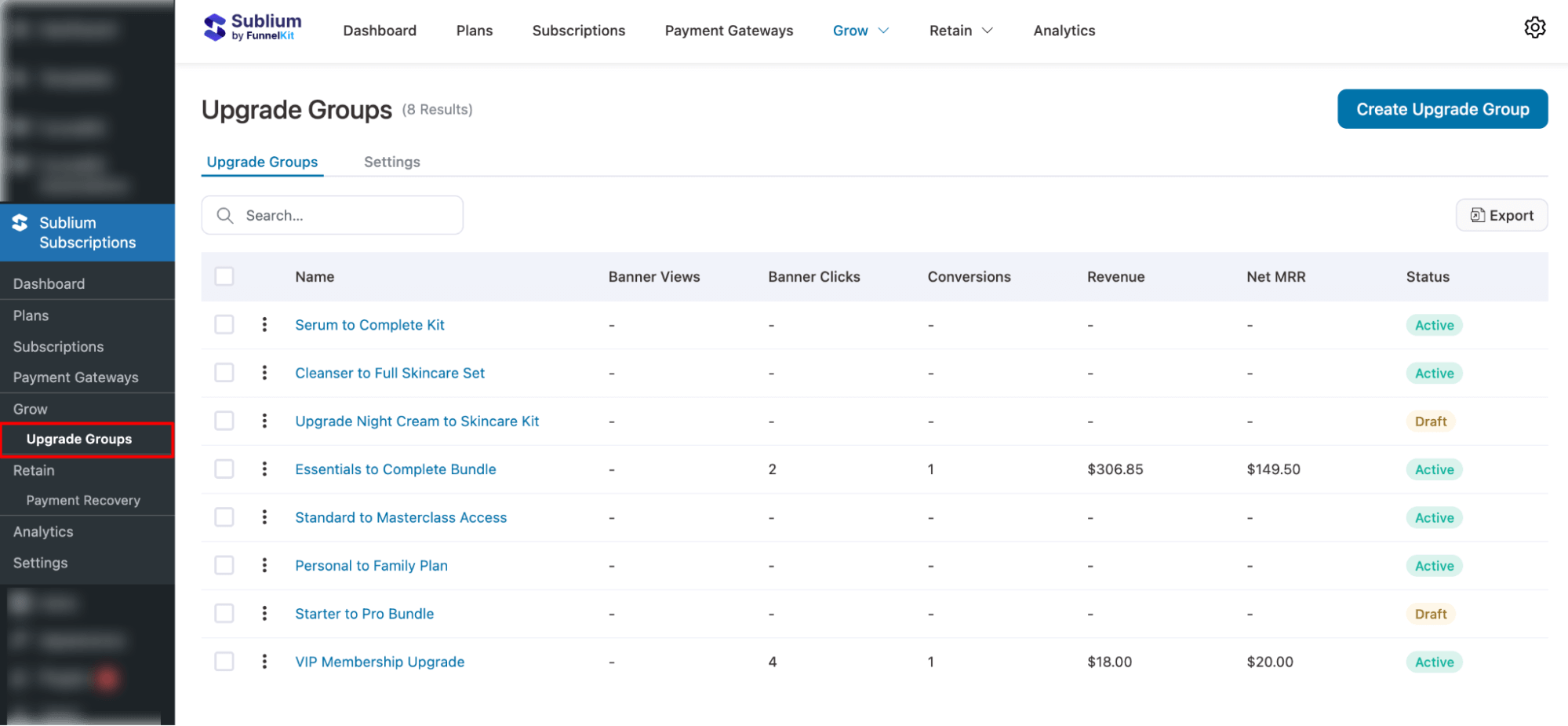
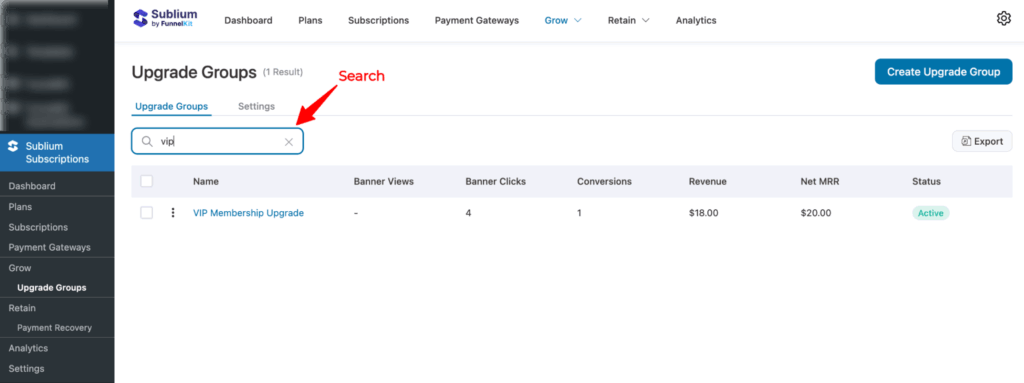
Search
You can use the search bar to locate upgrade groups by entering their name.
Manage
Sublium Subscriptions offers the following options to manage your upgrade groups:
- Delete: Permanently remove an upgrade group you no longer need.
- Rename: Update the upgrade group’s name at any time.
- Draft: Temporarily deactivate the group while keeping its settings intact.
- Duplicate: Create an exact copy of an existing upgrade group to reuse or modify.
Next, click the three-vertical-dot menu (⋮) beside any upgrade group to perform the following actions:
- Rename
- Draft (Move to Draft)
- Duplicate
- And Delete.
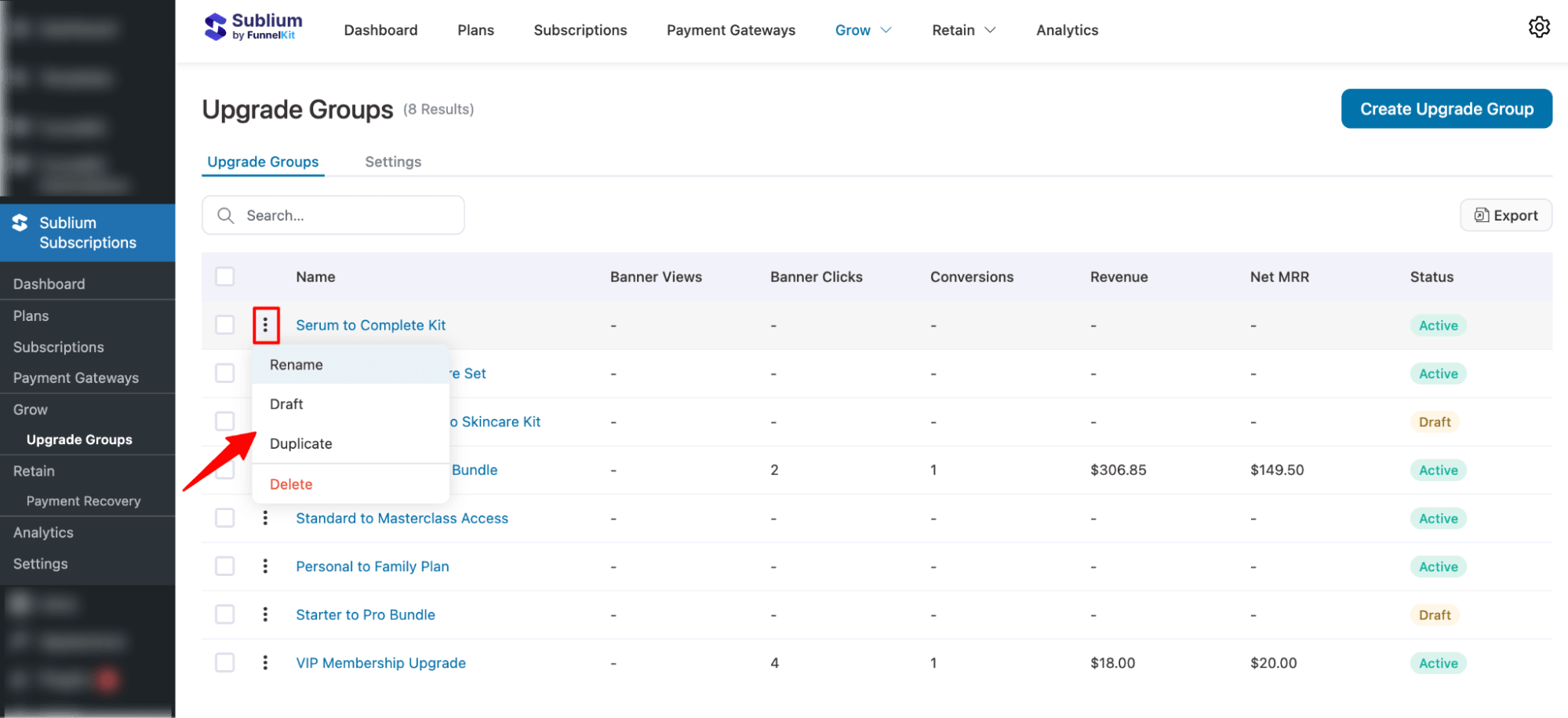
Here is how each action works:
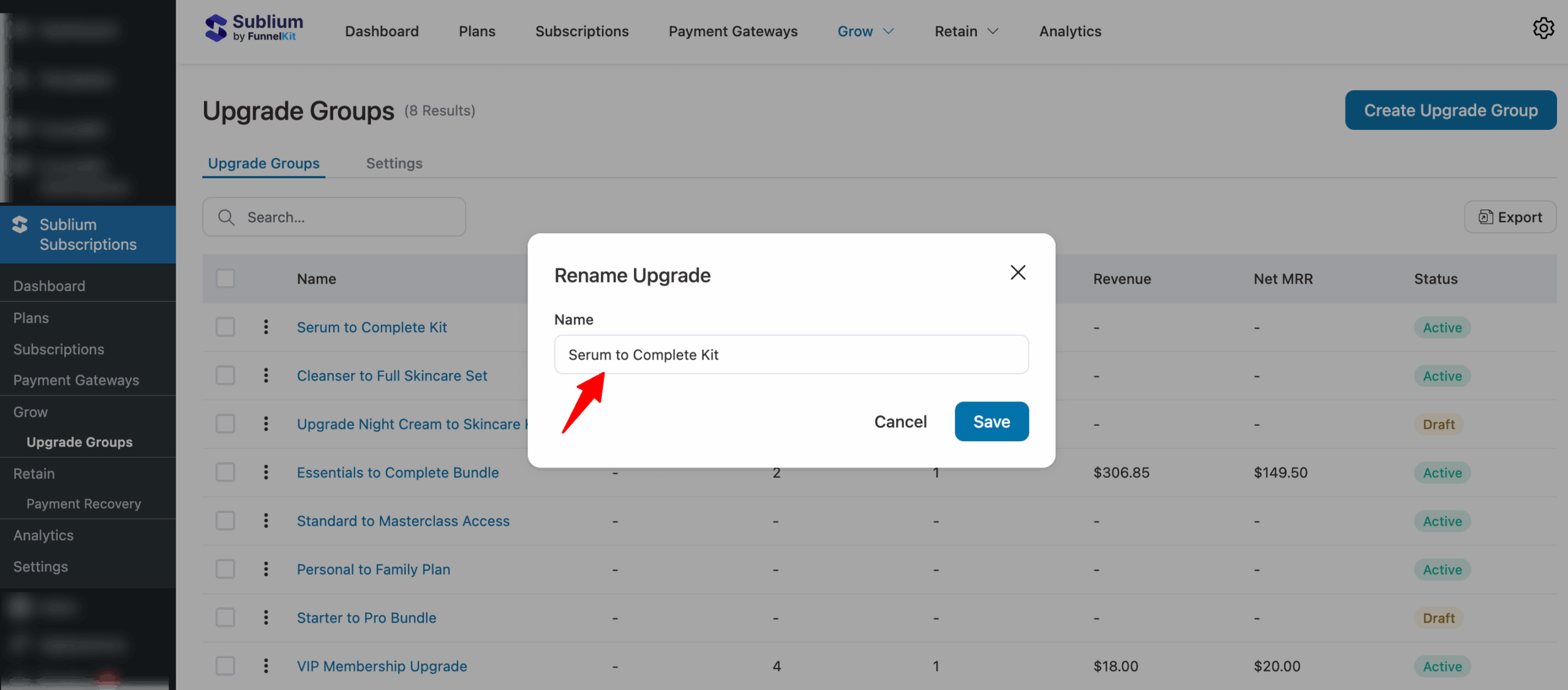
Rename
When you hit Rename, a new popup will show up, enter the new name and hit Save.
Draft (Active to Draft)
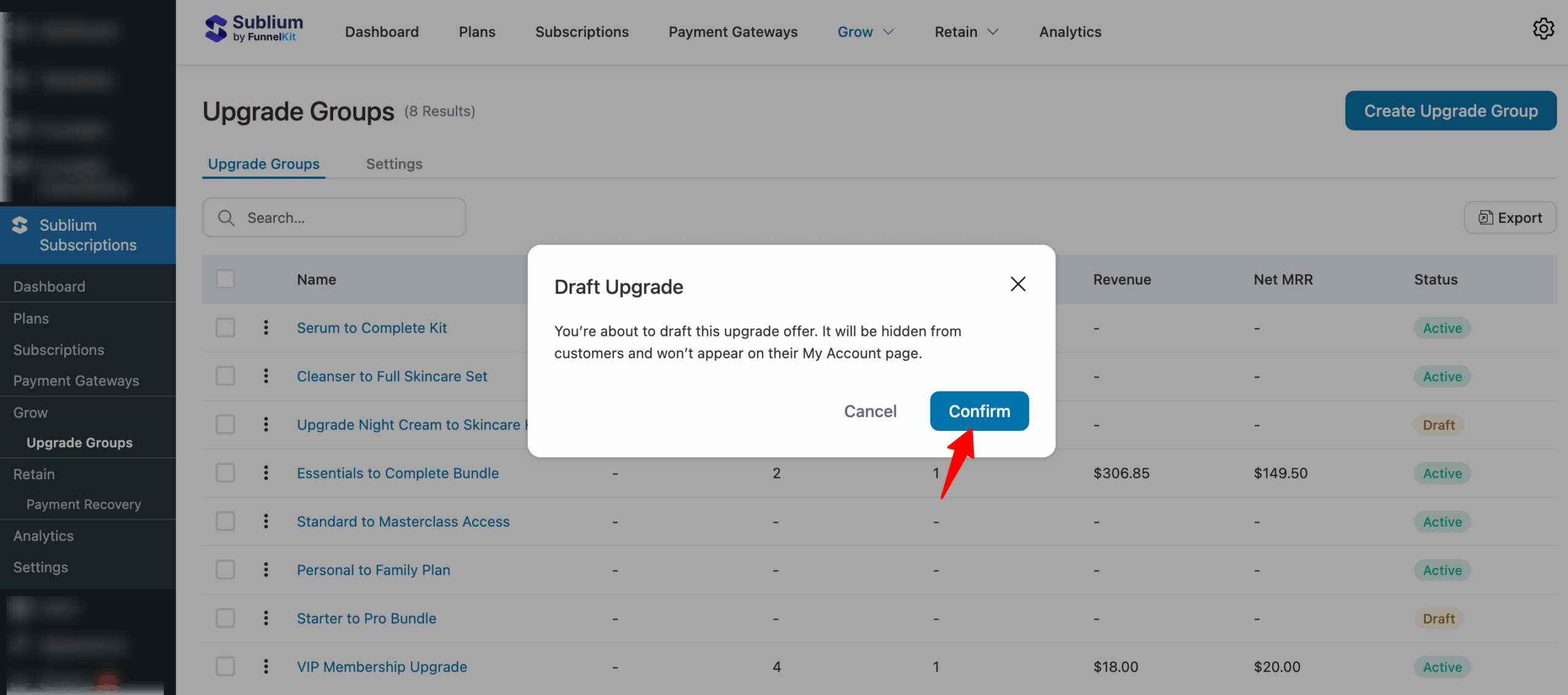
When you click Draft, a confirmation prompt will appear. Once you confirm the action, the status of the upgrade group will change from Active to Draft.
Duplicate
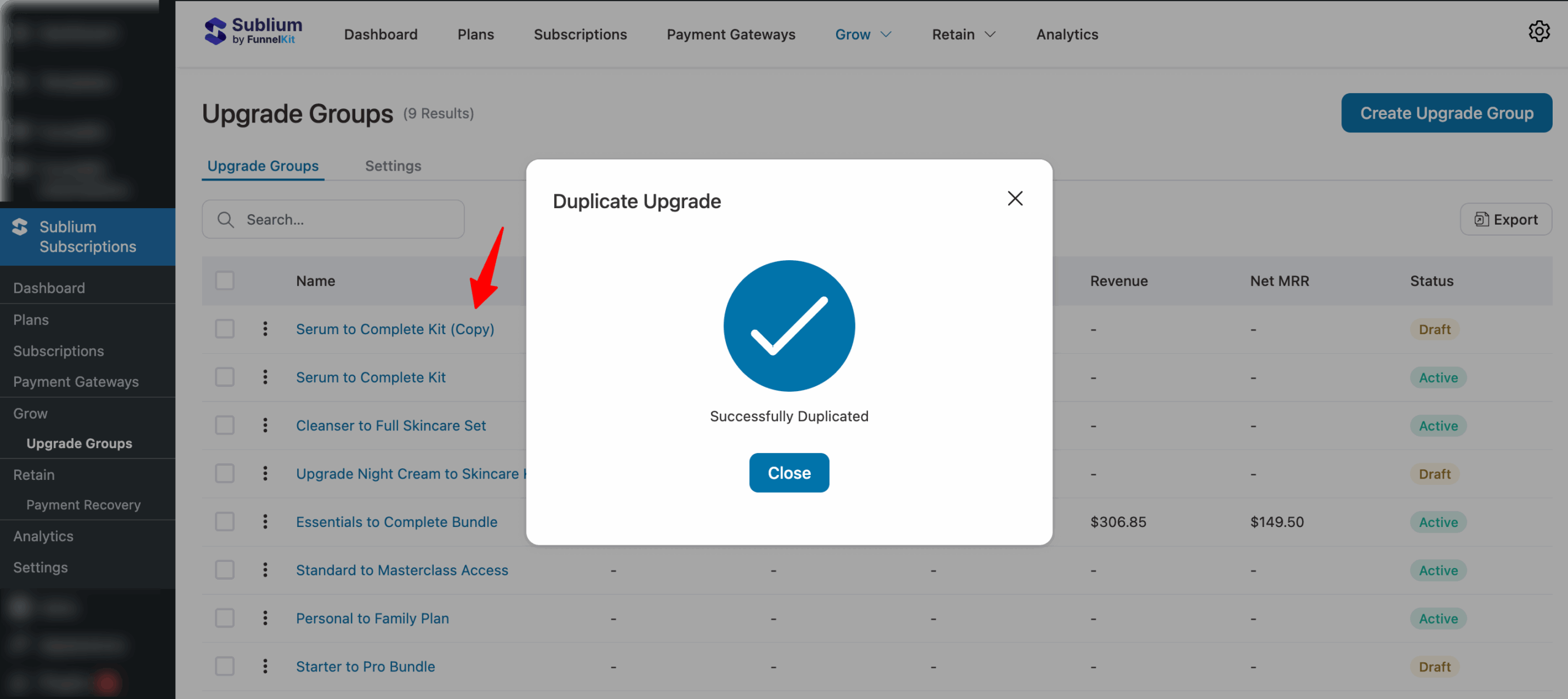
When you click Duplicate, Sublium will create an identical copy of the upgrade group, with the same name followed by (Copy).
Delete
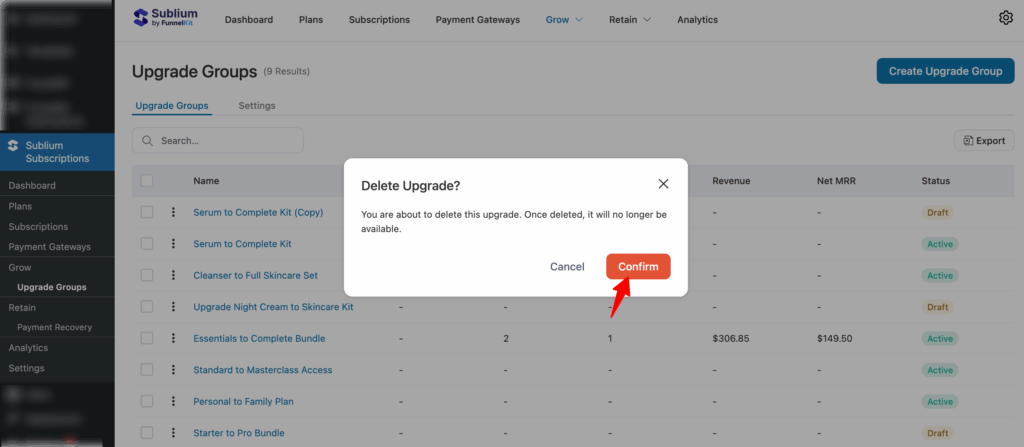
When you click Delete, you’ll be asked to confirm the action. Once confirmed, the upgrade group will be permanently removed from your list.
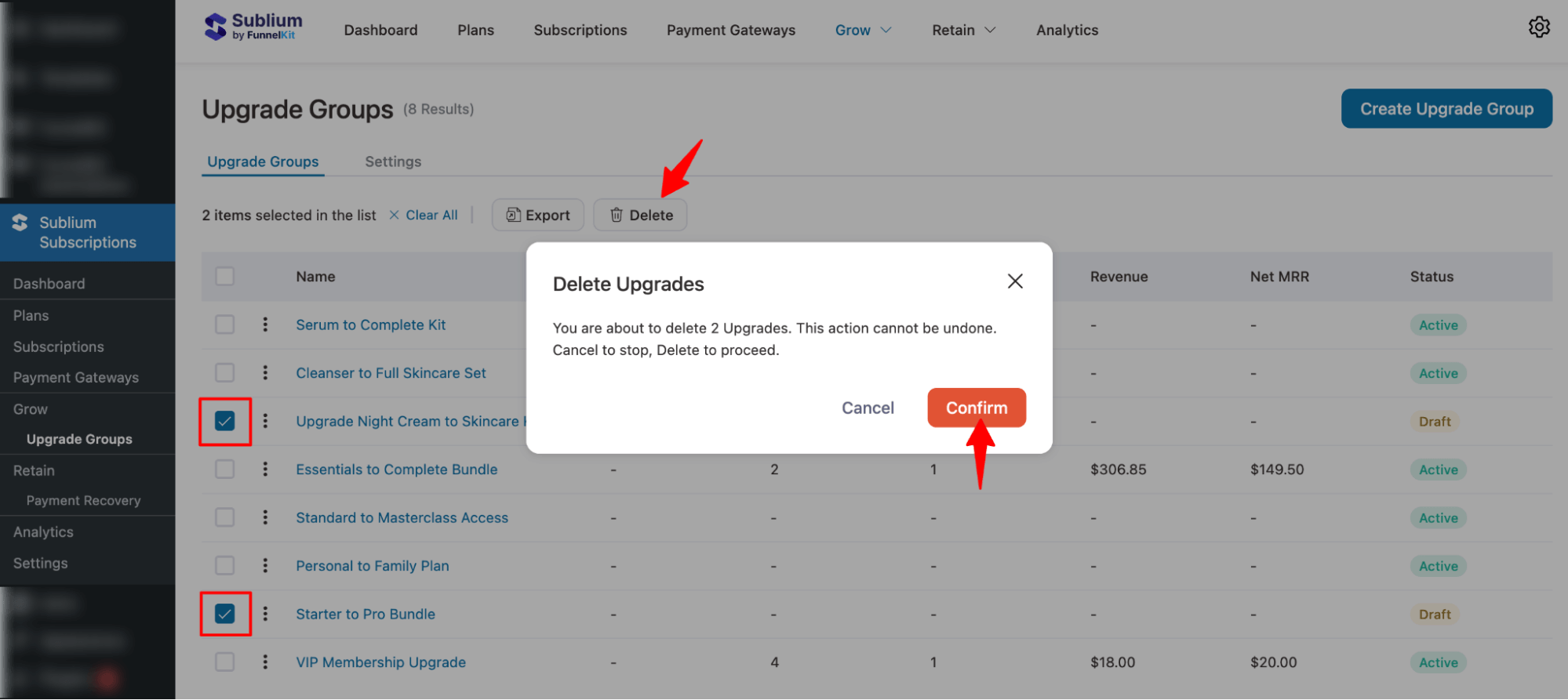
You can delete multiple specific Upgrade Groups by selecting their checkboxes, then clicking “Delete” and confirming the action.
This is how you can manage upgrade groups in Sublium Subscriptions.


