

In this documentation, we will explain how to integrate Sublium Subscriptions with LearnDash to build a fully automated, flexible subscription system for selling courses.
Overview
LearnDash is a WordPress LMS that allows you to create and manage courses, lessons, quizzes, and student access. Sublium Subscriptions handles subscription management, recurring billing, and automated payment workflows.
Together, they enable you to sell LearnDash courses using one-time or subscription-based pricing, while Sublium automatically manages enrollment and access based on the user’s subscription status.
What the LearnDash and Sublium Subscriptions Integration Enables
- Sell LearnDash courses using subscription-based or one-time pricing
- Automatically grant or revoke course access based on subscription status
- Offer flexible billing intervals such as weekly, monthly, or annual payments
- Centralize subscription management and payment tracking in Sublium Subscriptions
- Automate email notifications for renewals, cancellations, and payment failures
How to Integrate Sublium Subscriptions With LearnDash LMS
We will use the example course, “Beauty and Wellness Masterclass”, and create 3 subscription plans in Sublium: 1 one-time payment, 1 monthly, and 1 weekly.
Step 1: Install LearnDash Plugins
You need to install two plugins:
- LearnDash LMS
- LearnDash WooCommerce Add-on
Once you install LearnDash LMS, go to Add-ons and look for “WooCommerce for LearnDash”, then hit the Install button on the right.
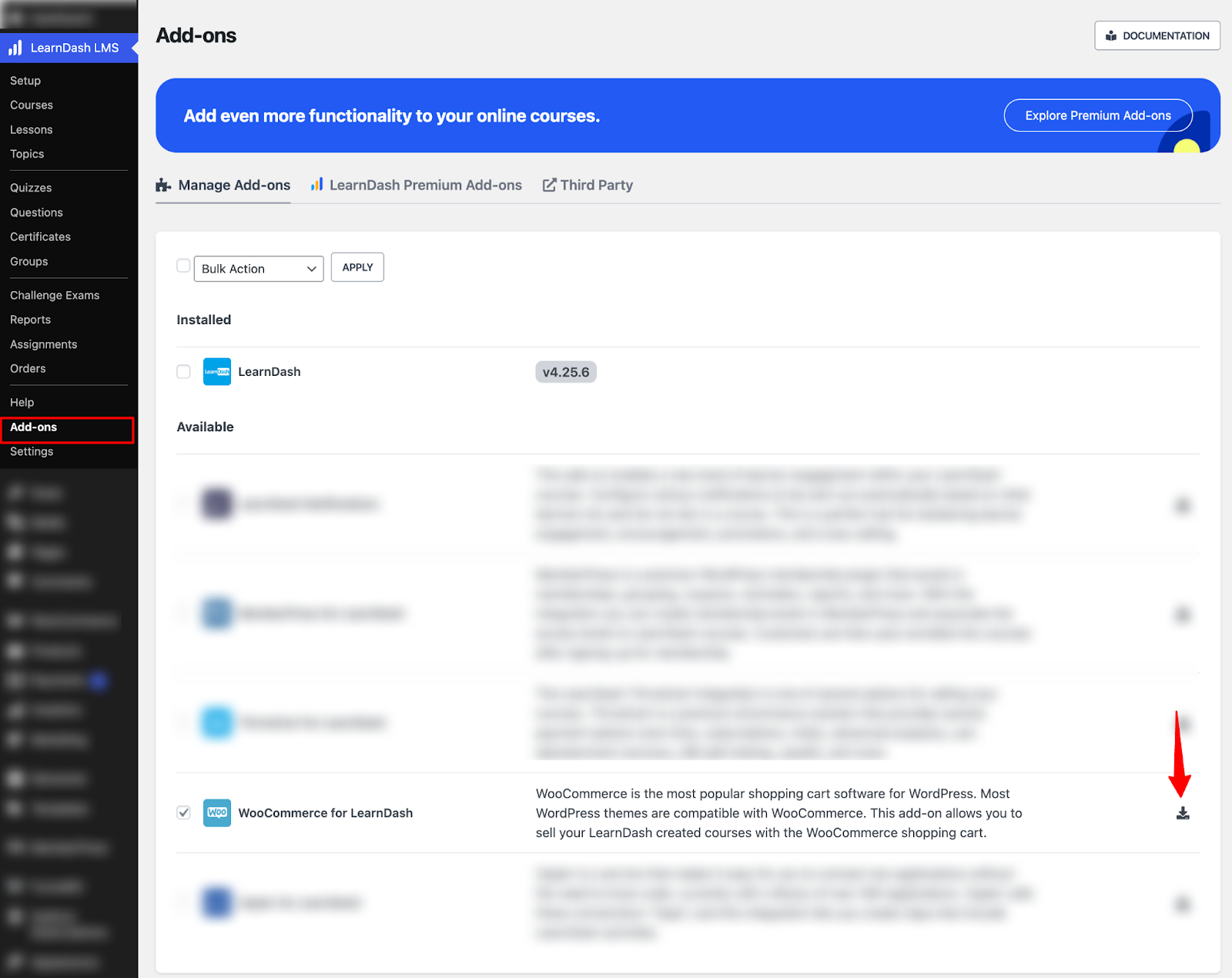
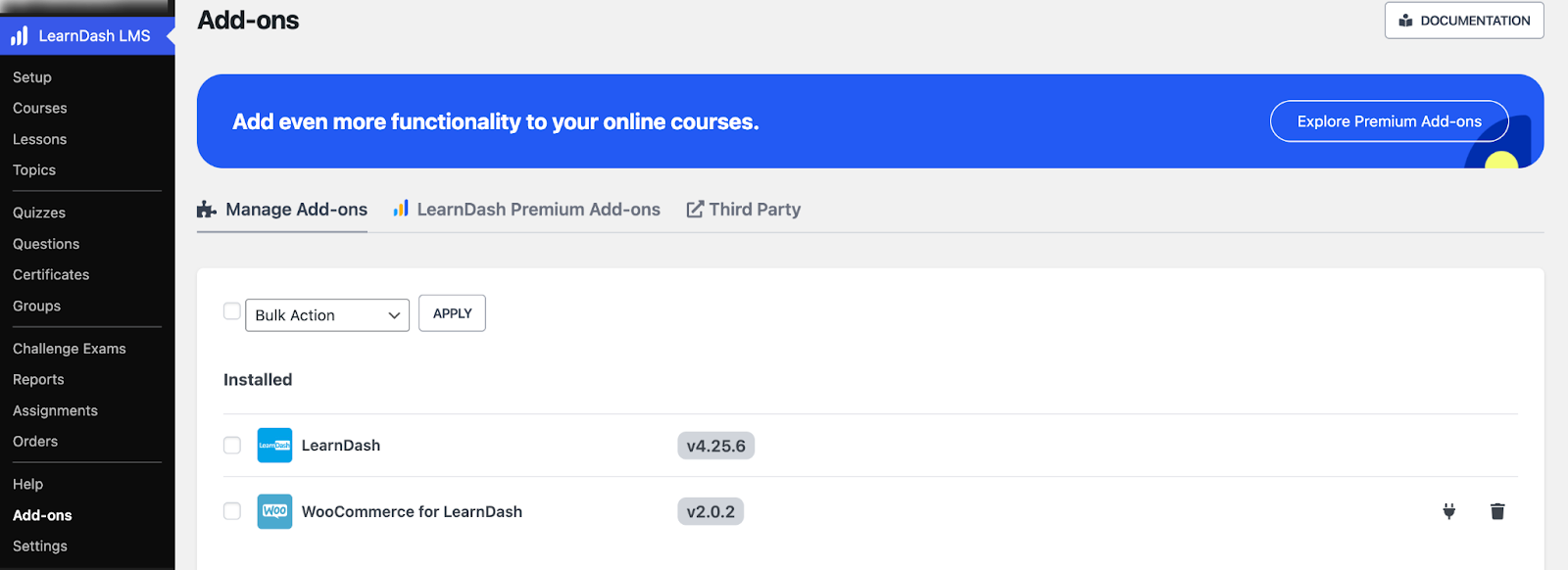
Next, make sure both plugins are installed and activated.
Step 2: Activate LearnDash and Sublium Subscriptions Integration
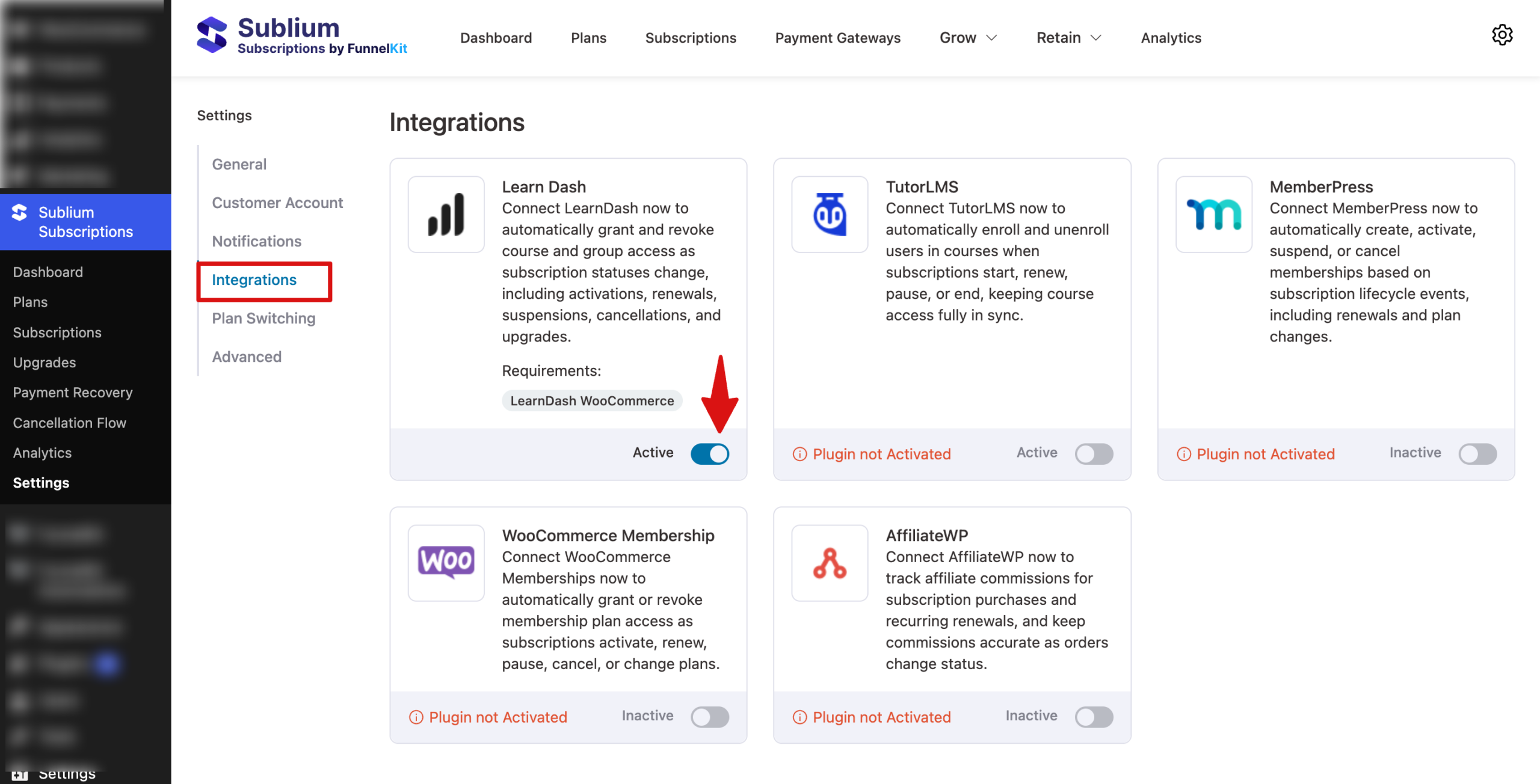
Go to Settings ⇒ Integrations and locate LearnDash in the list of integrations. If it’s not installed, you will see “Plugin not installed.” Install it first. Toggle the Active button to enable the integration.
Step 3: Create Your Course in LearnDash
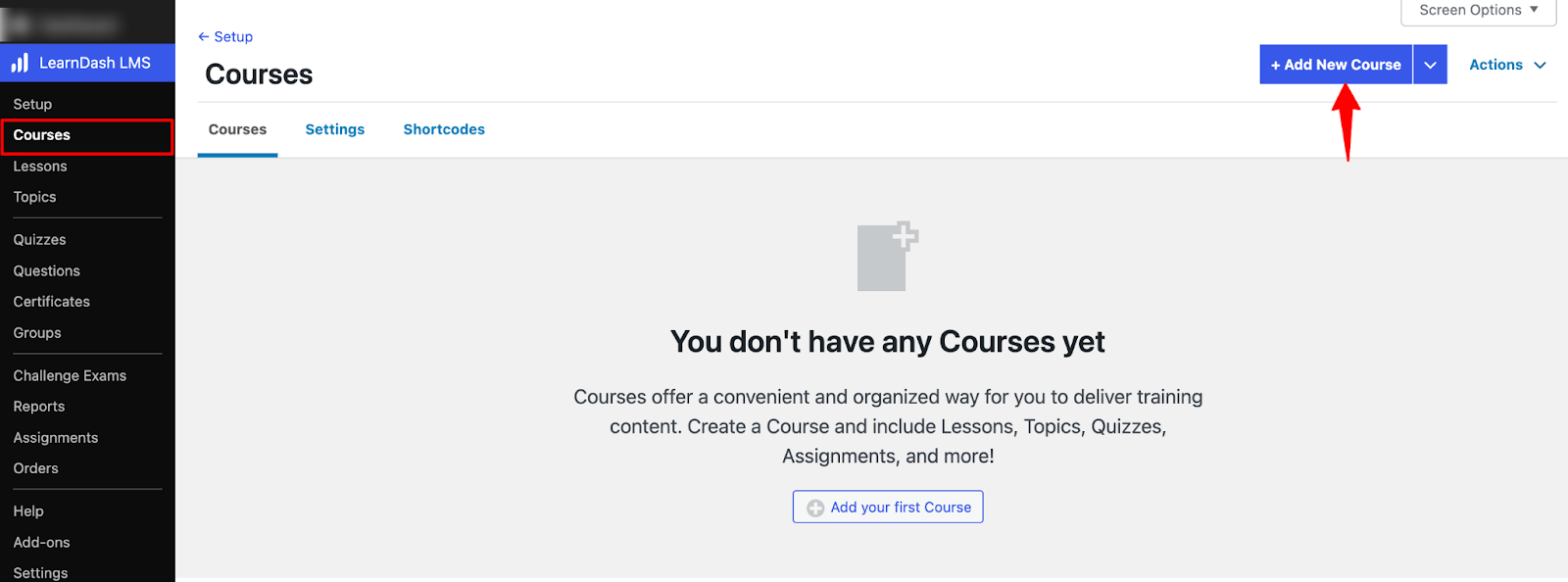
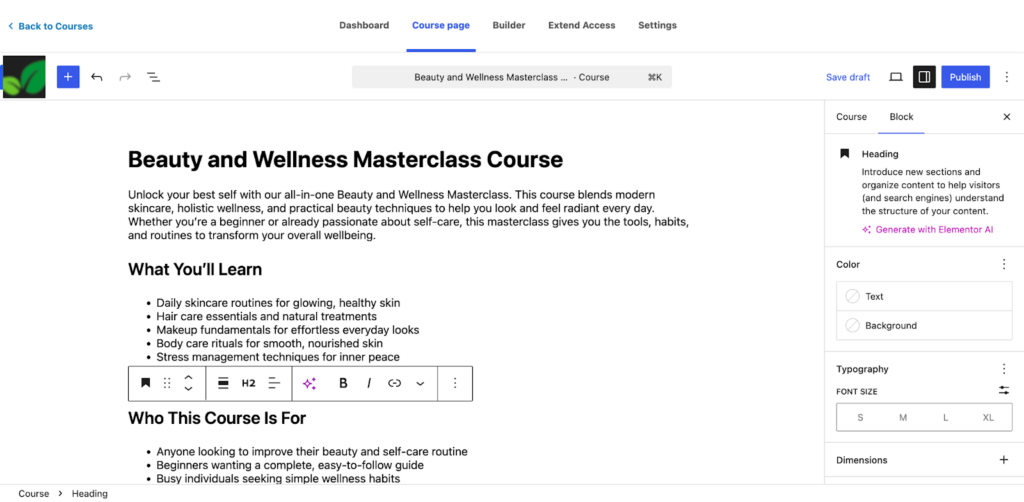
Navigate to LearnDash ⇒ Courses and click Add New Course.
Add a course title, description, lessons, quizzes, and any downloadable resources, and publish the course.
Step 4: Create a WooCommerce Product for the Course
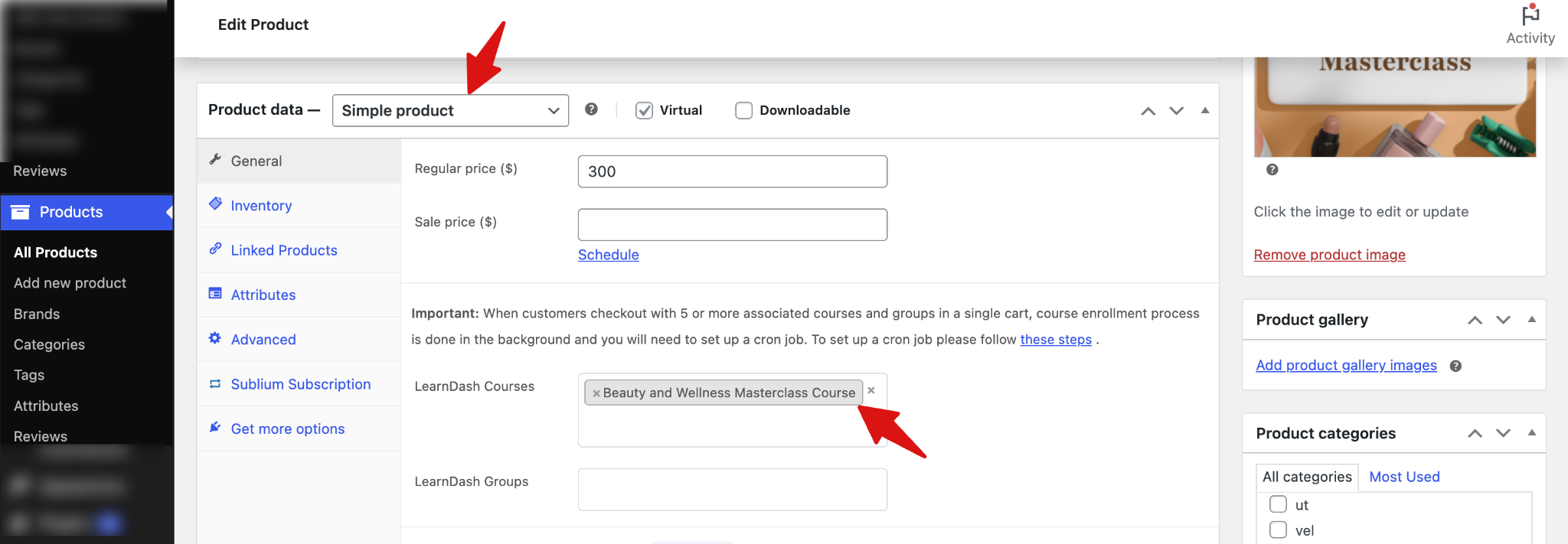
Go to Products ⇒ Add New to create a new product for your course.
Set the product type to Simple and Virtual and add the course you created in the earlier step to the “LearnDash Courses” section.
Step 5: Create a Sublium Subscriptions Plan and Assign the Product

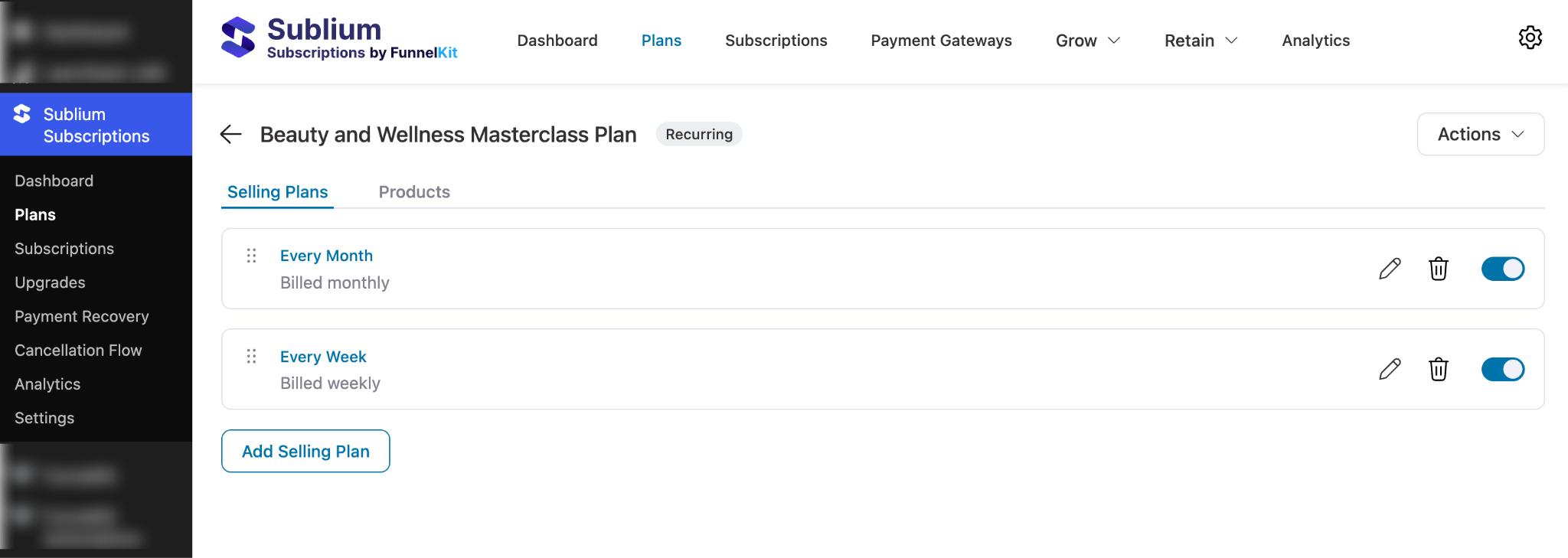
Go to Sublium Subscriptions ⇒ Plans ⇒ Add New. Create a Recurring Plan and set the selling plans. Make sure all the selling plans are active.
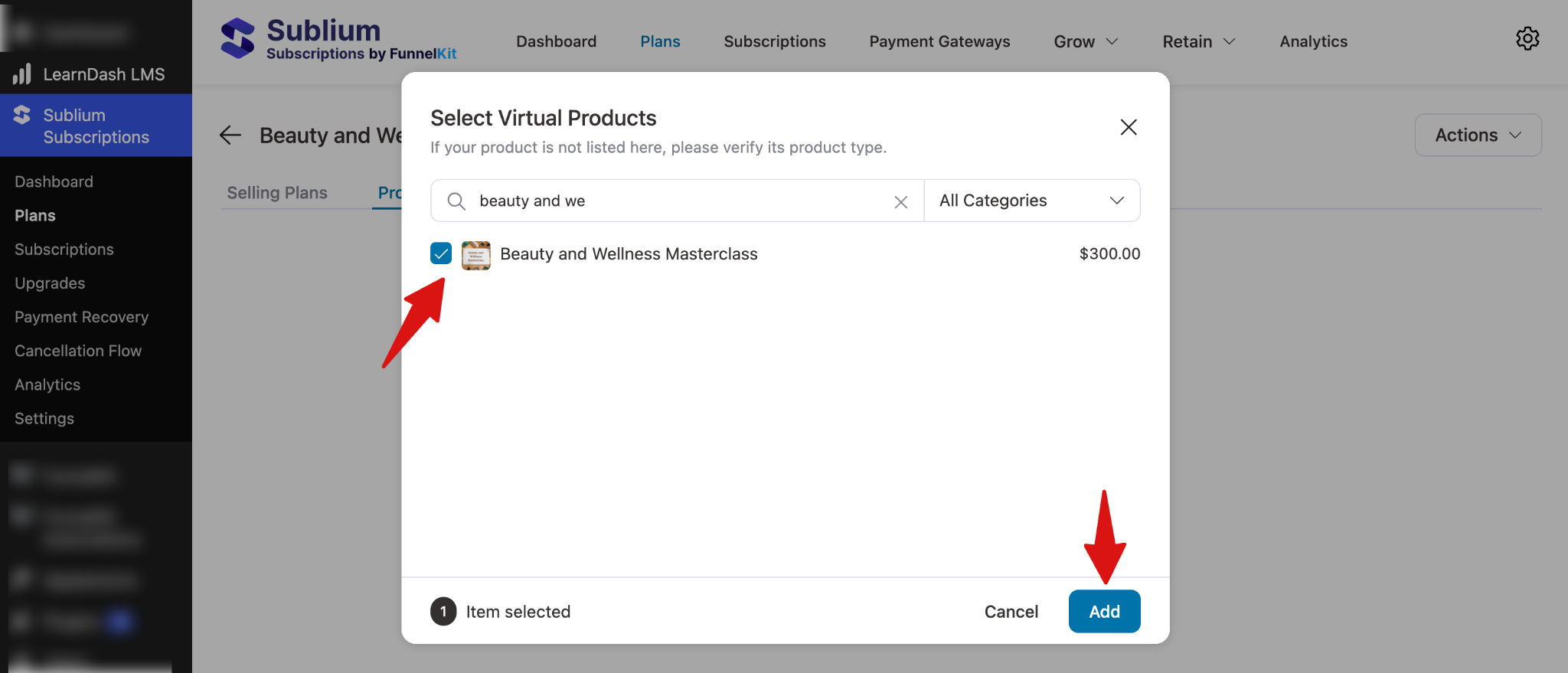
Next, move to the Products tab and assign the course product created in WooCommerce to the subscription plan you created.
Step 6: Set Up Pricing for Subscription Plans
Next, set up pricing for all the subscription plans you created.
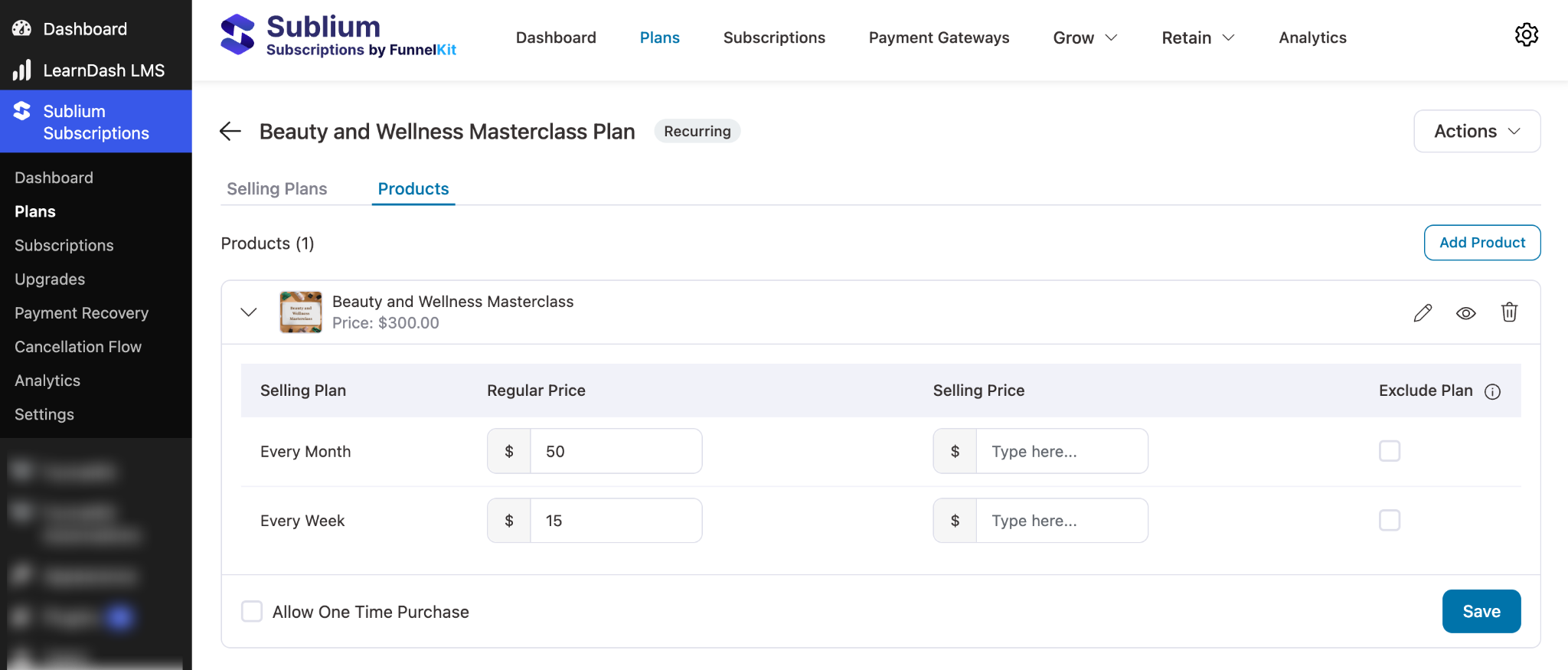
Enable “Allow One-Time Purchase” to offer a one-time payment option.
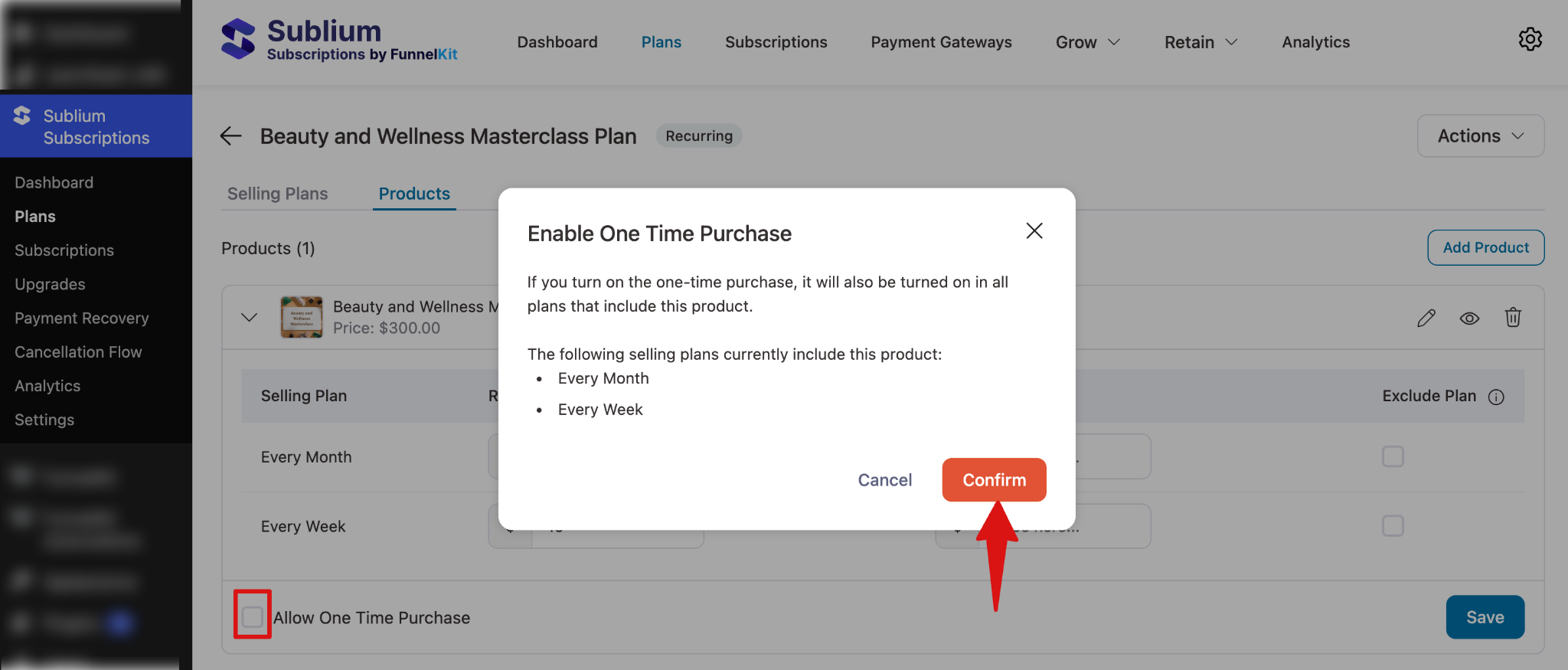
Click Save to apply the changes.
That’s it. The LearnDash course is now connected to automated recurring billing.
How Sublium Subscriptions & LearnDash Work on the Storefront
Now, when users see the course plan on the frontend, they will see all the recurring billing plans you created using Sublium Subscriptions.
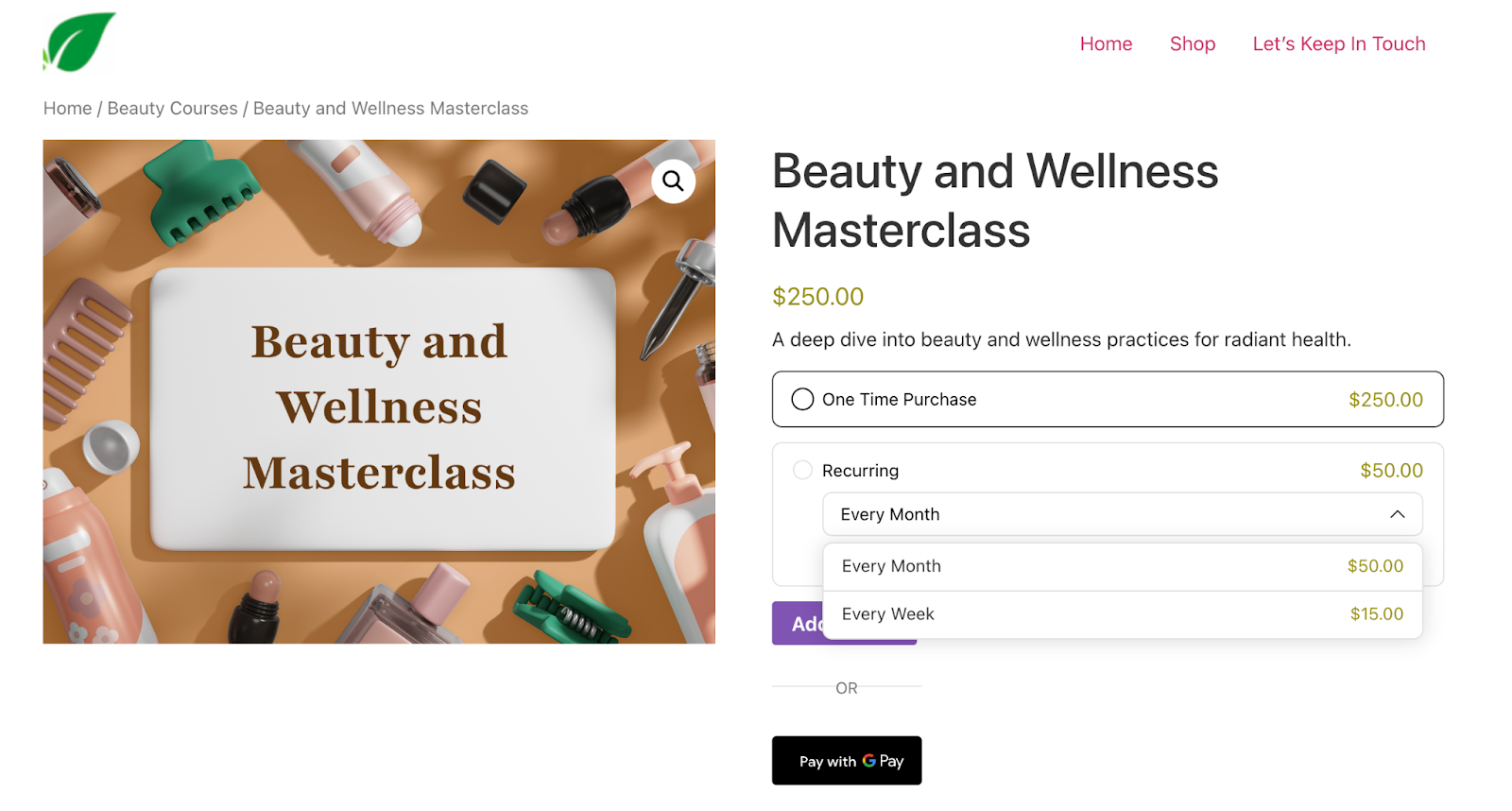
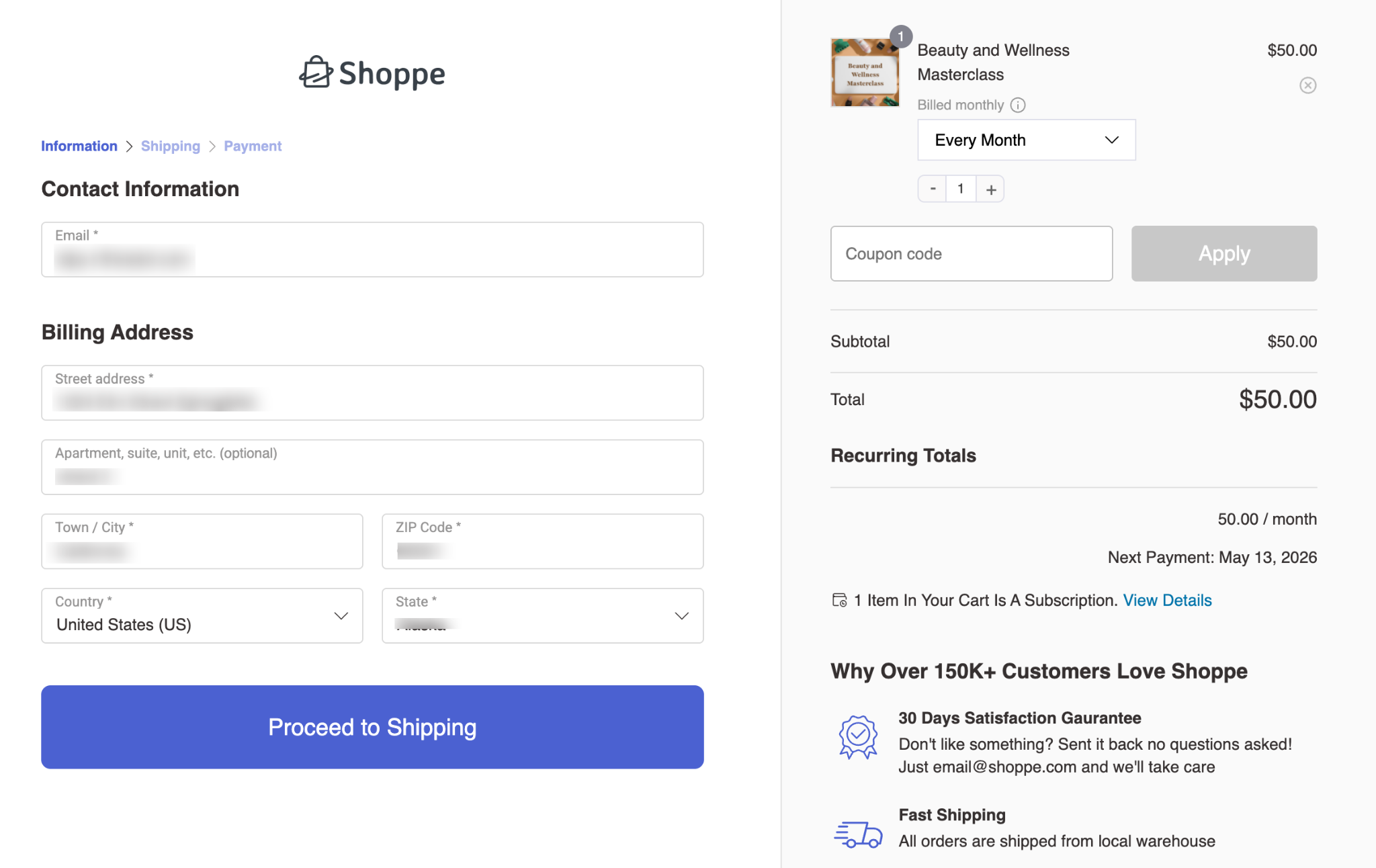
They can select any plan and add it to the cart, and check out without any hassle.
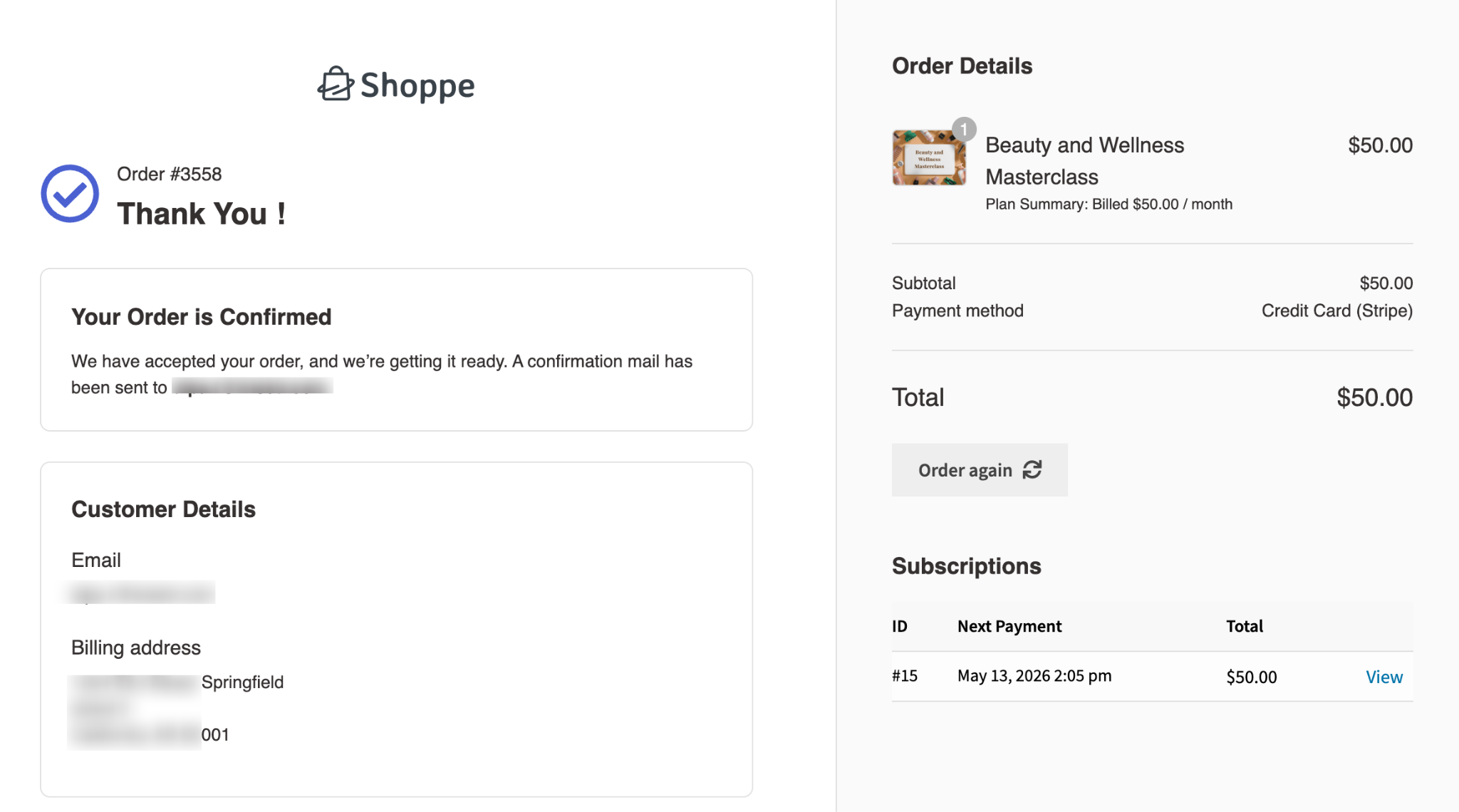
Here is the thank you page after a successful purchase.
How to Manage Sublium Subscriptions With LearnDash
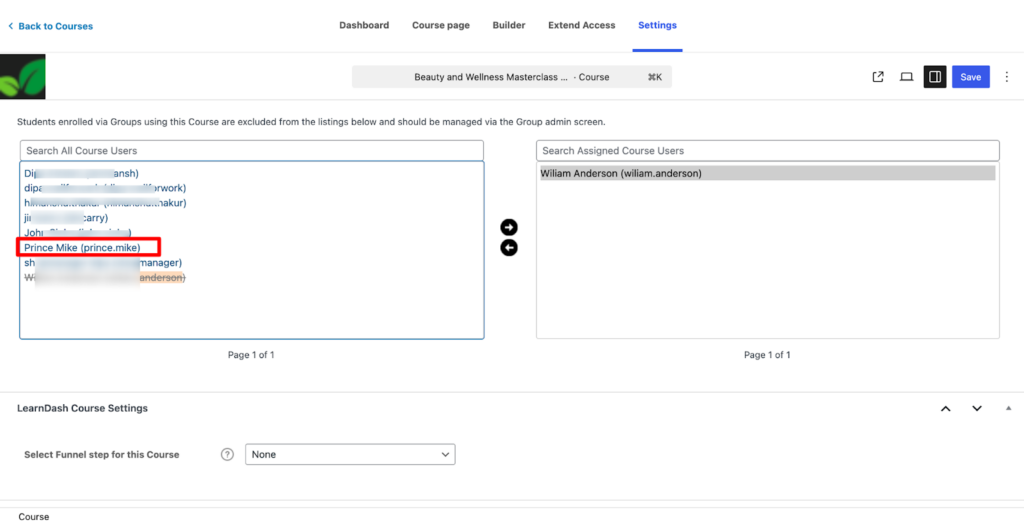
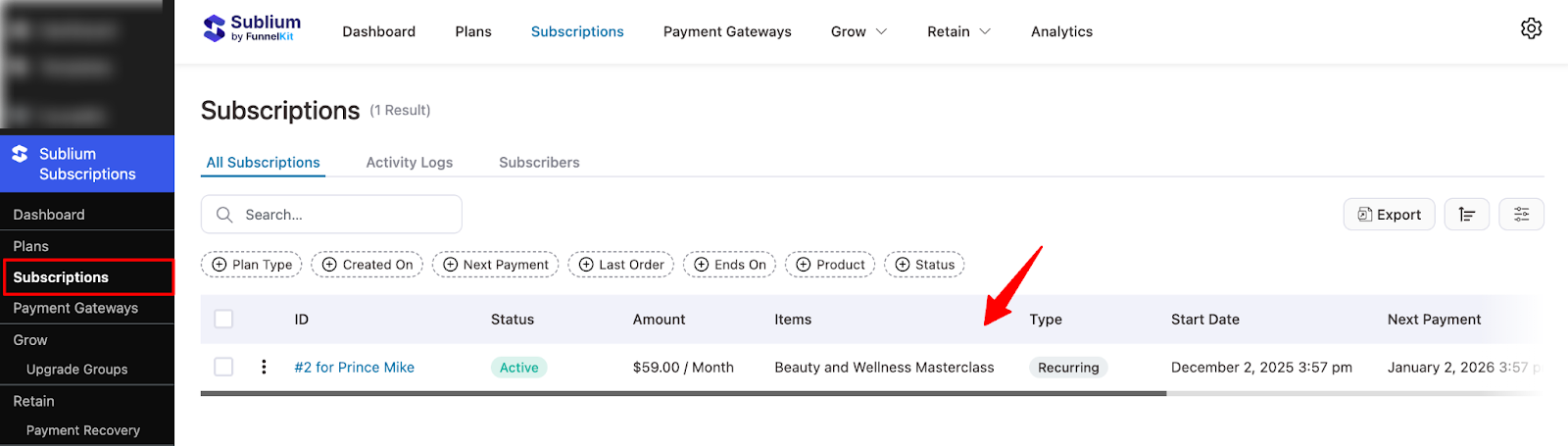
Once someone signs up for a course, you can find the subscription both in LearnDash and Sublium Subscriptions.
In LearnDash, you will find it under the course page on the Settings tab.
And in Sublium Subscriptions, you can find it under the Subscriptions section.
Subscription Details
You can click on the subscription name to see the subscription details.
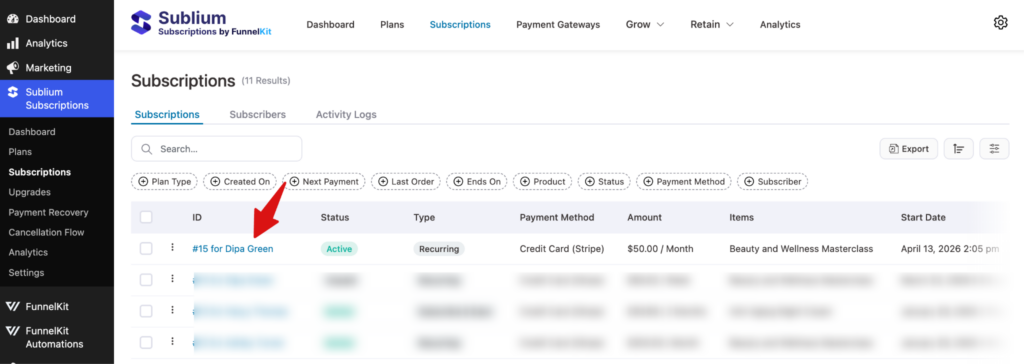
In the Subscriber Details section, you can find all the details about the subscriber, subscription, and payment details.
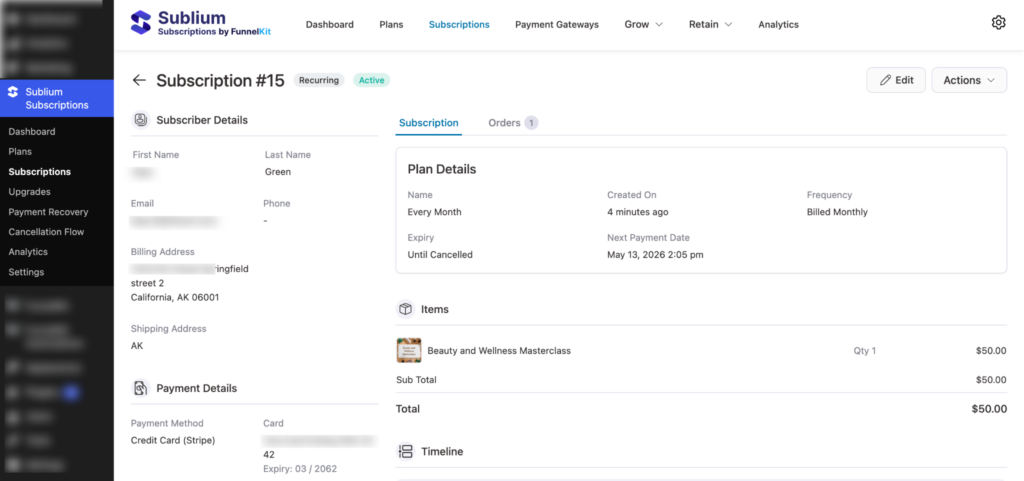
Subscription Status
Under the action, you can reschedule an order, pause, cancel, renew, and delete the subscription.
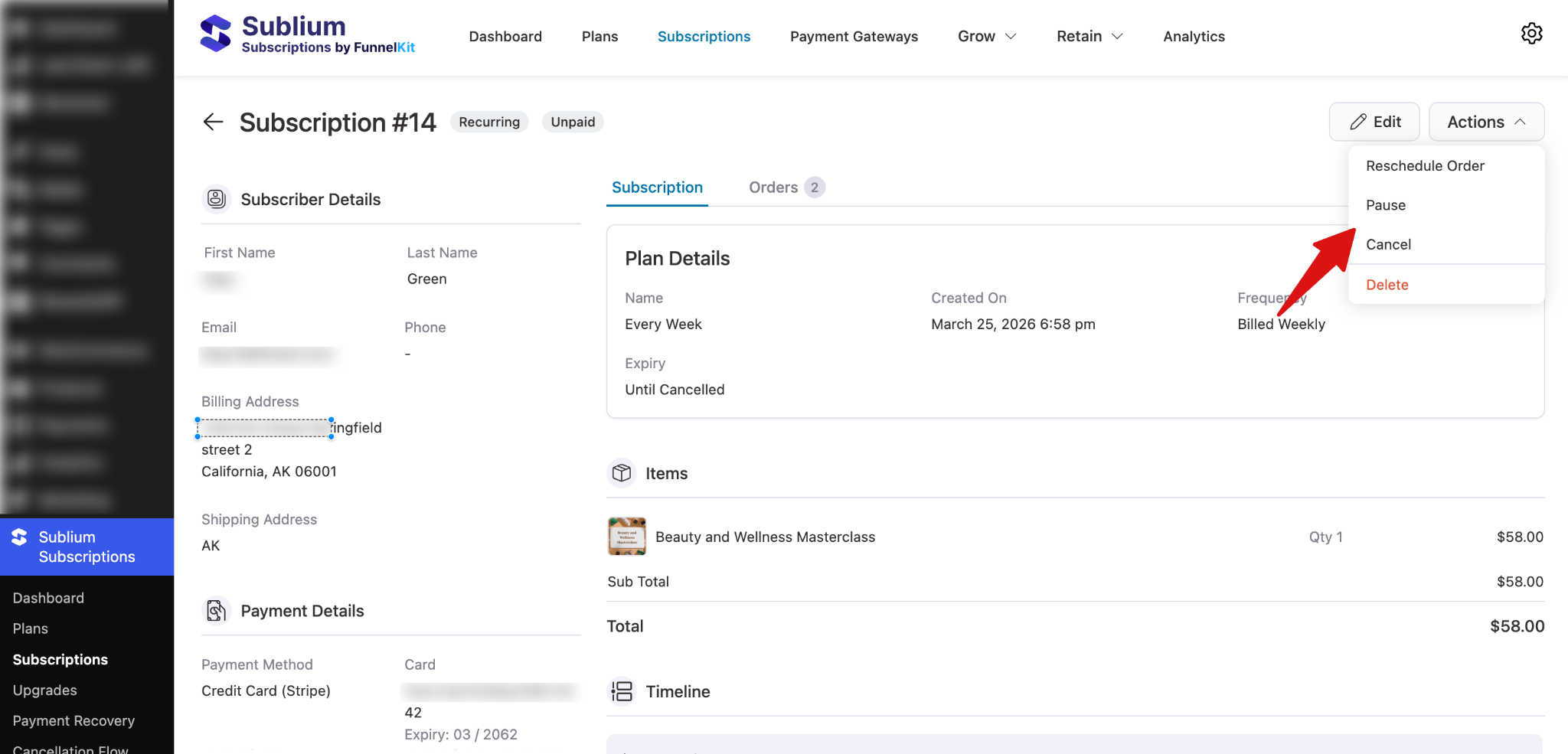
Your action will also be reflected in LearnDash LMS.
For instance, cancel the course subscription in Sublium.
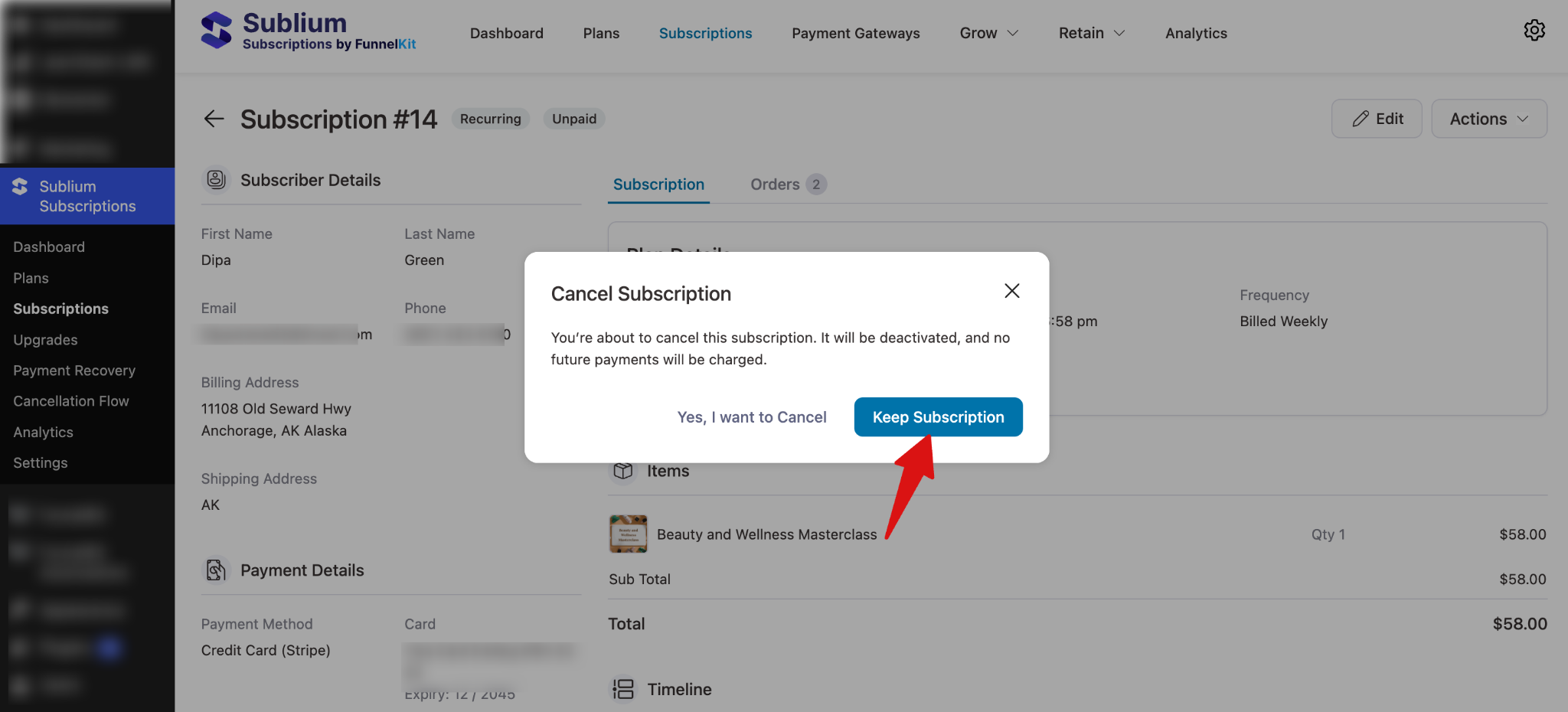
It will also be canceled in LearnDash LMS. The subscribers will no longer be students. They will lose access to the course content.
This is how you can manage LearnDash LMS courses in Sublium Subscriptions.
Example Scenario
Imagine you run a digital academy offering Graphic Design courses.
You can set up:
- Starter Tier: Access to basic design fundamentals and intro lessons
- Pro Tier: Access to advanced modules, premium design assets, and certification
- Weekly Drip: Unlock one new module every 7 days
- Course Bundle: “Graphic Design + Branding Masterclass” included in a single subscription
LearnDash handles:
- Lessons
- Quizzes
- Drip schedules
- Certification
Sublium handles:
- Recurring billing
- Renewals
- Smart retries
- Automated membership access
This creates a fully automated learning experience with predictable recurring revenue.


