

In this documentation, we will share how to integrate WooCommerce Memberships with Sublium Subscriptions.
What are WooCommerce Memberships?
WooCommerce Memberships is a WooCommerce extension that allows you to create and manage membership-based access on your site. It helps you restrict content, offer member-only perks, and control product visibility based on membership status.
Sublium Subscriptions handles recurring billing, subscription management, and automated payment workflows.
Together, they enable you to build a complete membership system with automated billing and access control, where users can access content and benefits based on their active subscription status.
What the WooCommerce Memberships and Sublium Subscriptions Integration Enables
- Offer membership-based access with subscription or one-time pricing
- Automatically grant or revoke access to content, products, or categories based on subscription status
- Enable recurring membership billing with flexible intervals (weekly, monthly, annual)
- Manage renewals, cancellations, and payment retries through Sublium Subscriptions
- Provide member-only perks such as discounts, exclusive products, or early access
- Centralize subscription and billing management within Sublium Subscriptions
How to Integrate WooCommerce Membership with Sublium Subscription
In this section, we will share how you can create a membership plan and tie that with Sublium’s recurring billing plan.
Let’s start:
Step 1: Activate WooCommerce Memberships integration in Sublium Subscriptions
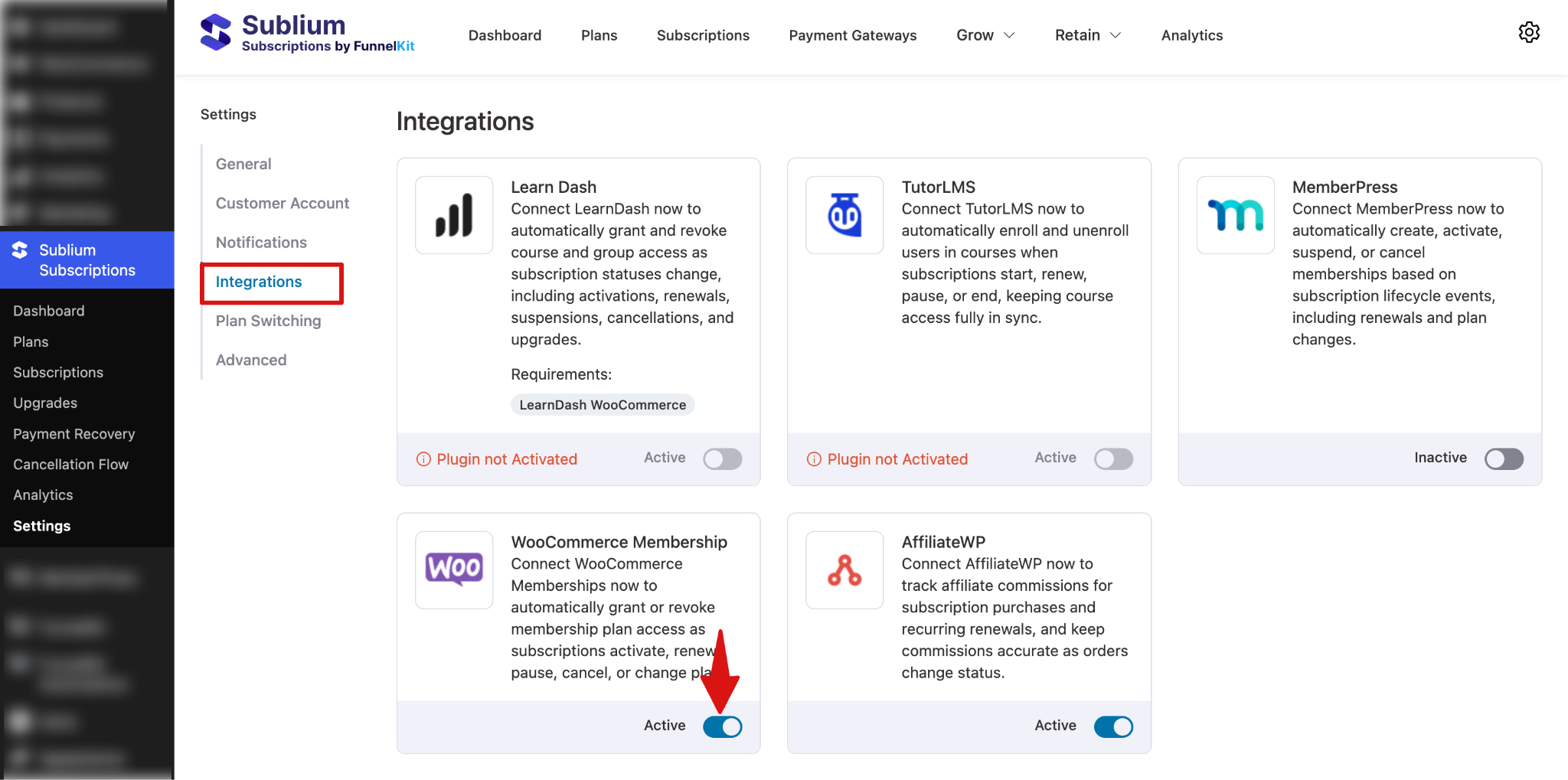
From the WordPress dashboard, navigate to Sublium Subscriptions ⇒ Settings. Go to the Integrations tab.
Here, you will find all the plugins listed that Sublium Subscription integrates with, including WooCommerce Membership.
If the plugin is not installed, you will see the message “Plugin not installed”.
Make sure to install the plugin. Next, toggle the Active button.
Step 2: Create a membership plan in WooCommerce Memberships
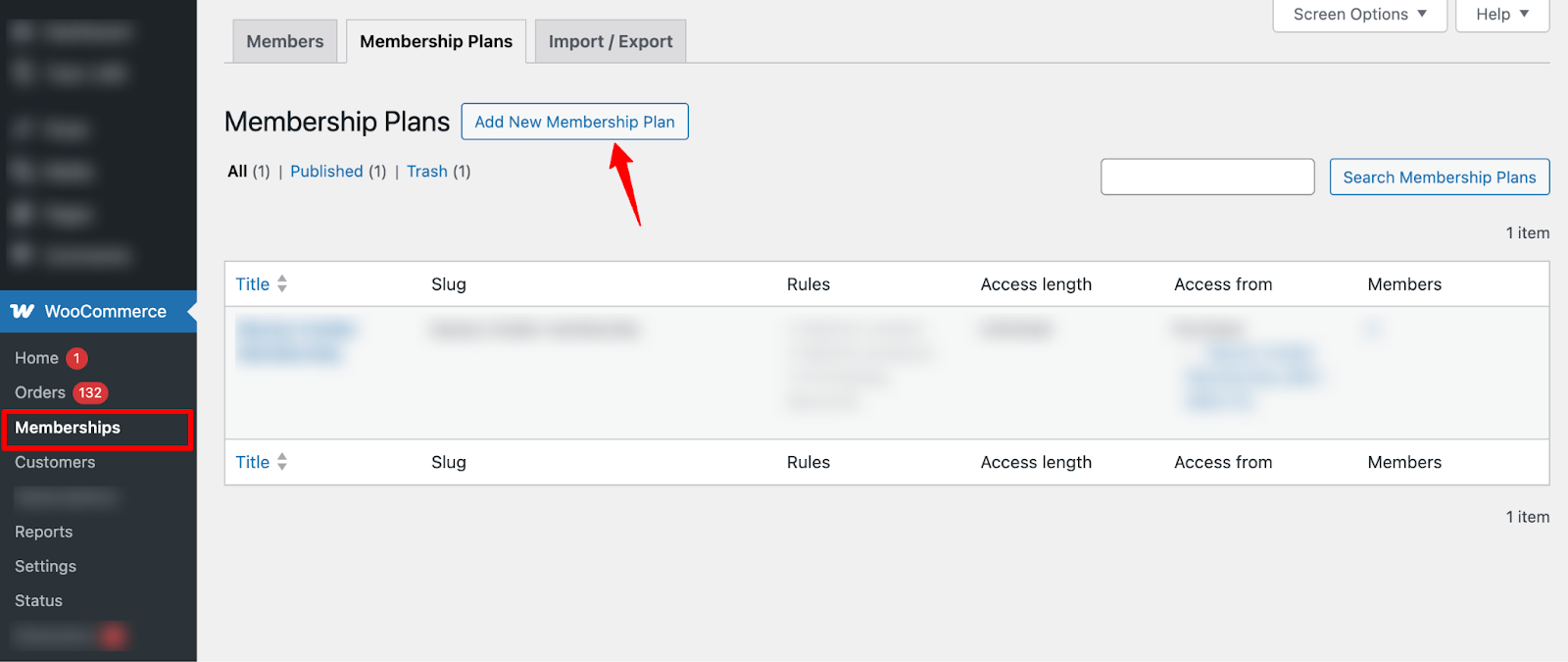
Next, to create a new membership plan, navigate to WooCommerce ⇒ Memberships and hit “Add New Membership Plan”.
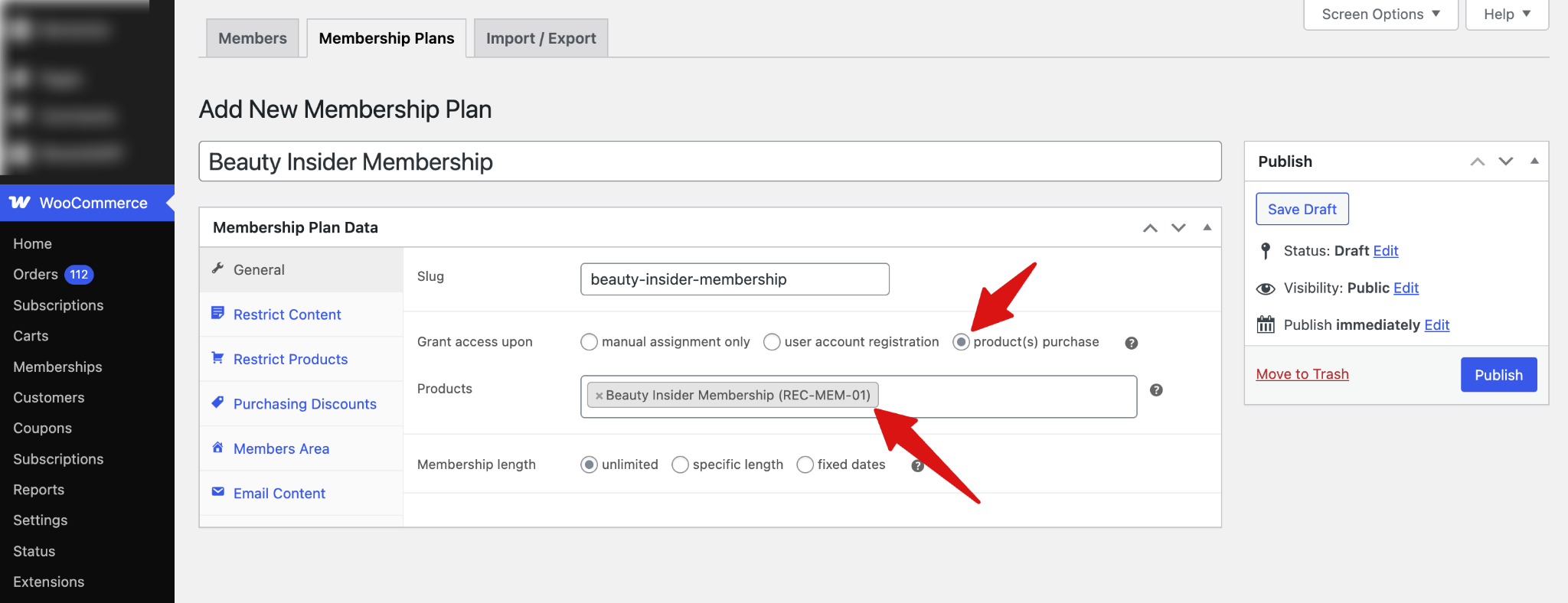
Next, set up a new membership plan and assign a product to it. For more details, check the official WooCommerce Memberships documentation.
Step 3: Create a plan in Sublium Subscriptions and assign the same product

Next, create a Recurring Plan for a Virtual Product with Sublium Subscription.
Make sure the plans you want to offer are active, then add the membership plan product and set prices for different subscription plans.
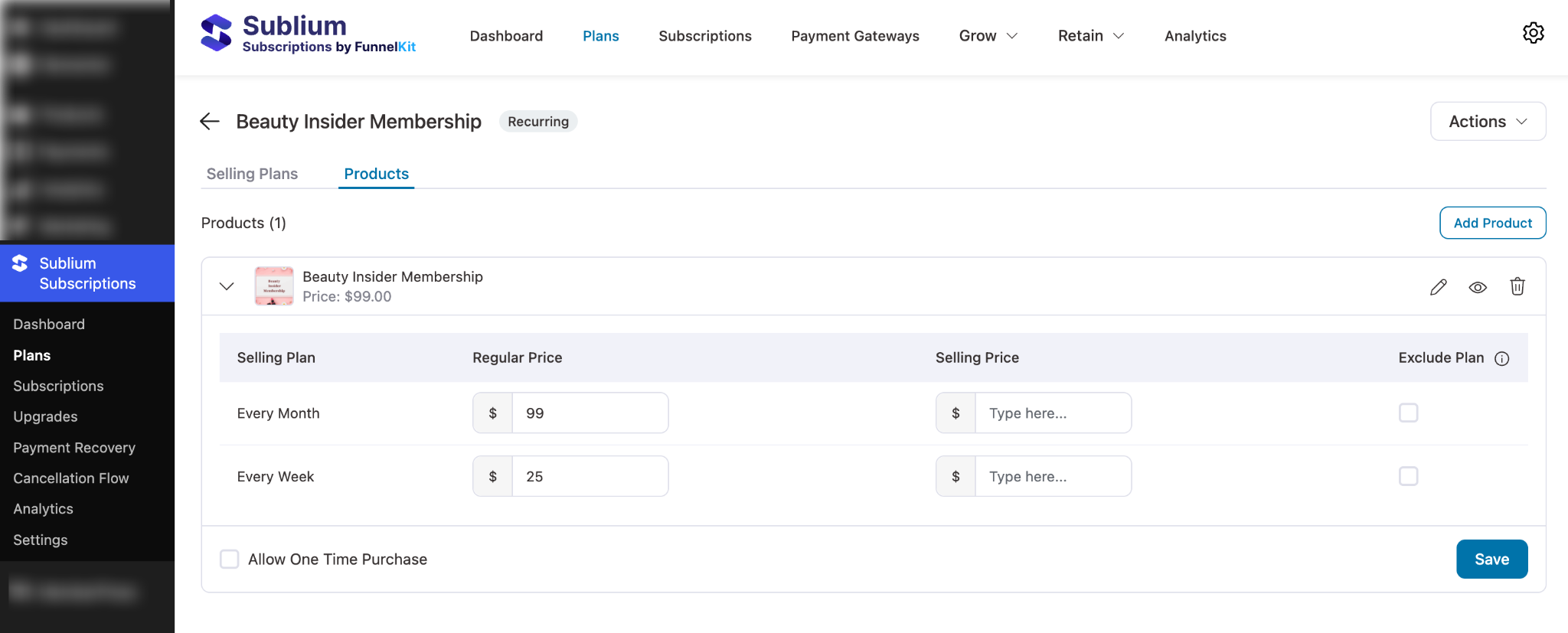
That’s it. Your membership plan is now available with the pricing plan you created with Sublium.
How WooCommerce Memberships & Sublium Work on StoreFront
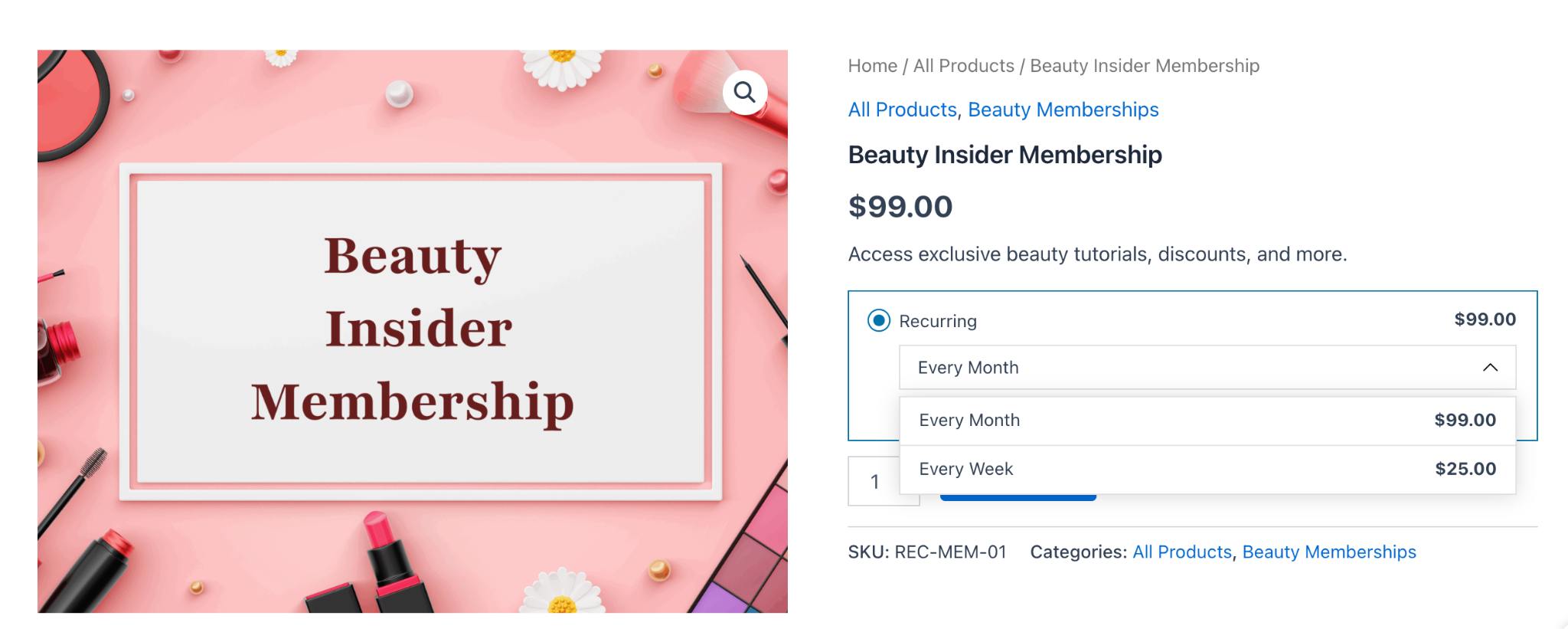
Now, when users see the membership plan on the front end. They will see all the recurring billing plans you created using Sublium.
They can select any plan and check out to purchase.
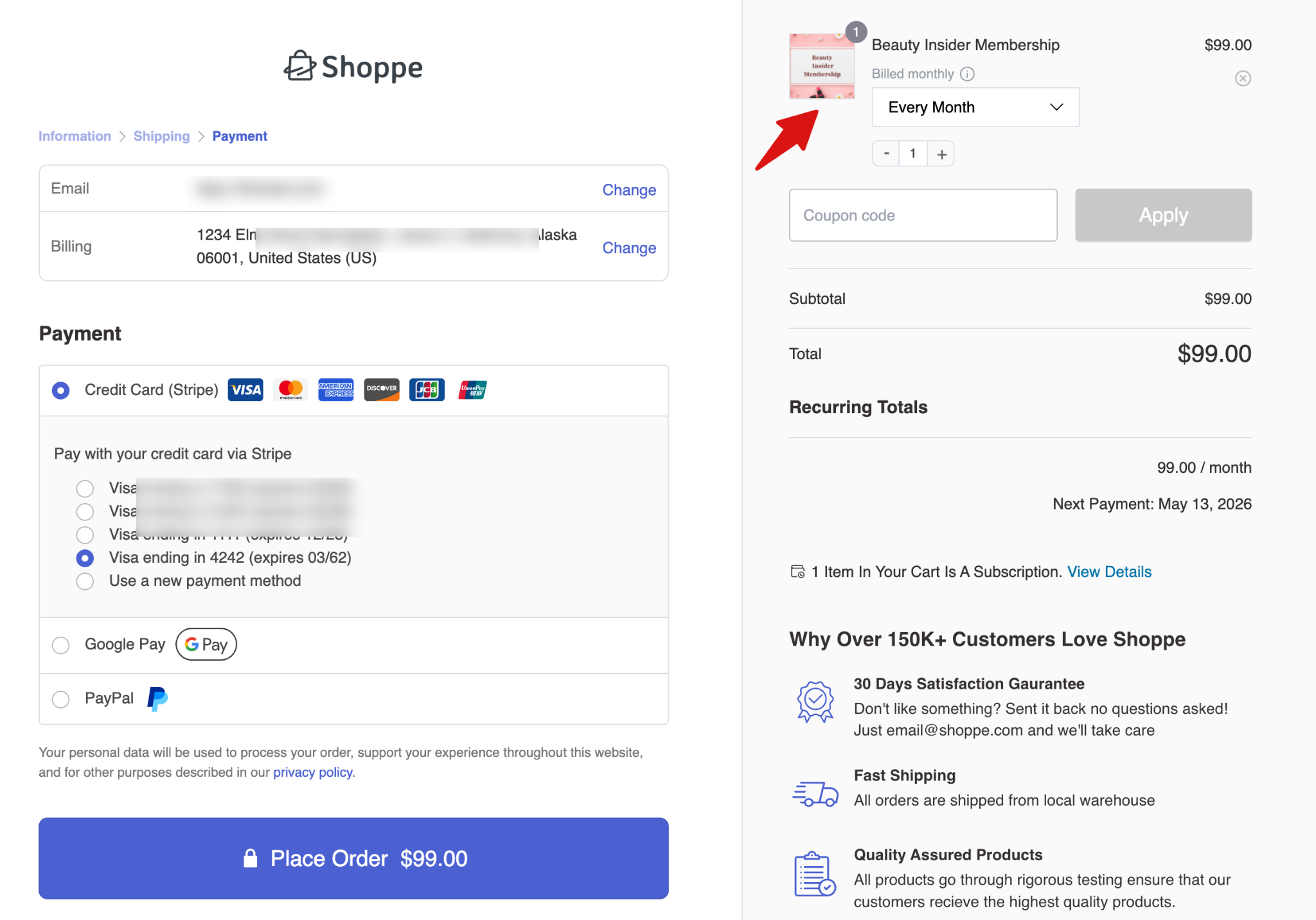
You can check out without any hassle.
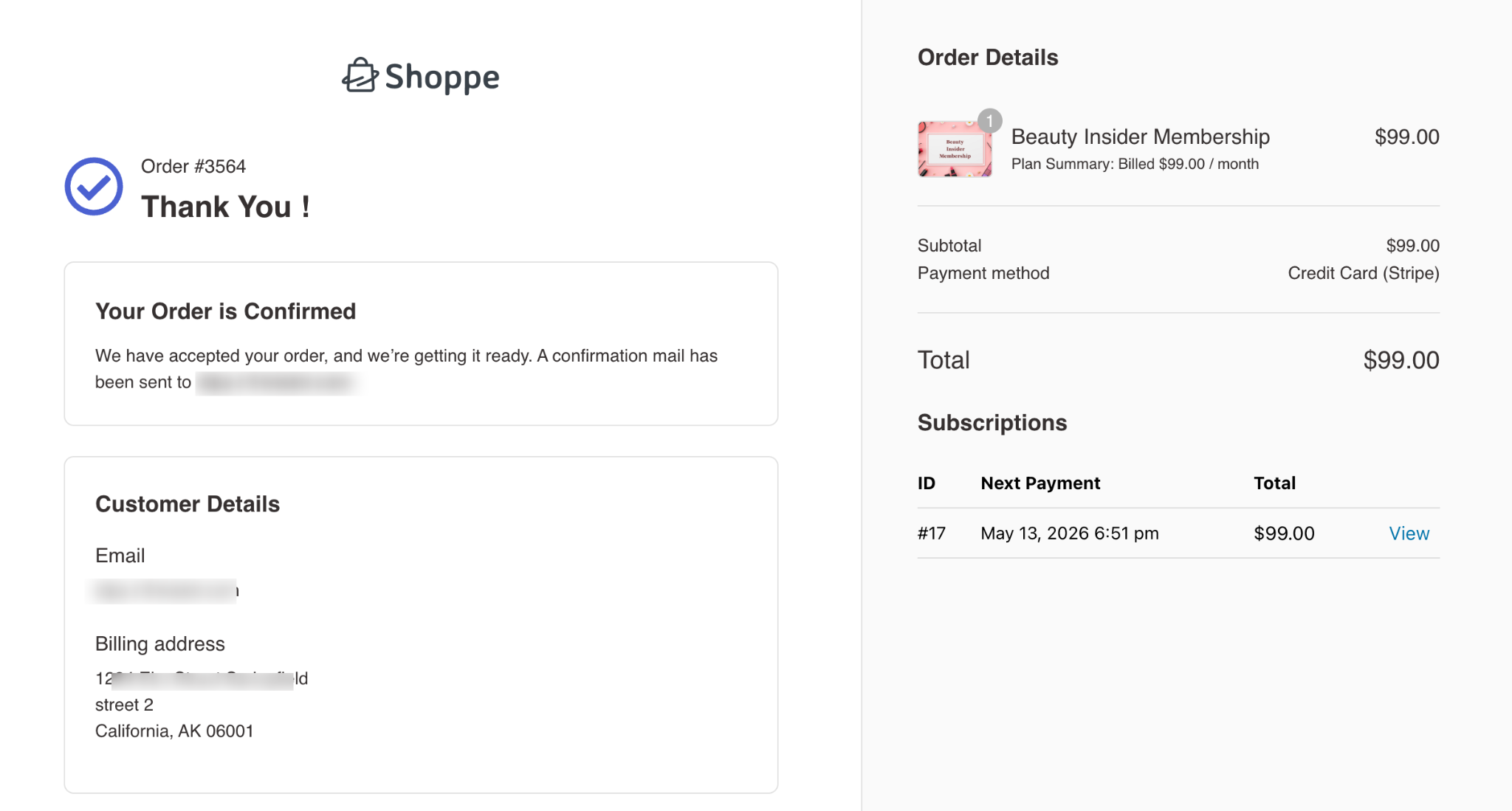
Here is the thank-you page after a successful purchase.
How to Manage WooCommerce Memberships with Sublium Subscriptions
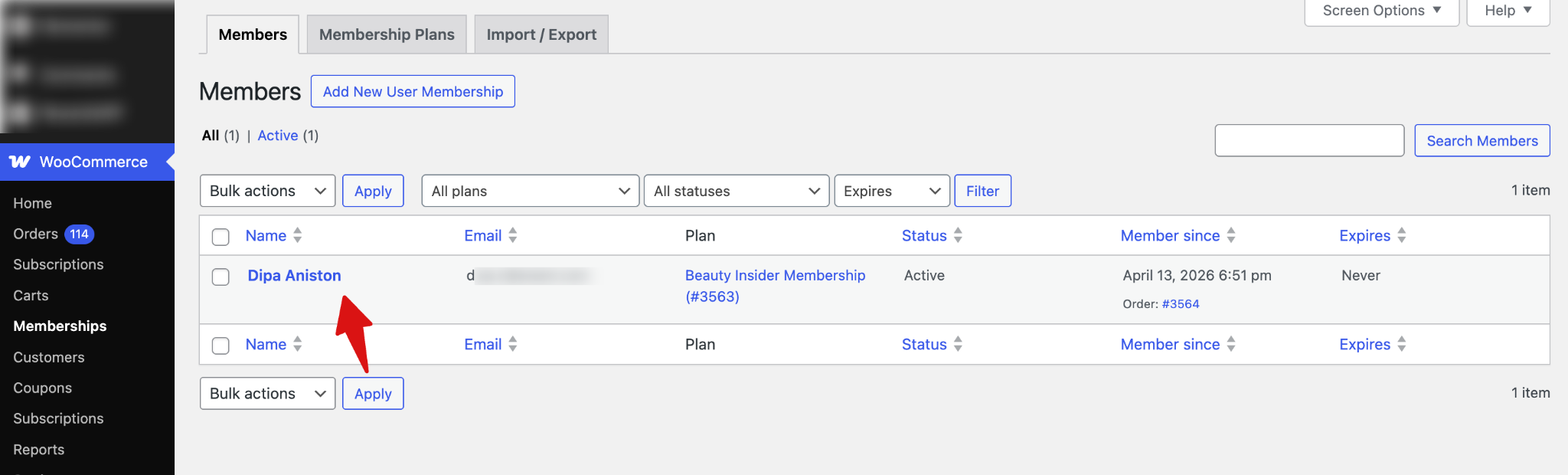
Once someone signs up for a membership, you can find the subscription both in WooCommerce Memberships and Sublium Subscription.
You can find it as the new Member in WooCommerce Membership.
And in Sublium Subscriptions, you can find it under Subscriptions.
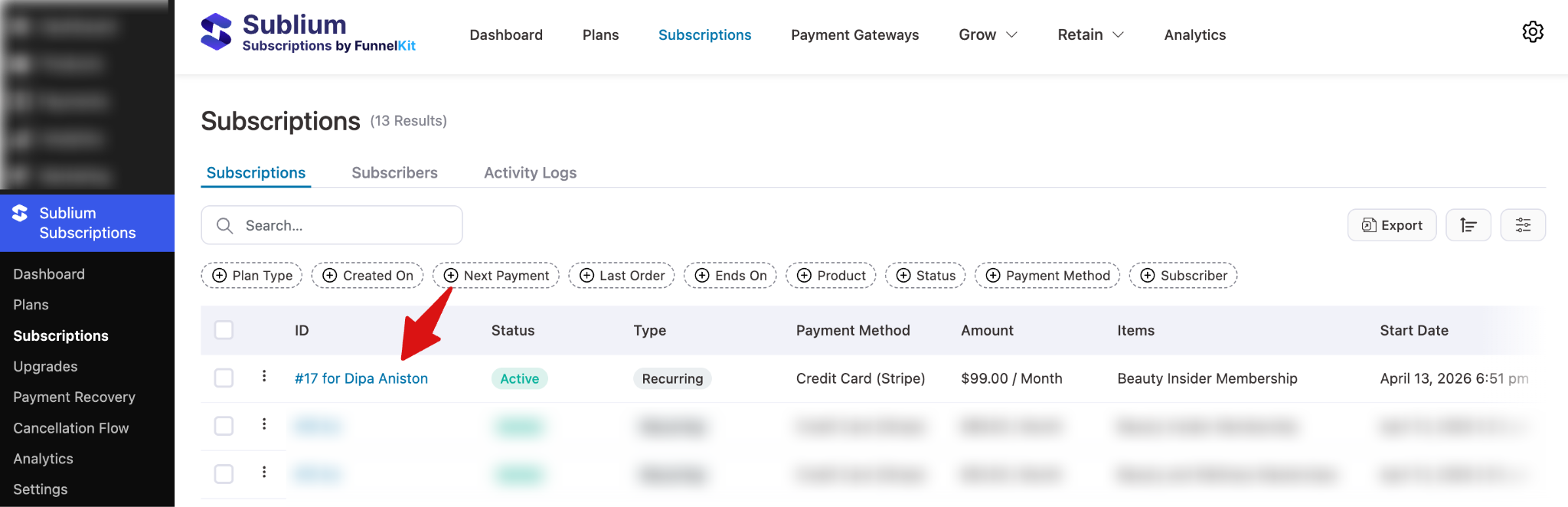
Subscription details
You can click on the Member name to see the Subscription details. In the Subscribers Details section, you can find all the details about the member, payment, and plan details.
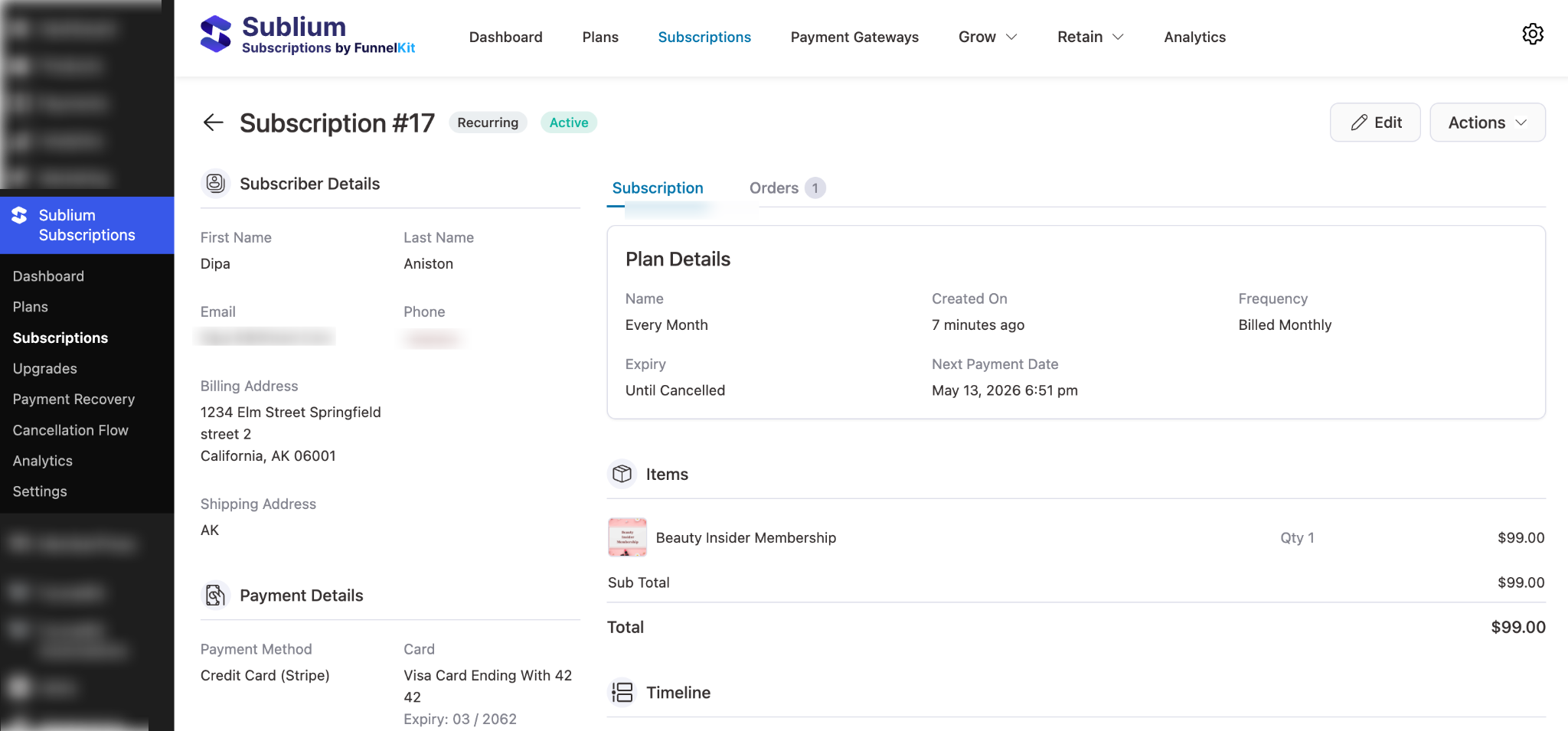
Subscription status
Under the action, you can reschedule an order, pause, cancel, renew, and delete the membership.
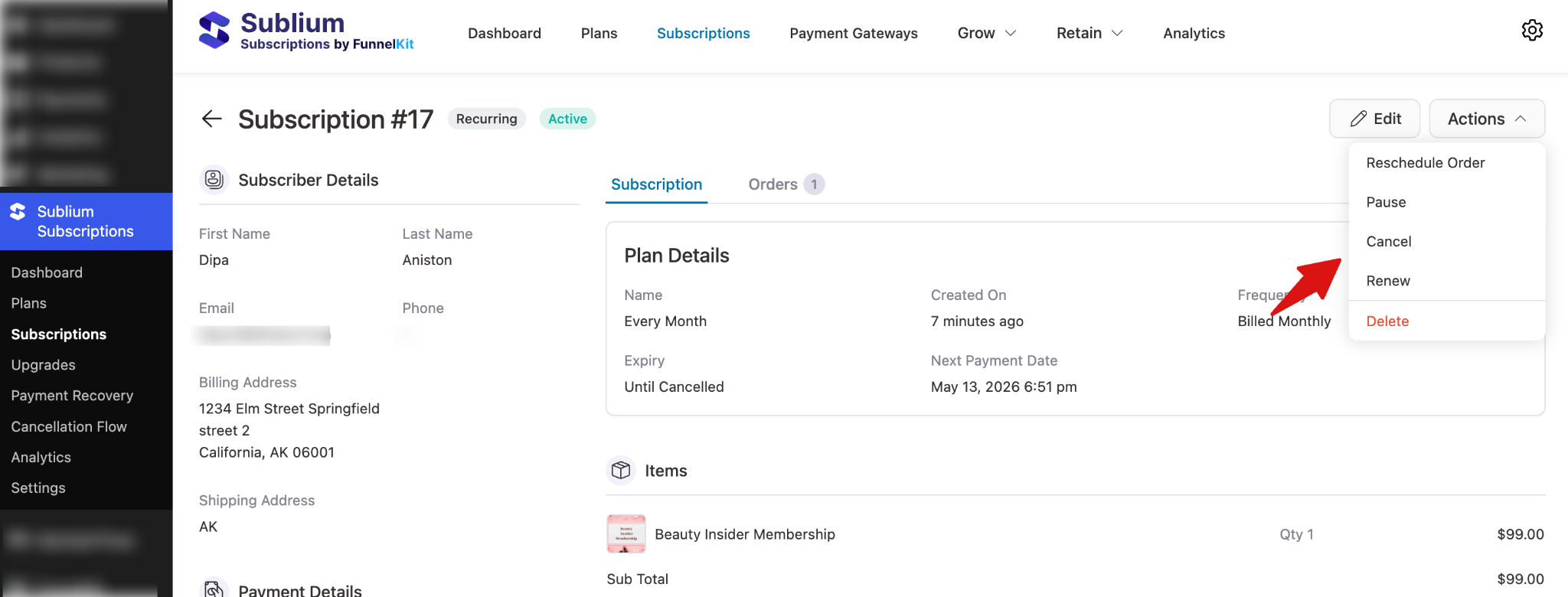
Your action will also be reflected in WooCommerce Membership.
For instance, pause the Subscription in Sublium.
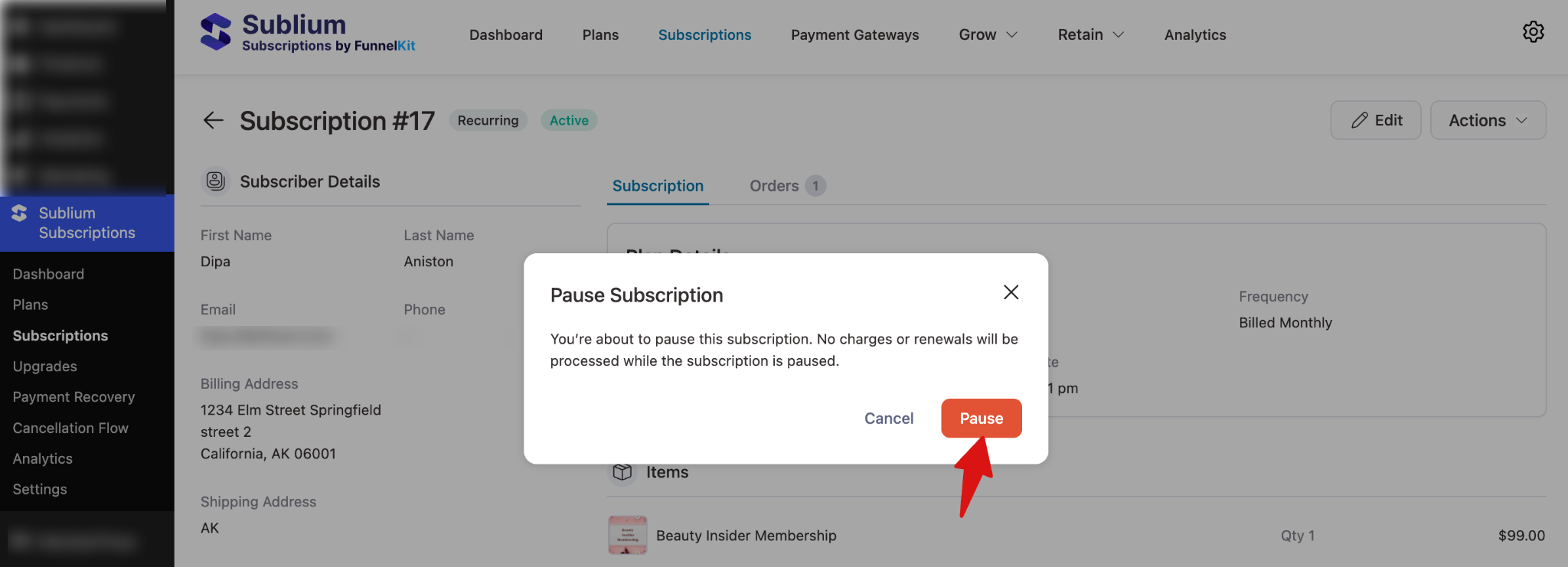
It will be paused in WooCommerce Memberships as well.
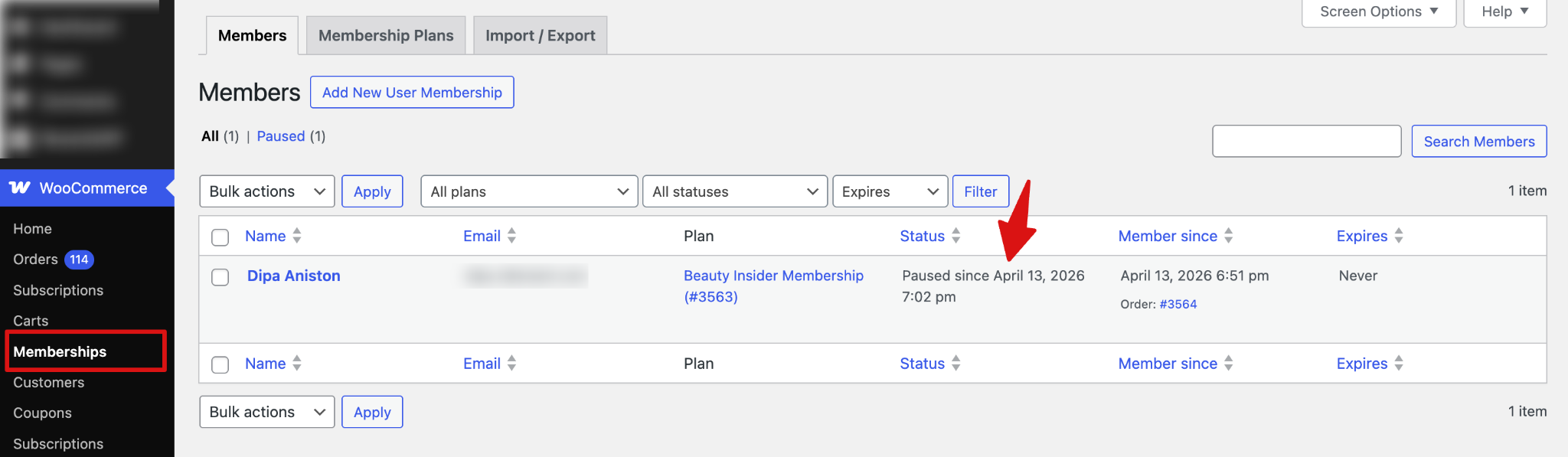
This is how you can manage WooCommerce Memberships plans in Sublium Subscription.
Example scenario
Imagine you run a beauty and skincare website. You can set up:
- A Free Member Tier that gets access to basic skincare tips, a few beginner routine guides, and product education
- A VIP Beauty Insider Tier that unlocks premium routine plans, exclusive skincare tutorials, and members-only blog content
- Special member-only discounts on beauty products and skincare tools
- Weekly content dripping, like unlocking new skincare routines or beauty hacks every Monday for VIP members
WooCommerce Memberships manages all these access rules, content dripping, and member perks smoothly.


