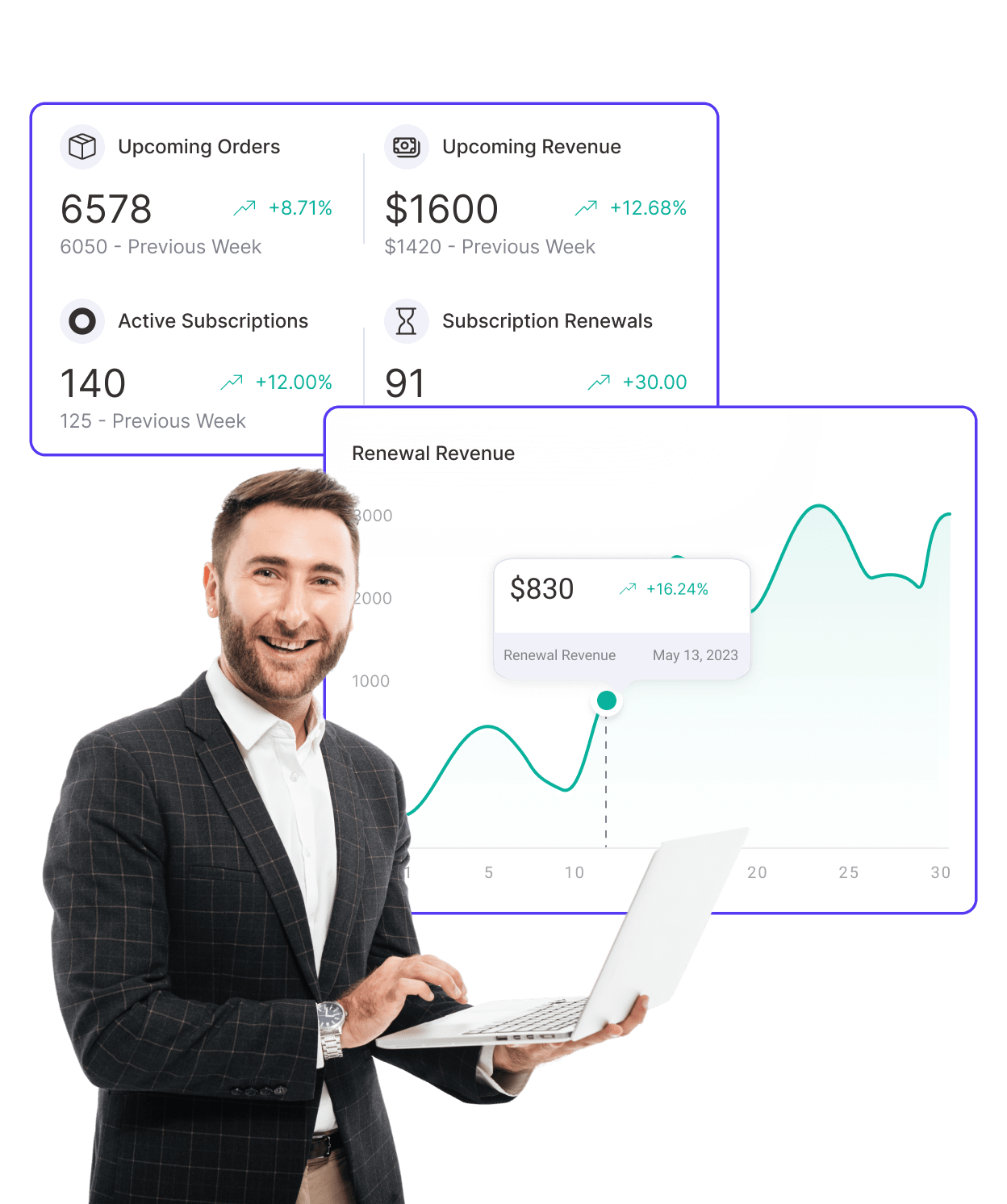
Sublium Subscriptions allows guest checkout while purchasing subscription products in WooCommerce.
When you allow guest checkout, the account gets created automatically. Because users don’t have to provide account information during checkout, the process is faster and more frictionless.
How To Enable Guest Checkout For Subscriptions?
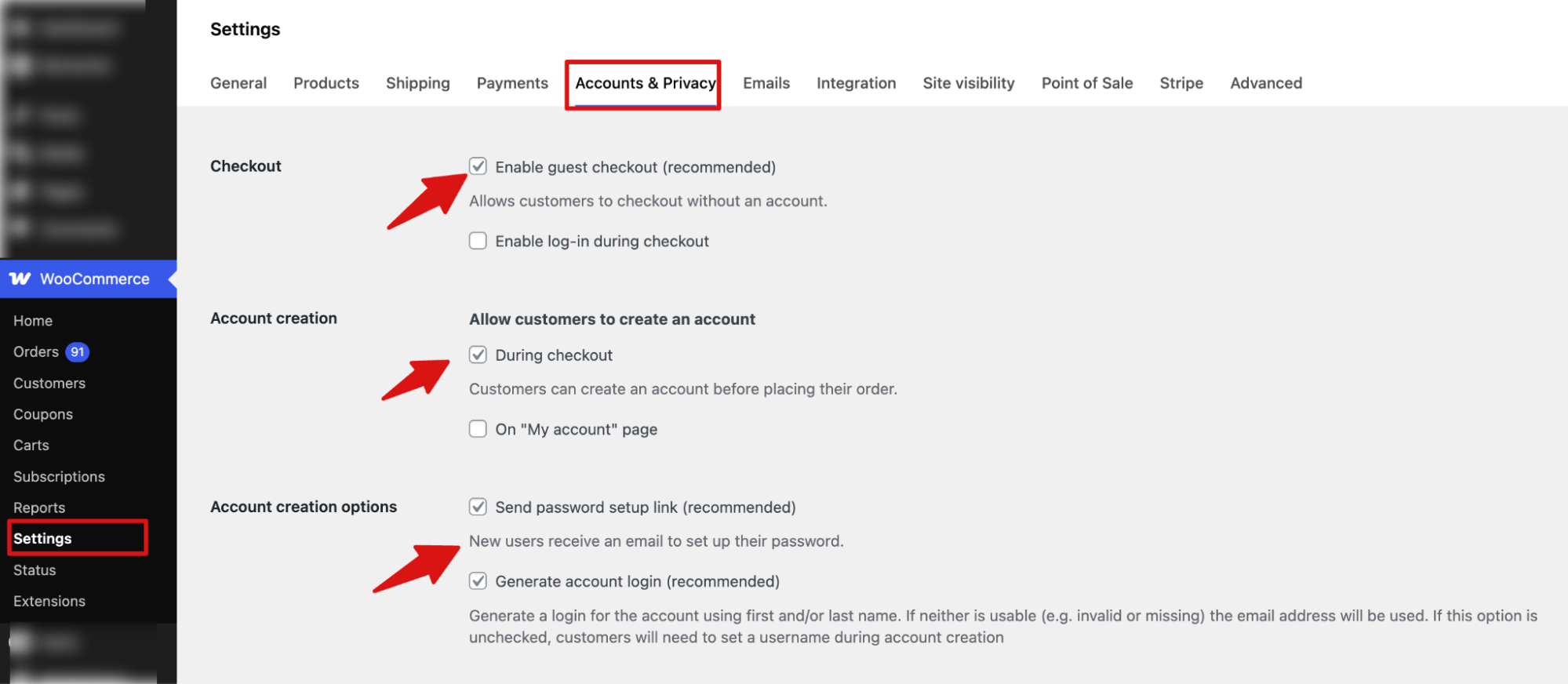
To allow guest checkout, navigate to WooCommerce ⇒ Settings ⇒ Accounts & Privacy.
Then, check the following options:
- Enable guest checkout (recommended): Check this option under “Checkout” .
Next, to enable account creation, check the following option:
- Allow customers to create an account: Make sure to check the “During checkout” option. This will allow guest checkout while also creating an account for the guest user.
After this, under “Account Creation options”, check the following:
- Send password setup link (recommended): New users receive an email with a link to set their password after account creation.
- Account creation options: A login is automatically generated using the customer’s first and/or last name. If those details are unavailable or invalid, the email address will be used instead. If this option is disabled, customers will be required to manually choose a username during registration.
Once all the options are checked, make sure to hit Save changes to update.
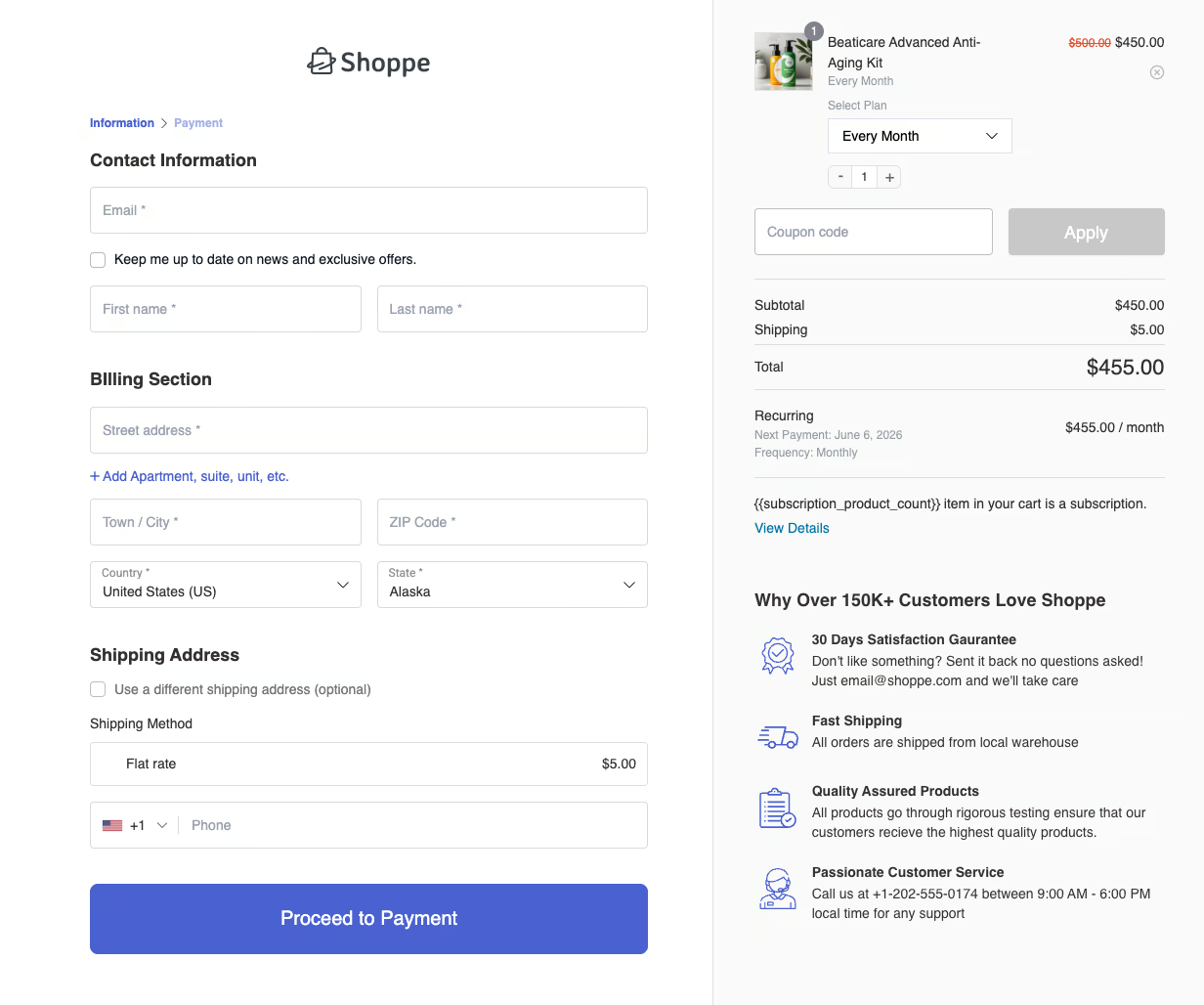
Now, guest users can successfully check out with subscription products without creating an account on the checkout page.
Behavior for Returning Users

In Sublium Subscriptions, returning customers can purchase subscription products without logging in.
Unlike other WooCommerce Subscription plugins, it removes the login requirement for repeat purchases, ensuring a faster, frictionless checkout experience.
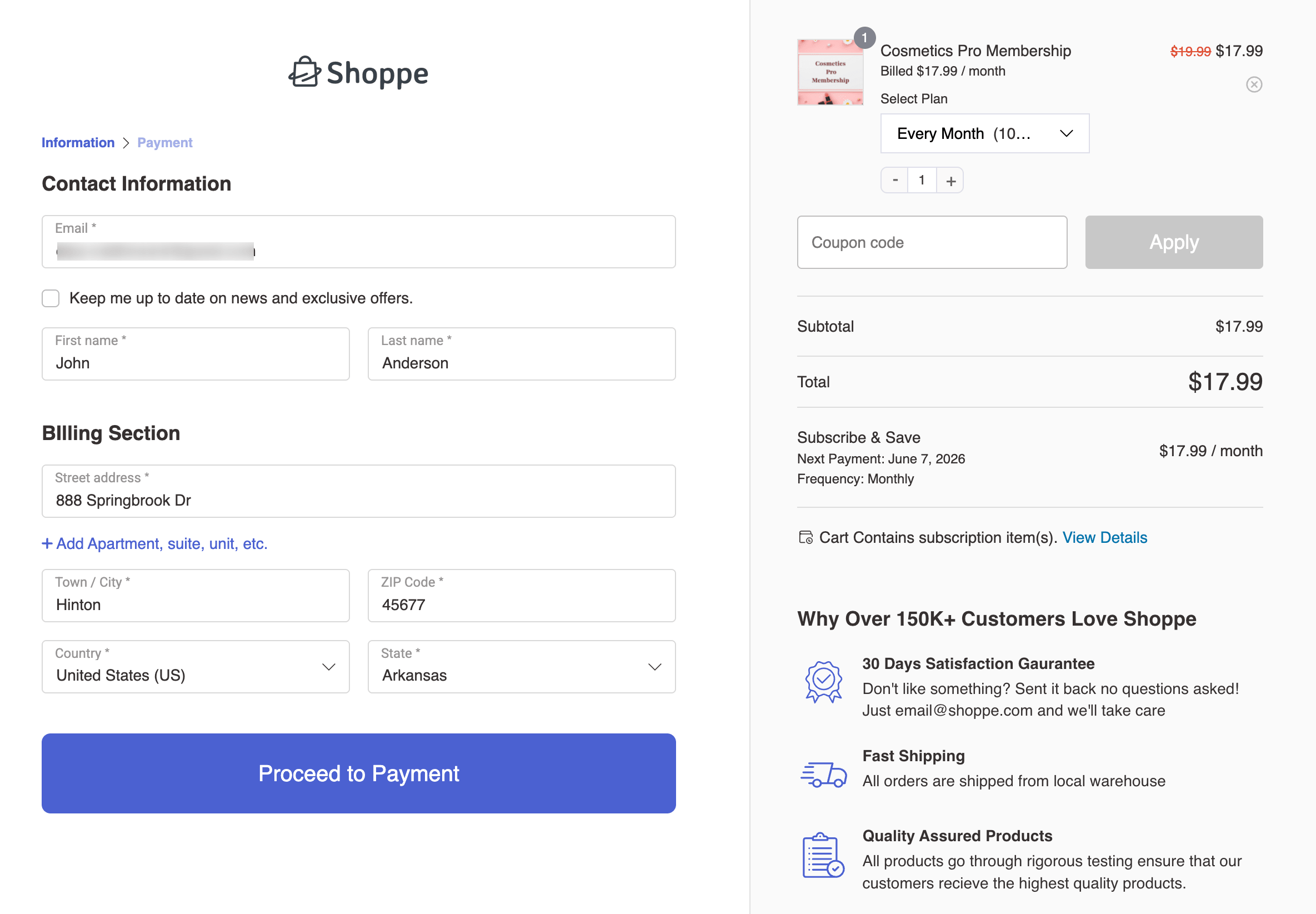
It automatically matches the order email with the existing user or subscriber email, ensuring the data is properly synced and stored.
This allows users to view all their purchased subscriptions in the “Subscriptions” section under “My Account,” linked to the same email address.