

The Global Styles section lets you set the overall look and feel of your emails, including logos, colors, typography, buttons, layout, footer, and social links, to match your brand.

Access Global Styles
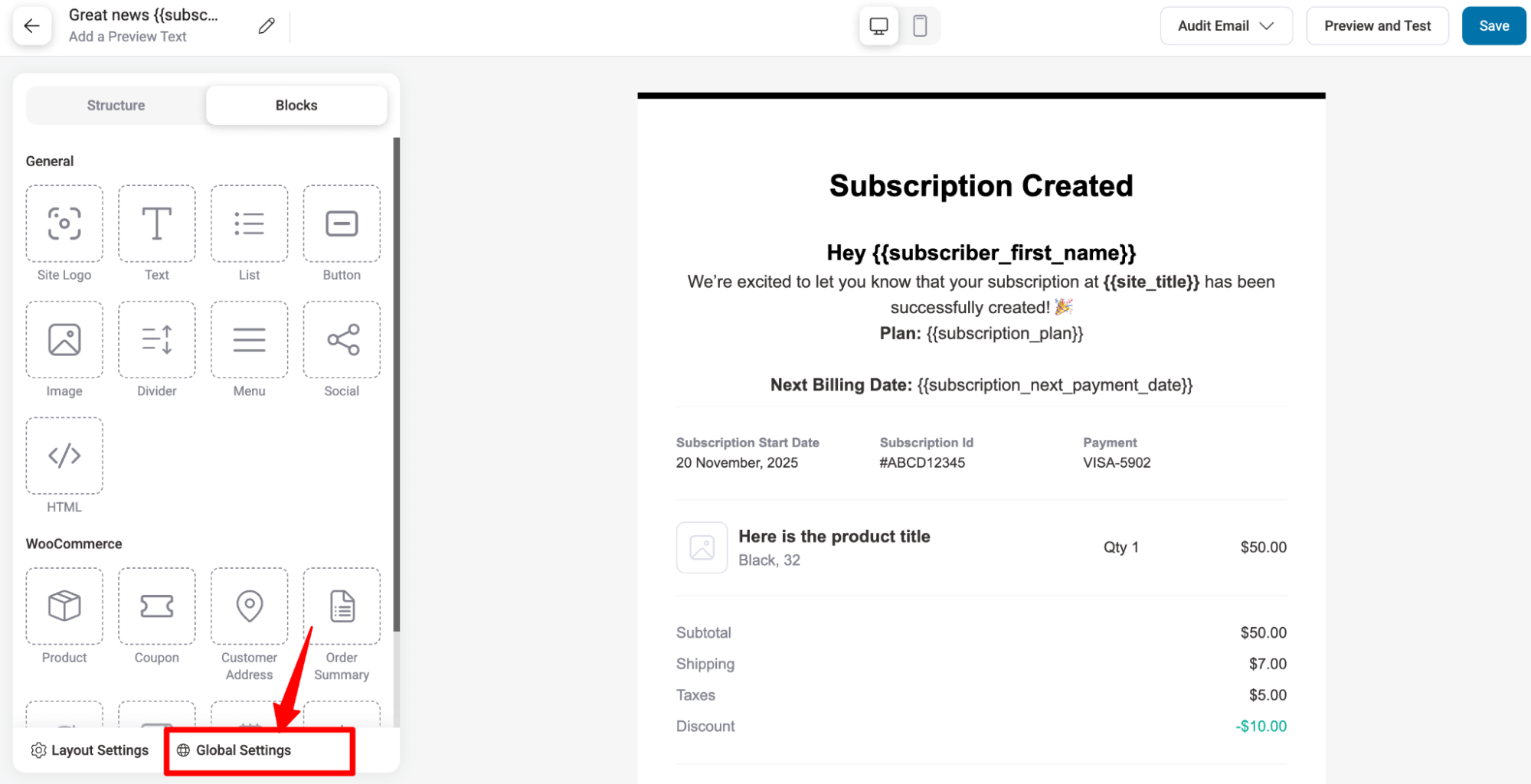
Global styles can be accessed when you launch the visual builder in any email notification
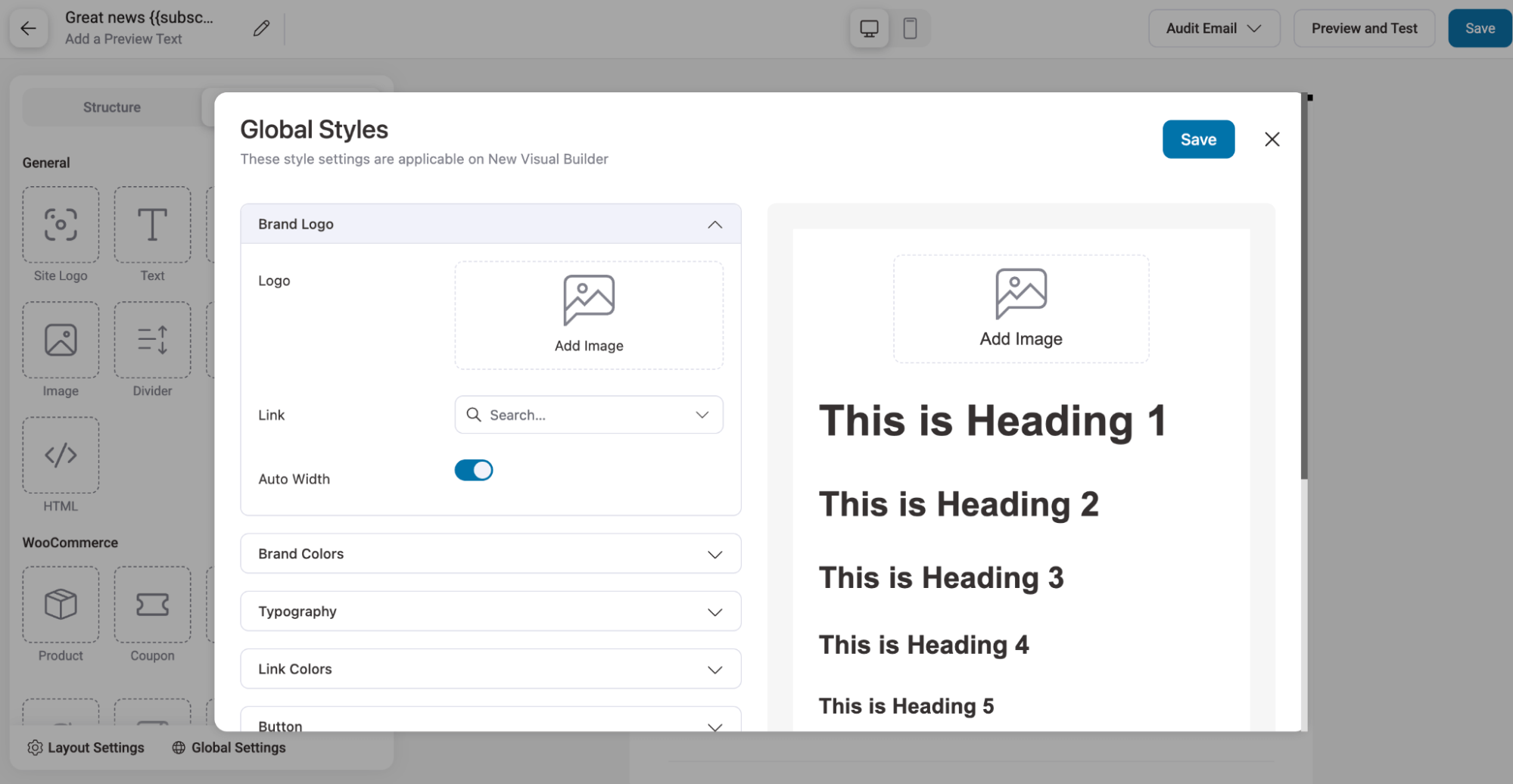
If you are inside the email builder already, then you can click the Global Styles button as shown here.
Set Up Global Styles For Email Notifications
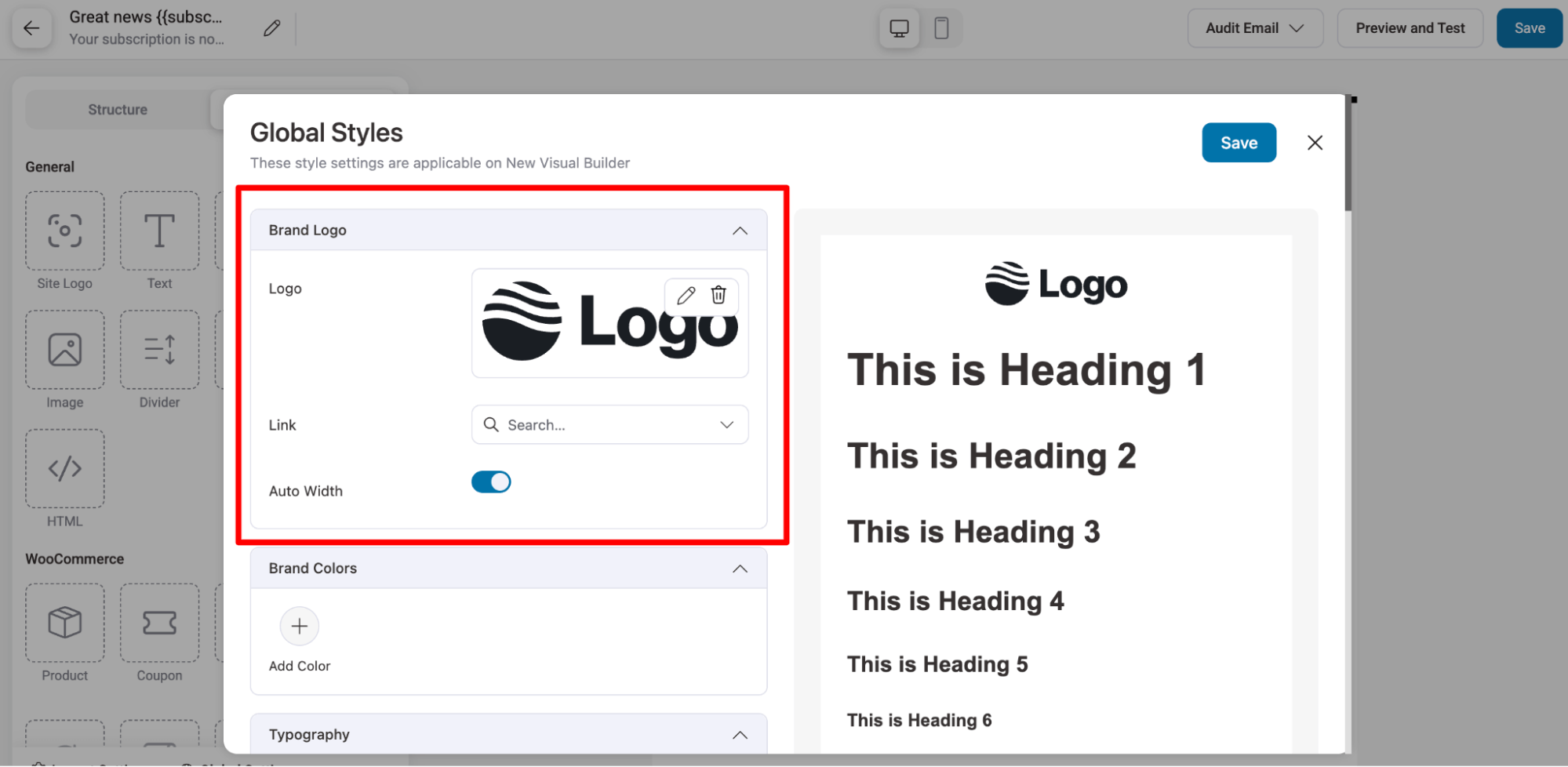
Brand Logo
- Logo: Upload or select your brand logo.
- Link: Make the logo clickable by adding a URL.
- Auto Width: Set the logo to automatically adjust its width.
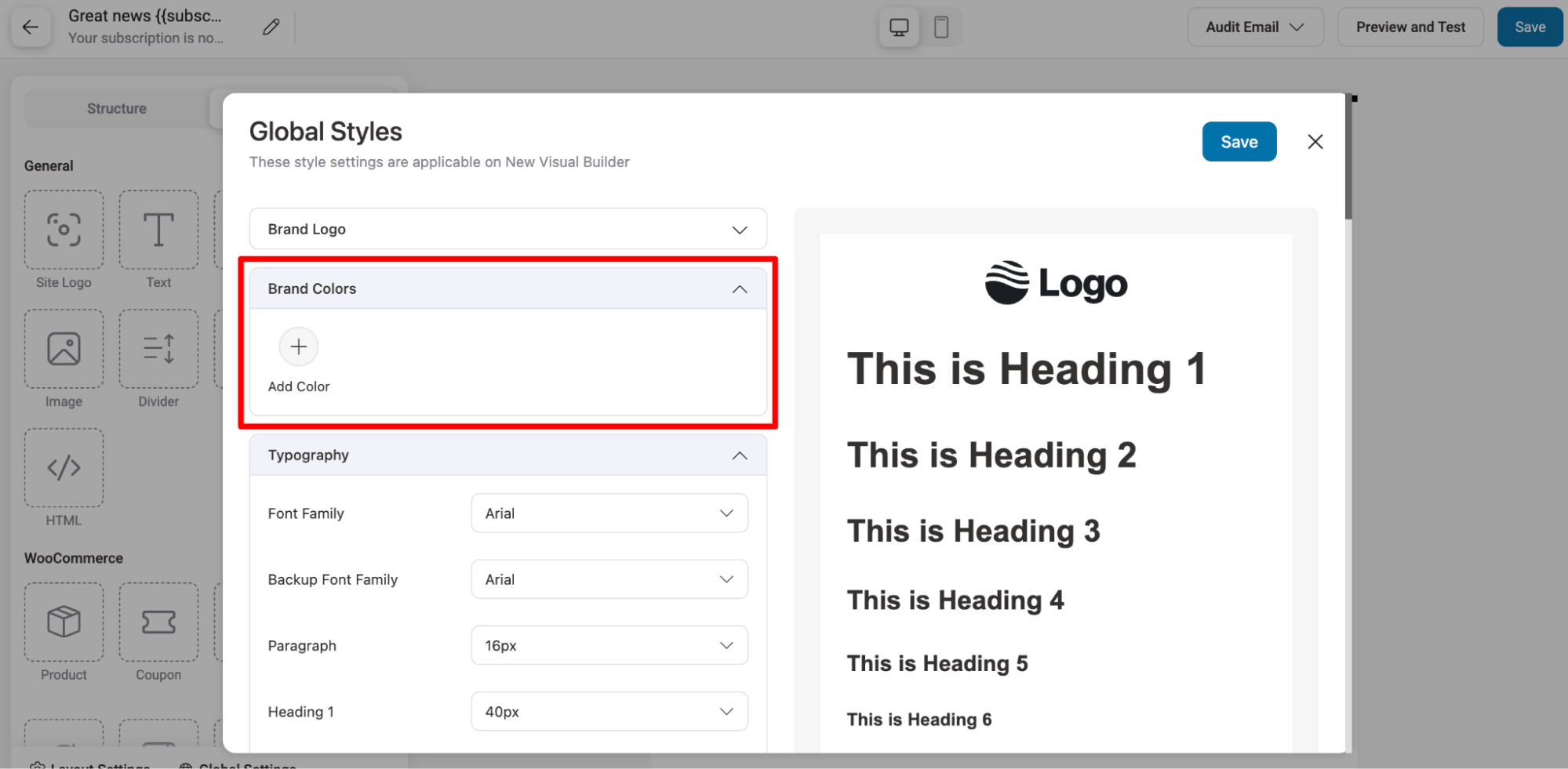
Brand Colors
- Add Color: Add or customize brand colors for text, buttons, or backgrounds.
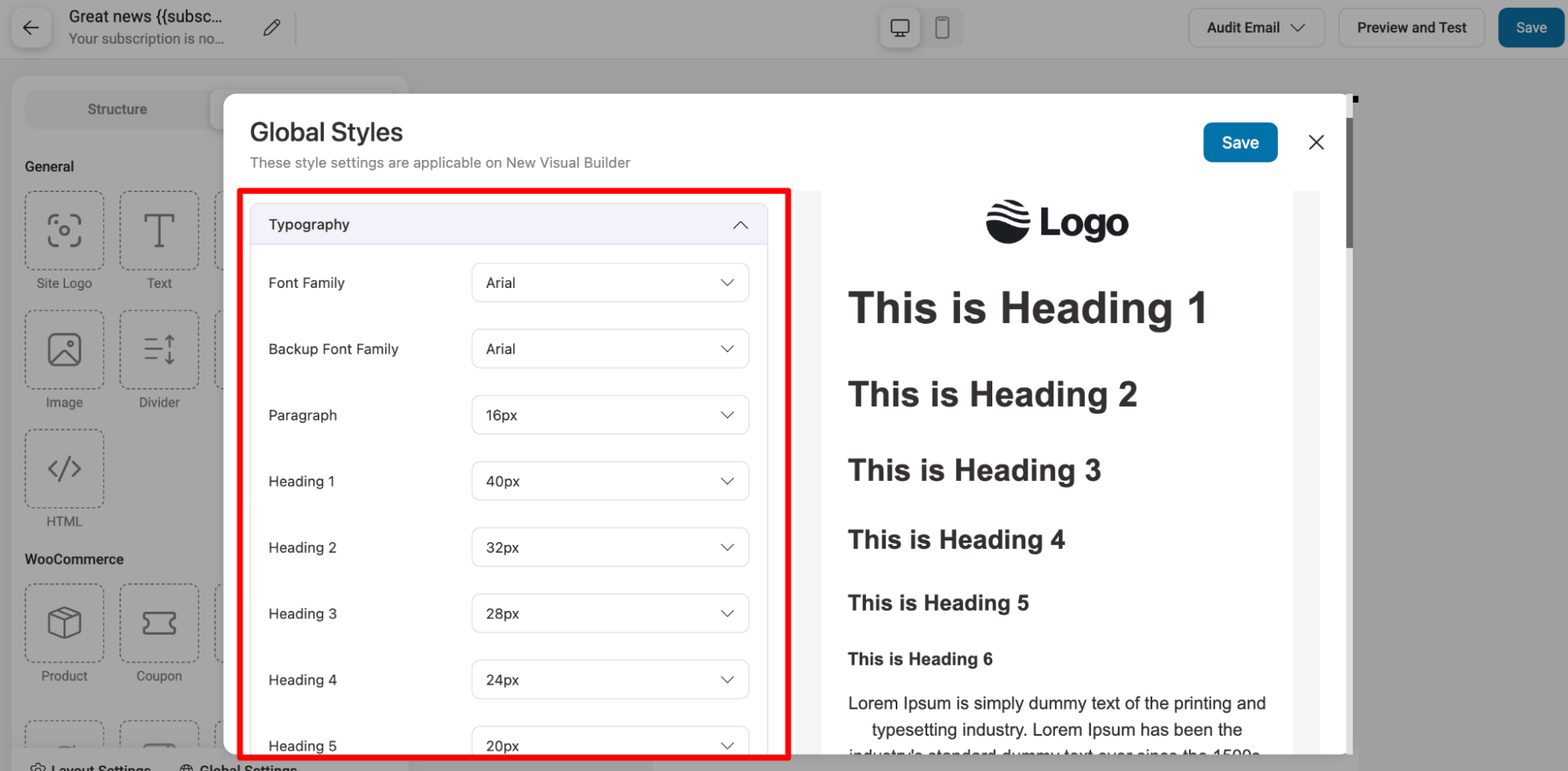
Typography
- Font Family: Set the main font for emails.
- Backup Font Family: Set a fallback font in case the main font is not supported by the email client.
- Paragraph: Style paragraph text.
- Heading 1–6: Style headings from H1 to H6.
- Text Color: Set the default text color.
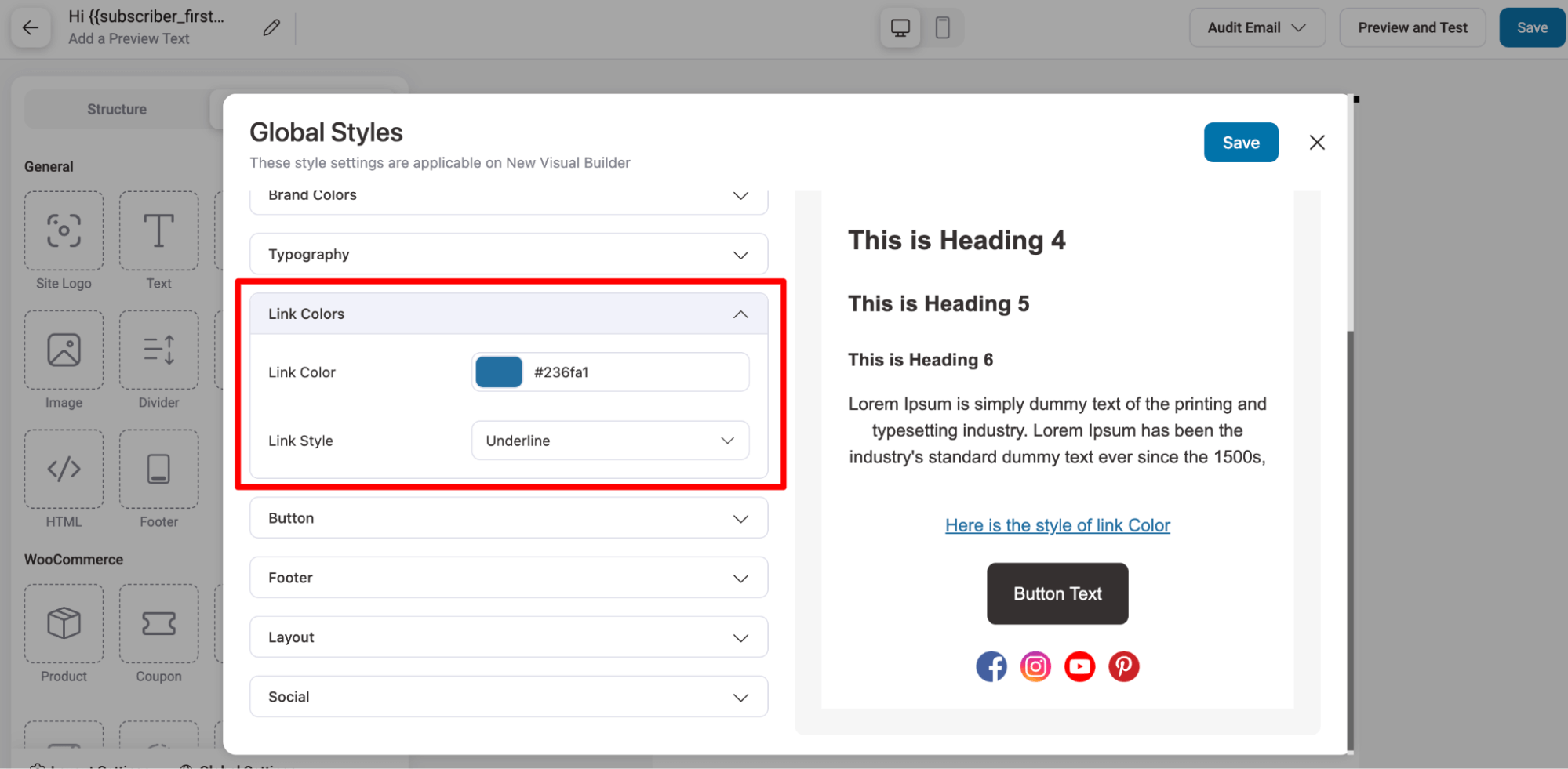
Link Styles
- Link Color: Set the color for links.
- Link Style: Choose the link appearance, for example, underline or bold.
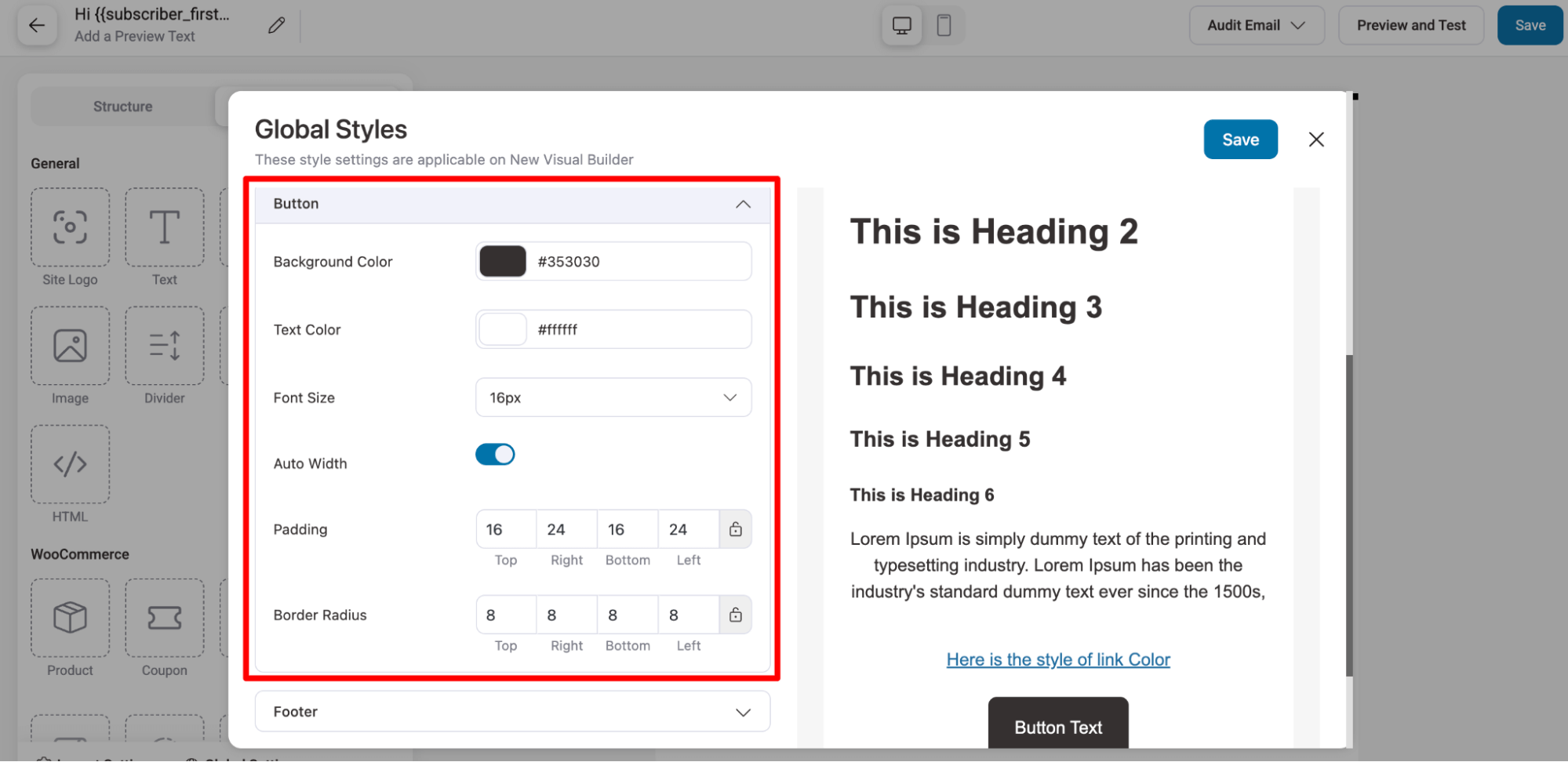
Buttons
- Background Color: Set the button background.
- Text Color: Set the button text color.
- Font Size: Adjust the font size of the button text.
- Padding: Control space inside the button (Top, Right, Bottom, Left).
- Border Radius: Round the button corners (Top, Right, Bottom, Left).
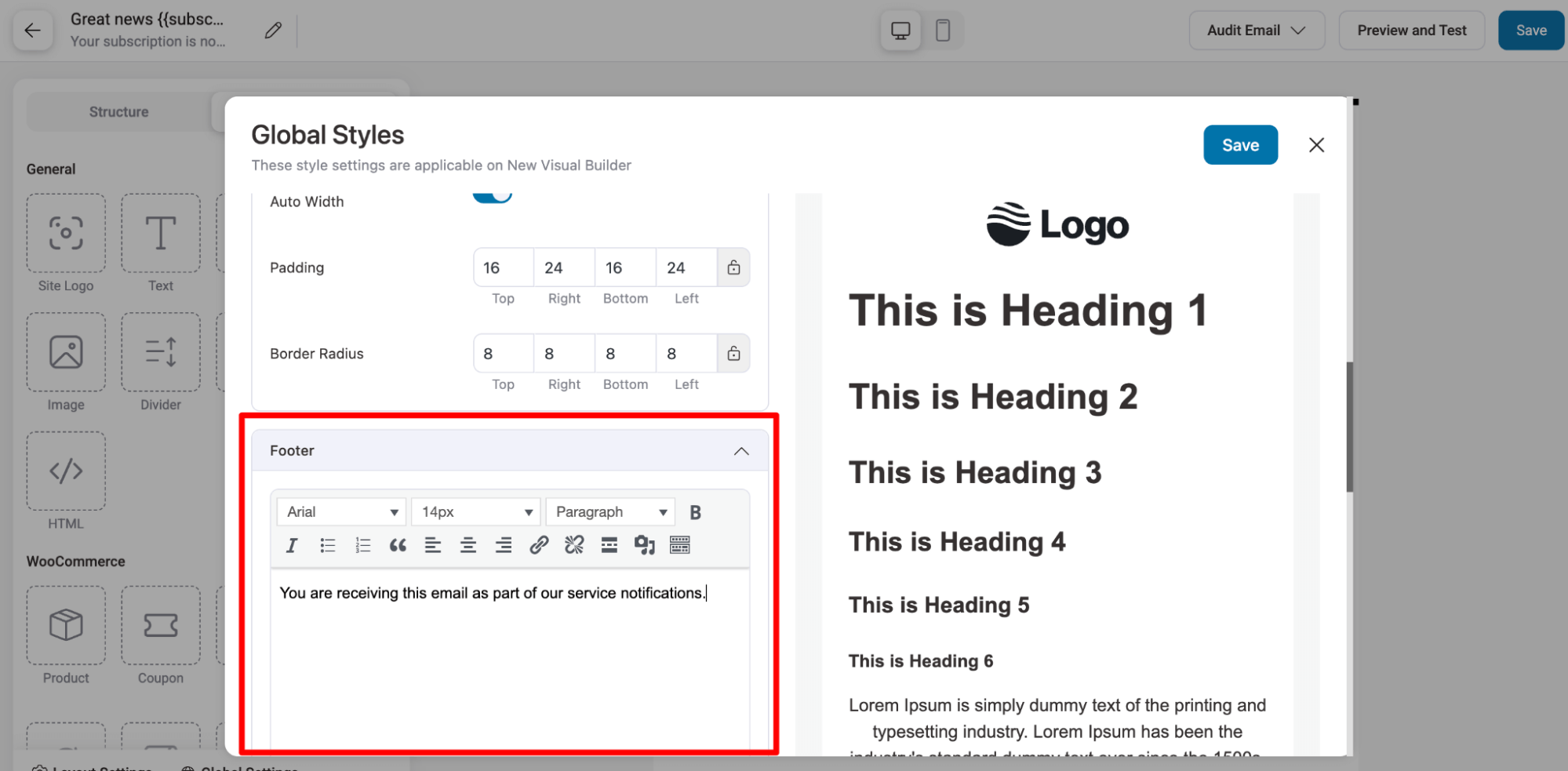
Footer
Add footer content using the rich text editor. Include any additional footer elements as needed.
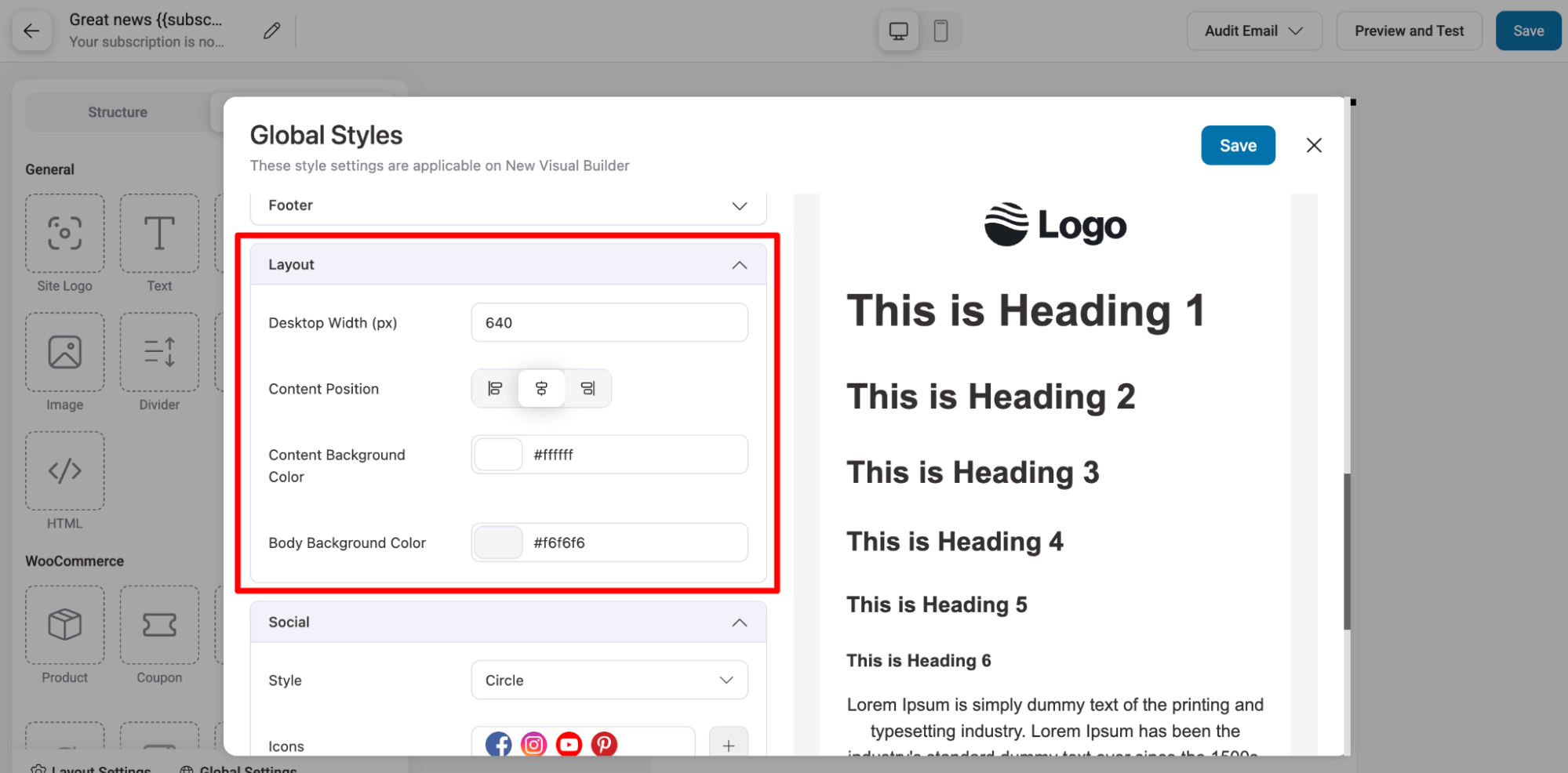
Layout
- Desktop Width: Set the width of emails for desktop view.
- Content Position: Adjust the alignment of content within the email.
- Content Background Color: Set the background color for the content area.
- Body Background Color: Set the overall email background color.
Social Links
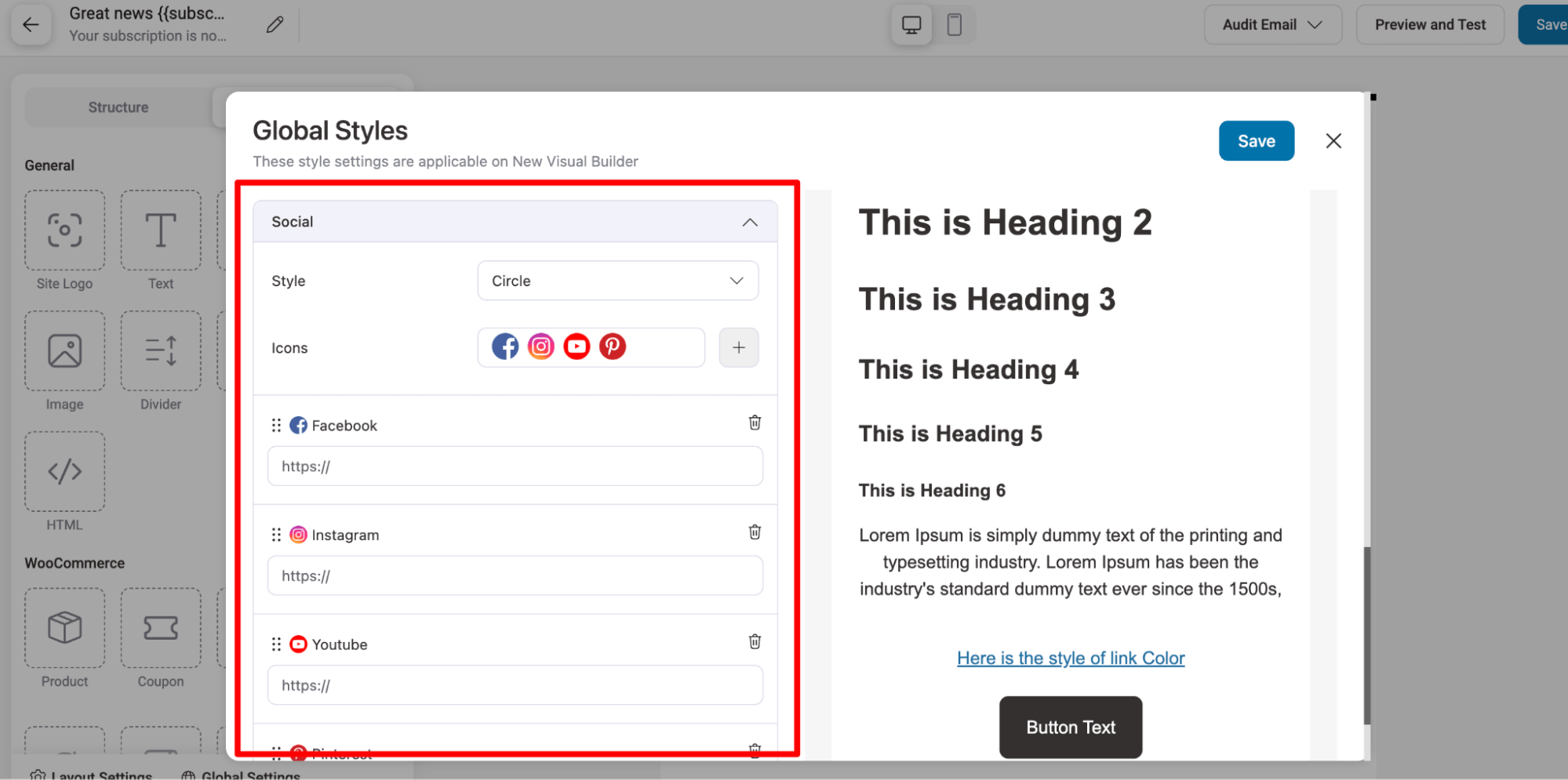
- Style: Customize the appearance of your social icons. Available styles: Circle, Circle Black, Circle White, Round, Round Black, Square, Square Black, Circle Gray.
- Icons & Links – By default, 4 social icons are included, but you can add up to 30.
- Adding a Social Link: For each icon, simply add the desired social icon and enter the corresponding URL. Examples include Facebook, Instagram, YouTube, Pinterest, etc.
After making the changes, make sure to hit “Save” to update.


