

In this documentation, we will share how to integrate Sublium Subscriptions with Tutor LMS to create a flexible, automated subscription system for online courses.
Overview
Tutor LMS manages course content and student access. And Sublium Subscriptions manages recurring payments and subscription management.
Together, they enable recurring and one-time pricing for Tutor LMS courses with automated access control.
What the Tutor LMS and Sublium Subscriptions Integration Enables
- Sell Tutor LMS courses using subscription-based pricing
- Automatically grant or revoke course access based on subscription status
- Offer multiple billing options such as weekly, monthly, or one-time payments
- Manage subscriptions centrally from Sublium Subscriptions
Prerequisites
Before you begin, ensure the following are installed and activated:
- Tutor LMS
- WooCommerce
- Sublium Subscriptions (Free & Pro)
- Also, make sure WooCommerce is selected as the monetization engine in Tutor LMS. For this, navigate to Tutor LMS ⇒ Settings, then turn on the Monetization tab and select “WooCommerce” for Select eCommerce Engine. Make sure to hit Save Changes.
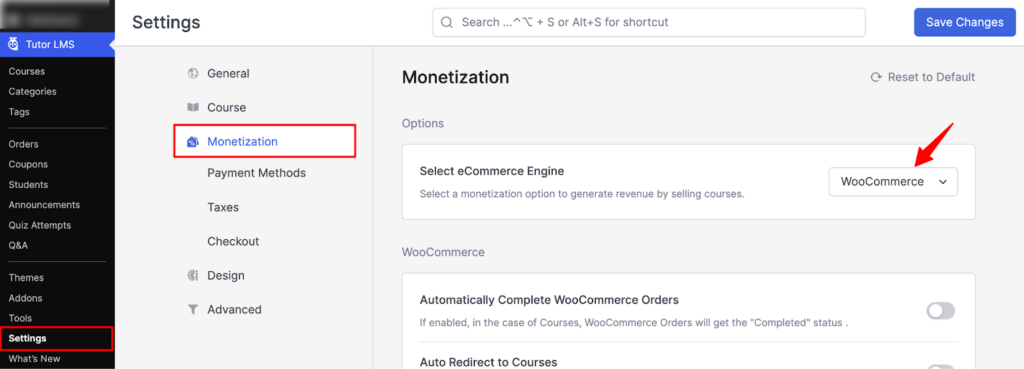
How to Integrate Sublium Subscriptions integration with Tutor LMS
We will use the example course, “Beauty and Wellness Masterclass”. Since it’s a virtual product for this, we will create three recurring subscription plans using Sublium Subscriptions, which include 1 one-time payment, monthly, and weekly.
Step 1: Activate Tutor LMS Integration in Sublium
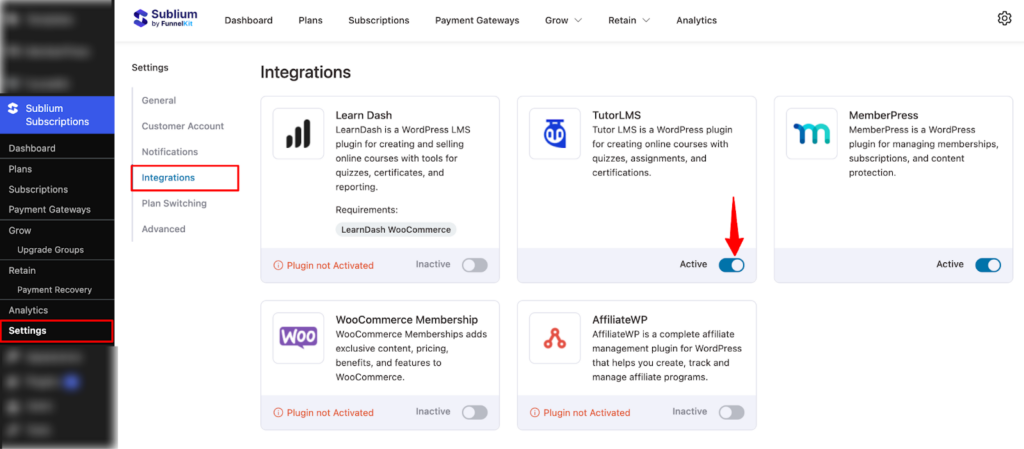
From the WordPress dashboard, navigate to Sublium Subscriptions ⇒ Settings ⇒ Integrations.
Locate Tutor LMS in the list of integrations.
If it’s not installed, you will see “Plugin not installed.” Install it first.
Toggle the Active button to enable the integration.
Step 2: Create a WooCommerce product for the course
Next, create a WooCommerce product and while creating a Course on WooCommerce, make sure to check the “For Tutor” option.
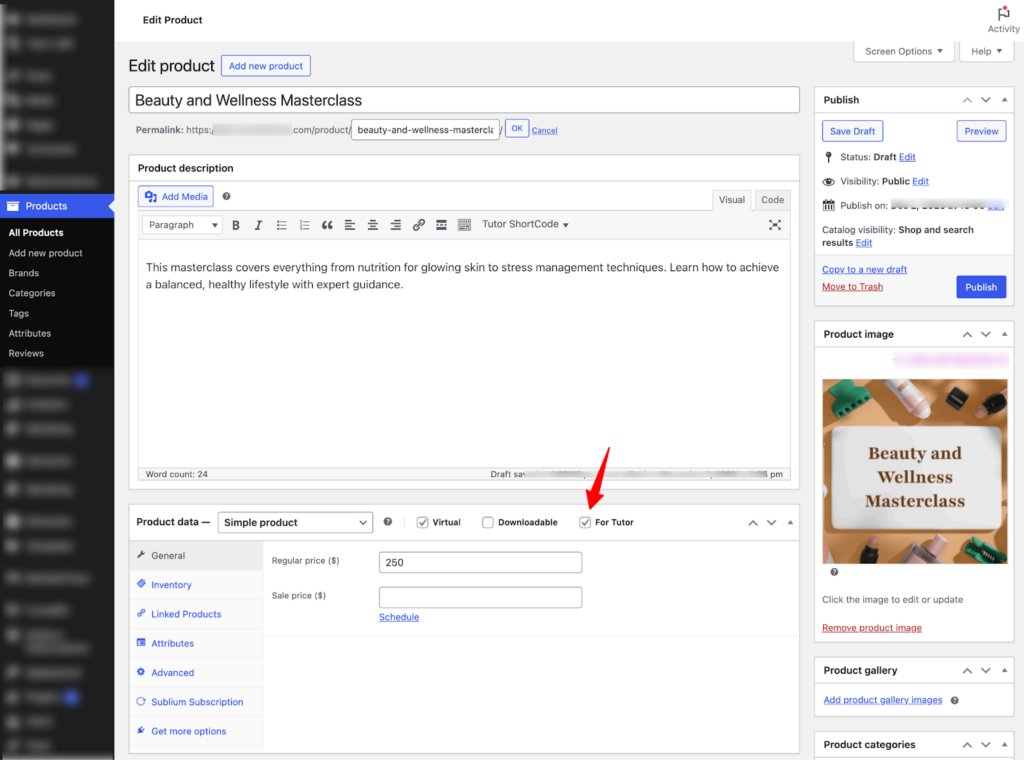
Step 3: Create a Course in Tutor LMS and link it to the WooCommerce product
Navigate to Tutor LMS ⇒ Courses and hit Add New Course.
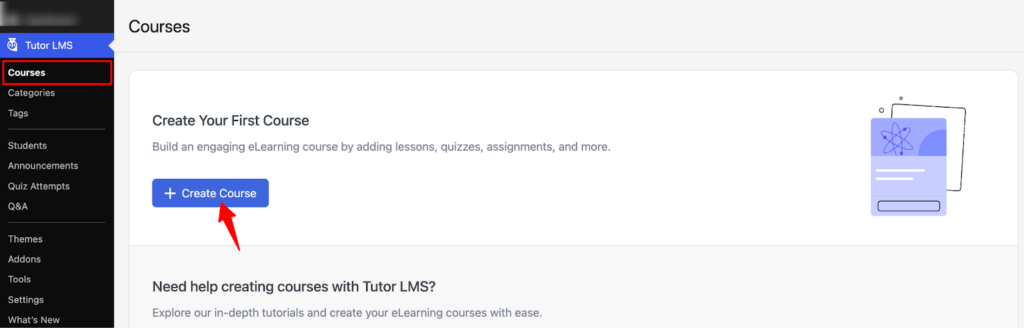
Enter the course title, description, lessons, quizzes, and any downloadable resources.
Choose price as Paid and then select the Product you created in the previous step.
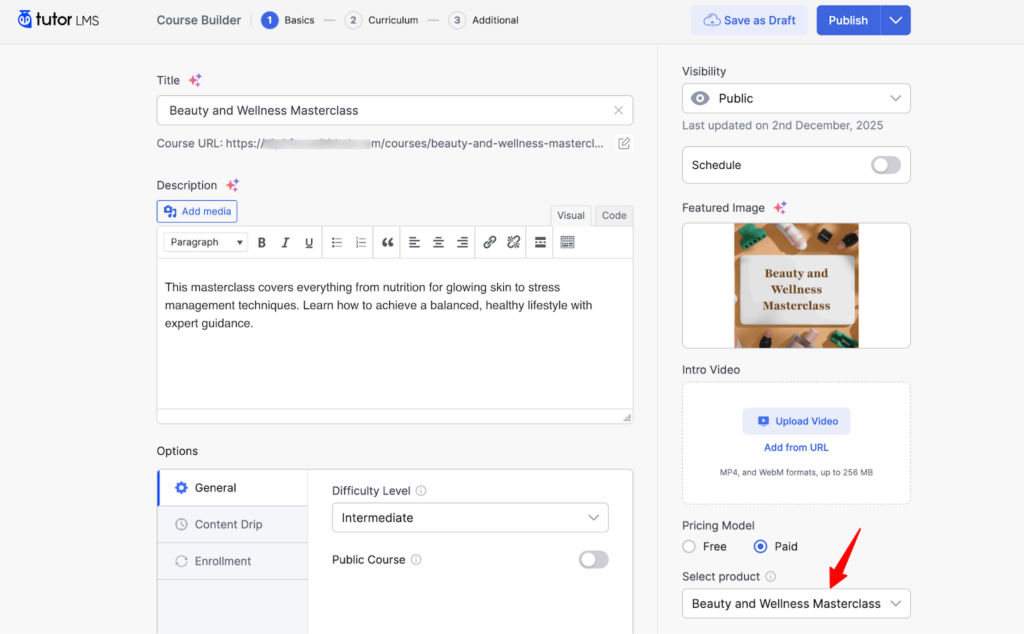
Now your course is ready. All that is left to do is connect to Sublium Subscriptions.
Step 4: Create a plan in Sublium Subscriptions and assign the same product

Next, create a Recurring Plan for a Virtual Product with Sublium Subscriptions.
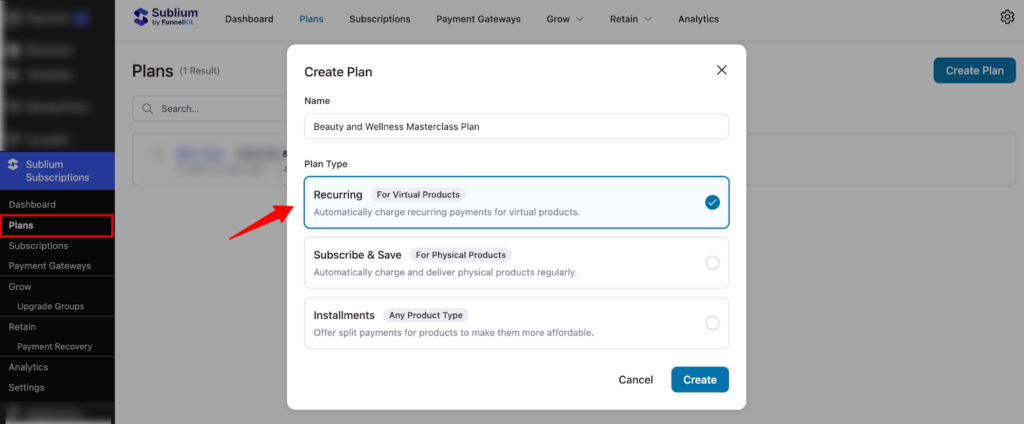
Then set different billing plans, like monthly and weekly.
Note: Make sure the selling plans are active.
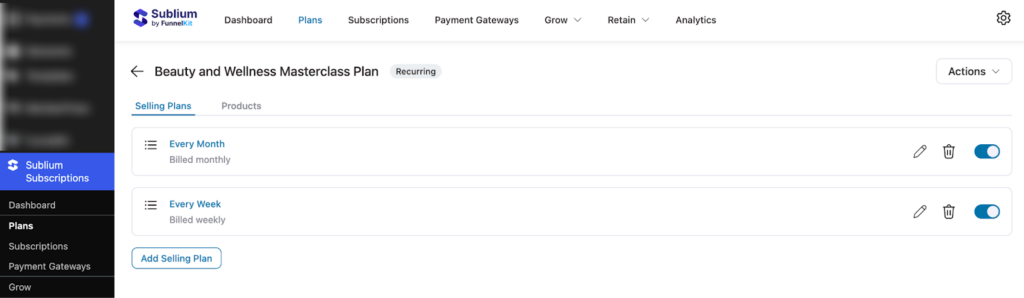
Step 5: Add the product to the subscription plan
Next, move to the products tab and add the product associated with the course you created earlier. In our case, that is “Beauty and Wellness Masterclass.”
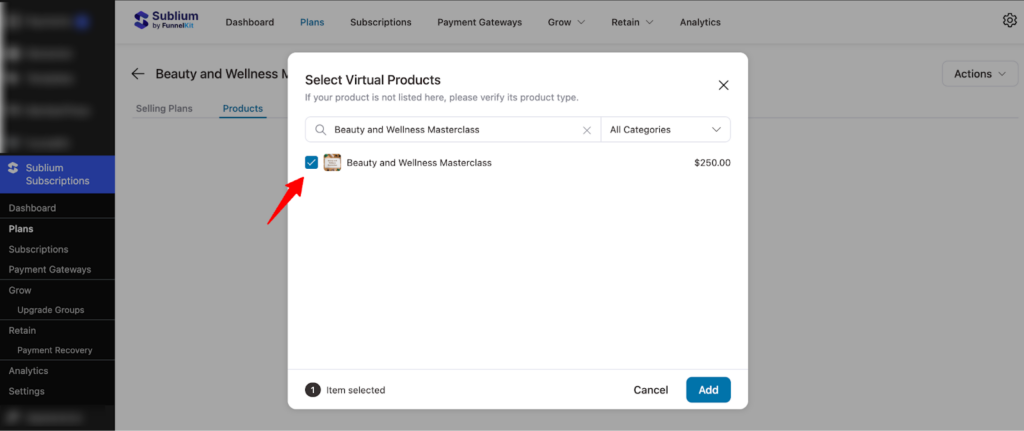
Step 6: Set the subscription plan pricing
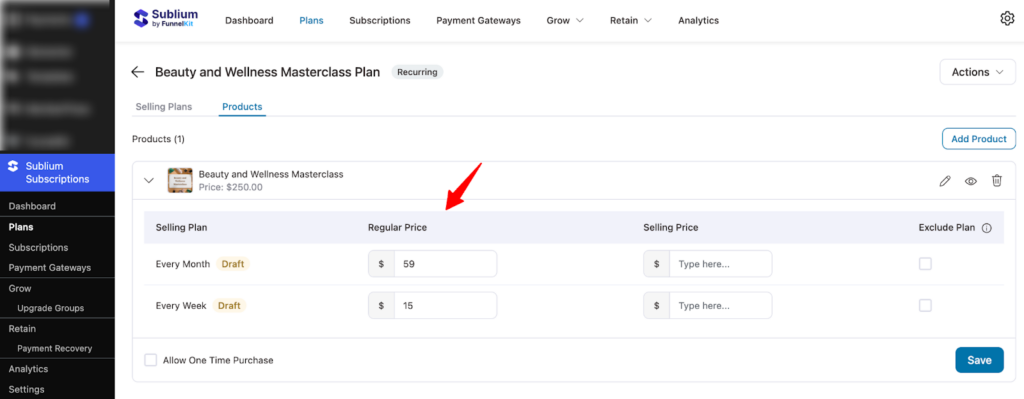
Now, you will find all the subscription plans you created in Step 4 listed here. All you need to do is set the plan prices. You can also set a selling price if needed. If you don’t want a specific plan to be available for this course, simply check the “Exclude” option.
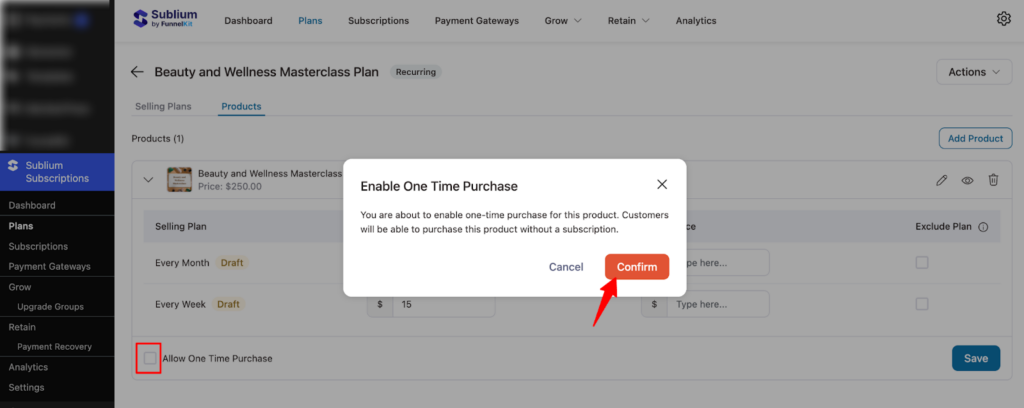
To allow a one-time purchase option, enable the “Allow One Time Purchase” setting and confirm.
Make sure to Save changes.
That’s it. Your Tutor LMS plan is now available with the pricing plan you created with Sublium Subscriptions.
How Sublium Subscriptions & Tutor LMS Work on StoreFront
Now, when users see the Course plan on the front end. They will see all the recurring billing plans you created using Sublium Subscriptions.
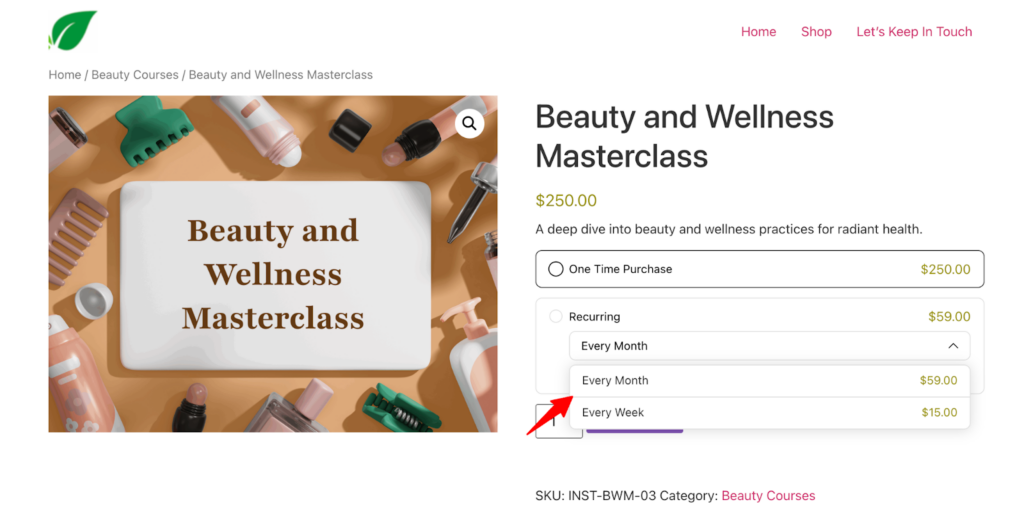
They can select any plan and add to cart.
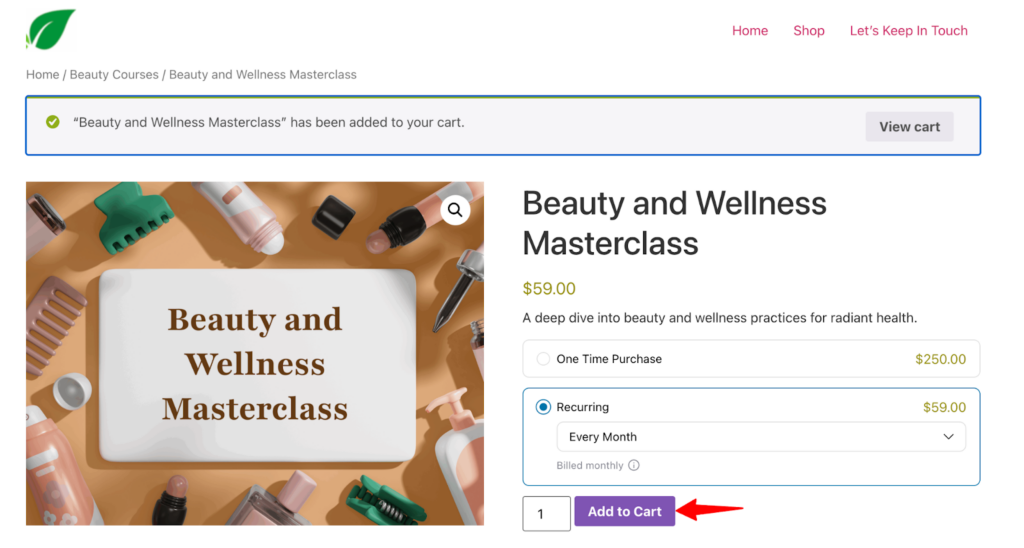
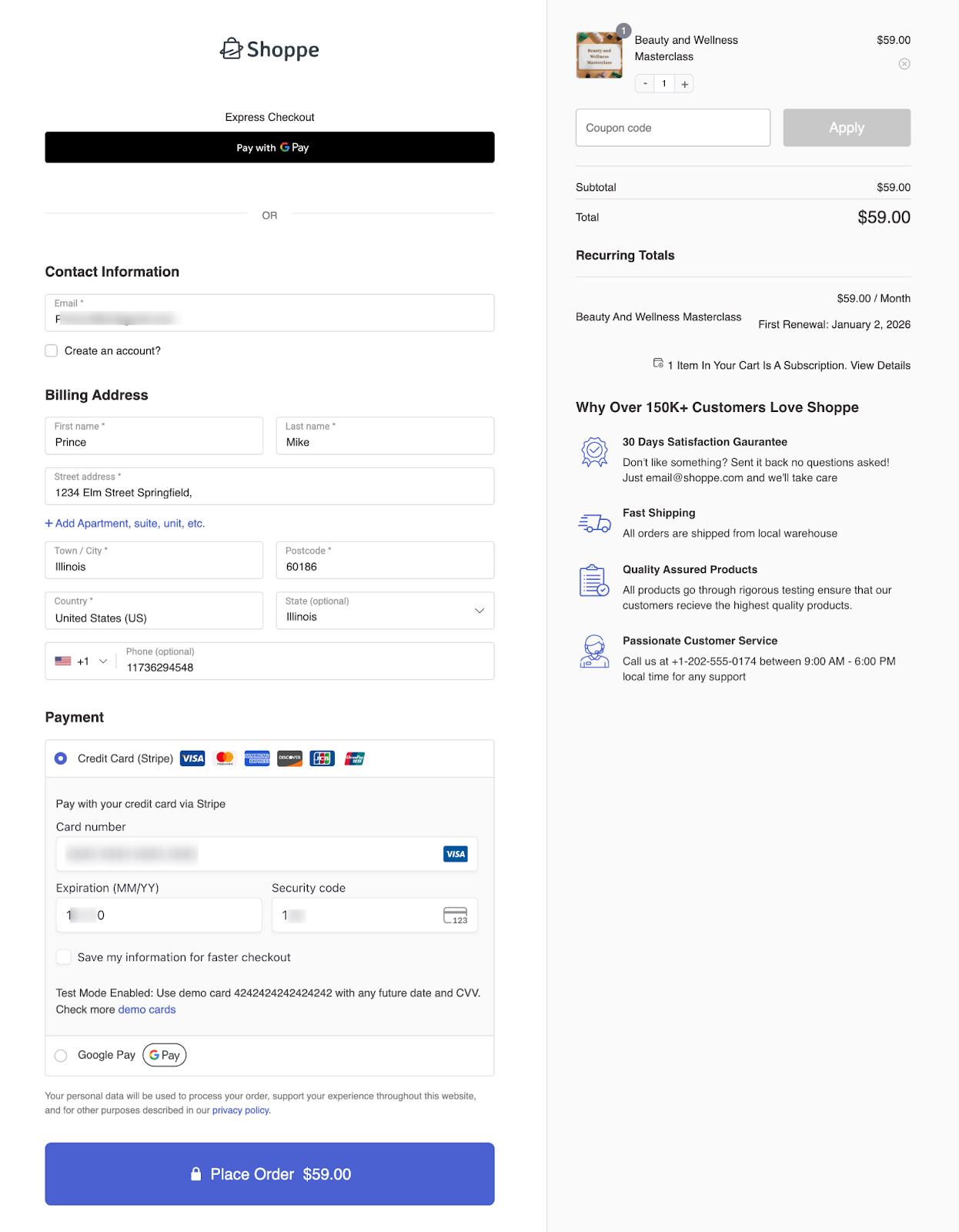
You can check out without any hassle.
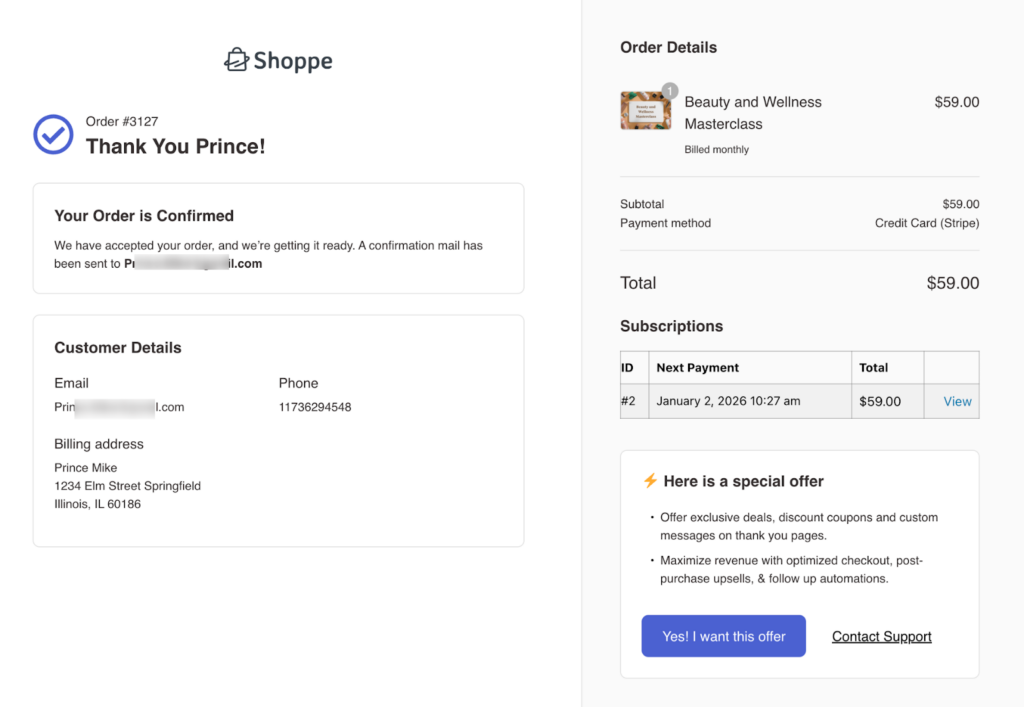
Here is the thank-you page after a successful purchase.
How to Manage Tutor LMS With Sublium Subscriptions
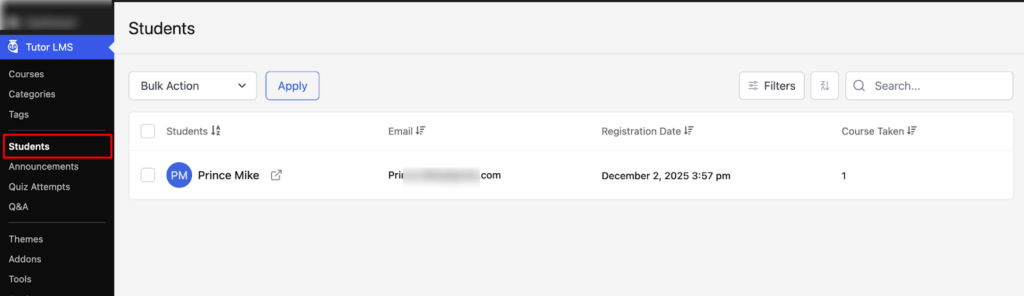
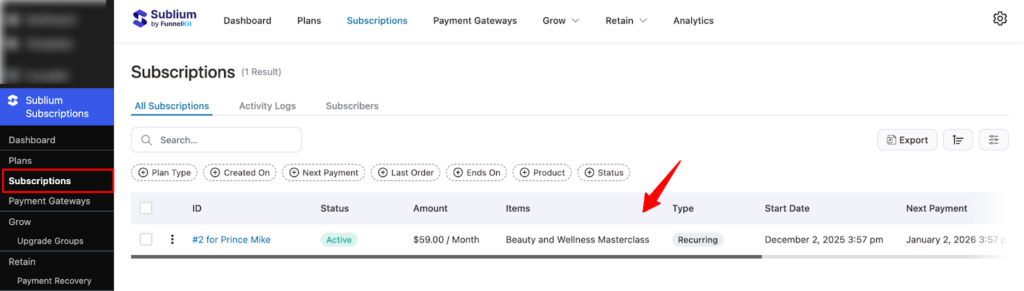
Once someone signs up for a Course, you can find the subscription both in Tutor LMS and Sublium Subscriptions.
In Tutor LMS, you will find it under Tutor LMS ⇒ Students.
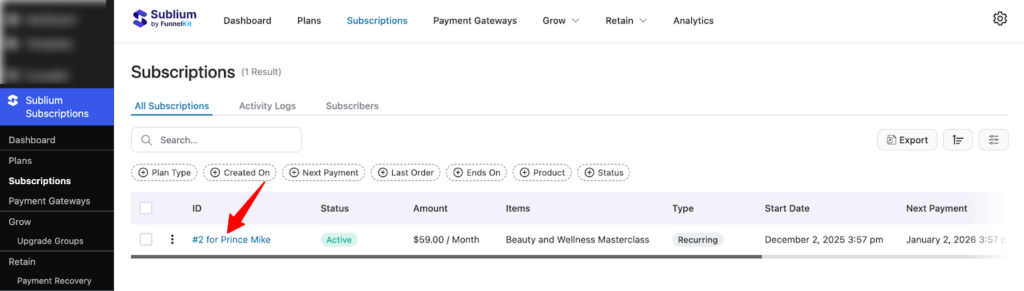
And in Sublium, you can find it under Subscriptions.
Subscription details
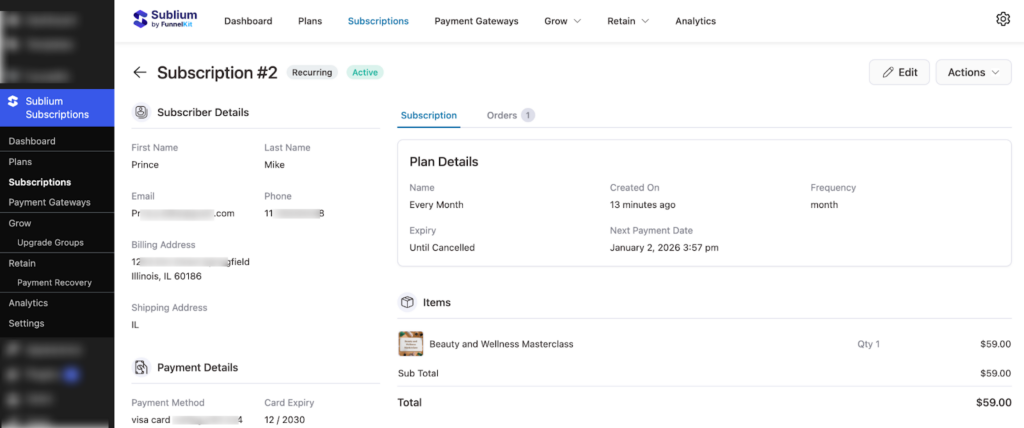
You can click on the Subscription name to see the Subscription details.
In the Subscribers Details section, you can find all the details about the Subscriber, Subscription, and payment details.
Subscription Status
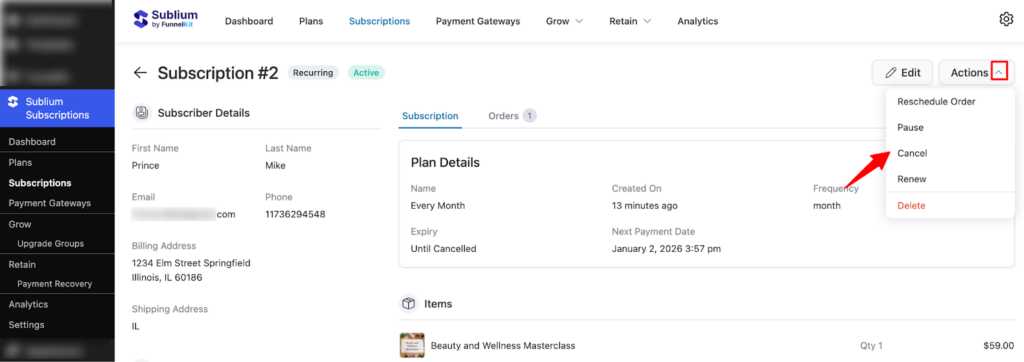
Under the action, you can reschedule an order, pause, cancel, renew, and delete the subscription.
Your action will also be reflected in Tutor LMS.
For instance, cancel the Course Subscription in Sublium.
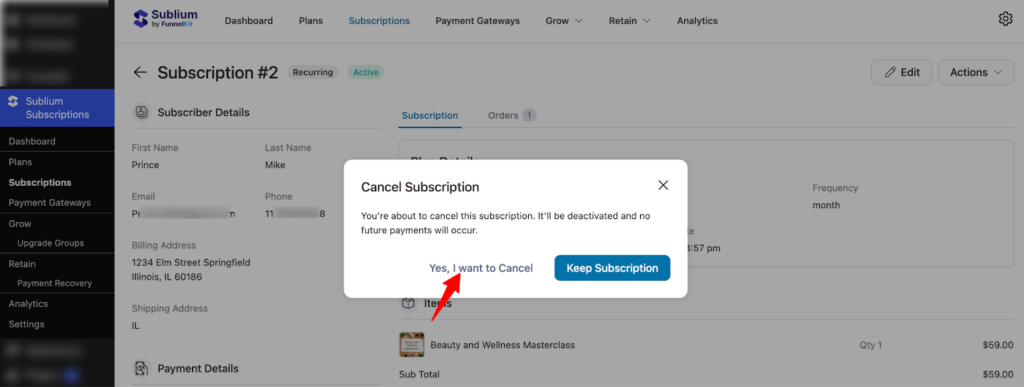
It will be canceled in Tutor LMS as well. The Subscribers will no longer be students.
This is how you can manage Tutor LMS courses in Sublium Subscriptions.
Example Use Cases
Imagine you run an online learning platform offering Python programming courses.
You can set up:
- Free Tier: Access to introductory Python lessons and a welcome quiz
- Pro Tier: Full access to the complete Python course, including assignments, downloadable resources, and coding projects
- Drip Content: Unlock a new module every week to guide learning
- Course Bundles: Offer related courses like “Python for Data Science” under one subscription
Tutor LMS handles lesson visibility, quizzes, and assignments
Sublium Subscriptions manages recurring payments and automated access


