The Cancellation Flow dashboard helps you understand how subscribers interact with your cancellation process. It tracks attempted cancellations, retention outcomes, accepted offers, and revenue saved, giving you the data you need to optimize your cancellation-prevention strategy.
Time Period
You can select a date range to view cancellation flow data. Options include:
- Today
- Yesterday
- This Week
- Last Week
- This Month
- Last Month
- Quarter to Date
- Last Quarter
- Year to Date
- Last Year
- On a Specific Date
- Custom Range
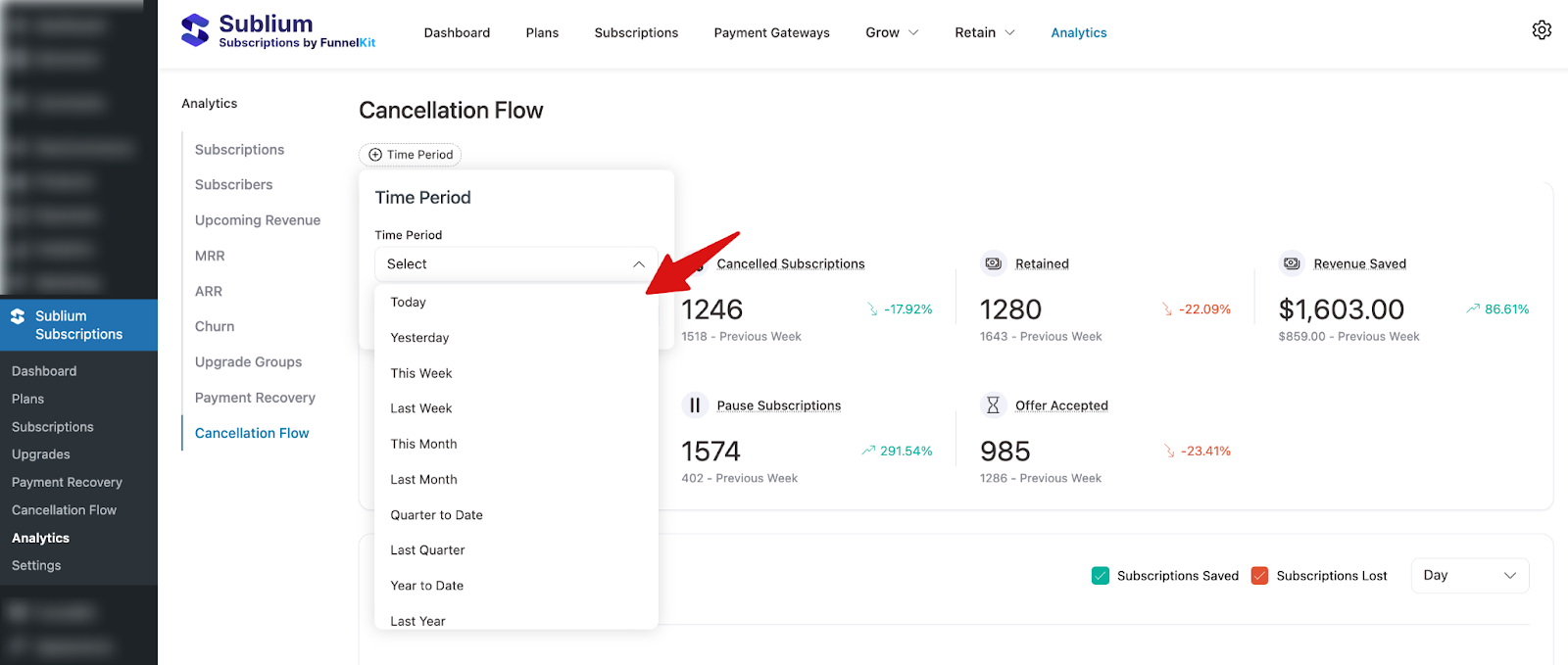
Note: You can also compare cancellation flow metrics between two date ranges.
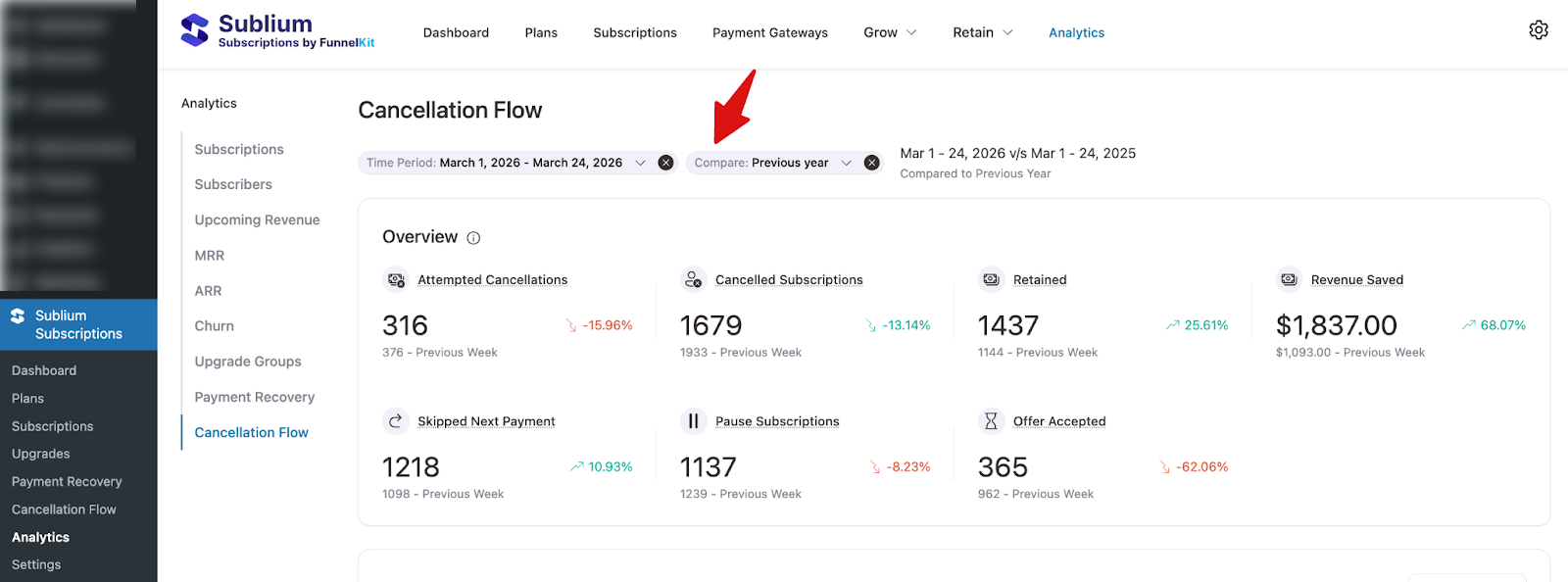
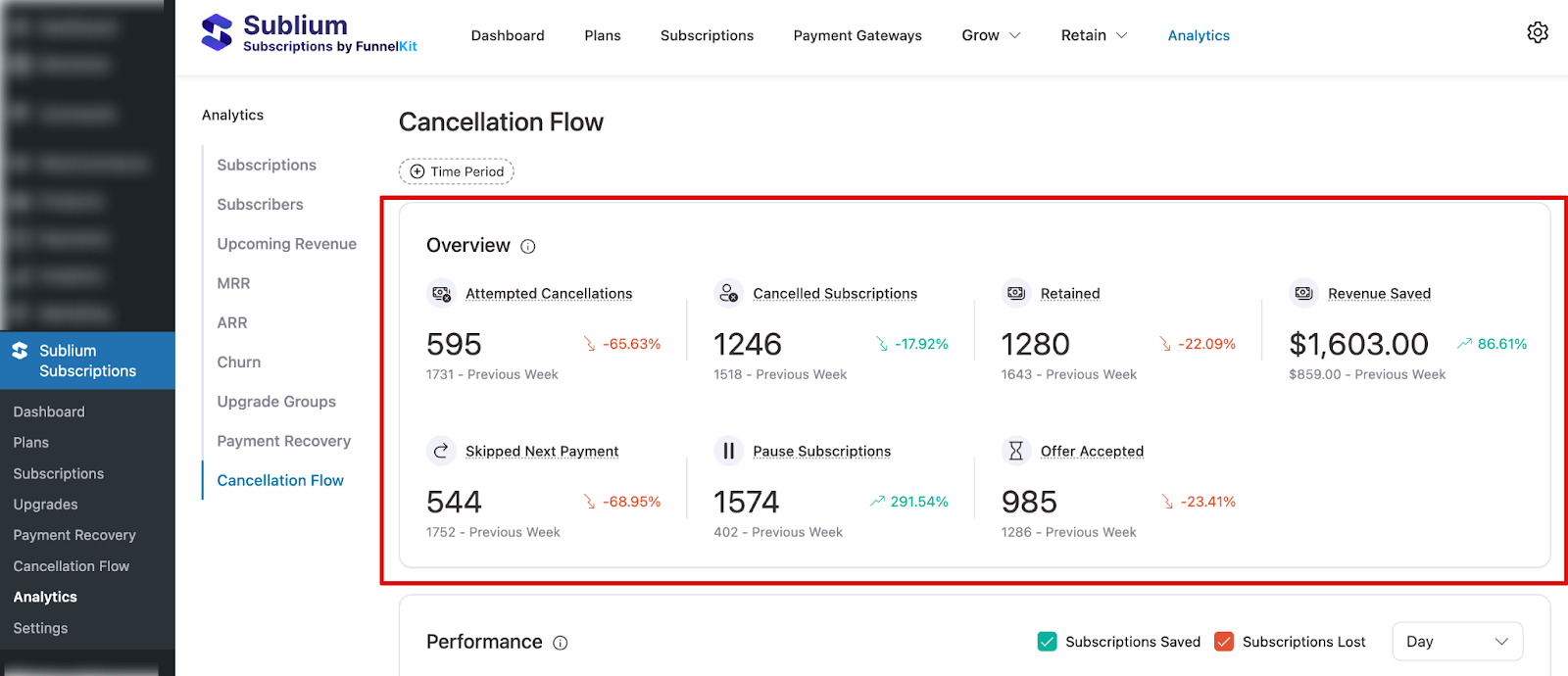
Overview
This section summarizes your cancellation flow performance within the selected period:
- Attempted Cancellations: Total number of subscribers who initiated the cancellation process.
- Cancelled Subscriptions: Number of subscriptions that were ultimately cancelled.
- Retained: Number of subscribers who were successfully retained after entering the cancellation flow.
- Revenue Saved: Total revenue saved as a result of successful retention.
- Skipped Next Payment: Number of subscribers who chose to skip their next payment instead of cancelling.
- Pause Subscriptions: Number of subscribers who paused their subscription instead of cancelling.
- Offer Accepted: Number of subscribers who accepted a retention offer during the cancellation flow.
Each metric also shows a percentage change compared to the previous period.
Performance
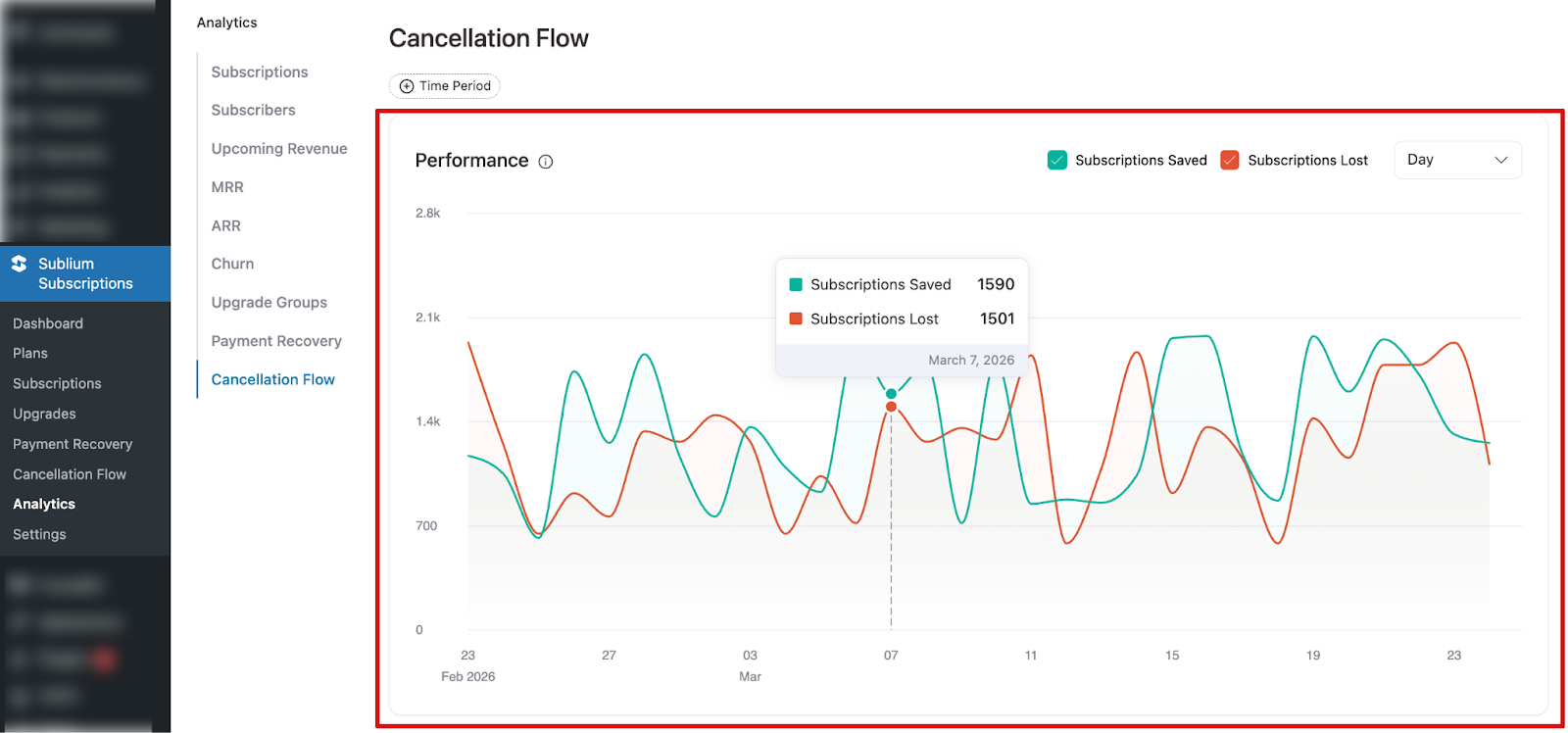
This section displays a visual graph showing cancellation flow trends over time. It helps you:
- Compare subscriptions saved vs. subscriptions lost
- Identify spikes in cancellation attempts
- Measure the effectiveness of retention efforts over time
You can switch the view between daily and weekly intervals and hover over data points to see exact values for each date.
Cancellation Reasons
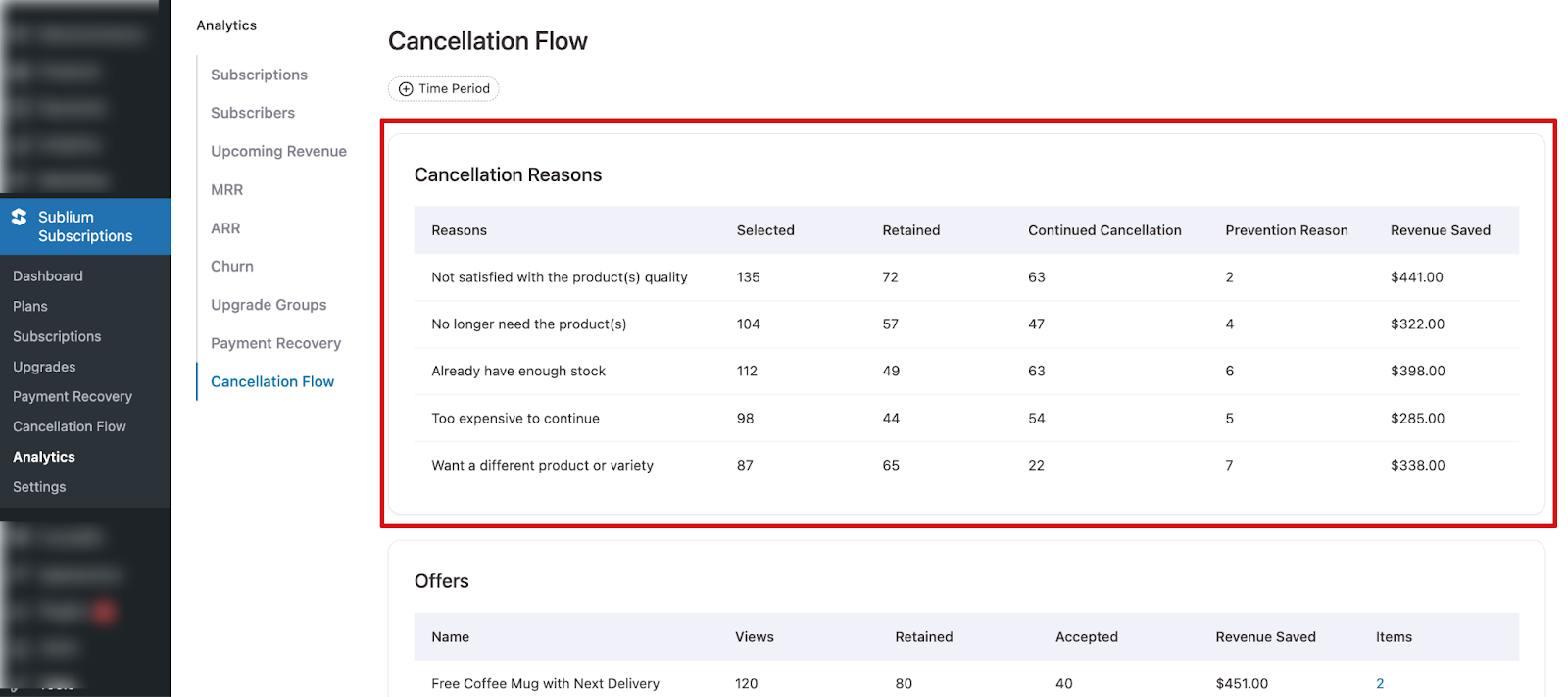
This table breaks down the reasons subscribers selected when attempting to cancel. For each reason, you can see:
- Reasons: The cancellation reason selected by the subscriber.
- Selected: How many times that reason was chosen.
- Retained: How many subscribers with that reason were successfully retained.
- Continued Cancellation: How many proceeded to cancel despite the flow.
- Prevention Reason: The number of prevention steps triggered for that reason.
- Revenue Saved: Total revenue saved from retaining subscribers with that reason.
This breakdown helps you understand the most common cancellation triggers and which reasons are hardest to recover from.
Offers
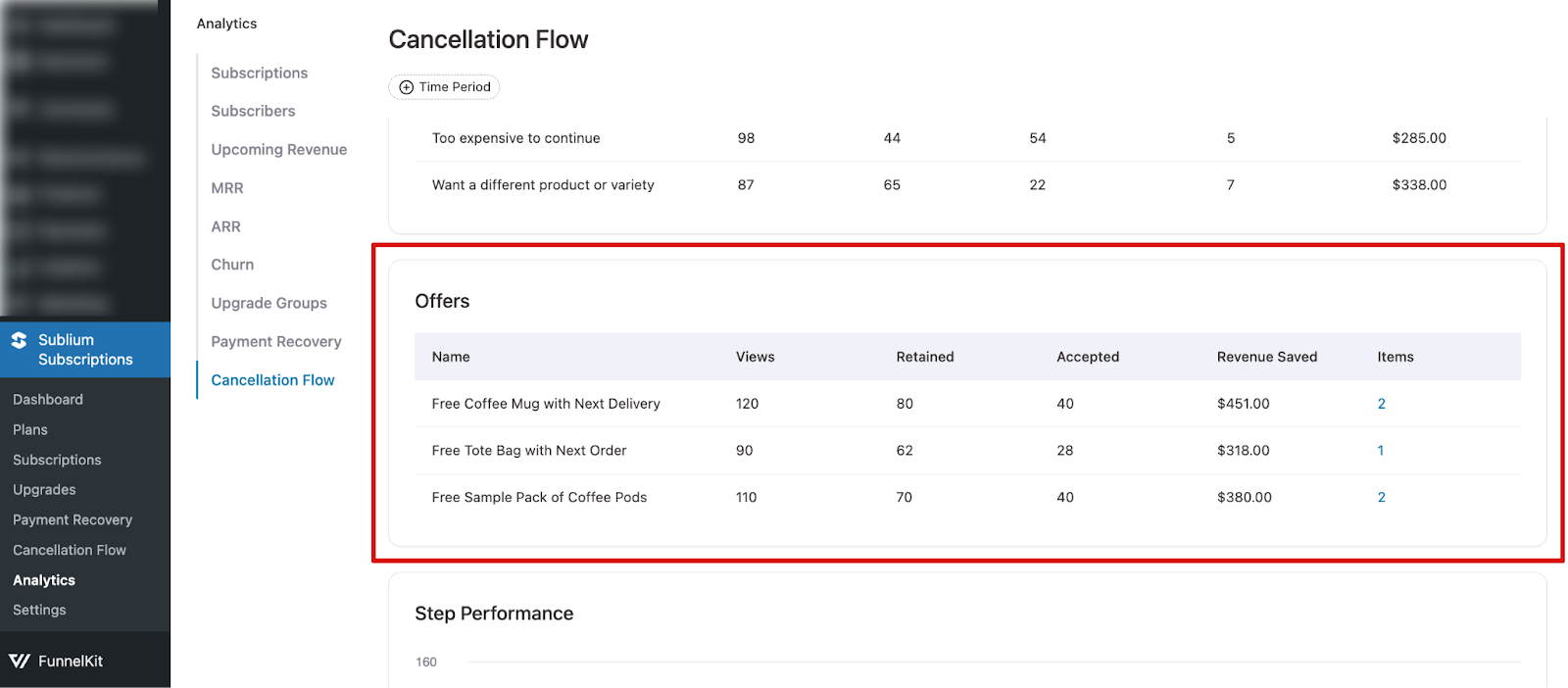
This table shows the performance of individual retention offers presented during the cancellation flow. For each offer, you can see:
- Name: The name of the retention offer.
- Views: How many times the offer was shown to subscribers.
- Retained: How many subscribers were retained after seeing the offer.
- Accepted: How many subscribers accepted the offer.
- Revenue Saved: Total revenue saved from accepted offers.
- Items: The number of items associated with the offer.
This data helps you identify which offers are most effective at preventing cancellations and saving revenue.
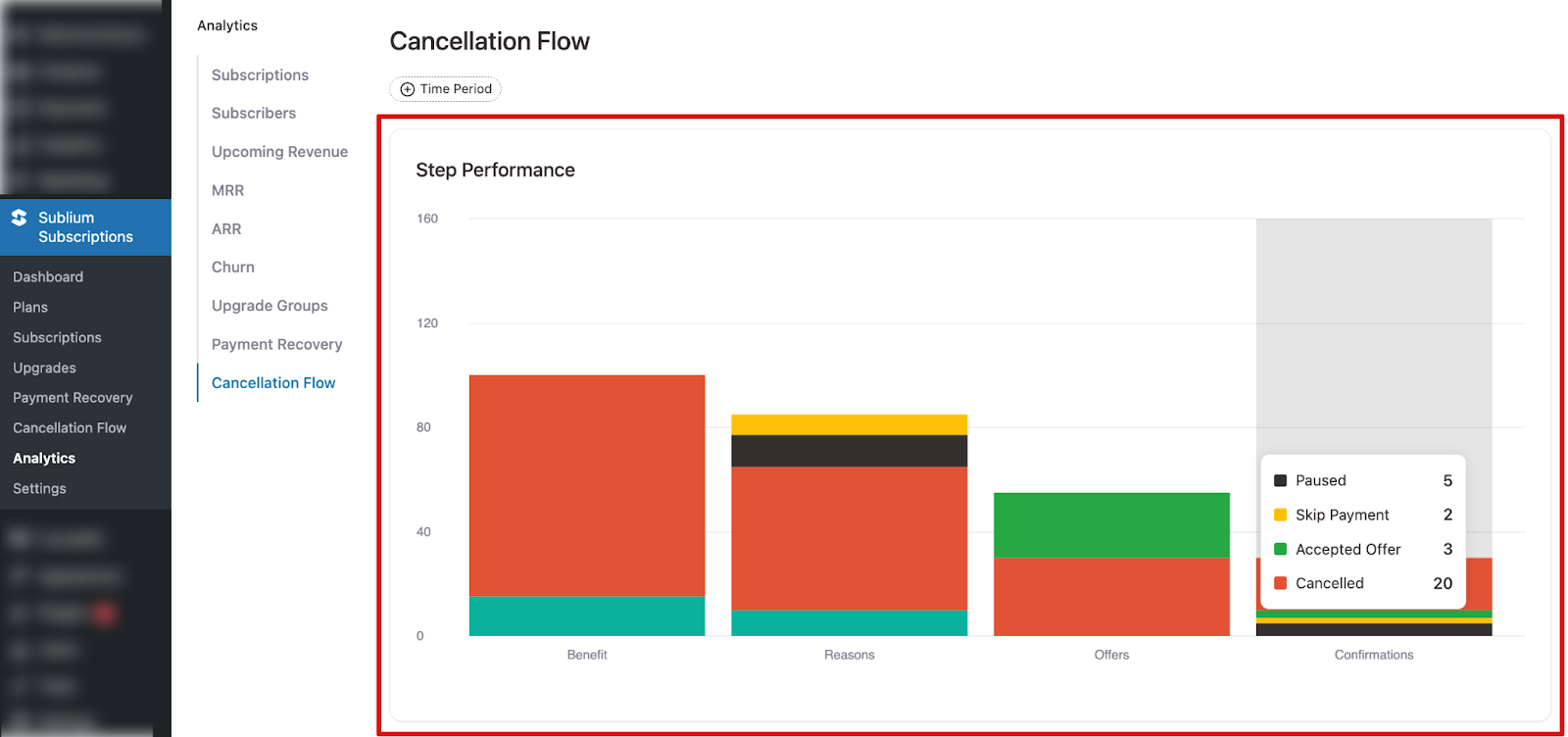
Step Performance
A stacked bar chart showing subscriber outcomes at each step of your cancellation flow. Each bar breaks down how many subscribers were saved, proceeded with cancellation, paused, skipped a payment, or accepted an offer at that stage.
The four steps tracked are:
- Benefit: Highlights the value of the subscription to the subscriber.
- Reasons: Subscriber selects their reason for cancelling.
- Offers: Targeted retention offers are presented based on the selected reason.
- Confirmations: Subscriber confirms their final decision.
Hover over any bar to see exact outcome counts per step.