

Configure how customers switch between subscription plans and choose from available selling plan options during cart and checkout.
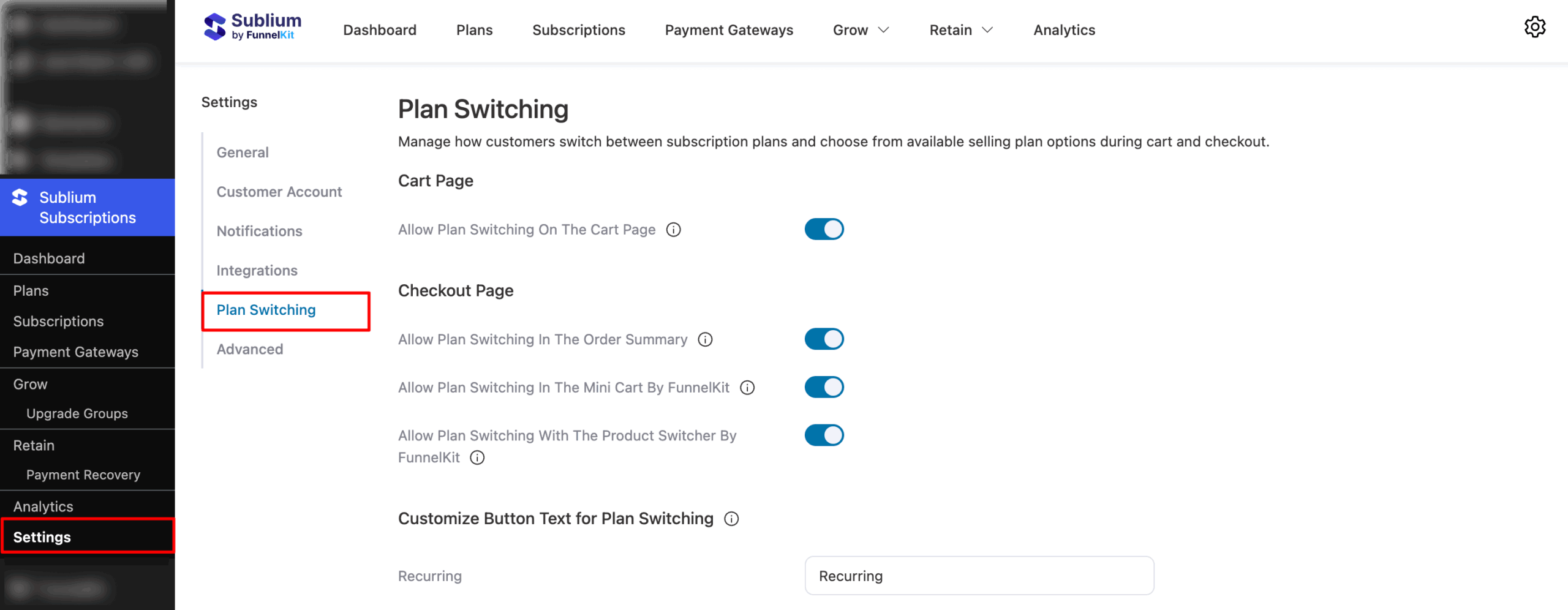
To access, navigate to Sublium Subscriptions → Settings → Notifications → Plan Switching.
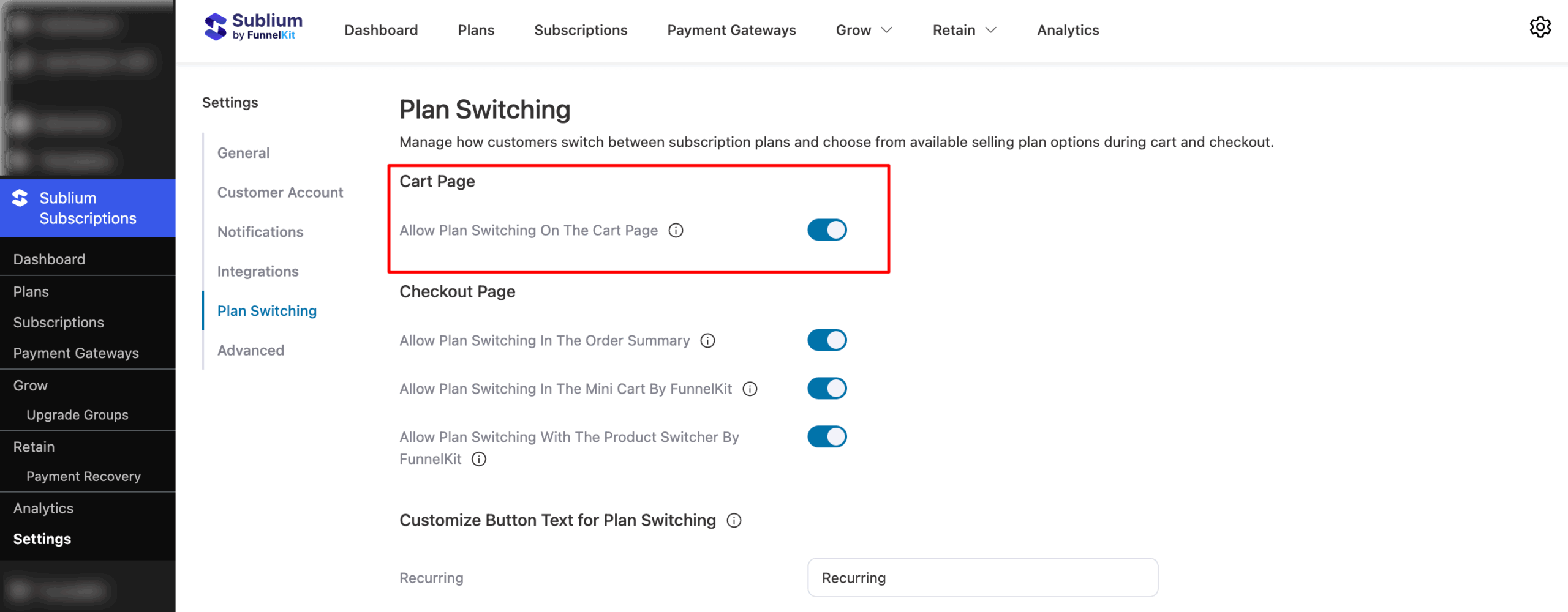
Cart Page
- Enable Plan Switching on Cart Page: Allow customers to switch between available subscription plans directly on the Cart page, giving them more flexibility before proceeding to checkout. This ensures that customers can adjust their subscriptions without leaving the cart, improving convenience and reducing the chance of abandoned carts.
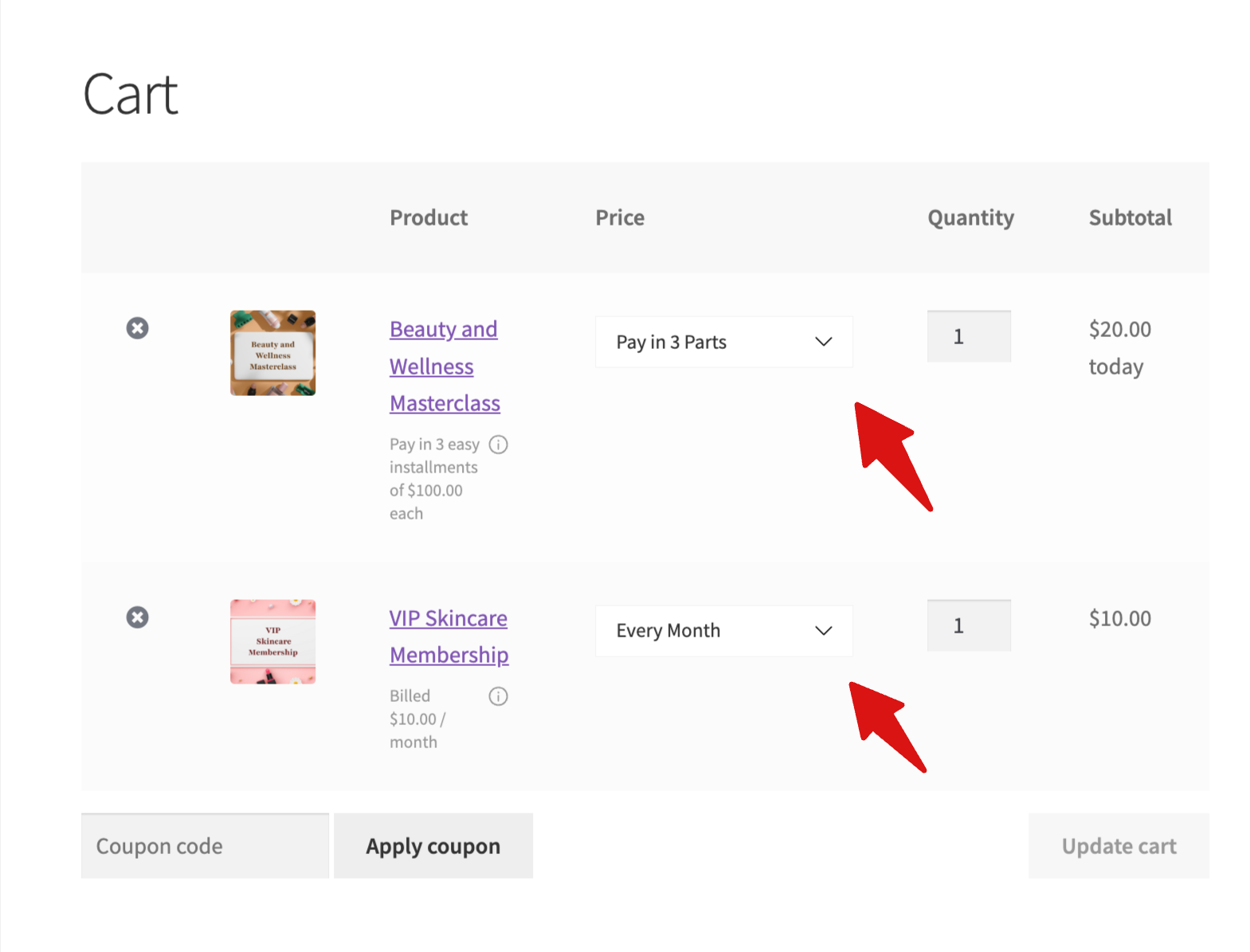
Here is how the plan switching options look on the cart page:
Checkout Page
Under the checkout page, you can enable plan switching options for the following locations:
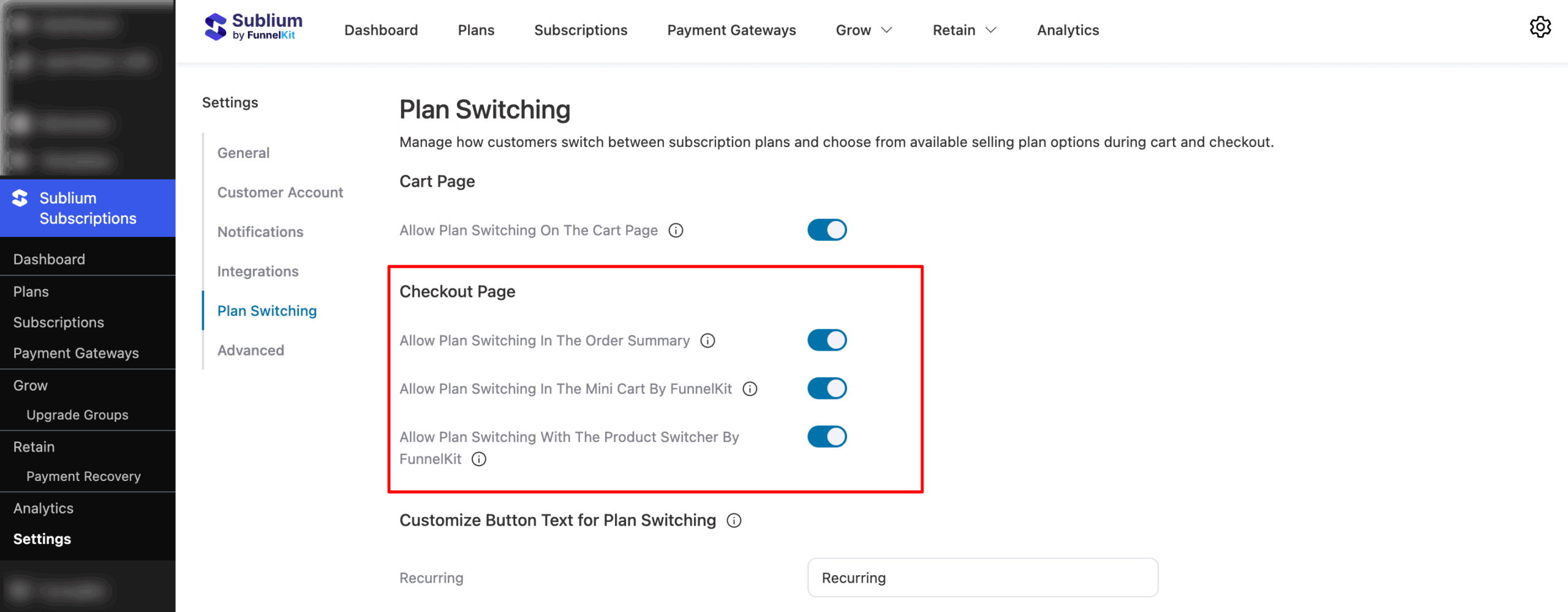
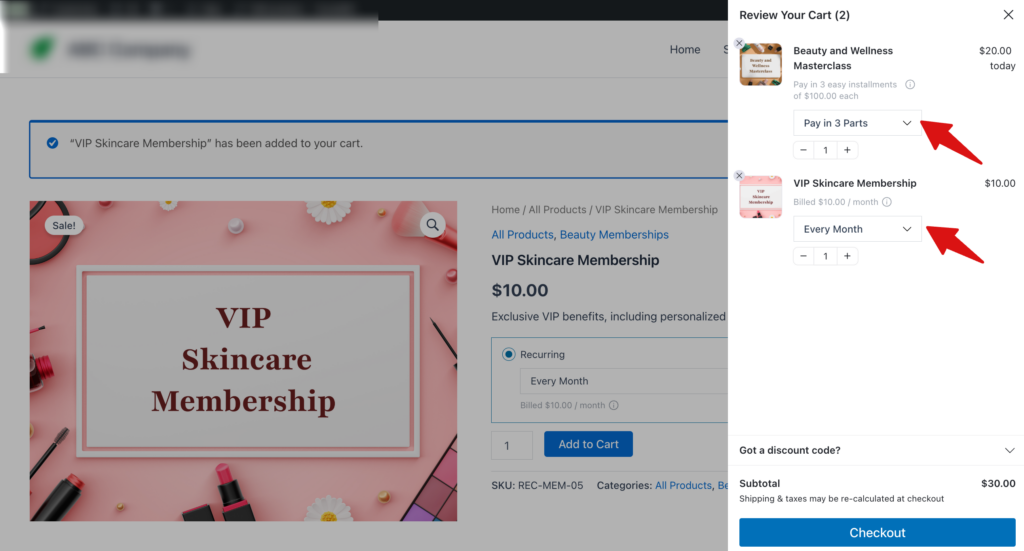
Enable Plan Switching in Mini Cart by FunnelKit: Allow customers to switch between available subscription plans directly within the mini cart. This means while reviewing their order summary before checkout, they can easily select a different plan without leaving the page.
Here is how plan switching options look on the FunnelKit side cart:
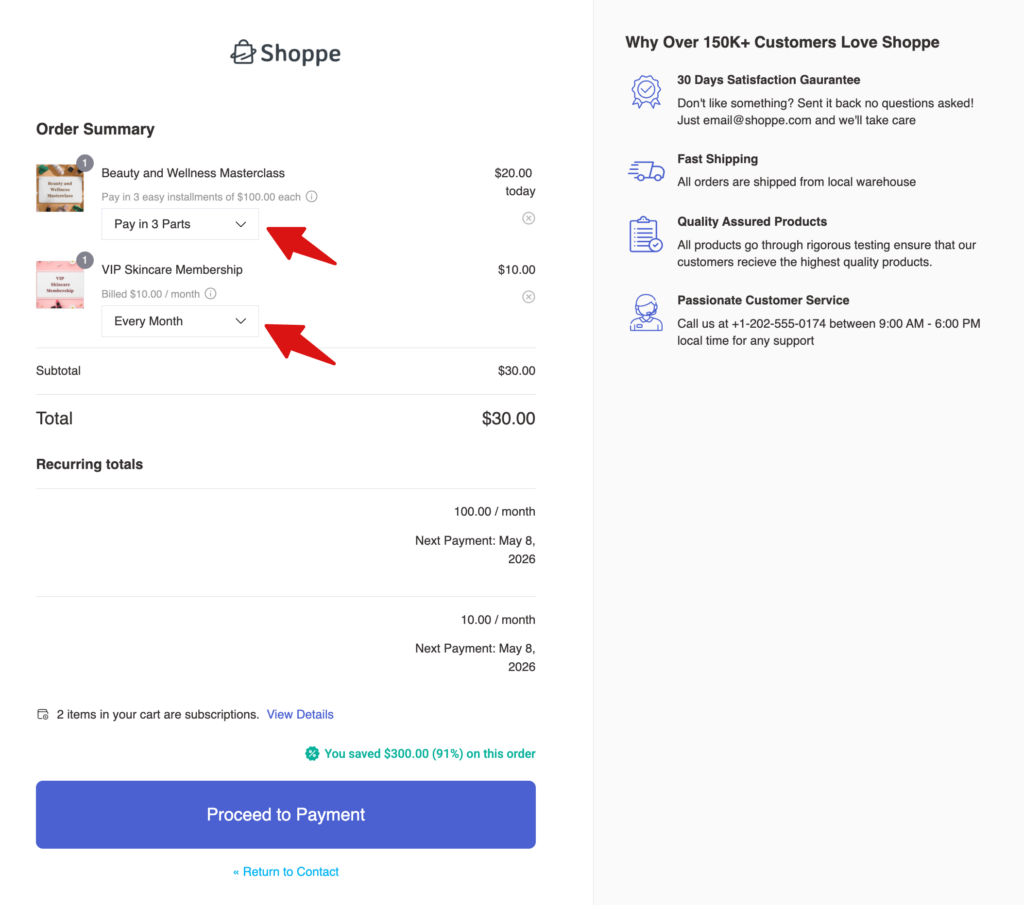
Enable Plan Switching in Order Summary: Give customers the flexibility to switch subscription plans directly on the checkout page while reviewing their order details in the Order Summary section. This ensures they can make final adjustments to their subscription choice before placing the order, without going back to the product page.
Note: This will also be available as a collapsible order summary, which improves the shopping experience for mobile users.
Here is how plan switching options look on the order summary:
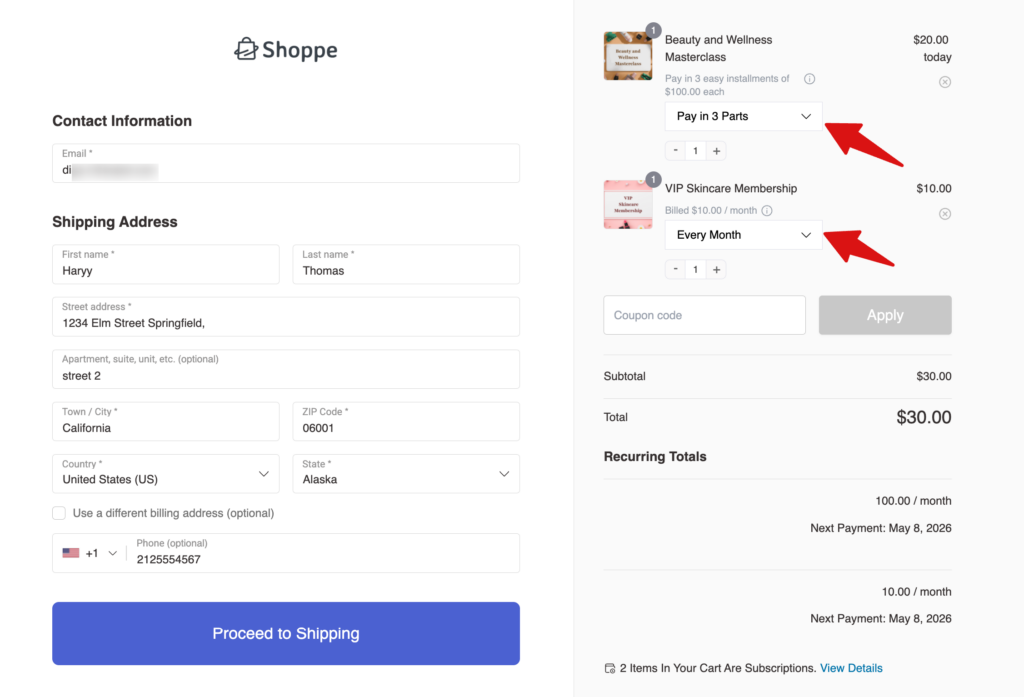
Enable Plan Switching in Product Switcher by FunnelKit: Activate this option to allow the FunnelKit Product Switcher to show all available subscription products or variations during checkout. Customers can switch plans directly from the switcher, enabling a smooth transition between products or subscription tiers without disrupting the checkout flow.
Here is how plan switching options look on the mini cart on the FunnelKit checkout page:
Customize Button Text for Plan Switching
Customize the text on the button that appears on the cart and checkout pages. When clicked, customers can view the selling plan.
Configure the following options:
- Recurring: Enter the text for the recurring subscription plan button. Default: “Subscription”
- Subscribe & Save: Enter the text for the subscribe & save plan button. Default: “Subscribe and Save”
- Installments: Enter the text for the installments plan button. Default: “Pay in Parts”
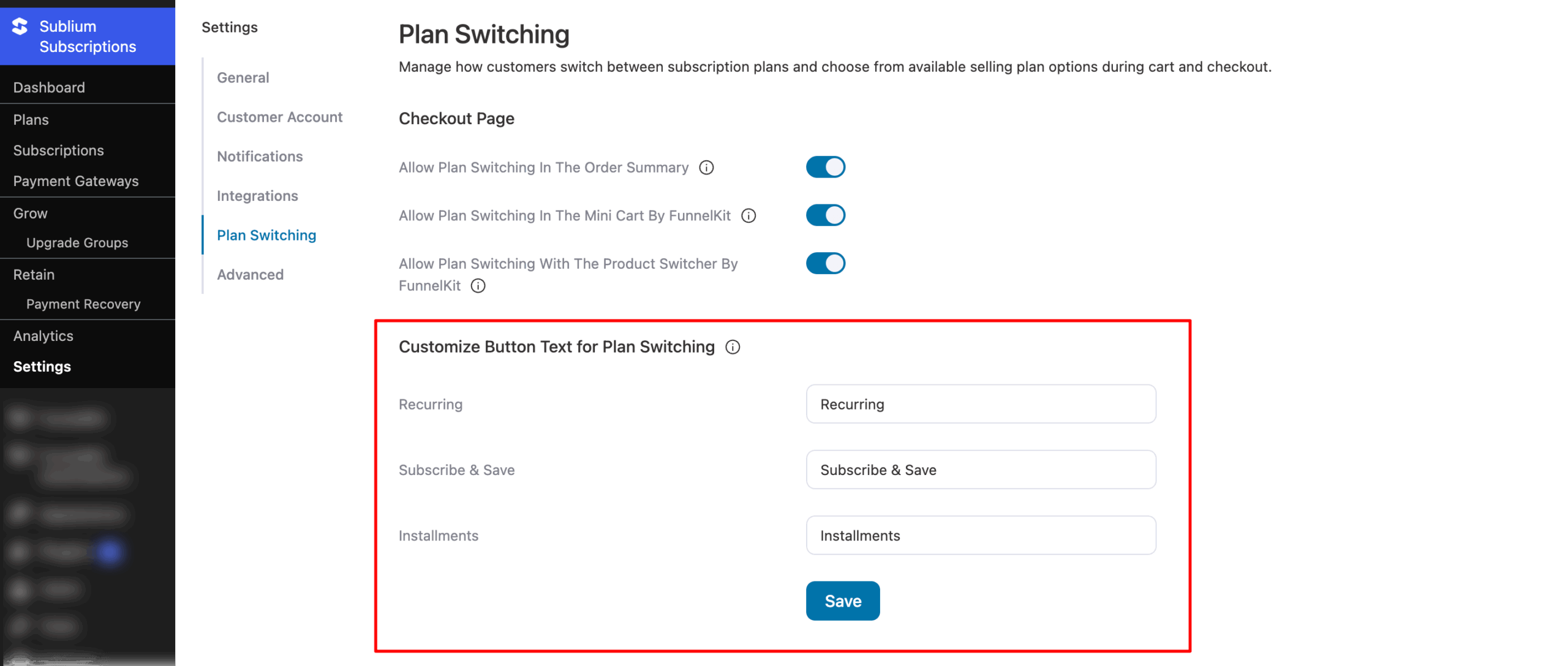
Click on Save to update all changes.


