


WooCommerce subscription email notifications are automated emails that your store sends whenever something happens with a customer’s subscription, such as a successful renewal, a failed payment, or a cancellation.
But these emails do much more than simply send updates. They keep subscribers informed, engaged, and confident throughout their entire subscription journey.
That matters more than most store owners realize.
A huge chunk of subscription churn happens involuntarily when cards expire, payments fail, and no one follows up.
The difference between recovering that revenue and losing that customer often comes down to one thing: did the right email go out at the right time?
In this guide, you will learn everything about WooCommerce subscription email notifications, from confirmations to renewals, automation, and best practices, so you can reduce churn, recover failed payments, and keep your business growing on autopilot.
What Are the Different Types of WooCommerce Subscription Emails?
WooCommerce subscription emails are automated notifications that keep customers updated about important subscription events such as creation, renewal, cancellation, upgrades, payment failures, and upcoming charges.
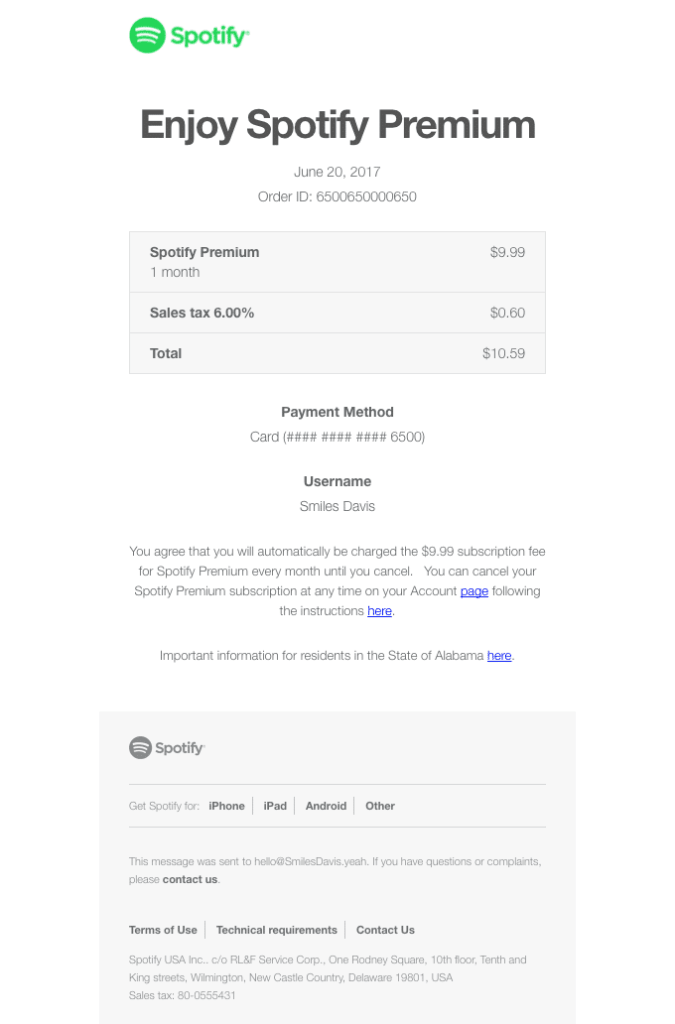
For example, here is a Spotify subscription confirmation email. It confirms the subscription by sharing key details, including the user’s name, payment method, and next payment date.
You can send multiple emails at different stages to improve communication and reduce churn.
WooCommerce Subscriptions triggers a different email for almost every scenario. Here’s how they break down.
1. Subscription Setup Emails
Two emails are triggered when a customer first starts a subscription.
Subscription Created
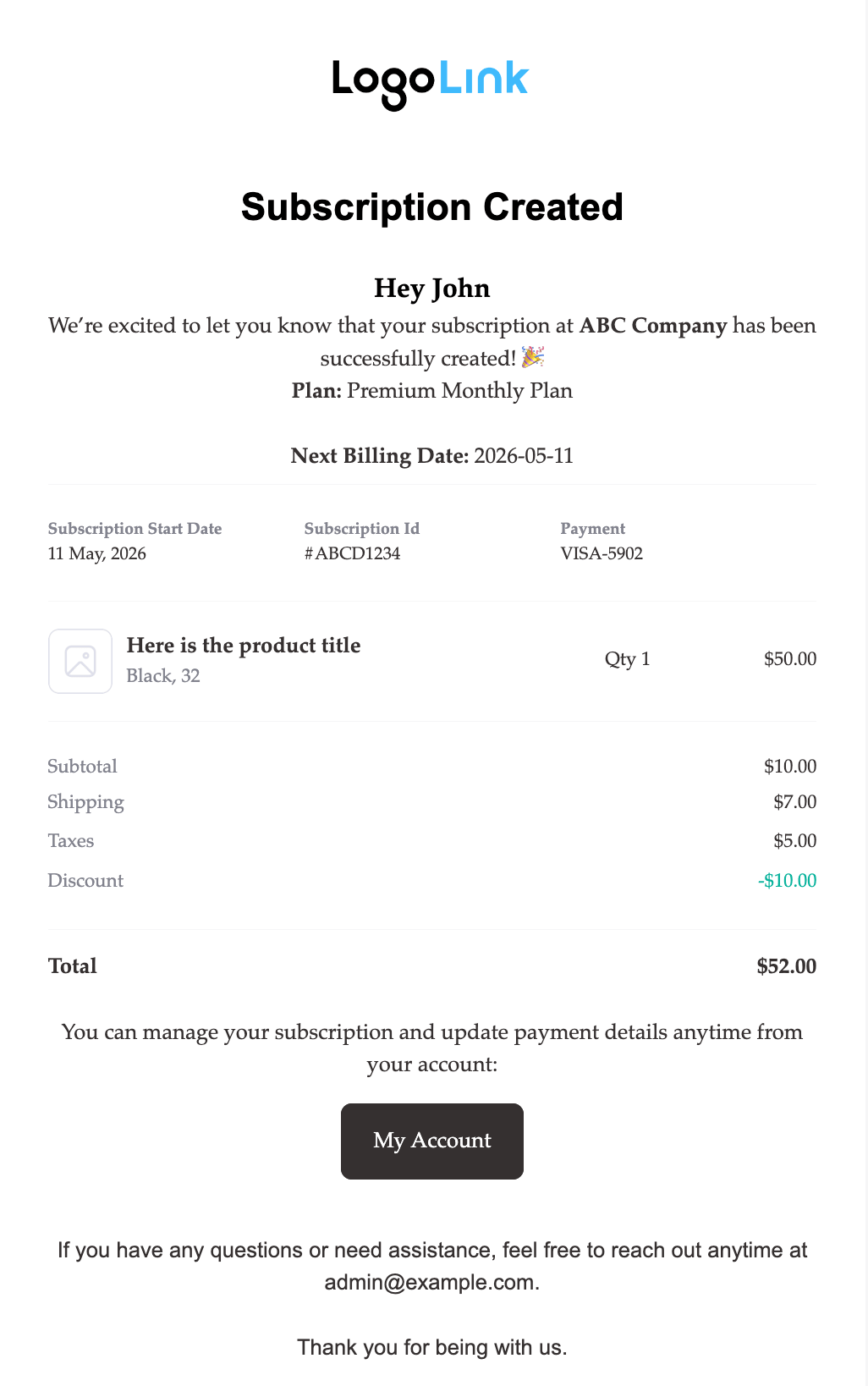
This email lands in the customer’s inbox the moment a new subscription goes live. It confirms the subscribed plan, billing schedule, payment method, and next renewal date, everything they need to know before the first charge occurs.
Subscription Trial End
This email is sent when the free trial period ends. It gives customers a clear heads-up that regular billing is about to begin, reducing surprises and improving retention.
2. Renewal Order Emails
Four emails handle recurring billing, covering both customers and admins.
New Renewal Order
This is sent to both customers and admins when a renewal payment is successfully processed. It helps track recurring revenue without needing to check reports.
Processing Renewal Order
Sent to the customer when their renewal payment has gone through and their subscription remains active for the next billing cycle.
Completed Renewal Order
This email confirms that the renewal process has been fully completed without any interruption. For renewals, admins also receive a notification.
Customer Renewal Invoice
When automatic billing fails or manual renewals are enabled, this email provides renewal details along with a payment link so the customer can complete the payment manually. It is typically used when a renewal order is created, but payment is still pending.
3. Failed Payment Recovery Emails
Three emails manage the recovery process when recurring payments fail.
Renewal Payment Failed
This email notifies both the customer and store admin when an automatic renewal payment attempt fails. Prompt notification helps prevent unnecessary subscription lapses.
Usually, multiple retry emails are sent to the customer when another payment attempt is scheduled. These emails include the retry date, payment details, and a manual payment link so the customer can act immediately instead of waiting.
Card Expiry Reminder
This email is sent before a saved payment method expires. It prompts customers to update their billing details ahead of the next renewal, one of the most effective ways to prevent failed payments before they happen.
4. Upgrade Completed
Sent when a customer successfully upgrades, downgrades, or switches to another subscription plan.
This email confirms that the subscription change has been completed successfully and typically includes updated plan details, pricing changes, and future billing information.
5. Additional Emails For Subscription Status Change
These trigger whenever a subscription moves between statuses. Every transition has a corresponding notification:
- trial → active after the free trial ends
- pending → active after the initial payment completes
- active → on hold following a failed payment
- on hold → active after payment recovery
- active → paused when a customer temporarily suspends their subscription
- paused → active when the subscription is resumed
- overdue → renewed after an outstanding payment is successfully collected
- active → canceled or expired when the subscription ends
Customers always know where their subscription stands. Your team does too. That alone cuts a significant chunk of support requests.
Why Subscription Emails Are Important To Grow Your Business And Retain Customers
Skip subscription emails, and the problems show up fast. Customers miss renewal notices. Failed payments go unaddressed. Cancellations happen that didn’t need to.
These emails exist because subscriptions require ongoing communication, not just at signup, but at every stage that follows.
Here’s why they matter:
- Improves customer clarity : Timely updates at every stage mean fewer confused customers and fewer support requests asking what just happened to their account.
- Failed payment recovery : Automatic alerts for failed payments, retry schedules, and expiring cards intercept problems early, before an avoidable cancellation goes through.
- Renewal success rate: Reminders prompt customers to act. Confirmations close the loop. Both contribute directly to renewal rates.
- Billing transparency: When customers understand what they’re being charged, why, and when, trust follows. Trust reduces cancellations.
- Automated communication: No manual intervention needed. The sequence handles itself.
Most subscription churn isn’t intentional. Customers leave because something confused them, surprised them, or slipped through the cracks. Good subscription emails fix all three.
How to Send Automated WooCommerce Subscriptions Email Notifications?
To send automated WooCommerce subscription email notifications, we will use Sublium Subscriptions to handle all key subscription-related communication in a structured and reliable way.
Sublium Subscriptions is a WooCommerce subscription plugin focused on automated subscription email notifications and lifecycle updates.
It helps you keep customers informed at every stage of their subscription, including subscription creations, renewals, upcoming renewals, failed payments, and more.
With Sublium Subscriptions, you can easily automate WooCommerce subscription emails and improve retention by making sure every important subscription event triggers the right notification at the right time.
You will need both the free and premium versions of Sublium Subscriptions.

Here, we’ll set up the email when a customer successfully places a new subscription order. You can follow the same process for similar emails:
Step 1: Go to Email Notifications in Sublium Subscriptions
Navigate to Sublium Subscriptions ⇒ Settings ⇒ Notifications.
Here you will find all email notifications related to subscriptions, installments, and admin alerts.
Note: You can find the admin email notifications in the Admin tab in the same location.
To customize the new subscription email, click on the “Edit” option next to Subscription Created.
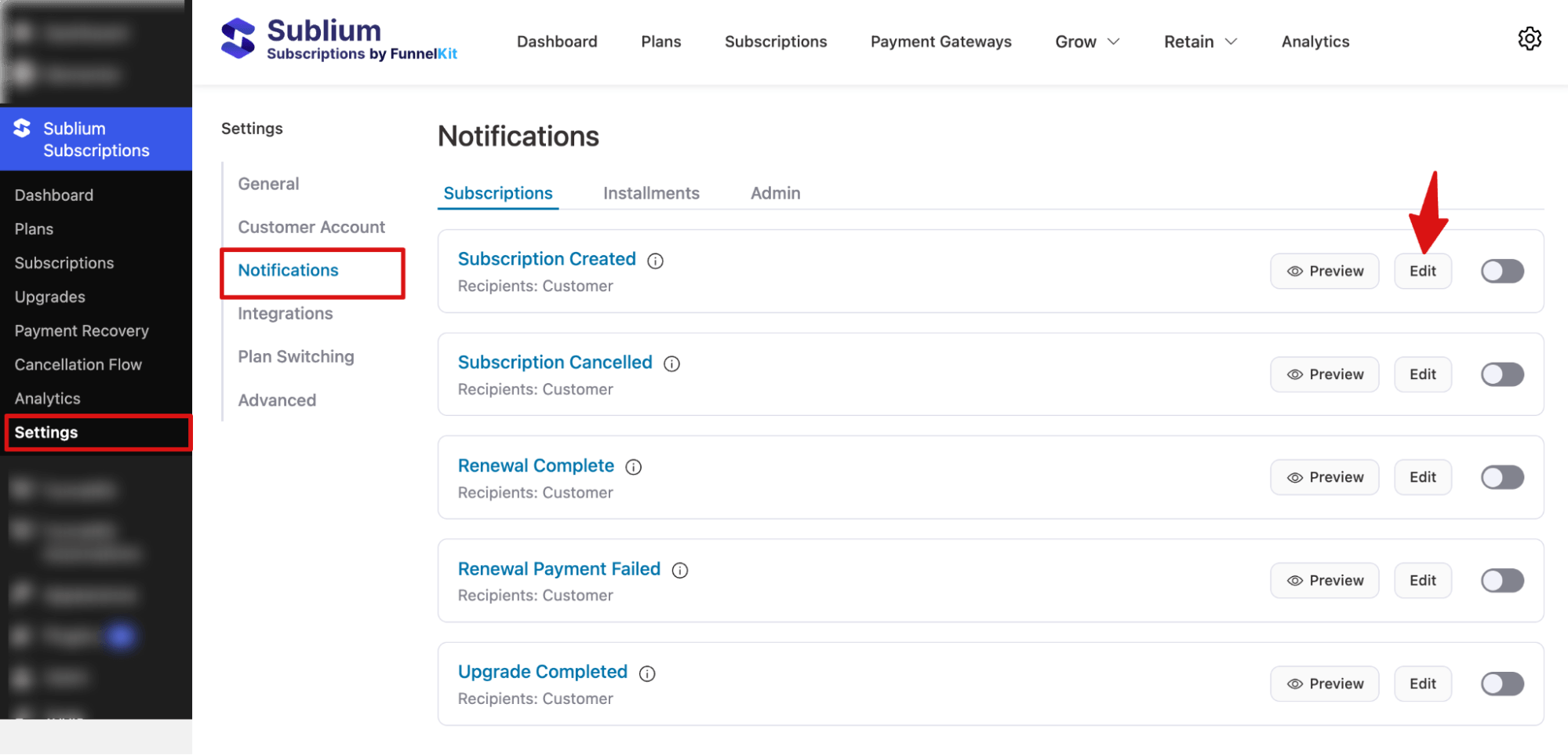
Fill in your from name, from email, and reply-to email address.
Next, enter your subject line and preview text. Make sure to use merge tags to add dynamic information like {{subscriber_first_name}}, {{subscription_plan}}, etc.
. You get two templates to customize your subscription email:
- Visual Builder – Create attractive emails with different drag-and-drop content blocks
- Rich Text – Simple text-based emails
Let’s select ‘Visual Builder’ and hit ‘Edit’ to customize your email.
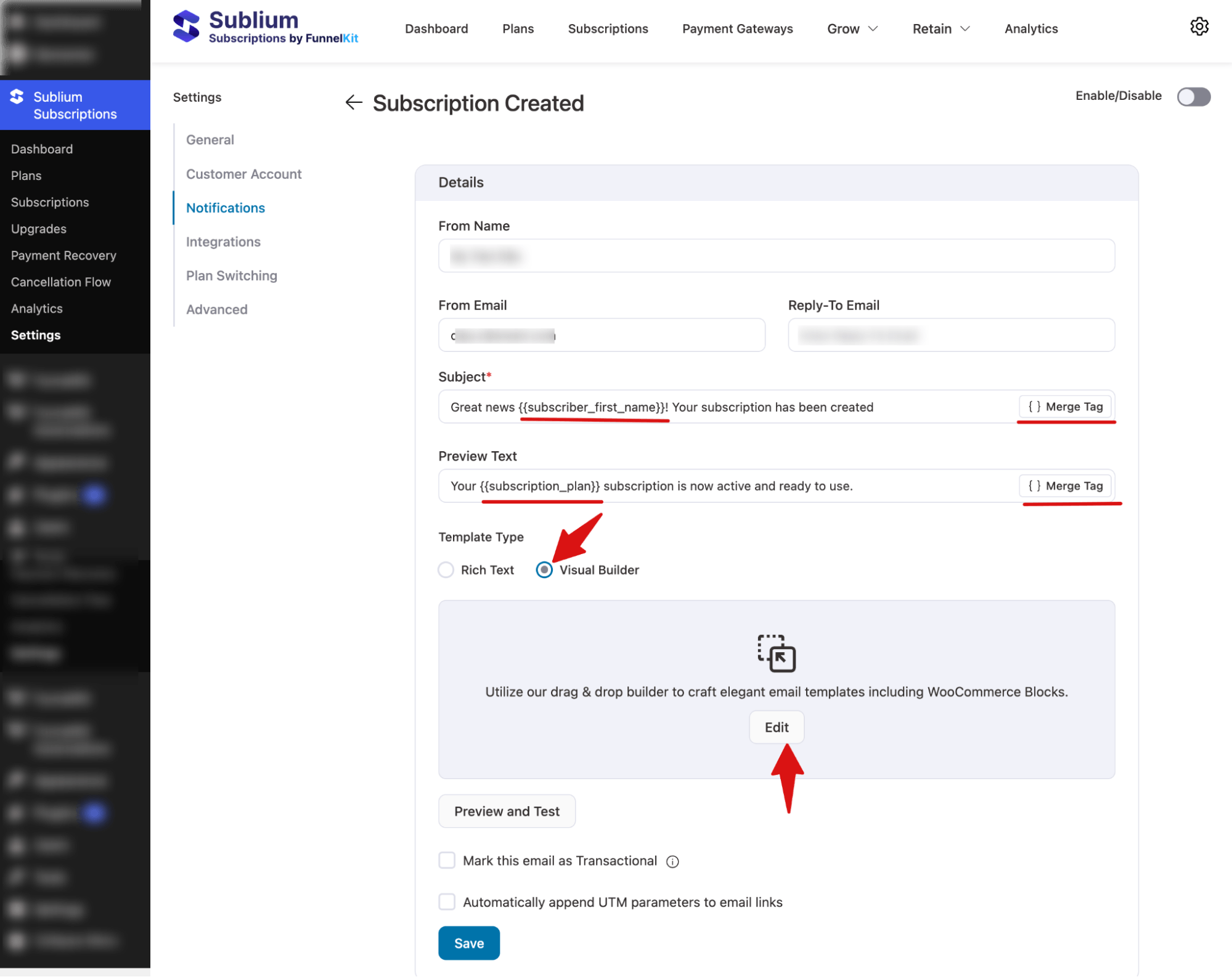
This will open your WooCommerce subscription email in the visual builder window.
Step 2: Customize WooCommerce subscription email notification
You’ll see the content blocks and customization options on the left and your workspace on the right.
You can customize the content blocks by dragging and dropping them into your workspace.
Let’s customize the prebuilt template:
Logo
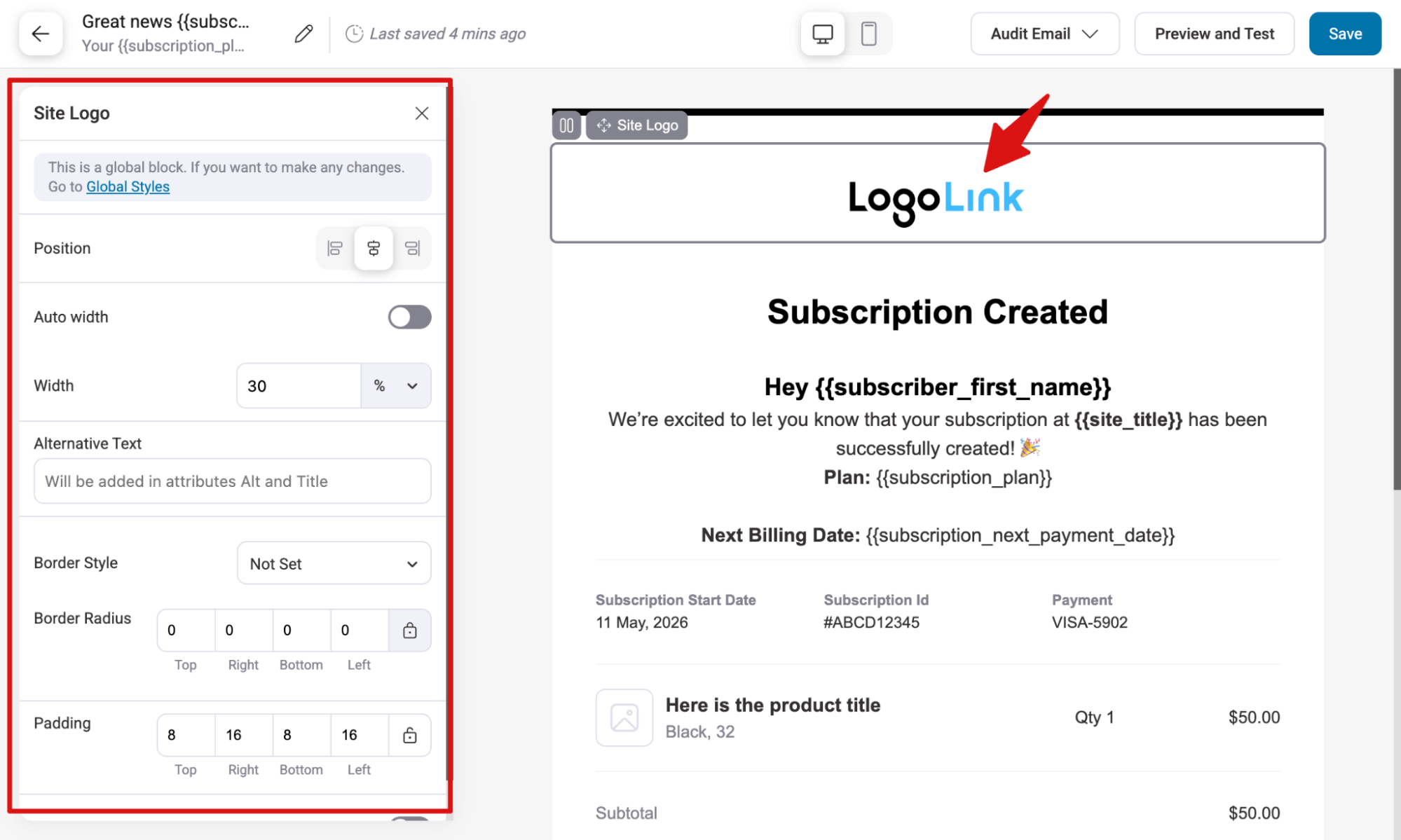
First, let’s use the “Site Logo” block to add a logo to your WooCOmmerce subscription email.
Note: You can set the site logo in global settings, which will be applicable for all subscription emails.
After adding, you can set position, width, alternative text, border style, etc.
Email body content
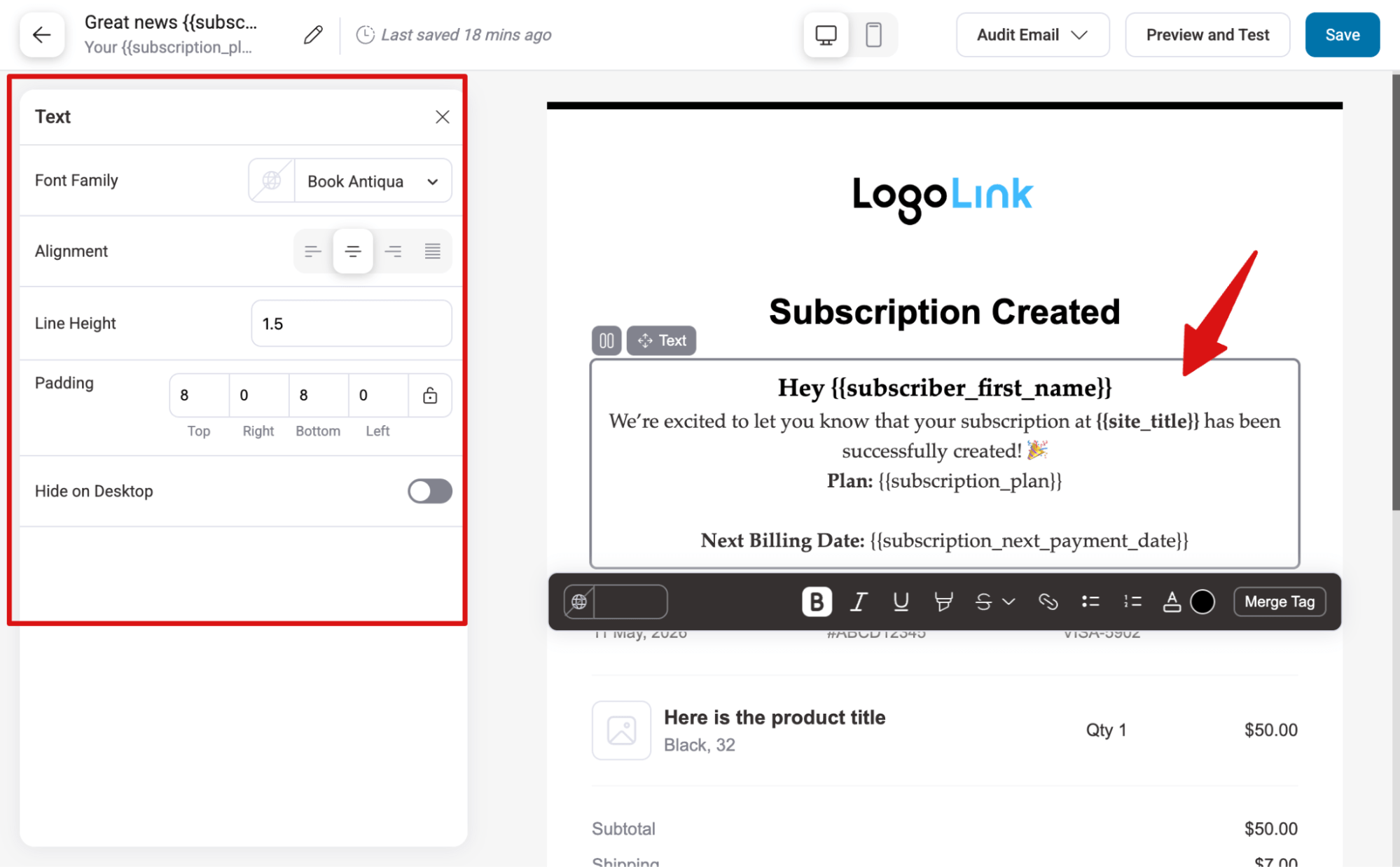
Next, customize the email body content.
Here is the default content:
Subscription detail section
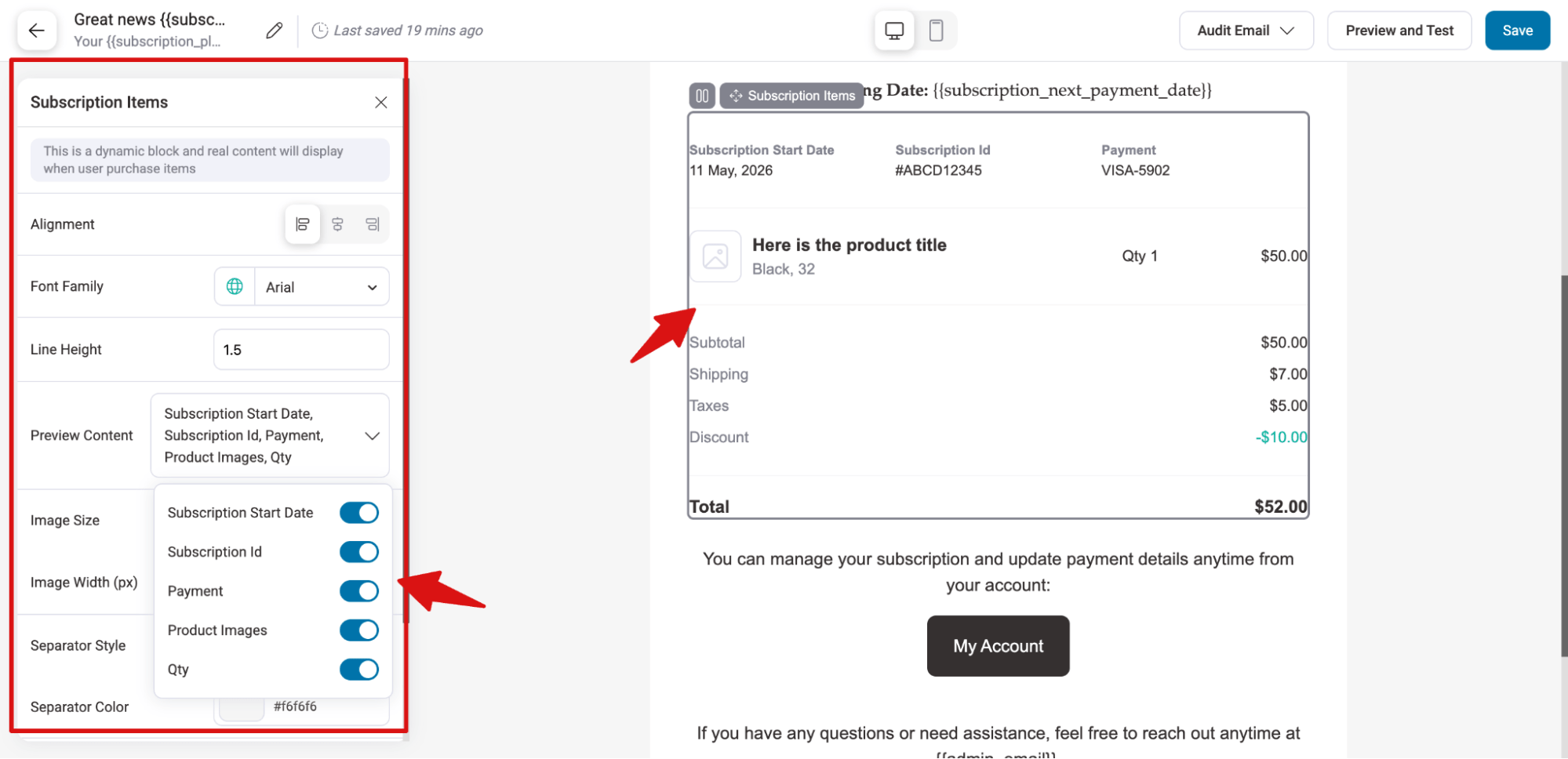
Next, in the subscription details section, you’ll see key information such as the Subscription Start Date, ID, payment status, and full order details, including product, quantity, shipping, taxes, and total amount.
You can also customize the layout by adjusting alignment, font family, and line height for better readability. Depending on your subscription setup, you can choose to hide specific elements like Subscription Start Date, Subscription ID, Payment details, Product Images, and Quantity to keep the section more focused and minimal.
My Account CTA
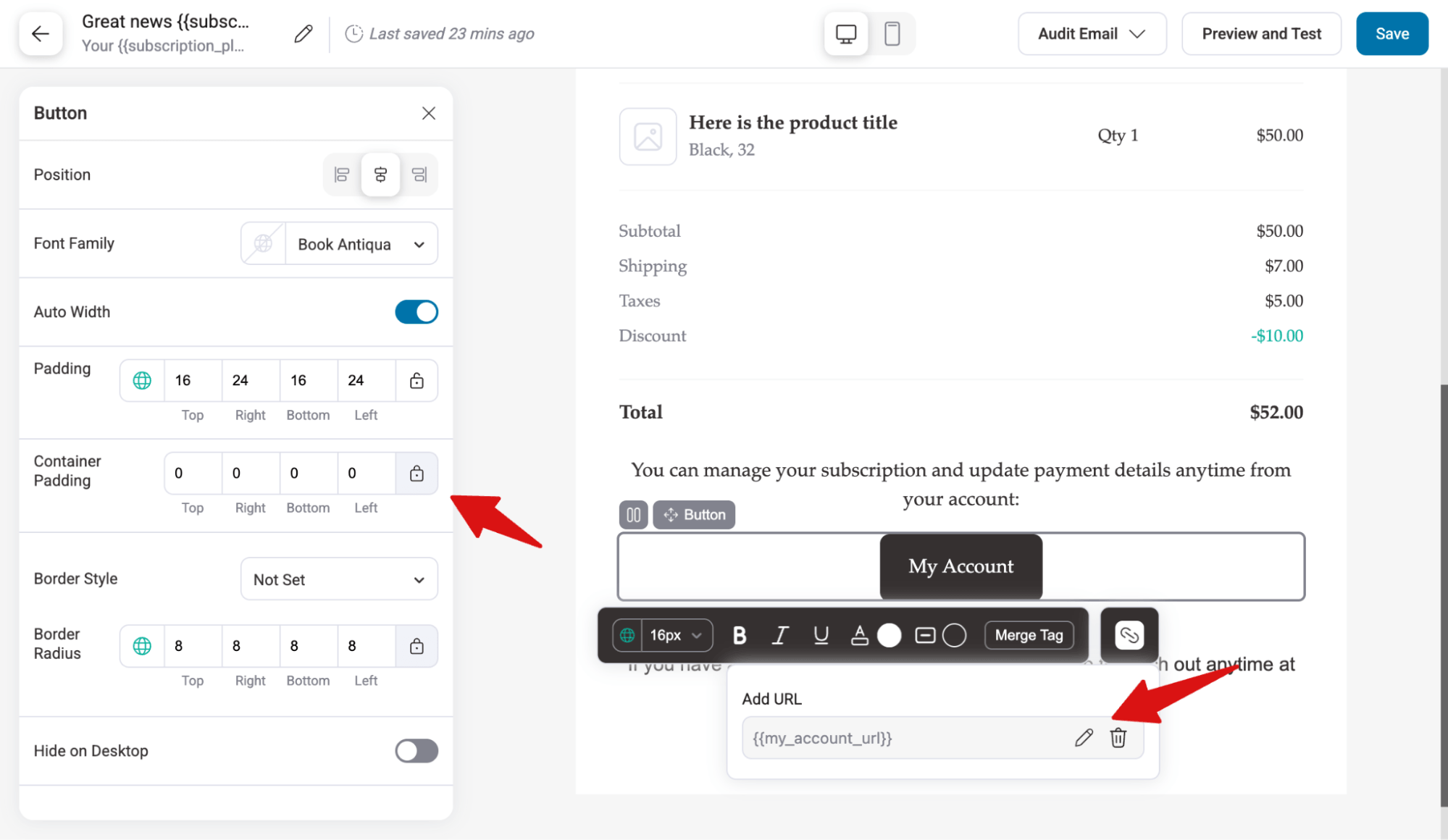
Next, the subscription email includes a CTA button called “My Account”, which uses a merge tag ({{my_account_url}})to direct users to their account page. From there, they can view their subscription details and take any necessary actions if needed.
As per the styling, you can change position, font family, width etc.
Add more content
If you want, you can add more content using the existing blocks like image, button, divider, social, etc.
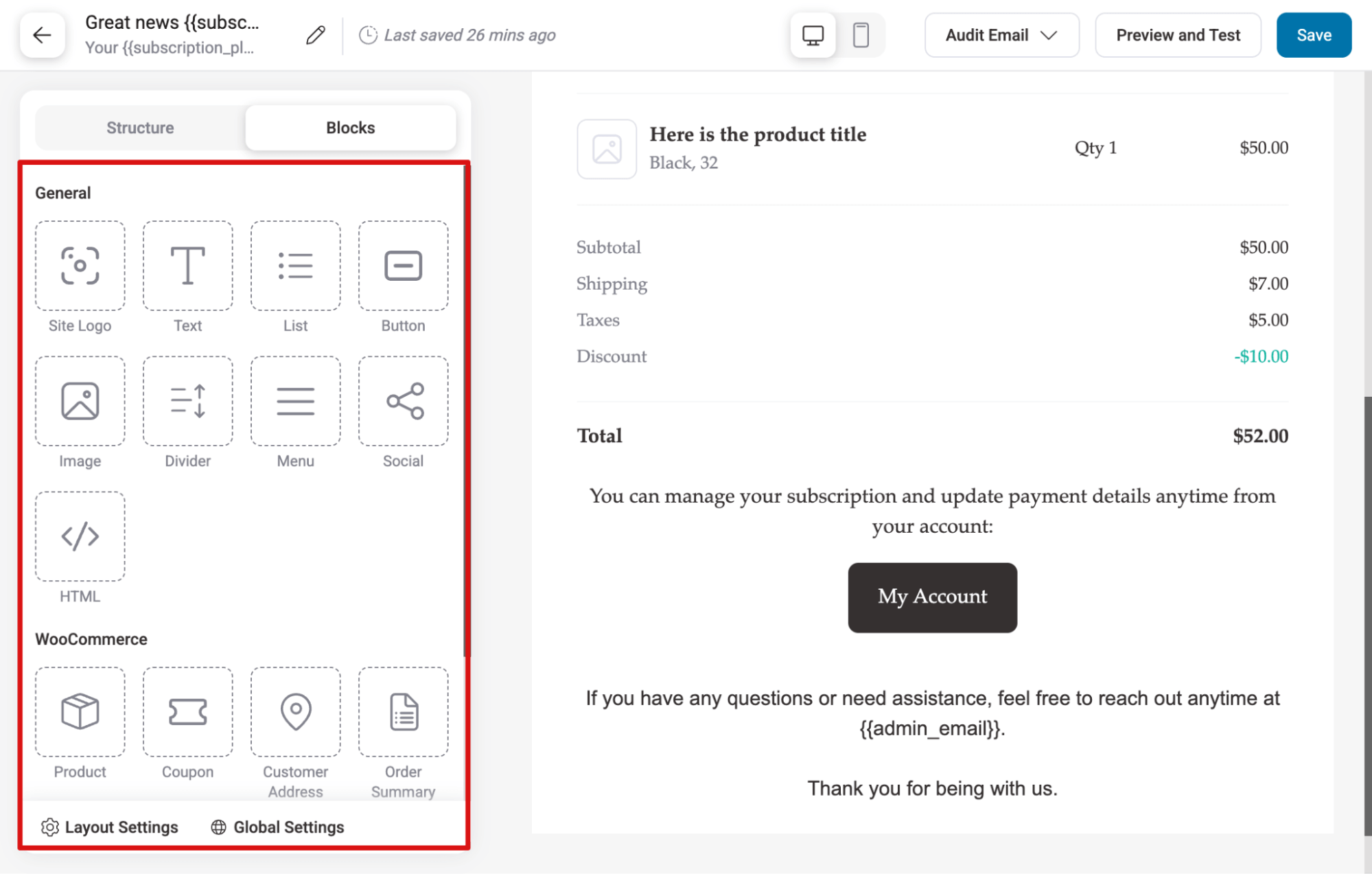
Note: You can hide any section on the desktop if needed
Once you are happy with the subscription email, hit “Save” to update.
Step 3: Preview and send test subscription email
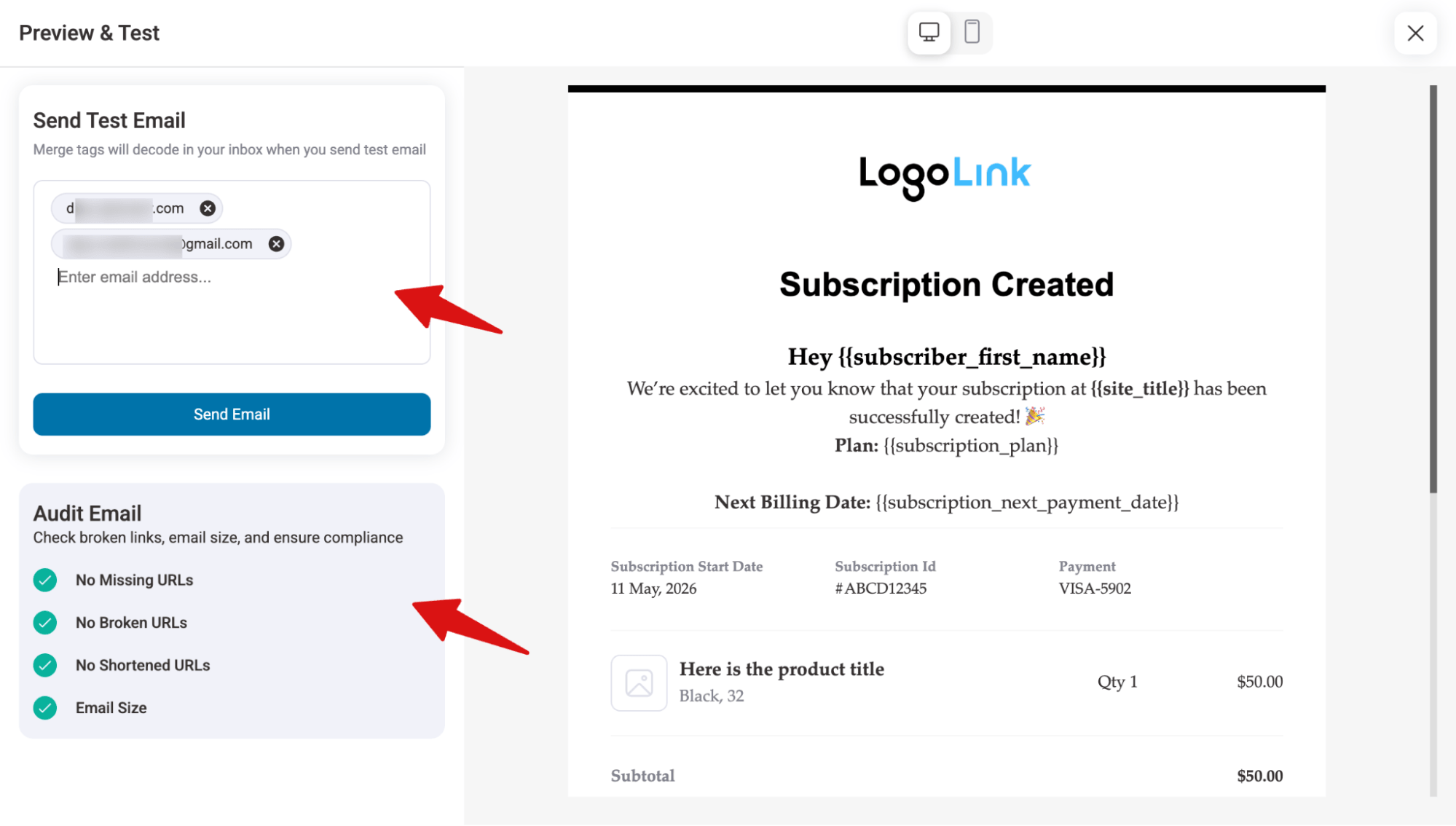
To audit, preview, and test, hit the “Preview and Test” button, and you will land on a new window where you can see the email audit result for Missing URLs, Broken URLs, Shortened URLs, and Email Size.
You can see the preview on a desktop and send test emails to multiple recipients at the same time.
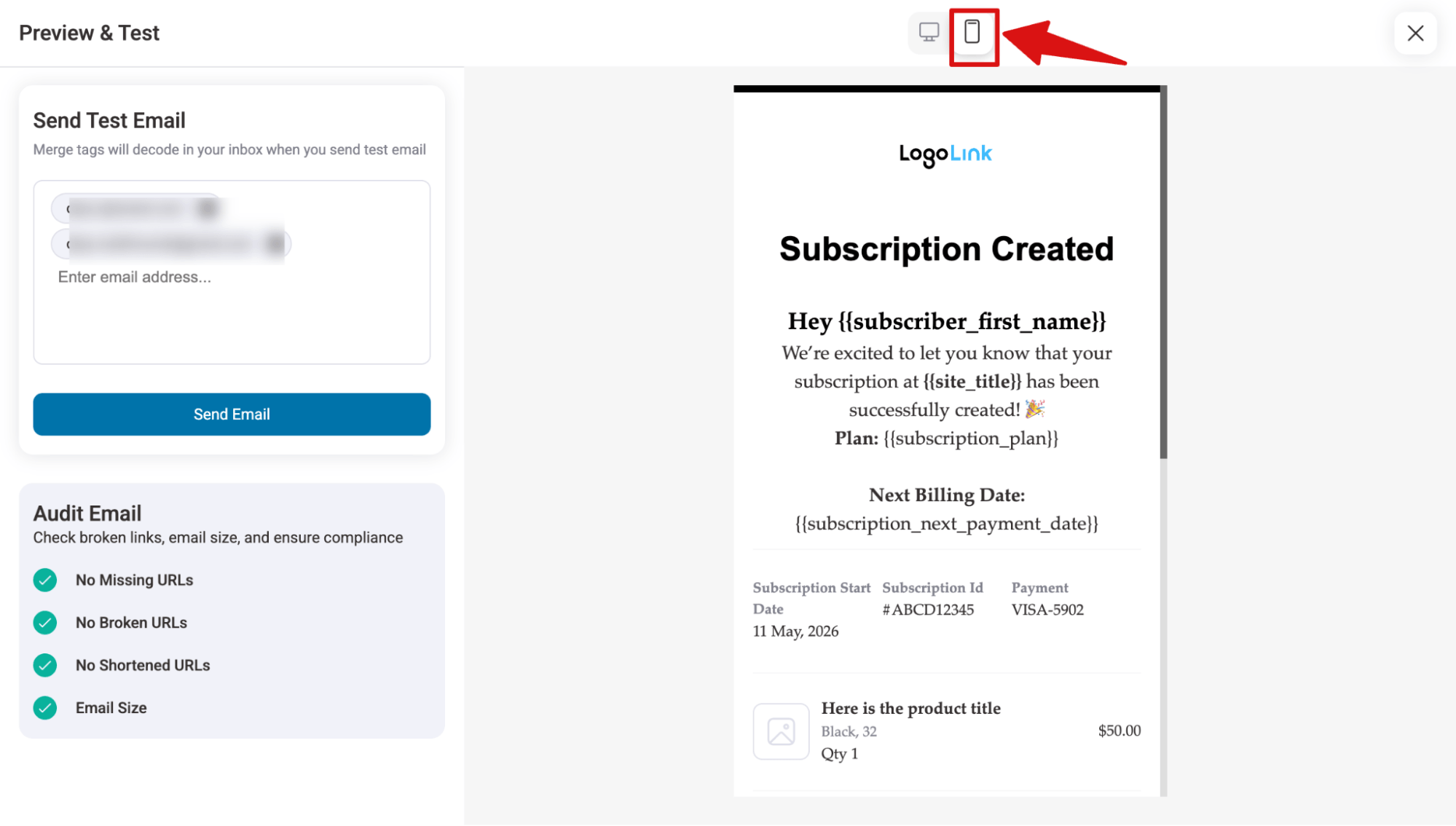
You can also check the mobile device preview.
Step 4: Activate the WooCommerce subscription email notification
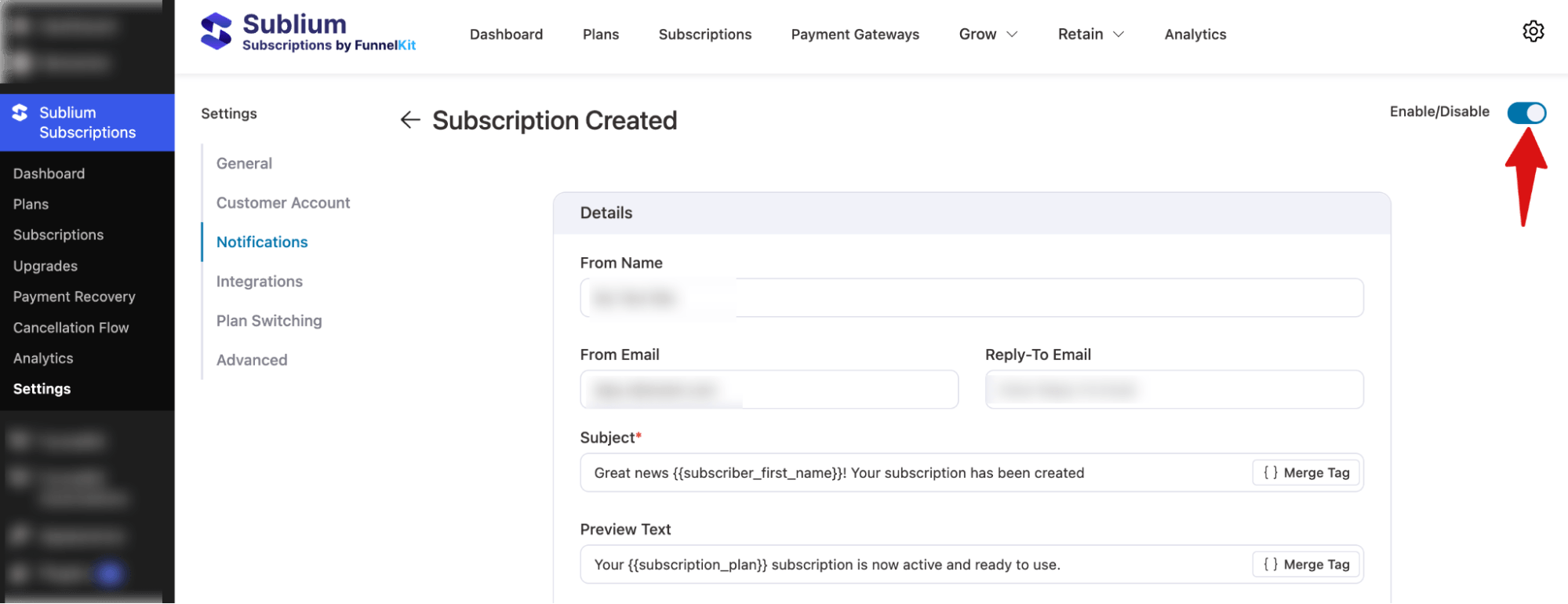
Finally, make sure to activate the subscription email to make it live. Once enabled, customers will automatically receive this email every time a new subscription is created.
Here is what the email looks like:
This is how you can set up and automate the subscription email notification for different statuses.
How to Set Up Automated Renewal Reminders and Failed Payment Retry Email Notifications?
Along with keeping customers informed about their active subscriptions, it is equally important to notify them about upcoming renewal charges through automated reminders.
In WooCommerce subscriptions, one of the most common reasons for failed renewal payments is outdated or expired card details.
This is where dunning management becomes essential, as it helps automate payment retries and customer notifications when a payment fails.
It ensures customers are promptly informed about failed payments, the possible reasons behind them, and the steps they can take to resolve the issue, such as updating their payment details.
This helps reduce involuntary churn and improve subscription retention.
Here are the steps you need to follow to set up dunning management and email notifications to ensure subscriptions are renewed successfully:
Step 1: Configure failed payment retry attempts
Navigate to Sublium Subscriptions ⇒ Payment Recovery. Here, set the number of times you want Sublium Subscriptions to retry failed payment and the delay time for each retry attempt.
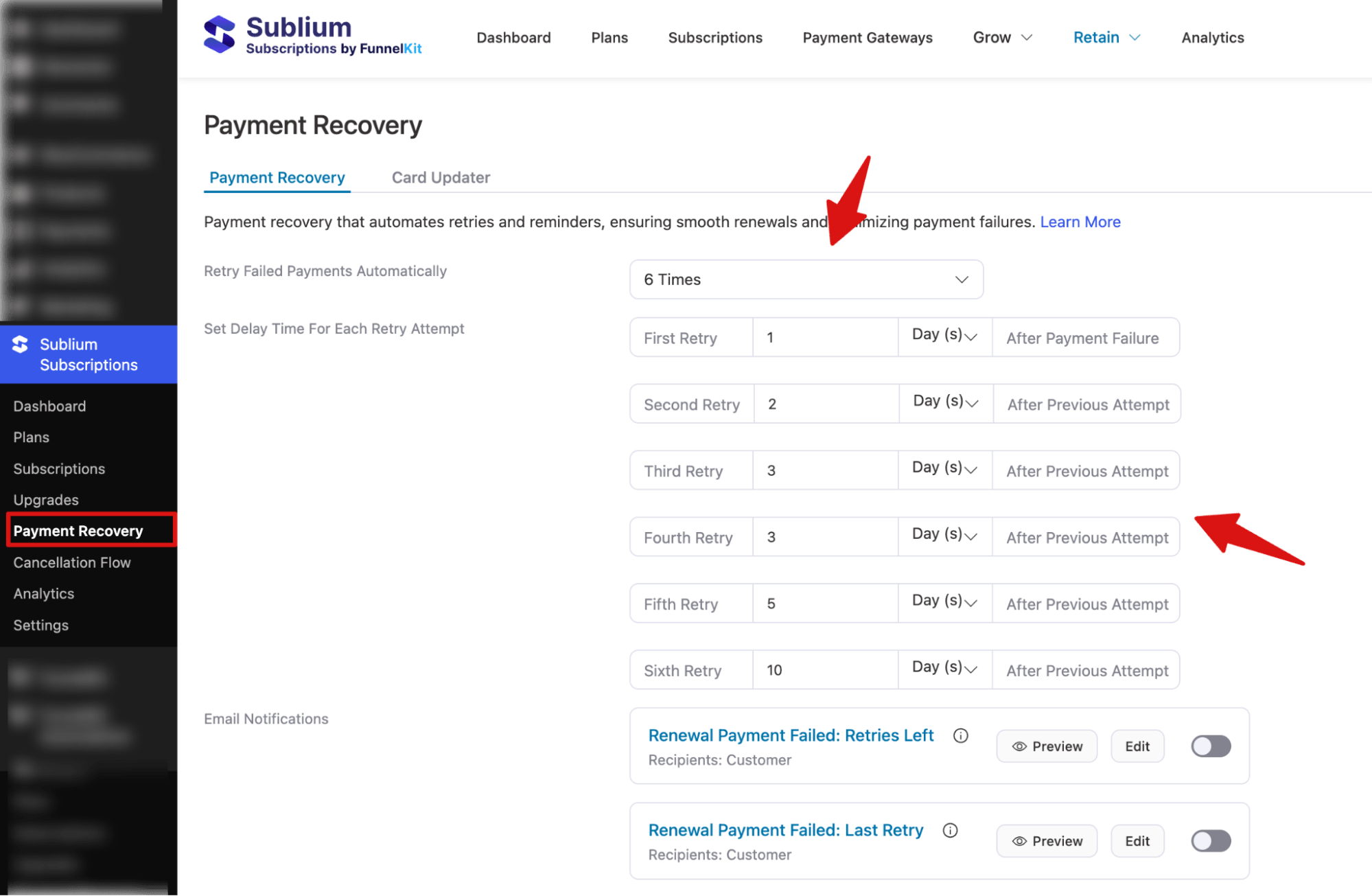
After that, you can configure renewal reminders, card-updater settings, and renewal payment-failure email notifications.
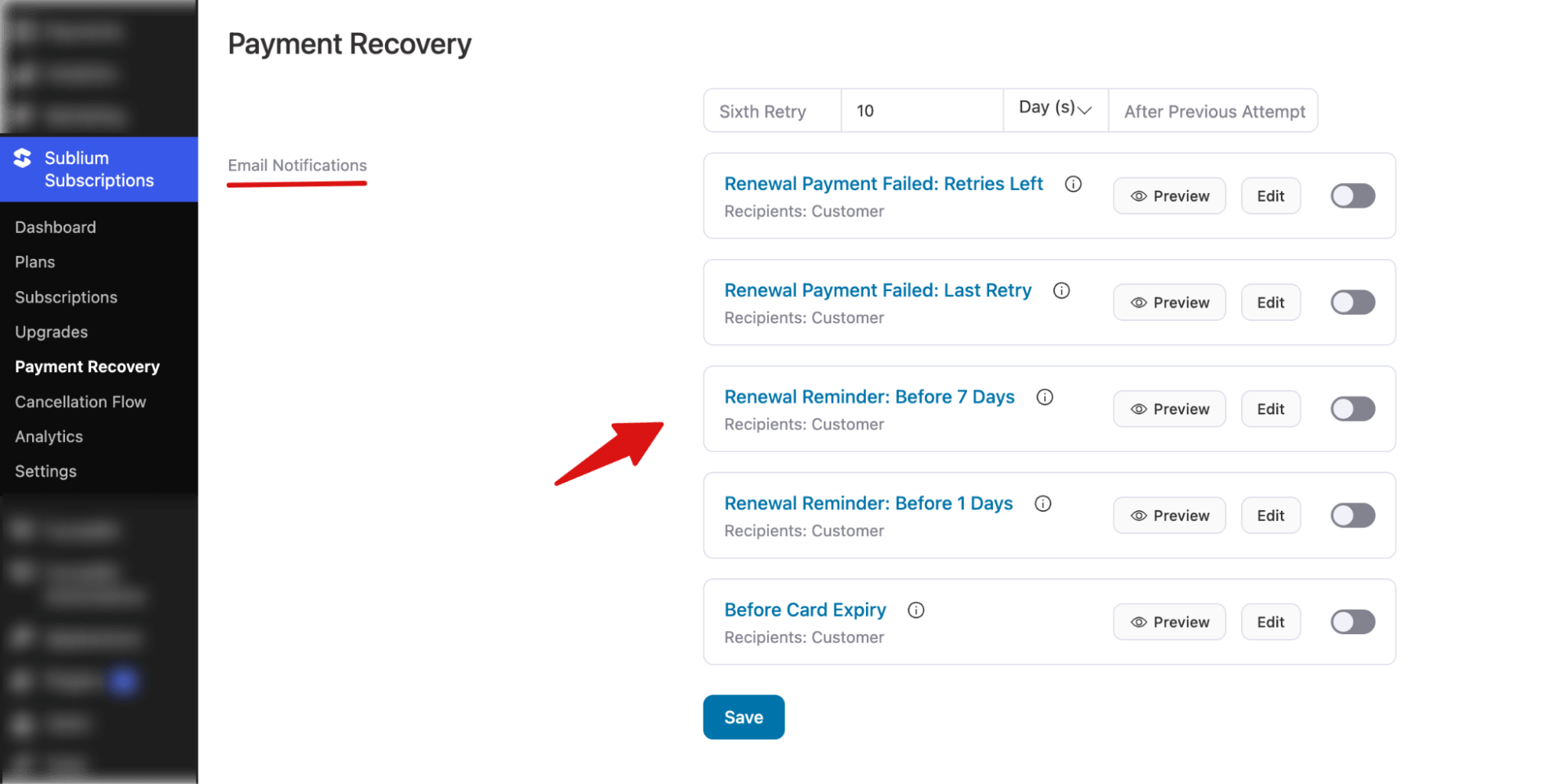
Step 2: Set up WooCommerce subscription renewal reminder emails
You can set 2 reminders before subscription renewal to inform customers about the upcoming charges.
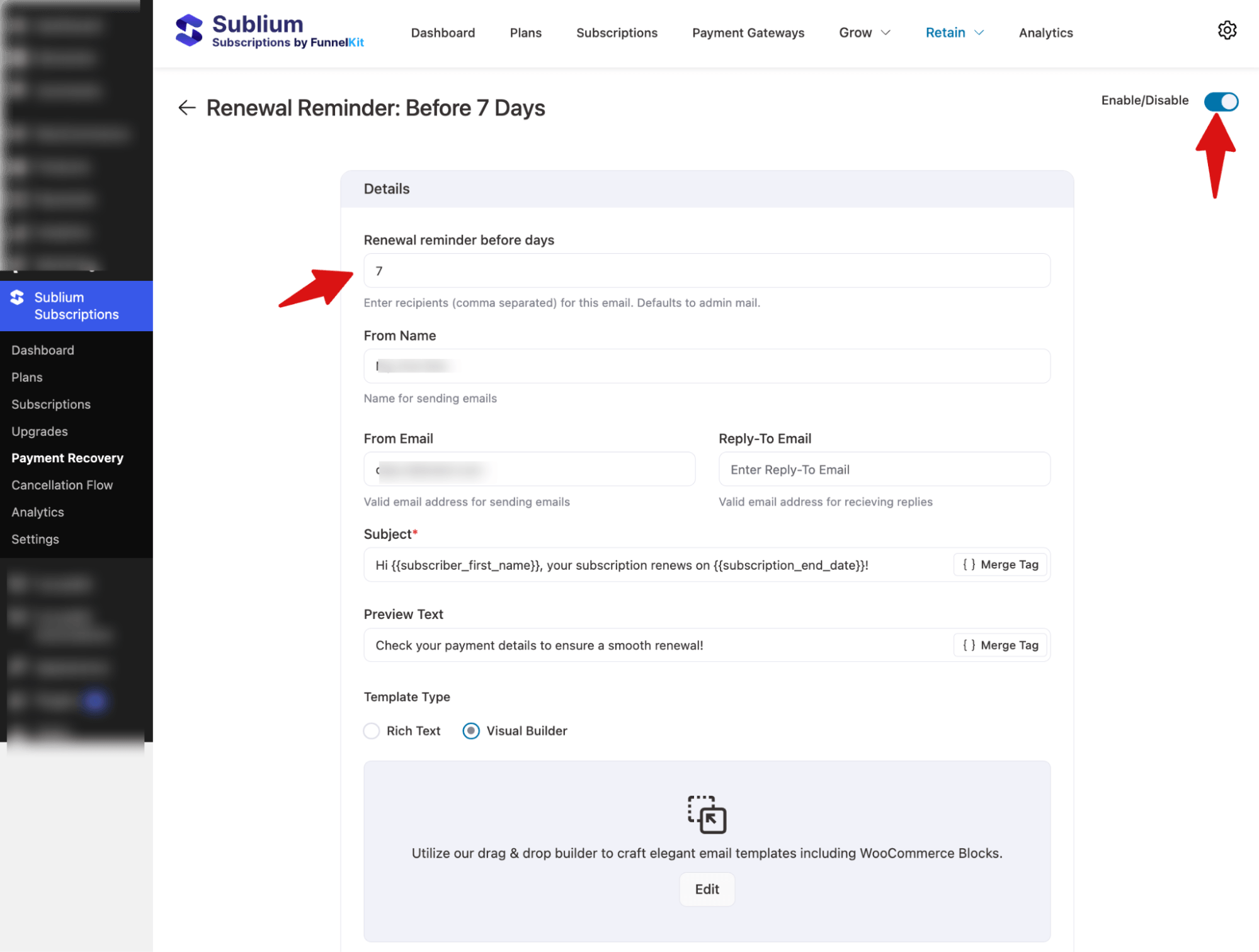
You set the number of days before the emails will be sent.
For this, edit Renewal Reminder: Before X Days and Renewal Reminder: Before Y Days to set the delay and also customize the email content.
Make sure to activate the emails.
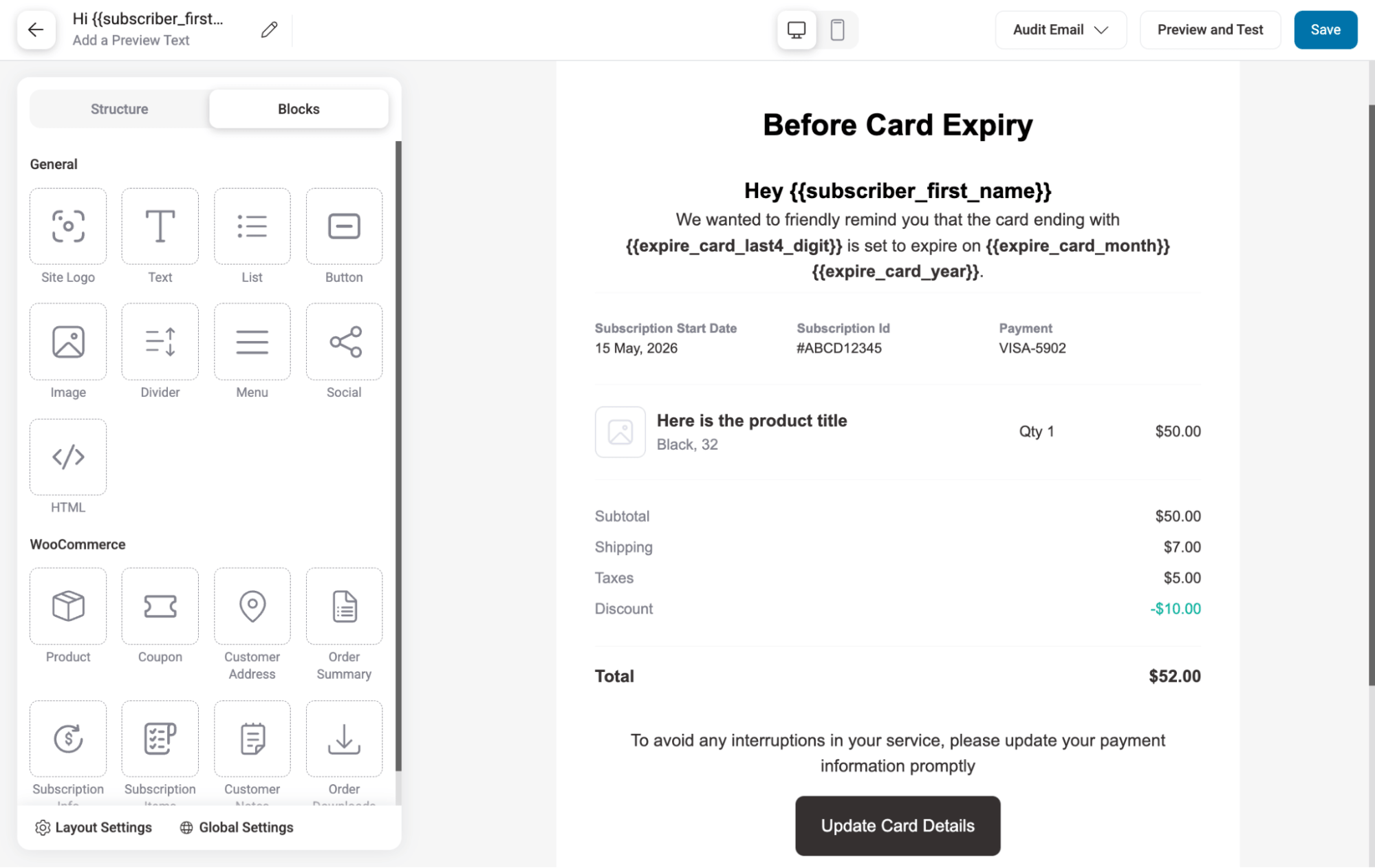
Step 3: Set up email notifications before card expiry
Sending renewal reminders is not enough, as customers may not be aware of their card expiry date and assume the payment will go through.
That’s why it’s important to notify customers that their card is going to expire.
For this, customize the email template and make sure to activate this.
Step 4: Set up email notifications for payment retry attempts
Depending on the number of retry attempts you get, you can configure how many emails will be sent about the retry notification.
There are two email templates available:
- Renewal Payment Failed: Retries Left – You can enable this to send for all the payment failures except the last one.
- Renewal Payment Failed: Last Retry – This one you just need to enable to inform about the last renewal payment failure attempt.
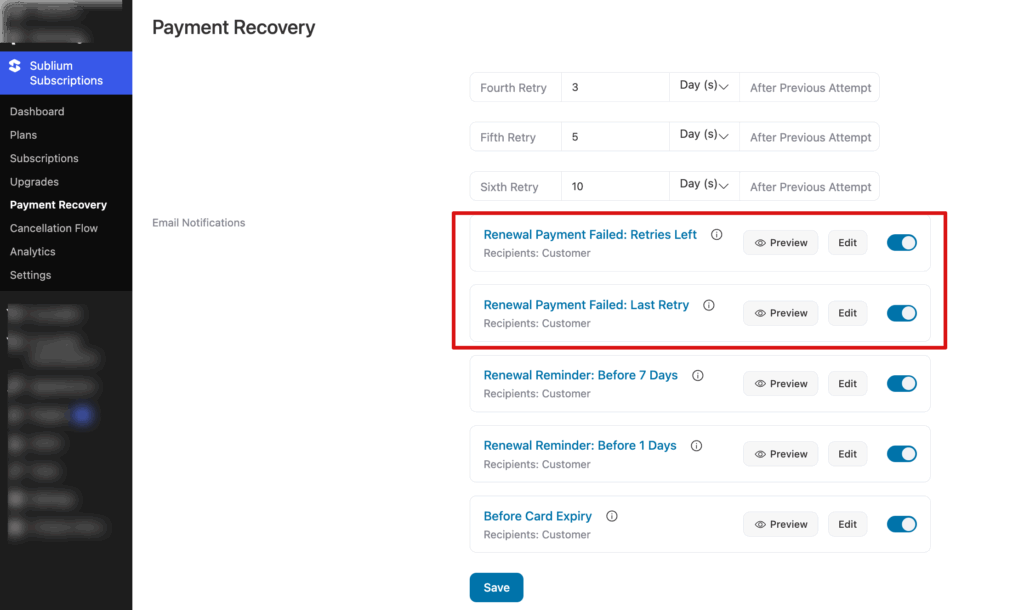
Note: After configuring and customizing each email, make sure to enable it.
This is how you can set up key subscription email notifications to keep your subscriptions running smoothly and help prevent churn.
Common WooCommerce Subscription Email Issues (And How to Fix Them)
If your emails are configured properly and activated on your WooCommerce store, but you’re still facing issues, then it could be one of the following:
1. Subscription emails are not sending
First check: go to WooCommerce > Status > Tools and send a test email.
If that fails, WordPress itself can’t send emails. That usually means your hosting is blocking PHP mail, which is the default method, and honestly, it’s unreliable on most shared hosting anyway.
How to fix it:
The fix is to stop relying on it. Use WPMail SMTP and configure it properly.
If subscriptions are your primary source of income, this is not optional. Set it once, test it, and you stop chasing “missing emails” forever.
2. Emails are going to spam
If emails are being sent but not landing in the inbox, this is almost always deliverability, not WooCommerce or the Subscription plugin.
How to fix it:
You need proper authentication on your domain:
- SPF
- DKIM
- DMARC
Without these, Gmail and Outlook often treat transactional emails as suspicious.
Most SMTP services like Postmark or SendGrid guide you through setting this up. It’s a one-time thing, but it massively improves inbox placement.
3. Scheduled Emails Not Sending
Check WooCommerce > Status > Scheduled Actions. If email tasks are stuck or delayed, it means WooCommerce isn’t processing scheduled email jobs properly, which can delay or stop renewal reminders and failed payment emails.
How to fix it:
This is usually caused by WP-Cron not running reliably. Make sure WP cron is running properly and check for any Action Scheduler backlog.
7 WooCommerce Subscription Email Best Practices
Fixing delivery is one side. The other side is making emails actually reduce churn.
- Send Renewal Reminders 7 Days Before
One-day reminders are usually too late.
If a card is expired or a bank flags the payment, customers need time. Seven days gives a realistic buffer.
For annual plans, go with 14 days. People simply forget yearly charges more easily.
- Treat Failed Payments as Recovery, Not Just Alerts
Most failed payments are not intentional cancellations. They’re usually small issues, expired cards or temporary bank problems.
So, make sure you retry multiple times and send multiple reminders to users to recover the payment successfully.
- Make CTAs Clear
Avoid vague buttons like “Click here.”Use direct actions instead: “Update Payment Method”, “Renew Subscription,” etc.
At that moment, users aren’t exploring. They’re trying to fix something. Don’t make them think.
- Design for Mobile First
Most of these emails are opened on phones.
So keep it simple, readable font size, big tappable buttons, no cramped layouts or side scrolling, etc.
Always test on a real phone. Desktop preview lies more often than you think.
- Personalize With Real Subscription Info
Name alone isn’t enough anymore.
What actually reduces confusion is clarity, such as Subscription plan name, subscriber’s name, billing amount, next billing date, etc.
When customers see exactly what they’re paying for, support tickets drop automatically.
- Be Transparent About Billing Changes
Surprise charges destroy trust fast, even if the change is justified.
Always notify customers at least 7 days before any billing change.
Keep it simple by clearly explaining what is changing, why it is changing, what it means for them, and what they can do next.
That’s because clarity here protects retention more than discounts ever will.
- Use Renewal Confirmations to Reinforce Value
Renewal confirmation emails usually get high open rates because people open them to verify the charge, but that attention is often wasted if it’s just a plain receipt.
So instead, you can add a simple line like “Here’s everything your subscription gives you access to” with a link to their account or benefits page, which shifts the experience from “I got charged” to “I’m still getting value.”
Boost Subscription Revenue and Retention with Automated Email Notifications
WooCommerce subscription email notifications are not just system updates. They actually do a lot of heavy lifting when it comes to keeping customers and protecting recurring revenue.
Renewal reminders, failed payment alerts, and status updates all quietly help reduce churn and keep people aware of what’s happening.
When these emails are set up properly, customers usually don’t feel lost or confused. They know when they’ll be charged, what happens if a payment fails, and when a renewal goes through.
This brings clarity and reduces back-and-forth support messages and avoids those unwanted cancellations.
The thing is, subscription activity is constant. There’s always something happening in the background: renewals, retries, upgrades, status changes. You can’t realistically keep up with all of that manually once things start growing. It just becomes messy.
Automation makes it manageable and keeps communication steady without needing someone to watch everything all the time.
And if you don’t want to deal with all this manually, tools like Sublium Subscriptions can automate WooCommerce subscription email notifications so everything just runs on its own.
Get Sublium Subscriptions today.


