


Do you want to export your WooCommerce subscription data?
Whether you need a CSV of active subscribers for your email platform, full data for migration, or a filtered export for your accountant to file taxes, this guide covers everything.
Here, we’ll show you how to export WooCommerce subscriptions using two methods. A plugin and direct SQL queries, the REST API, and WP-CLI.
We will walk you through every subscription field you can export and share best practices to keep your exports clean, GDPR-compliant, and safe to use for migration or reporting.
Why Export Your WooCommerce Subscriptions?
A WooCommerce subscription export, sometimes called a subscription data export, is a downloadable file that contains all the details of your recurring orders.
While a standard WooCommerce export gives you static orders, recurring revenue lives entirely in subscriptions, so extracting this specific data gives you customer billing cycles, renewal dates, and payment methods in one convenient place.
We don’t recommend leaving this data stuck inside WordPress. Here’s why:
- Migrate to a new store or subscription platform: Switching hosts? Changing to a new subscription plugin? Every single active, paused, and cancelled record has to move flawlessly.
- Backup subscriber and billing data: Subscription records represent your future revenue. One bad plugin conflict can wipe them out, but exporting regularly mitigates that risk completely.
- Run tax, VAT and financial reports: Your accountant doesn’t want access to your WordPress dashboard. They need a CSV to feed Excel, Xero, or QuickBooks for VAT, sales tax, and MRR filings.
- Sync subscriber segments with CRMs and marketing tools: If you need to push customer segments into HubSpot, Mailchimp, Klaviyo, or any other CRM, exporting gives you a clean file to import into any external tool without a direct integration.
- Audit subscription performance and analytics: Exporting active subscriptions, next payment dates, and billing intervals into a spreadsheet makes it easier to spot churn patterns, revenue gaps, and pricing issues.
- Meet GDPR data portability requests: Under Article 20 of the GDPR, customers have the right to request their data in a machine-readable format. A simple CSV export solves this immediately.
Method 1: Export WooCommerce Subscriptions Using a Plugin (No Code)
If you’re using Sublium Subscriptions to sell recurring products and boost revenue, it gives you all the tools to export your subscriptions. No external tool required.
It handles subscription data exports and supports every subscription field listed in the table above, including custom meta, billing cycles, trial dates, renewal orders, and linked customer data.
Follow the step-by-step instructions below to export your WooCommerce subscriptions:
Step 1: Go to the subscriptions section
Go to the Sublium Subscriptions ⇨ Subscriptions section and you’ll see the list of your subscriptions.
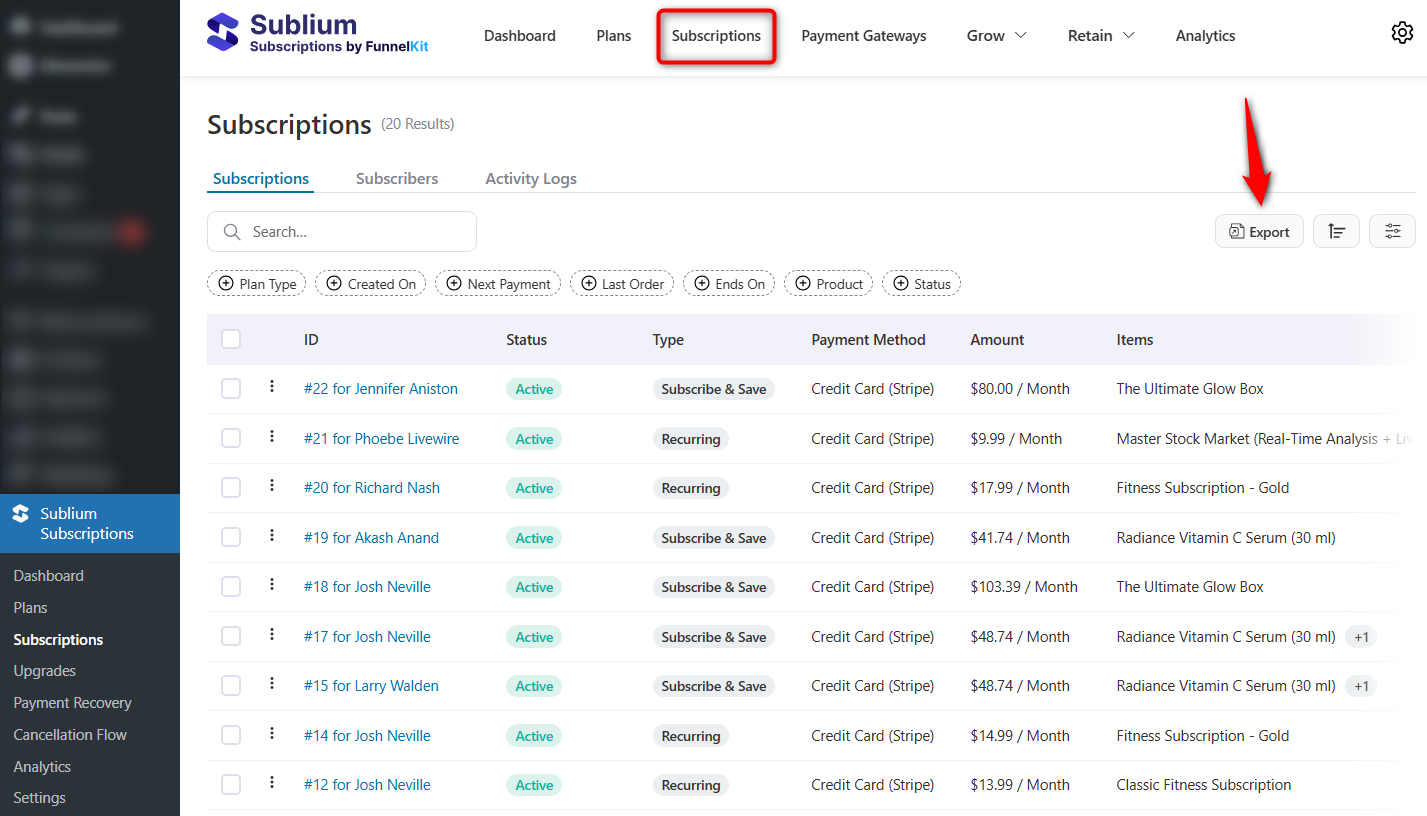
There are separate tabs for subscriptions, subscribers and activity logs.
Step 2: Filter the subscriptions you want to export
This is where you decide exactly which subscriptions to include in your CSV file.
Here, you can combine several filter criteria you can combine:
- Plan type: Filter subscriptions by plan types, including recurring, subscribe and save, and installments.
- Subscription created date: Filter by subscription start date.
- Next payment: Filter by next recurring payment date.
- Last order: Filter subscriptions by last ordered date.
- Subscription end date: Filter subscriptions by end date.
- Product: Filter subscriptions by products purchased on a recurring cycle.
- Status: Filter by subscription status.
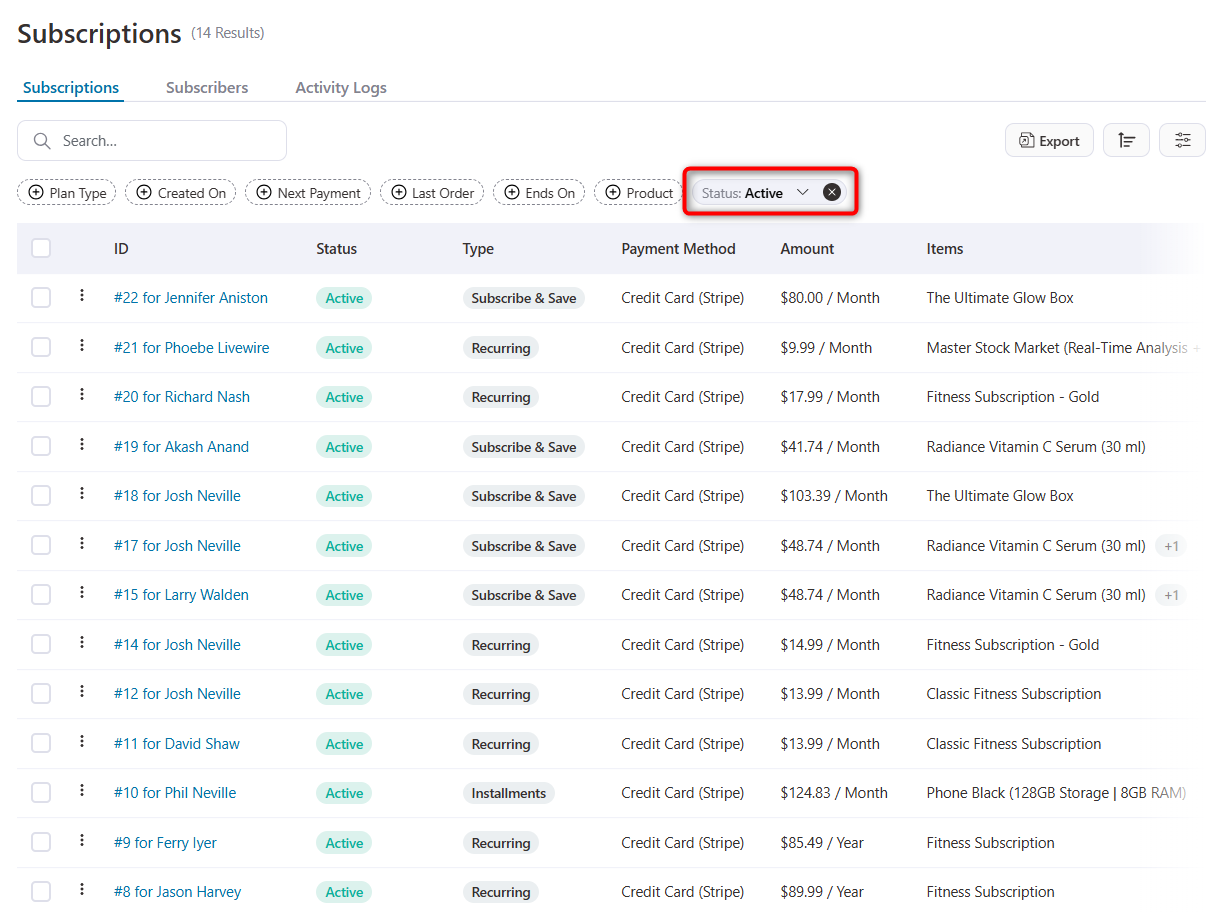
Let’s suppose you want to export active subscriptions in your WooCommerce store.
For this, just set the filter ‘Active’ status.
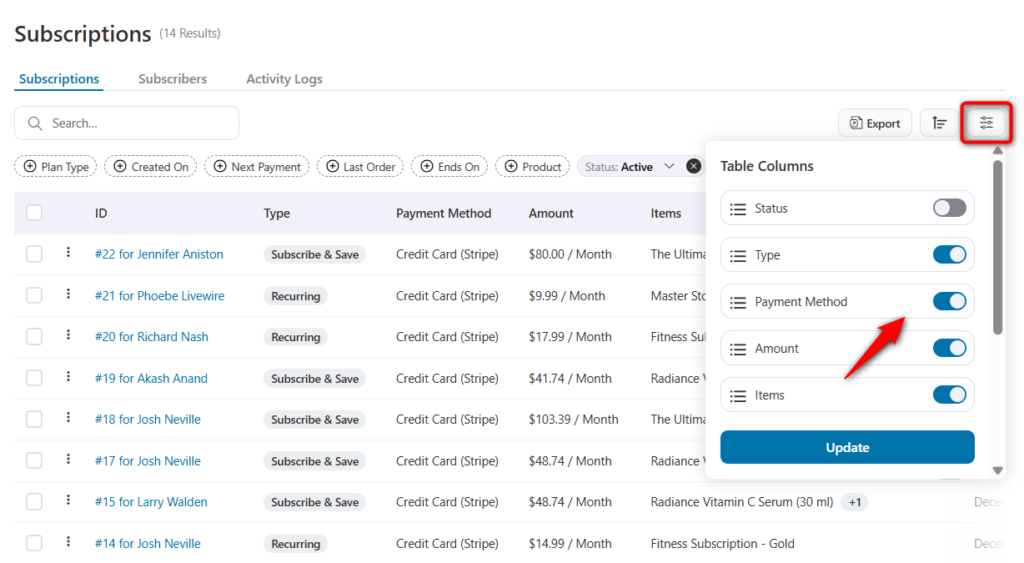
You can even select which subscription data to export from the Table Columns button.
Turn off the toggle to hide that data, such as status, subscription type, payment method, items, start date, next payment date, order placed, and more.
Once done, hit ‘Export’. Upon confirmation, your subscriptions will be exported to your device as a CSV file.
If you want to export all your subscriptions, remove all filters and click the export button.
Similarly, you can export your subscribers and activity log data. The process is the same as we demonstrated here.
Check your device and preview the exported file. This is how you can export subscriptions without any code!
Method 2: Export WooCommerce Subscriptions Without a Plugin (SQL / WP-CLI)
Developers and store owners can export WooCommerce subscriptions by pulling data directly from the WordPress database using an SQL query in phpMyAdmin or via WP-CLI on the command line.
Please note that database-level exports are powerful but risky. Always take a full database backup before running any query, and test on a staging site first.
Do not run these queries on production if you are not comfortable reading raw WordPress tables.
A. Export via SQL query (legacy post-based storage)
If your store is running WooCommerce Subscriptions on traditional WordPress storage (the default until WooCommerce added High-Performance Order Storage), subscriptions live in the wp_posts and wp_postmeta tables.
Run this query in phpMyAdmin to export all active subscriptions with core fields:
SELECT
    p.ID AS subscription_id,
    p.post_status AS subscription_status,
    p.post_date AS date_created,
    MAX(CASE WHEN pm.meta_key = '_billing_email' THEN pm.meta_value END) AS customer_email,
    MAX(CASE WHEN pm.meta_key = '_billing_first_name' THEN pm.meta_value END) AS billing_first_name,
    MAX(CASE WHEN pm.meta_key = '_billing_last_name' THEN pm.meta_value END) AS billing_last_name,
    MAX(CASE WHEN pm.meta_key = '_customer_user' THEN pm.meta_value END) AS customer_id,
    MAX(CASE WHEN pm.meta_key = '_billing_period' THEN pm.meta_value END) AS billing_period,
    MAX(CASE WHEN pm.meta_key = '_billing_interval' THEN pm.meta_value END) AS billing_interval,
    MAX(CASE WHEN pm.meta_key = '_order_total' THEN pm.meta_value END) AS order_total,
    MAX(CASE WHEN pm.meta_key = '_order_currency' THEN pm.meta_value END) AS currency,
    MAX(CASE WHEN pm.meta_key = '_payment_method' THEN pm.meta_value END) AS payment_method,
    MAX(CASE WHEN pm.meta_key = '_schedule_next_payment' THEN pm.meta_value END) AS next_payment_date,
    MAX(CASE WHEN pm.meta_key = '_schedule_trial_end' THEN pm.meta_value END) AS trial_end_date,
    MAX(CASE WHEN pm.meta_key = '_schedule_end' THEN pm.meta_value END) AS end_date
FROM wp_posts p
LEFT JOIN wp_postmeta pm ON p.ID = pm.post_id
WHERE p.post_type = 'shop_subscription'
AND p.post_status IN ('wc-active', 'wc-on-hold', 'wc-pending-cancel')
GROUP BY p.ID;
Replace wp_ with your actual database prefix. To export a different status, edit the IN list at the bottom.
In phpMyAdmin, click Export after running the query to download the result as a CSV file.
B. Export via SQL query (HPOS-enabled stores)
If your store has enabled WooCommerce High-Performance Order Storage (HPOS), subscriptions are stored in the wp_wc_orders and wp_wc_order_addresses tables instead. Use this query:
SELECT
    o.id AS subscription_id,
    o.status AS subscription_status,
    o.date_created_gmt AS date_created,
    o.total_amount AS order_total,
    o.currency AS currency,
    o.payment_method AS payment_method,
    o.customer_id AS customer_id,
    oa.email AS customer_email,
    oa.first_name AS billing_first_name,
    oa.last_name AS billing_last_name
FROM wp_wc_orders o
LEFT JOIN wp_wc_order_addresses oa
    ON o.id = oa.order_id AND oa.address_type = 'billing'
WHERE o.type = 'shop_subscription'
AND o.status IN ('wc-active', 'wc-on-hold');
Schedule-related fields (next payment, trial end, end date) are still stored in wp_wc_orders_meta on HPOS, so you will need to join that table if you want those columns.
C. Export via WP-CLI
If you have SSH access, WP-CLI is often the cleanest way to export. Run this one-liner in your site’s root directory:
wp db query "SELECT p.ID, p.post_status, p.post_date FROM wp_posts p WHERE p.post_type = 'shop_subscription' AND p.post_status = 'wc-active'" --skip-column-names > subscriptions.csvFor a more complete export, save the SQL from Option A into a file (export.sql) and run:
wp db query < export.sql | tr '\t' ',' > subscriptions.csvThis approach works on any managed host that gives you SSH and WP-CLI access, including WP Engine, Kinsta, Cloudways, and SiteGround.
Limitations of the code method
SQL and WP-CLI exports are fast and free, but they’re complicated. Serialized fields like _subscription_switch_data and line items are stored as PHP-serialized arrays that you will need to deserialize before using them in Excel.
Schedule fields are stored as timestamps that need conversion. And you will not get the flexibility that a plugin provides.
For a clean, ongoing export workflow, we still recommend a plugin. Use the code method for one-off tasks, advanced automation, or environments where plugins are restricted.
For a complete guide to modernizing your subscription stack, see our WooCommerce subscription management guide.
5 Best Practices to Export WooCommerce Subscriptions Safely
Exporting subscription data is not just about downloading a file. A bad export causes broken migrations, incorrect tax reports, and GDPR headaches.
Use these best practices to keep your exports clean, accurate, and safe:
1. Back up your database before every export-import cycle
Even a read-only export puts a load on your WordPress database. A full backup protects you if anything goes wrong during or after the process.
2. Export statuses separately when targeting segments
For campaigns or reactivation flows, export only Active or On Hold subscriptions into their own file. Mixing statuses in one export makes it harder to use the data downstream.
Always include subscription status in your exported file.
3. Handle personal data responsibly
Subscription exports include names, email addresses, addresses, and partial billing details. Store the file in an encrypted location, limit access to it, and delete it once the migration or report is complete.
Per GDPR Article 32, personal data exports must be protected using appropriate technical and organizational measures.
4. Test exports with a small batch first
Before running a full export on a 10,000-subscription store, export 50 records using the same filters. Verify the fields, formatting, and date values look correct before trusting the full file.
5. Schedule monthly exports as a backup habit
A monthly or weekly scheduled export gives you a snapshot you can fall back on if your live subscription data is ever corrupted.
Store these exports on a secure cloud drive, not on the WordPress server itself.
Frequently Asked Questions
How can I export WooCommerce subscription renewal orders?
In subscription plugins like Sublium, use the filter for active subscription and next renewal date. Once done, hit ‘Export’ to pull all such subscription renewal orders.
Is there a limit to how many subscriptions I can export at once?
WooCommerce does not impose any hard limit. But your server’s PHP memory and max execution time certainly impose limits. For stores with more than 10,000 subscriptions, run batch exports of a few thousand records at a time. Or you can increase PHP memory to 256MB or higher and max execution time to 300 seconds or more.
Scheduled exports also avoid timeouts because they run in the background without a user-facing request.
Can I re-import an exported subscription file into another WooCommerce store?
Yes, you can re-import an exported subscription file into another WooCommerce store. The destination store must also have the same subscription plugin installed.
Use the same tool that created the export to import it, so the field mappings match. Always import users and products first, then subscriptions, then renewal orders.
How can I fix subscription export errors?
Export failures occur in predictable ways on WooCommerce stores. Here are the issues we see most often and how to resolve them:
1. If your export stalls or errors out halfway through, your server has hit its PHP max execution time or memory limit. Increase max_execution_time to 300 seconds and memory_limit to 256M or 512M in php.ini or through your host’s dashboard. For stores with over 10,000 subscriptions, export in batches using the Skip First N and Total Number filters.
2. Subscription date fields are stored as timestamps internally. Most plugins convert them to MM/DD/YYYY H:i:s on export, but if yours does not, use Excel’s =(A1/86400)+DATE(1970,1,1) formula to convert. Set your CSV date format consistently before opening the file in Excel to prevent automatic formatting errors.
3. Save or re-save your export as UTF-8 with BOM to preserve accented characters in Excel. If commas in customer addresses are breaking columns, switch your delimiter to a semicolon or a tab when exporting.
4. If a subscription meta field is not appearing in your export, it is likely stored as Hidden meta rather than Default meta. In Import Export Suite, enable the Hidden meta group. For a SQL export, add that specific meta key to your query.
5. Your export plugin returns zero subscriptions even though you have active subscribers. This usually means the plugin has not been updated for High-Performance Order Storage. Update the plugin to its latest version, or temporarily disable HPOS in WooCommerce > Settings > Advanced > Features while you export.
6. If you import your CSV into another store and the renewal orders lose their parent subscription, make sure you exported the post_parent or parent_order_id column and that the destination store’s import tool is mapping it to the correct field.
Start Exporting Your WooCommerce Subscription Data the Right Way
Exporting WooCommerce subscriptions doesn’t have to be complicated, but choosing the right method matters.
If you’re building integrations or working at scale, the REST API and WP-CLI give you the most flexibility.
For quick export and subscription management, a dedicated all-in-one plugin like Sublium Subscriptions is worth the investment.
Sublium includes exports, dunning, analytics, and a customer self-service portal out of the box, all managed from your dashboard. No external tools required.
So why wait? Get Sublium Subscriptions today!


