

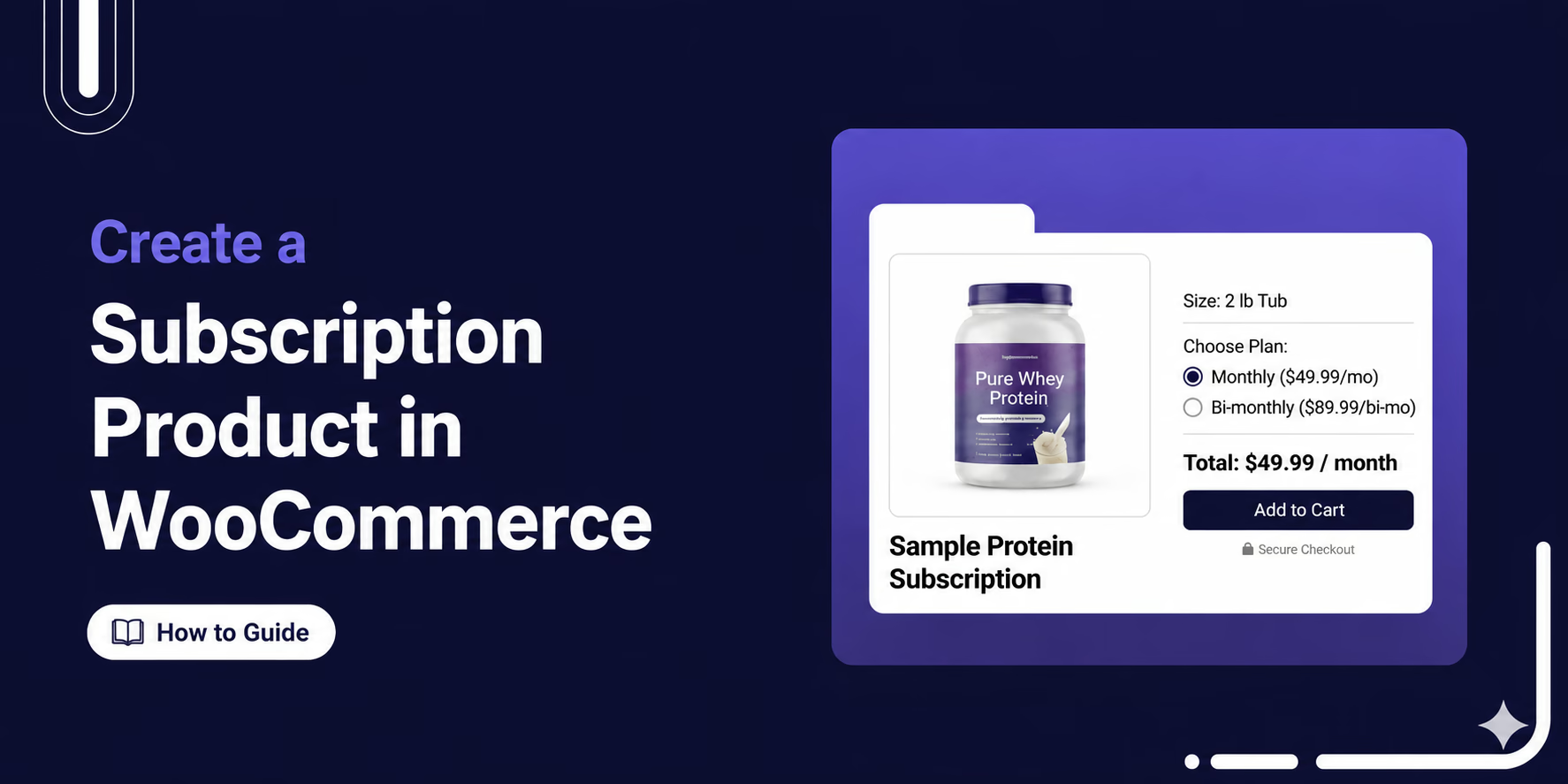

One customer. One acquisition cost. Ongoing revenue that keeps coming back.
Creating a subscription product in WooCommerce is one of the most effective ways to turn one-time buyers into a predictable, recurring source of revenue.
This isn’t just about convenience. It gives you a stable, predictable income that makes it easier to plan and grow your business.
The only catch is that WooCommerce doesn’t support subscriptions out of the box.
But with the right plugin, you can set up a subscription product in minutes.
In this blog, we’ll show you how to create a subscription product in WooCommerce, set up multiple pricing plans, and start building recurring revenue your business can rely on.
Not in the mood to read? Watch the video instead 🎥
What Is a Subscription Product in WooCommerce?
In recent years, subscription-based products have become extremely popular. In fact, you probably already use them every day.
Whether it’s Netflix, Spotify, or even your gym membership, you don’t buy individual movies or songs anymore. Instead, you pay a monthly fee and get ongoing access.
This same model can be applied to almost any product or service you sell through WooCommerce.
With subscriptions, billing intervals are also flexible. You can charge customers daily, weekly, monthly, quarterly, or yearly, depending on what best matches your product and your audience’s buying behavior.
An example of a physical subscription product:
A skincare brand that sells a moisturizer for $60 as a one-time purchase or delivers it automatically every 6 weeks for $45.
Customers never run out, never need to remember to reorder, and the business benefits from predictable recurring revenue instead of constantly chasing repeat sales.
An example of a virtual subscription product:
A video editor might sell a one-time package for $59, or offer a $19/month membership that includes live classes, a full template library, regular updates, and priority support.
The workload stays largely the same, but the revenue model becomes far more consistent and scalable.
Subscriptions aren’t limited to a single type of offering. Whether you’re selling physical products, digital downloads, or services, the model works across the board.
With the right plugin, you can create simple subscriptions, variable plans with different tiers, or bundled offerings, making it easy to scale as your business grows.
Move to the next section for the how-to process.
How to Set Up Subscription Products in WooCommerce with Recurring Billing
To set up, we will use Sublium Subscriptions. A perfect solution for creating subscriptions for any type of product in your WooCommerce store.
Whether you want to offer simple, variable, or bundled subscription products, this plugin makes the process flexible and easy to manage.
You can create multiple subscription plans and assign products to them to offer different pricing options. This makes it easier to manage subscriptions without creating separate products for each plan.
You also don’t need to create subscription products from scratch. The plugin lets you convert your existing WooCommerce products into subscription products as well.
In this section, we’ll create a simple physical product with multiple subscription plans.
Note: You can follow the same process to create any type of product and its subscription plans.
Make sure to install both free and premium versions of Sublium Subscriptions.
Here are the steps you need to follow:
Step 1: Create a Product

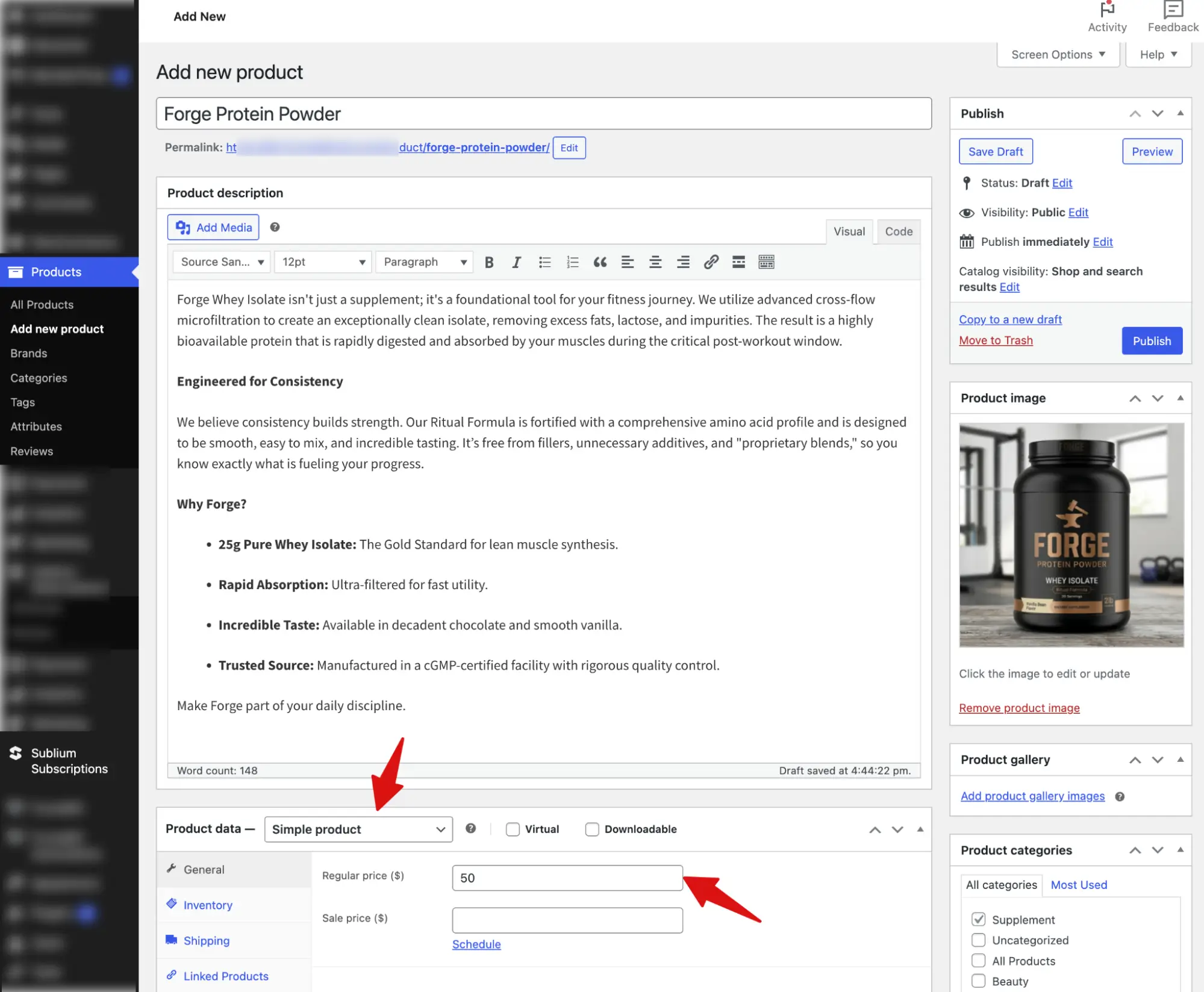
Go to Products → Add New, and create a new product. You can create a simple, variable, virtual, or downloadable product in your WooCommerce store based on your needs.
Just to show the process, here we are creating a protein powder supplement.
Make sure to set the regular price, as this will be the one-time price.
Note: Later, we will create subscription plans and turn this product into a subscription product.
Step 2: Create a Recurring Subscription Plan
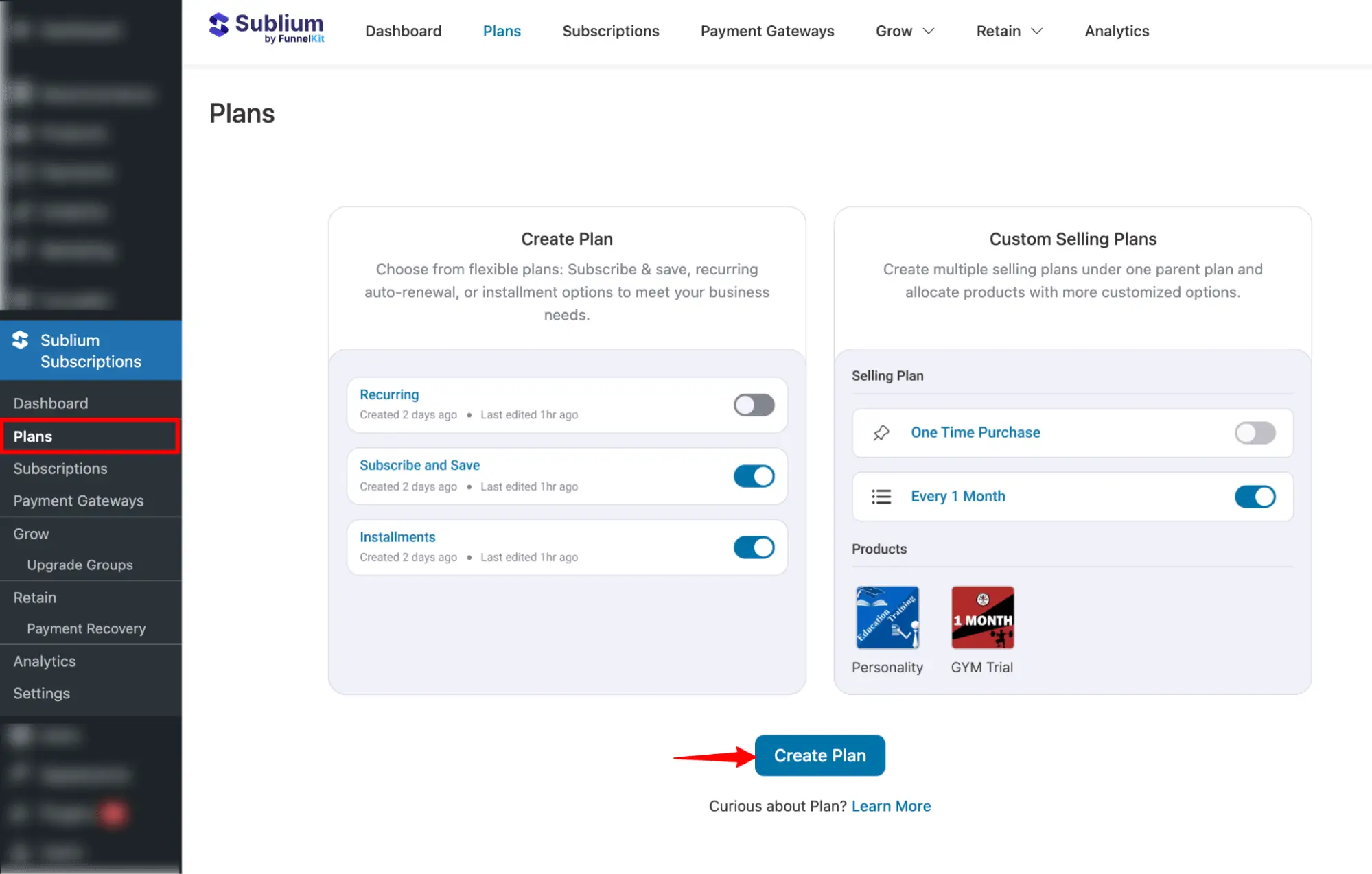
Next, navigate to Sublium Subscriptions ⇒ Plans.
You’ll get an onboarding screen. Scroll down and click on the “Create Plan” button.
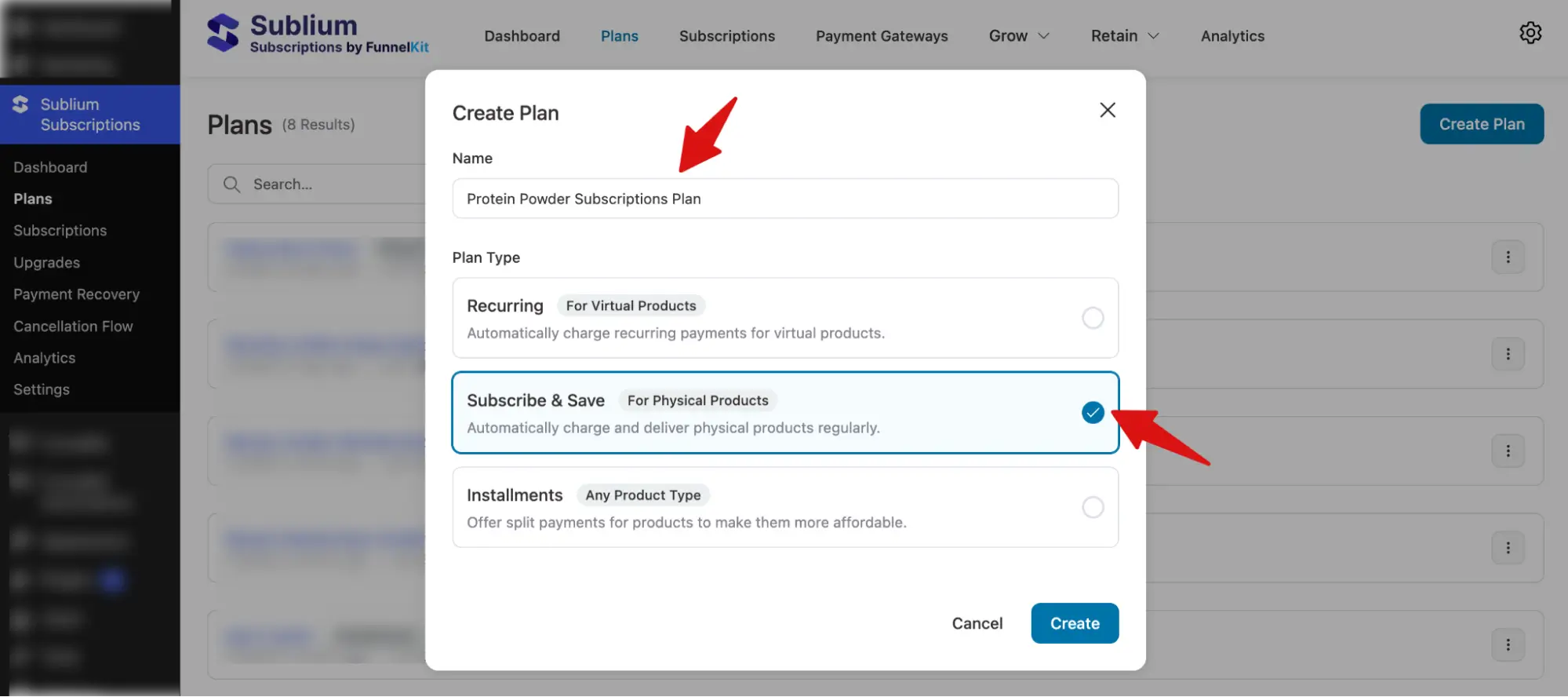
You will be presented with three plan types to choose from:
- Recurring: Ideal for virtual subscription products.
- Subscribe and Save: Ideal for physical products.
- Installments: Split one-time payments into parts, which can be used for both physical and virtual products.
As we are going to create subscription plans for a physical product. We will select the “Subscribe & Save” option. Next, provide a name and hit “Create” the plan.
Step 3: Configure the recurring subscription plans
By default, Sublium Subscriptions creates a “Every Month” plan, which is in draft mode.
You can configure this and add other subscription plans as needed.
For the protein powder subscription, we will create a monthly plan as well as a bi-monthly plan.
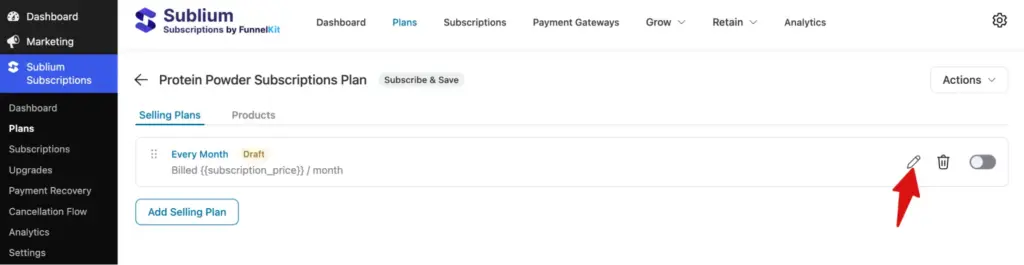
Let’s start configuring the existing recurring subscription plan with the following options:
- Frequency: Choose how often customers will be charged.
- Interval: Set the billing interval in days, weeks, months, or years to define the payment schedule. For example, to charge monthly, set the interval to 1 month.
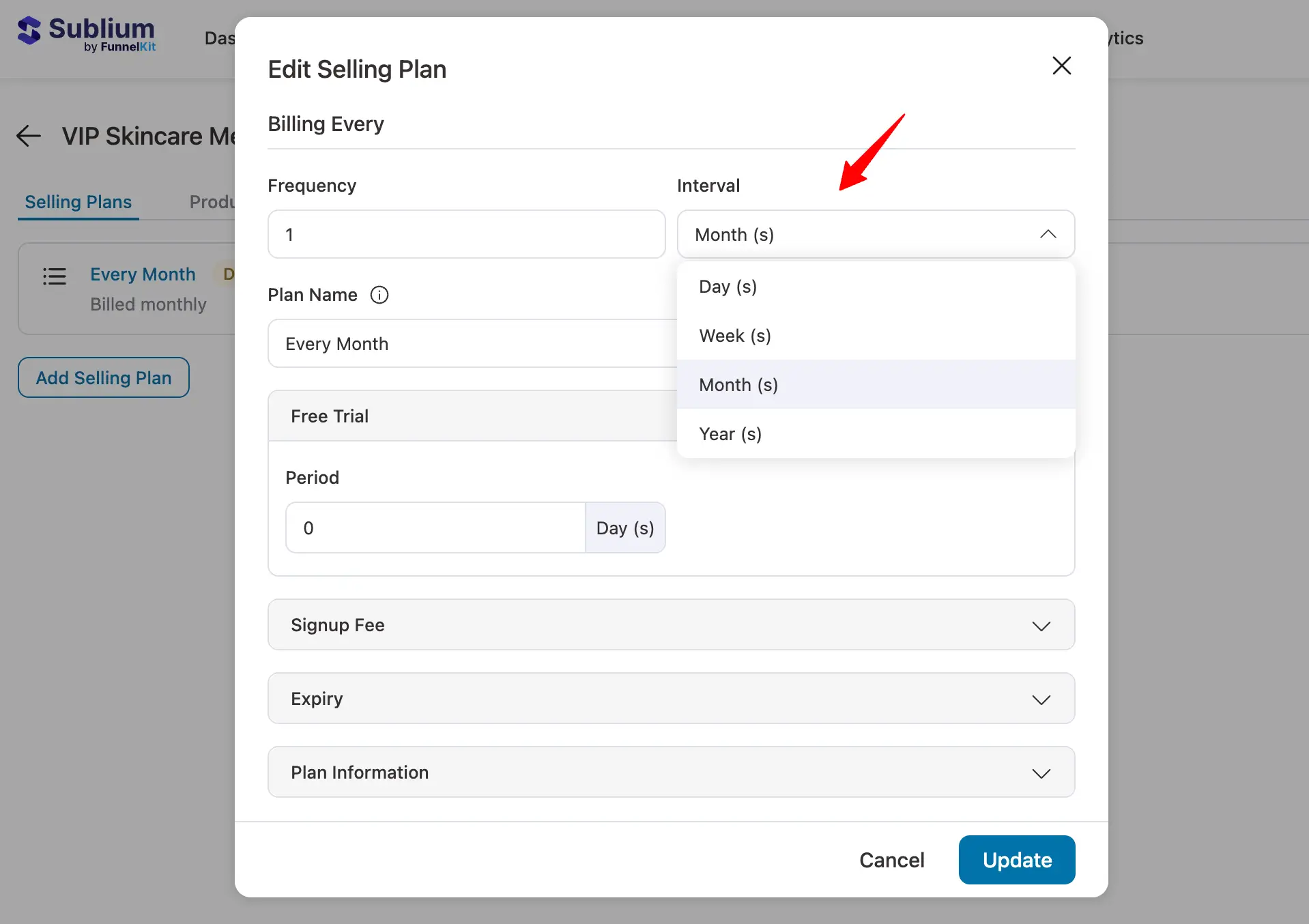
- Plan Name: Provide a clear name for the subscription plan. Example: “ Monthly Pack”.
- Free Trial: Expand the free trial tab and enter the number of days you want to offer as a free trial. For monthly plans, we will not offer a free trial.
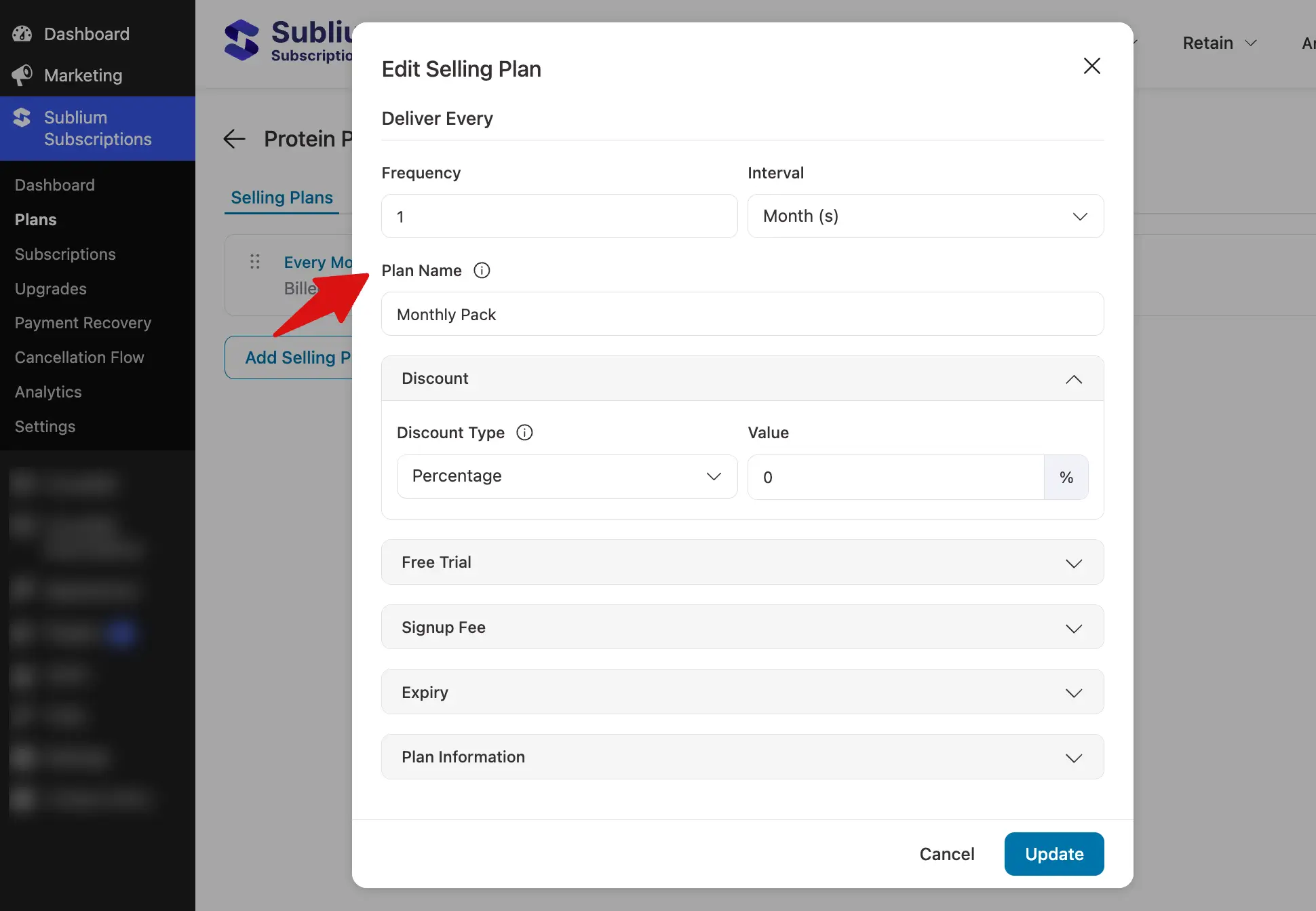
- Sign-up Fee: Charge a one-time sign-up fee either as a fixed amount or as a percentage of the subscription plan price.
- Expiry: Choose how long the subscription will remain active:
- Until User Cancels: The subscription continues until the customer cancels it.
- After X Successful Payments: Set a fixed number of billing cycles after which the subscription expires, such as 6 or 12 payments.
- Plan Information: Show the selected selling plan details below once the customer chooses a plan.
- Pricing Breakdown: Display subscription details such as billing frequency, pricing, free trial, sign-up fee, and expiry.Example: Billed {{subscription_price}} / month. You can use the following dynamic tags to display subscription details automatically: ({signup_fee}}, {{subscription_price}}, {{billing_frequency}}, {{billing_interval}}, and {{free_trial_days}}.
- Additional Description: Add extra subscription information for customers, such as delivery schedules, flexibility, or cancellation policies.
Example: Products are automatically delivered on your schedule. No obligation, modify or cancel your subscription anytime.
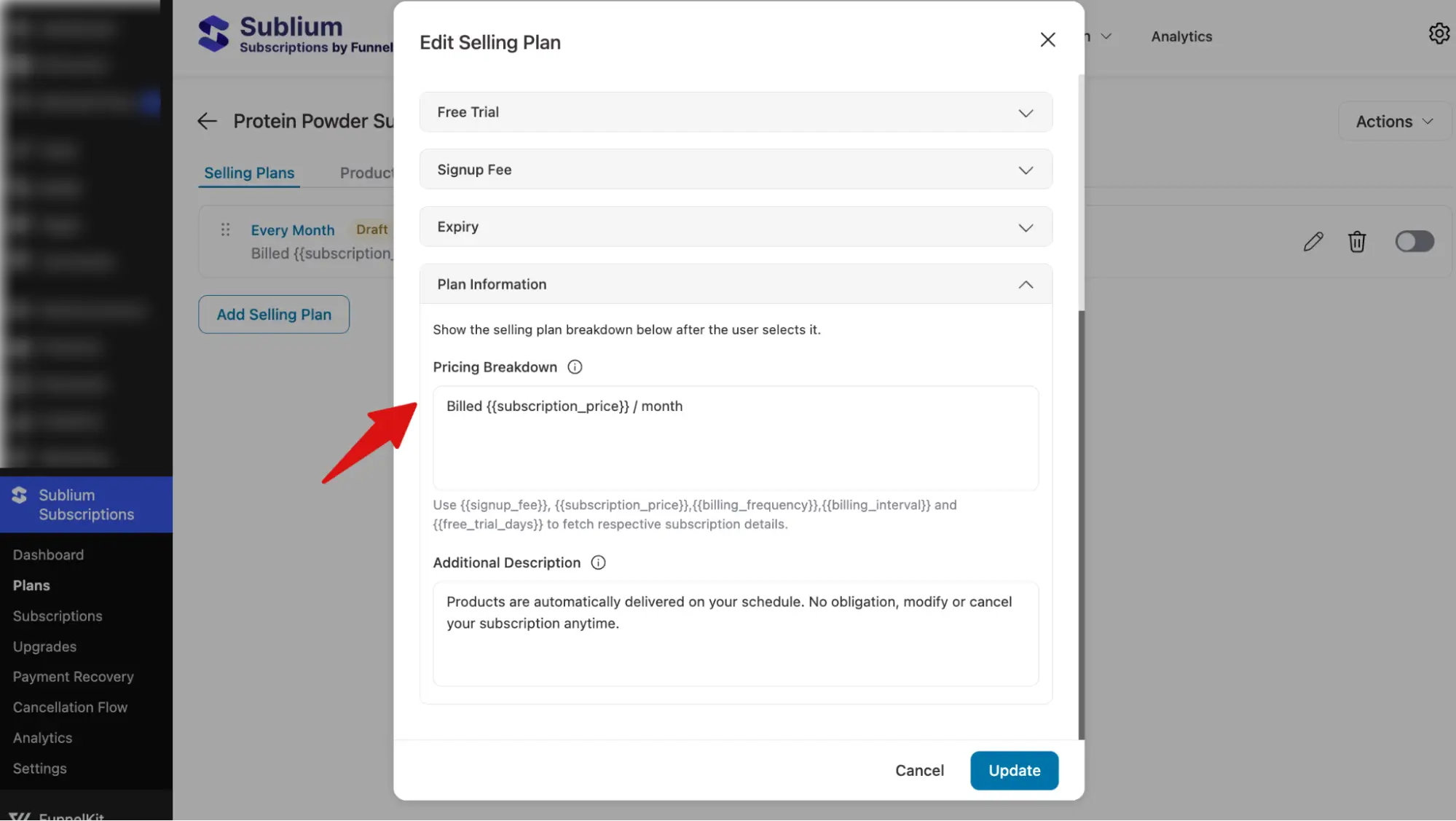
Once you’re done, click “Update” to save your configuration.
Then enable the plan by switching the toggle on and confirming it.
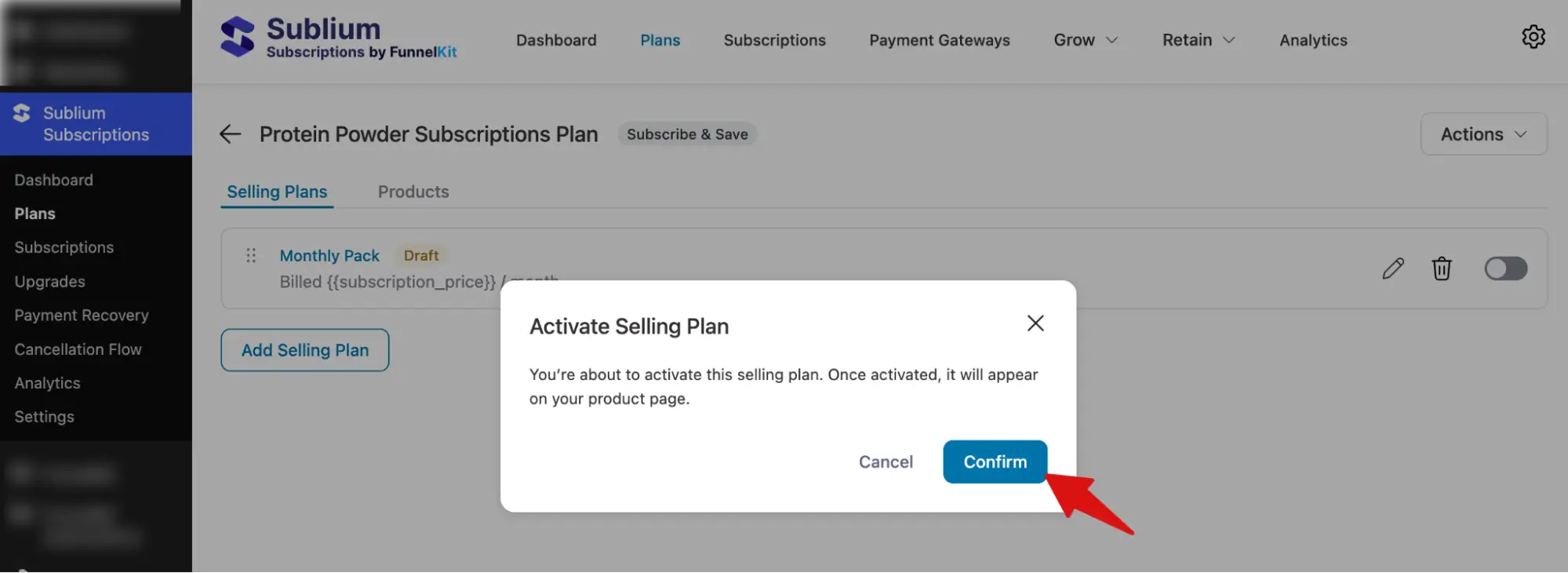
Now one of your recurring selling plans is ready.
Step 4: Create multiple recurring plans
To add more recurring selling plans, click the “Add Selling Plan” button, then configure it as you did in the previous section.
Here, we added 2 Monthly Packs called “Bi-Monthly Pack”. Make sure to enable the plan as well.
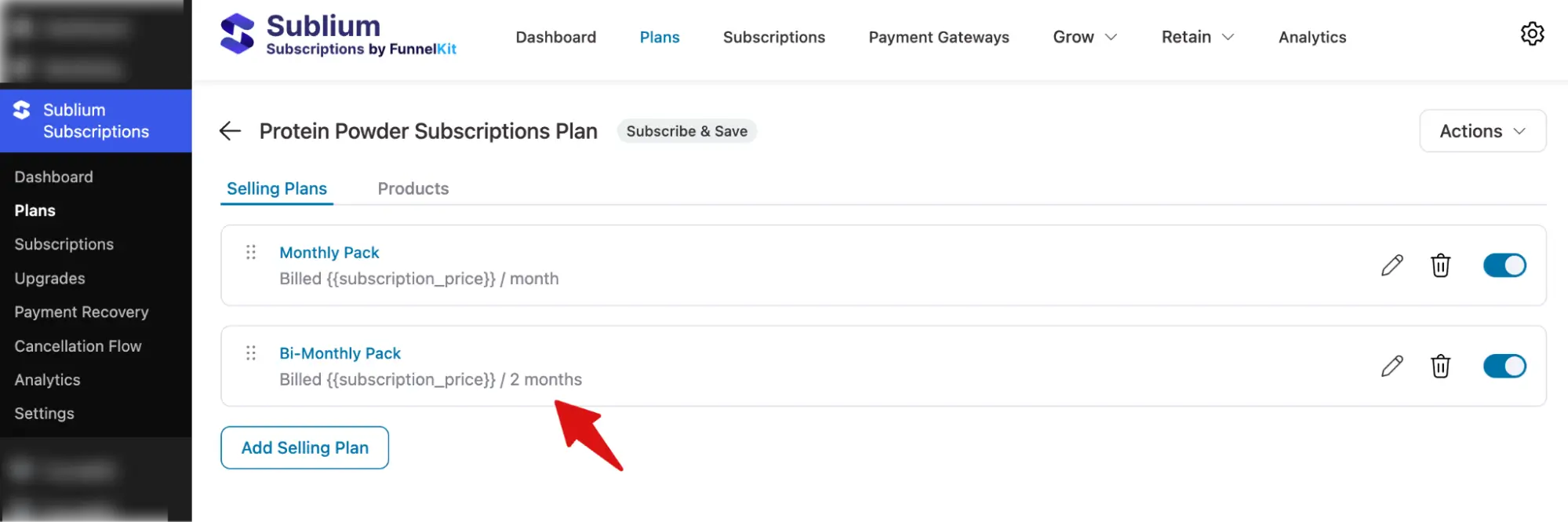
You can add as many plans as you want with different frequencies and intervals.
Step 5: Assign the subscription product to selling plans
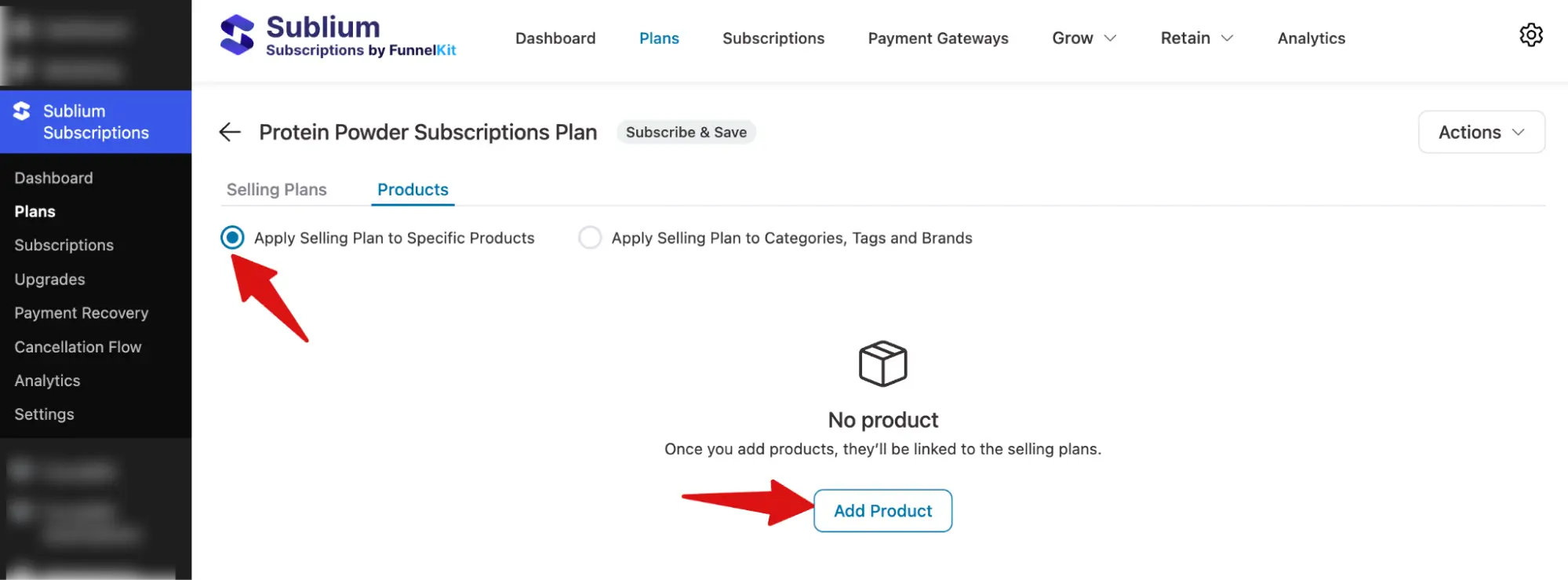
Now go to the Products tab and select the option “Apply Selling Plan to Specific Products.” Then click the “Add Product” button to include the desired products.
Next, search for and add the product.
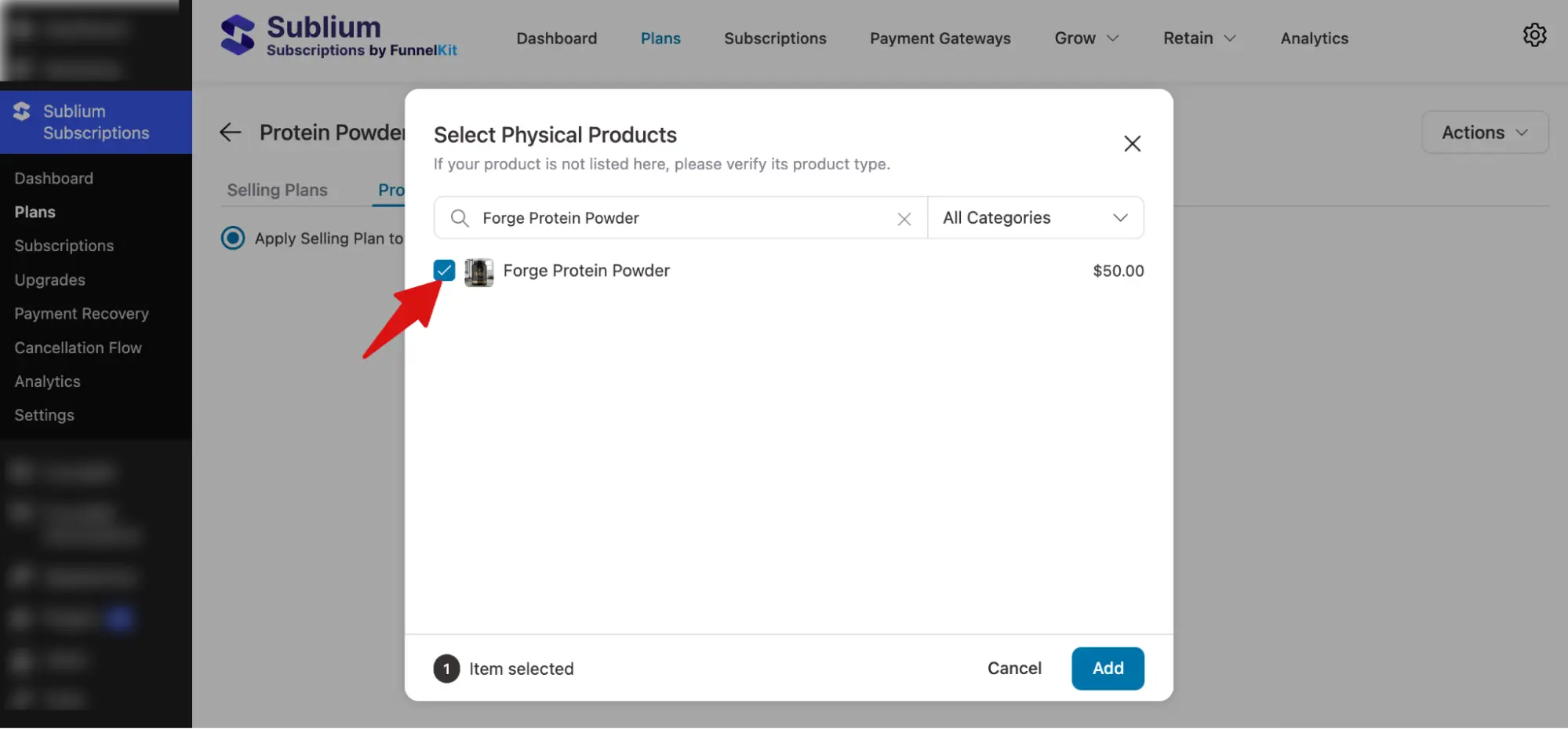
Step 6: Set up prices for different subscription plans
Once you’ve added the product, set the regular price and discounted price (if applicable) for each selling plan you’ve created.
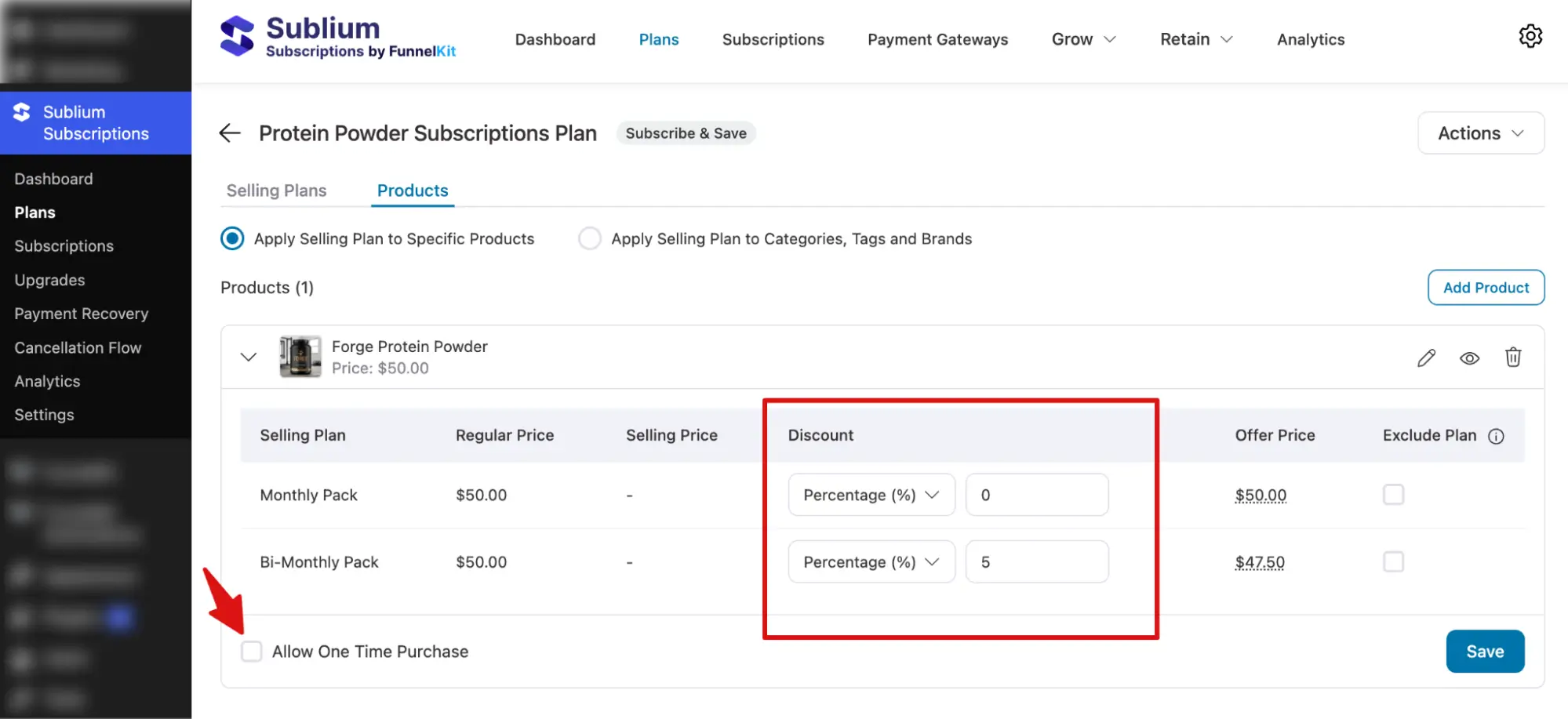
Make sure to hit “Save” Changes.
And that’s it, your WooCommerce subscription product with selling plans is ready.
Note: Here, you can add multiple products and offer the same subscription plans across different products or products from the same category, without needing to create the subscription plans again and again.
To test the subscription product, go to the product page and check if all the active subscription plans are showing.
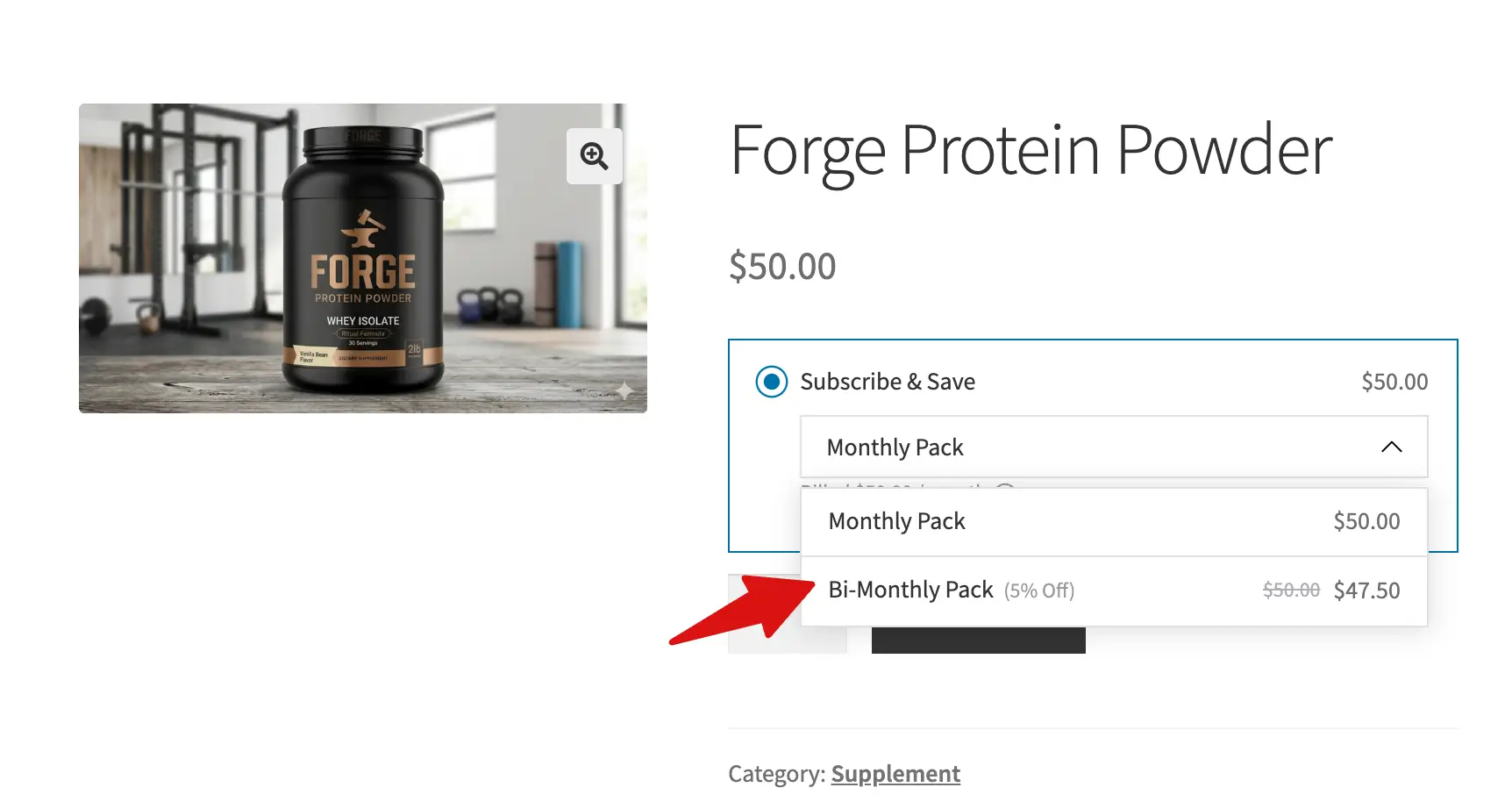
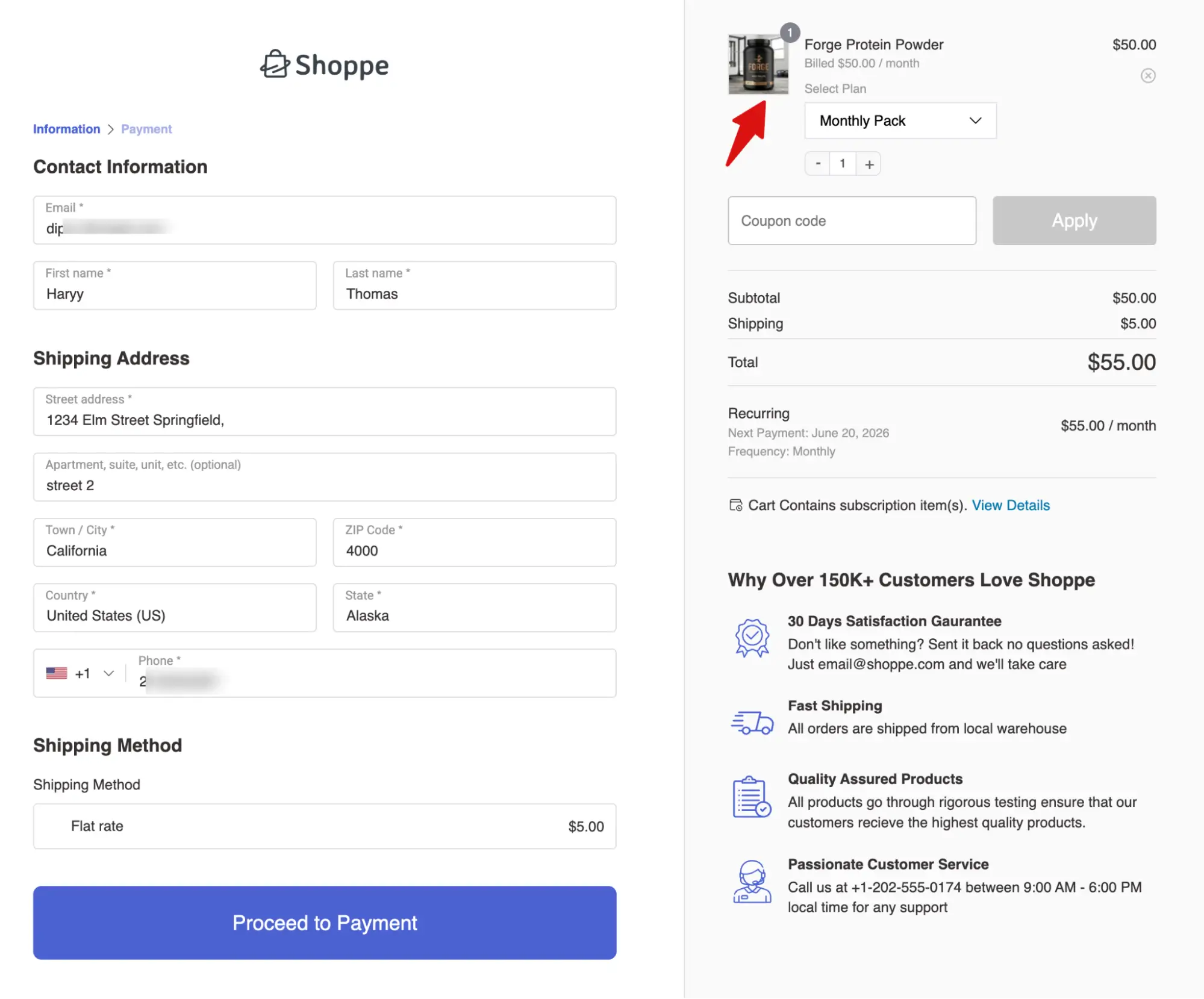
Here, you can select any plan and place, then test an order to check if everything is working properly.
How To Manage Subscription Products In WooCommerce?
With Sublium Subscriptions, you can easily manage the subscriptions. For this, navigate to the Subscriptions tab. Here, you can filter the subscriptions with products as well.
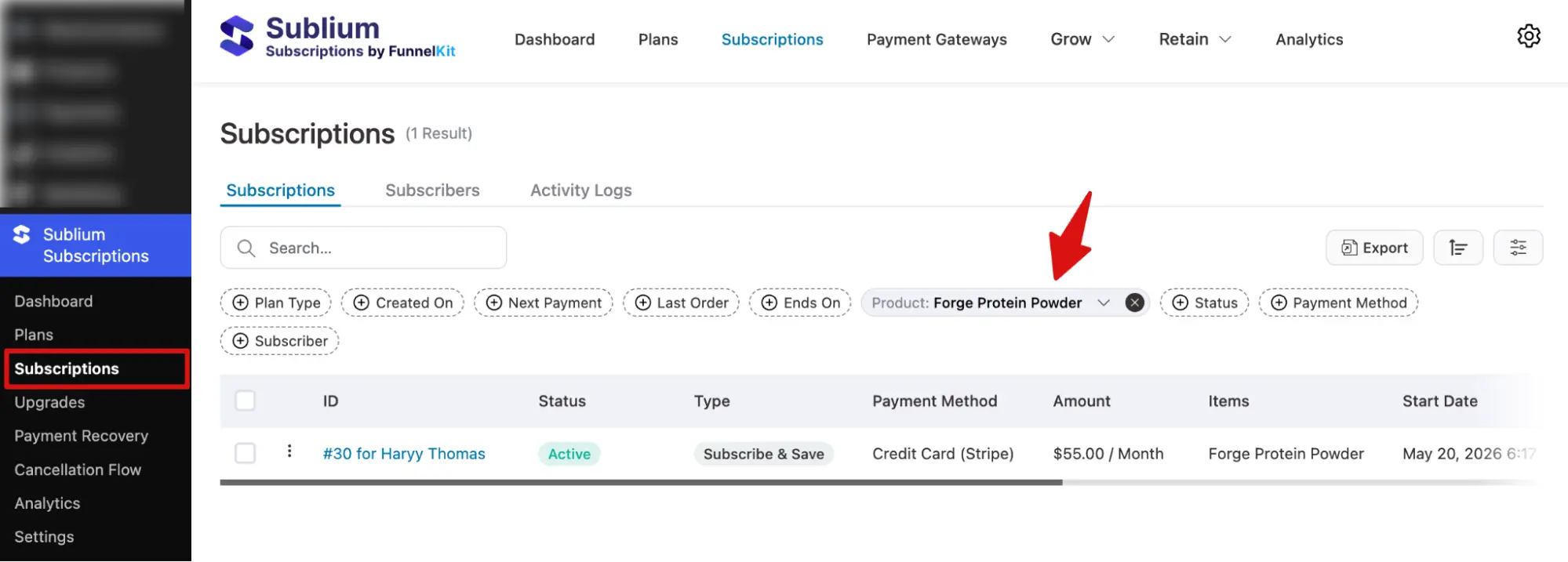
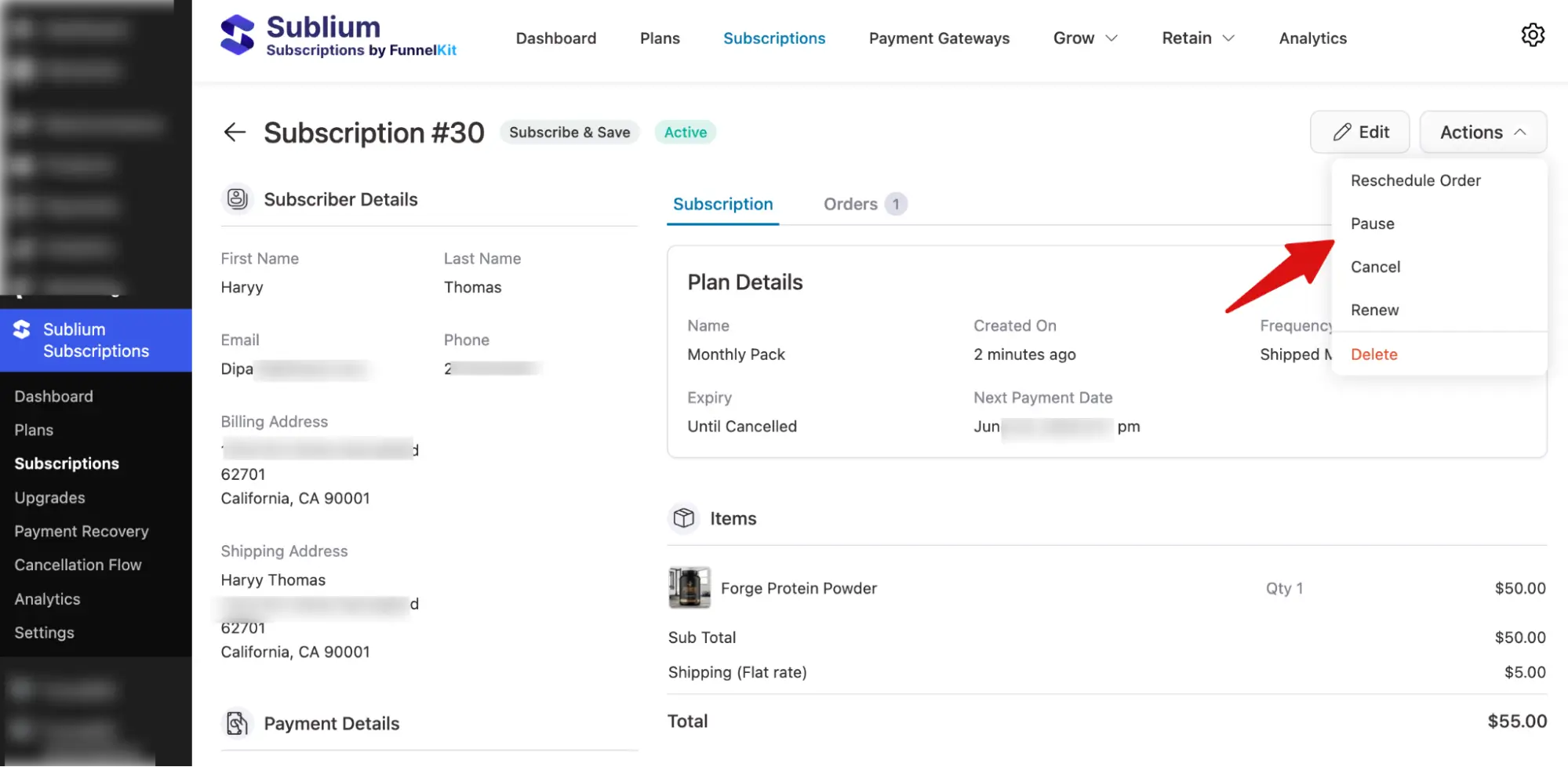
You can click Subscriptions to view detailed information on subscriptions, subscribers, and WooCommerce orders.
You can also perform actions such as rescheduling orders, pausing, canceling, or renewing subscriptions.
What Does the Customer Subscription Experience Look Like After Purchase?
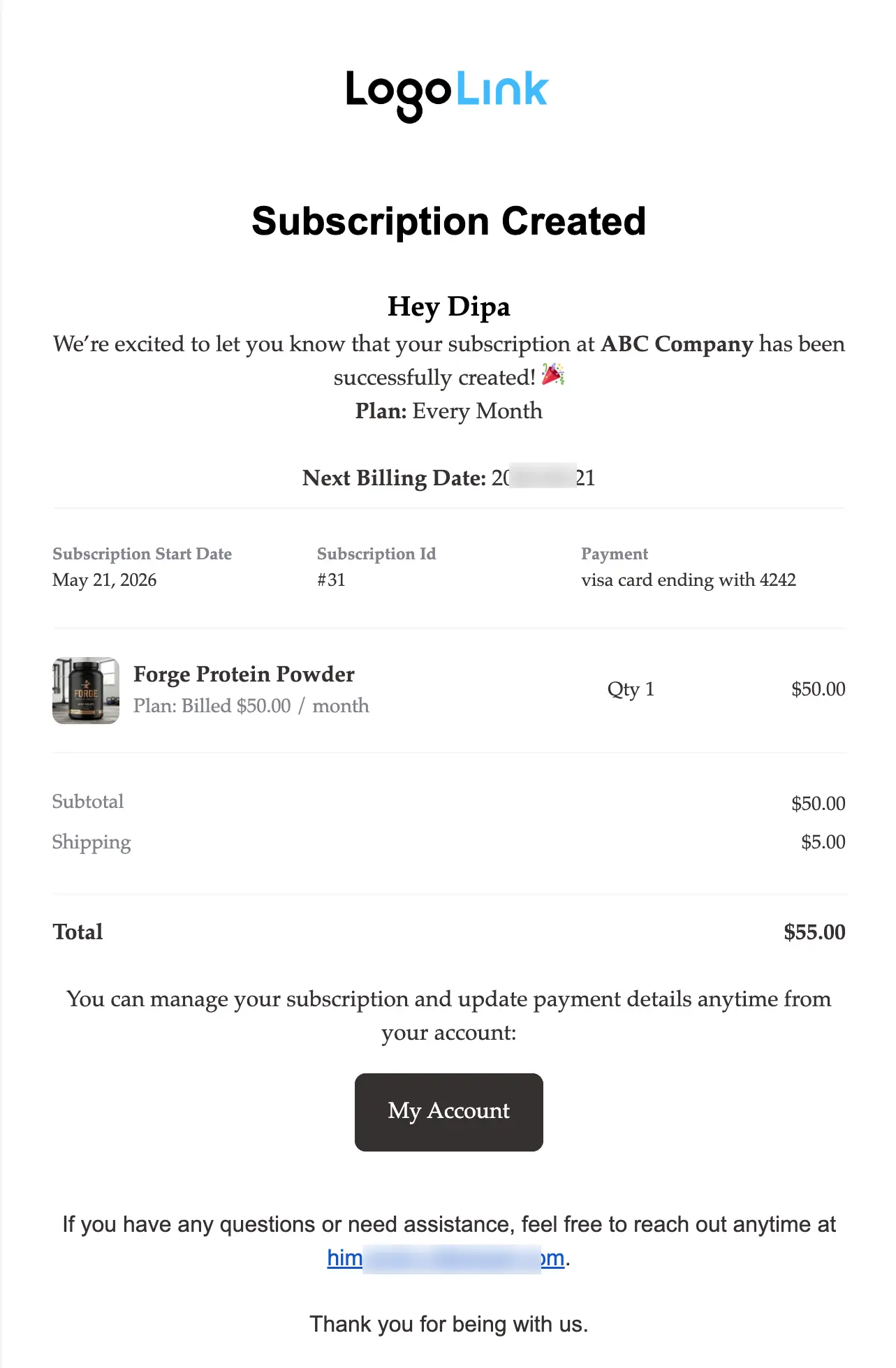
After completing checkout, subscribers receive a confirmation email with their subscription details, including the billing amount, next renewal date, and any applicable trial period.
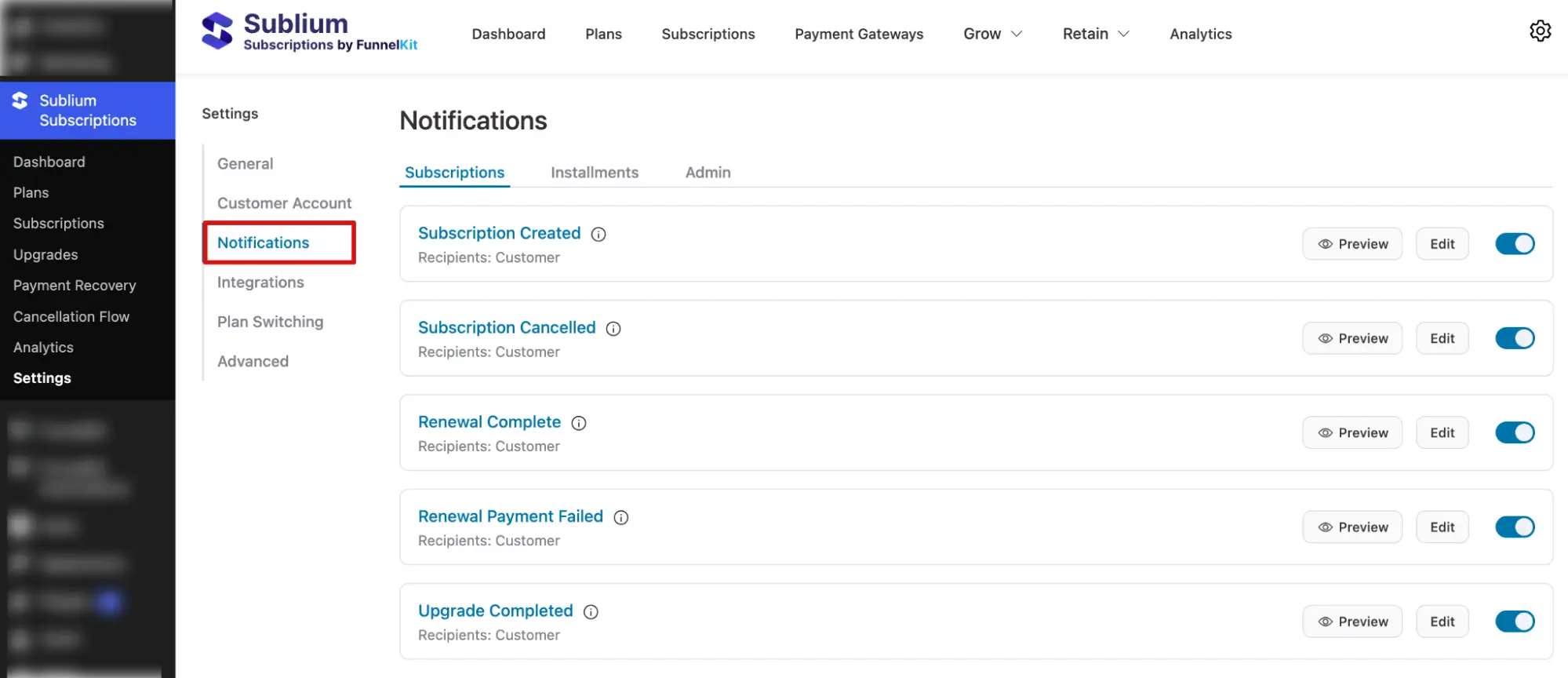
Note: You can customize and enable the email notifications under Settings ⇒ Notifications.
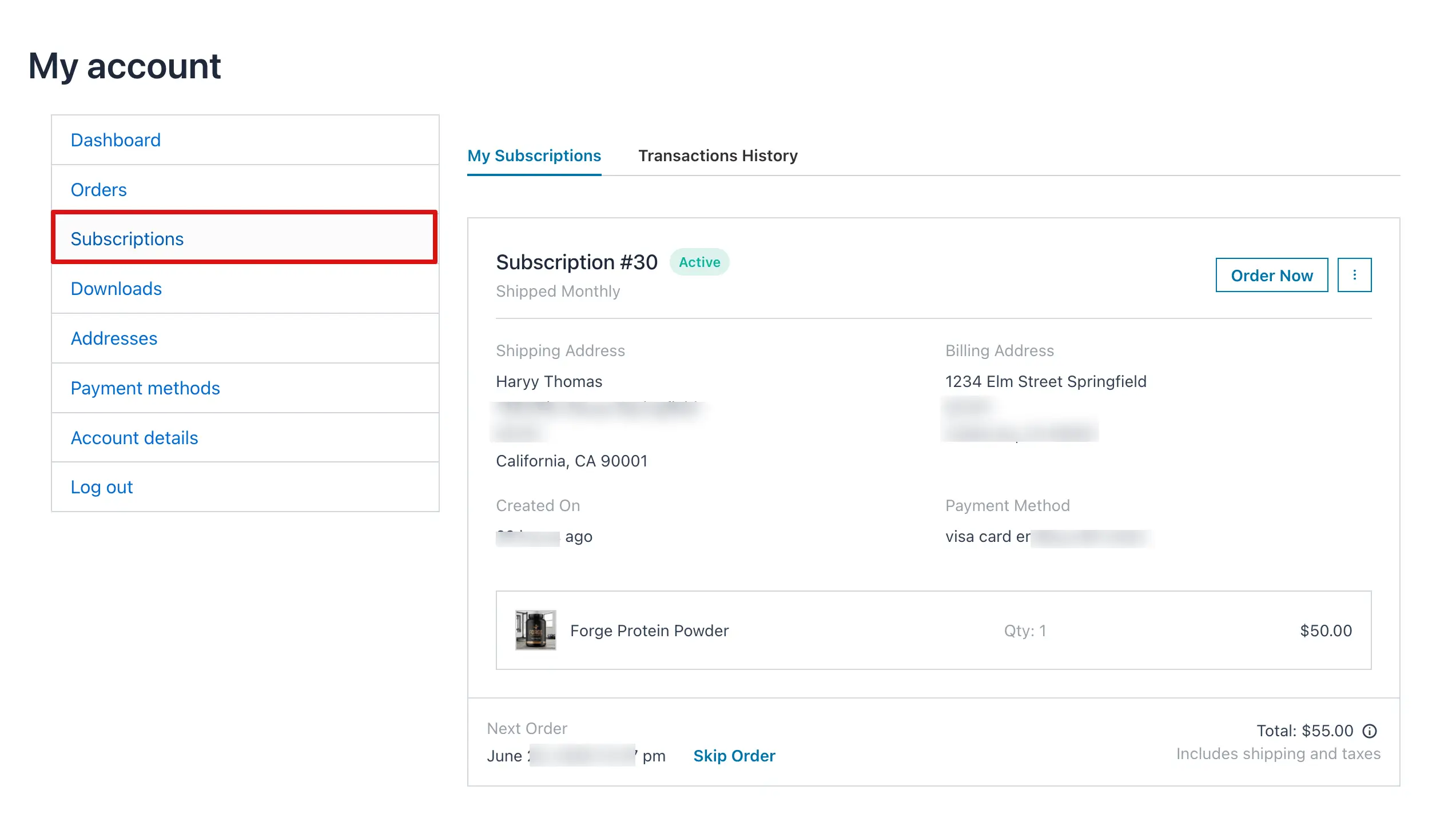
From there, they can manage everything inside their My Account page under a dedicated Subscriptions tab, where they can view active subscriptions, pause, skip, cancel, or update their payment method without contacting you.
Renewal charges process automatically on the scheduled date and trigger a renewal confirmation email each time.
In case of a failed renewal, you can also set up payment recovery.
Best Practices for WooCommerce Subscription Products That Actually Retain Customers
Setting up a subscription product is the easy part. Getting customers to stay subscribed is where most stores leave money on the table. These are the things worth getting right from the start.
- Match your billing interval to how your product is actually consumed
For physical products, the renewal should land roughly when the customer is running out, not before. Charge too early, and it feels pushy. Too late, and they have already bought elsewhere.
For digital products, monthly works well for ongoing access, but if your customers consistently get value over a longer period, an annual option gives them a reason to commit and gives you a reason to stop worrying about monthly churn.
- Use a free trial instead of a discount
A discounted first month attracts bargain hunters who cancel the moment the full price hits. A free trial brings in people who actually want to try the product. Customers who stay after a trial are almost always better long-term subscribers than those who came in for a deal.
- Write your plan names for the customer, not your backend
“Monthly Supply” and “Bi-Monthly Bundle” tell a customer exactly what they are signing up for. “Plan A” and “Plan B” tell them nothing. Clear plan names and a one-line description of what to expect at renewal reduce confusion, reduce support tickets, and reduce cancellations driven by surprise charges.
- Test the cancellation flow before you launch
Know exactly what your subscriber sees when they go to cancel. A confusing cancellation process does not retain customers. It generates chargebacks and damages your reputation. A clean exit, on the other hand, often leads to resubscriptions later.
More Questions About WooCommerce Subscriptions Products
Got more questions? Here are some of the frequently asked questions about how to create a subscription product in WooCommerce:
Can I create subscriptions for variable products in WooCommerce?
Yes, you can easily create subscription plans for variable products. For more details, check the blog on variable subscription plans.
Can I offer a free trial without collecting payment details upfront?
No. Customers still need to add payment details, but they are not charged until the trial ends.
Can I convert an existing product into a subscription product?
Yes. You can switch the product type to Subscription product by assigning the products to different subscription plans and then setting up the billing details again.
How does WooCommerce handle failed subscription renewals?
With Sublium Subscriptions, you can set up dunning management to retry failed renewals and send email notifications.
Can I offer discount coupons to subscription customers?
Yes. Coupons can be set for the first payment, renewals, or a limited number of billing cycles.
Can I create a subscription product for a digital download?
Yes. Mark it as downloadable and virtual, then set it as a subscription product. Then, create a subscription plan with the type “recurring” and then add the products to the plans.
How do subscription cancellations work for customers?
Renewals stop after cancellation. Access may continue until the end of the billing period, depending on your settings.
Which Payment Gateways Work with WooCommerce Subscriptions?
Popular payment gateways, such as Stripe, PayPal, and Square, work best with WooCommerce subscription products.
Start Selling Subscription Products in WooCommerce Today
In this guide, we walked through the full process of creating subscription products in WooCommerce, the setup, the customer experience, and the practices that keep subscribers around long term.
Subscriptions are one of those things that feel complicated before you set one up and surprisingly simple once you have.
The hardest part is usually just deciding on your billing intervals and pricing plans. The actual setup inside WooCommerce moves faster than most store owners expect.
If you have been putting this off because it seemed like too much to figure out, we hope this guide has made it feel more approachable.
Pick one product, create one plan, and get it live. You can always add more plans, adjust pricing, and refine the experience as you go.
The best subscription setup is the one that is actually running.
Sublium Subscriptions gives you everything you need to make that happen: simple products, variable plans, free trials, and full renewal management, all built specifically for WooCommerce and ready to go the moment you install it.
So, get Sublium Subscriptions today.


