

Sublium Subscriptions is totally compatible with FunnelKit Cart for WooCommerce.
You can combine both plugins to let customers manage their subscription purchase options directly from the sliding cart.
Customers can:
- View the selected plan
- Switch to a different plan
- Switch to one-time purchase
- Remove products from the cart
- Apply discount codes without leaving the cart
- Complete checkout using express payment options directly from the cart
Before You Start
To use this integration properly, make sure:
- Your product has an active Sublium Subscription plan
- FunnelKit Cart for WooCommerce is installed and activated
- and the cart feature is enabled in the FunnelKit cart settings

How Sublium Works in the Sliding Cart on the storefront
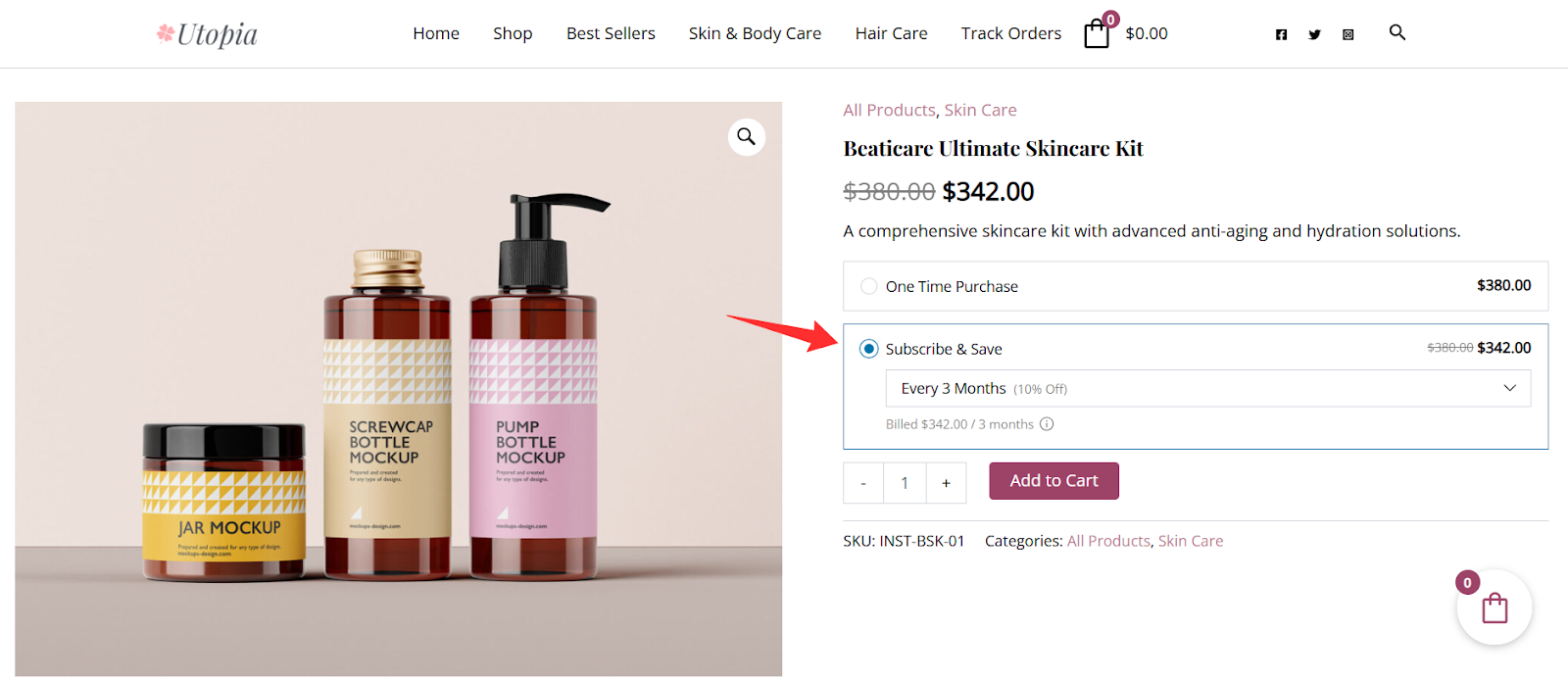
Step 1: Add a product to your cart
Visit any product page on your site that offers a Sublium Subscriptions selling plan and choose the selling plan you want for the product, then add it to the cart.
Step 2: Review the product in the sliding cart
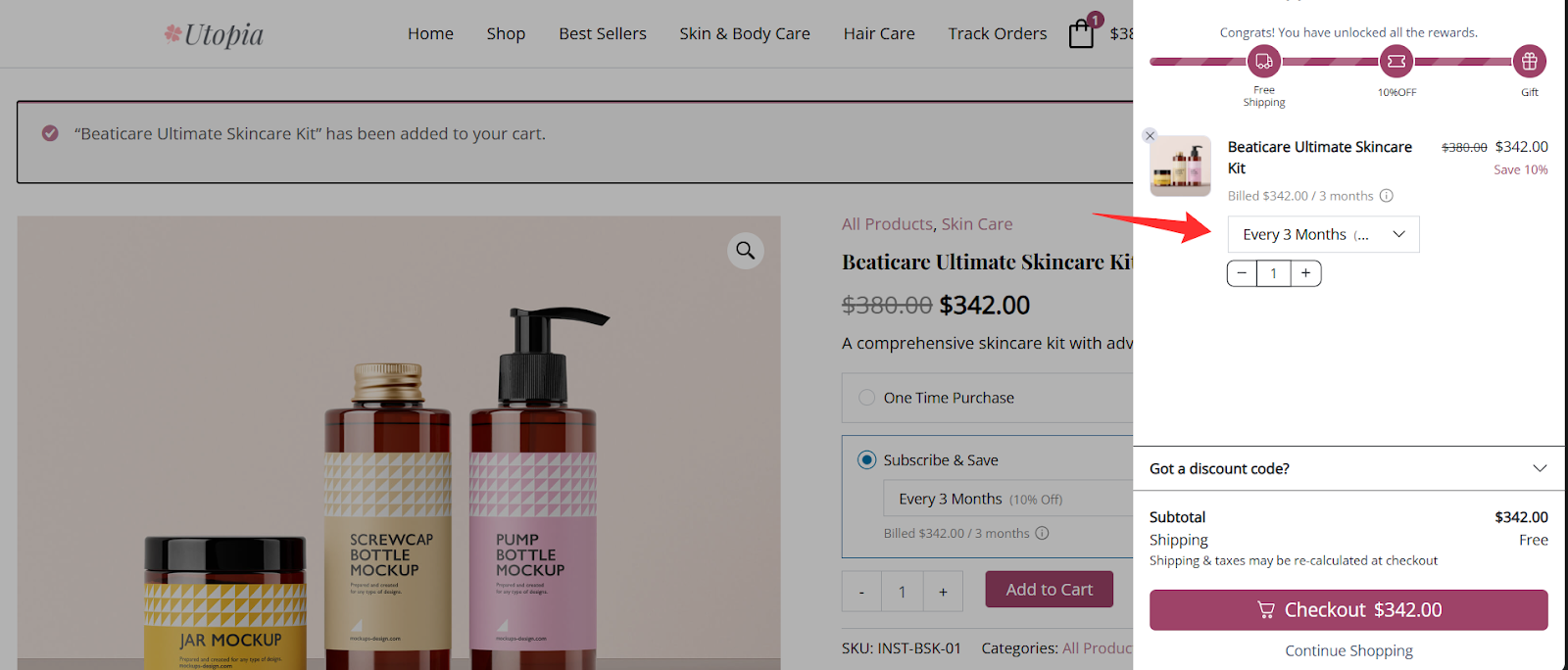
As soon as the product is added, the sliding cart opens automatically. It shows the product and the selected selling plan.
Step 3: Manage the purchase directly in the cart
From the sliding cart, customers can:
- Change the selected selling plan
- Switch to a one-time purchase
- Remove the product from the cart
- Apply a discount code
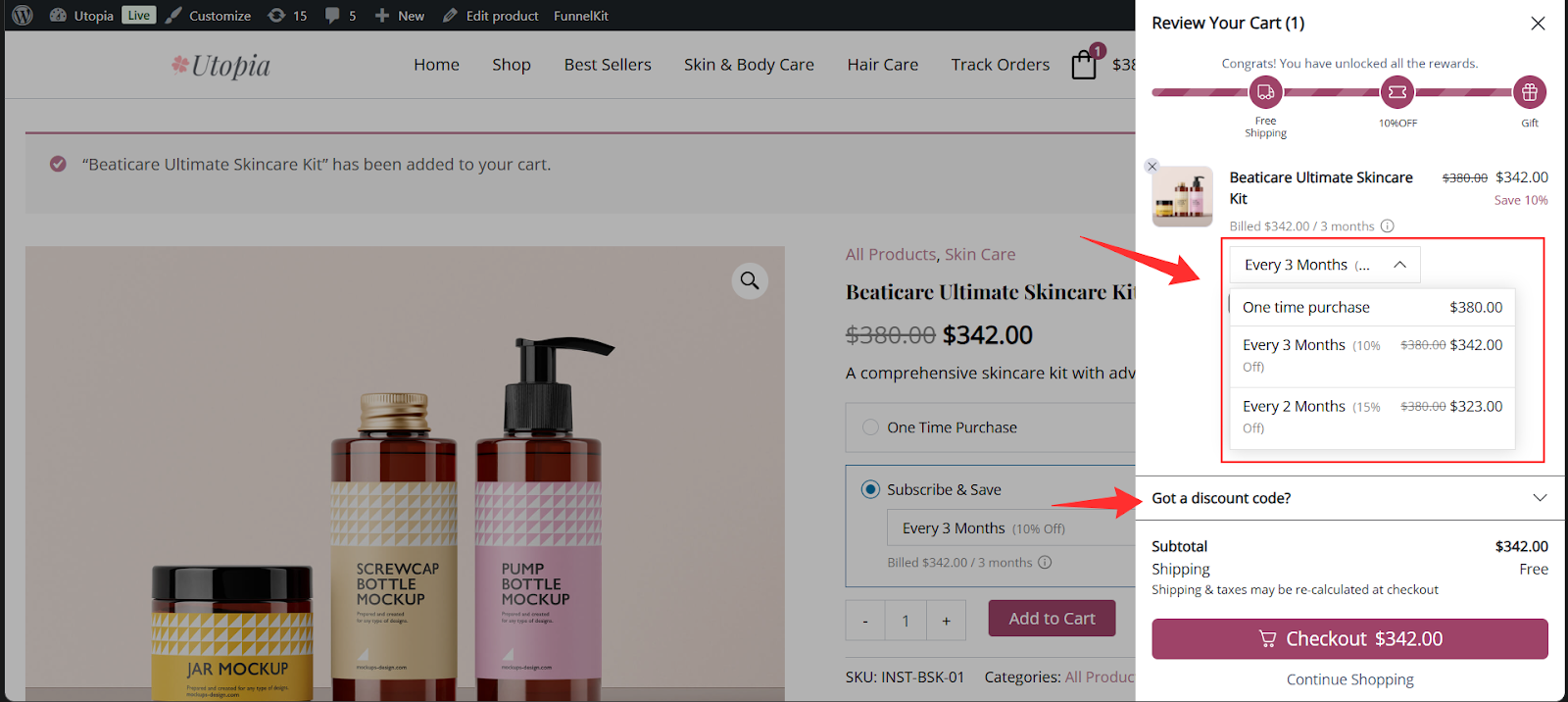
Customers can switch between Sublium subscription plans directly in the cart, without returning to the product page or opening a separate cart.
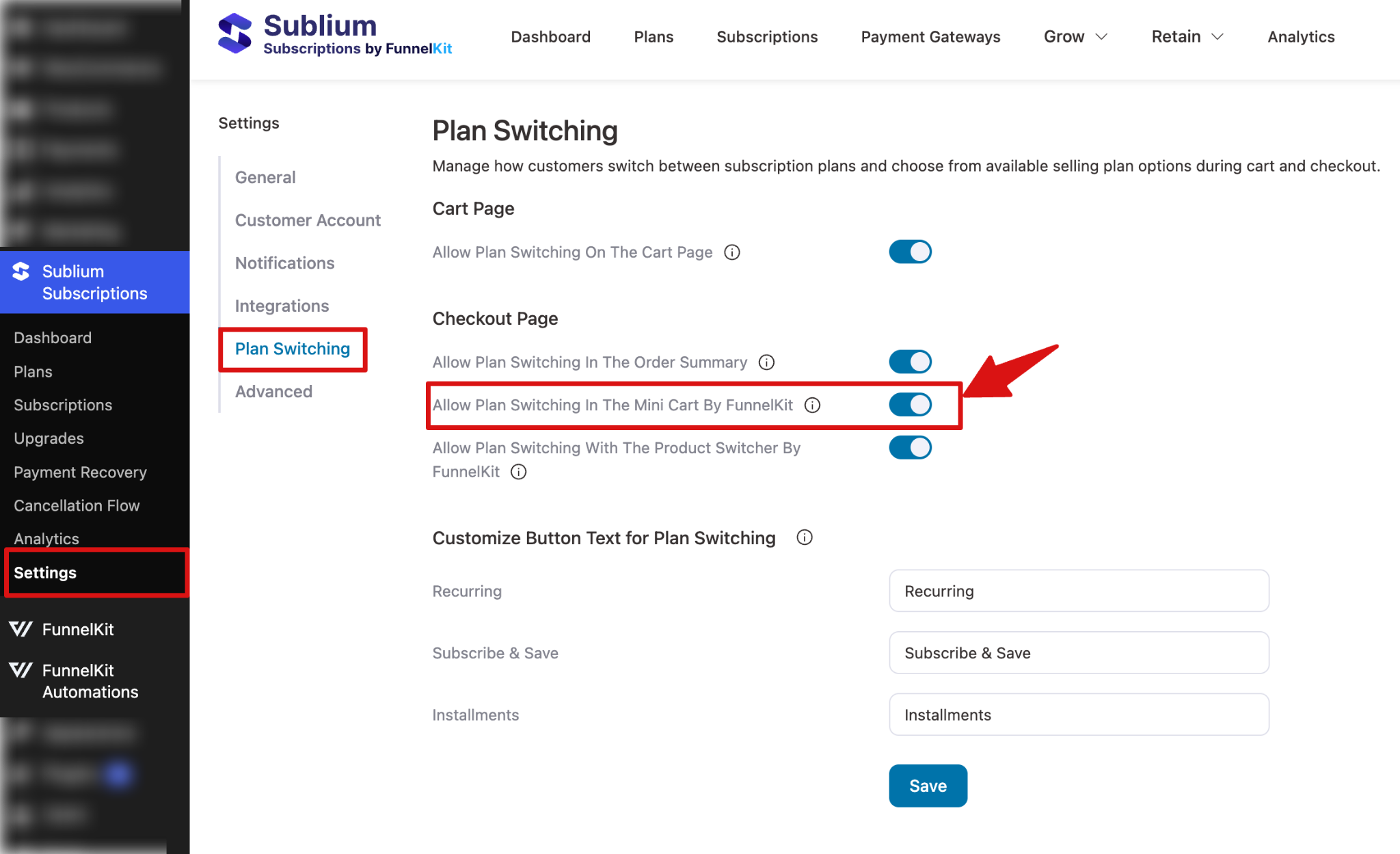
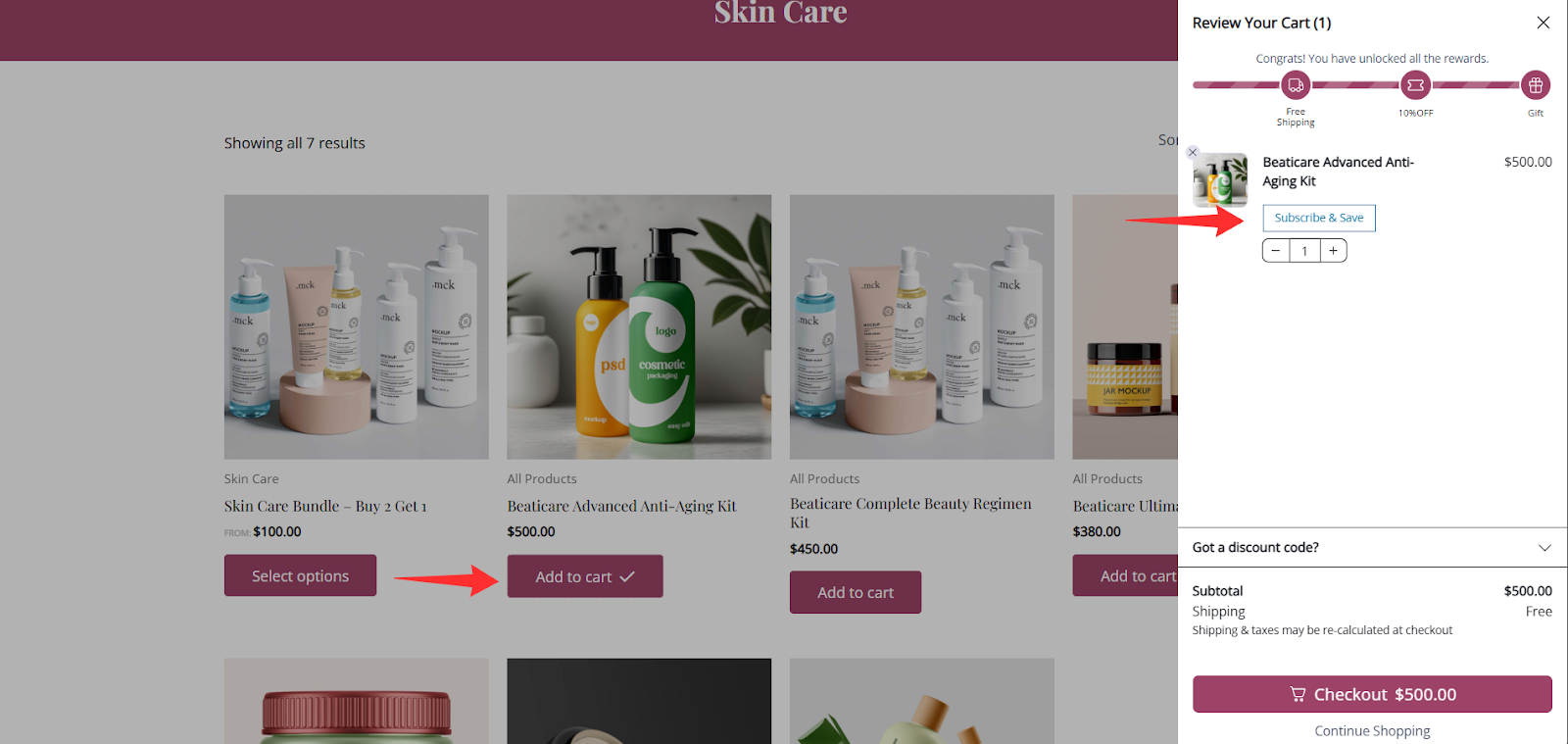
When the product is added to the cart, here’s how the suggestion to select a plan appears on the storefront
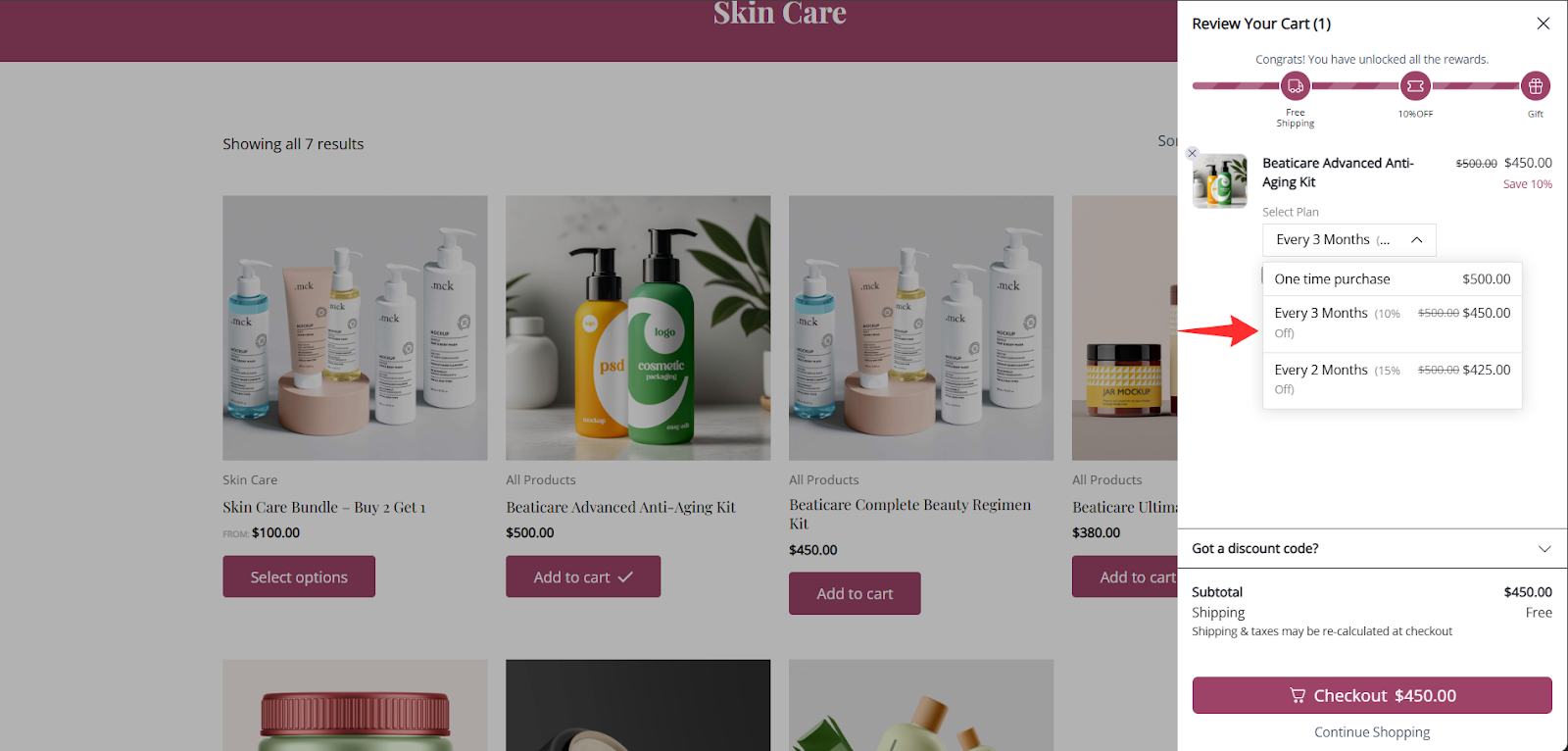
Customers can change their plan from the available dropdown list.
Step 4: Complete checkout
Once the customer is happy with the selection, they can continue through the normal checkout process.
The checkout flow works like a standard WooCommerce purchase, with the selected Sublium Subscription plan applied to the product.
Frequently Asked Questions
- Do I need FunnelKit Cart to use this feature?
Yes. The sliding cart feature is provided by FunnelKit Cart for WooCommerce, so this plugin must be installed and activated.
- Can customers change their selling plan from the cart?
Yes. Customers can switch between available selling plans directly inside the sliding cart.
- Can customers choose a one-time purchase instead of a selling plan?
Yes. If available for the product, customers can switch from a selling plan to a one-time purchase from the sliding cart.
- What should I check if the selling plan isn’t displaying correctly?
First, make sure that:
- FunnelKit Cart is installed and active
- The cart is enabled in the cart settings
- The product has a valid Sublium selling plan configured
- The plan switching option must be enabled in Sublium Subscription settings.
If everything looks correct and the issue still continues, contact support and share your setup details along with screenshots.


