

In this documentation, we will share how to integrate Sublium Subscriptions with AffiliateWP to create an automated affiliate commission system for subscription-based products.
What is AffiliateWP?
AffiliateWP is a WordPress affiliate marketing plugin that allows you to create and manage affiliate programs directly from your WordPress site. It helps you track referrals, generate unique affiliate links, and calculate commissions based on referred sales.
Sublium Subscriptions manages subscription billing, recurring payments, and subscription lifecycle automation.
Together, they enable a fully automated affiliate-driven subscription system where referrals can be tracked and commissions calculated on subscription-based purchases.
What the AffiliateWP and Sublium Subscriptions Integration Enables
- Automate subscription status updates affecting commission eligibility
- Track affiliate-driven subscription purchases automatically
- Calculate commissions on subscription-based or one-time payments
- Support recurring commission tracking for subscription renewals
- Manage subscription billing and lifecycle through Sublium Subscriptions
- Provide real-time referral tracking and affiliate performance insights
How to Integrate Sublium Subscriptions with AffiliateWP
We will use the example product “Affiliate Plan” to demonstrate the integration. This will be a virtual product with a flat commission rate of $16.99 per referral.
Step 1: Activate AffiliateWP Integration in Sublium
Once you install the AffiliateWP plugin, you can enable the integration in Sublium.
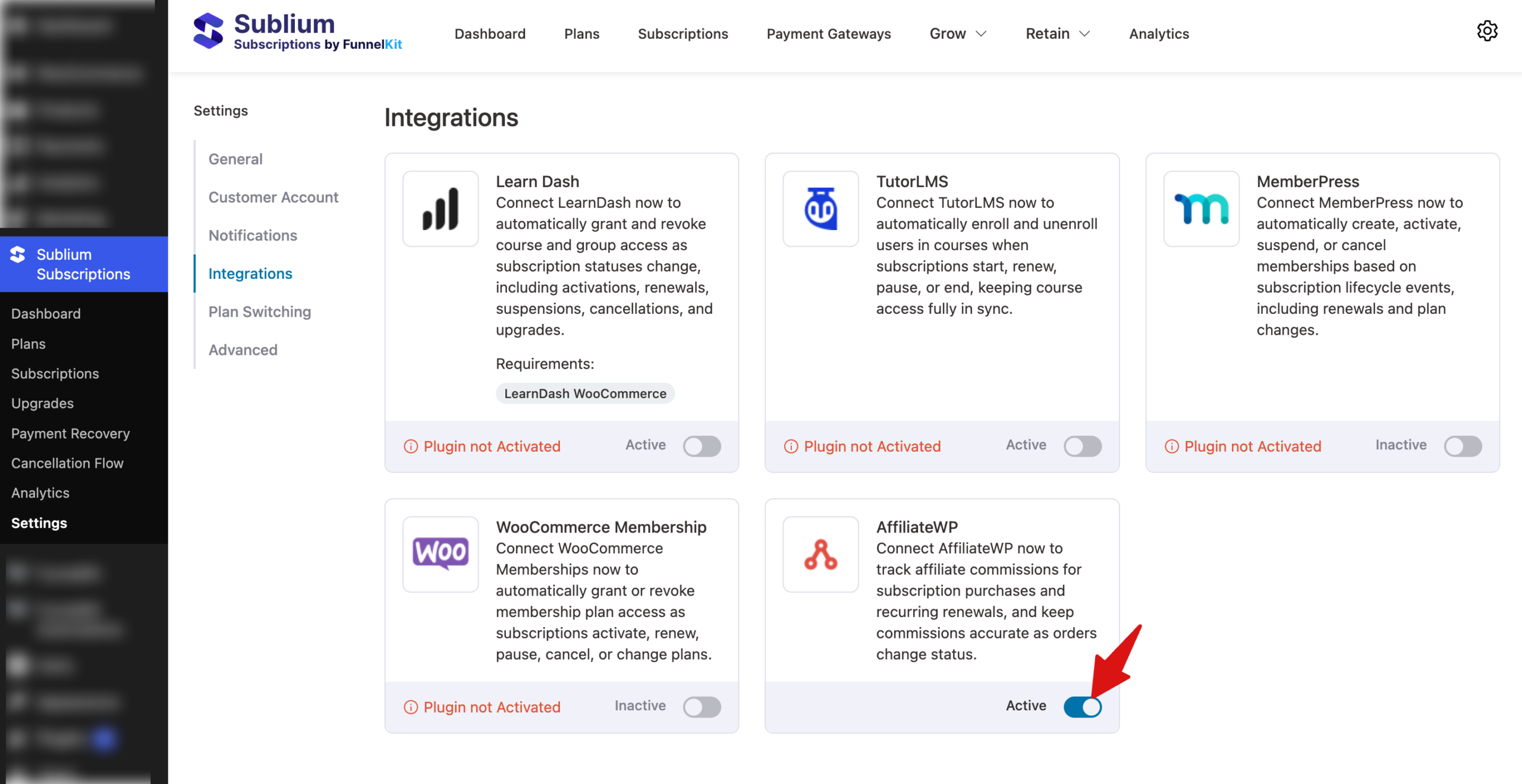
From the WordPress dashboard, navigate to Sublium Subscriptions ⇒ Settings ⇒ Integrations. Locate AffiliateWP in the list of integrations.
If it’s not installed, you will see “Plugin not installed.” Install it first. Toggle the Active button to enable the integration.
Step 2: Create an Affiliate in AffiliateWP
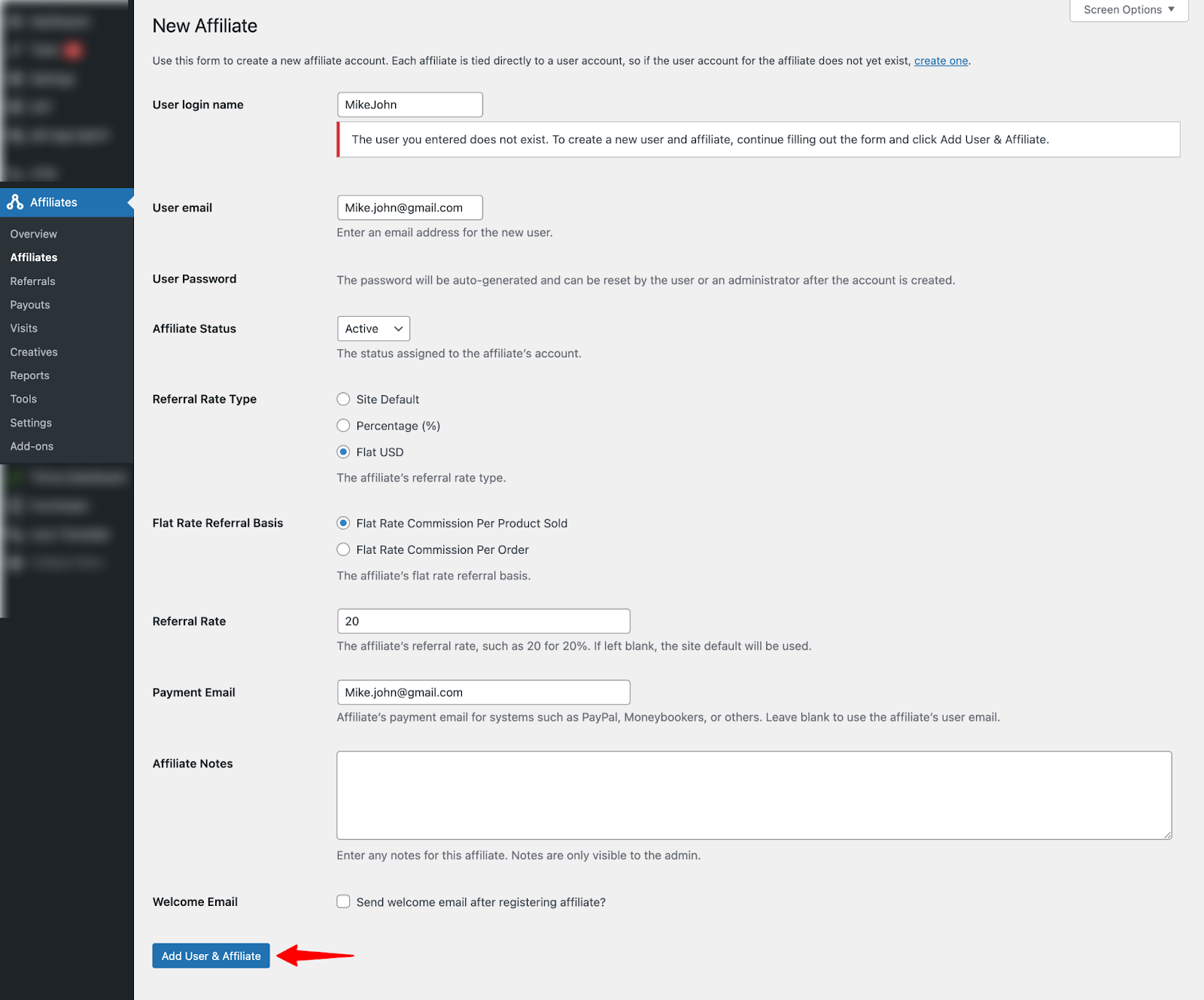
Navigate to Affiliates and click Add New. Next, fill in User login name, User email, User password, Affiliate Status, Referral Rate Type, Flat Rate Referral Basis, Referral Rate, Payment Email, etc., and click “Add User & Affiliate” to create the user as an affiliate.
Step 3: Enable WooCommerce Integration in AffiliateWP
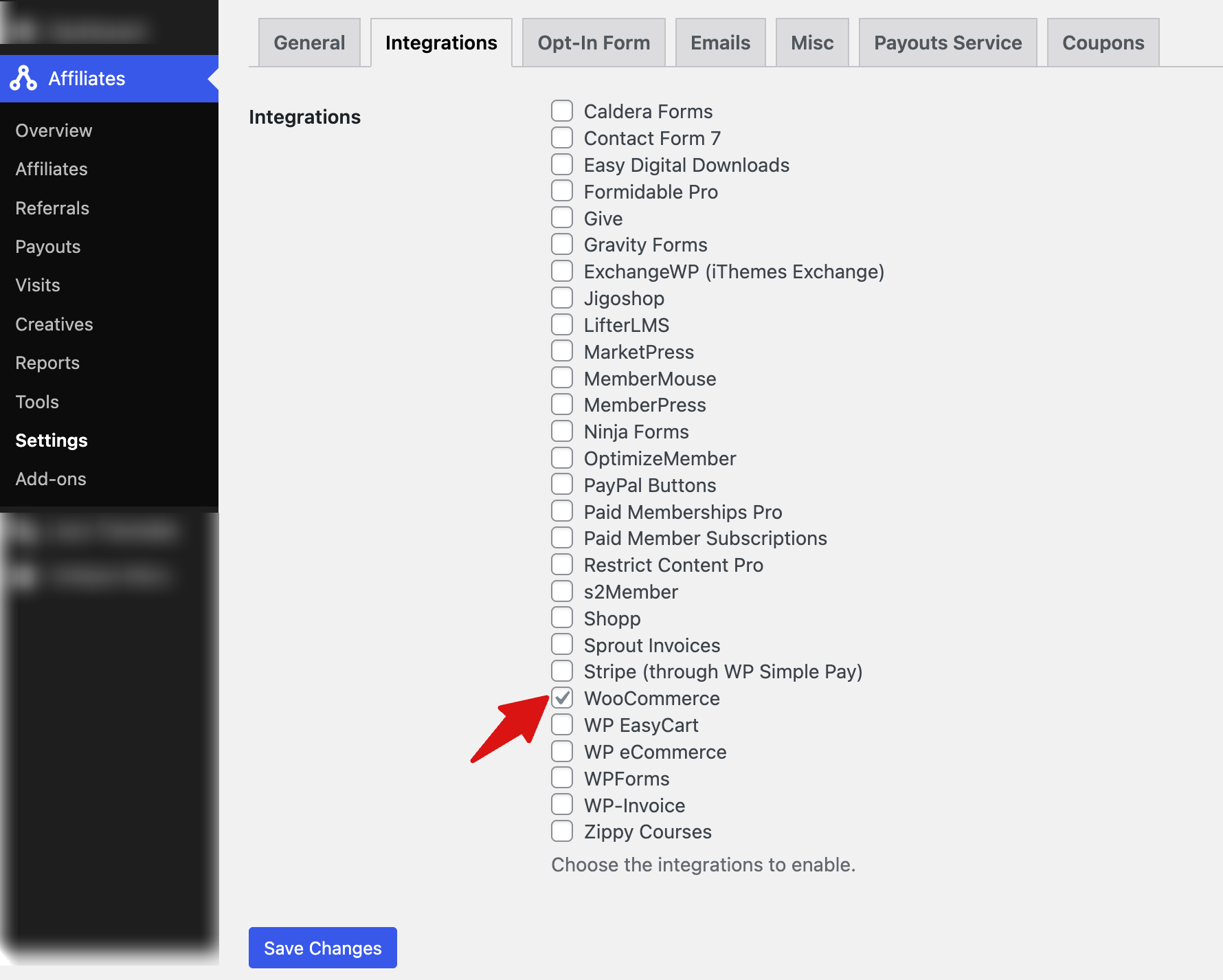
Navigate to Affiliates ⇒ Settings ⇒ Integrations. Check WooCommerce under integrations and Save Changes.
Step 4: Create a WooCommerce Product with Affiliate Commission
Navigate to Products ⇒ Add New in WooCommerce. Create your product (e.g., “Affiliate Plan”). Set it as a Simple Product and check the Virtual checkbox.
Scroll down to the AffiliateWP section in the product data panel. Here, you can use the default affiliate rate or set a specific rate for this product. For example, if the default rate is $20, you can override it and set $10 for this product. Once done, publish the product.
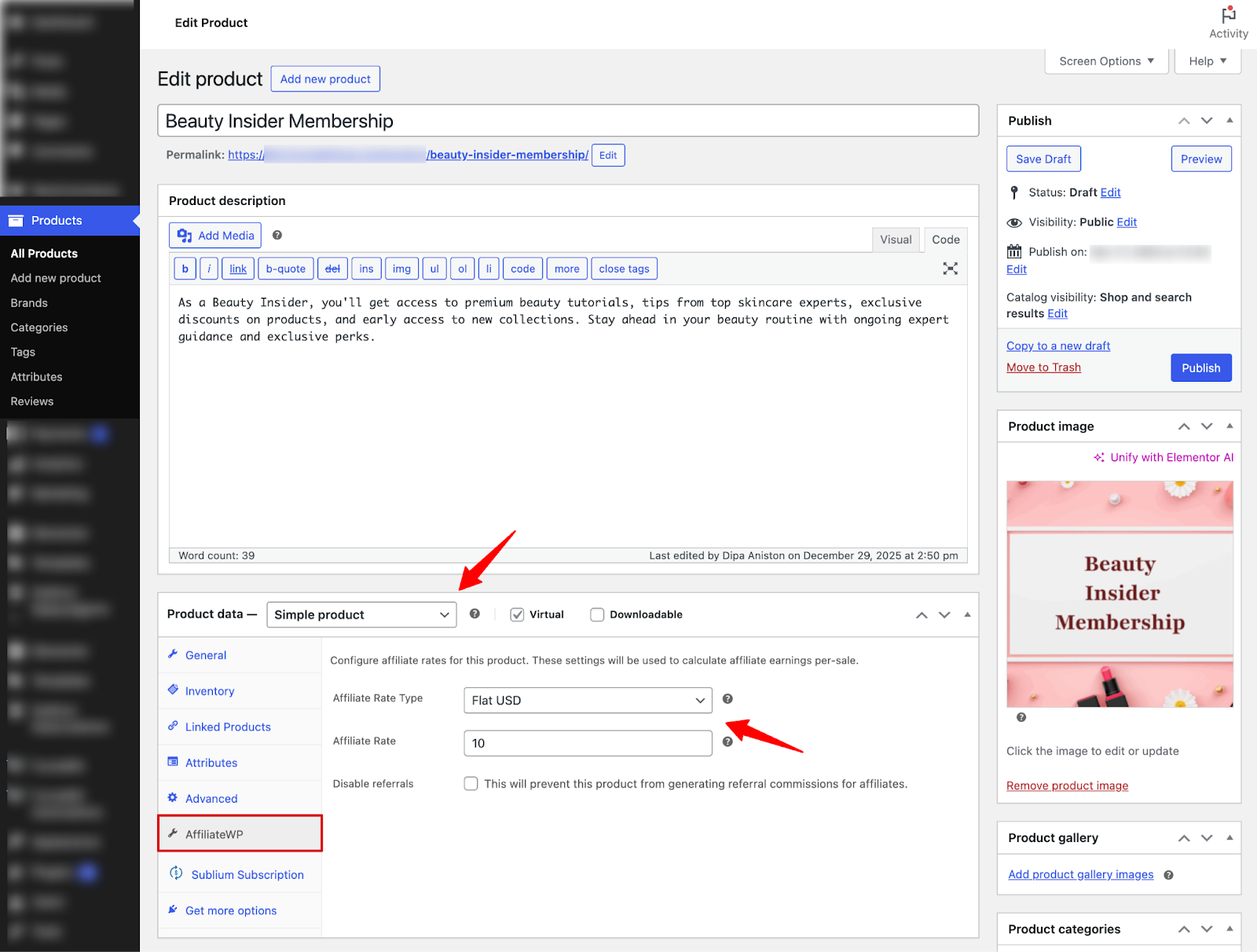
Note: Whenever an affiliate’s link is used to purchase this product, they will earn the commission amount you specified (e.g., $10 per sale).
Step 5: Create a Subscription Plan in Sublium and Attach the Product

Navigate to Sublium Subscriptions ⇒ Plans and create a new plan.
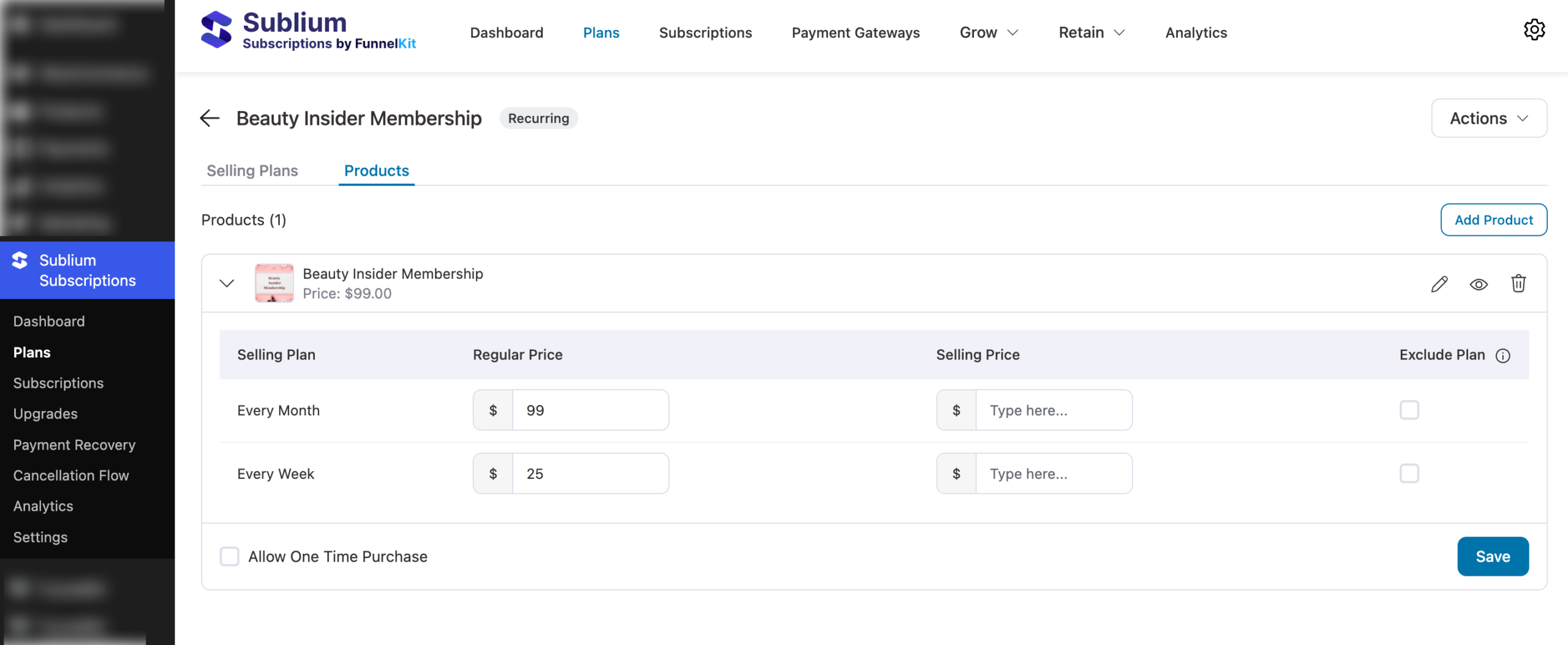
Attach the product you created in the previous step (e.g., “Beauty Insider Membership”). Set your billing plans (e.g., monthly, weekly). Make sure the selling plans are set to Active. Save the plan.
Step 6: Share the Affiliate URL
Now, to share the affiliate link with the Affiliate, copy the affiliate’s unique URL from their AffiliateWP profile.
Go into the affiliate’s profile and copy the unique Affiliate URL.
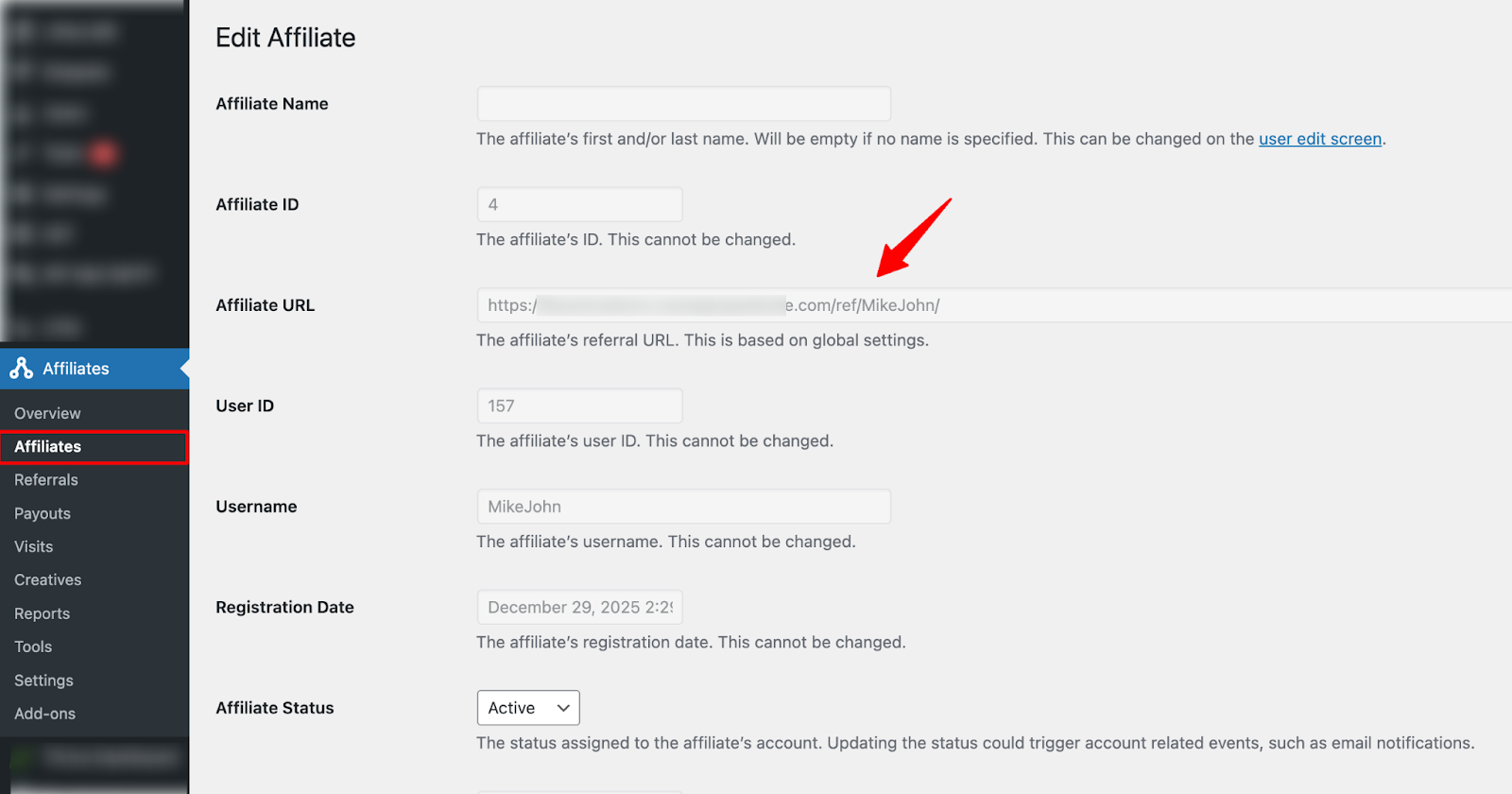
Note: This Affiliate URL is what the affiliate shares on social media, websites, or emails to drive referrals. When someone uses this link to purchase a product, the affiliate earns a commission. The URL can be hidden behind a button or link, so it won’t be directly visible to customers. Clicking the button or link redirects customers to the product page.
That’s it. Your AffiliateWP integration with Sublium Subscriptions is now complete.
How Sublium Subscriptions & AffiliateWP Work on the Storefront
Here’s the complete customer journey when an affiliate link is used:
Customer clicks the affiliate’s unique referral URL (hidden under a button or link). They are redirected to the shop page or specific product page.
Customer sees the subscription options and selects their preferred plan to add to their cart.

They add the product to the cart and proceed to checkout.
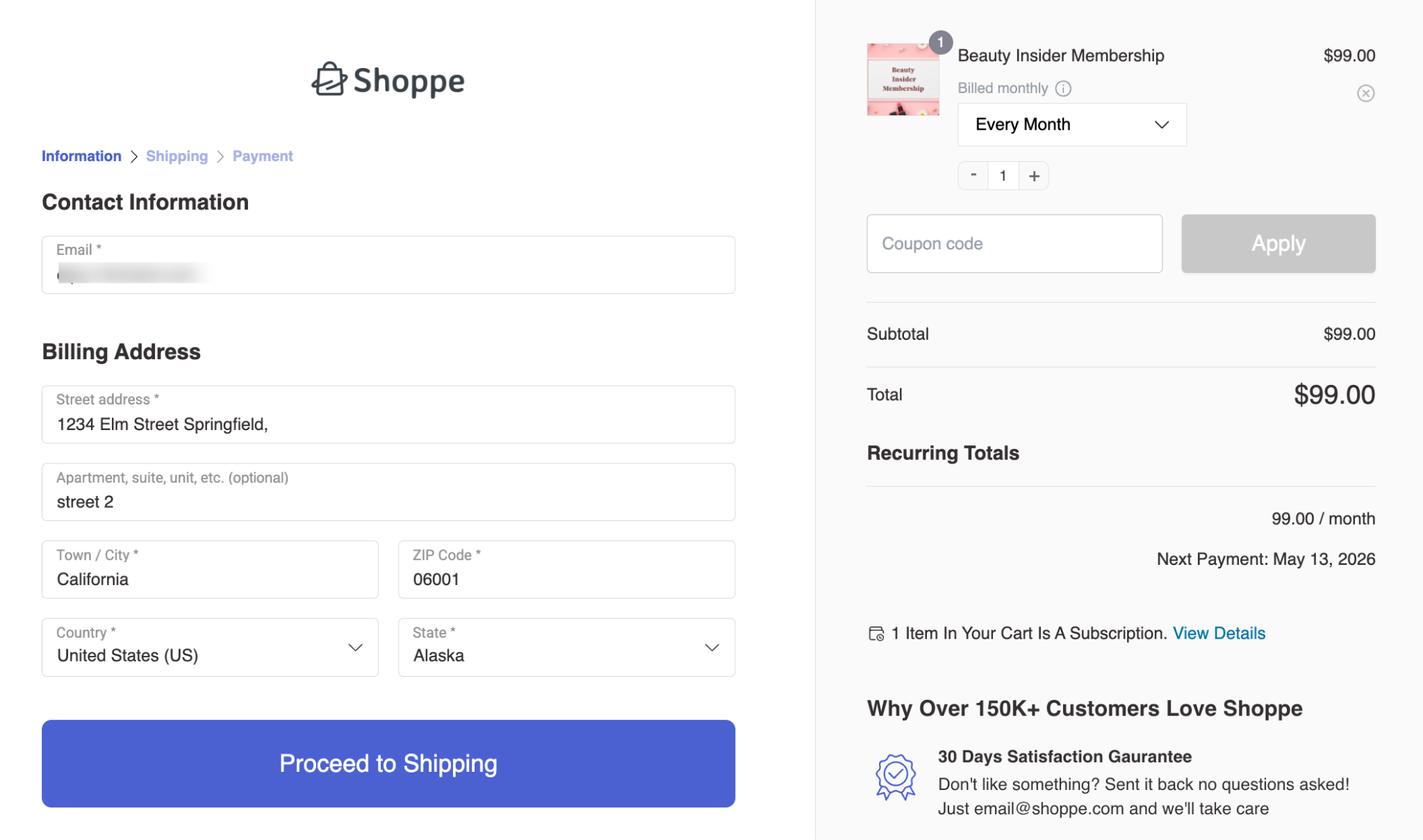
Users can choose any payment method to complete the order.
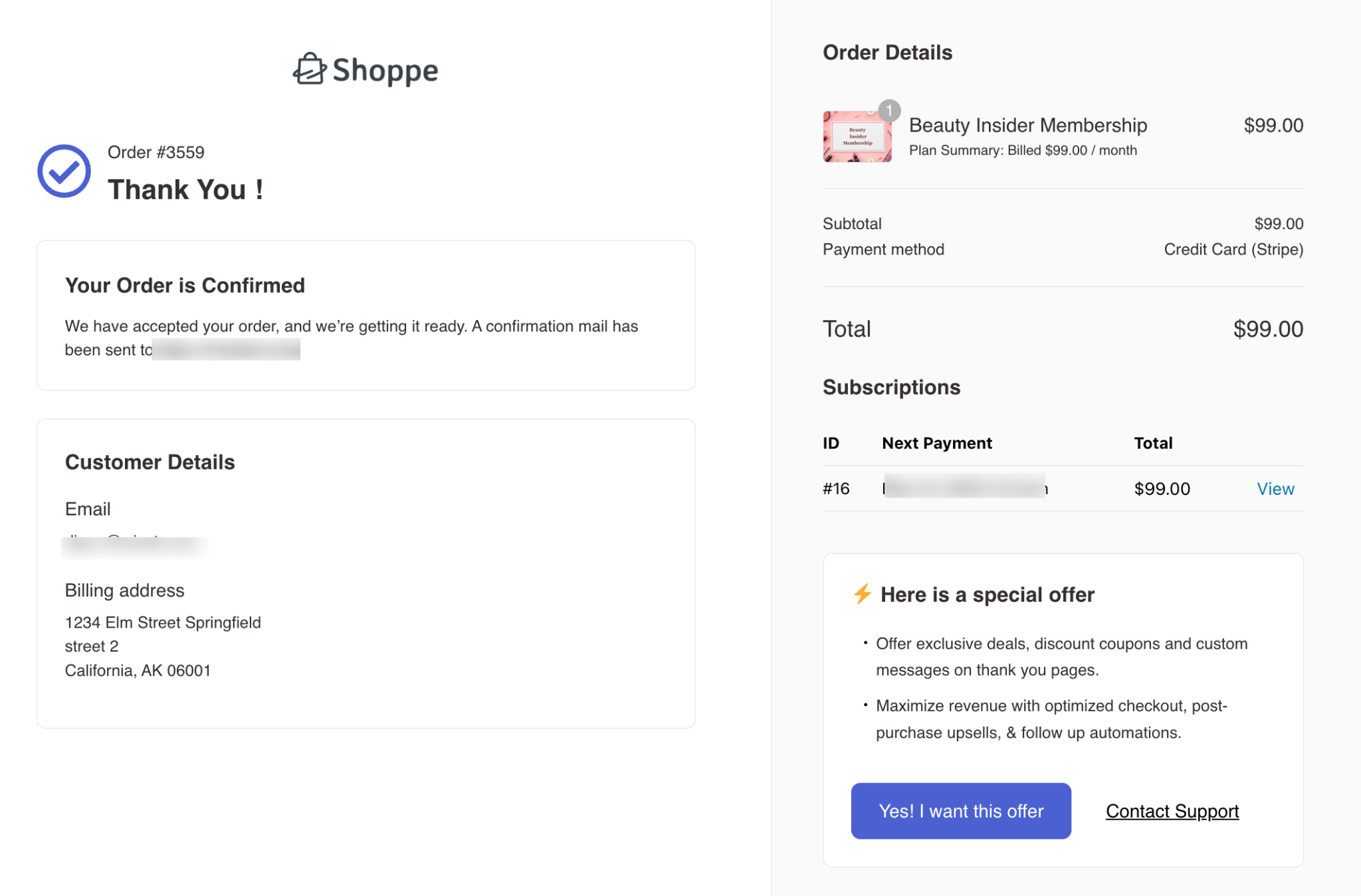
After successful payment, the affiliate is credited with the commission. The subscription entry is created in Sublium Subscriptions.
How to Manage AffiliateWP with Sublium Subscriptions
Once a customer purchases through an affiliate link, you can track and manage everything from both AffiliateWP and Sublium dashboards.
Viewing Referrals and Earnings in AffiliateWP
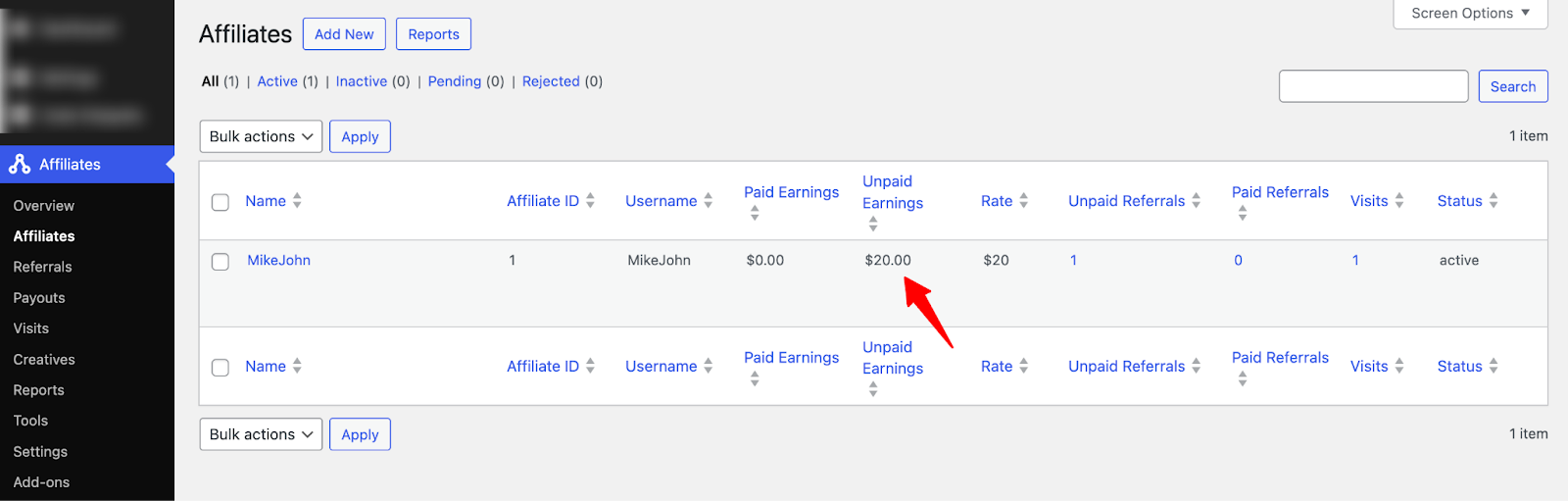
In AffiliateWP, the affiliate’s earnings are visible right in the dashboard. For example:
- First order: Affiliate earns $10.
- Second order through the same affiliate: Earnings update to $20 (cumulative)
- The dashboard shows the “Unpaid Referrals” count
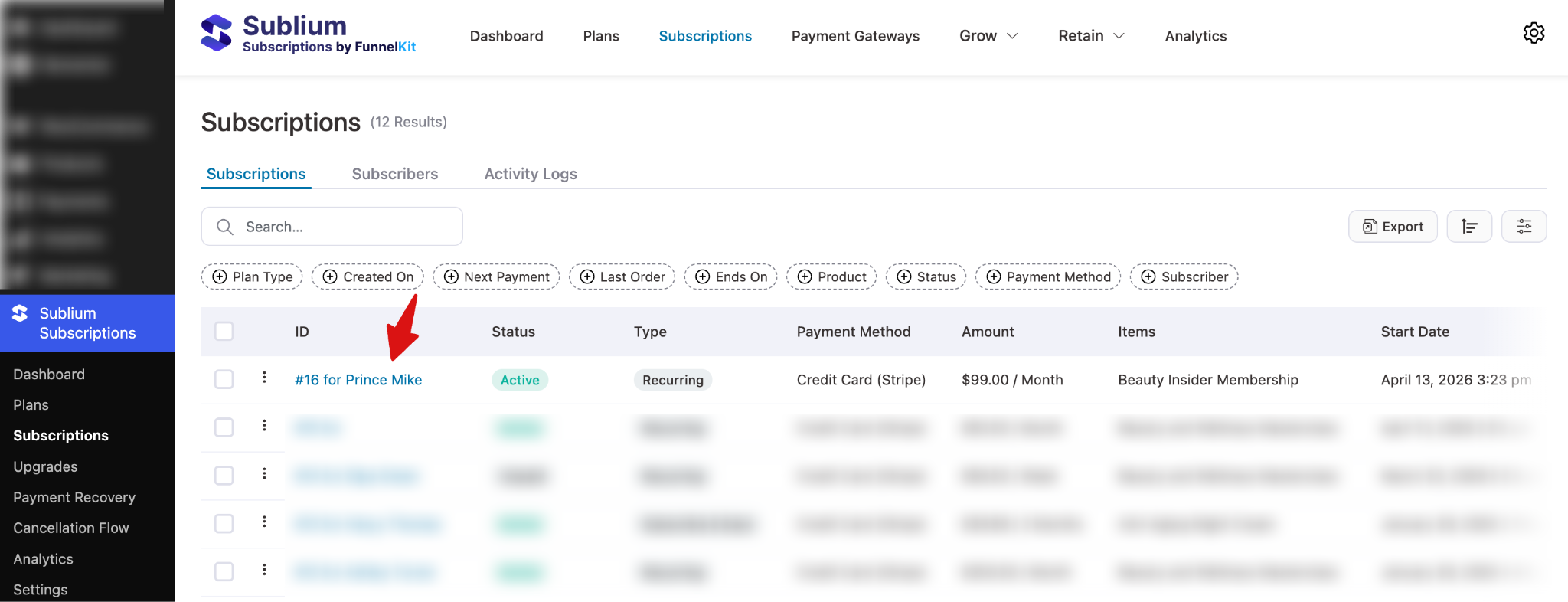
Subscription Details in Sublium Subscriptions
In Sublium Subscriptions, navigate to Subscriptions to view all subscription entries created from affiliate-referred purchases. Click on any subscription to see:
- Subscriber details
- Subscription status
- Payment history
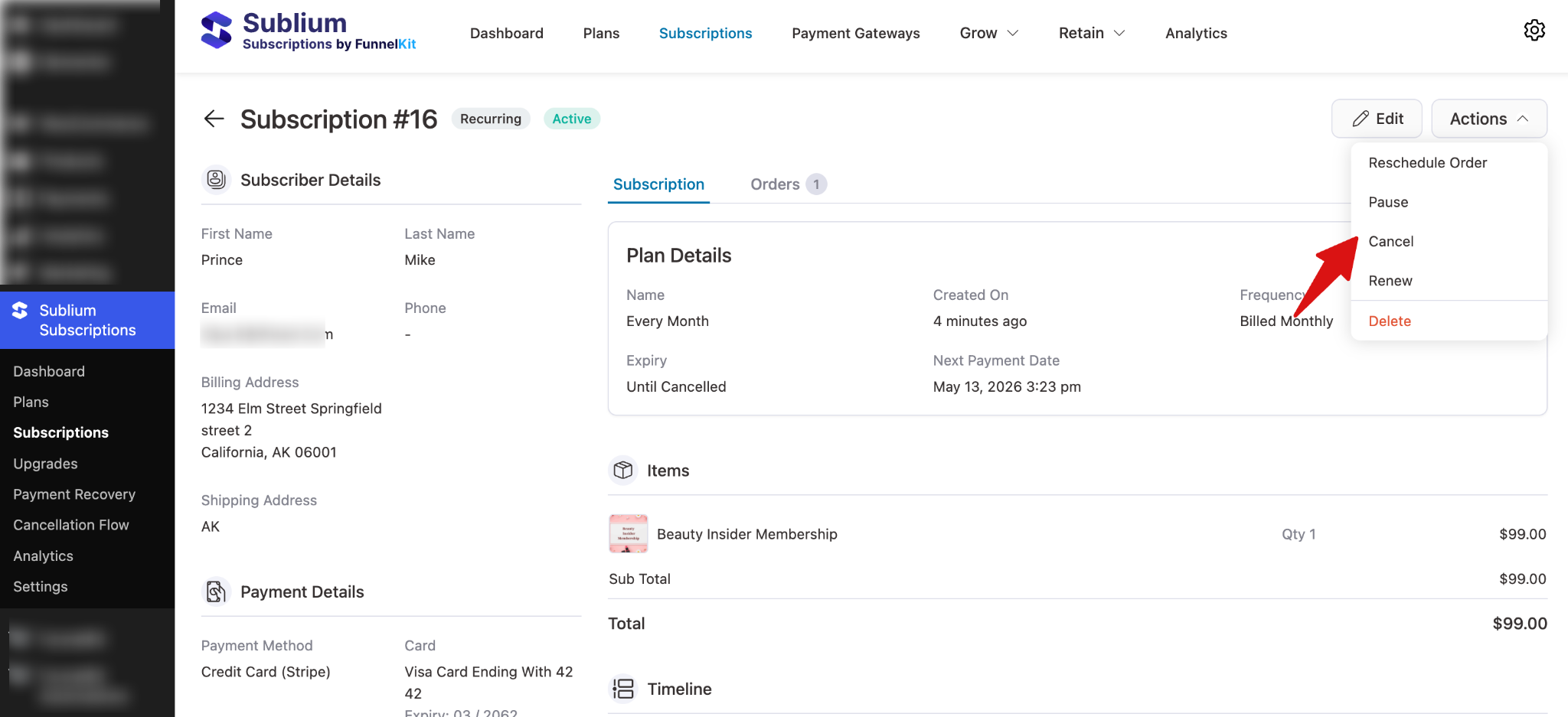
From the Sublium Subscriptions details page, you can perform various actions under the Actions section:
- Reschedule an order
- Pause the subscription
- Cancel the subscription
- Renew the subscription
- Delete the subscription
Example Use Cases
Imagine you run a subscription-based beauty and wellness site offering exclusive content and products.
You can set up:
- Influencer Affiliate Program: Partner with beauty influencers who share their unique referral links on social media
- Flat Rate Commissions: Set a flat $16.99 commission for each subscription sale
- Percentage-Based Commissions: Set a 20% referral rate for premium products
- Email Campaign Integration: Send broadcast emails with embedded affiliate links to reach wider audiences
- Multiple Billing Options: Offer weekly, monthly, or one-time purchase options while affiliates earn on each conversion
AffiliateWP handles affiliate management, referral tracking, and commission calculations, and Sublium Subscriptions manages recurring payments, subscription lifecycle, and customer self-service.


