

Sublium Subscriptions works with the Mix and Match Products for WooCommerce, allowing you to sell customizable product bundles with subscription plans.
This is ideal when you want customers to build their own box by selecting the products they prefer, while also increasing average order value through flexible bundling instead of fixed packages.
With this integration, customers can:
- Select items inside a Mix and Match bundle
- Purchase the bundle as a one-time order or subscription
How The Integration Works
- WooCommerce manages the Mix and Match product setup
- FunnelKit Sublium adds subscription plan options to the same product
- Pricing updates automatically based on selected products and quantities
In simple terms, it allows customers to create personalized product bundles and subscribe to them for recurring delivery instead of only buying once.
Before You Start
Before setting this up, make sure the following plugins are installed and active on your site:
- WooCommerce
- Sublium Subscriptions
- Mix and Match Products for WooCommerce
Also, make sure you have already decided:
- Which products do you want to include in the bundle
- The subscription plans you want to offer, such as monthly or every 2 months, etc
- Whether you want to allow a one-time purchase for the bundled products
How To Set Mix And Match Products With Subscription Plans
Here are the steps you need to follow:
Step 1: Create a Mix and Match product in WooCommerce
Go to WooCommerce > Products and create a new product.
Guide: To learn how to set up mix and match products, refer to the click guide
When setting up the product, set the Product Data type to Mix-and-Match product. Also, leave the Regular Price and Sale Price empty.
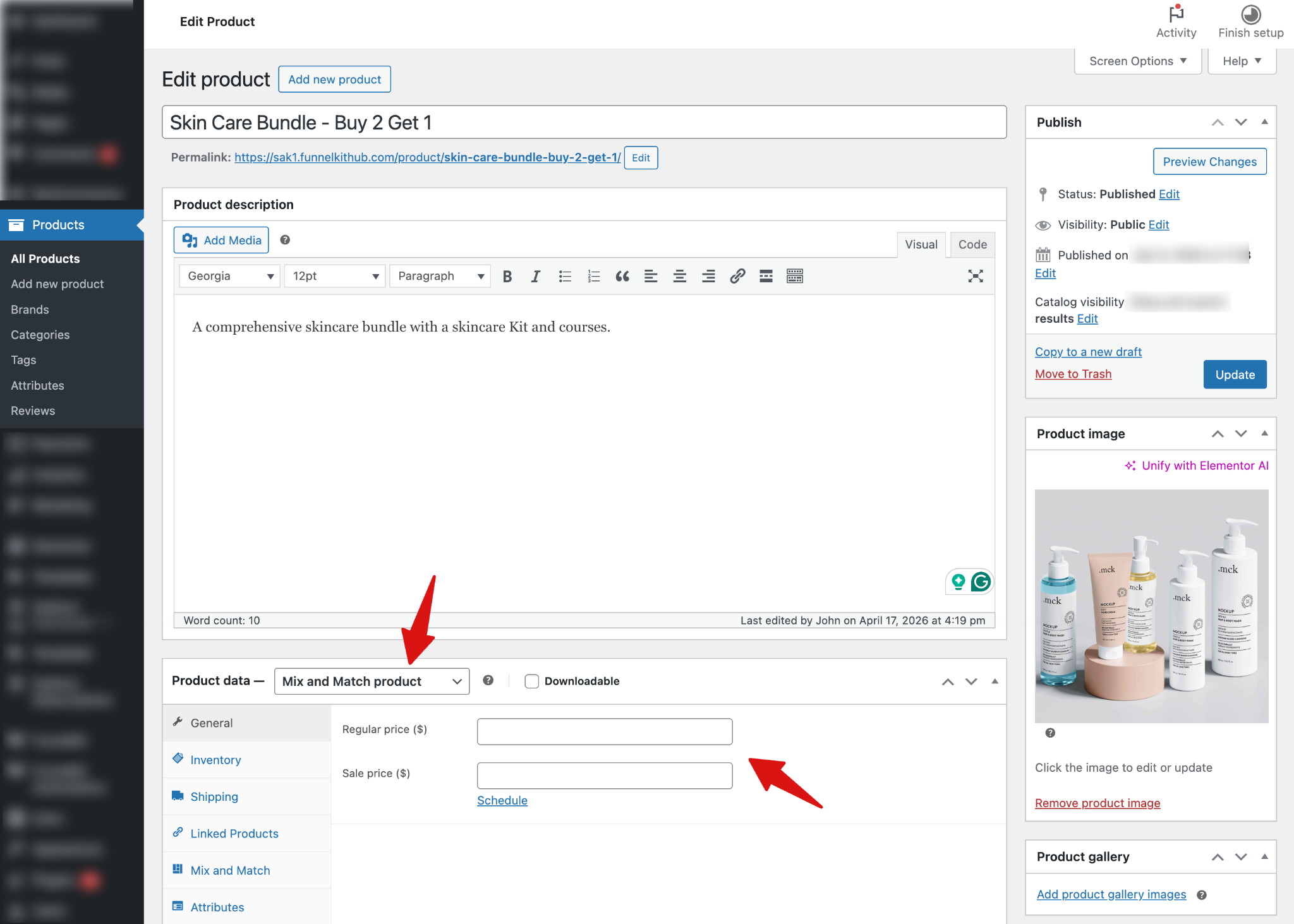
Step 2: Set pricing mode as Per-item (the price depends on the selections)
On the Mix and Match settings inside the product data section, choose the pricing mode as “Per-item — the price depends on the selections.”
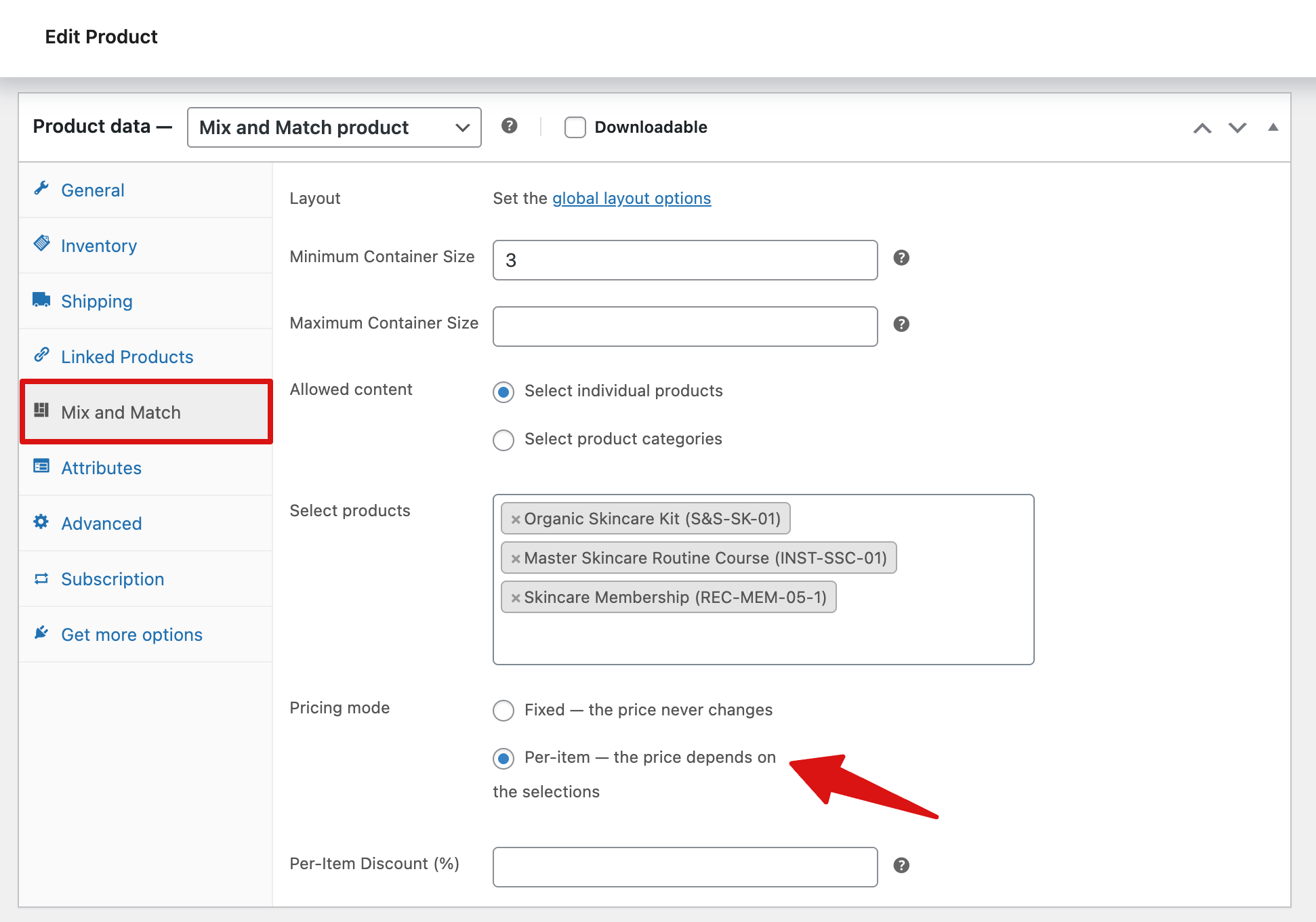
This setup ensures that the final price varies based on the products and quantities the customer selects on the checkout page.
Step 3: Create a selling plan in Sublium Subscriptions and assign the mix & match product

Once the Mix and Match product is set up, go to FunnelKit Sublium and create a new plan. Then add different subscription options such as Monthly, 2-monthly, and 3-monthly plans.
After that, assign the Mix and Match product. Here, if you want, you can offer a discount on the plans you created.
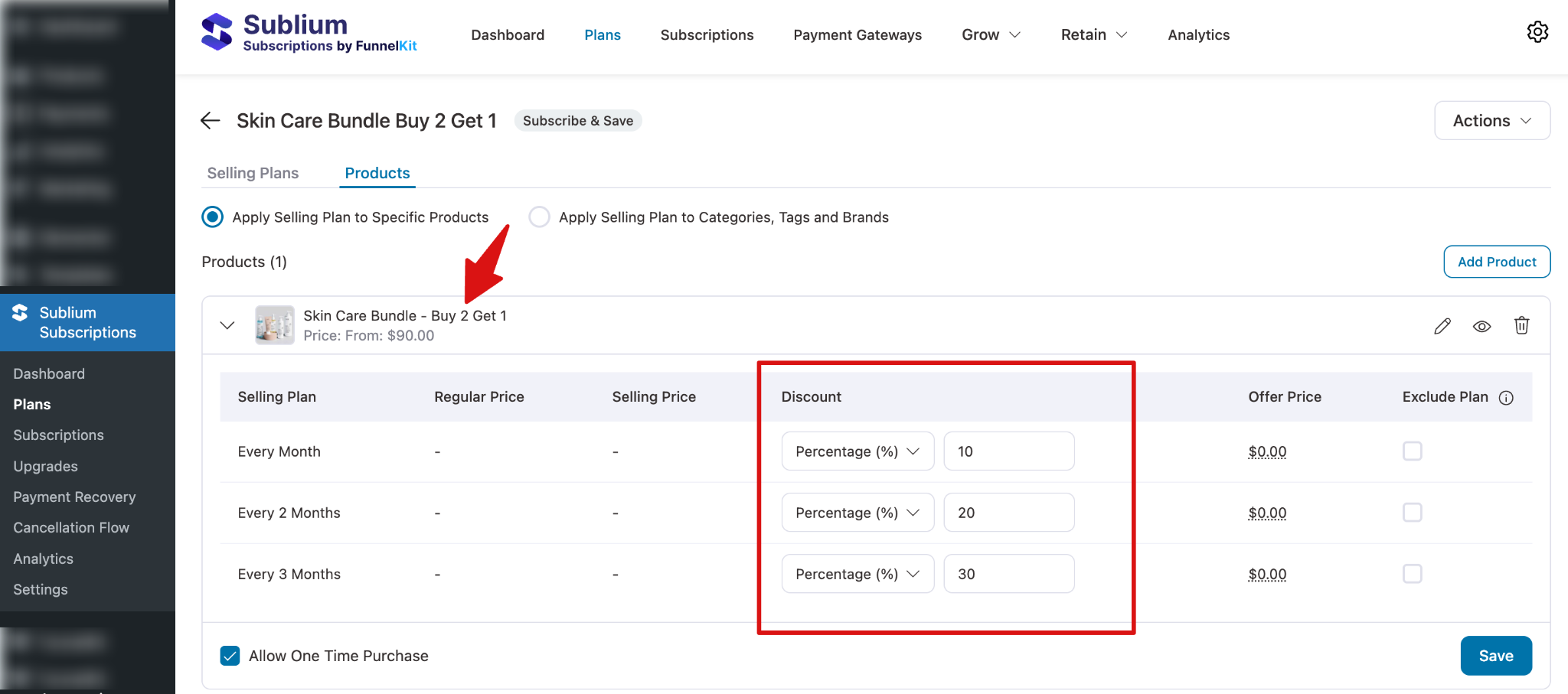
Step 4: Test the mix and match product with Sublium Subscription plans
After completing the setup, open the product page on the front end of your site.
Customers will be able to view the available products inside the Mix and Match bundle, choose a Sublium plan, and select a one-time purchase option (if enabled). They can also adjust the quantity and combination of items in the bundle based on their preference.
As customers add or remove items, the total price updates automatically in real time.
For example:
- If they add one item, that item’s price is added to the total
- If they add more items, the total increases accordingly
- If they change quantities, the total updates based on those changes
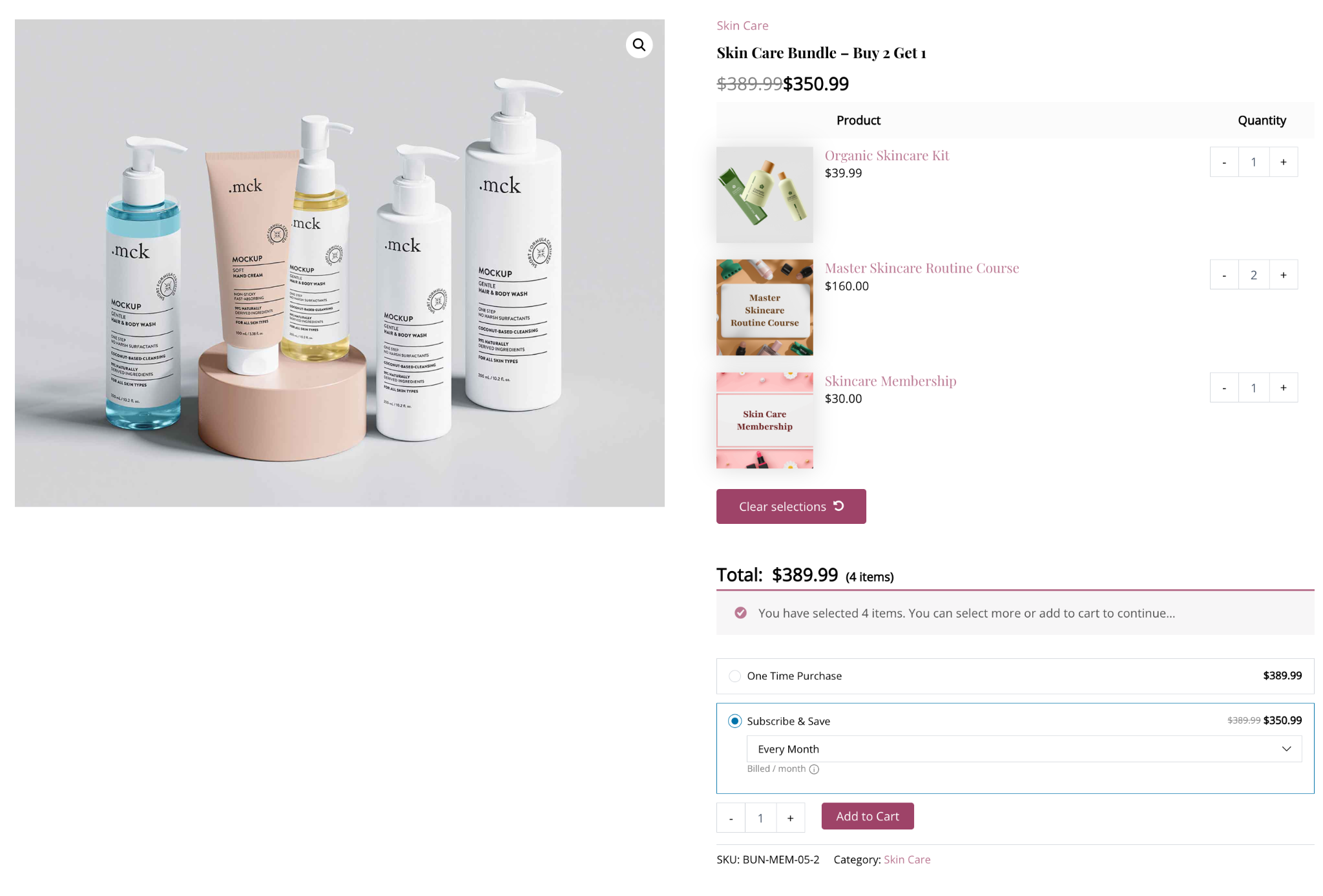
This allows customers to build their own custom bundle while still purchasing it under a subscription plan.
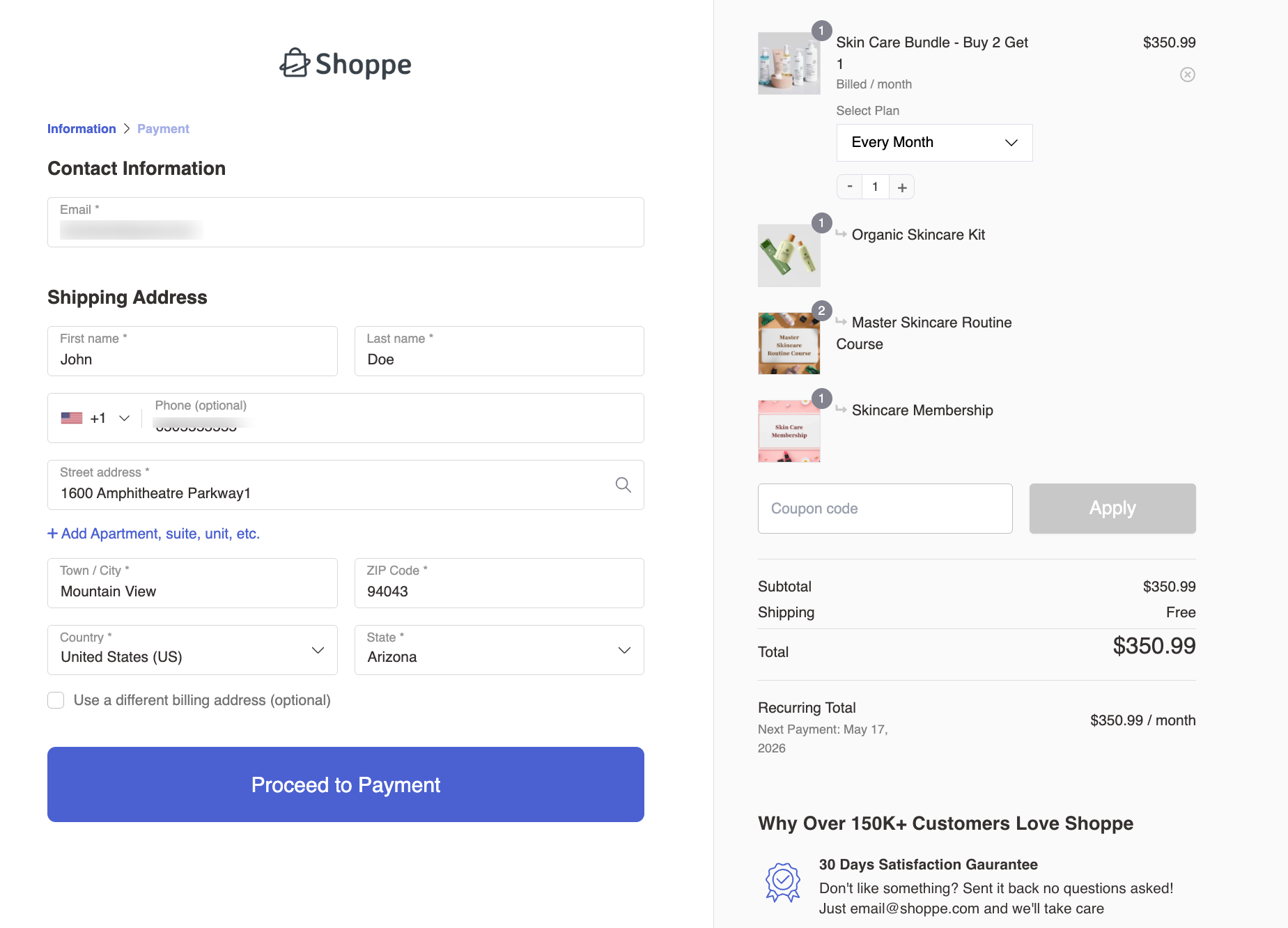
Once the customer is happy with the selection, they can add the product to the cart and continue through the normal checkout process.
The checkout flow works like a standard WooCommerce purchase, with the selected Sublium Subscriptions plan applied to the Mix and Match bundle.
Frequently Asked Questions
- Can I use this setup for physical products?
Yes. This setup is suitable for physical products. In most cases, you will create a Subscribe and Save plan for these products in FunnelKit Sublium.
- Do I need to set a regular price on the Mix and Match product?
No. In this setup, the regular price and sale price should be left empty, because the final price is calculated based on the items selected in the bundle.
- Which pricing mode should I use in the Mix and Match product?
You should use Per Item Pricing, where the final price depends on the items selected by the customer.
- Can I offer a one-time purchase along with the subscription?
Yes. You can enable one-time purchase in the FunnelKit Sublium product settings if you want to offer both options.
- Can I apply discounts?
Yes. You can set discounts in two places, depending on your setup:
- Inside the Mix and Match product, such as a per-item discount
- Inside the FunnelKit Sublium plan, based on how you want to price the subscription
Need Help?
If you need help setting up the FunnelKit Sublium plan for Mix and Match Products for WooCommerce, contact the support team.


