


WooCommerce Stripe Subscriptions lets you automatically charge customers on a recurring schedule using Stripe.
Whether you run a membership site, sell subscription boxes, offer SaaS products, or any business built on recurring revenue, this setup collects payments weekly, monthly, or yearly without manually processing renewals or chasing customers for their credit card details.
The problem is that WooCommerce alone does not include subscription functionality. Stripe can process recurring payments, but it cannot track when to charge, how much to charge, or which customer to bill. To make subscriptions work, you need a subscription management plugin that integrates WooCommerce with Stripe and handles all the recurring billing logic.
In this guide, I will show you exactly what you need to get WooCommerce Stripe subscriptions working, step by step. By the end, your store will have automated recurring billing running smoothly with no manual tracking and no missed payments.
Why You Need To Accept Payment Via Stripe For Subscription Payments In WooCommerce
There are many payment options available, but Stripe stands out as the best choice for recurring payments.
It supports a wide range of payment methods, including credit and debit cards, Apple Pay, Google Pay, and more, making it easy for your customers to pay the way they prefer.
Using Stripe for your WooCommerce subscriptions ensures smooth, automated billing, reduces failed payments, and helps your business grow with minimal effort.
Here are the benefits of using Stripe for your WooCommerce subscription business:
- Easy Recurring Payments
Customers only need to subscribe once. Stripe will automatically charge them on schedule, so you get paid every month without asking them to pay again.
- Reduce failed payments
If a recurring payment fails, Stripe can retry automatically with “Smart Retries.” This helps keep subscriptions active and reduces lost revenue.
- One-tap checkout with express checkout
Subscribers can pay with Apple Pay or Google Pay instantly. No typing card numbers every month—just a tap or face scan.
- Secure customer info
Stripe uses tokenization, so credit card information never touches your site. This keeps recurring payments safe and compliant with security rules.
- Automatic subscription updates
When someone upgrades, pauses, or cancels, Stripe updates WooCommerce automatically. You don’t have to do anything manually.
- Grow your business with confidence
Recurring payments mean predictable revenue. Stripe makes managing subscriptions easy, helping your business scale smoothly.
How to Set Up WooCommerce Stripe Subscriptions
To set up a WooCommerce subscription store with Stripe for recurring payments, we’ll use Sublium Subscriptions.
This all-in-one plugin handles everything in one place for creating and managing WooCommerce subscriptions.
Plus, it includes its own Stripe gateway plugin, so payments sync seamlessly with Stripe for automatic renewals. You can offer flexible billing cycles, free trials, and subscription upgrades, while customers manage their subscriptions directly from their accounts.
Before starting, make sure to install and activate Sublium Subscriptions (both free and pro versions).
Now, let’s check how to set it up:
Note: An SSL certificate is required for Stripe to keep your checkout secure.
Step 1: Install and activate the Stripe gateway plugin
Go to Sublium Subscriptions ⇒ Payment Gateways. Here you can find all the payment gateways this plugin integrates with.
Hit Install next to Stripe.
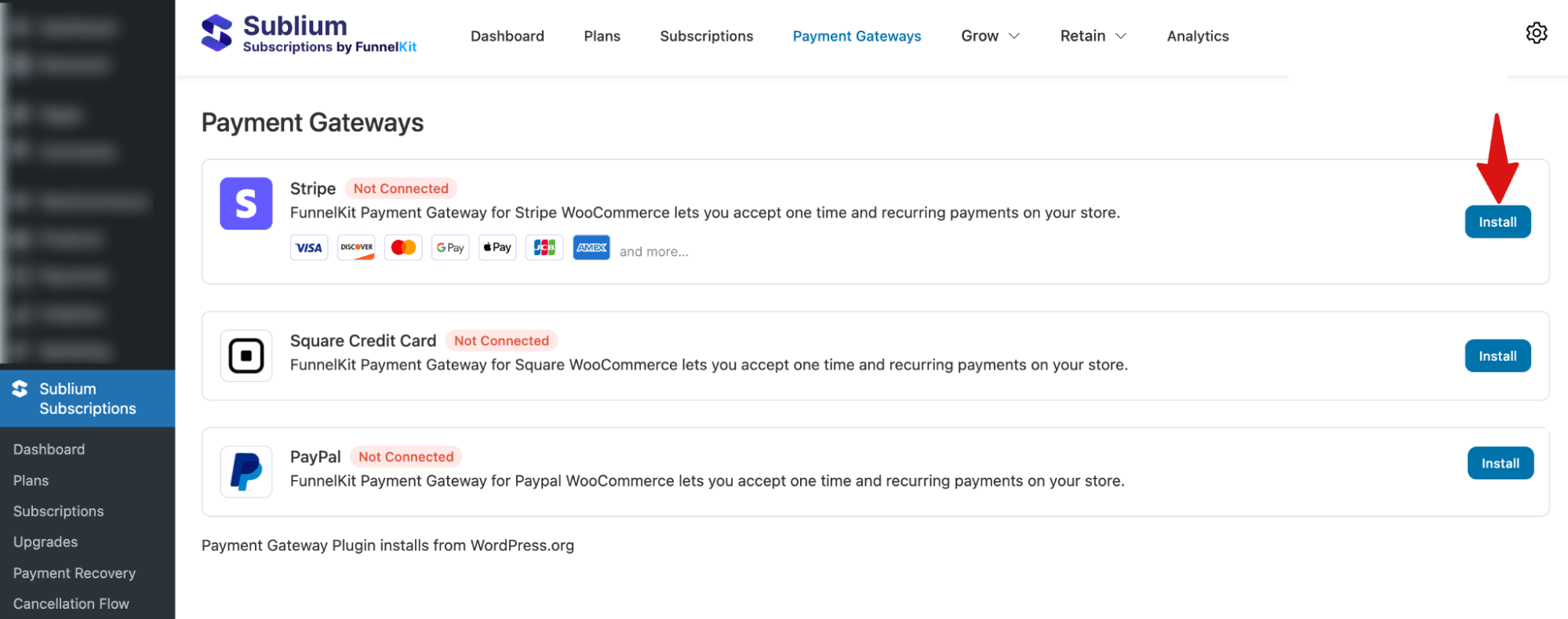
After installing, hit Activate to activate the Stripe integration plugin.
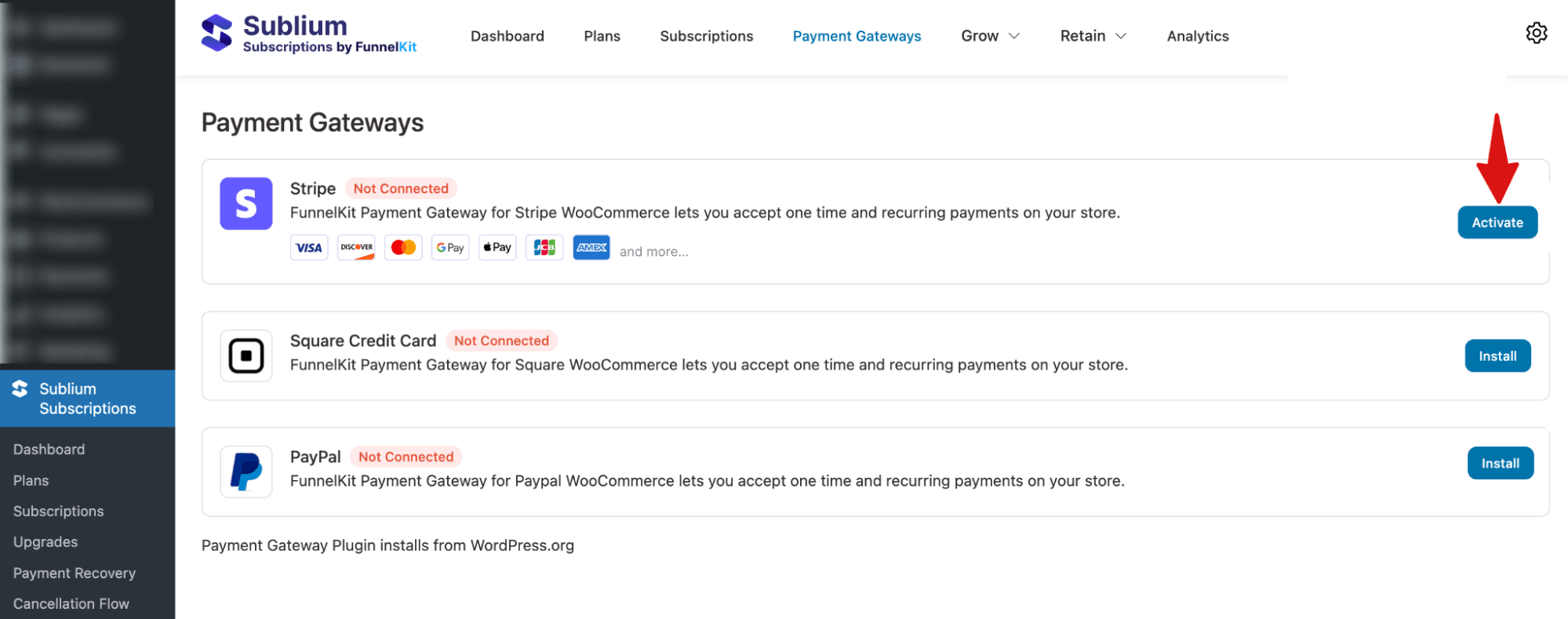
Step 2: Connect Your Stripe Account and configure
Now, it’s time to connect to your Stripe account and configure. For this, hit Connect.
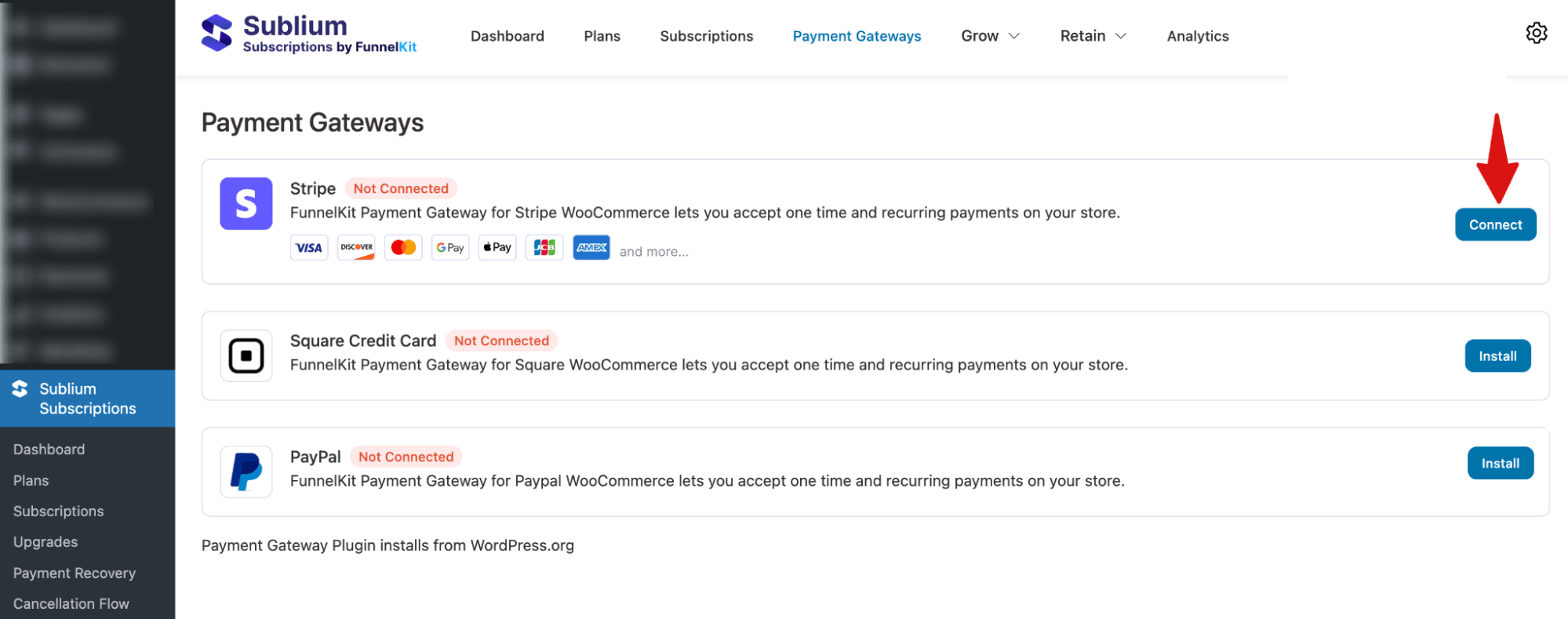
You will be redirected to the Stripe login page. Enter the email address and hit submit. Next, provide the password to log in to your Stripe account.
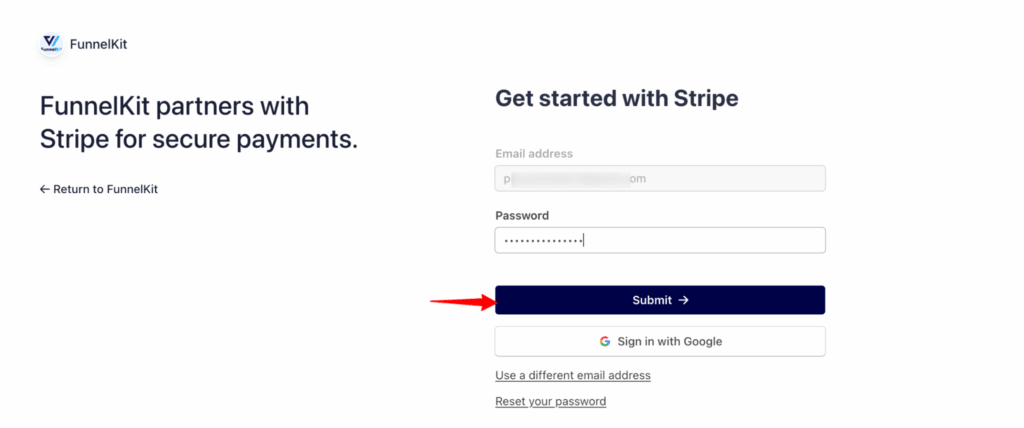
After submitting your login credentials, you will be prompted to enter an OTP (One-Time Password). Check your email or mobile device for the OTP, then enter it in the provided field.
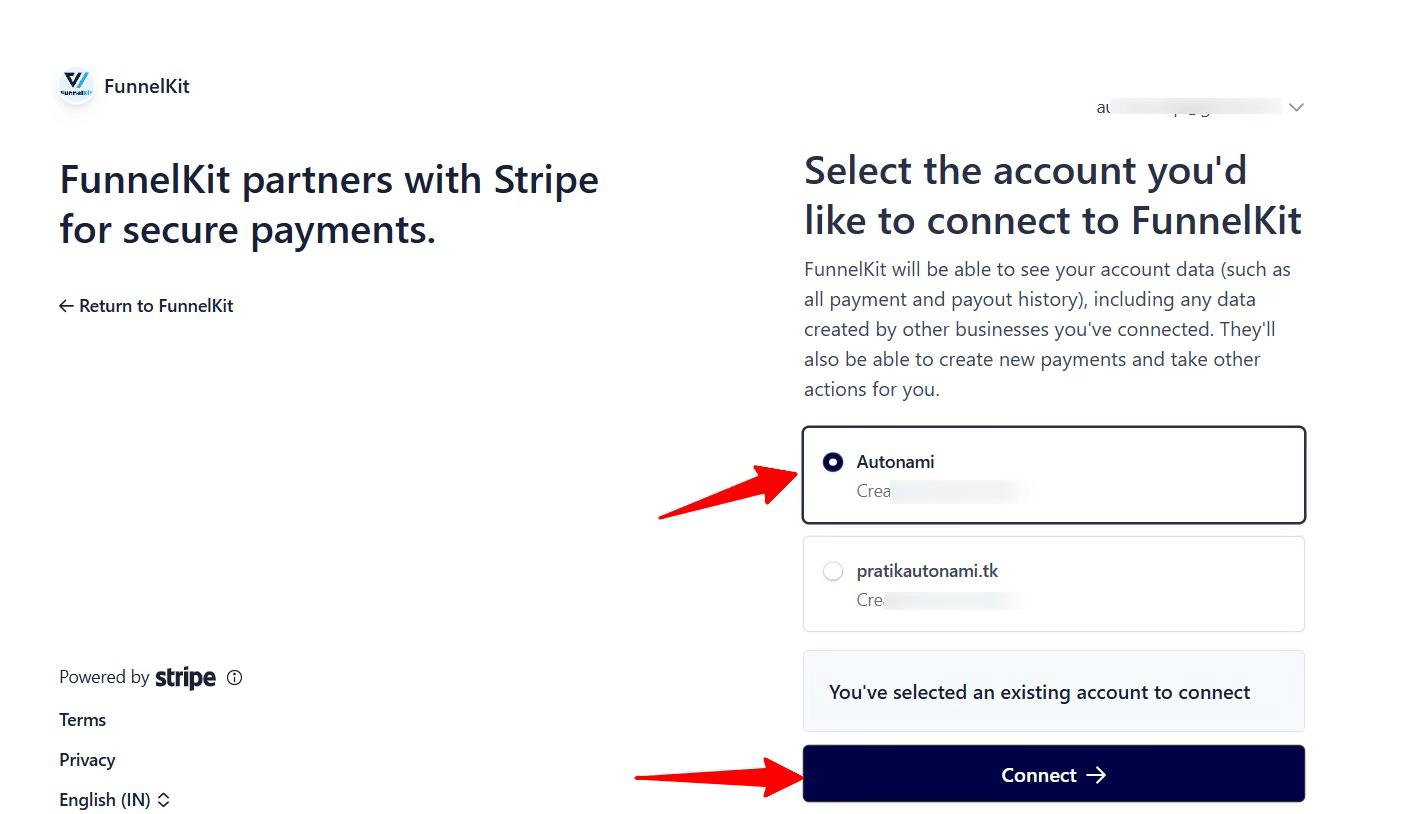
After verifying the OTP, you will be asked to select your Stripe account. Choose the account you wish to connect.
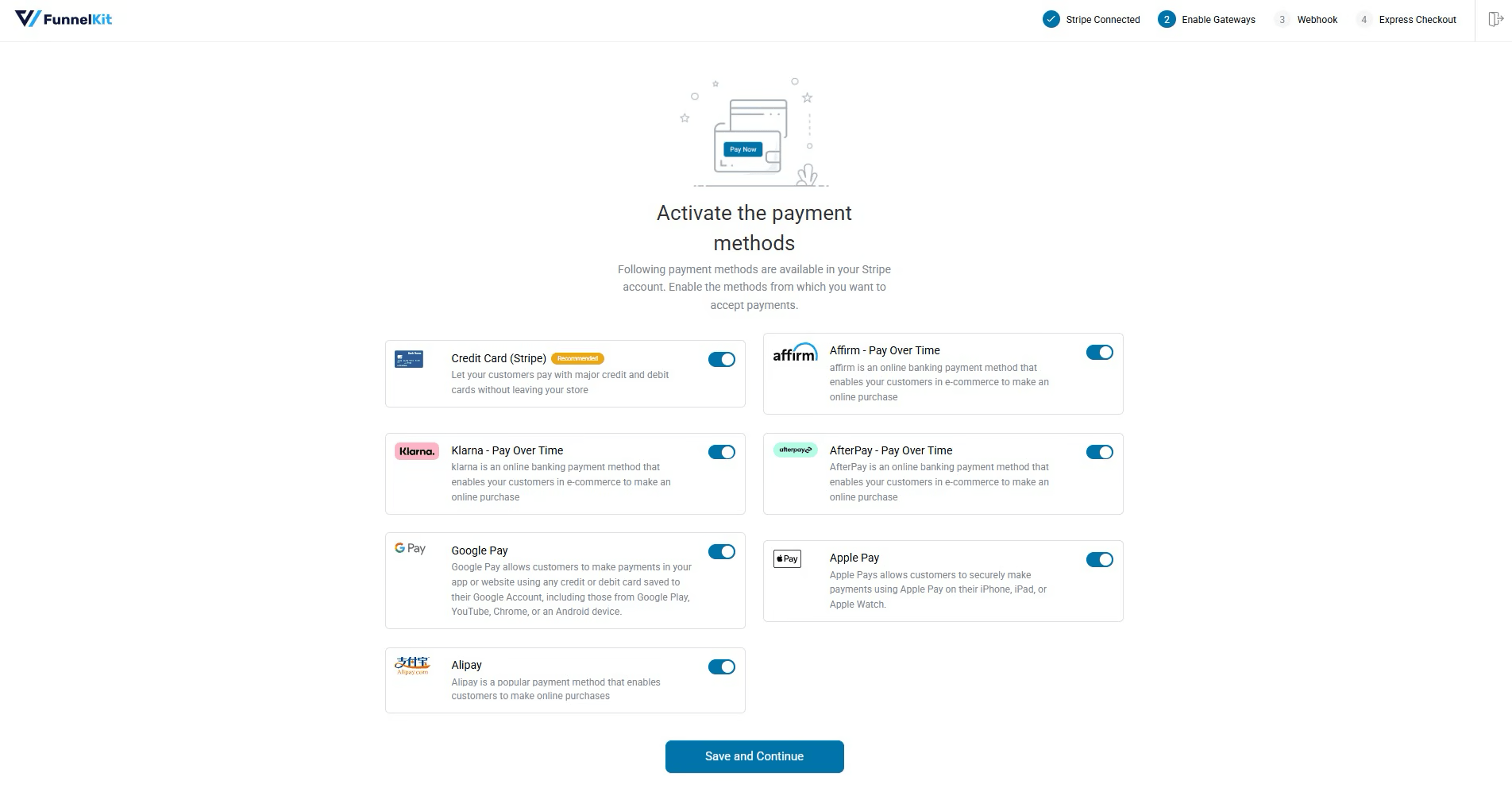
Now, turn on the toggle button to enable all the payment options you need. This option will allow your customers to pay with major credit and debit cards.
Then click on Save and Continue.
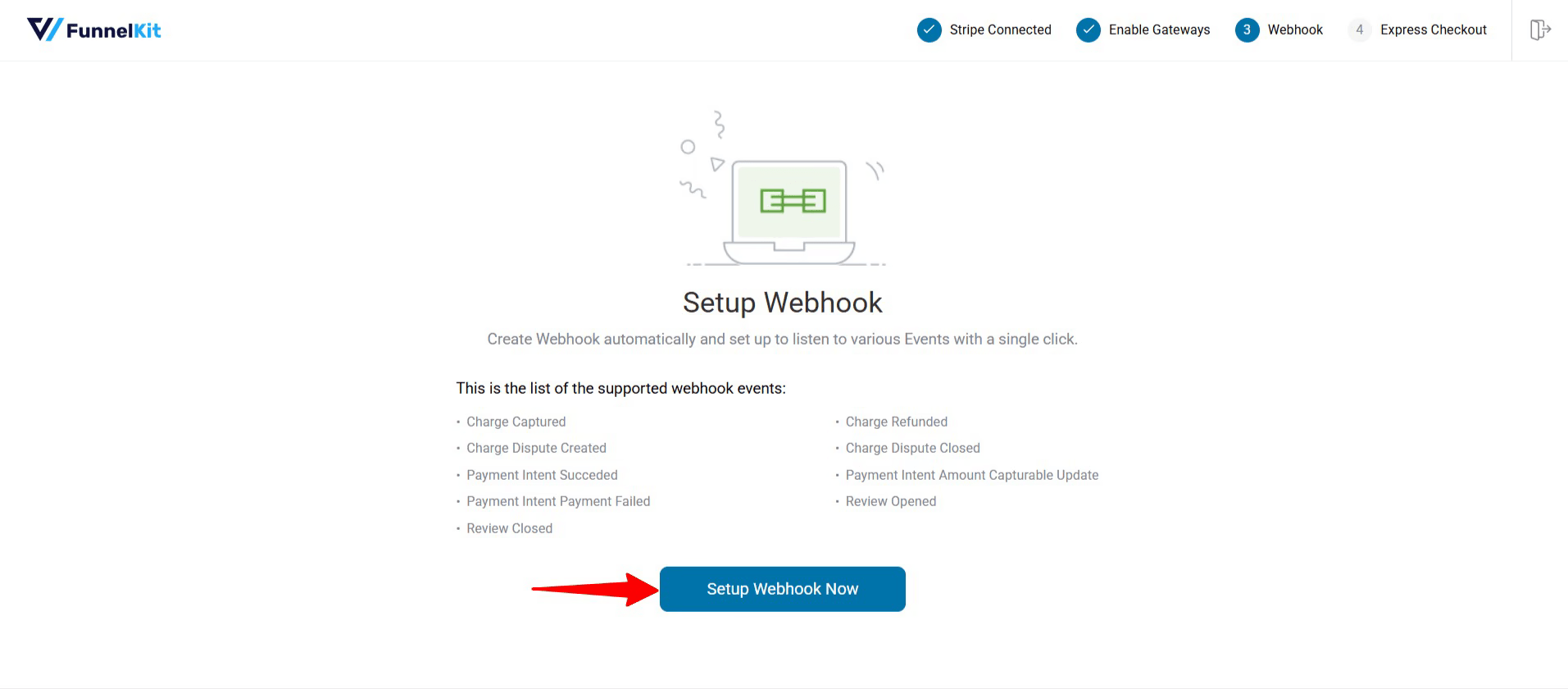
Next, you need to create a webhook. To do that, click on Setup Webhook Now. Stripe Gateway for WooCommerce by FunnelKit will take care of everything for you.
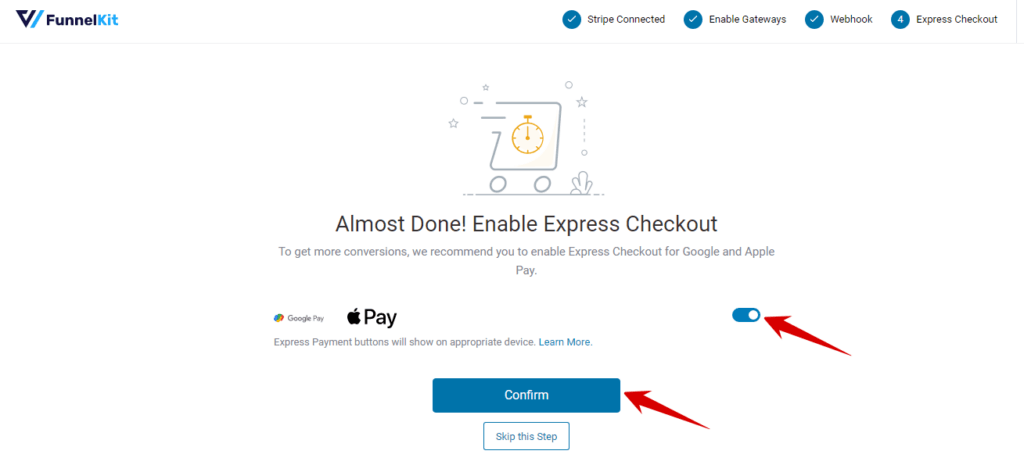
To enable Express Checkout, turn the toggle button on, then hit Confirm.
Lastly, you need to click choose mode (test or live) and then save the settings.
Note: It’s recommended to check the whole process with test mode first.
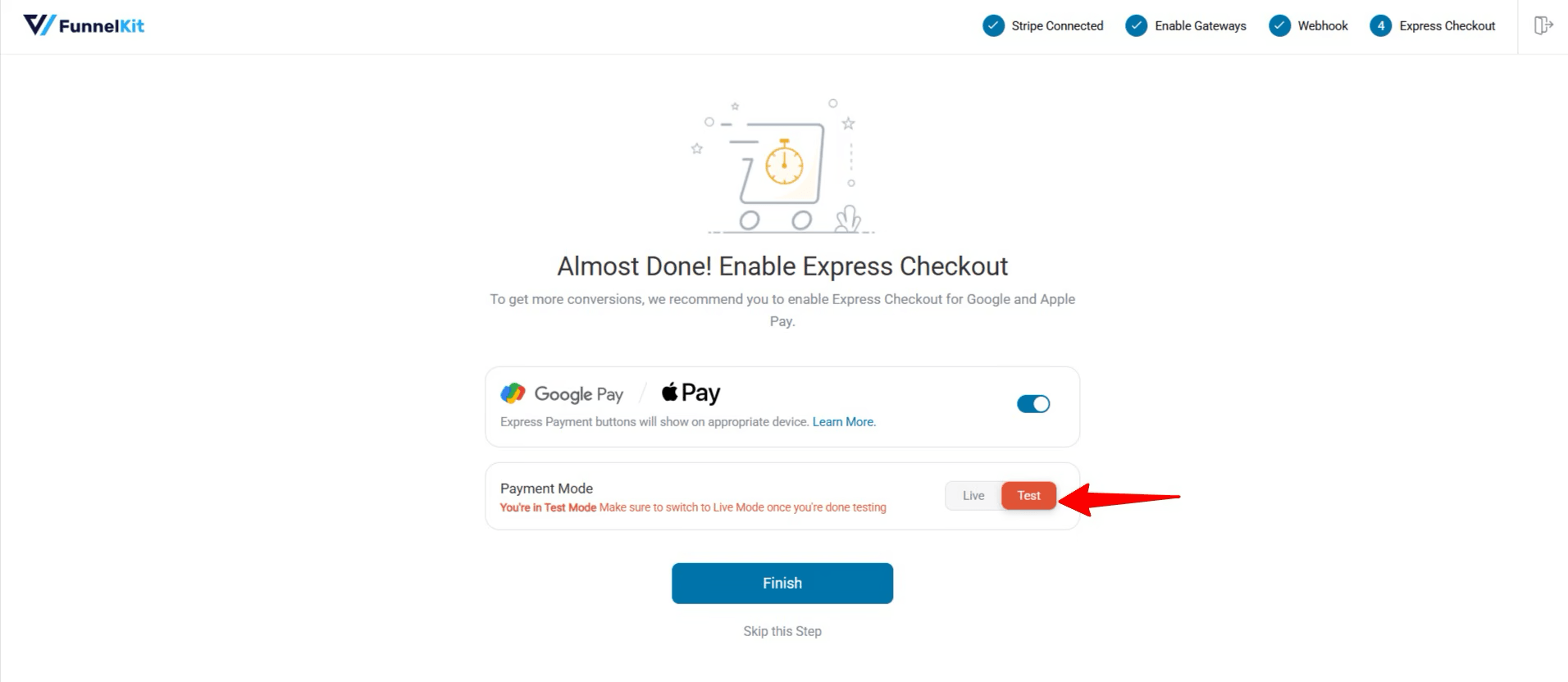
Finally, hit finish to complete.
Step 3: Configure Retry Settings for Failed Payments
After you finish setting up first time payment, you need to configure retry settings for recurring billing in case it fails.
For this, navigate to the “Payment Recovery” tab. Here, you can set up to 6 retries to attempt charging and specify the delay time for each retry attempt.
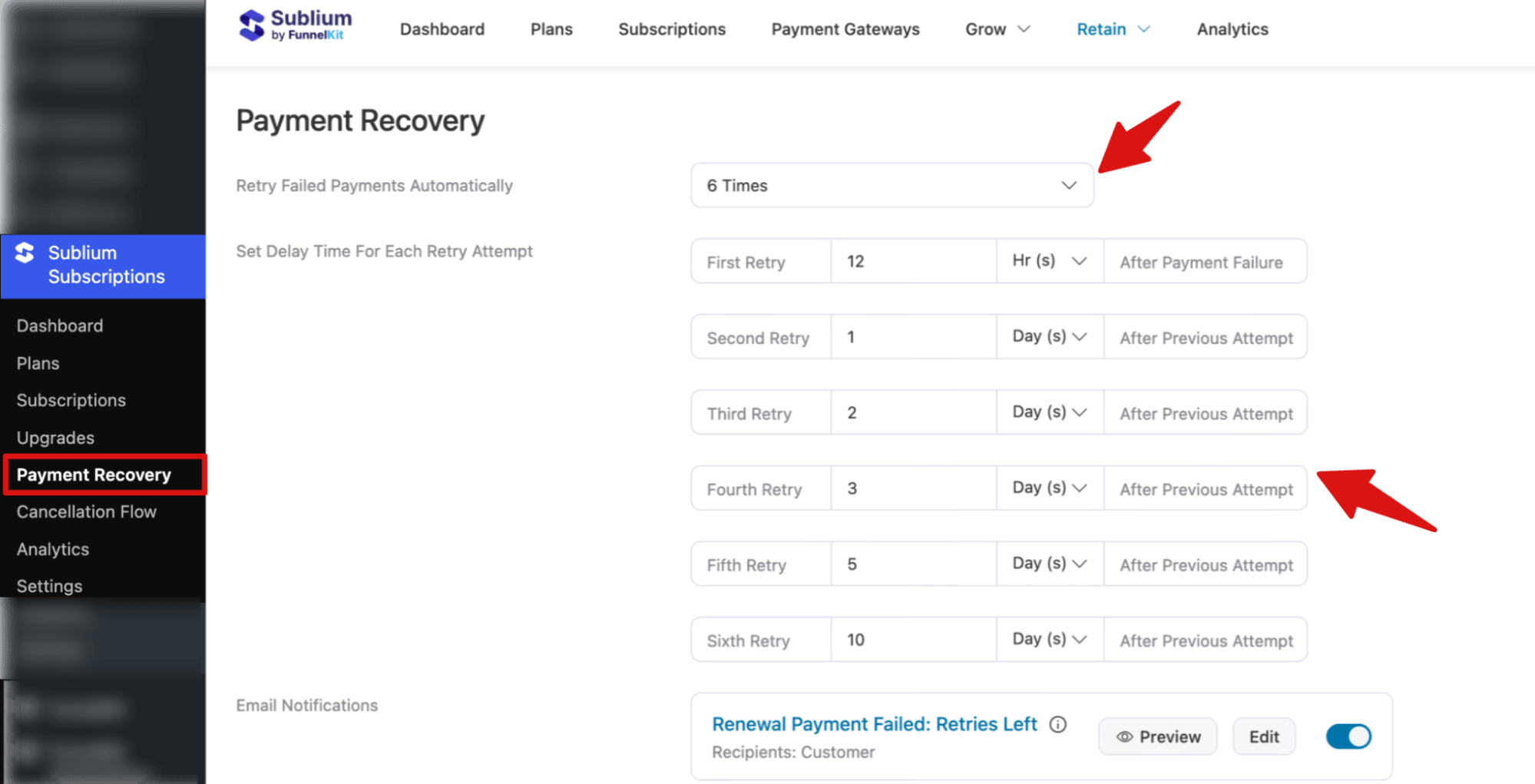
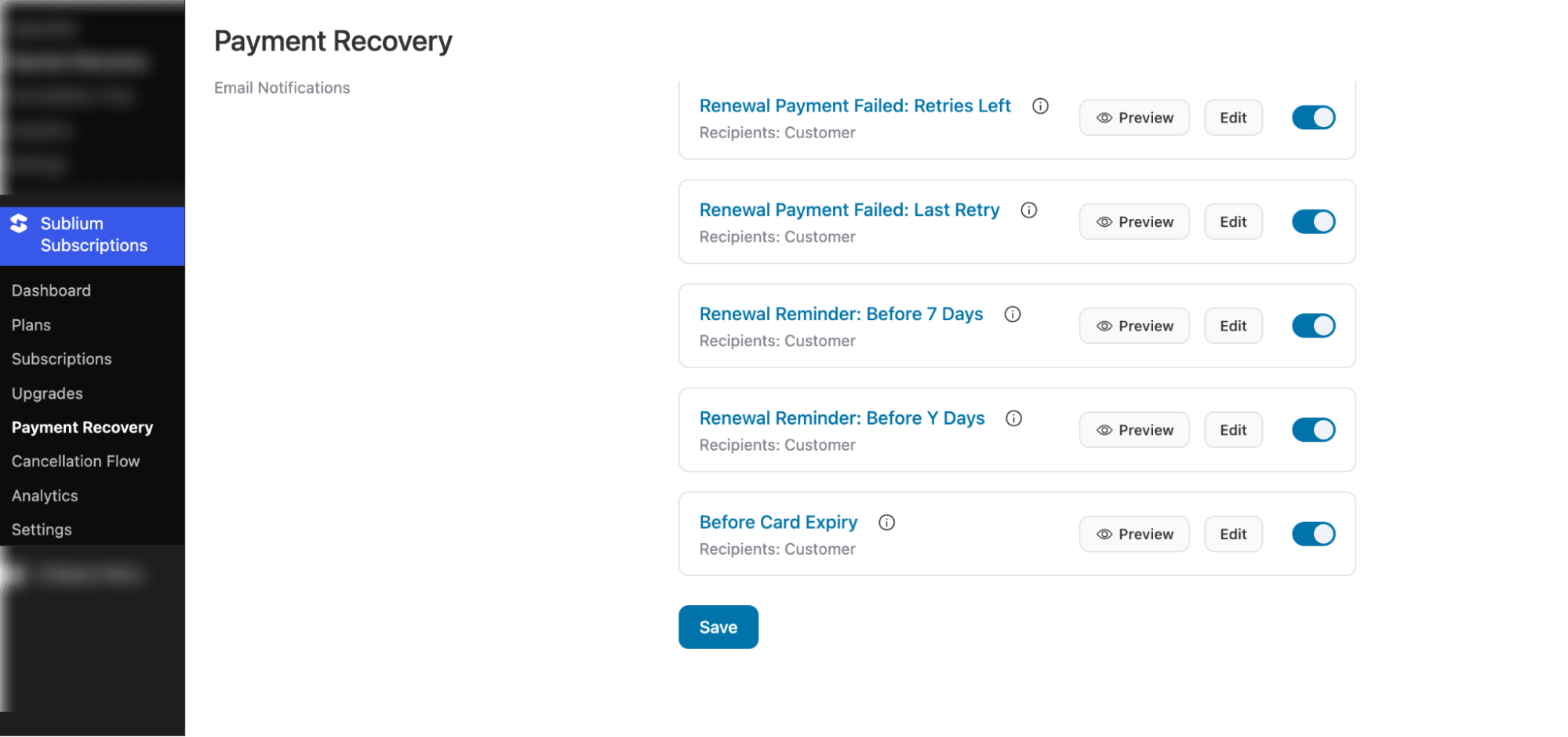
With each retry, you can also send an email notification.

Step 4: Create subscription plans
In Sublium Subscriptions, you can create different plans and then add one or multiple products to the subscription plans.
You can create three different types of subscriptions:
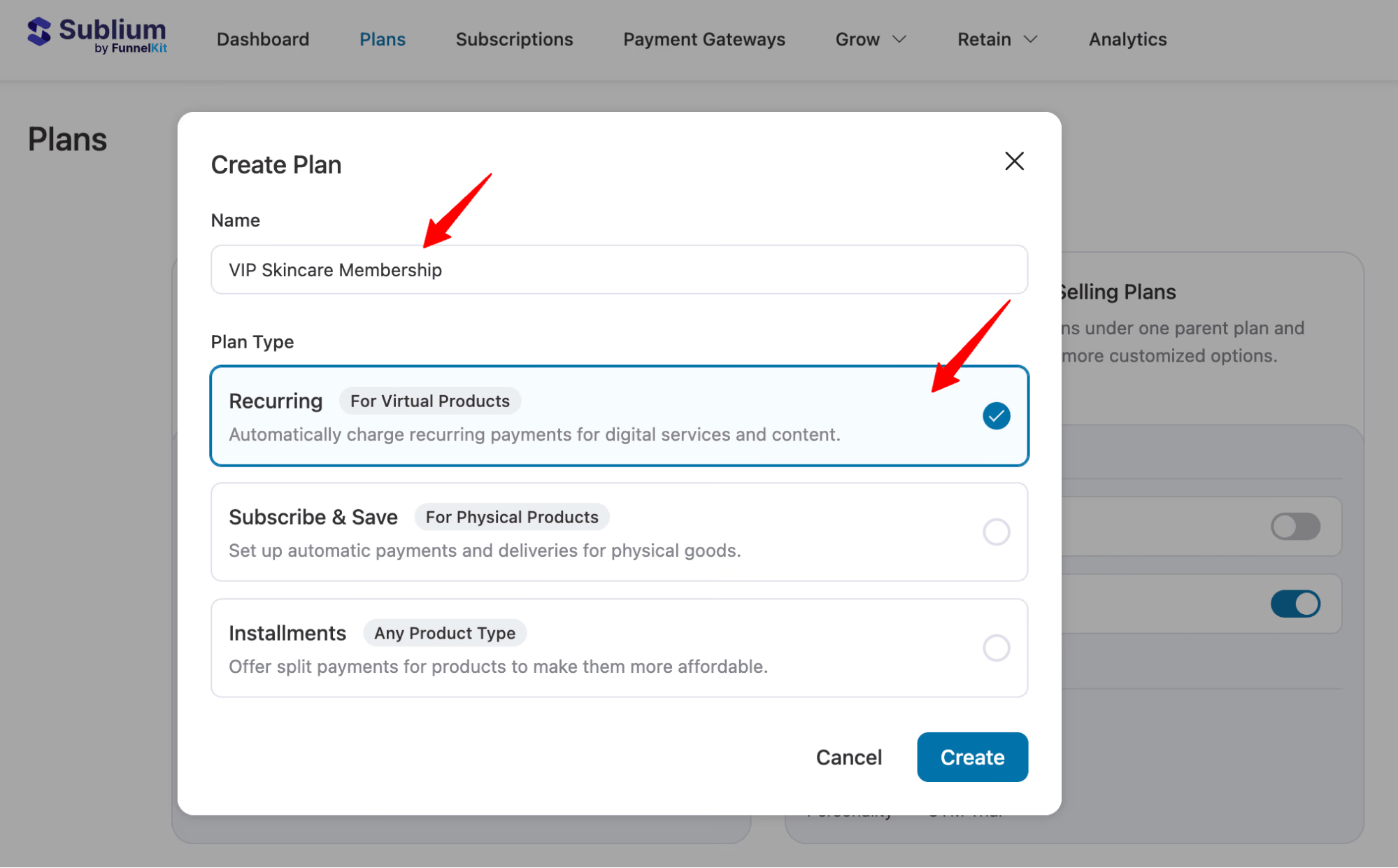
- Recurring Subscription Plan: These types of plans automatically charge recurring payments for virtual products. Ideal for Virtual Products.
- Subscribe & Save Plan: Automatically charge and deliver physical products regularly. Ideal for Physical Products.
- An Installment Plan: Offer split payments for products to make them more affordable. For any product.
To create it, go to Sublium Subscriptions ⇒ Plans and create a new subscription plan. Click on create plan in Sublium subscriptions. Enter the name and select the type.
Next,you can set up a selling plan by configuring its frequency, interval, pricing details (like free trial and sign-up fee), duration, and display information to match your subscription model.
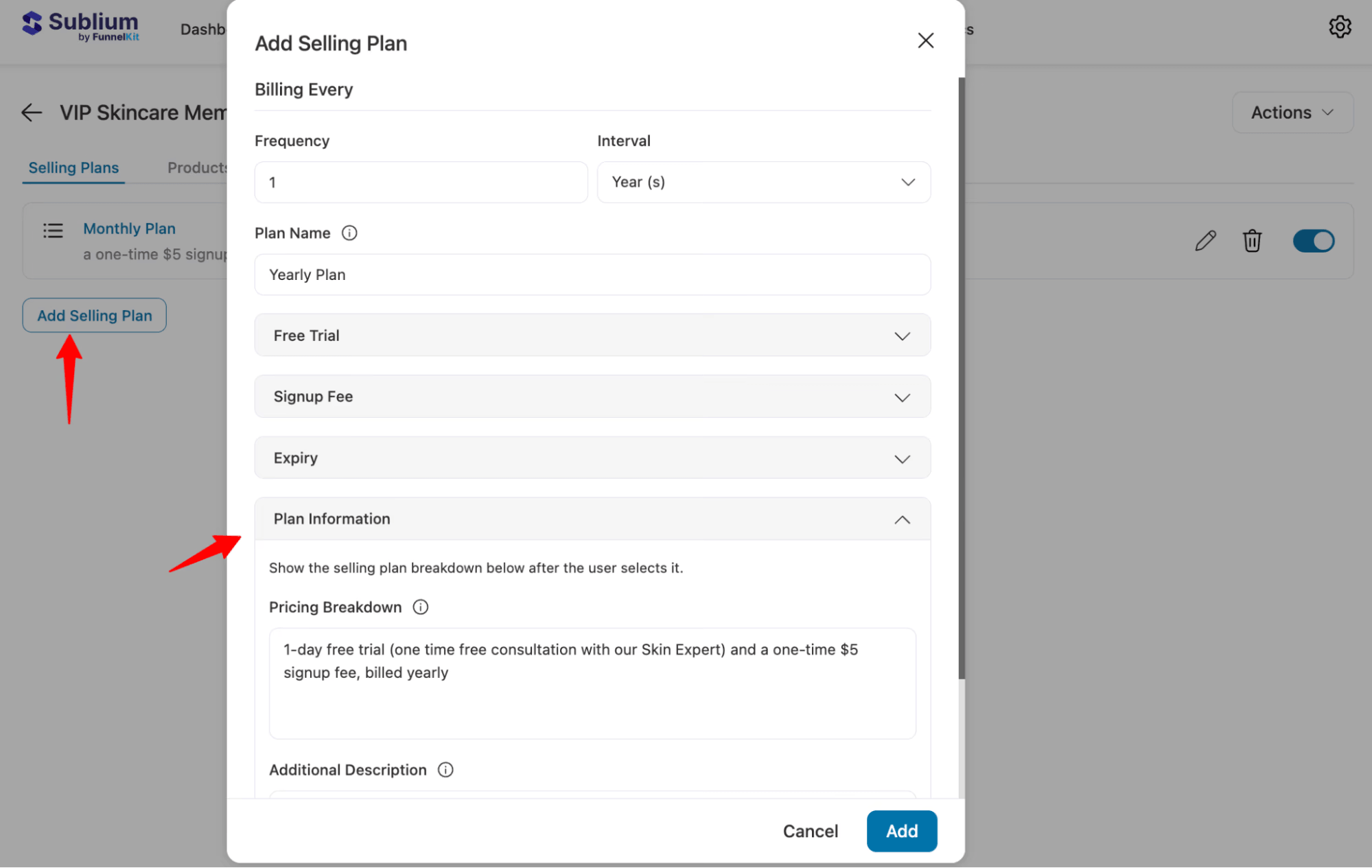
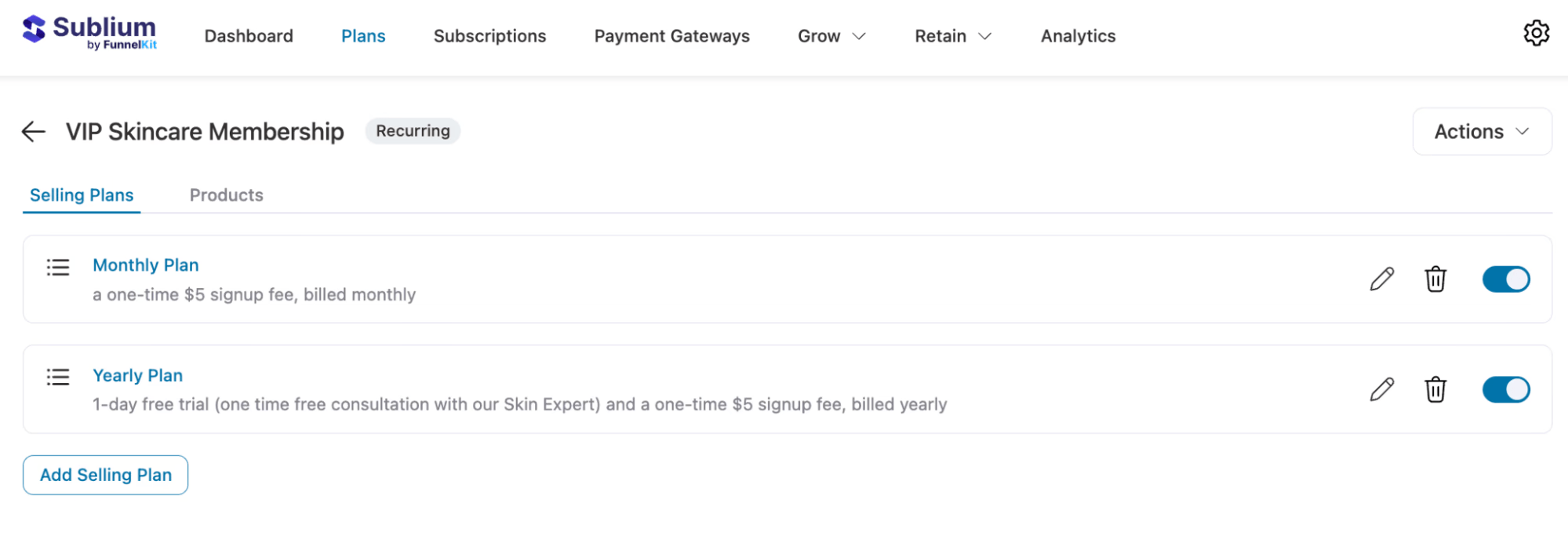
You can add as many plans as you want with different frequencies and intervals.
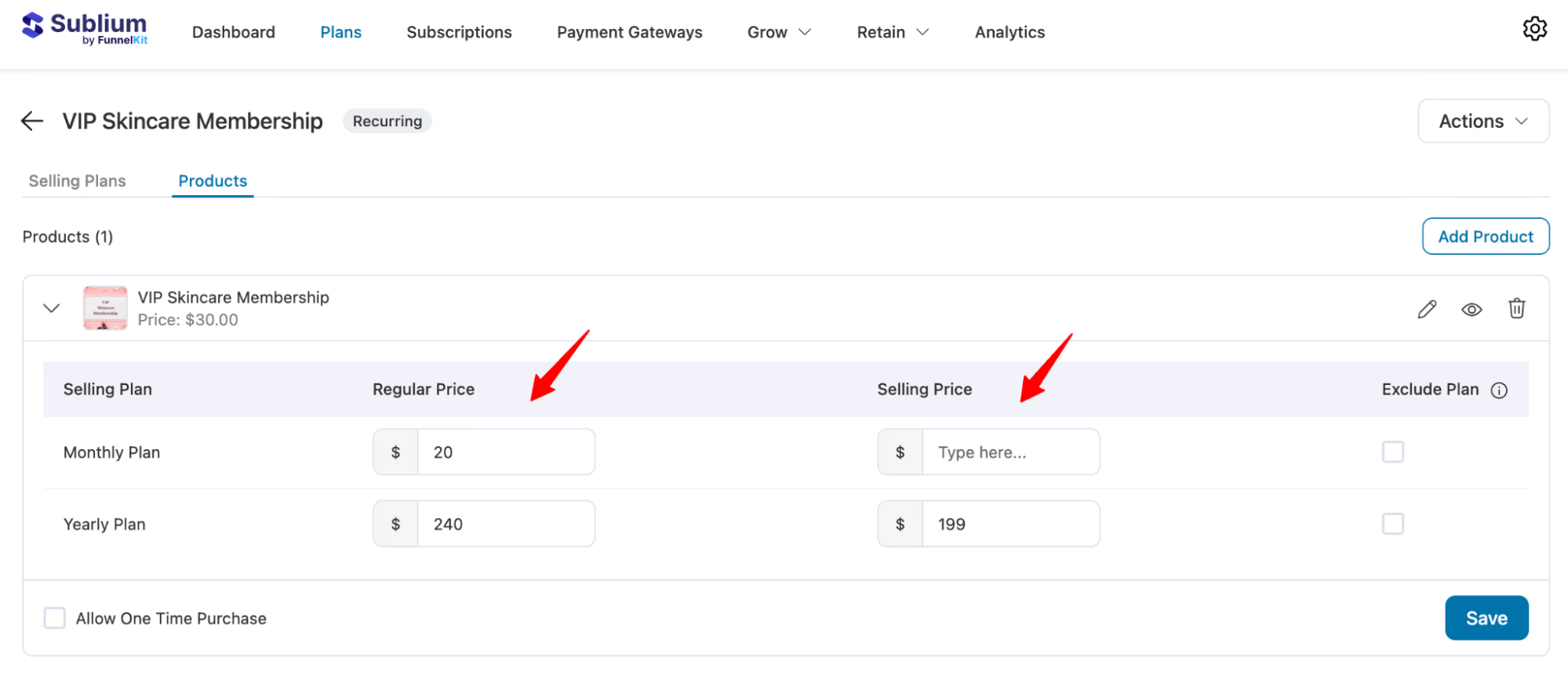
Next, go to the Products tab, add products to your plan, and set their pricing, optionally applying discounts or excluding specific plans as needed.
Make sure the plans are activated.
That’s it. Your WooCommerce subscription store is ready to receive Stripe payments.
Step 5: Test a Subscription Purchase
Before going live, test the entire flow using Stripe’s test mode. Make sure Stripe is still set to test mode.
Add your subscription product to the cart, then proceed to checkout.
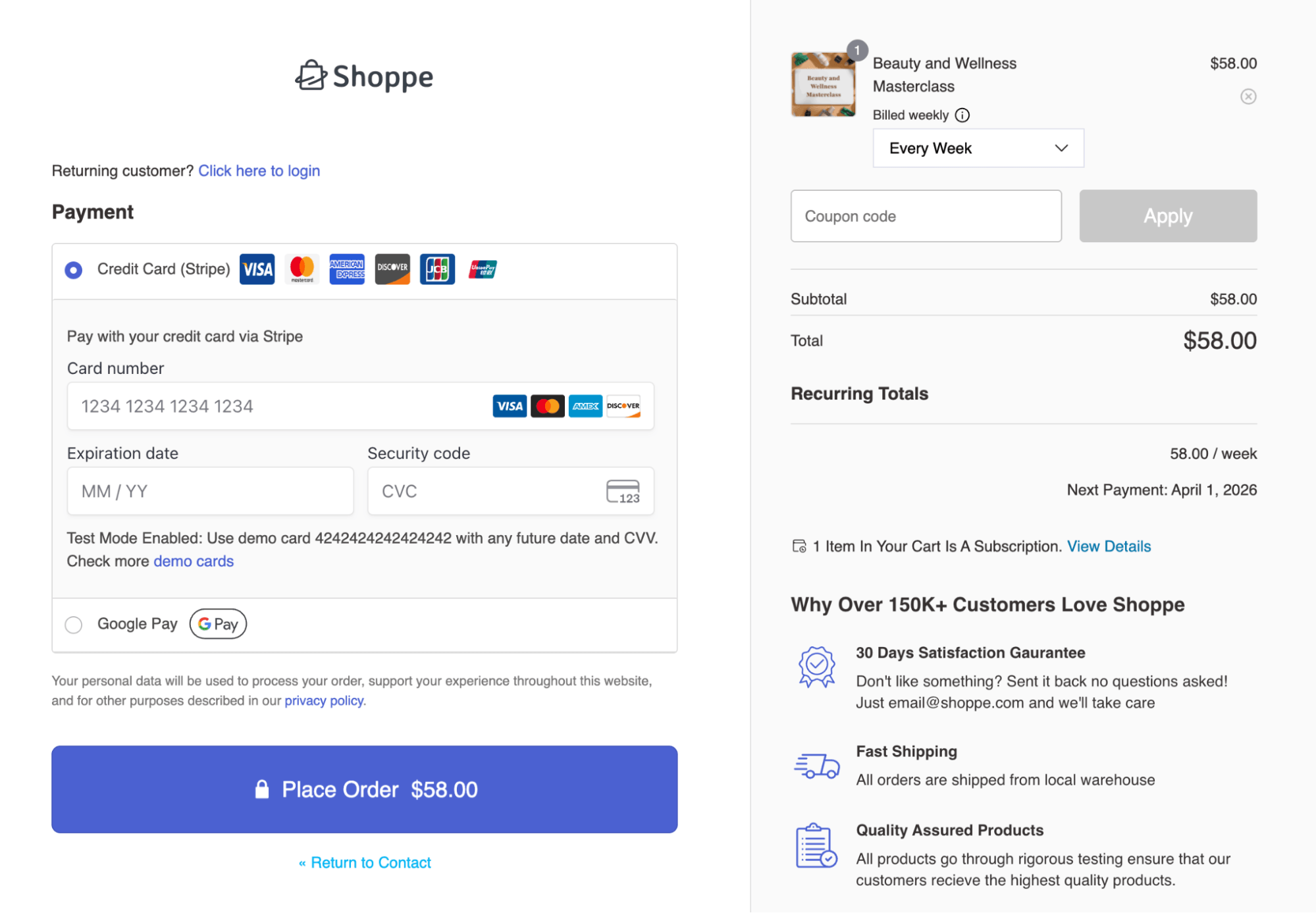
Complete the purchase successfully.
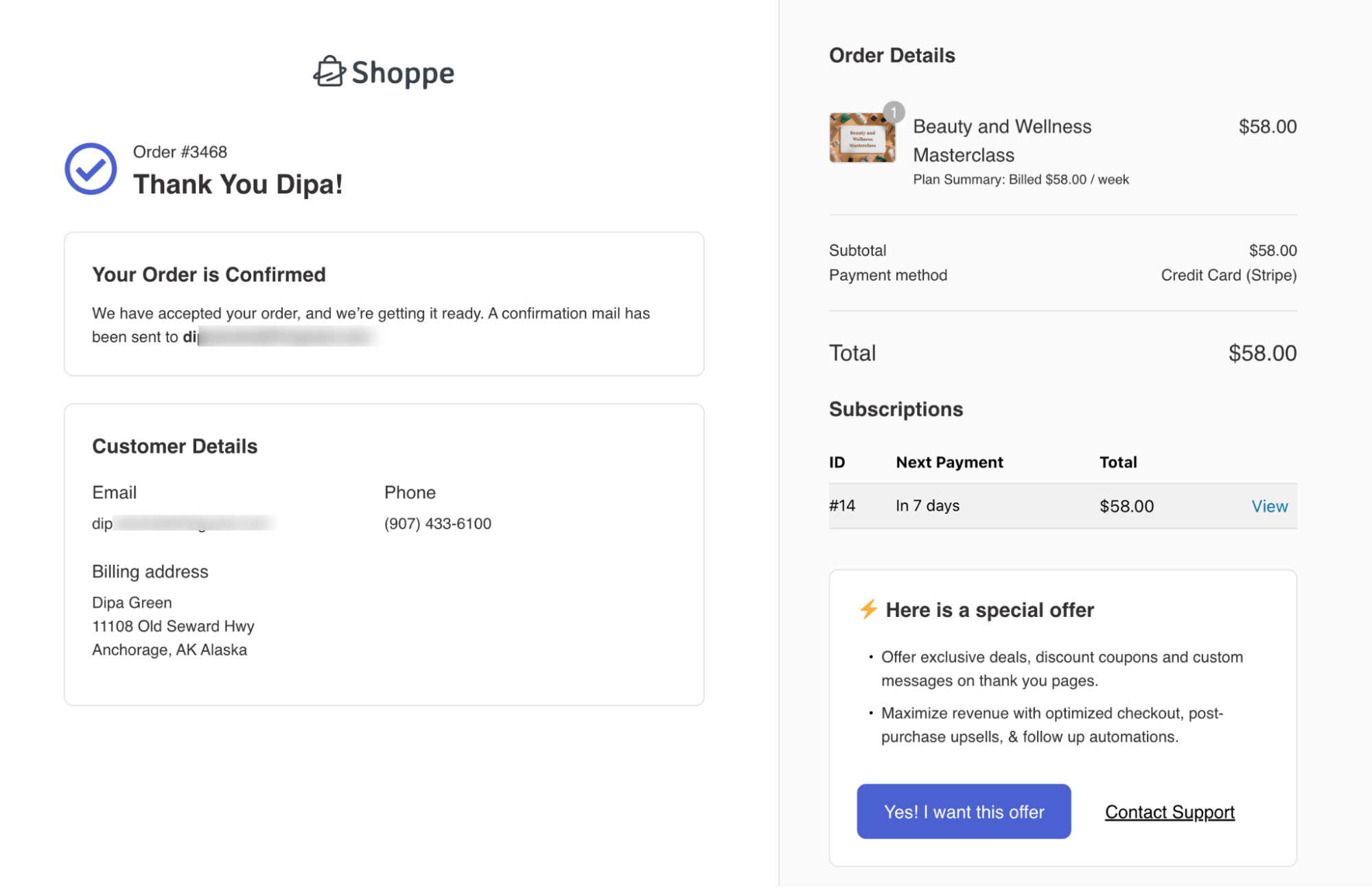
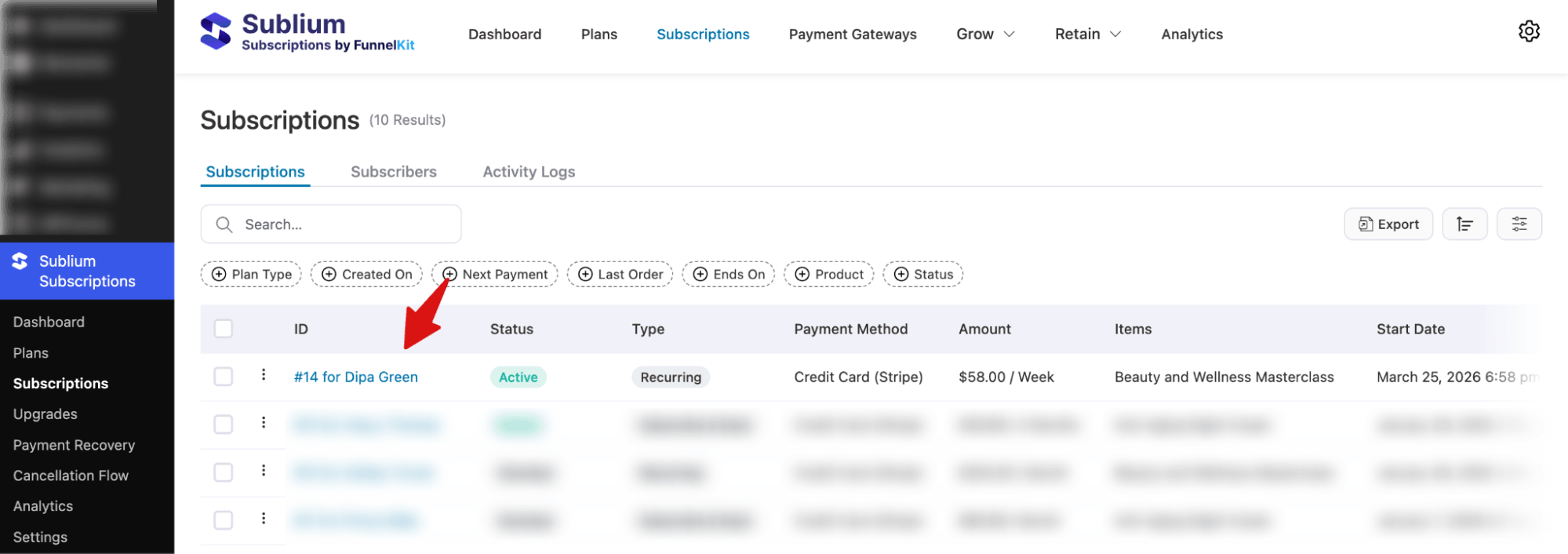
After the purchase, check your Sublium Subscriptions ⇒ Subscriptions dashboard to confirm the subscription was created.
Check your Stripe test dashboard to confirm the payment was processed.
If everything looks correct, you can switch to live mode and start accepting real subscription payments.
Common Questions About WooCommerce Stripe Subscriptions
Got more questions? Here are the most common questions with answers:
Can you use Stripe for subscriptions in WooCommerce?
Yes, that is possible. You need a subscription plugin like Sublium Subscriptions and the Stripe payment gateway. Sublium Subscriptions. Manages the subscription and Stripe processes the recurring payments automatically.
Do I need WooCommerce Subscriptions to use Stripe subscriptions?
No, you do not need that. You can use any popular subscription management plugin. It does not have to be the official WooCommerce Subscriptions extension. Sublium Subscriptions is an alternative that integrates with Stripe for recurring billing.
Does Stripe charge extra for subscription payments?
You can add custom fields to your WooCommerce checkout by clicking on the ‘Add Field’ button in FunnelKit.
Stripe charges the per-transaction fee for subscription payments as it does for one-time payments. In countries this is 2.9% plus 30 cents per successful charge. There is no monthly fee from Stripe for handling subscriptions.
Can I offer trials with WooCommerce Stripe subscriptions?
Yes, you can. Sublium Subscriptions supports trials. You set the trial length when creating the subscription product. Stripe does not charge the customer until the trial period ends.
Does Stripe support failed payment retries in WooCommerce?
Yes, it does. Sublium Subscriptions handles logic for Stripe subscription payments. You configure the number of retries and the delay between retries. Stripe processes each retry attempt when Sublium Subscriptions triggers it. We shared more details in the blog above.
Why is Stripe not showing subscriptions in the Billing section?
When you use Sublium Subscriptions, Stripe subscriptions are managed in WooCommerce, not in Stripe Billing. Stripe processes the charges, but the Stripe subscription object itself lives in WooCommerce. You will see the payments in the Stripes Payments section. Not subscription entries in Stripe Billing.
Can customers manage their Stripe subscriptions themselves?
Yes, they can. Customers log into their WooCommerce account. Go to My Account > Subscriptions. They can pause, cancel, or update their payment method for their Stripe subscriptions without contacting you.
Setting Up WooCommerce Stripe Subscriptions Is Straightforward with the Right Tools
WooCommerce Stripe subscriptions require a subscription plugin and a Stripe payment gateway working together. Sublium Subscriptions handles the subscription logic, billing schedules, and customer management inside WooCommerce. Stripe processes the recurring payments securely without storing card details on your server.
Once you connect Stripe and create your first subscription product, the system runs automatically. Renewals process on schedule, failed payments retry based on your settings, and customers manage their subscriptions from their WooCommerce account.
If you are ready to start accepting recurring payments, install Sublium Subscriptions and the Sublium Subscriptions Stripe Gateway plugin, connect your Stripe account, and create your first subscription product.
The setup takes less than a few minutes, and you will have automated billing running in your WooCommerce store.


